Subscription includes
Support
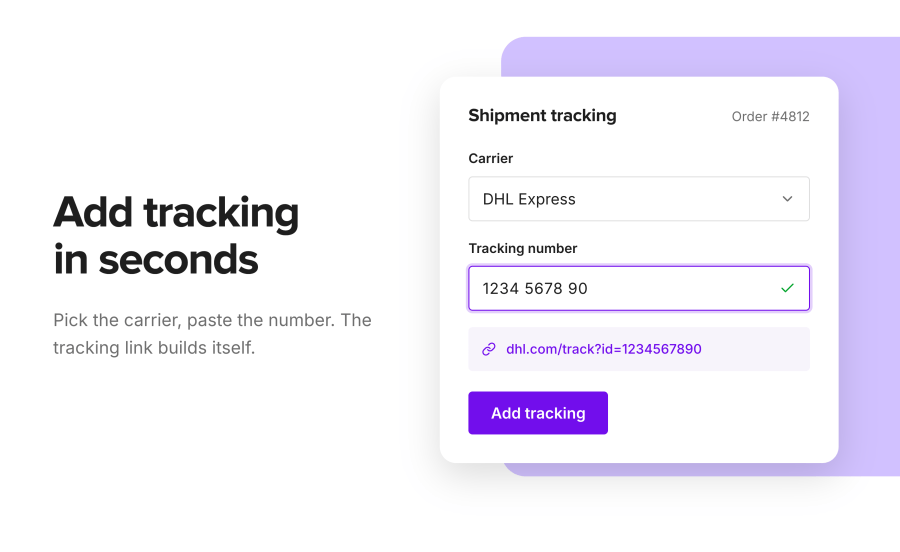
Order Shipment Tracking for WooCommerce adds a Shipment Tracking box to every order. Type the tracking number, pick the carrier, and click Save. Your customer gets an email with a link to the carrier’s tracking page, and the same link appears in their My Account area. You stop copying tracking numbers into emails by hand, and customers stop writing in to ask where their order is.
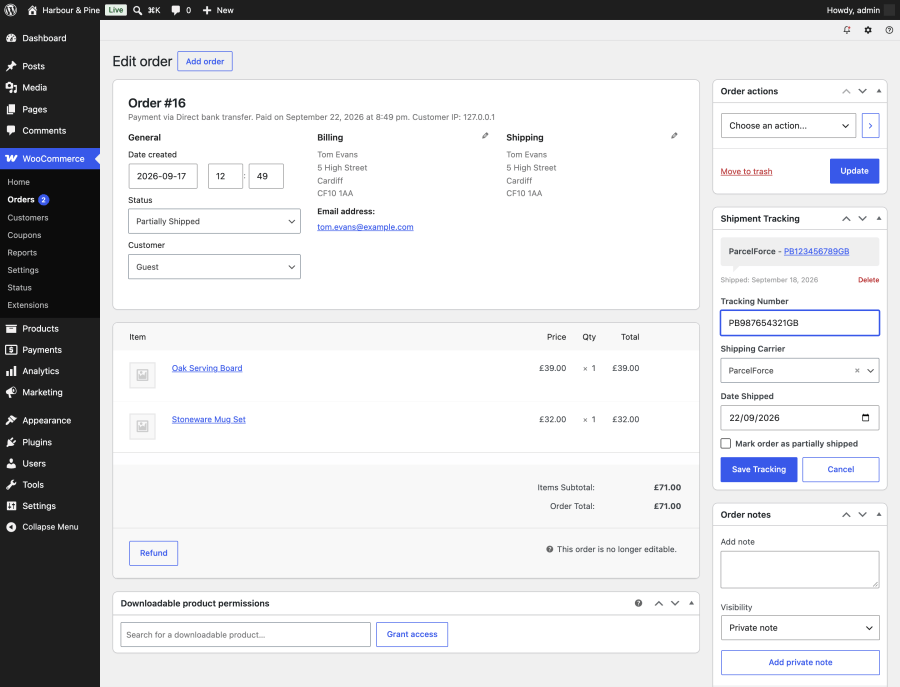
The Shipment Tracking box sits on the order edit screen. Enter the tracking number, choose the carrier, and confirm the ship date, which defaults to today. Add as many tracking numbers to one order as you have parcels. Each one is listed with its carrier and ship date, and you can delete a wrong entry with one click.
Saving a tracking number sends your customer a Shipment Tracking email listing every tracking number on the order, each linked to the carrier’s tracking page. It’s a standard WooCommerce email, so you edit its subject, heading, and extra text at WooCommerce > Settings > Emails, and it uses your store’s email design. Need to send it again? Pick Resend shipment tracking email from the order actions.
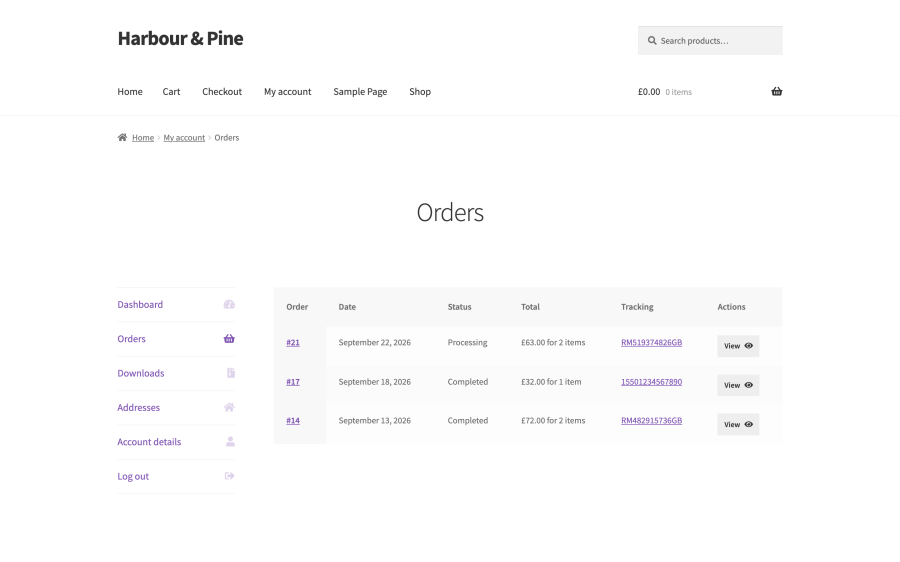
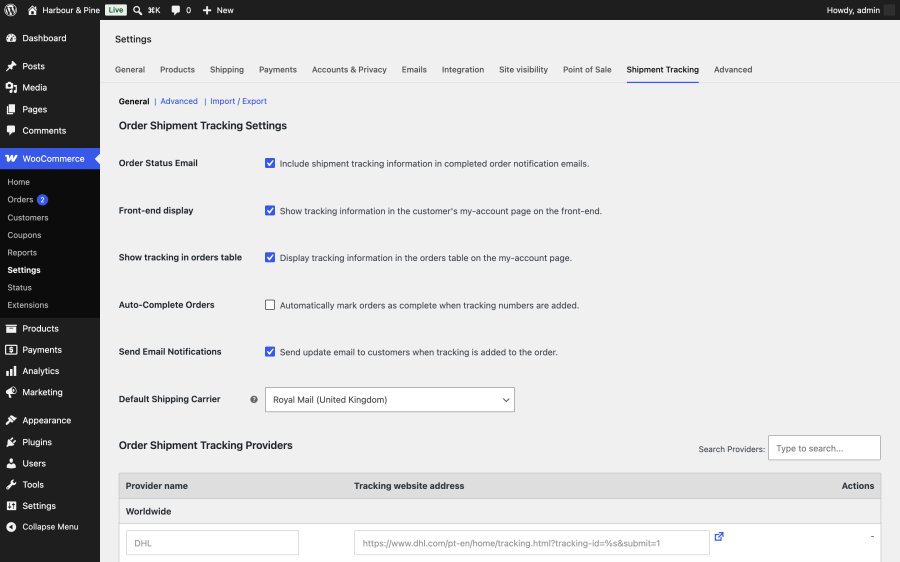
Customers see a Tracking column in My Account > Orders and a Tracking Information section on each order’s detail page. Both link straight to the carrier. You can switch either one off in the settings.
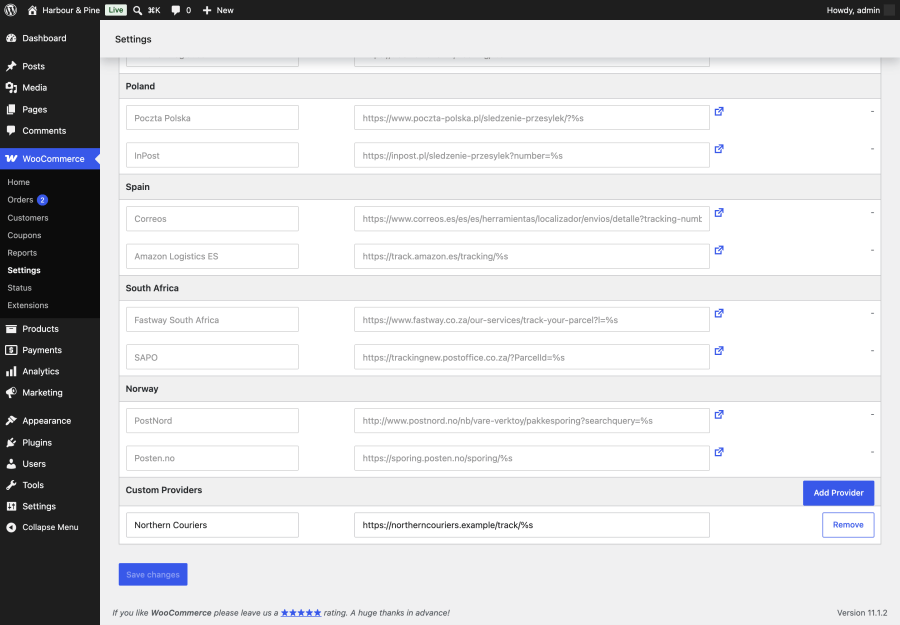
Built-in carriers cover DHL, FedEx, UPS, GLS, and Aramex worldwide, plus national and regional services in the United States, United Kingdom, Canada, Australia, France, Germany, Italy, Poland, Spain, South Africa, and Norway. That includes USPS, Royal Mail, Evri, Canada Post, Australia Post, La Poste, Colissimo, Chronopost, Mondial Relay, DPD, InPost, Correos, PostNord, and Amazon Logistics in five countries. Ship with someone else? Add a custom carrier with its name and tracking web address, using %s where the tracking number goes. Custom carriers appear at the top of the carrier list on every order.
Pick a Default Shipping Carrier in the settings and it is preselected on every order. If most of your parcels go out with one carrier, adding tracking comes down to pasting a number and clicking Save.
Turn on Auto-Complete Orders and saving a tracking number moves a Processing or On hold order to Completed. The WooCommerce Completed order email goes out with the tracking details included.
When an order leaves in more than one parcel, tick Mark order as partially shipped as you add the first tracking number. The order moves to a Partially Shipped status you can filter by in the orders list, so you can see at a glance which orders still have items to send.
A Tracking Number column on WooCommerce > Orders shows the carrier and a linked tracking number for every order that has one.
Export your custom carriers to a CSV file and import them into another store. Agencies and multi-store owners set their carrier list up once.
Turn on the REST API option and your warehouse or fulfillment software can read and add tracking through the WooCommerce REST API. Tracking added this way sends the same tracking email.
You print labels at the post office, on a carrier’s website, or in a separate shipping tool, and end up with tracking numbers that never reach your customers. Paste each number into the order and the customer is told straight away.
La Poste, Colissimo, Chronopost, Mondial Relay, DPD, InPost, Poczta Polska, Correos, PostNord, Posten.no, Evri, Yodel, and ParcelForce are built in. For a carrier that isn’t, add it in under a minute.
Set a default carrier and turn on auto-complete. Each order takes one paste and one click, and the customer gets both the tracking email and the Completed order email.
Add a tracking number for each box, mark the order Partially Shipped after the first one, and your customer’s email always lists every tracking number on the order.
Several extensions add tracking numbers to WooCommerce orders, and they’re built for different stores. Order Shipment Tracking for WooCommerce focuses on getting a tracking link to your customer the moment you save it, with order status handling built in. If you need a bulk CSV import of tracking numbers, a public order-lookup page, or live delivery status inside your store, one of the alternatives below may fit better.
| Order Shipment Tracking for WooCommerce (W7S) | Shipment Tracking for WooCommerce (Woo) | Shipment and Order Tracking for WooCommerce (FmeAddons) | Advanced Shipment Tracking for WooCommerce (zorem) | |
|---|---|---|---|---|
| Price | $49 a year on WooCommerce.com | $59 a year on WooCommerce.com | $49 a year on WooCommerce.com | Free core plugin, PRO version $129 a year from the vendor |
| Custom carriers | Yes, saved list with CSV import and export | Yes, entered per order | No | Yes |
| Email sent when tracking is saved | Yes, a dedicated tracking email | No, tracking is added to order emails such as Completed order | Tracking included in order emails | Tracking included in order status emails |
| Partially Shipped status | Yes | No | No | Yes |
| Auto-complete when tracking is added | Yes | No | No | Yes, in PRO |
| Bulk CSV import of tracking numbers | No | No | Yes | Yes, in PRO |
| Customer order-lookup page | No | Yes, order tracking page | Yes, shortcode with reCAPTCHA | Through the separate TrackShip service |
| WooCommerce mobile app | No | Yes | No | No |
| REST API | Yes | Yes | No | Yes |
Pair Order Shipment Tracking for WooCommerce with Split Copy Merge Order Actions to give each parcel its own order, or with MCP (Model Context Protocol) so Claude or ChatGPT can answer “what’s the tracking number on order 1234?” from the order data. Shipping Insurance Manager adds shipping insurance at checkout, and the tracking details on the order back up any claim.
Categories
Extension information
Quality Checks
Countries
Languages