
Order Shipment Tracking for WooCommerce lets you attach carrier tracking numbers to orders and share them with your customers. This guide covers setup, every setting, common store setups, and the developer surface.
Overview
↑ Back to topOrder Shipment Tracking for WooCommerce adds a Shipment Tracking box to the order edit screen. You enter a tracking number, pick a carrier, and the extension builds a tracking link from that carrier’s tracking address. Customers see the tracking details in a dedicated email and in their My Account area. The extension ships with a list of common carriers, lets you add your own, and can optionally complete orders and expose tracking through the WooCommerce REST API.
Requirements
↑ Back to top- WordPress 6.0 or later
- WooCommerce 9.0 or later
- PHP 7.4 or later
WooCommerce must be installed and active. If it isn’t, the extension shows a notice in WordPress Admin dashboard (WP Admin) and stays inactive. No external account or API key is needed.
The extension declares compatibility with High Performance Order Storage (HPOS) and the Cart and Checkout blocks.
Installation
↑ Back to topTo start using a product from WooCommerce.com, you can use the “Add to store” functionality on the order confirmation page or the My subscriptions section in your account.
- Navigate to My subscriptions.
- Find the Add to store button next to the product you’re planning to install.
- Follow the instructions on the screen, and the product will be automatically added to your store.
Alternative options and more information at:
Managing WooCommerce.com subscriptions.
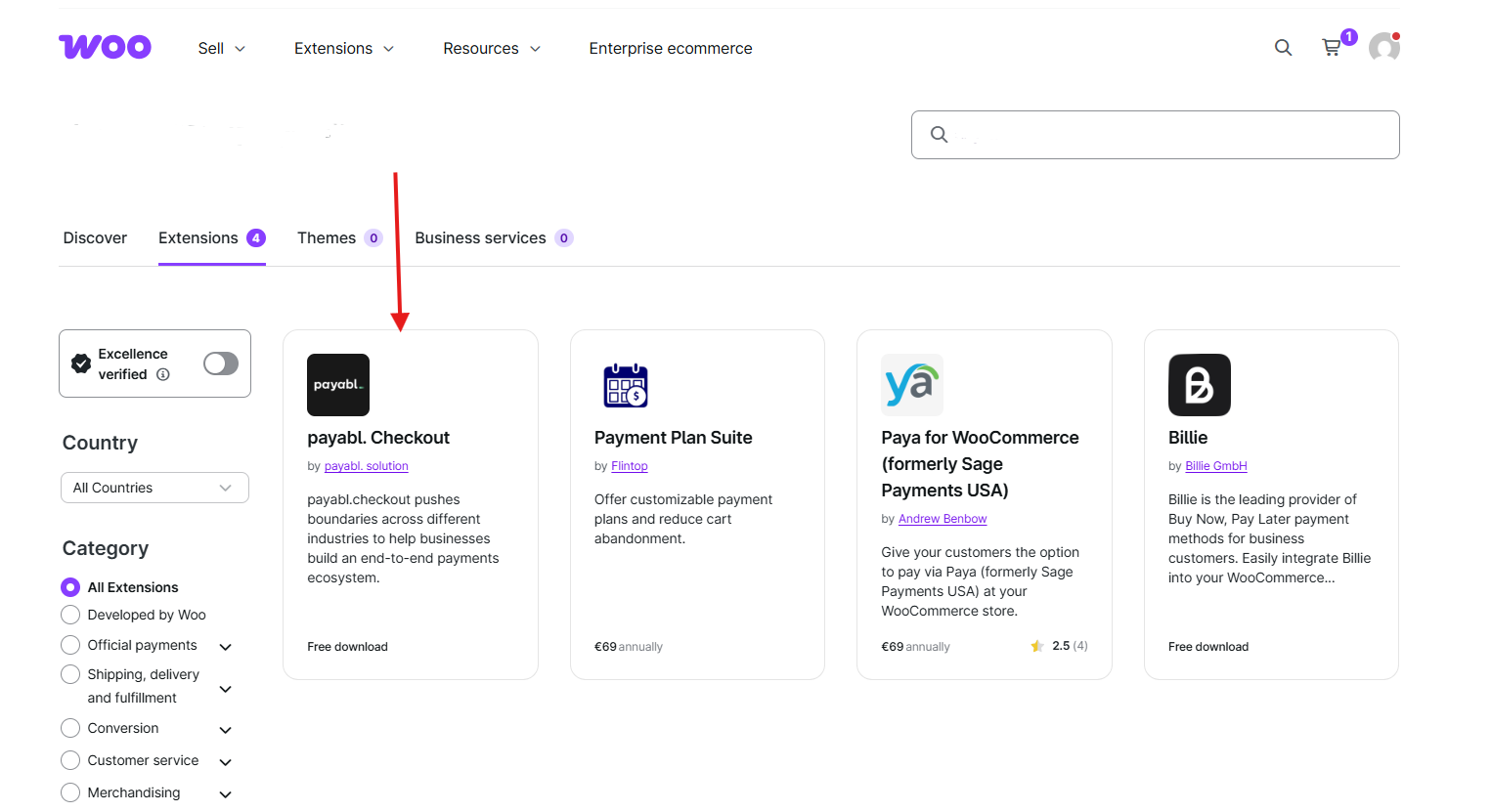
There are no extra setup steps after activation. There is no license key to enter and no account to connect. Once the extension is active, go to WooCommerce > Settings > Shipment Tracking to review the settings. You can also reach this page from the Settings link under the extension name on the Plugins screen.
Usage
↑ Back to topThe settings live under WooCommerce > Settings > Shipment Tracking, split across three sections: General, Advanced, and Import / Export. Day-to-day work happens on the order edit screen.
General settings
↑ Back to topGo to WooCommerce > Settings > Shipment Tracking > General.
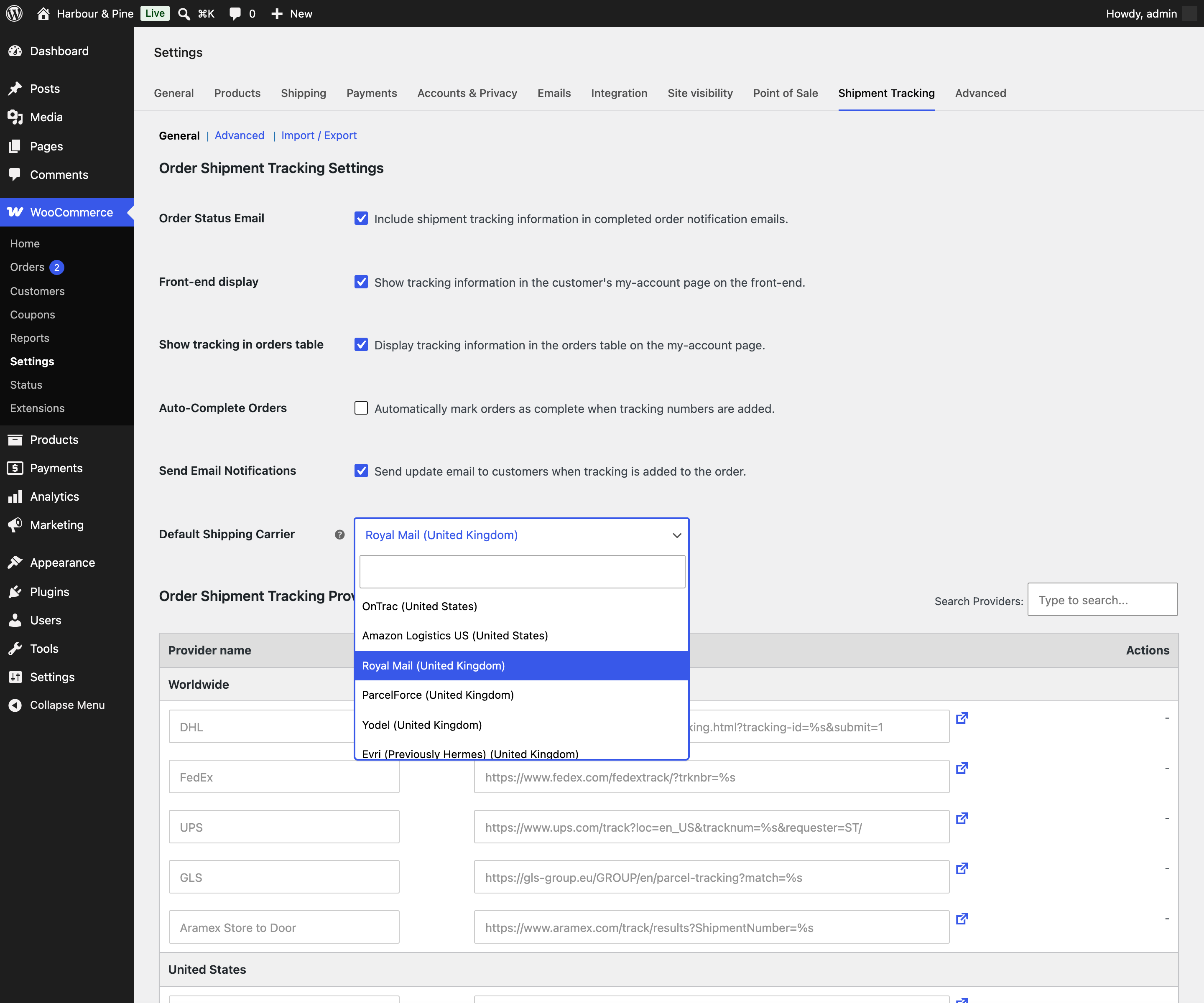
Order Status Email
This setting is labeled “Include shipment tracking information in completed order notification emails” and is on by default.
Front-end display
When this is on, customers see a “Tracking Information” section below the order details in My Account > Orders > View. Each tracking number links to the carrier’s tracking page. It is on by default. Turn it off if you prefer to share tracking by email only.
Show tracking in orders table
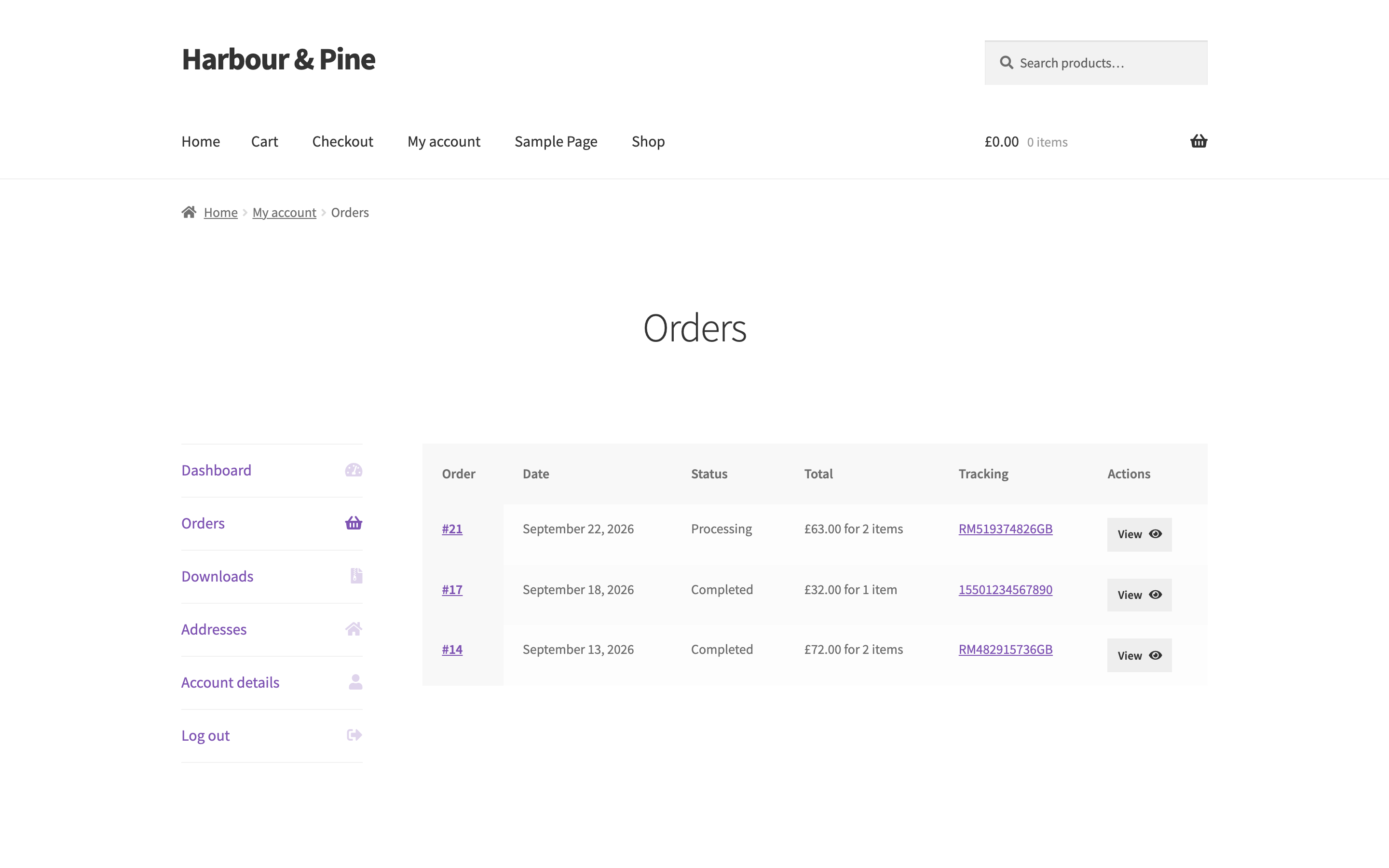
When this is on, a Tracking column appears in the customer’s My Account > Orders list, showing each tracking number as a link. It is on by default.
Auto-Complete Orders
When this is on, adding tracking to an order from the order screen moves it to Completed. This only applies to orders that are Processing, On hold, or Partially Shipped. Orders in any other status keep their status. The standard WooCommerce Completed order email is sent as usual, with the tracking details added to it. It is off by default.
Two things change when this setting is on. The “Mark order as partially shipped” option disappears from the order screen. And each order gets completed as soon as its first tracking number is saved, so it’s best suited to stores that ship each order in one parcel. Tracking added through the REST API does not trigger auto-complete.
Send Email Notifications
When this is on, the customer gets a Shipment Tracking email every time you add a tracking number. The email lists every tracking number on the order, not only the new one. The extension also adds an order note saying the email was sent. It is on by default.
This email is a regular WooCommerce email, so it also has its own on and off switch at WooCommerce > Settings > Emails > Shipment Tracking. Both must be on for the email to go out. That screen is also where you change the subject, heading, additional content, and email type.
Default Shipping Carrier
Pick the carrier that should be preselected when you add tracking to an order. You can still change it per order. The list includes your custom providers and all built-in carriers. Country-specific carriers show their country in brackets, for example “DPD (Germany)”. The default is “No default (ask every time)”.
Shipping providers
↑ Back to topBelow the settings on the same General page is a table of every shipping provider. Built-in carriers are grouped by region and are read-only. Each has an icon next to its tracking address that opens a test link in a new tab. Use the Search Providers box above the table to filter by name.
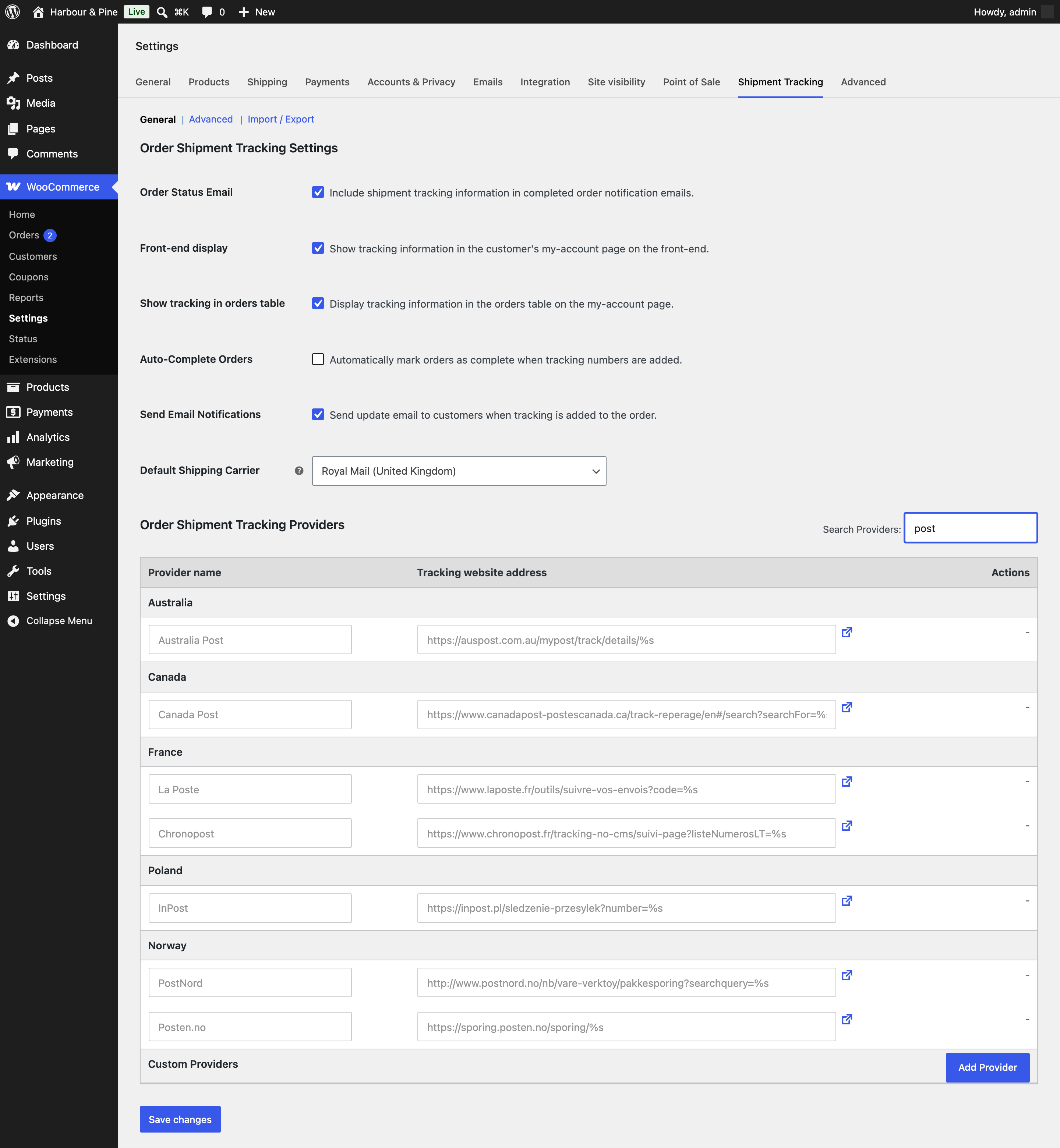
The built-in carriers are:
| Region | Carrier | Carrier ID |
|---|---|---|
| Worldwide | DHL | dhl |
| Worldwide | FedEx | fedex |
| Worldwide | UPS | ups |
| Worldwide | GLS | gls |
| Worldwide | Aramex Store to Door | aramex |
| United States | USPS | usps |
| United States | OnTrac | ontrac |
| United States | Amazon Logistics US | amazon-logistics-us |
| United Kingdom | Royal Mail | royal-mail |
| United Kingdom | ParcelForce | parcelforce |
| United Kingdom | Yodel | yodel |
| United Kingdom | Evri (Previously Hermes) | hermes |
| United Kingdom | Amazon Logistics UK | amazon-logistics-uk |
| Australia | Australia Post | australia-post |
| Canada | Canada Post | canada-post |
| Canada | Purolator | purolator |
| France | La Poste | laposte |
| France | Mondial Relay | mondial-relay |
| France | Colissimo | colissimo |
| France | Chronopost | chronopost |
| France | Amazon Logistics FR | amazon-logistics-fr |
| Germany | DPD | dpd |
| Germany | Amazon Logistics DE | amazon-logistics-de |
| Italy | Amazon Logistics IT | amazon-logistics-it |
| Poland | Poczta Polska | poczta-polska |
| Poland | InPost | inpost |
| Spain | Correos | correos |
| Spain | Amazon Logistics ES | amazon-logistics-es |
| South Africa | Fastway South Africa | fastway-za |
| South Africa | SAPO | sapo |
| Norway | PostNord | postnord |
| Norway | Posten.no | posten-no |
You only need the carrier ID if you use the REST API or custom code.
Add a custom provider
↑ Back to topIf you ship with a carrier that isn’t listed, add it as a custom provider.
- Scroll to the Custom Providers header at the bottom of the provider table.
- Click Add Provider. A new row appears.
- Enter the Provider name, for example “FastShip”.
- Enter the Tracking website address. Use
%swhere the tracking number should go, for examplehttps://fastship.example/track/%s. - Click Save changes at the bottom of the page.
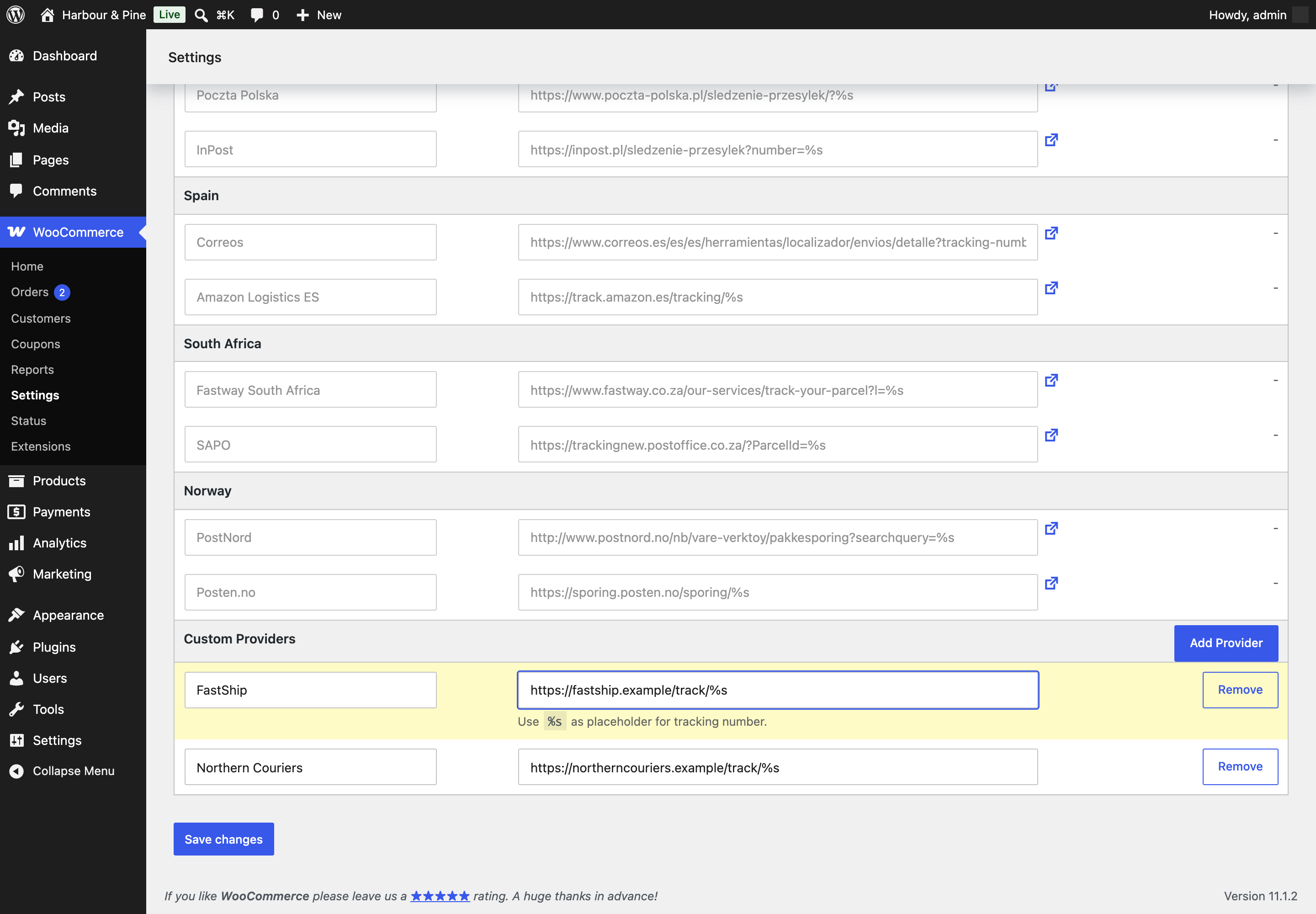
Rows with an empty name or address are dropped when you save. To edit a custom provider, change its fields and save. To delete one, click Remove on its row and save.
Advanced settings
↑ Back to topGo to WooCommerce > Settings > Shipment Tracking > Advanced.
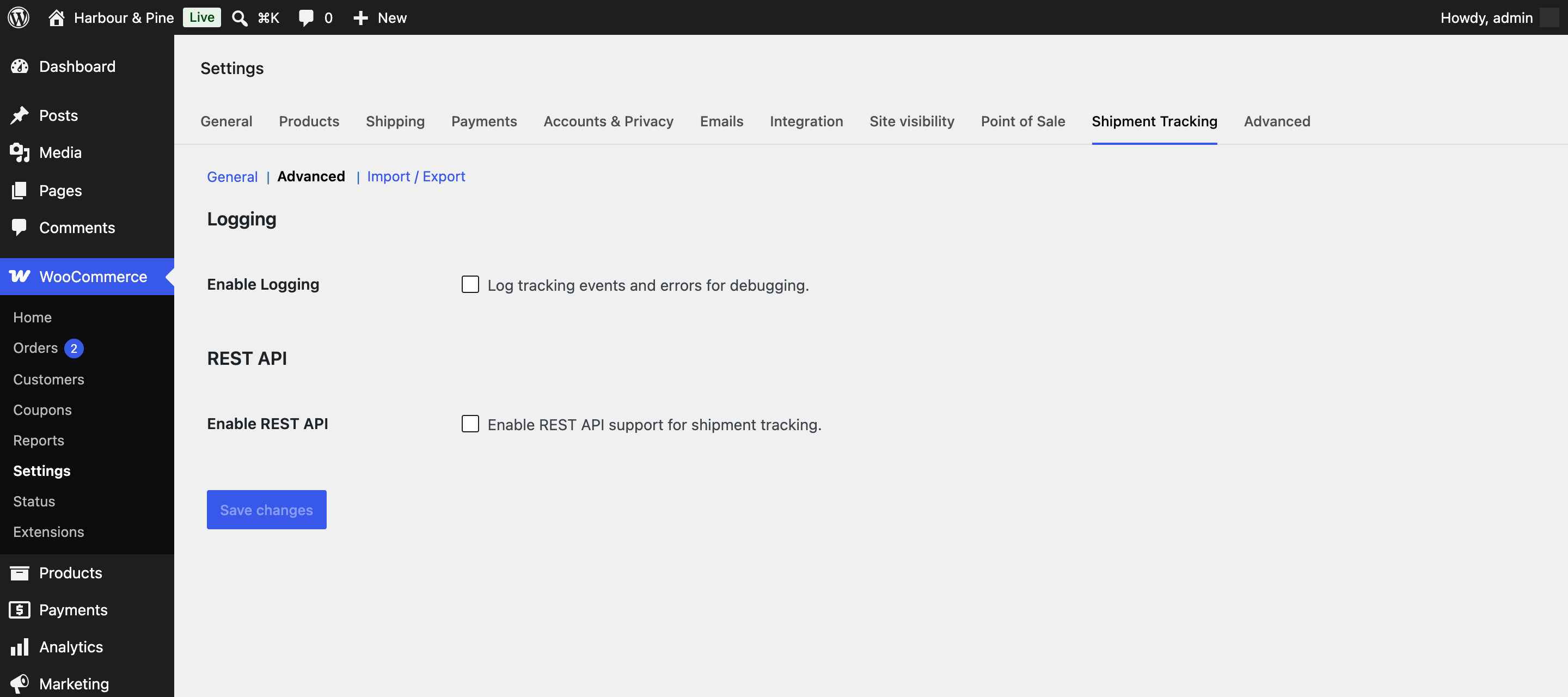
Enable Logging
Records what the extension does, such as saved tracking, auto-complete decisions, imports, and errors. Turn it on when you are troubleshooting, then turn it off again. You can read the entries at WooCommerce > Status > Logs under the source order-shipment-tracking. It is off by default.
Enable REST API
Adds shipment tracking endpoints to the WooCommerce REST API so other systems, like a warehouse or fulfillment tool, can read and add tracking. It is off by default. Leave it off unless you need it. The endpoints are described in the developer documentation below.
Import and export providers
↑ Back to topGo to WooCommerce > Settings > Shipment Tracking > Import / Export. This screen moves your custom providers between stores. Built-in carriers are not included.
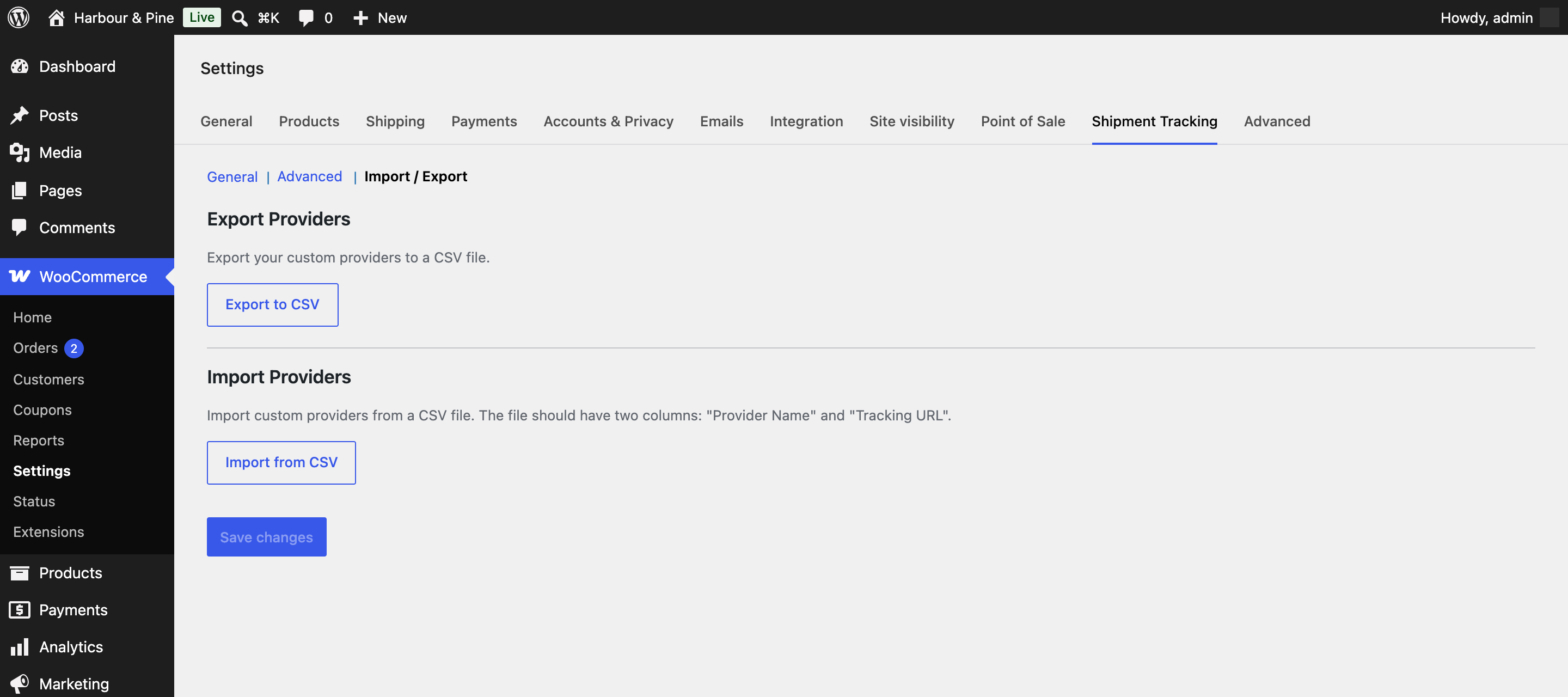
Export to CSV downloads your custom providers as a CSV file with the columns “Provider Name” and “Tracking URL”. If you have no custom providers, there is nothing to export.
Import from CSV adds providers from a CSV file with the same two columns. The first row is treated as a header and skipped. Rows missing a name or address are skipped. Imported providers are added to your existing list, so importing the same file twice creates duplicates.
Add tracking to an order
↑ Back to top- Go to WooCommerce > Orders and open the order.
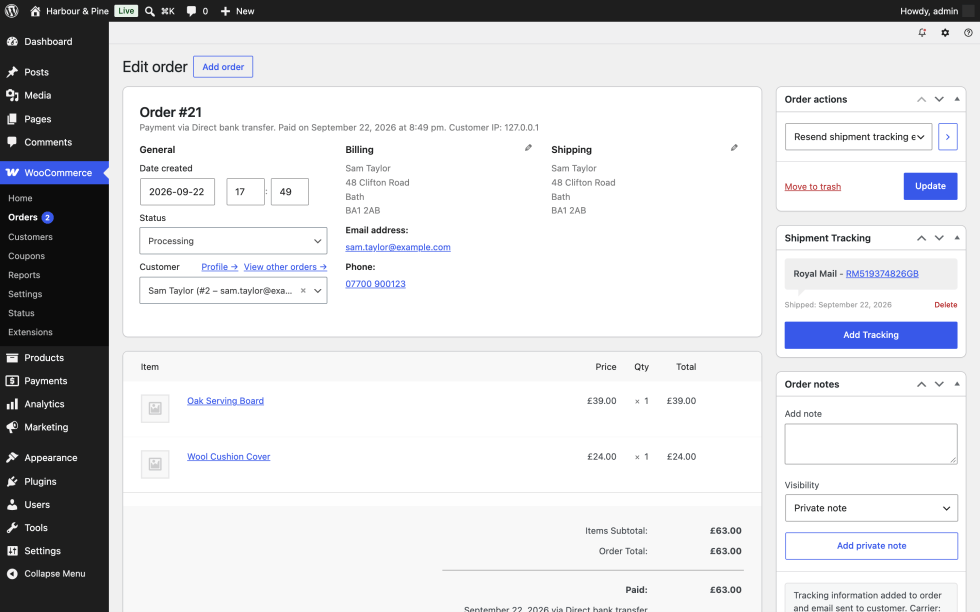
- Find the Shipment Tracking box in the right-hand column.
- Click Add Tracking.
- Enter the Tracking Number.
- Choose the Shipping Carrier. Your custom providers appear at the top of the list. If you set a default carrier, it is already selected.
- Check the Date Shipped. It defaults to today.
- If Auto-Complete Orders is off and this is only part of the order, tick Mark order as partially shipped.
- Click Save Tracking. The page reloads with the tracking number listed in the box.
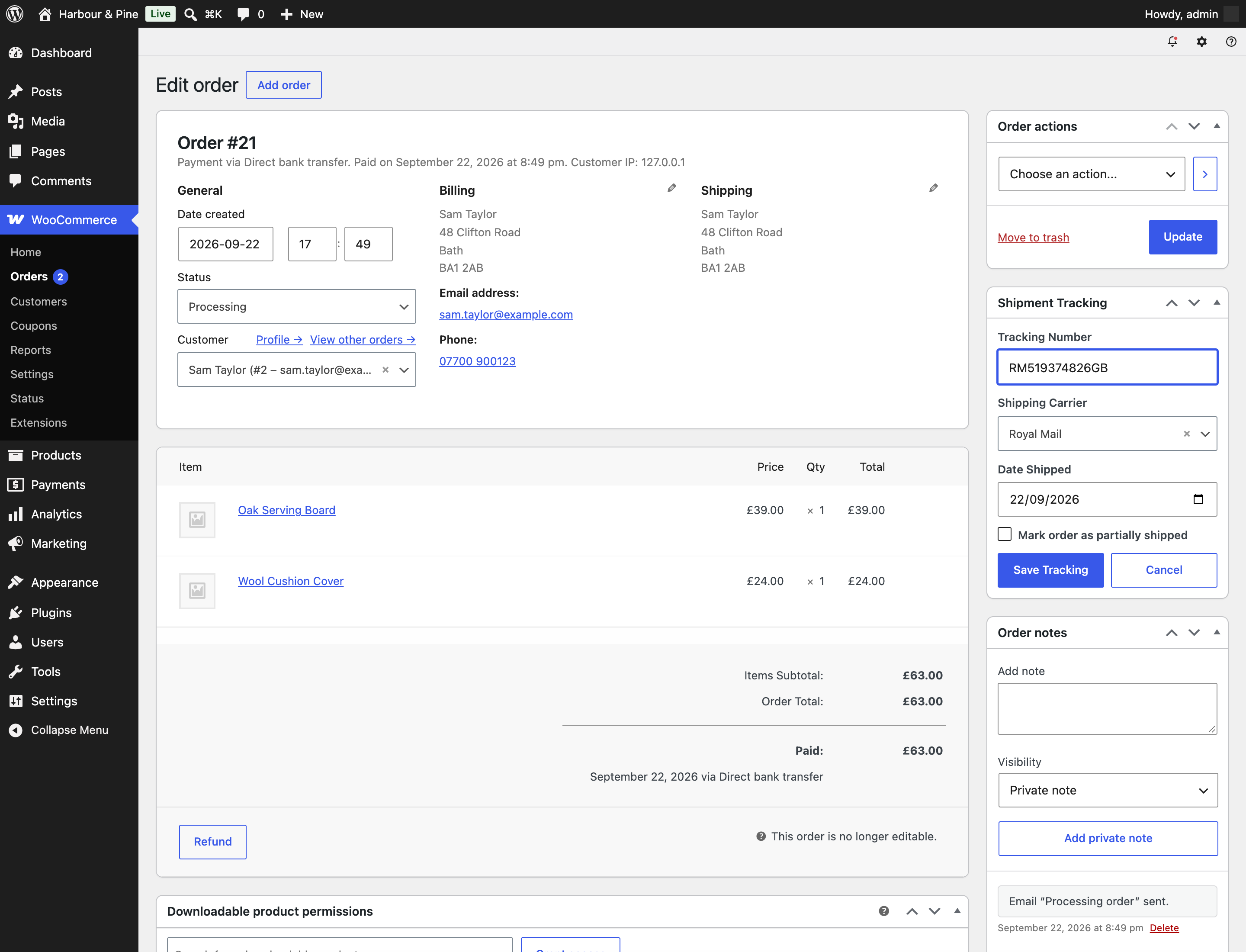
You can add as many tracking numbers to an order as you need. Each one appears in the box with its carrier and ship date. To remove one, click Delete next to it and confirm. Deleting tracking doesn’t change the order status and doesn’t email the customer.
The WooCommerce > Orders list also gets a Tracking Number column, so you can see at a glance which orders have shipped.
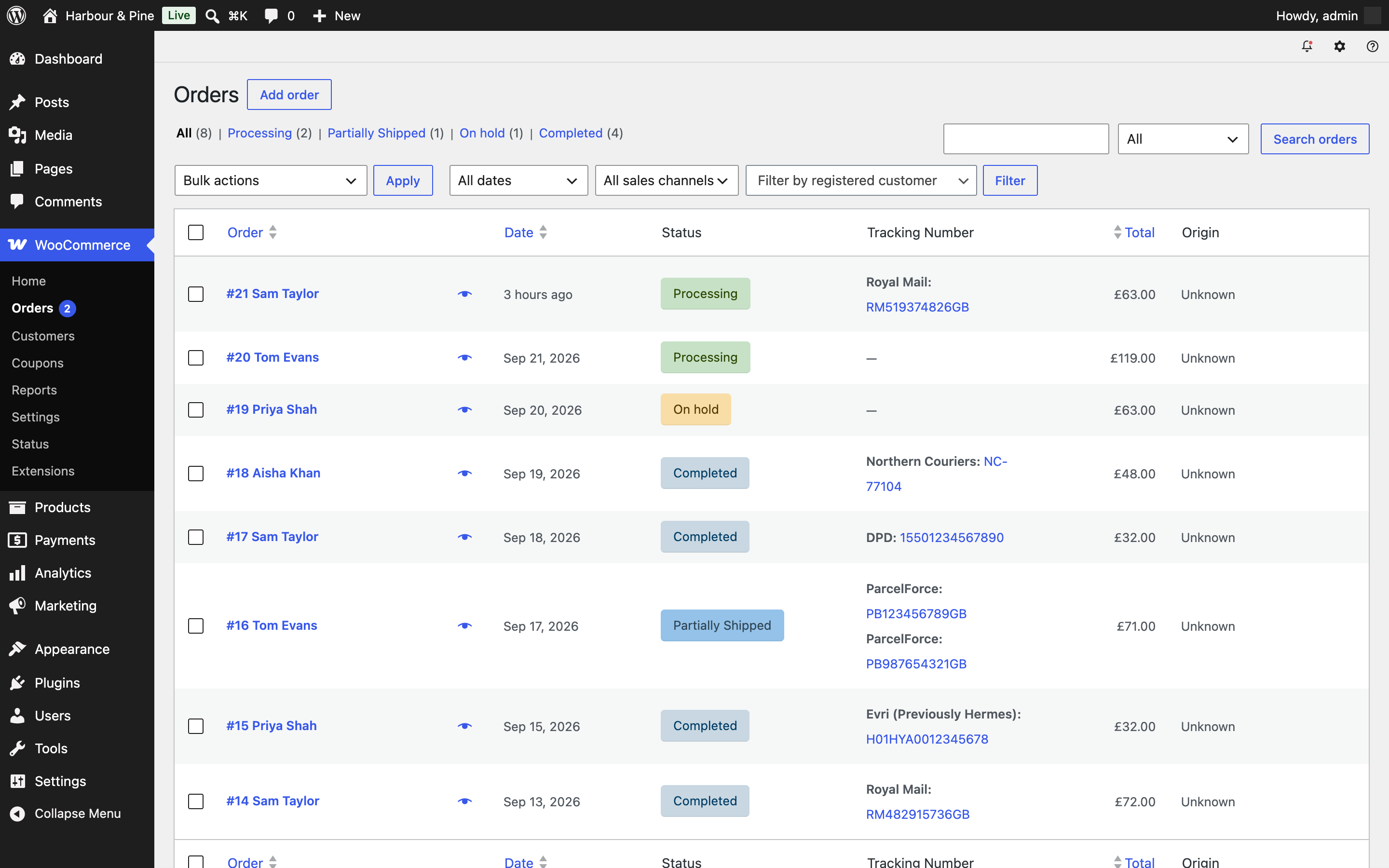
The Partially Shipped status
↑ Back to topThe extension adds a Partially Shipped order status. You set it by ticking “Mark order as partially shipped” when you add tracking, or by changing the status by hand. It shows up in the order status dropdown and in the status filters on the orders list. No customer email is tied to this status on its own.
Resend the tracking email
↑ Back to topOpen the order, choose Resend shipment tracking email from the Order actions dropdown, and click the update button. The customer gets an email with every tracking number on the order, and an order note records it. This works even when Send Email Notifications is off. The resent email uses its own subject, “Tracking information for order #[number]”, rather than the one set on the Emails screen.
What your customers see
↑ Back to topDepending on your settings, customers see tracking in three places: the Shipment Tracking email, the Tracking column in My Account > Orders, and the “Tracking Information” section on the order’s detail page in My Account.
Use cases
↑ Back to topOne carrier, one parcel per order
↑ Back to topYou ship everything with Royal Mail and every order goes out in a single parcel. Set Default Shipping Carrier to Royal Mail and turn on Auto-Complete Orders. Leave Send Email Notifications on. When you pack an order, you only type the tracking number and click Save Tracking. The order moves to Completed.
Your customer receives two emails: the Shipment Tracking email and the Completed order email, which also carries the tracking details. If one email is enough, turn off the Shipment Tracking email at WooCommerce > Settings > Emails > Shipment Tracking.
Orders that ship in several parcels
↑ Back to topSome orders leave your warehouse in more than one box. Keep Auto-Complete Orders off. When the first box ships, add its tracking number and tick Mark order as partially shipped. The customer gets the tracking email and the order shows as Partially Shipped. When the last box ships, add its tracking number, and the customer gets an email listing both numbers. Then change the order status to Completed yourself.
A local courier that isn’t in the list
↑ Back to topYou work with a regional courier. Add it under Custom Providers with its tracking address, using %s for the tracking number. If it handles most of your parcels, pick it as the Default Shipping Carrier. It will then be preselected on every order.
Tracking pushed in from a fulfillment system
↑ Back to topYour warehouse software knows the tracking numbers before you do. Turn on Enable REST API under Advanced and give the warehouse developer a WooCommerce REST API key with read and write access. Their system sends each tracking number to the shipment tracking endpoint using one of the built-in carrier IDs. The customer gets the Shipment Tracking email as usual. Tracking added this way does not auto-complete the order, so the warehouse system should update the order status through the standard WooCommerce orders endpoint.
Setting up several stores the same way
↑ Back to topYou run more than one store, or you set up stores for clients. Build your custom provider list once, then use Export to CSV on that store and Import from CSV on the others.
Working with other W7S extensions
↑ Back to topOrder Shipment Tracking for WooCommerce puts a carrier and tracking number on each order and tells the customer about it. These combinations from the W7S catalog cover what happens around that moment: shipping one order in several parcels, answering “where is my order?” questions, reaching the customer, and dealing with a parcel that never arrives. None of them need special setup between the extensions. Each one works side by side with the settings described above.
Give each parcel its own order. The Partially Shipped status keeps a multi-parcel order together as one order. If you’d rather give each parcel its own order, Split Copy Merge Order Actions moves selected items and quantities into a new order. Split first, then add each parcel’s tracking number to its own order. Each customer order then gets its own tracking email and its own row in My Account. Split Copy Merge Order Actions carries order data across when it splits, copies, or merges, and tracking is stored as order data. Adding tracking after the split keeps a tracking number from showing up on both orders. The same applies to merging: merge first, then add tracking to the merged order.
Answer tracking questions from a chat. MCP (Model Context Protocol) connects Claude or ChatGPT to your store with tools for orders, customers, and order notes. Tracking is saved on the order itself, so when the assistant reads an order it sees the carrier, tracking number, and ship date. Try asking “What’s the tracking number on order 1234?” or “Which orders are still Partially Shipped?” A read-only API key is enough for questions like these. With a write key, the assistant can also add an order note or mark an order Completed. An order completed this way gets the standard Completed order email without the tracking section, because that section is only added when Auto-Complete Orders completes the order. Order Shipment Tracking doesn’t publish its own assistant tools yet, so tracking numbers are still added on the order screen or through the REST API described in the developer documentation.
Find the order from the caller’s number. Phone Number Validation stores every phone number in one international format and adds a Find orders by phone number tool for assistants connected through MCP. Combined with the order tools above, a customer’s phone number leads straight to their latest order and its tracking number in one conversation. On the order screen, its Call, WhatsApp, and SMS buttons let staff reach the customer when a carrier reports a failed delivery attempt.
Back up a lost-parcel claim. Shipping Insurance Manager offers shipping insurance at checkout, so a lost parcel becomes a claim instead of an argument. The carrier, tracking number, and ship date saved on the order are the details a claim depends on. The Tracking Number column on WooCommerce > Orders shows them without opening each order.
Keep local deliveries separate. Uber Direct Shipping brings Uber Direct rates and delivery tracking to checkout for same-day local orders. Uber Direct isn’t one of the built-in carriers here, so let Uber Direct Shipping handle tracking for those orders. Use Order Shipment Tracking for parcels that go out with a postal or courier service.
FAQ
↑ Back to topMy customer didn’t get the tracking email. What should I check?
↑ Back to topCheck that Send Email Notifications is on at WooCommerce > Settings > Shipment Tracking. Then check that the Shipment Tracking email is enabled at WooCommerce > Settings > Emails > Shipment Tracking. Both need to be on. The email goes to the order’s billing email address. If the settings look right, you can send it again with the Resend shipment tracking email order action.
Can I add more than one tracking number to an order?
↑ Back to topYes. Click Add Tracking again for each parcel. Every tracking email lists all the tracking numbers on the order.
How do I remove a tracking number?
↑ Back to topOpen the order, click Delete next to the tracking number in the Shipment Tracking box, and confirm. The order status stays as it is and no email is sent.
I renamed a custom provider and the tracking links disappeared. Why?
↑ Back to topTracking numbers are linked to custom providers by name. After a rename, older orders can’t find the provider, so they show the number without a link. Changing the name back restores the links.
Can I change the wording of the tracking email?
↑ Back to topYes. Go to WooCommerce > Settings > Emails > Shipment Tracking to change the subject, heading, and additional content. For deeper changes, a developer can override the email template from your theme. See the developer documentation below.
Can I use a custom provider through the REST API?
↑ Back to topNo. The REST API accepts built-in carrier IDs only. Custom providers are available on the order screen.
Does it work with High Performance Order Storage (HPOS) and the checkout blocks?
↑ Back to topYes. The extension declares compatibility with both.
Where do I find the logs?
↑ Back to topTurn on Enable Logging under Advanced, reproduce the problem, then go to WooCommerce > Status > Logs and open the log with the source order-shipment-tracking.
Developer documentation
↑ Back to topThis section covers the extensibility surface. All examples go in a custom plugin or a child theme’s functions.php.
Action hooks
↑ Back to topost_tracking_info_added
Fires after a tracking item is saved to an order and after the Shipment Tracking email logic has run. Fires for tracking added from the order screen and through the REST API.
| Argument | Type | Description |
|---|---|---|
$order_id | int | The order ID. |
$tracking_items | array | All tracking items now on the order, including the new one. |
add_action( 'ost_tracking_info_added', function ( $order_id, $tracking_items ) {
	$latest = end( $tracking_items );
	// Push $latest['tracking_number'] to an external system.
}, 10, 2 );
Filter hooks
↑ Back to toporder_shipment_tracking_providers
Filters the built-in provider list. The array is keyed by region slug (worldwide, united-states, and so on). Each region holds carriers keyed by carrier ID, each with name and tracking_url. The tracking_url must contain %s for the tracking number. New region slugs are shown with their slug converted to a label.
add_filter( 'order_shipment_tracking_providers', function ( $providers ) {
	$providers['worldwide']['acme-express'] = array(
		'name'         => __( 'Acme Express', 'your-textdomain' ),
		'tracking_url' => 'https://track.acme.example/?id=%s',
	);
	unset( $providers['worldwide']['fedex'] );
	return $providers;
} );
Carrier IDs added this way are also accepted by the REST API.
The previous name, order_order_shipment_tracking_providers, still runs after the new filter but is deprecated since 1.1.1 and triggers a deprecation notice when WP_DEBUG is on.
ost_default_carrier
Since 1.1.1. Filters the carrier preselected in the order screen’s add tracking form.
| Argument | Type | Description |
|---|---|---|
$default_carrier | string | The carrier ID from the Default Shipping Carrier setting, or an empty string. Custom providers use custom_{name}. |
$order | WC_Order | The order being edited. |
add_filter( 'ost_default_carrier', function ( $carrier, $order ) {
	return 'US' === $order->get_shipping_country() ? 'usps' : $carrier;
}, 10, 2 );
ost_auto_complete_allowed_statuses
Filters which order statuses can be auto-completed when Auto-Complete Orders is on. Statuses are passed without the wc- prefix.
| Argument | Type | Description |
|---|---|---|
$statuses | array | Default: processing, on-hold, partially-shipped. |
$order | WC_Order | The order being evaluated. |
ost_auto_complete_target_status
Filters the status an eligible order moves to. Default completed. The value must be a registered order status without the wc- prefix. If it isn’t registered, the order status doesn’t change.
| Argument | Type | Description |
|---|---|---|
$target_status | string | Default completed. |
$order | WC_Order | The order being completed. |
The Completed order email gets the tracking block appended only when the target status is completed, because the extension hooks into the customer_completed_order email.
ost_tracking_notification_subject and ost_tracking_notification_heading
Filter the subject and heading of the email sent by the Resend shipment tracking email order action. They do not affect the automatic Shipment Tracking email, whose subject and heading are managed at WooCommerce > Settings > Emails > Shipment Tracking.
| Filter | Default | Arguments |
|---|---|---|
ost_tracking_notification_subject | “Tracking information for order #{number}” | $subject (string), $order (WC_Order) |
ost_tracking_notification_heading | “Your order tracking information” | $heading (string), $order (WC_Order) |
ost_tracking_email_sent_to_admin
Filters the $sent_to_admin value passed to the Shipment Tracking email templates. Default false. It does not change who receives the email. Use it only if a template override or a hooked function branches on $sent_to_admin.
Settings filters
The settings page is a standard WC_Settings_Page with the ID order_shipment_tracking, so the usual WooCommerce filters apply: woocommerce_get_sections_order_shipment_tracking, woocommerce_get_settings_order_shipment_tracking_general, woocommerce_get_settings_order_shipment_tracking_advanced, and woocommerce_get_settings_order_shipment_tracking_import_export.
REST API
↑ Back to topThe endpoints are registered only when Enable REST API is on. They live in the wc/v3 namespace and are meant to be called with WooCommerce REST API keys, created at WooCommerce > Settings > Advanced > REST API.
[NEEDS INPUT: In version 1.1.1 the permission callback only checks that the order exists and does not check the caller’s authentication or capabilities. Ship a fix that requires an authenticated user with edit_shop_orders (or the matching WooCommerce REST permission check) before publishing this section, then confirm the exact 401 and 403 behavior here.]
List tracking for an order
GET /wp-json/wc/v3/orders/{order_id}/shipment-tracking
Returns the order’s tracking items as an array.
curl https://example.com/wp-json/wc/v3/orders/123/shipment-tracking \
	-u ck_XXXX:cs_XXXX
[
{
"tracking_number": "1Z999AA10123456784",
"carrier_id": "ups",
"carrier_name": "UPS",
"tracking_link": "https://www.ups.com/track?loc=en_US&tracknum=1Z999AA10123456784&requester=ST/",
"date_shipped": "2026-09-22",
"date_added": "2026-09-22 11:07:35"
}
]Add tracking to an order
POST /wp-json/wc/v3/orders/{order_id}/shipment-tracking
| Parameter | Type | Required | Description |
|---|---|---|---|
tracking_number | string | Yes | The tracking number. |
carrier_id | string | Yes | A built-in carrier ID, or one added through order_shipment_tracking_providers. Custom providers from the settings screen are not accepted. |
date_shipped is set to the current date. Adding tracking this way sends the Shipment Tracking email when notifications are enabled and fires ost_tracking_info_added. It does not run auto-complete and does not set Partially Shipped.
curl -X POST https://example.com/wp-json/wc/v3/orders/123/shipment-tracking \
	-u ck_XXXX:cs_XXXX \
	-H "Content-Type: application/json" \
	-d '{"tracking_number":"1Z999AA10123456784","carrier_id":"ups"}'
The response contains success, message, and a data object with tracking_number, carrier_id, carrier_name, tracking_link, date_shipped, and date_added.
[NEEDS INPUT: In 1.1.1 the tracking_link in the POST response is the carrier’s raw tracking address with %s still in it. The stored value is correct and GET returns it correctly. Confirm the fix, then add a full example response here.]
An unknown order ID or a carrier ID outside the allowed list returns a 400 error.
Templates
↑ Back to topAll templates can be overridden by copying them into an order-shipment-tracking/ folder in your theme, keeping the same relative path. For example, copy templates/emails/tracking-info.php to yourtheme/order-shipment-tracking/emails/tracking-info.php.
| Template | Used for |
|---|---|
admin/order-meta-box.php | The Shipment Tracking box on the order edit screen. |
view-order-tracking-info.php | The tracking section on the My Account order detail page. |
emails/tracking-notification.php | The HTML Shipment Tracking email and the resend email. |
emails/plain/tracking-notification.php | The plain text Shipment Tracking email. |
emails/tracking-info.php | The tracking block inside emails, including the Completed order email after auto-complete. |
emails/plain/tracking-info.php | The plain text tracking block. |
Data storage
↑ Back to topTracking is stored as order meta, so it works with both HPOS and legacy post storage through the WC_Order API.
| Key | Where | Description |
|---|---|---|
_ost_tracking_items | Order meta | Array of tracking items with tracking_number, carrier_id, carrier_name, tracking_link, date_shipped, and date_added. |
_ost_auto_completed | Order meta | Set to true when the extension auto-completed the order. |
wc-partially-shipped | Order status | The Partially Shipped status. |
ost_tracking_email | Email ID | The Shipment Tracking WC_Email class, OST_Tracking_Email. |
Options: ost_include_in_emails, ost_show_in_my_account, ost_show_in_orders_table, ost_auto_complete_orders, ost_enable_email_notifications, ost_default_carrier, ost_custom_providers, ost_enable_logging, and ost_enable_rest_api. Checkbox options store yes or no. ost_custom_providers is an array of name and tracking_url pairs.
Capabilities
↑ Back to topAdding and deleting tracking from the order screen requires edit_shop_orders. Importing and exporting providers requires manage_options.
Logging
↑ Back to topWhen Enable Logging is on, the extension writes debug-level entries through wc_get_logger() with the source order-shipment-tracking. Find them at WooCommerce > Status > Logs.

