Enable automated taxes
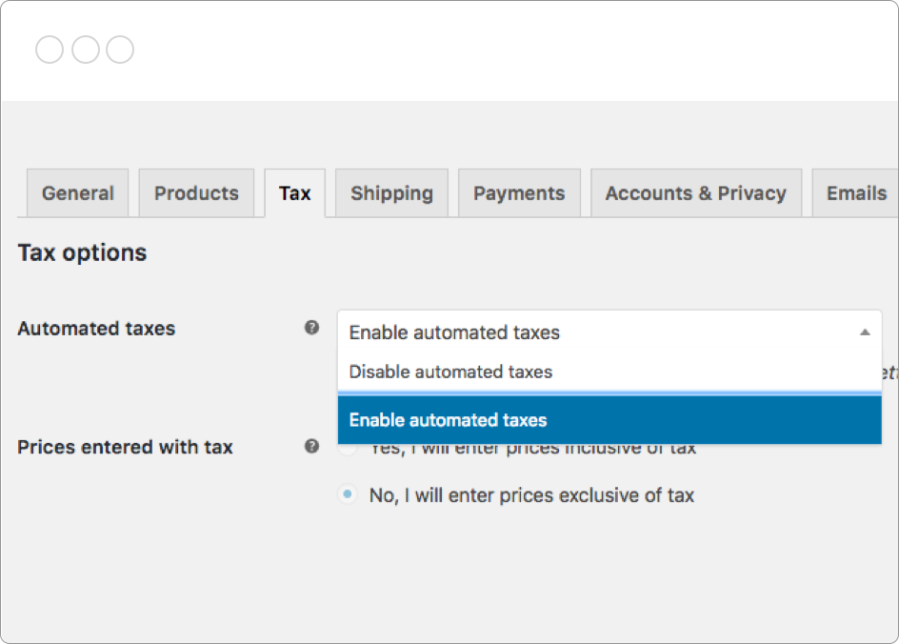
That’s it! Once you update your tax settings, your store will collect sales tax at checkout based on the store address in your WooCommerce Settings.


Subscription includes
Support
Automatically calculate how much sales tax should be collected for WooCommerce orders — by city, country, or state — at checkout.
Prices shown in USD and exclude VAT.
That’s it! Once you update your tax settings, your store will collect sales tax at checkout based on the store address in your WooCommerce Settings.
Save yourself the time and the tax burden - get automated sales taxes for United States, Canadian, Australian, and United Kingdom based stores, plus a growing list of countries in the rest of the world including: Austria, Belgium, Bulgaria, Croatia, Cyprus, Czech Republic, Denmark, Estonia, Finland, France, Germany, Greece, Hungary, Ireland, Italy, Latvia, Lithuania, Luxembourg, Malta, Netherlands, Poland, Portugal, Romania, Slovakia, Slovenia, Spain, and Sweden.


WooCommerce Tax is a free extension that automatically calculates how much sales tax to collect on your orders at checkout, based on city, state, or country. Once you enable automated taxes, your store calculates rates using your store address and the customer's shipping address, so you do not have to build and maintain tax rate tables by hand.
WooCommerce Tax is designed to remove the work of building and updating custom tax rate tables. Instead of entering and maintaining rates for each location yourself, the extension calculates the applicable rate automatically at checkout based on your store address and the customer's shipping address. This gives you a set-and-forget approach for supported countries.
WooCommerce Tax supports stores based in the United States, Canada, Australia, and the United Kingdom, plus a growing list of countries in the rest of the world, including many European Union countries. For the current list, check the WooCommerce Tax product page, since coverage continues to expand.
First, enable taxes under WooCommerce > Settings > General by checking "Enable taxes and tax calculations." Then go to WooCommerce > Settings > Tax, select "Enable automated taxes," and save. After that, your store calculates sales tax at checkout automatically based on your store address.
When you enable automated taxes, WooCommerce Tax takes over your core tax settings. Prices are treated as exclusive of tax, tax is calculated using the customer's shipping address, and any tax rates you added manually for your nexus locations are overridden. A backup of your previous tax rates is saved automatically, so you can restore them if needed.
A $0.00 tax total can be correct. WooCommerce Tax uses your store address as your tax nexus, which usually means the place where you have a physical presence, and it only collects tax where you have that nexus. If a customer is outside your nexus location, no tax may be due. If you need to collect tax in additional states, you can add a tax rate for those locations alongside automated taxes.
Yes. WooCommerce Tax handles your home nexus location automatically, and you can add manual tax rates for any other state or region where you need to collect tax. This lets you combine automated calculation with additional rates for locations where you have an obligation.
No. WooCommerce Tax calculates and collects the right amount of tax at checkout, but it does not file returns or remit payments to any tax authority on your behalf. Filing and remittance remain your responsibility. If you need filing, remittance, or more advanced compliance features, a more advanced tax extension such as TaxJar, Stripe Tax, or Avalara AvaTax may be a better fit.
WooCommerce Tax is a good fit for stores that want automated sales tax calculation for simpler setups in supported countries, without maintaining manual rate tables. It works well when your tax situation is straightforward and centered on your store's nexus location.
WooCommerce Tax may not be the right fit if you have more complex needs, such as collecting tax across many countries, handling heavily address-dependent county and city taxes, managing product-specific tax codes, or automating filing and remittance. For those cases, consider a more advanced extension like Stripe Tax, TaxJar, or Avalara AvaTax.
Yes. If your store is based in the EU, we recommend using the EU VAT Number extension alongside automated taxes. This helps you handle VAT number validation and business VAT exemptions, which sit outside what automated tax calculation covers on its own.
When automated taxes are enabled, prices are treated as exclusive of tax across your store, and this is a store-wide setting that applies to all products. You cannot mix products that show tax-inclusive prices with products that show tax-exclusive prices. If you need different tax treatments for certain products, you can use different tax classes to handle them.
Extension information
Quality Checks
Compatibility
Countries