
Active installs
900+
Product comparison
Subscription includes
Support
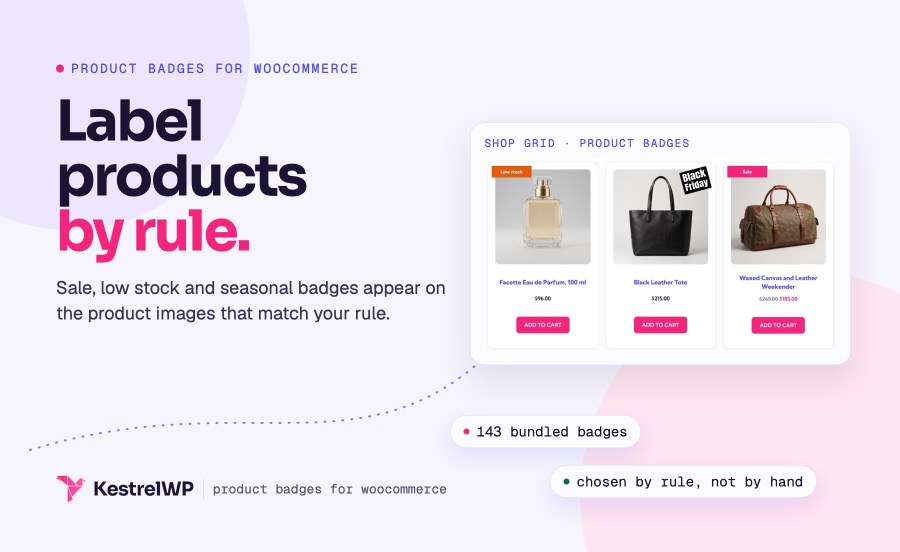
Product Badges for WooCommerce puts a sale flash, a low stock label, a seasonal seal or a countdown on the right product images, chosen by rule, with no image editing. Other badges show a brand logo, the price or the discount as text, or your own HTML. You manage them as a list under Products » Badges, and each badge chooses which products it appears on and where. Built by Kestrel, a long-time WooCommerce extension developer.
Pick one of 143 bundled badges (or upload your own), choose a rule such as On sale or Low stock, and the badge appears on every matching product. It declares support for the Cart and Checkout blocks and High-Performance Order Storage.
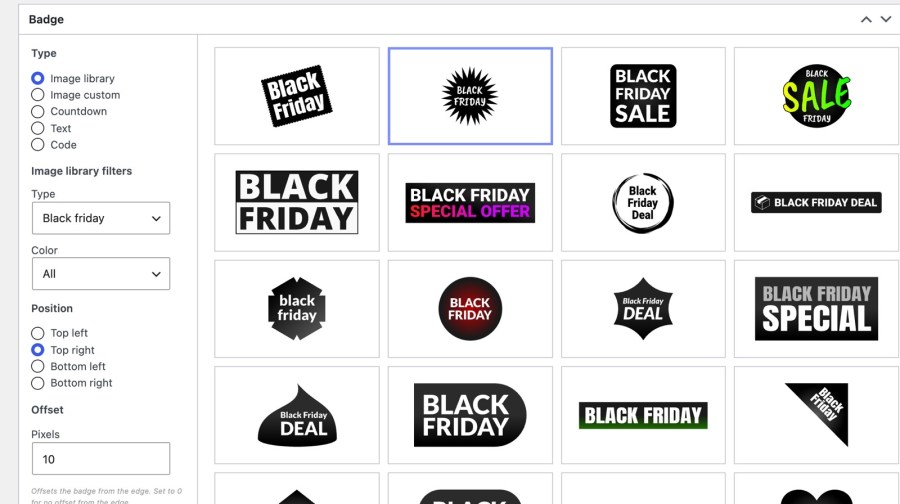
The bundled library has 143 SVG badges that stay sharp at any size. Filter them by theme (Availability, Black Friday, Christmas, Cyber Monday, Easter, Father’s day, Halloween, Mother’s day, Valentine’s and more) and by color, then set the width in pixels and let the height follow. If you have artwork of your own, such as a brand logo, a warranty seal or a “Made in” mark, upload it in the Badge image custom box and it works like any other badge, with the same positions, rules and animations.
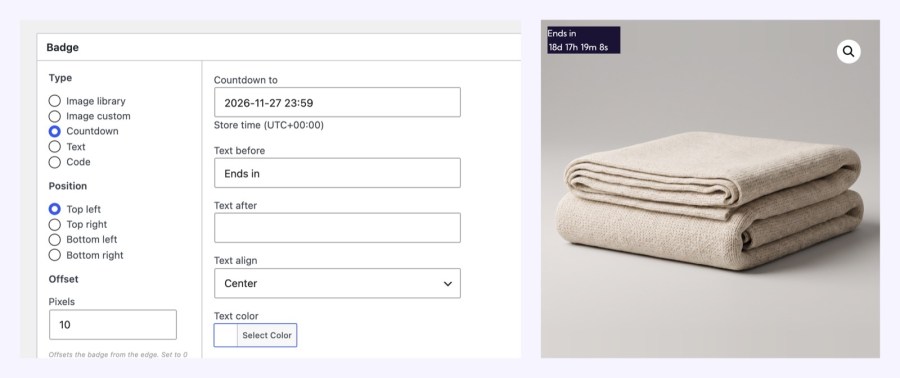
A countdown badge shows a live timer to a date and time you choose, with text before and after, such as “Ends in” and “left”. The date is read in your store’s time zone, so it ends at the same moment for every visitor. A text badge takes the same styling (alignment, colors, font size, style and weight, padding and corner radius) and accepts the placeholders [price], [regular_price], [sale_price], [stock] and [discount_percentage]. A code badge takes custom HTML: inline styles stay, while style and script tags are removed.
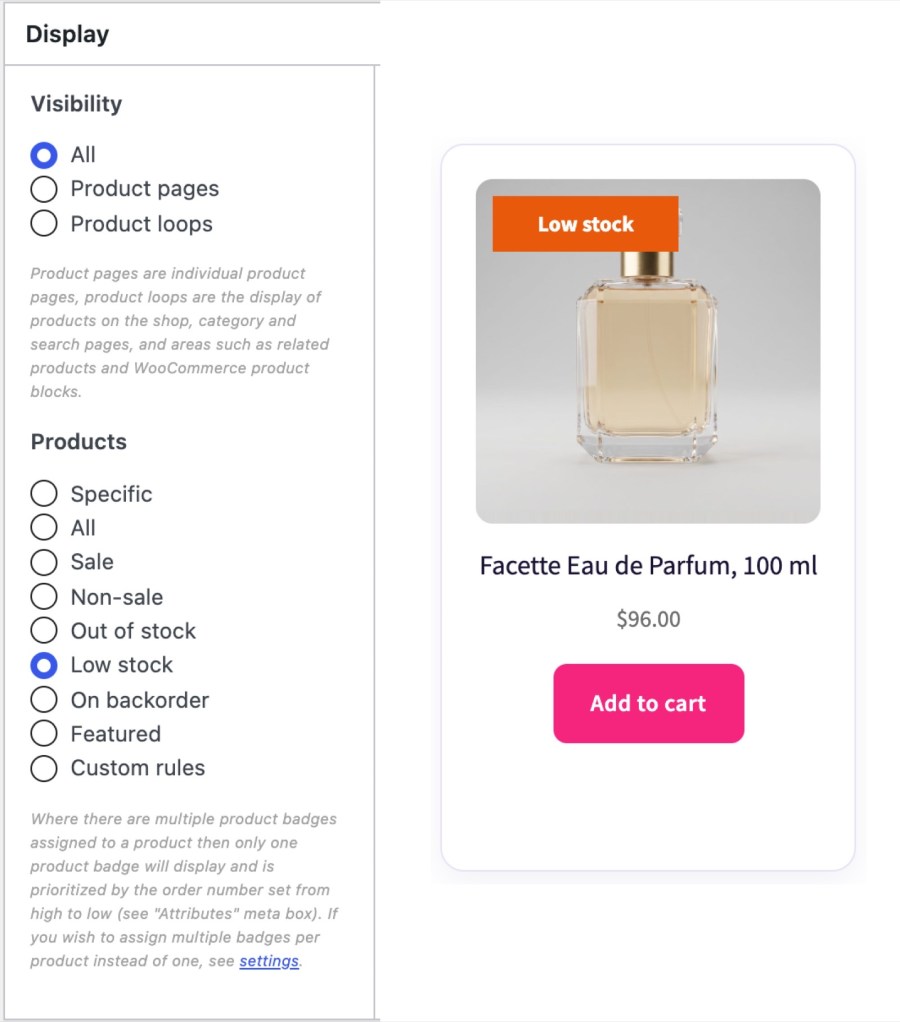
Each badge has one Products option: Specific, All, Sale, Non-sale, Out of stock, Low stock, On backorder, Featured or Custom rules. Specific badges can target products by product, category, tag or shipping class. Low stock uses the product’s own low stock threshold and falls back to WooCommerce’s store-wide setting, so a badge appears as stock runs low without anyone updating it by hand, and you can set a different threshold on any product that needs one. Custom rules is for developers: the badge shows when the wcpb_product_badges_custom_rules_display filter returns true.
When several badges match a product, the one with the highest Order number shows. Turn on Multiple badges per product to show all of them, stacked by Order, with lower numbers on top where badges overlap. A matching badge with nothing to show, such as one with no image, empty text or an ended countdown, is skipped and the next one shows, so an expired countdown never leaves a gap or hides the badge behind it. The Badges list shows each badge’s type, position, visibility, products and order at a glance.
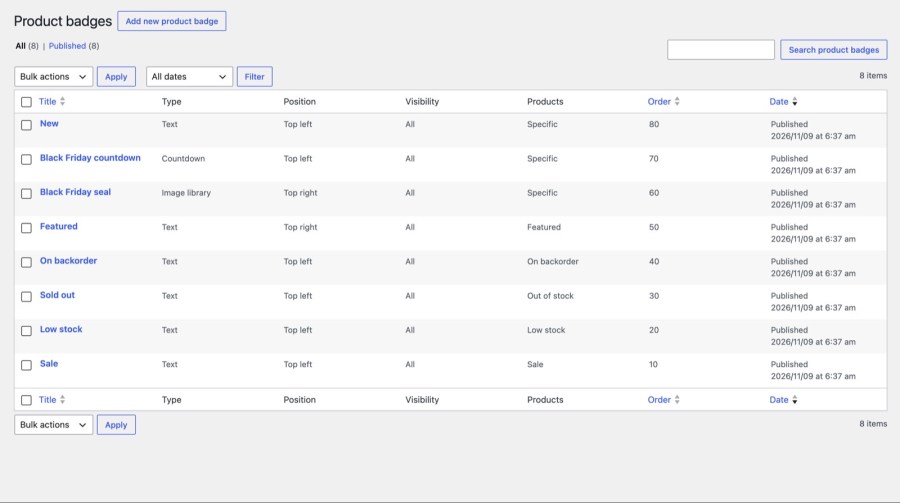
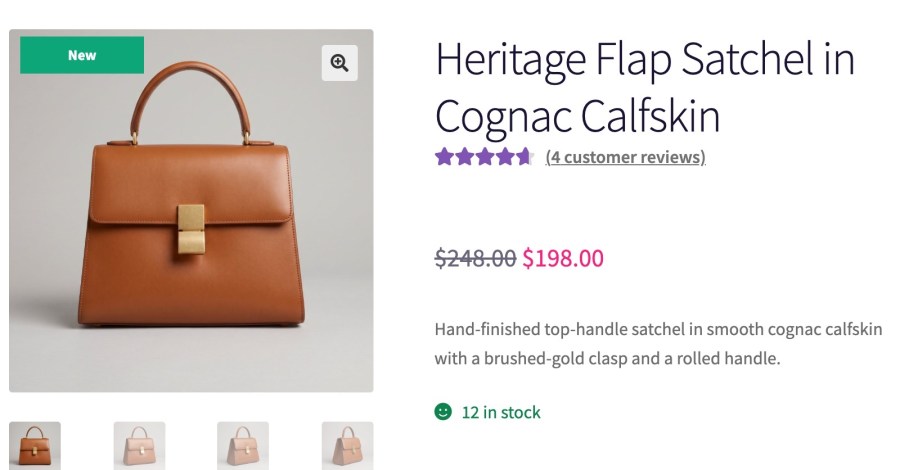
Place a badge at the top left, top right (the default), bottom left or bottom right of the product image, with an offset in pixels from the edge. Choose one of nine animations (bounce, breathing, jiggle, rotate, shadow pulse, shake, sway, tilt or wave) and set its duration. Show badges on product pages, in product loops (shop, category and search pages, and areas such as related products) or both. On a product page, the badge shows on the product image. Every badge has its own CSS class, wcpb-product-badges-badge-<badge ID>, if you want to restyle it.
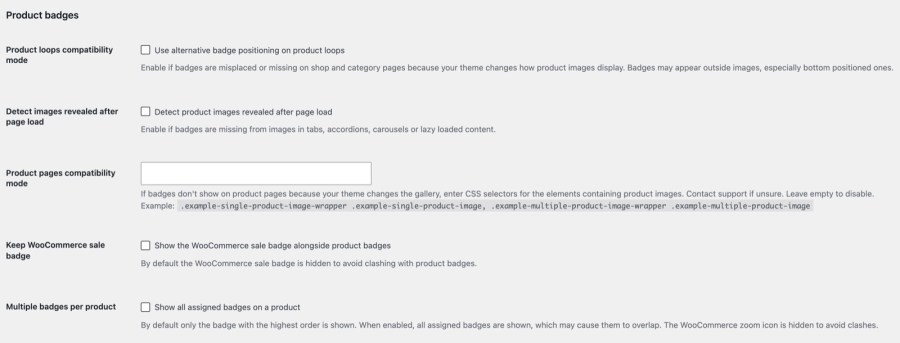
Under WooCommerce » Settings » Products » Product badges, compatibility settings reposition badges in product loops or on product pages, and add badges to images that appear after the page loads, such as tabs, accordions, carousels and lazy loaded images. Saving a published badge clears the WP Rocket, W3 Total Cache, WP Super Cache and LiteSpeed Cache page caches, so a new badge doesn’t wait for a cache to expire. Clear other caches by hand. Themes and builders that skip WooCommerce’s standard product hooks may need a compatibility mode.
On block themes, the Product Collection block draws its own Sale badge, and Product Badges doesn’t hide it, so a sale badge from this plugin can show beside it. Bottom positions also land on the card edge there, so top positions are the safer choice on a block theme.
Product Badges or Sale Flash Pro? The two overlap on sale badges but do different jobs. Product Badges adds designed badges shown by any rule. Sale Flash Pro changes the wording of WooCommerce’s own Sale! badge so it says how much is off, such as 25% off!, in your theme’s style. Product Badges covers sale badges with the discount shown, through a text badge with [discount_percentage]; Sale Flash Pro suits stores that only want the theme’s own Sale! badge to say how much is off. If you run both, turn on Keep WooCommerce sale badge.
Find out which products shoppers love. Badges tell shoppers what you want them to notice; Product Likes shows you what they care about. It adds a like button and count to product lists and a dashboard of the most liked products, so you can decide which products deserve a sale or seasonal badge. The two plugins don’t depend on each other, and either one works without the other.
Pair it with Products Compare. Products Compare for WooCommerce adds a Compare tick to the same product lists, so a shop can label products with badges and let shoppers weigh several side by side. Badges mark what’s special about a product; Compare shows how products differ. Each works without the other, so you can add Compare whenever your catalog has products worth weighing against each other.
Every badge field and setting is explained in the Get started with Product Badges guide. Kestrel support is there if you need it.
Built and supported by Kestrel, a long-time WooCommerce extension developer.

Add a badge, set Products to Sale and publish. It shows on every product that is on sale. To show the discount itself, such as 25% off, use a text badge with the [discount_percentage] placeholder, which renders only while the product is on sale.
Yes. A countdown badge shows a live timer to a date and time you choose, with text before and after, in your store's time zone. After the date passes the badge has nothing to show, so it is skipped and the next matching badge shows.
Yes, with Multiple badges per product turned on. Every matching badge shows, stacked by Order number. With it off, only the matching badge with the highest Order number shows, and a badge with nothing to show is skipped.
Yes. Set a badge's Products option to Low stock or Out of stock. Low stock uses the product's own low stock threshold and falls back to WooCommerce's store-wide setting, so stock management must be on for that product. There is also an On backorder option.
No. Badges show on product images, not at checkout or in the cart, so payment and security icons belong elsewhere. CheckoutWC has trust badges for checkout. Product Badges is for labels on products, such as sale, stock, seasonal and custom badges.
Yes. Under each badge's Visibility, choose Product pages, Product loops or both. Product loops covers shop, category and search pages and areas such as related products, so one badge can appear wherever the product image does.
Categories
Extension information
Quality Checks
Countries
Languages