
Fonts decide which typefaces customers can use when they add text to their design. You can pick fonts from the built-in list or upload your own brand fonts, and optionally charge extra for premium fonts.
- Go to WordPress Admin → Products → Smart Product Designer.
- Click the Fonts tab.
Add a font from the list
↑ Back to top- Select a font from the available list.
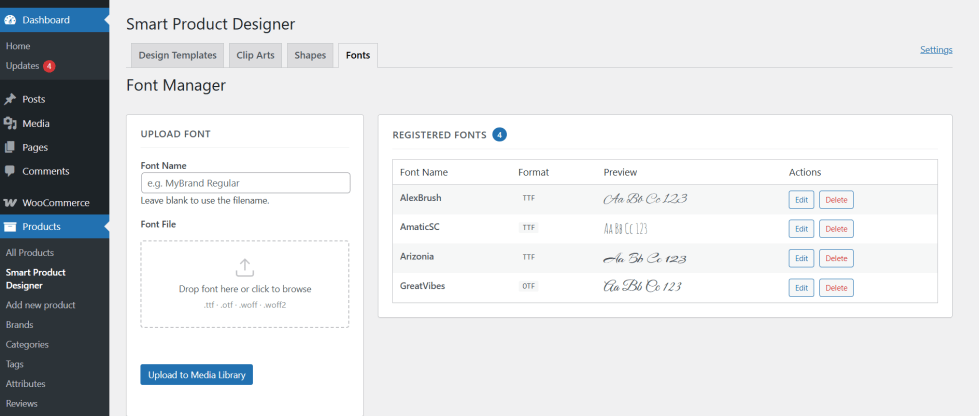
Or upload your own font
↑ Back to top- Go to Upload Font section and select your font file. Supported formats: .ttf, .otf, .woff.
- Enter a display name — the name customers will see in the designer.
Save the font
↑ Back to top- Set an Additional Fee if you want to charge extra when a customer uses this font (optional).
- Click Save.
That’s it. The font now appears in the designer’s text tool, alongside any other fonts you have added.
Tip: Upload your client’s brand fonts for corporate merchandise, so every design stays on-brand.

