
Once you have created a design template, assign it to a product so customers can use it.
- Go to Admin → Products and open the product.
- Scroll to the Product Data panel and click the Product Designer tab.
- In the Choose product designer template dropdown, select your template.
- Click Update.
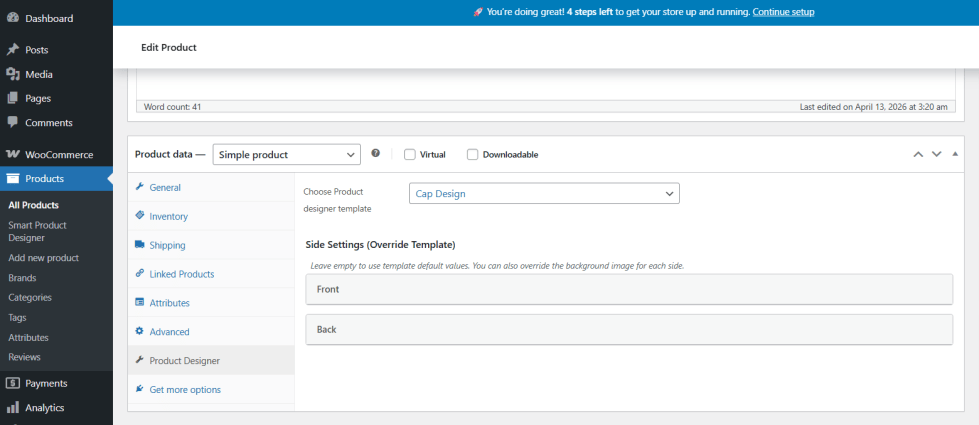
That’s it. The product is now set up for personalization. Customers will see a Design button on the product page.
Also see:
- How to Customise Design Template Settings per Product in WooCommerce
- How to Add a Design Template to a WooCommerce Variable Product
- How to Set Different Design Options per Product Variation in WooCommerce
- How to Use a Product Image as the Design Canvas Background in WooCommerce
- How to Automatically Change Design Canvas Background per Variation in WooCommerce

