
A Black Friday or holiday sale page gives your promotion its own address to share in emails, ads and menus. Festival Campaigns in PricePulse builds that page from the discount rules you already run: choose the occasion, pick the offers, start from one of nine designs, and publish it as an ordinary WordPress page you can edit in the block editor.
A campaign only presents your rules. It never creates, switches on or edits a rule, and it never changes a price, a coupon, a menu, your homepage or a setting. The cart still calculates every discount exactly as before.
For example, a store getting ready for Black Friday creates its discount rules, picks the Black Friday occasion, ticks the offers it wants to promote, starts from the Doorbuster template, retypes the headline in the block editor and publishes the page. The same steps work for Cyber Monday, Christmas, New Year, Valentine’s Day, Diwali, Halloween, a summer sale or an event of your own.
Requirements
↑ Back to top- PricePulse 2.2.0 or later.
- The Shop manager or Administrator role.
- At least one discount rule that is published and switched on.
Create the discount rules first, because a campaign shows rules and does not make them. How to Create Your First Discount Rule walks through one. For the usual sale offers, see How to Discount Multiple Products or Your Whole Store, How to Discount Products, Categories and Tags, How to Setup BOGO for WooCommerce and How to Set Up Cart and Cheapest Item Discounts.
Designing with AI and connecting an AI assistant are optional, and each has its own requirements, described in How to Generate a Design With AI? and How to Let an AI Assistant Draft a Campaign?
How to Create a Campaign?
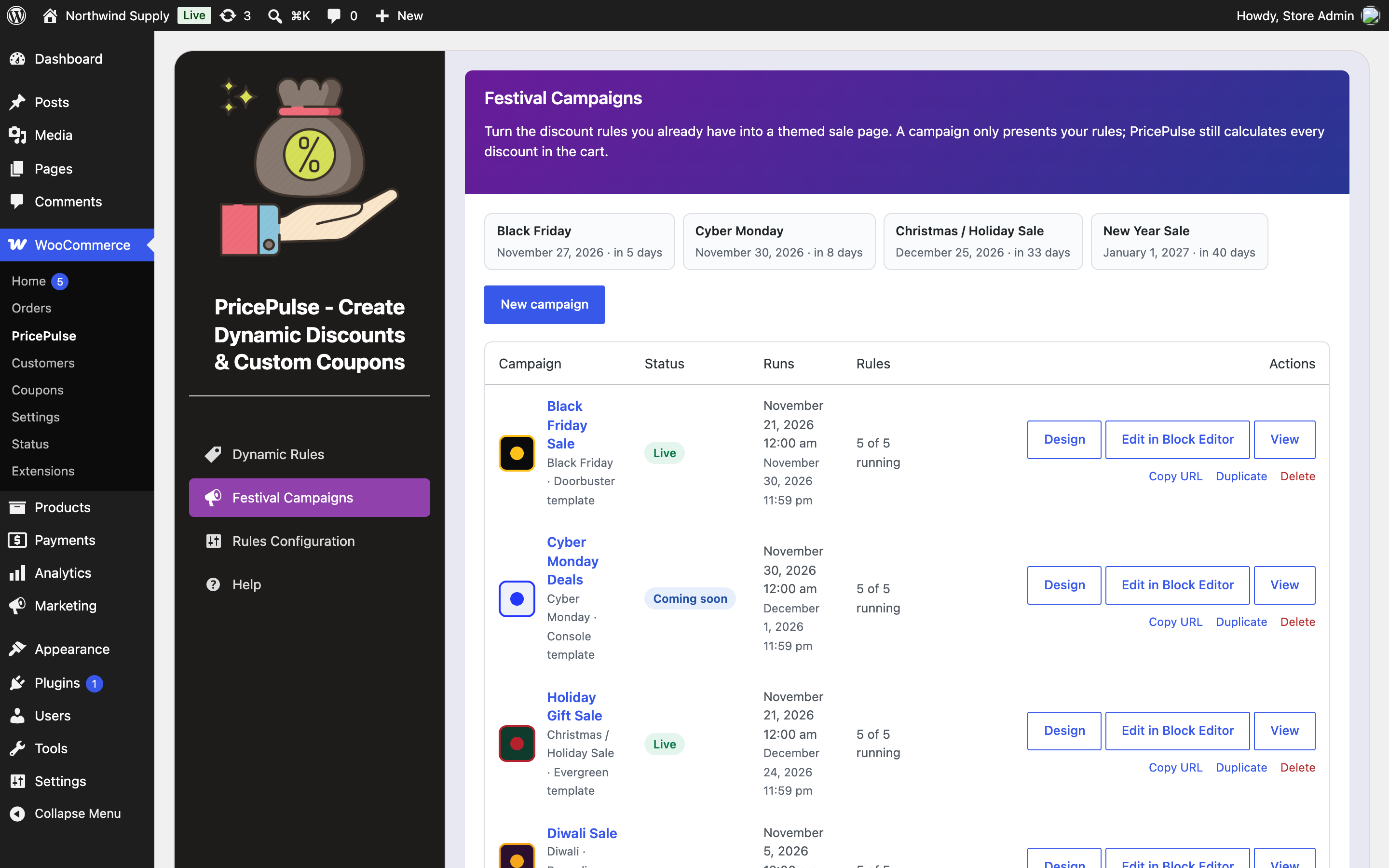
↑ Back to top- Go to: WooCommerce > PricePulse > Festival Campaigns.
- Select New campaign.
- Work through the five steps below: Occasion, Rules, Template, Customize and Review and publish.
- Select Publish page.
Occasion and Dates
↑ Back to topPick what the sale is for. The campaign name and the dates are filled in where a reliable date exists, and you can change both.
- Black Friday and Cyber Monday – Calculated for the year you choose.
- Christmas / Holiday Sale, New Year Sale, Valentine’s Day and Halloween – Fixed dates.
- Diwali – A suggested date for 2027 to 2030. Tick I have checked these dates for my customers. to continue.
- Summer Sale and Custom Festival / Event – No suggestion. Enter the dates yourself.
The date of Diwali differs by region and from one calendar to another. Treat the suggested date as a starting point and check it against the calendar your customers follow.
- Starts – When the offers appear on the page. Before this, the page shows a “coming soon” message and a countdown.
- Ends – When the offers come off the page. After this, the page shows a closing message. Leave blank for a campaign with no end.
Dates use your store timezone, the same clock your discount rules follow. The current store time is shown beside the fields.
Rules
↑ Back to topTick the rules the page should show. Search by name, or filter by type and status. Under Order on the page, drag the selected rules into the order you want.
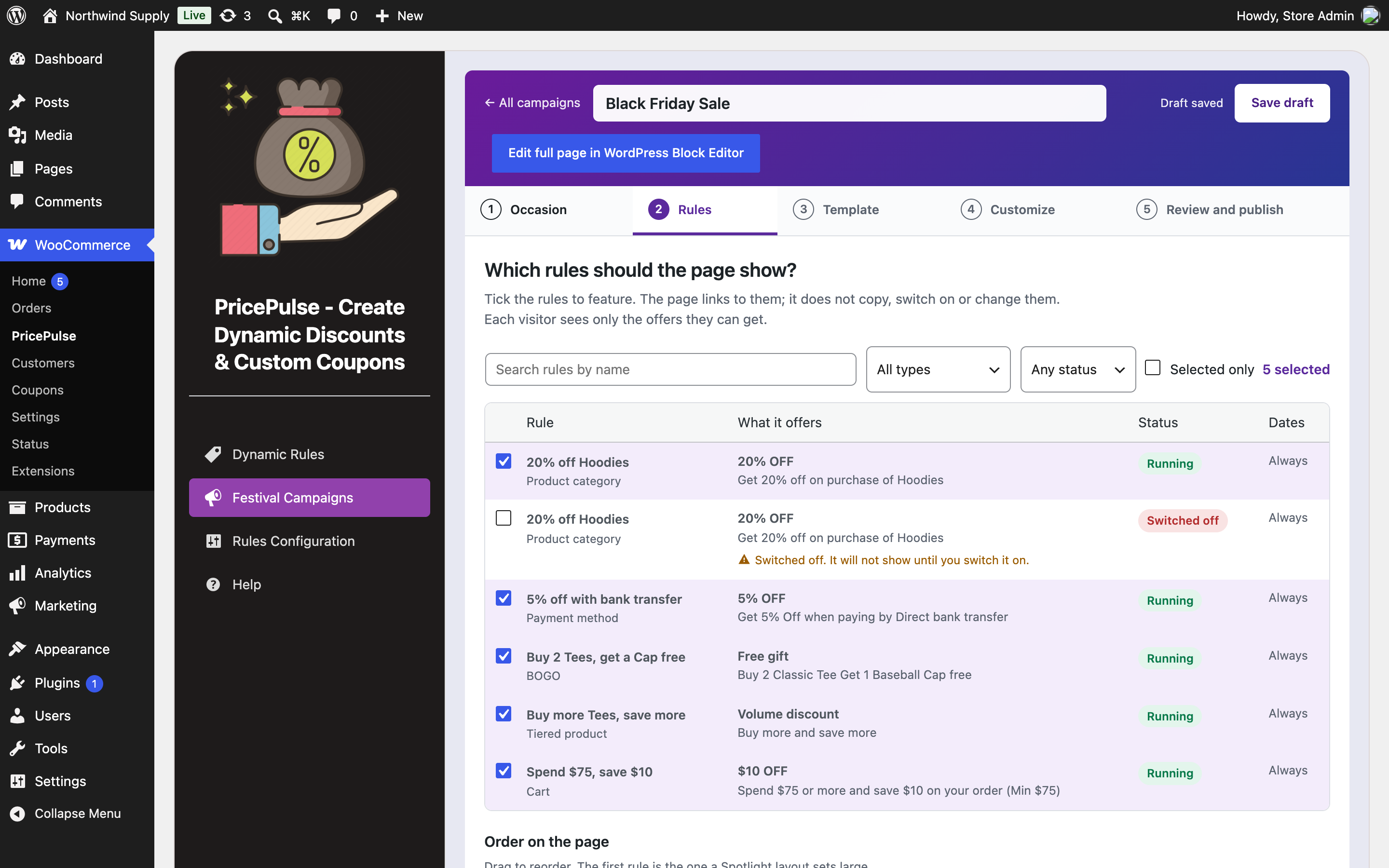
A rule carries a note when something will keep it off the page:
- Switched off – The rule will not show until you switch it on.
- Already ended – The rule’s own end date has passed.
- Ends before the campaign does or Starts after the campaign does – The rule shows for part of the campaign only.
- Shown only to – Only those customers see the offer. Everyone else sees the page without it.
Selecting a rule changes nothing about it. To change what a rule does, edit the rule itself under Dynamic Rules.
Template
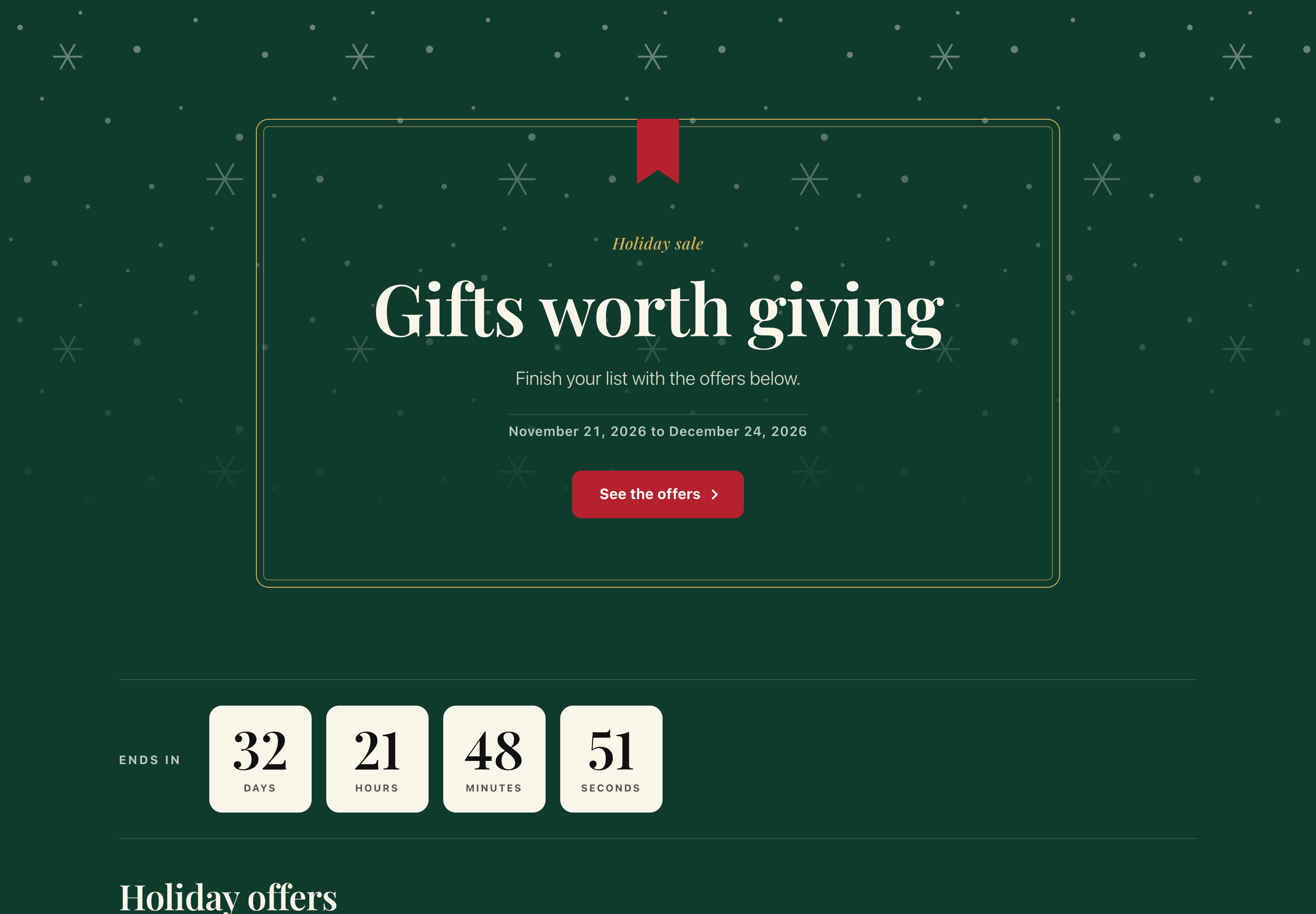
↑ Back to topWhen you reach this step the campaign is saved as a draft page, so the preview beside the step is the real page in your theme. Nothing is public yet.
The step shows the design the page starts with, which is the template of the occasion you picked, and two ways to change it: Choose a prebuilt template and Generate with AI. The templates work on their own; AI is optional. To use a prebuilt template:
- Select Choose a prebuilt template, or Change template once a design is on the page.
- Select a template. Nine are offered, each with its own colors, type, layout and wording, and any of them can be used for any occasion. The one on the page is marked On the page.
- Optional: select Preview on a template to see your draft page drawn with it. Switch between Desktop and Phone, and select All templates to go back.
- Select Use template.
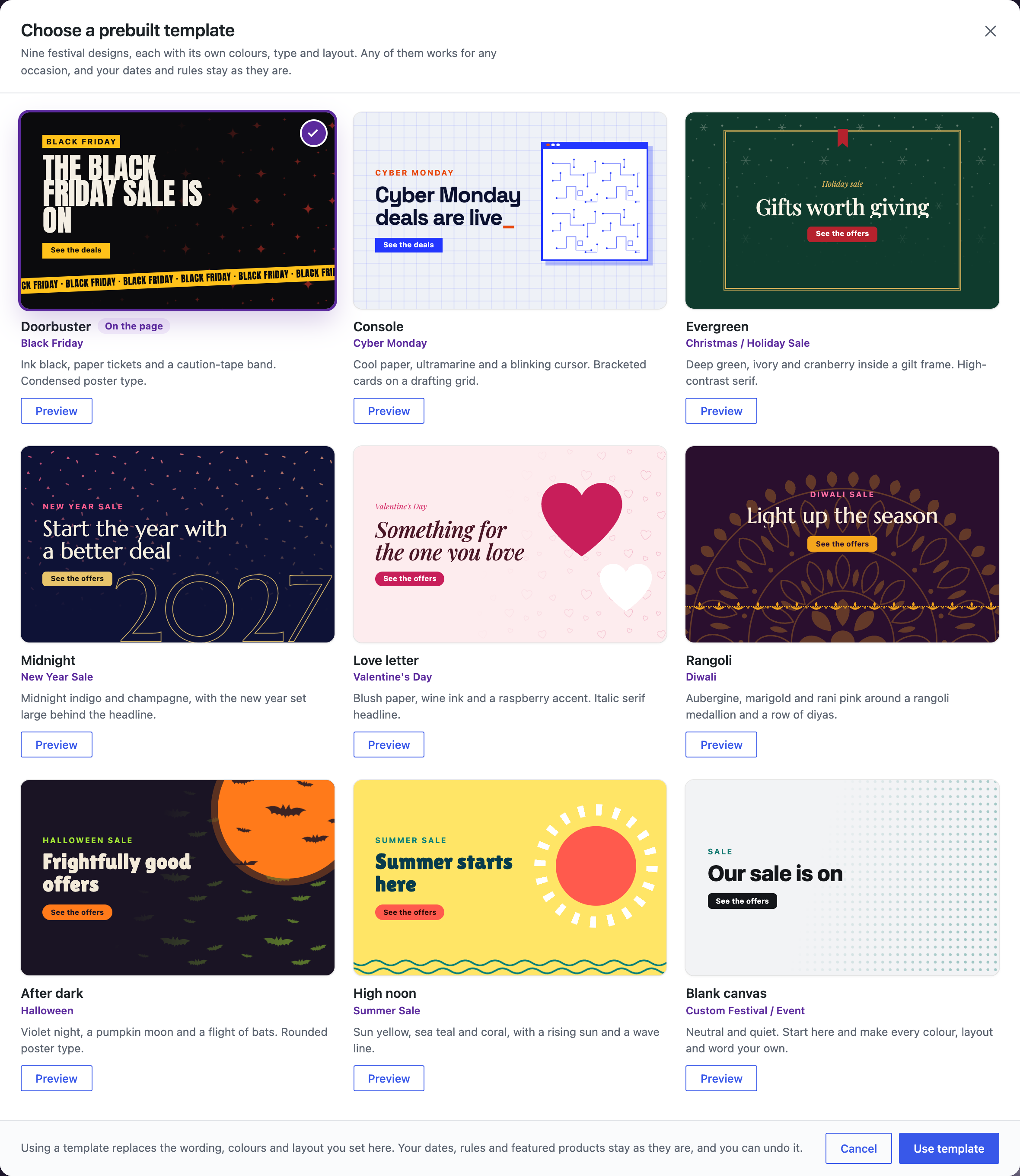
Your dates, rules and featured products stay as they are. Cancel closes the window and changes nothing, and Undo beside the design puts back the one you had. Nothing is saved until you select Save draft.
Below the design, choose how the page sits in your site. Each choice has a small picture of the page, and the preview shows the one you pick before you save.
- Theme default – Your theme lays the page out, with its usual header, menu and footer.
- Full width – Keeps your header and footer. The sale takes the width of the page, with no sidebar and no separate page title. A new campaign starts here.
- Full-screen canvas – Shows only the sale, with no header, menu, sidebar or footer. Its buttons still lead to your products, cart and checkout.
You can switch at any time, also after the page is published. The page keeps its address, rules and design. Full width uses your theme’s own full-width page template where it has one; in a theme that has none it looks the same as Theme default, and the designer says so.
Customize
↑ Back to topThese settings shape the design the page starts with. Once the page is created you can change every part of it in the WordPress block editor; see How to Edit a Campaign in the WordPress Editor?
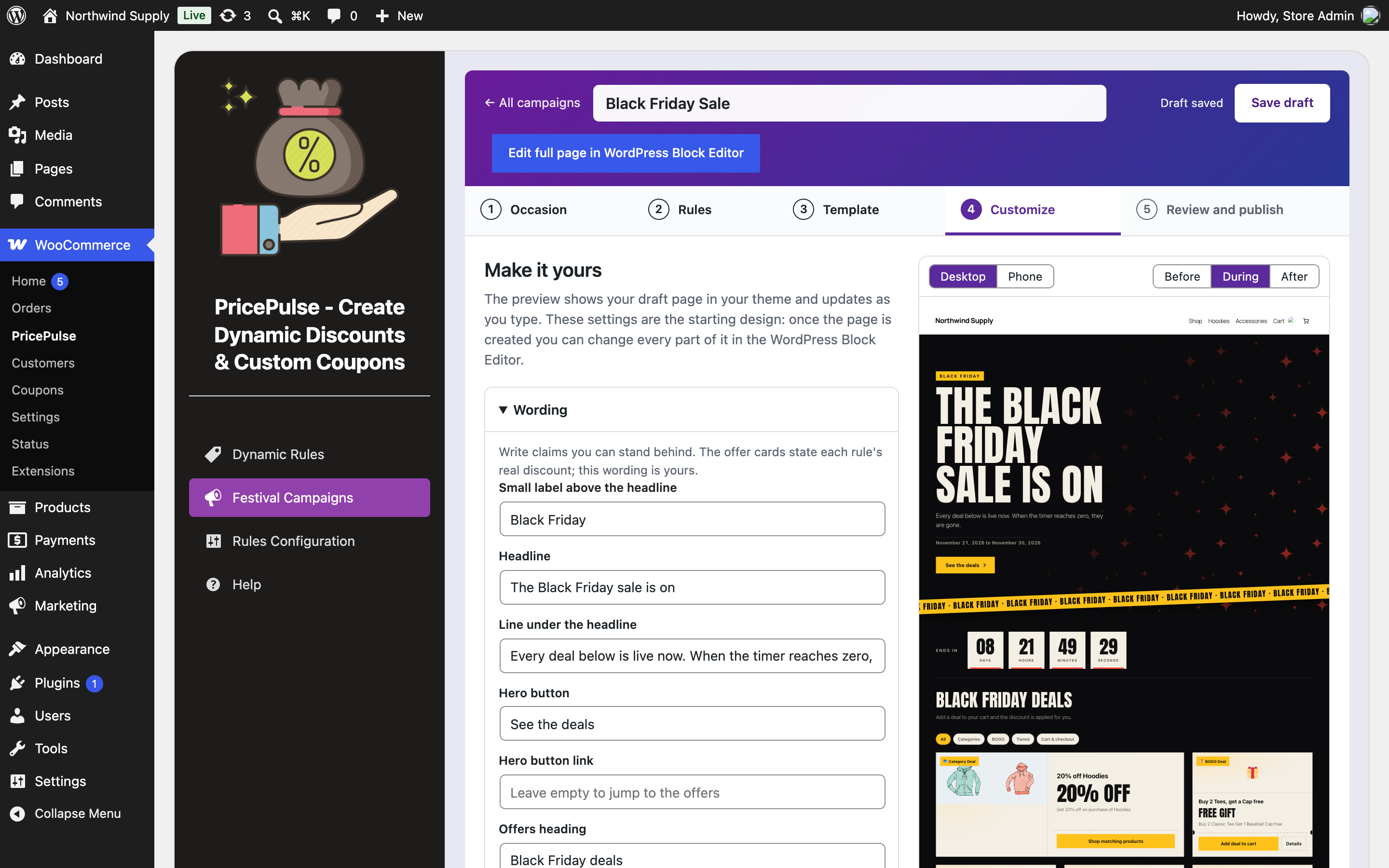
- Wording – The headline, the lines under it, button text, section headings, and the messages shown before the sale and after it.
- Colours – Eight colors. A text color that cannot be read on its background is corrected when you save, and a message says so.
- Type and layout – Typography, Hero layout, Offer listing, Offer card style, Offer columns, Corners, Decoration, Closing message style and Countdown style.
- Hero image – An image from your media library. Leave blank to use the template’s own artwork.
- Sections – Tick the sections to show and drag them into order.
- Featured products – Up to 12 products or categories, shown with their normal shop prices.
- Page address (slug) – The last part of the page’s address.
- Meta description – Printed as the page’s description for search engines. Leave blank to print none. If an SEO plugin is active, it controls this instead.
- Never cache this page – Asks page caches not to store the page. Leave this off unless your host’s cache does not refresh the page.
Use Desktop and Phone to check both widths, and Before, During and After to see the page at each stage of the sale. In the preview only, an offer limited to some customers is labeled Only for, and the rules that will not show are listed with the reason.
Select Save draft to keep your changes.
Review and Publish
↑ Back to topThe review shows the page, when it runs, how many rules are selected and every rule that will not show. The page stays a draft until you select Publish page.
Publishing does not add the page to a menu. Add it yourself under Appearance.
A theme whose menu lists every page, or a menu set to add new pages automatically, will list the campaign page once it is published. That is the theme or the menu at work, and you change it under Appearance.
What Shoppers See
↑ Back to top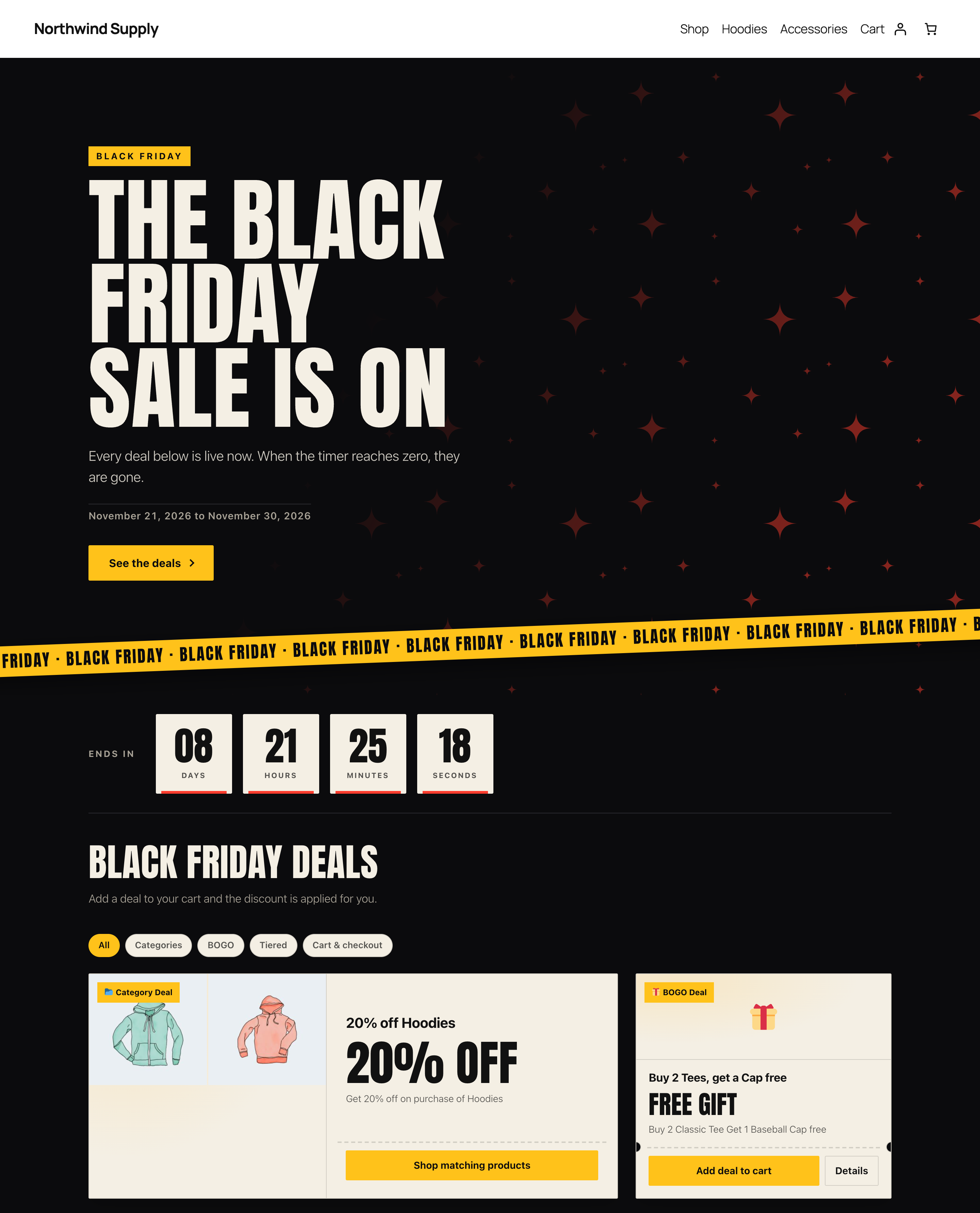
- Only rules that are switched on and inside their own dates.
- An offer limited to a role, to guests, to listed customers or to Plus members is shown only to those customers.
- The same discount wording as on your offers page. A tiered rule reads “Volume discount” with its tier table, never a single price.
- A payment-method or shipping-method offer says which method to choose at checkout. In version 2.2.0 a payment-method discount applies in the classic checkout only; see How to Discount by Payment or Shipping Method.
- When no selected rule is running, a short “no offers” message. The page never falls back to listing all your rules.
How to Manage a Campaign?
↑ Back to topGo to: WooCommerce > PricePulse > Festival Campaigns. Each campaign shows its status (Draft, Coming soon, Live or Ended), when it runs, and how many of its rules are running.
- Design – Reopen the campaign in the designer.
- Edit in Block Editor – Open the page in the WordPress block editor.
- View – Open the page. A draft shows Preview instead.
- Publish – Publish a draft.
- Copy URL – Copy the page’s address.
- Duplicate – Make a new draft with the same design, rules, display and blocks.
- Delete – Move the page to the Trash. Restore the page from the Trash to get the campaign back.
If a campaign page has lost its offers, its row says The offers block was removed from this page, so it shows no offers. Select Put the offers back. Only the offers are added, where the template had them; everything else on the page stays as it is.
How to Edit a Campaign in the WordPress Editor?
↑ Back to topA campaign page is made of ordinary WordPress blocks: headings, paragraphs, images, buttons, groups and columns. You edit it as you edit any page.
- Open the page: select Edit full page in WordPress Block Editor in the designer, or Edit in Block Editor in the campaign list.
- Click a heading or a paragraph and type. Select an image and use Replace to choose another from your media library. Select a button to change its text and link.
- Change colors, type and spacing in the block’s settings in the sidebar.
- Add any block anywhere with +, for example a video, a gallery or columns. Move sections with the arrows in the block toolbar or in List View.
- Save the page.
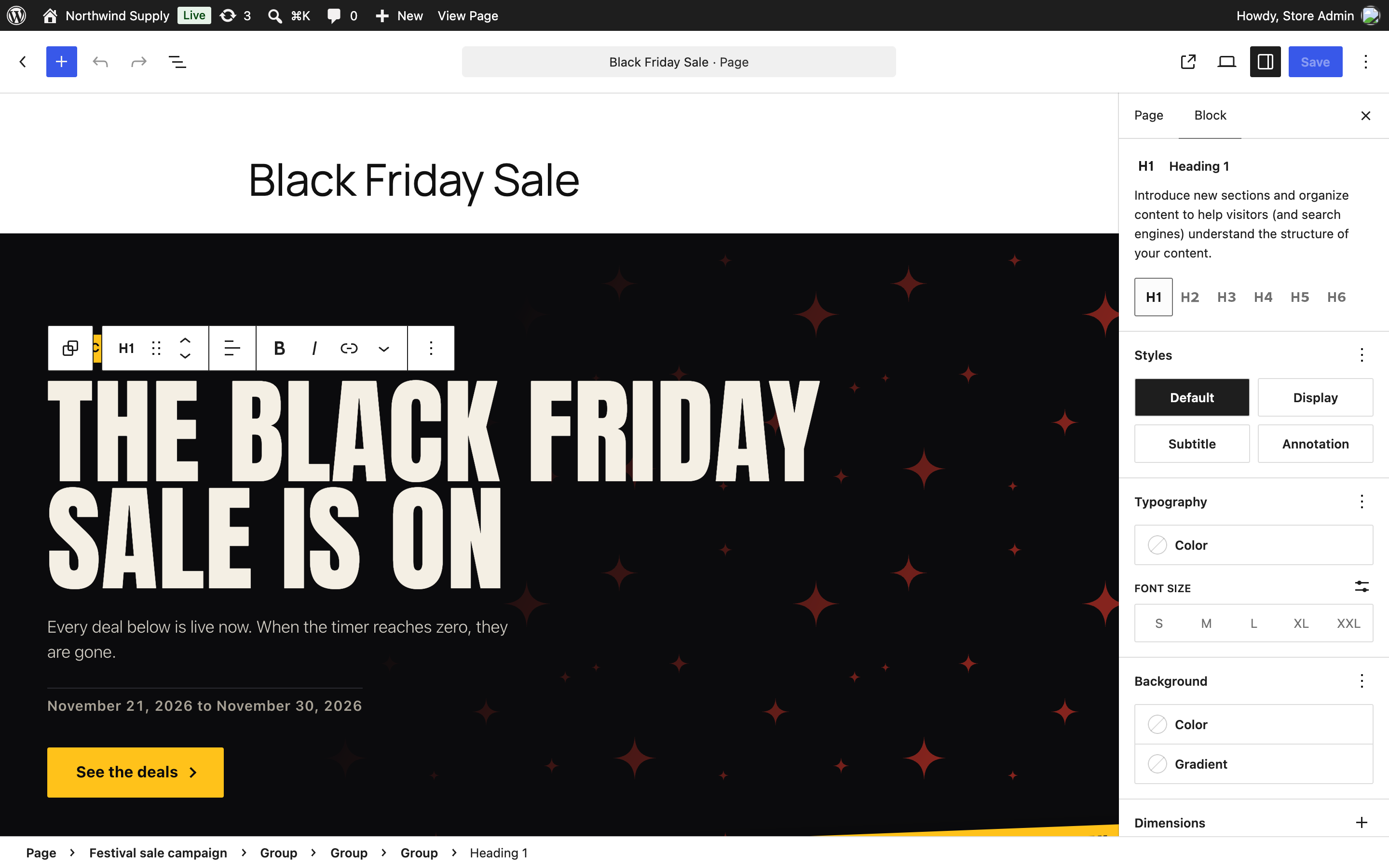
A few parts are drawn live by PricePulse: the offers, the countdown, the featured products, the sale’s dates, the template’s decoration, and the containers that show their blocks only before, during or after the sale. You can move or remove them like other blocks; which rules the offers show, the dates and the featured products are set in the campaign designer. Each visitor sees the offers that apply to them, so the page stays current as your rules start, end or change.
Three ready-made sections are in the block inserter under PricePulse campaign sections: a note about the sale, customer quotes, and questions and answers. They hold sample wording for you to replace.
What the Designer Still Does
↑ Back to topOnce you change the page in the block editor, its design lives there. Saving in the designer still updates the occasion, the dates, the rules, the featured products and how the page sits in your site, and never touches your blocks.
To start again from a template or an AI design, open the Template step and select Replace with a prebuilt template… or Replace with an AI design…. The window asks you to confirm before it replaces your edited page, and the edited version is kept: select Restore that version under Review and publish to bring it back.
If the Offers Are Removed
↑ Back to topThe offers block is the one part a campaign page cannot do without. If you delete it, the editor says that the page has no offers. Select Put the offers back in that notice, or undo the change. The designer and the campaign list show the same warning.
Scheduling and Page Caching
↑ Back to topThe page changes with the campaign’s dates, in your store timezone:
- Before the start – A “coming soon” message and a countdown to the start. No offers are shown.
- During the sale – The offers and a countdown to the end, if the campaign has one.
- After the end – A closing message. No offers are shown.
The campaign’s dates control the page, not the discounts. A rule still applies in the cart whenever the rule itself is switched on and inside its own dates, so give the rules the same dates as the campaign if the discounts should start and stop with the page. The fields are described in Discount Rule Fields.
Campaign pages are built to work with a page cache:
- The page a cache stores is the same for every visitor. Offers limited to some customers are fetched separately for each visitor and are never in the stored page.
- When any of your rules depends on who the customer is, product prices are fetched for each visitor too, so prices can appear a moment after the page loads.
- The page is refreshed when the sale starts or ends, and when a selected rule starts, ends or is switched off.
The refresh relies on WordPress’s scheduled tasks, as every WooCommerce scheduled task does. It was tested with WP Super Cache; if your host’s cache keeps showing an old page, switch on Never cache this page for that campaign.
How to Generate a Design With AI?
↑ Back to topThis is optional, and the nine templates work without it. On the Template step, a connected AI provider designs the page from a few guided choices, so you do not have to write a prompt. You need:
- WordPress 7.0 or later, which includes the WordPress AI Client.
- An AI provider plugin, active.
- An API key from that provider, added under Settings > Connectors.
A ChatGPT or Claude subscription does not include API access, so it does not switch this on by itself. The provider bills API use separately and may charge for each request.
- Select Generate with AI.
- In Quick generate, pick a Design style and a Colour theme, or leave the suggested ones.
- Optional: under Describe what you want, write in your own words what the page should look and feel like, for example “a calm, luxurious feel with elegant serif type”.
- Optional: select Advanced generate to choose more: the layout, the hero and its picture, the typeface, the offer cards, the audience, the tone, the headline, the main button, the sections, the countdown, and how far the AI may move away from the template.
- Tick I agree to send this to your provider.
- Select Generate design. The window shows your draft page drawn with the new design.
- Select Use design, or Regenerate for another one, or Cancel to keep the design you had.
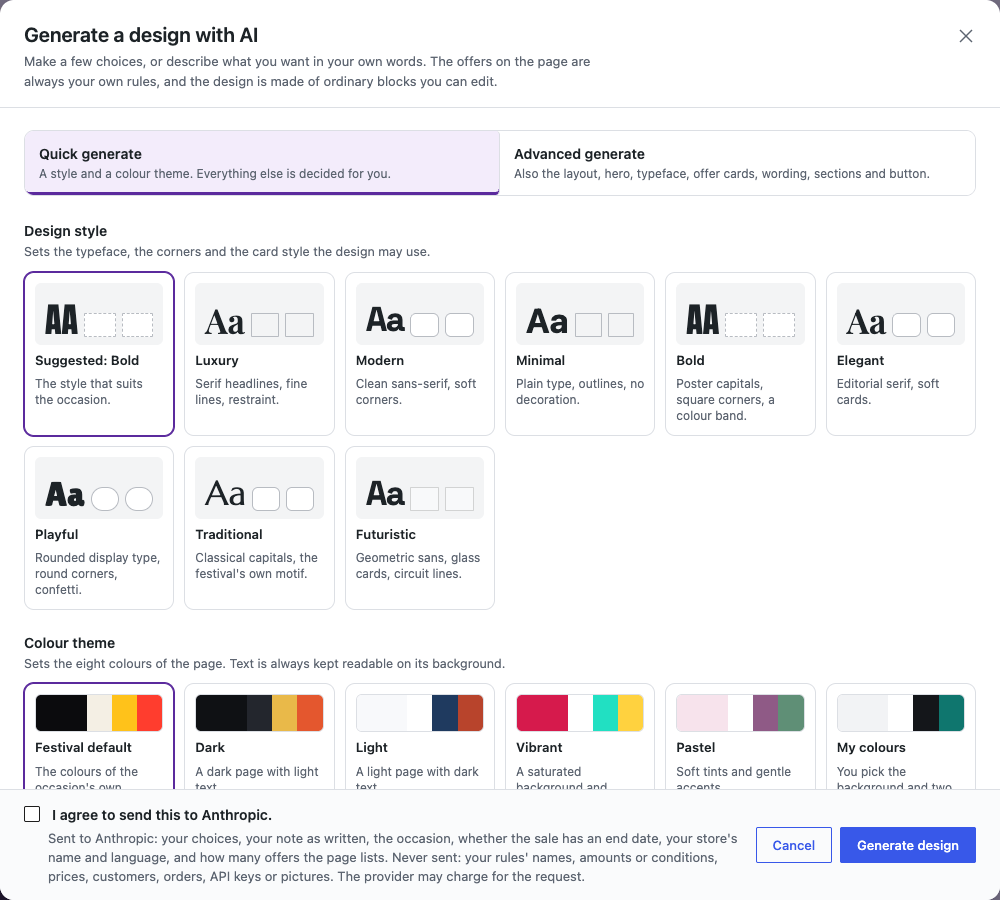
The result is made of the same editable blocks as a template, so you review it in the preview and change anything afterwards in the block editor. Undo beside the design puts back the one you had, and nothing is saved until you select Save draft.
What is sent to the provider: your choices, your note as you wrote it, the occasion, whether the sale has an end date, your store’s name and language, and how many offers the page lists. Never sent: the names, amounts or conditions of your rules, prices, customers, orders, API keys or your pictures.
The AI does not create pictures: the hero image is the template’s artwork or one you choose from your media library. Its answer is a set of choices from the same options as the designer, never code. An answer that does not fit those options is discarded and nothing changes. Wording that states a discount, a price or a promise such as a delivery time is not used, because only your rules and you decide those.
How to Let an AI Assistant Draft a Campaign?
↑ Back to topThis is optional and separate from Generate with AI. Generate with AI runs inside the designer through a provider connected to your site. Here, an outside assistant that speaks MCP (Model Context Protocol) connects to your store, reads your templates and rules, and creates a draft campaign for you to review.
You need:
- WordPress 6.9 or later.
- The MCP Adapter plugin, active.
- An application password for a Shop manager or Administrator, created under Users > Profile > Application Passwords.
Point the assistant at /wp-json/mcp/mcp-adapter-default-server on your store, with that username and application password. Sign-in is by application password only.
The assistant can:
- List the templates and occasions.
- List your rules with their name, type, offer, dates, status and who can see each one. Customer email addresses are never included.
- Check a design.
- Create a draft campaign, or update one that is still a draft.
The assistant cannot publish a page, change a campaign you have published, create or edit a rule, change a price, or read customers and orders. You review the draft and publish it yourself.
This was tested with a standard MCP client over HTTP. It has not been tested with the Claude or ChatGPT apps. WooCommerce 11.3 removed its own MCP address, /wp-json/woocommerce/mcp; the MCP Adapter plugin replaces it.
Troubleshooting
↑ Back to topWhy is a rule missing from the page?
↑ Back to topThe rule is switched off, outside its own dates, or limited to customers other than the one looking. The Review and publish step lists each rule that will not show and why.
Why does my campaign page show no offers?
↑ Back to topEither none of its rules is running, or the offers block was removed from the page. In that case the campaign list, the designer and the block editor say so; select Put the offers back.
Why does the page still show the sale after it ended?
↑ Back to topA page cache is serving an older copy. It is refreshed when WordPress’s scheduled tasks next run. If it keeps happening, switch on Never cache this page for that campaign.
Why is there no Generate design button?
↑ Back to topNo AI provider is connected to your site, or your site runs a WordPress version earlier than 7.0. The Generate with AI window says which. The templates work without it.
Why does it say the campaign was changed somewhere else?
↑ Back to topThe campaign was saved in another screen or tab after you opened this one. Load the latest version, or save the version in front of you over it if that is the one you want.
Why does Full width look the same as Theme default?
↑ Back to topYour theme has no full-width page template that PricePulse can use. Choose Full-screen canvas instead; it works with every theme.
Does deleting a campaign delete my rules?
↑ Back to topNo. A campaign only refers to your rules. Deleting it moves its page to the Trash and leaves every rule as it was.