
This page shows how to create a discount in WooCommerce with PricePulse: building a working discount rule from scratch, then managing your rules once you have a few of them. If you have just installed PricePulse, start here.
Before You Start
↑ Back to topPricePulse discounts apply automatically. Shoppers do not enter a code — the price simply changes when their cart matches a rule you have set up. That means you never need to advertise a coupon code, but it also means you should check a rule does what you expect before leaving it running.
Everything lives under WooCommerce > PricePulse, which has three sections: Dynamic Rules for the rules themselves, Rules Configuration for store-wide settings, and Help.
Create a Discount Rule
↑ Back to topThis example gives 20% off everything in one category.
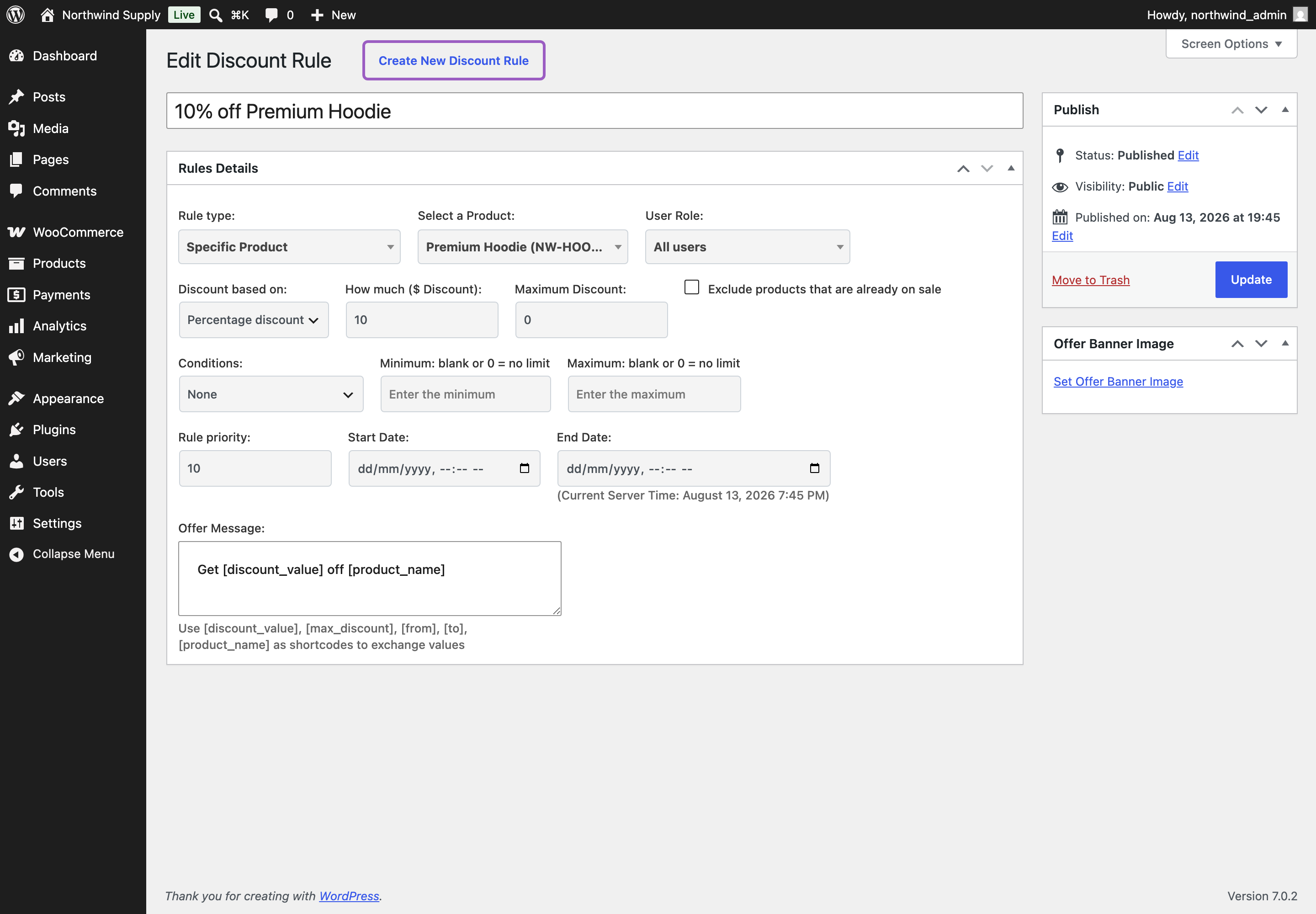
- Go to: WooCommerce > PricePulse and click +Add New Rule.
- Give the rule a name a customer would understand, such as 20% off Hoodies. The name is used on the offers page if you choose to show one.
- Rule type: choose Specific Category. The form reloads to show the fields that rule type needs.
- Select a Category: choose the category to discount.
- User Role: leave this on All users so everyone qualifies.
- Discount based on: choose Percentage discount, and enter 20 in How much.
- Maximum Discount: enter 0 for no upper limit, or a figure to cap how much this rule can take off a single item.
- Leave Conditions on None, and leave Start Date and End Date blank to run the offer until you turn it off.
- Publish your rule.
Every field on this screen is explained in Discount Rule Fields.
Check It Worked
↑ Back to topVisit a product in that category on your storefront. With the default display settings the original price is struck through and the new price shown beside it.
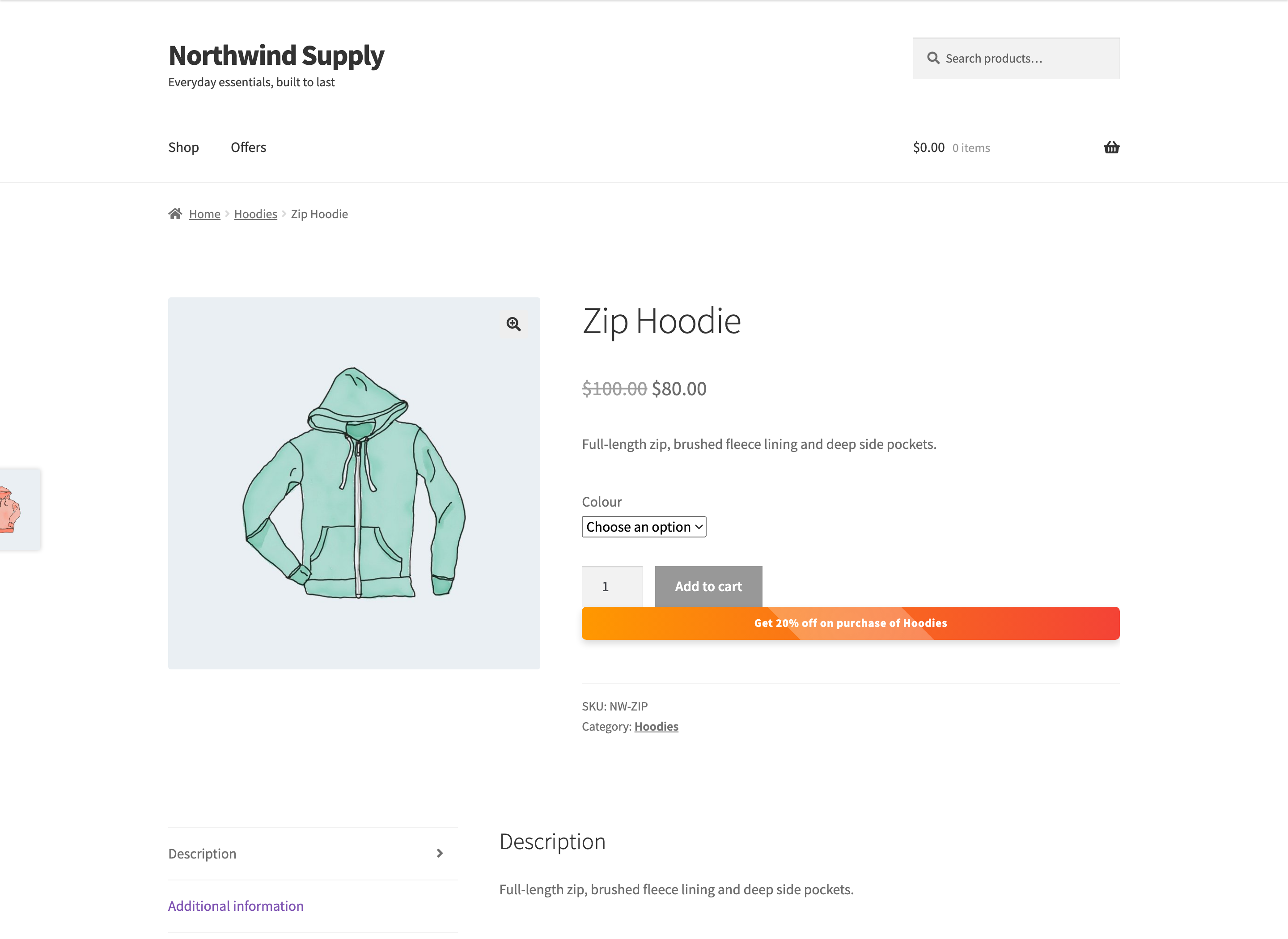
If the price has not changed, check that the rule is enabled, that its dates include today, and that the product really is in the category you chose. If prices look right in the cart but not in the catalog, the catalog display setting may be switched off — see How to Show Offers on Your Store.
Manage Your Rules
↑ Back to topWooCommerce > PricePulse > Dynamic Rules lists everything you have built.
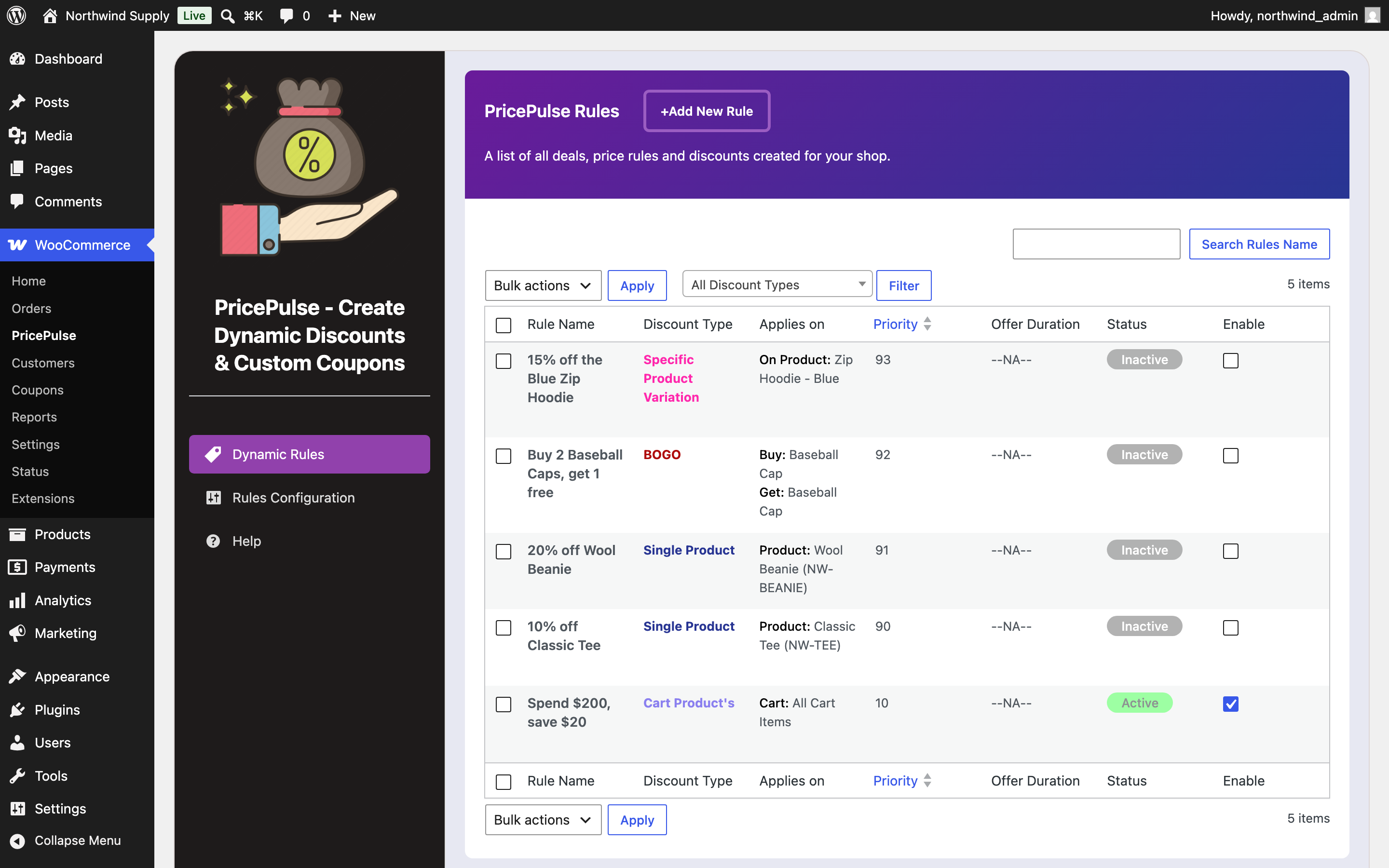
- Rule Name – the title you gave it. Hover a row for Edit and Delete.
- Discount Type – the rule type, in a shortened form. “Single Product” here is the same thing as “Specific Product” in the rule type dropdown.
- Applies on – the product, category or method the rule targets.
- Priority – which rule wins when two could apply. The lowest number wins. Click the column to sort.
- Offer Duration – the scheduled dates, or –NA– when the rule has none.
- Status – whether the rule is currently Active or Inactive.
- Enable – a checkbox that turns the rule on or off immediately, without opening it.
Use Search Rules Name to find a rule by title, or the All Discount Types dropdown with Filter to show one kind of rule. Bulk actions can enable, disable or delete several rules at once.
Turning a rule off with the Enable checkbox keeps it and all its settings. Reach for that rather than Delete when you are pausing a seasonal offer you will run again.
When Several Rules Match
↑ Back to topOnce you have more than one rule, two of them will eventually apply to the same product. Your store decides what happens: either only the highest-priority rule applies, or every matching rule applies together.
That choice is made once for the whole store, and it is worth making deliberately before you build many rules. See How Matching Rules Combine.
Next Steps
↑ Back to top- Discount products, categories and tags in other ways, or discount multiple products or your whole store.
- How to Set Up Bulk and Tiered Quantity Discounts with quantity-based pricing.
- Show every running offer on one page.
- The PricePulse FAQ for the questions that come up most, including why a discount is not applying.

