
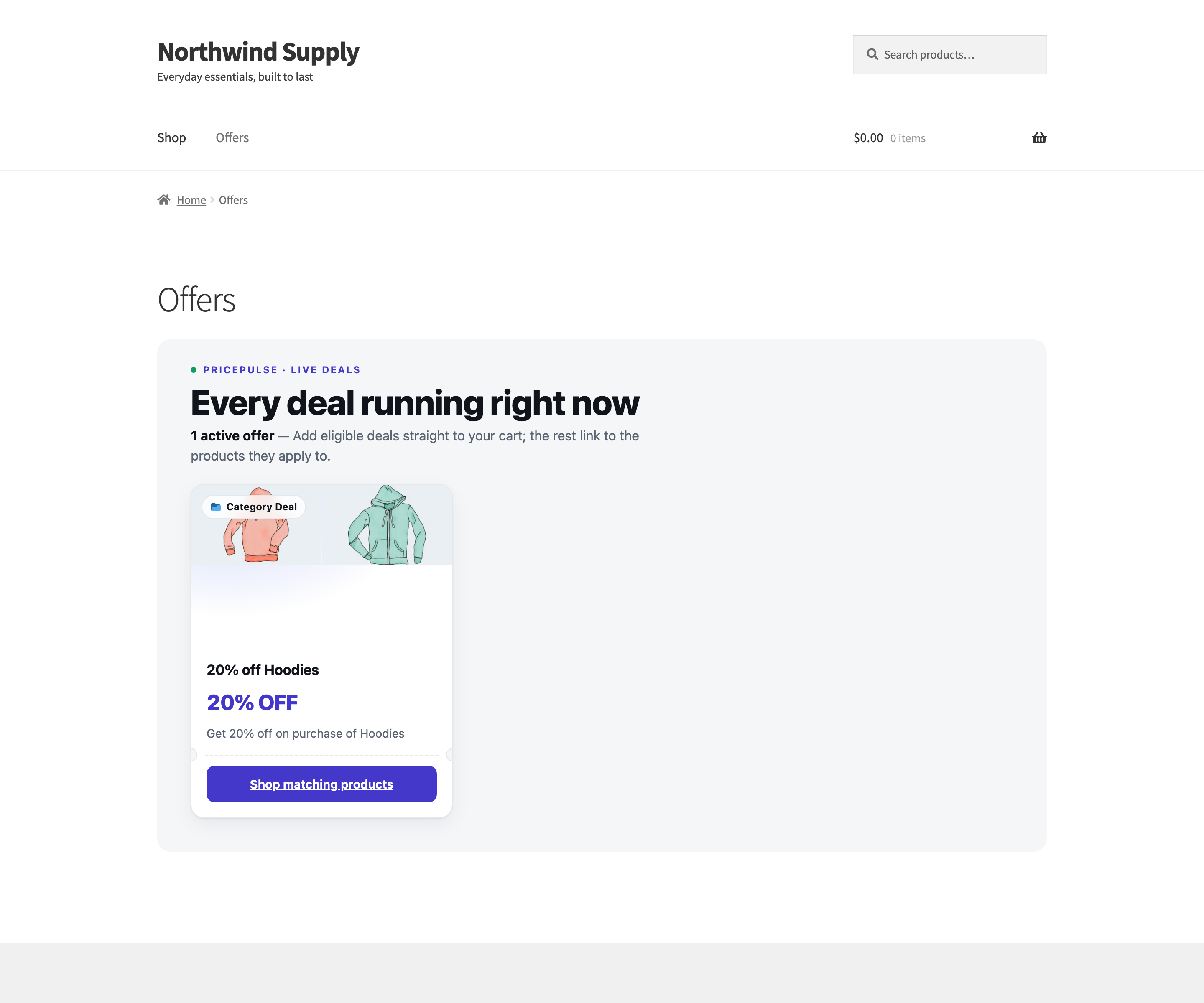
PricePulse can build a page listing every offer currently running in your store, with a card for each one. It is somewhere to send a newsletter, a social post or a “Deals” link in your menu, and it stays current on its own — offers appear when they start and disappear when they end.
Add the Shortcode
↑ Back to top- Create a new page — Offers or Deals is a sensible title.
- Add a Shortcode block containing
[rtwwdrp_pp_offers]. - Publish the page.
That is the whole setup. The page fills itself from your enabled rules, and its styles and scripts load only on pages that actually contain the shortcode, so the rest of your site is unaffected.
Which Offers Appear
↑ Back to topAn offer is listed when all of these are true:
- The rule is enabled.
- Today falls inside its start and end dates, if it has any.
- The visitor qualifies for its User Role.
- For an Nth Order Reward rule, there is an order a shopper could place that earns the reward. A coupon rule limited to guests, or a range of orders that ends before it starts, is left out.
The last point means the page is personal. A rule restricted to a signed-in role is shown to those customers and hidden from everyone else, so you can advertise a members’ offer on the same page without revealing it to the public.
A Specific Customer rule is restricted by email address, not by role, so its card is shown to every visitor who passes the User Role test, including shoppers who are not on its list. Write its title and offer message with that in mind, or restrict the rule to a role as well.
If nothing qualifies, the page says so rather than appearing broken.
Shortcode Attributes
↑ Back to top- limit – the largest number of offers to show. Leave it out to show them all.
[rtwwdrp_pp_offers limit="6"]is useful for a “top deals” section on a home page. - live – replaces the small line above the heading.
- main – replaces the main heading.
- active – replaces the sentence beneath it.
For example: [rtwwdrp_pp_offers limit="6" main="This week's deals"]
The three text attributes override the equivalent settings for that placement only, which lets you use different wording on a home-page section and a full offers page.
Hero Text and Colors
↑ Back to topTo change the wording everywhere rather than per placement, use the settings under WooCommerce > PricePulse > Rules Configuration: Offers hero: Eyebrow (live), Offers hero: Heading (main) and Offers hero: Sub-text (active).
The count of live offers is added automatically, so there is no need to mention a number in your wording — and no risk of it going stale.
Three color settings — Offers color: Brand / buttons, Offers color: Accent (free / savings) and Offers color: Text — match the cards to your theme. They apply only inside the offers block, so they cannot affect anything else on your site. Leave one blank to keep its default.
Filters and Offer Families
↑ Back to topOffers are grouped into families, and filter chips let a shopper narrow the list: BOGO, Products, Categories, Tags & attributes, Tiered, Cart & checkout, Members & loyalty and Other.
Only families that actually have offers get a chip, and the chips appear only when there is more than one family to choose between.
Offer Cards and Buttons
↑ Back to topEach card shows the rule’s name, a badge naming the kind of offer, the offer message, and the banner image you set on the rule. The button depends on what the offer can sensibly do:
- Add deal to cart – for offers about one specific purchasable product, including a Buy One Get One offer with a single qualifying product. The product is added without leaving the page, and a free item arrives with it.
- Shop matching products – for offers covering a category, tag, attribute or several products. It opens a listing of everything the offer applies to.
- View details – for offers that need explaining, such as tiered pricing, where the bands are shown in a pop-up.
Because the card names the rule, the rule’s title is customer-facing. “20% off Hoodies” reads well on a card; “cat rule 3” does not.
An Nth Order Reward card says which order qualifies — the first, a specific order, a range of orders or every order — and whether the reward is a discount on that order or a coupon for a later purchase. Its View details panel lists the steps and, for a coupon, how long it stays valid, any minimum spend and where the customer will find it. See How to Send a Next Order Coupon Automatically.
Offer Details Pop-up
↑ Back to topThe View details button opens a pop-up with the full terms — the tier bands, the products involved, the dates. It closes with the Escape key or the close button, and returns focus to where it was, so keyboard and screen-reader users are not stranded.
A Note on Offer Messages
↑ Back to topCards use each rule’s Offer Message, and the offers page understands a smaller set of placeholders than the cart and product pages do. A message written for the cart that uses date or customer placeholders may show those placeholders unchanged here.
See Offer Message Tokens for which ones are safe.

