
A next order coupon thanks a customer for an order by giving them a code to use on a later one. With PricePulse, the Nth Order Reward rule type sends that coupon automatically: once the qualifying order is paid, PricePulse creates a single-use WooCommerce coupon locked to the customer’s email address, emails it to them, and shows it in their account. There is no code to generate by hand and no list to keep of who has already had one.
This page covers the coupon mode of the rule. For the discount mode — a lower price on the milestone order itself — and for the other customer rules, see How to Reward Repeat Customers. The fields every rule shares are described in Discount Rule Fields.
How the Reward Coupon Works
↑ Back to topAn Nth Order Reward rule watches for a milestone: a customer’s first order, a particular order number, a range of orders, or every order. With Reward type set to Coupon for a later order, nothing is discounted on the milestone order itself. When that order is paid — it reaches Processing or Completed — PricePulse creates a WooCommerce coupon that can be used once, only by the customer’s email address, and sends it by email. The code also appears on the order confirmation page and under My Account > Orders.
Each rule issues at most one coupon per order, however many times the payment is confirmed, and the coupon is an ordinary WooCommerce coupon: you will find it under Marketing > Coupons, and it behaves at checkout exactly like one you created yourself. Guest orders do not earn coupons, because the coupon is tied to a customer account.
Set Up a Next Order Coupon
↑ Back to topTo email a 15% coupon after a customer’s first order:
- Go to: WooCommerce > PricePulse > Dynamic Rules and choose +Add New Rule.
- Rule type: choose Nth Order Reward.
- Offer on order: choose First order. For another milestone choose Nth order and fill in Nth order number, and Order number upto if the reward should cover a range of orders.
- Reward type: choose Coupon for a later order. The coupon fields appear.
- Discount based on: choose Percentage off the order (percent coupon) and enter 15 as the amount.
- Maximum Discount: enter 20 to stop the coupon taking more than $20 off one order. Enter 0 for no limit.
- Coupon applies to: choose Whole order.
- Coupon valid for (days after it is issued): leave 30. Add a Coupon minimum spend if the coupon should need a basket of a certain size, and a Coupon code prefix such as PP so codes look like PP-7K3Q9M.
- Where should customers see their reward?: tick the pages for the reward coupon notice. My Account Dashboard and Order Details Page are ticked on a new rule; add Cart Page and Checkout Page if you want the coupon shown there too.
- Write the Offer Message shoppers see before they order, then Publish your rule.
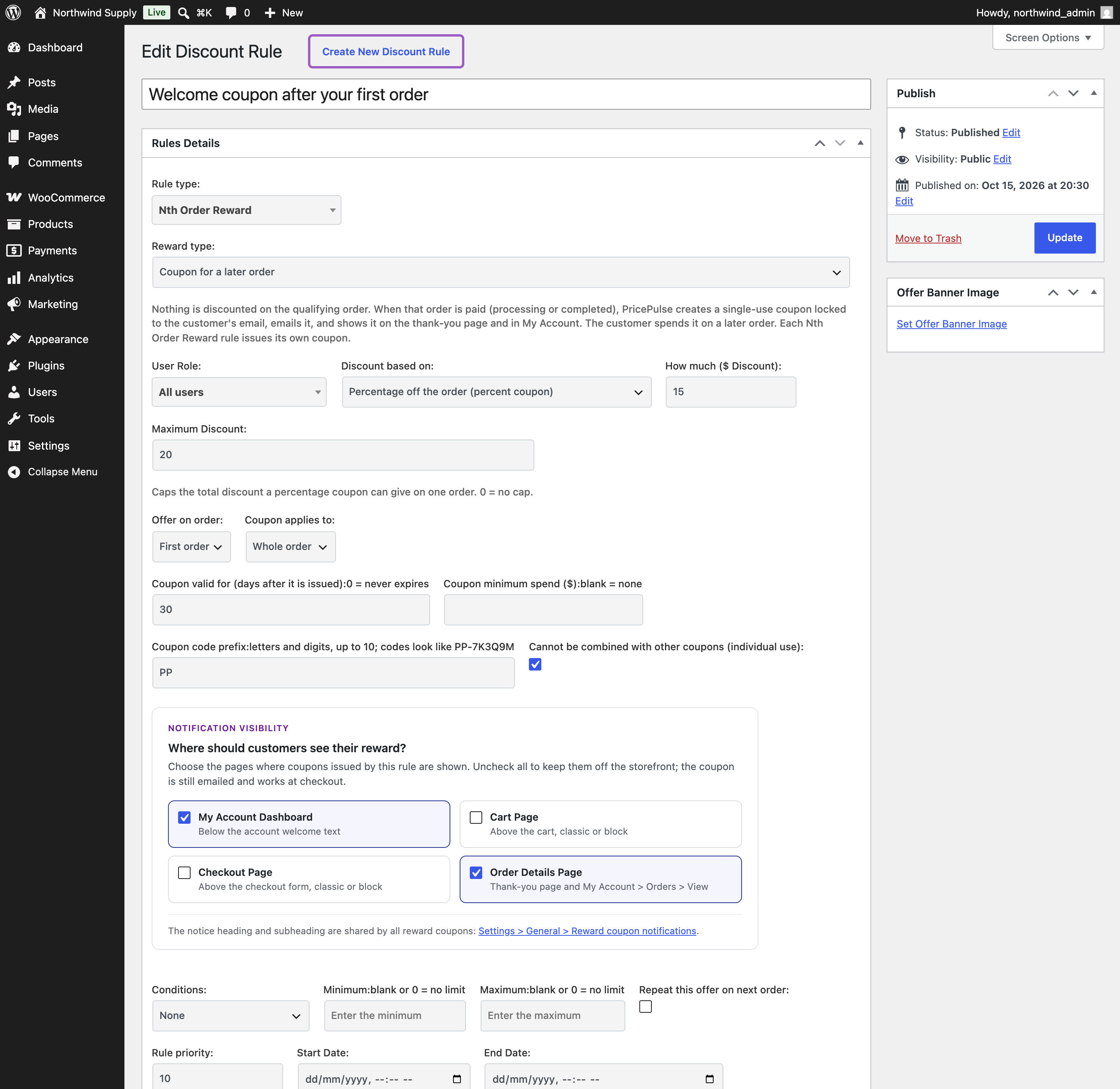
The Coupon Fields
↑ Back to top- Discount based on – the coupon’s type: a percentage off the order, a fixed amount off the order once, or a fixed amount off each eligible item.
- How much – the percentage or the amount.
- Maximum Discount – shown for a percentage coupon only; the most it can take off one order. 0 means no cap.
- Coupon applies to – Whole order, or a Product or Category that limits the coupon to those items.
- Coupon valid for (days after it is issued) – the coupon’s lifetime from the day it is created. 0 means it never expires.
- Coupon minimum spend – the basket the customer must reach to use it. Leave blank for none.
- Coupon code prefix – up to ten letters and digits in front of the random part of the code.
- Cannot be combined with other coupons (individual use) – ticked by default, so the reward cannot be stacked with another coupon code. Your automatic PricePulse discounts still apply alongside it.
- Where should customers see their reward? – the storefront pages that show the reward coupon notice. With nothing ticked the coupon is still emailed and still works at checkout; it just is not shown on the store.
Example
↑ Back to topWith the rule above, a new customer’s first order is charged in full. When it is paid they receive an email with a code such as PP-7K3Q9M. On their next visit, two $100 Premium Hoodies with that code take −$20.00 rather than −$30.00, because the coupon never takes more than its maximum. The code works once, only for that customer, and only for 30 days.
Which Orders Count
↑ Back to topOrders are counted when they are paid, and only processing and completed orders count, so cancelled, failed, refunded and pending orders never push a customer toward a milestone. If a customer pays an older order after a newer one, the older order is numbered after it, so every milestone is rewarded once and none is skipped. Switching the rule off stops new coupons; coupons it already issued stay valid until they are used or expire, like any WooCommerce coupon.
What the Customer Sees
↑ Back to topBefore ordering, the rule’s offer message is introduced by the milestone on shop and product pages — for example After your first order, you get a coupon for a later order: — and the offers page describes the reward outright, with the steps under View details. Nobody expects a discount on the order they are placing.
After paying, the customer receives the email, and a Your reward coupon section with the code, its value and its expiry date appears on the order confirmation page and in My Account > Orders. A signed-in customer also sees every reward coupon they can still use in one notice — the code, what it gives, its expiry and minimum spend, and a Copy code button — on the pages the rule chose: the My Account dashboard, the order page, the cart and the checkout, with the classic and the block cart and checkout alike. Used, expired and withdrawn coupons are not shown.
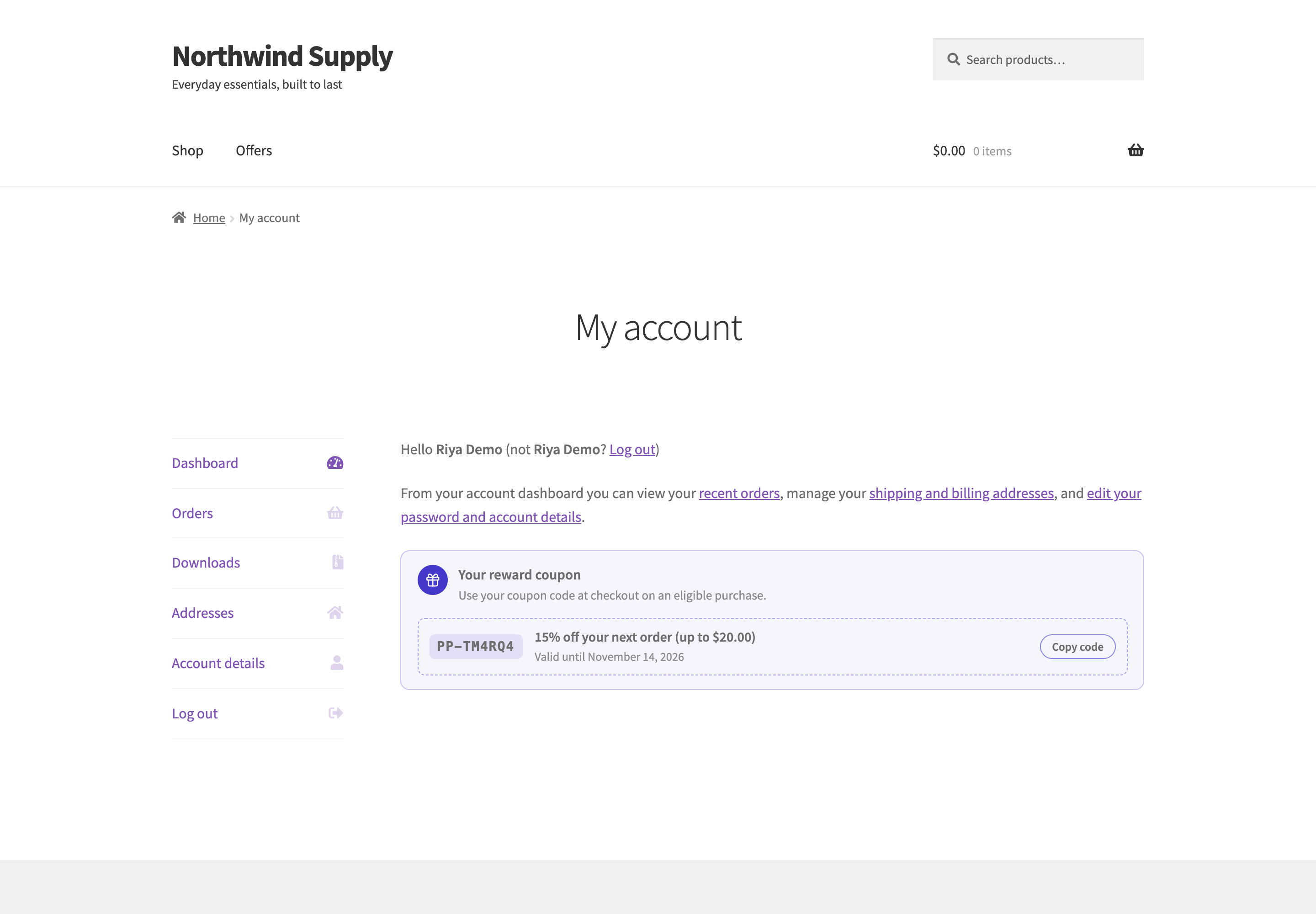
The heading and subheading of that notice are shared by every reward coupon. Go to: WooCommerce > PricePulse > Rules Configuration > General > Reward coupon notifications to change them, or leave them blank to use the built-in wording. See PricePulse General Settings.
The Email
↑ Back to topThe coupon is sent by a standard WooCommerce email named PricePulse reward coupon. Go to: WooCommerce > Settings > Emails to switch it off or to edit its subject, heading and text, and override its template from your theme like any other WooCommerce email. Switched off, the coupon is still created and shown on the customer’s order pages. To send it again, open the order and choose Resend PricePulse reward coupon email from the order actions. Every coupon PricePulse issues is recorded in the order notes, and if WooCommerce cannot save one, PricePulse tries again automatically.
Cancelled and Refunded Orders
↑ Back to topIf the order that earned the coupon is cancelled or refunded, an unused coupon is withdrawn and disappears from the customer’s notice. A coupon the customer has already used is left alone.
Switching an existing rule from a discount to Coupon for a later order stops it discounting at checkout straight away, and orders placed before the switch never earn a coupon.
Common Questions
↑ Back to topCan the reward coupon be combined with another coupon code?
↑ Back to topNot unless you untick Cannot be combined with other coupons (individual use) on the rule. Either way, the automatic discounts your other PricePulse rules give still apply in the same order; the setting only governs other coupon codes.
Can one customer earn the coupon more than once?
↑ Back to topYes, if the rule names a milestone they can reach again: tick Repeat this offer on next order to make an Nth-order milestone recur, or choose a range with Order number upto. A First order rule rewards each customer once by definition.
Where do I see which coupons were issued?
↑ Back to topOn the order itself, in the order notes, and under Marketing > Coupons, where each reward coupon appears with its prefix. If a customer says no coupon arrived, check that the order is paid and qualifies, then use Resend PricePulse reward coupon email; the PricePulse FAQ walks through the usual reasons.