
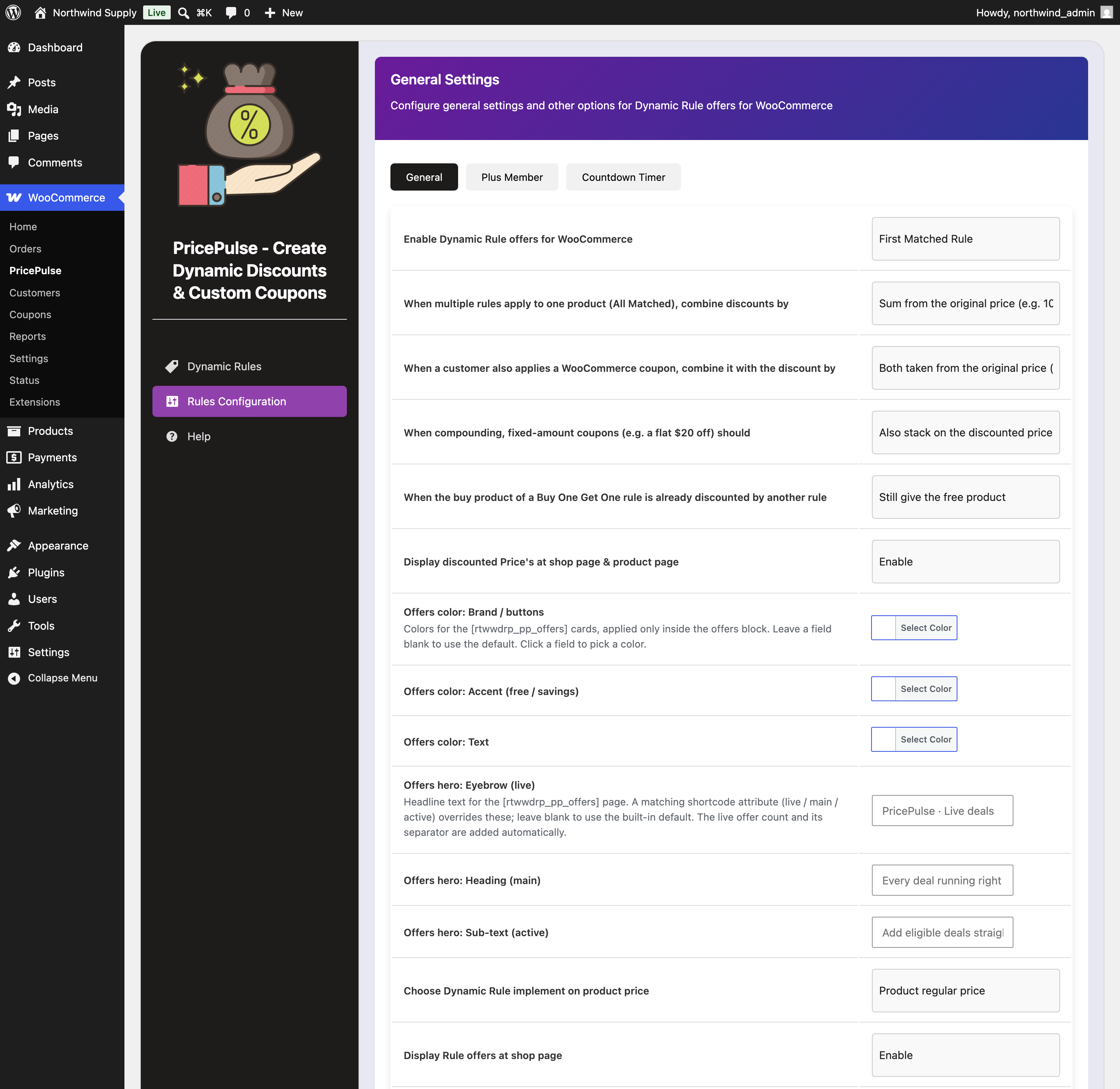
Store-wide PricePulse options that affect every rule are at WooCommerce > PricePulse > Rules Configuration. The page itself is headed General Settings and has three tabs. This document explains each setting and what it controls.
General
↑ Back to topHow Matching Rules Combine
↑ Back to topThe first setting, Enable Dynamic Rule offers for WooCommerce, is the most important one on the page:
- First Matched Rule – when several rules could apply to the same product, only one does: the one with the lowest Rule priority number.
- All Matched Rules – every matching rule applies, and the discounts combine.
Despite its name, this setting is not an on/off switch for the plugin. It chooses how overlapping rules behave. Your rules run either way.
If you choose All Matched Rules, the next setting decides the arithmetic. Overlapping Discount Calculation controls how several eligible rules affecting the same product are combined:
- Combined Percentage – add the percentages and apply once to the original price. Two rules of 10% and 20% take 30% off; a $100 product becomes $70.
- Sequential / Compounded – apply one after another in priority order, each rule working on the already-reduced price: $100 less 10% is $90, less 20% is $72.
- Highest Discount Only – keep the rule that saves the customer the most and drop the rest.
- Lowest Discount Only – keep the rule that saves the customer the least.
Combined Percentage is the easiest to predict and to explain to a customer; Sequential always gives away slightly less. Highest and Lowest compare the money actually saved after each rule’s Maximum Discount, not the configured rate — so a 20% rule capped at $5 loses to an uncapped 10% rule on a $100 product, because $5 is less than $10. This setting only applies under All Matched Rules; First Matched always applies the highest-priority rule alone.
An Example of the Difference
↑ Back to topSuppose a $100 hoodie is covered by two rules: a store-wide 10% off everything at priority 10, and a 20% off Hoodies category rule at priority 5.
- Under First Matched Rule, only the hoodie rule applies, because 5 is lower than 10. The shopper pays $80.00. The store-wide rule is ignored for this product.
- Under All Matched Rules with Combined Percentage, both apply: 20% + 10% = 30% off $100. The shopper pays $70.00.
- Under All Matched Rules with Sequential / Compounded, the second rule works on the reduced price: $100 less 20% is $80, less 10% is $72.00.
- Under Highest Discount Only, just the hoodie rule survives ($20 saved beats $10 saved): $80.00. Under Lowest Discount Only, only the store-wide rule applies: $90.00.
Most stores want First Matched Rule. It lets you run a broad rule and then override it for particular products by giving the specific rule a lower priority number, which is how exceptions are normally expressed.
This choice also decides how bogo (buy x get y free) rules behave. Under First Matched Rule only the first matching BOGO rule contributes a gift, so two BOGO offers cannot both pay out on the same basket. Switch to All Matched Rules if you want them to.
Coupons
↑ Back to topPricePulse discounts and WooCommerce coupons work side by side. These settings decide what happens when a shopper has both.
- When a customer also applies a WooCommerce coupon, combine it with the discount by – choose Both taken from the original price (no compounding) so the coupon and the discount are each worked out from the full price, or Coupon stacks on the already-discounted price (compounding) so the discount is taken from what is left after the coupon.
- When compounding, fixed-amount coupons should – only matters when you have chosen compounding. Also stack on the discounted price treats a flat coupon like any other; Stay flat (only percentage coupons compound) leaves flat-amount coupons out of the compounding.
Both default to taking each discount from the original price, which is the more generous and the more predictable arrangement.
- When the buy product of a Buy One Get One rule is already discounted by another rule – Still give the free product keeps the offer working when another rule has already reduced the qualifying product; Skip the offer makes Buy One Get One exclusive, so a product that is already discounted does not also earn a free item.
Prices and Product Display
↑ Back to top- Display discounted Price’s at shop page & product page – Enable shows the reduced price in your catalog with the original struck through. Disable leaves catalog prices alone, and the discount appears only once the product is in the cart.
- Choose Dynamic Rule implement on product price – whether discounts are worked out from the Product regular price or the Product sale price. Choosing the sale price means a discount stacks on top of a markdown you have already made.
Offer Tables on the Shop Page
↑ Back to topAn offer table lists the offers running on a product, using each rule’s Offer Message.
- Display Rule offers at shop page – turns the table on for catalog listings.
- Position of Offer Table on Shop Page – where it sits relative to each product in the grid: Before Product, After Product, Before Product Summary, In Product Summary or After Product Summary.
- Display Tier Offer on Shop Page – shows quantity-tier tables in the catalog as well.
Offer Tables on the Product Page
↑ Back to top- Display Rule offers at single product page – turns the table on for individual product pages.
- The Position of Offer Table on Shop Page setting directly beneath it controls the product page, not the shop page. It offers eleven placements rather than five, including Before Add To Cart Button, After Add To Cart Button, Before Add To Cart Form, After Add To Cart Form, Product Meta Start and Product Meta End.
Two settings on this page carry the identical label Position of Offer Table on Shop Page. The first, under Display Rule offers at shop page, controls the catalog. The second, under Display Rule offers at single product page, controls the product page. Tell them apart by position, or by the number of choices: five for the catalog, eleven for the product page.
Cart Display
↑ Back to top- Display Cart Offer on cart Page – shows the offer messages above the cart table.
- Display Tier Offer on cart Page – shows quantity-tier tables in the cart, so shoppers can see the next tier they could reach.
Shipping Discount Display
↑ Back to top- How to show discount for shipping rule? – Show as Shipping Discount keeps the full shipping price visible and subtracts the discount on its own line, so the saving is obvious. Directly Apply reduces the shipping rate itself, which looks tidier but hides the saving.
Browser Tab Message
↑ Back to topChanges the browser tab title when a shopper switches to another tab, as a nudge to come back.
- Show come back on browser tab – turns the behavior on.
- Show on pages – limits it to chosen pages. Leave empty to use it everywhere.
- Text to show on browser tab – the message itself.
Offers Page Appearance
↑ Back to topThese affect the offers page only, and are scoped to that block so they cannot affect the rest of your theme.
- Offers color: Brand / buttons, Offers color: Accent (free / savings) and Offers color: Text – click a field to pick a color. Leave one blank to use the default.
- Offers hero: Eyebrow (live), Offers hero: Heading (main) and Offers hero: Sub-text (active) – the wording at the top of the page. The live offer count is added automatically, so you do not need to mention it. Shortcode attributes override these.
Reward Coupon Notifications
↑ Back to topThe notice that lists a customer’s Nth Order Reward coupons on the My Account dashboard, the cart, the checkout and the order page has one heading and one subheading for every rule; each rule chooses where its coupons appear. See How to Send a Next Order Coupon Automatically.
- Notification heading – the title of the notice. Leave blank to use the built-in wording, Your reward coupon or Your reward coupons.
- Notification subheading – the line beneath it. Leave blank to use the built-in wording, Use your coupon code at checkout on an eligible purchase.
Removing Data When You Delete the Plugin
↑ Back to top- When this plugin is deleted, remove all of its data – Keep my rules and settings (recommended) leaves everything in place, so reinstalling restores your offers. Delete all plugin data permanently removes every rule, these settings, and the stored customer eligibility flags used by next-purchase and member offers.
Data removal happens only when you delete the plugin from the Plugins screen, never when you deactivate it. Your products, orders and coupons are never touched. Deletion cannot be undone.
Plus Member
↑ Back to topPlus Member is PricePulse’s idea of a VIP customer. The Plus Member tab sets who qualifies automatically; the Plus Member rule type then discounts for them. You can also mark individual people by hand from Users > All Users, which adds a Plus Member column.
- User is registered for – how long someone must have had an account: Less than 3 months, More than 3 months, More than 6 months or More than 1 year. Choose Not used to leave account age out of the test; otherwise a brand-new account can qualify under Less than 3 months.
- Allowed Roles – which user roles can become members. Choose All to allow any role.
- Minimum Previous Orders – how many orders they must already have placed.
- Minimum Purchase Amount – how much they must have spent.
- Minimum Purchased Products – how many products they must have bought.
Countdown Timer
↑ Back to topShows a counter on the shop page ticking down to a deadline, for a sale you want to create urgency around.
- Enable Countdown Timer – turns the timer on.
- Offer Message – the text shown beside the counter.
- Sale End Date and Time – when the counter reaches zero. It counts down in days, hours, minutes and seconds.
The timer is a display element on its own. It does not start or stop any discount — use each rule’s Start Date and End Date for that, and set the timer to match.
Saving Your Changes
↑ Back to topClick Save Changes at the bottom of the page.
There is one Save Changes button for all three tabs, and it saves all of them together. You do not need to save each tab separately, but you should not navigate away between tabs without saving either.

