
Bulk pricing rewards a shopper for buying more: the more they put in the basket, the less each item costs. Merchants know the same idea by many names — bulk discounts, quantity discounts, volume discounts, quantity breaks, price by quantity, buy more save more — and PricePulse builds all of them with two rule types: Tiered rule on Product for named products, and Tiered rule on Category for everything in a category. Restrict either rule to a user role and the same bands become wholesale-style pricing for trade customers only.
A tiered rule holds a list of bands. Each band has a range and a discount, and the band a product falls into is decided by the quantity in that cart line, or by the product’s price. The fields every rule shares are described in Discount Rule Fields. For a discount on the basket total rather than on each unit, see How to Set Up Cart and Cheapest Item Discounts.
How the Bands Work
↑ Back to topThe Tiered Discount Rules table is the heart of both rule types. Each row has:
- Min Qty – the bottom of the band, inclusive.
- Max Qty – the top of the band, inclusive. Leave the top band’s maximum high enough to cover any order you expect.
- Discount – the amount for that band, read according to Discount based on.
- Action – Remove deletes the row. At least one row is required.
Add Tier adds another row. Bands should not overlap; give each one a range that starts where the previous one ended.
Check for decides what is measured against those bands:
- Quantity – how many of the product are in that cart line. This is the usual choice and the one people mean by bulk pricing.
- Price – the product’s own price. The band becomes a price range, so one rule can discount everything between $10 and $50 and leave dearer products alone.
Quantity is counted per cart line, not across the whole rule. Two of one product and four of another are banded separately, so one cart can have two products from the same category in two different bands.
The three discount types behave differently across a tier. Percentage discount and Flat discount apply to every unit, so the saving grows with the quantity. Fixed discount takes the tier’s amount off the line once, however many units it covers: a tier of 10 on a $25 product saves $10 whether the shopper buys two or five.
Tiered Rule on Product
↑ Back to topBulk pricing on one or more named products. Use it where the volume deal belongs to the product itself — a t-shirt sold by the box, a consumable people restock.
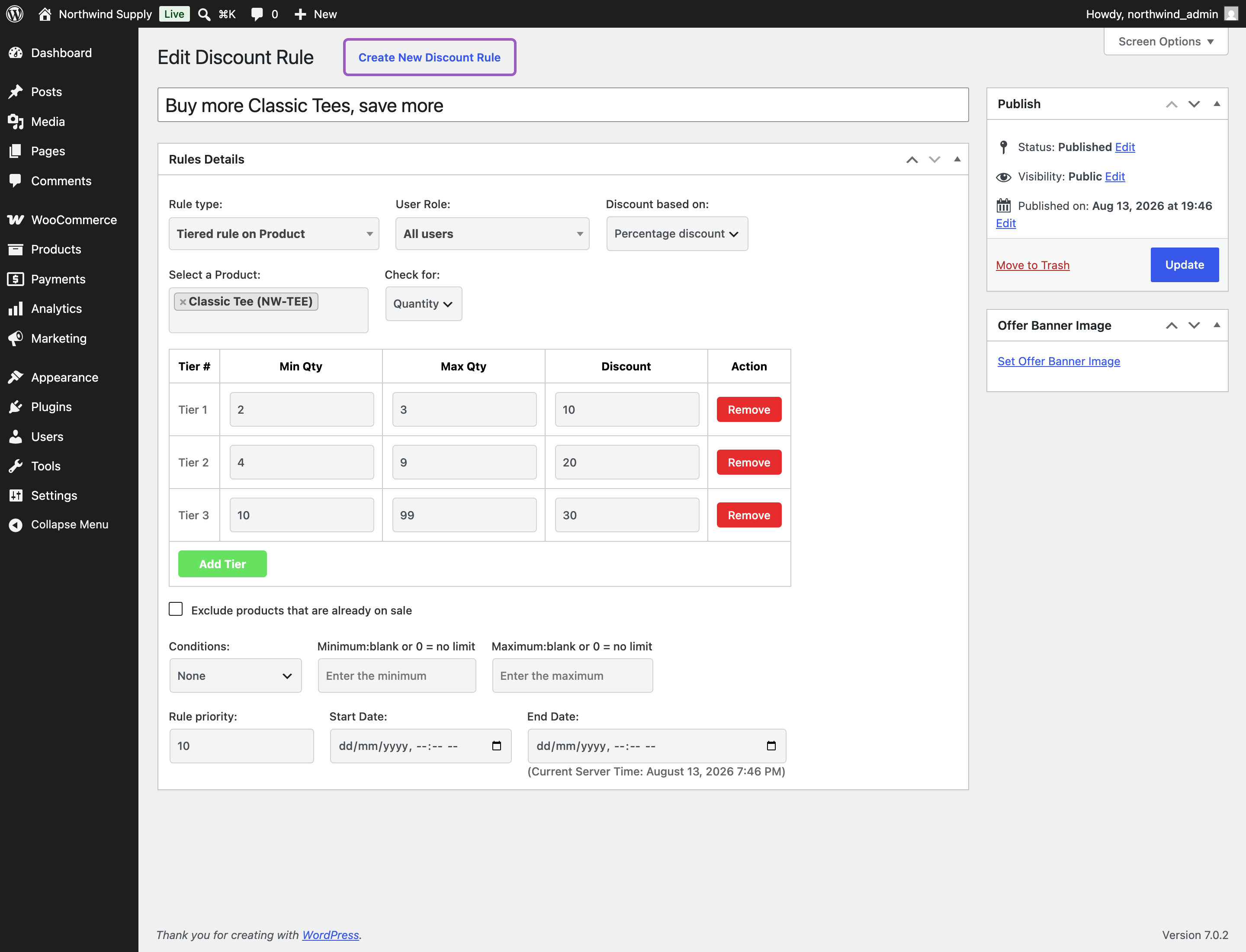
- Select a Product – one or more products the bands apply to. Required.
- Check for – Quantity or Price.
- Tiered Discount Rules – the bands.
- Exclude products that are already on sale – leaves products with an active sale price at their sale price.
- Conditions – Cart Total Quantity and Cart Total Value.
This editor has no Maximum Discount field — each band carries its own amount, so the ceiling would have nothing to add.
To set one up:
- Go to: WooCommerce > PricePulse > Dynamic Rules and choose +Add New Rule.
- Rule type: choose Tiered rule on Product.
- Discount based on: choose Percentage discount.
- Select a Product: pick the products.
- Check for: leave it on Quantity.
- Fill in the first band, then use Add Tier for each one after it.
- Publish your rule.
Example. A $20 Classic Tee with bands of 2–3 at 10%, 4–9 at 20% and 10 and over at 30%:
- 1 tee falls in no band and costs $20.00.
- 2 tees hit the first band: $18.00 each.
- 4 tees hit the second: $16.00 each, a line total of $64.00, or $74.00 at checkout with $10 delivery.
Reducing the quantity moves the line back down the bands, and dropping to one restores $20.00.
Example on Price. Switch Check for to Price and set one band of $10–$50 at 10%. A $20 Classic Tee falls inside the band and becomes $18.00; a $100 Premium Hoodie sits outside it and stays at $100.00, however many are bought.
Tiered Rule on Category
↑ Back to topThe same bands applied to every product in one or more categories, so products added to those categories later are covered without editing the rule.
- Select a Category – one or more categories. Required.
- Maximum Discount – required on this rule type. Enter 0 for no ceiling.
- Check for, Tiered Discount Rules, Exclude products that are already on sale and Conditions – as for the product rule above.
Maximum Discount is required here and absent from the tiered product editor entirely. Leave it empty and the form will not submit: the rule is saved as a draft with none of its settings, and never appears in your rules list. Enter 0 if you do not want a ceiling.
Example. Bands of 2–3 at 10% and 4 and over at 20% on the Accessories category, with two $30 Wool Beanies and four $20 Baseball Caps in one basket:
- The beanies are a line of 2, so they hit the first band: $27.00 each, $54.00 for the line.
- The caps are a line of 4, so they hit the second: $16.00 each, $64.00 for the line.
- Subtotal $118.00, or $128.00 at checkout with $10 delivery.
Two products from the same category, in the same cart, in two different bands — that is what per-line counting means in practice. Drop the caps to 3 and they re-band to $18.00; take a beanie away and the remaining one returns to $30.00.
Showing the Tiers to Shoppers
↑ Back to topA bulk deal only works if the shopper knows about it before they reach the basket. Two settings control where the tier table appears, at WooCommerce > PricePulse > Rules Configuration:
- Display Tier Offer on Shop Page – shows the bands on the catalog and product pages.
- Display Tier Offer on cart Page – shows them above the cart table, where a shopper deciding on quantities can see what one more item would earn.
They are independent: either, both or neither. Turning them off changes only what is displayed — prices are unaffected either way.
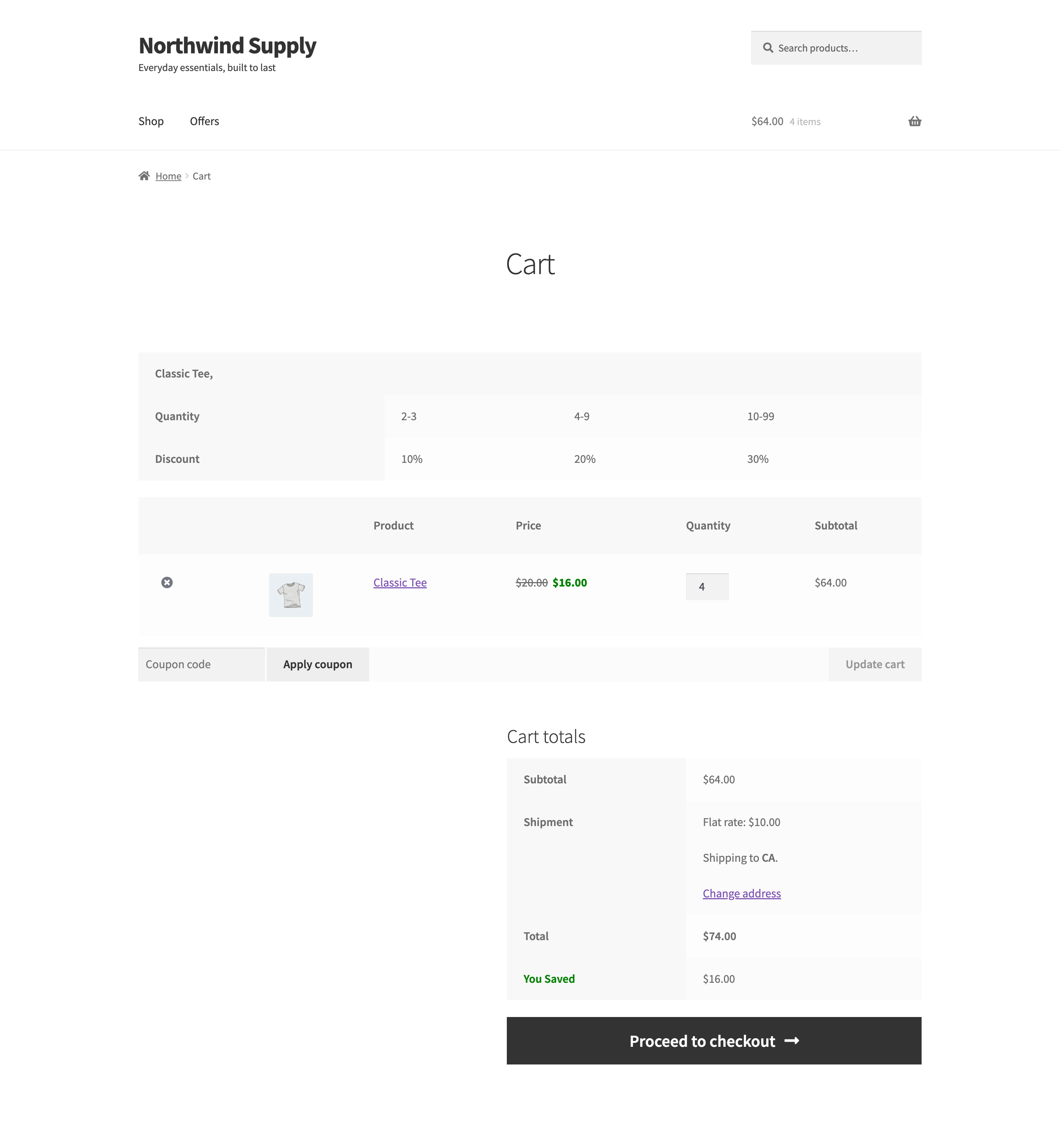
Four tees have reached the second band, so each is $16.00 and the line is $64.00 — and the table above the cart shows what a tenth item would be worth.
The tier table on the cart page is drawn by the classic cart only. If your store uses the Cart block, Display Tier Offer on cart Page has nothing to draw into. Tiered prices are correct in the Cart and Checkout blocks — it is the table of bands that does not appear.
What the shopper sees. The bands as a small table on the product page and, if enabled, above the cart. Reduced unit prices with the original struck through once a band is reached, the line total following, and the same figures at checkout. On the offers page a tiered rule appears with a View tiers control that opens the full band list.
Neither tiered editor has an offer-message field, so tiered rules are advertised by their tier table rather than by a sentence you write.
If a rule does not behave as you expect, the PricePulse FAQ lists the usual causes.

