
A discount that shoppers only discover at checkout does not persuade anyone to buy. PricePulse can show your offers at several points on the storefront, and all of it is controlled from WooCommerce > PricePulse > Rules Configuration.
Discounted Prices in Your Catalog
↑ Back to topThe most valuable display is the simplest: showing the reduced price where shoppers browse. Set Display discounted Price’s at shop page & product page to Enable and the original price is struck through with the new price beside it.
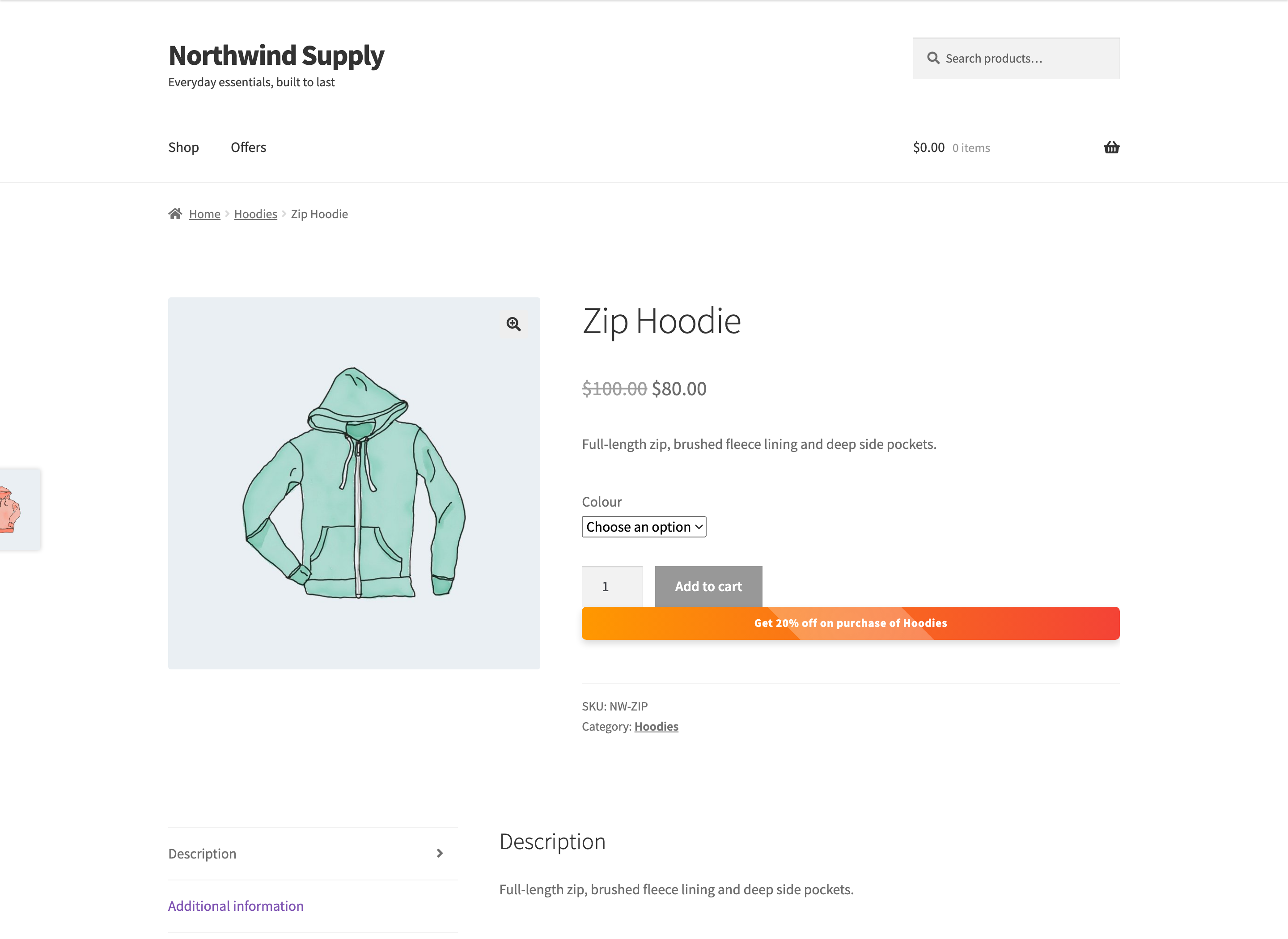
With this switched off, prices in the catalog stay at their normal figures and the discount only appears once the product is in the cart. That is occasionally what you want — for a members-only price you would rather not advertise — but for most promotions it hides the very thing that would have made the sale.
Offer Tables on the Shop Page
↑ Back to topAn offer table lists the offers running on a product, using each rule’s Offer Message. It is how a shopper learns about an offer whose effect is not visible in the price — a cart threshold, or a buy-one-get-one deal.
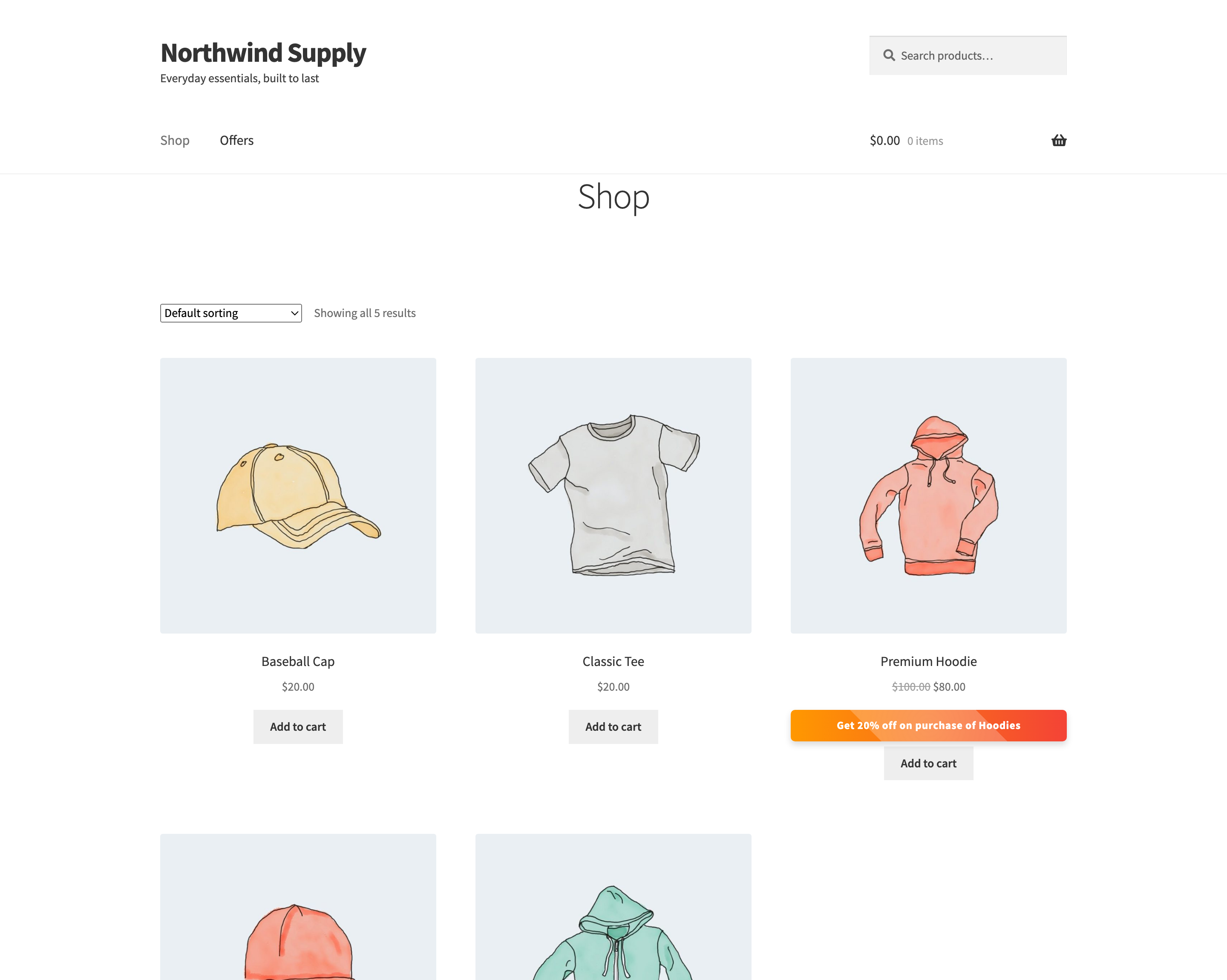
- Set Display Rule offers at shop page to Enable.
- Choose where it sits with Position of Offer Table on Shop Page: Before Product, After Product, Before Product Summary, In Product Summary or After Product Summary.
Offer Tables on the Product Page
↑ Back to topThe same table can be placed on individual product pages. Set Display Rule offers at single product page to Enable, then choose a placement.
The second setting labeled Position of Offer Table on Shop Page — the one directly under Display Rule offers at single product page — is the product page control, despite its label. It offers eleven placements rather than five.
The eleven placements attach to standard WooCommerce product-page positions, including before and after the add-to-cart button, before and after the add-to-cart form, and at the start and end of the product meta.
These placements rely on your theme’s single-product template using the standard WooCommerce template hooks. Some block themes render product pages without them, in which case the table will not appear wherever you position it. If you enable the setting and see nothing, test with a classic WooCommerce theme such as Storefront to tell a theme limitation apart from a configuration mistake.
Cart Page Offers
↑ Back to top- Display Cart Offer on cart Page – shows offer messages above the cart table.
- Display Tier Offer on cart Page – shows quantity-tier tables, so a shopper can see the next band they could reach.
The cart is the most persuasive place for a tier table. Someone with three items who can see that four earns a better price has a concrete reason to add one more.
What Shoppers See in the Cart
↑ Back to topSome of what PricePulse shows in the cart needs no configuration at all:
- Discounted lines show the original price struck through beside the new one.
- Cart, payment and shipping discounts appear as their own named lines in the totals.
- A You Saved row totals everything the order saved.
- Free items from a Buy One Get One offer are added automatically at zero.
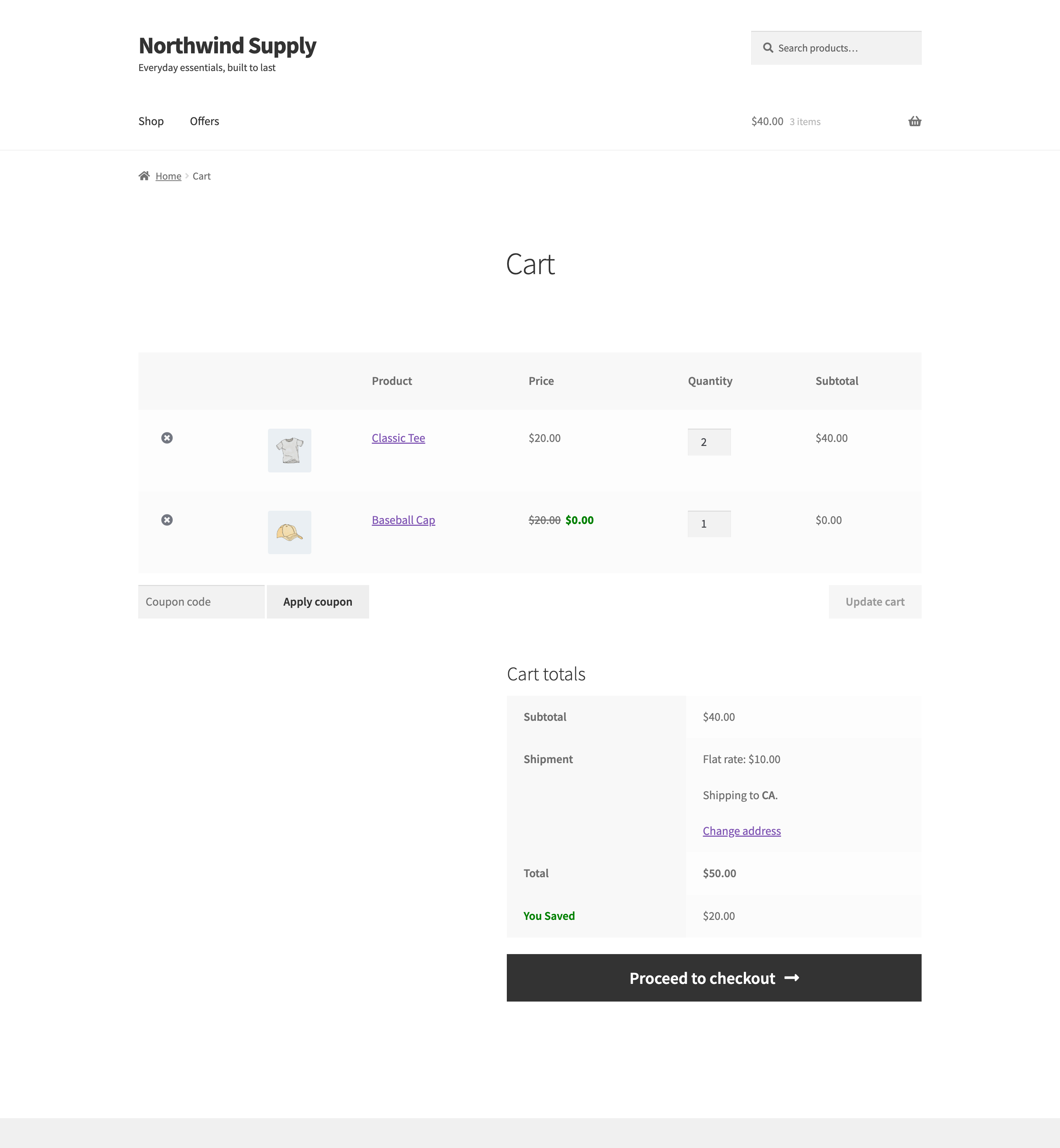
The You Saved row is part of the classic cart template. The Cart and Checkout Blocks do not show it, because they already display the reduced prices and the named discount lines — repeating the total there would count the same saving twice.
Classic Cart and Cart Blocks
↑ Back to topEvery discount PricePulse calculates reaches both the classic cart and the Cart and Checkout Blocks. Reduced prices, free BOGO lines and named discount lines such as Bank Transfer Discount all appear correctly either way, and the amount a shopper pays is the same in both.
What differs is the extra furniture PricePulse draws around the cart, which is built on classic cart template hooks:
- The tier table above the cart, from Display Tier Offer on cart Page.
- The offer message strip above the cart table.
- The You Saved row.
None of these appear in the Cart block. If your store uses the block cart and you want shoppers to see the bands of a bulk deal, show them on the product page instead, where Display Tier Offer on Shop Page puts them.
Reward Coupon Notices
↑ Back to topA signed-in customer who has earned a coupon from an Nth Order Reward rule sees it in a notice card: the code, what it gives, its expiry and minimum spend, and a Copy code button. Each rule chooses which of the My Account dashboard, the cart, the checkout and the order page show the card, and the card’s heading and subheading are set once for every rule under WooCommerce > PricePulse > Rules Configuration > General > Reward coupon notifications. The card appears in the classic and the block cart and checkout alike. See How to Send a Next Order Coupon Automatically.
Where Each Rule Type Advertises Itself
↑ Back to topNot every rule can be advertised in every place, because not every rule can be decided before the shopper acts:
- Product, category, tag, attribute, multiple-product, multiple-category and store-wide rules show a reduced price and an offer message throughout the catalog.
- Tiered rules show their table of bands rather than a message, because the price depends on the quantity.
- Cart, payment and shipping rules change nothing in the catalog. They depend on the basket, the gateway or the delivery method, none of which exist while the shopper is browsing.
- Loyalty rules — next purchase, Nth Order Reward, specific customer and Plus Member — apply only to the customers who qualify, so other shoppers see normal prices.
For anything that cannot advertise itself in the catalog, the offers page is the answer: it lists every running offer in one place, including the ones that only pay out at checkout.
One exception is worth knowing: a Specific Product Variation rule does not put an offer message on the shop or category listing, because the listing card sells every variation and only one of them is reduced. Prices are correct everywhere, and the deal still appears on the offers page and on the product page.
Countdown Timer
↑ Back to topThe Countdown Timer tab adds a counter to the shop page ticking down in days, hours, minutes and seconds. Set Enable Countdown Timer, write an Offer Message, and set the Sale End Date and Time.
The timer is decoration and nothing more — it does not start or stop a discount. Set it to the same moment as your rules’ End Date, or shoppers will watch a clock reach zero while the prices stay exactly as they were.
Browser Tab Message
↑ Back to topWhen a shopper switches to another browser tab, PricePulse can change your tab’s title to draw them back. Enable Show come back on browser tab, write the wording in Text to show on browser tab, and optionally limit it with Show on pages.
Used sparingly — on the cart and checkout, where an abandoned tab really is a lost sale — this is effective. Applied to every page it becomes irritating. While the shopper is away the message replaces the page’s own title in the tab; the title returns when they come back.
A Whole Page of Offers
↑ Back to topFor a single page listing everything currently running, see PricePulse Offers Page Shortcode.

