
A buy one get one free offer — BOGO — gives the shopper a product at no cost once they have bought enough of something else. PricePulse builds these with the bogo (buy x get y free) rule type, which adds the free product to the cart as its own line at $0.00 as soon as the basket qualifies, and takes it away again if the basket stops qualifying.
The same rule type covers “buy two get one free”, “buy three get two free” and free gift with purchase: you choose what has to be bought (X) and what is given (Y), with a quantity for each. The fields every rule shares are described in Discount Rule Fields. To make the cheapest item in the basket free instead of a named product, see How to Set Up Cart and Cheapest Item Discounts.
Fields
↑ Back to topThis rule type has no discount amount, no Maximum Discount and no Conditions — the gift is free, and the qualifying quantity is the condition.
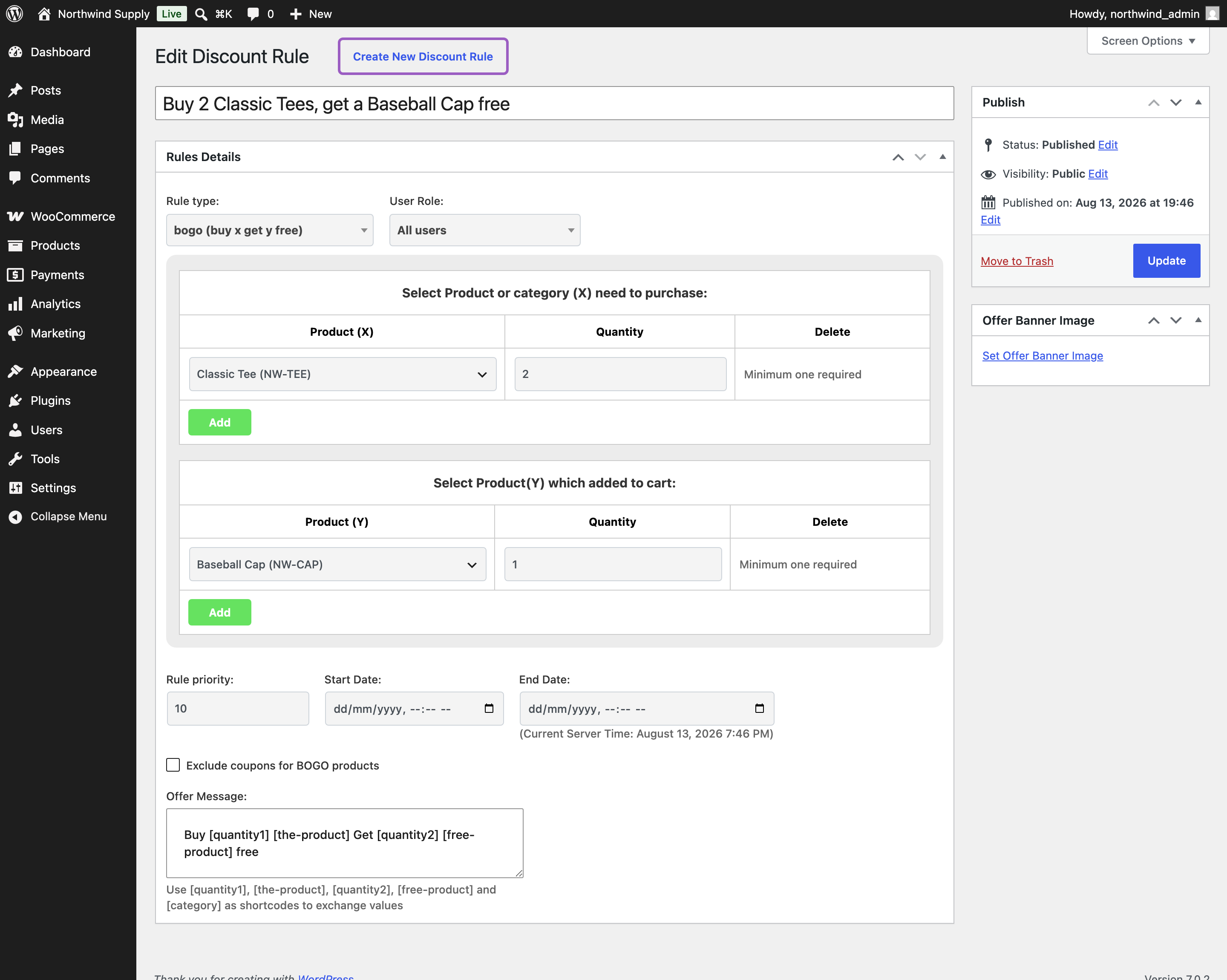
- Select Product or category (X) need to purchase – what the shopper has to buy. Each row has a Check On choice of Product or Category, the product or category itself, and a Quantity. Add adds another row; Delete removes one. At least one row is required.
- Select Product(Y) which added to cart – what they get free, and how many. Products only; a gift cannot be a whole category.
- Exclude coupons for BOGO products – tick to stop coupons applying to the products in this offer, so a discount code cannot be stacked on top of the deal.
- Offer Message – the sentence shown to shoppers. Its tokens are specific to this rule type: [quantity1], [the-product], [quantity2], [free-product] and [category].
Setting Up a BOGO Offer
↑ Back to top- Go to: WooCommerce > PricePulse > Dynamic Rules and choose +Add New Rule.
- Give the rule a title, such as Buy 2 tees, get a cap free.
- Rule type: choose bogo (buy x get y free).
- Under Select Product or category (X) need to purchase, leave Check On as Product, choose the product, and set Quantity to 2.
- Under Select Product(Y) which added to cart, choose the gift and set its Quantity to 1.
- Write an Offer Message — for example Buy [quantity1] [the-product] Get [quantity2] [free-product] free.
- Publish your rule.
How Many Free Products Are Given
↑ Back to topThe offer repeats for every complete set. Divide the quantity bought by X, round down, and multiply by Y.
For buy 2, get 1 free, that gives:
- 1 bought — no gift, because the set is incomplete.
- 2 bought — 1 free.
- 3 bought — still 1 free; the third item has not started a new set.
- 4 bought — 2 free.
For buy 2, get 2 free the same arithmetic gives 0, 2, 2, 4 and — at six bought — 6 free.
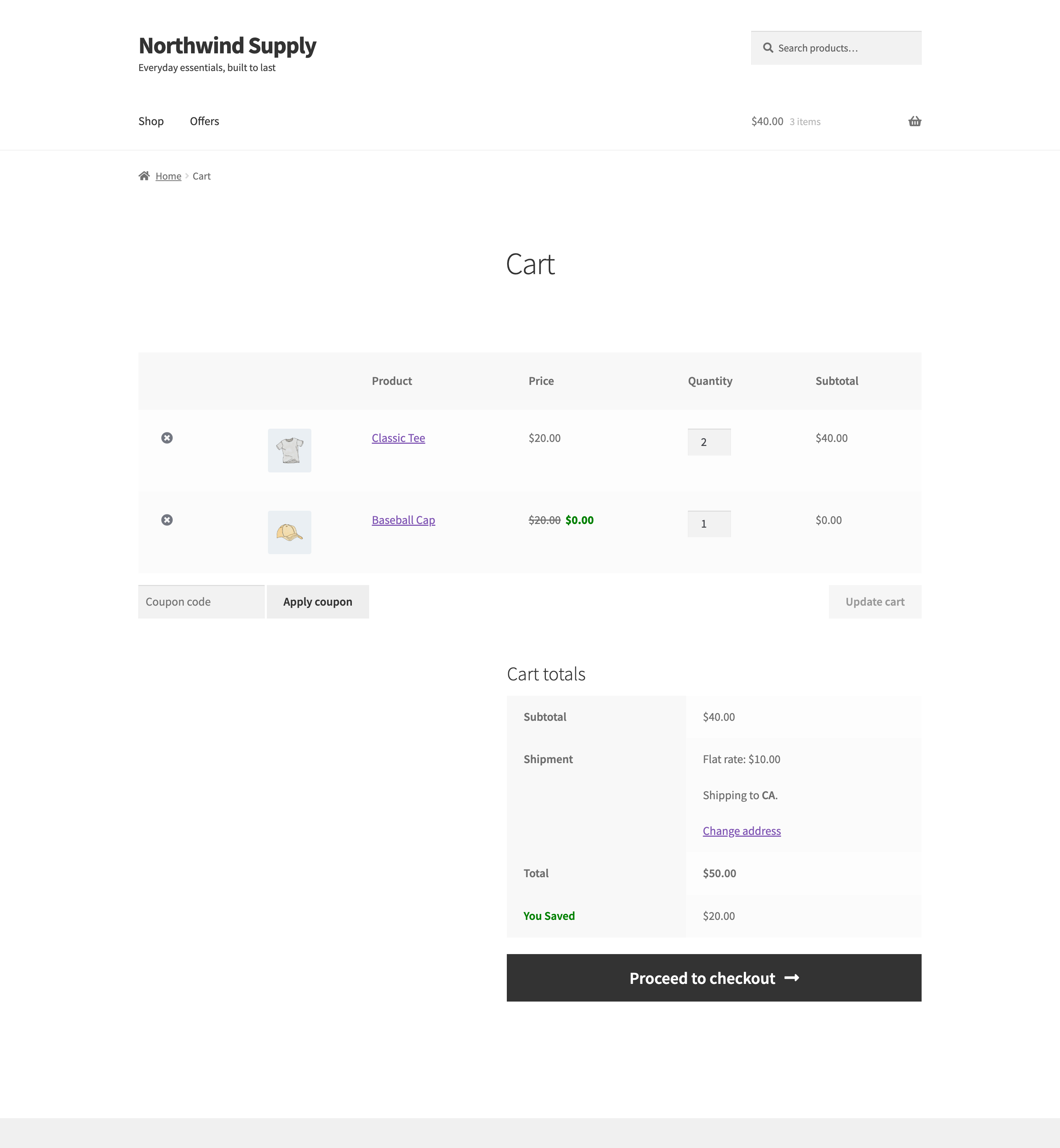
Example. A rule of buy 2 Classic Tees, get 1 Baseball Cap free, with tees at $20 and caps at $20. One tee in the basket is a single $20.00 line and no gift. Adding a second brings in a Baseball Cap line showing $20.00 struck through and $0.00 charged, for a cart total of $40.00 — the shopper pays for two tees and receives a cap. Dropping back to one tee withdraws the cap automatically.
Buying by Category
↑ Back to topSet Check On to Category and the qualifying quantity is counted across that category rather than one product — buy any three accessories, get a gift. The gift itself is still a specific product.
Add more rows to require several things at once. Each row is a separate requirement, so two rows of quantity 2 mean the shopper needs two of each.
When Another Rule Already Discounted the Product
↑ Back to topIf a shopper’s qualifying product is already reduced by another PricePulse rule, one setting decides whether the gift still stands. Go to: WooCommerce > PricePulse > Rules Configuration:
- Still give the free product – the gift is granted even though the buy product is discounted. This is the default.
- Skip the offer (keep Buy One Get One exclusive) – the gift is withheld, so the shopper gets the price reduction or the gift, not both.
This setting only comes into play when the other rule runs first. Under First Matched the lower priority number runs first, so if the BOGO rule has the lower number it claims the product, the product keeps its normal price and the gift is given regardless of this setting.
Using More Than One BOGO Rule
↑ Back to topUnder First Matched, only the first matching BOGO rule contributes — a second one does not add a second gift to the same basket. If you want two BOGO offers to run together, set the matching mode to All Matched. See How Matching Rules Combine.
What the Shopper Sees
↑ Back to topYour offer message appears on the qualifying product’s page and on its card in the catalog, so the deal is visible before anything is added to the basket. The offers page carries the rule with a View details panel and an Add to cart button that adds the qualifying quantity in one click.
In the cart and at checkout the gift is an ordinary line with its price struck through and $0.00 charged, so the shopper can see both what it is worth and that they are not paying for it. The free line is added and removed automatically as the qualifying quantity changes; it is not something the shopper manages.
Is the free product removed if the cart stops qualifying?
↑ Back to topYes. The free line is added when the basket qualifies and withdrawn as soon as it stops qualifying, for example when the shopper lowers the quantity of the buy product below the quantity in the rule. Nothing else in the basket is touched, and the gift returns if the basket qualifies again.
If a rule does not behave as you expect, the PricePulse FAQ lists the usual causes.

