
Test accounts allow you to explore WooPayments, simulate transactions, and interact with most features without entering any personal details, business information, or using real money.
NOTE: Test accounts are not supported for merchants in Singapore and the UAE. Merchants in those countries who wish to test WooPayments should onboard as a real account and then use test mode.
How test accounts work
↑ Back to topDuring the WooPayments signup process, you’ll be asked whether you’d like to Start accepting payments or Test payments. Choosing Test payments creates a dedicated test account for your site using simulated information. No personal or business details are required.
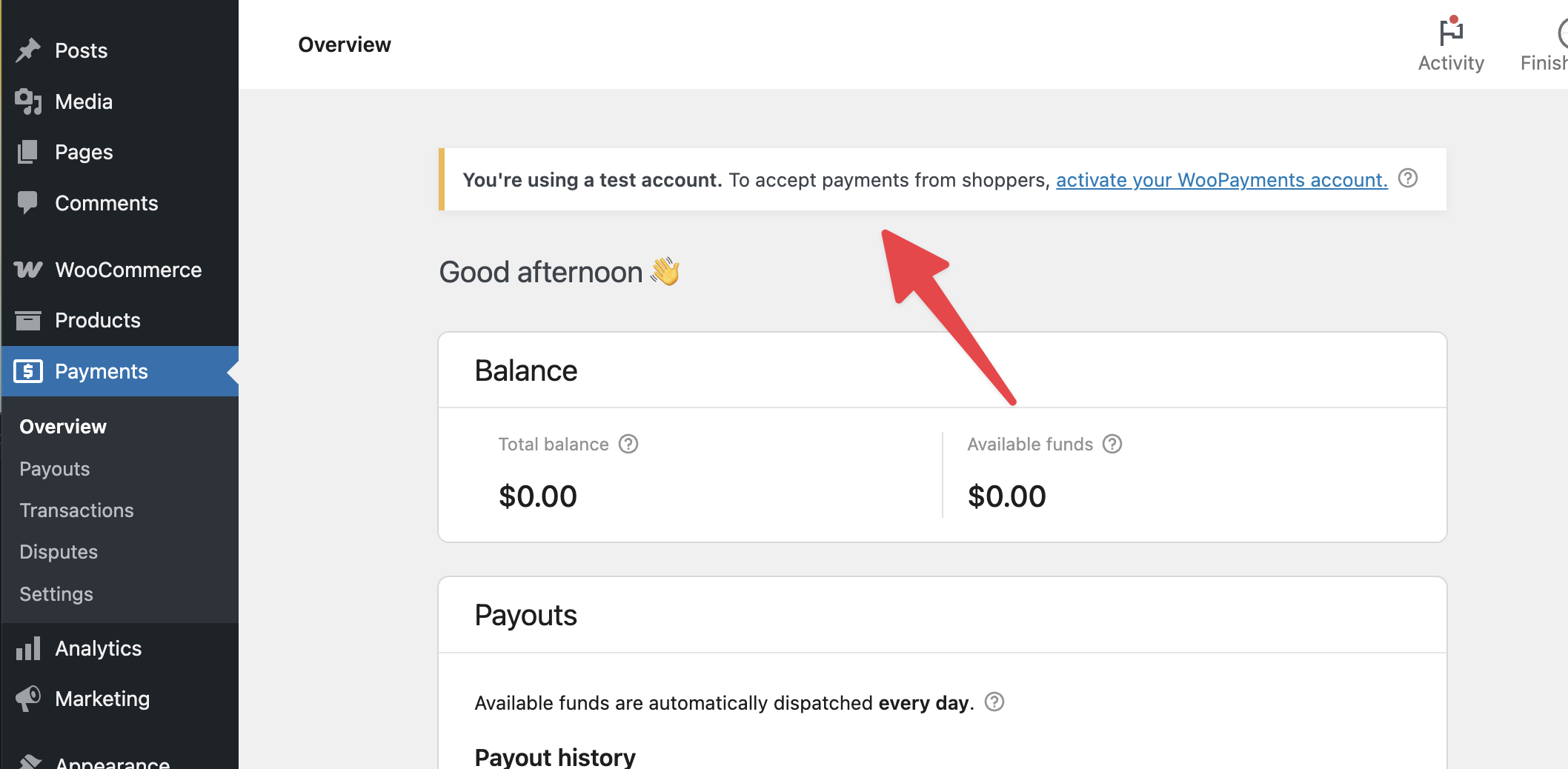
You’ll see indicators that you’re using a test account in several places, including:
- The WooCommerce > Settings > Payments settings page
- The WooPayments overview page at Payments > Overview
- The WooPayments settings page at Payments > Settings
Note: WooPayments must still be connected to WordPress.com — even when using a test account. If you’re working locally, you’ll need to expose your site to the internet using ngrok or a similar tool.
You can use your test account for as long as you like, and you can transition to a live account when you’re ready to accept real payments from customers.
Moving from a test account to live
↑ Back to topWhile using a test account, you cannot accept live payments. To do so, you will need to activate a live WooPayments account.
Note: When you upgrade to a live account, your test account will be deleted. Transaction data from your test account will still appear under WooCommerce > Orders, but it will not show in Payments > Transactions because test transactions were processed on a separate account that no longer exists.
To activate your WooPayments account, you can either:
- Click the Activate payments button from the WooCommerce payments settings page at WooCommerce > Settings > Payments.
- Click the “activate your WooPayments account” link from the WooPayments overview page at Payments > Overview.
- Click the Activate payments button from the WooPayments Settings page at Payments > Settings.
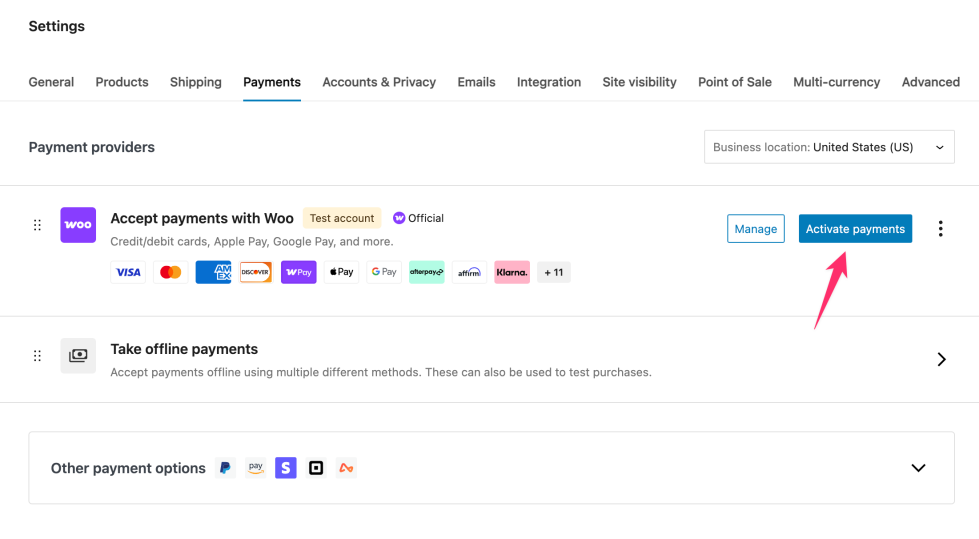
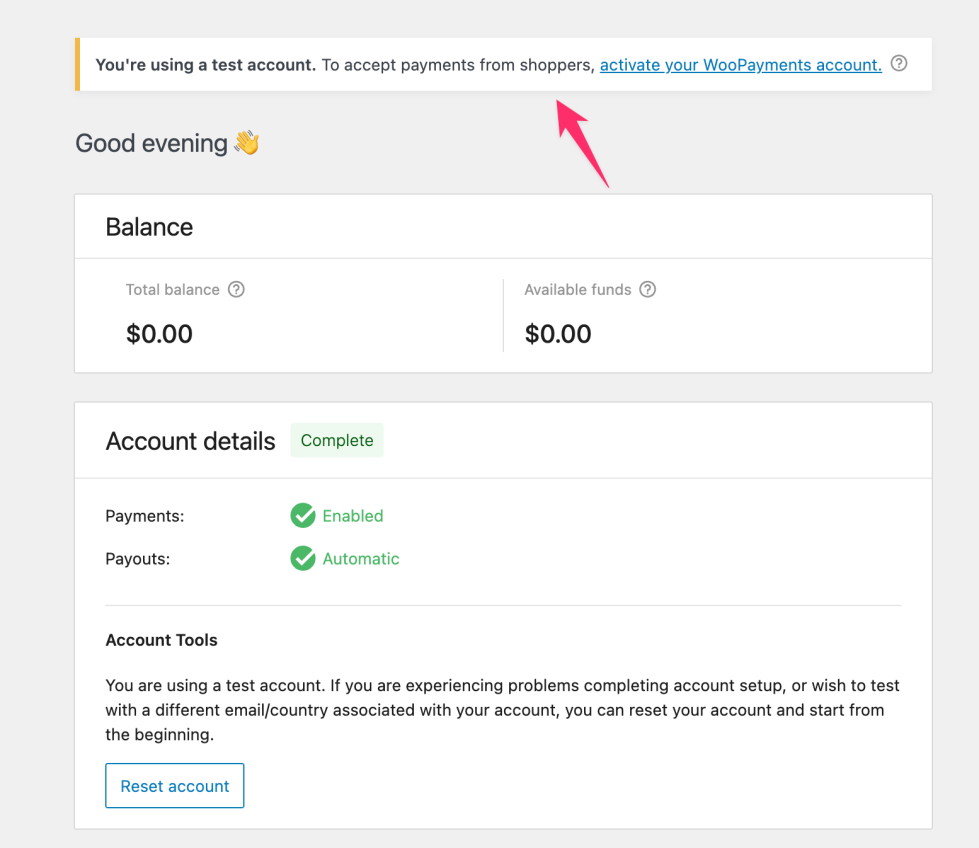
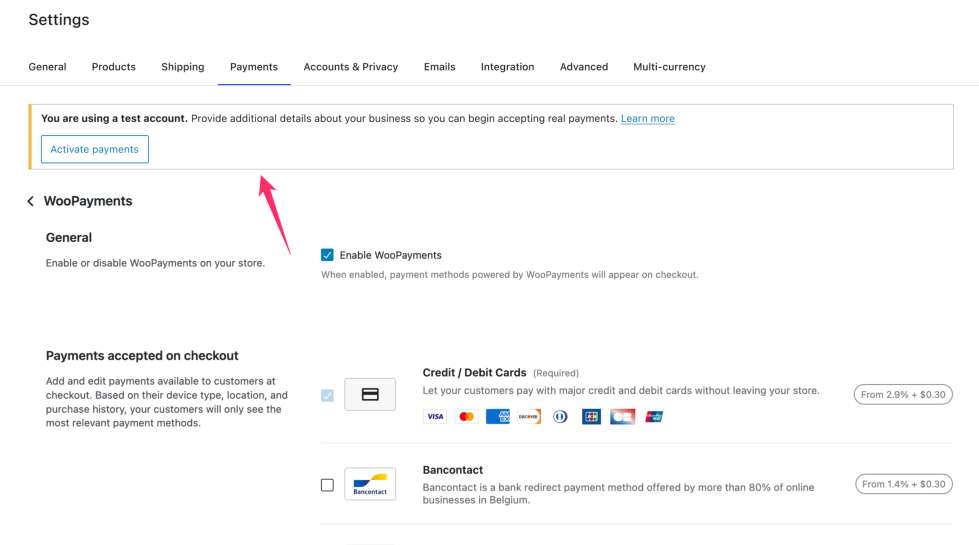
After selecting one of these options, confirm that you’d like to activate your account. From there, you can proceed through the standard account creation process.
Once your live account is set up, WooPayments will be ready to process real transactions.
Note: If you’d like to continue testing after going live, you can enable test mode at any time — but this will use your live account, not a separate test account.
Developer notes
↑ Back to topIf your site is in development mode, WooPayments will only let you create test accounts. It also keeps payments in test mode, even if a real WooPayments account is connected. Development mode is basically a safeguard that stops staging and development copies of your store from taking real payments.
When development mode is on, a notice that starts with “Your store is in development mode, so payments are simulated” appears on Payments > Overview and other pages in the WordPress dashboard created by WooPayments.
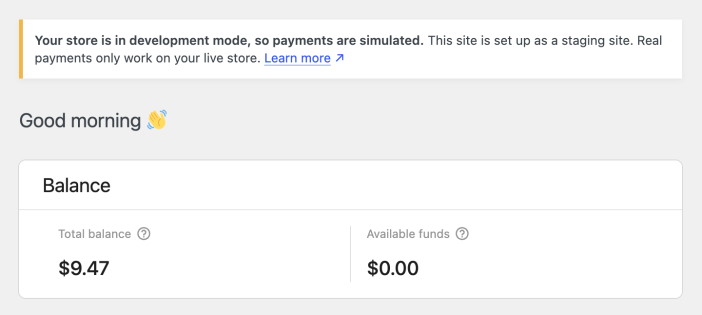
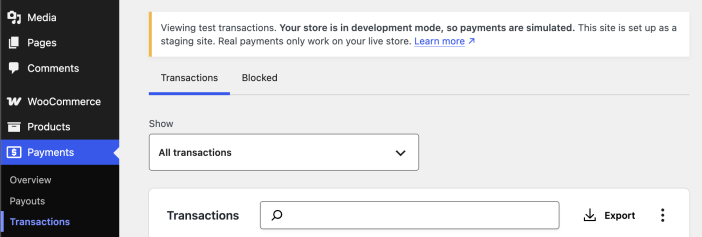
Development mode turns on when any of the following applies:
WCPAY_DEV_MODEis defined and truthyWP_ENVIRONMENT_TYPEis set todevelopmentorstagingWP_DEVELOPMENT_MODEis a non-empty string- The
wcpay_dev_modefilter returnstrue
The notice tells you which of these turned development mode on:
| If the notice says.. | Dev mode is on because… |
|---|---|
| The WCPAY_DEV_MODE constant is set. | WCPAY_DEV_MODE is defined and truthy |
| This site is set up as a staging site. | WP_ENVIRONMENT_TYPE is set to staging |
| This site is set up as a development site. | WP_ENVIRONMENT_TYPE is set to development |
| The WP_DEVELOPMENT_MODE constant is set. | WP_DEVELOPMENT_MODE is a non-empty string |
| A plugin or custom code turned it on using the wcpay_dev_mode filter. | The wcpay_dev_mode filter returns true |
If more than one of these applies, the notice indicates the first one in the order shown above. To see all of them, go to WooCommerce > Status, find the WooPayments box, and check the Dev Mode line for more information.
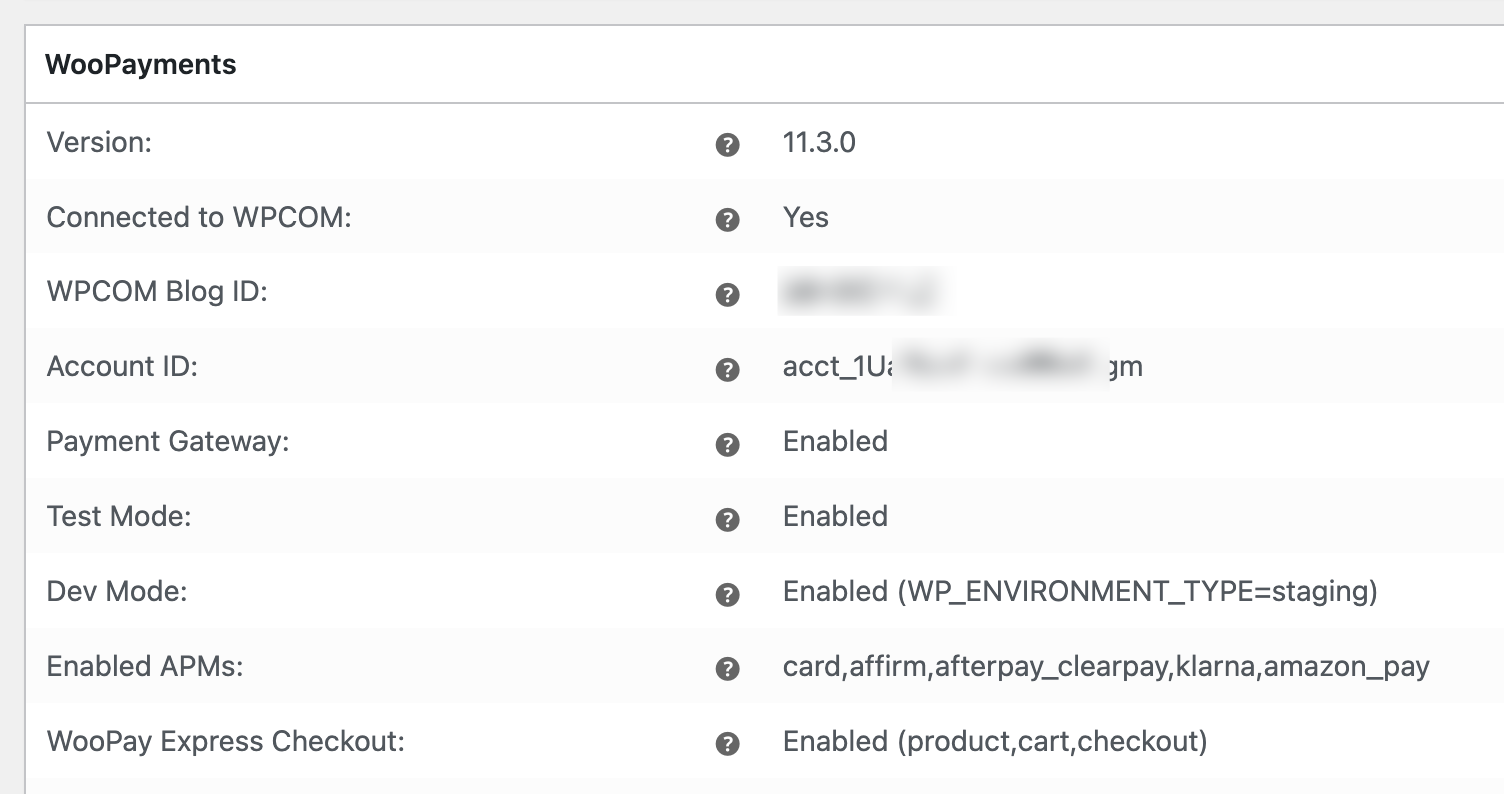
Taking real payments
↑ Back to topTo take real payments or set up a live WooPayments account, use your live site.
If the site in question is a staging or development copy of your store, development mode is working as intended. If your live WooPayments account is somehow connected to the copied site, development mode keeps the copied site in test mode, so it won’t take real payments through your live account.
NOTE: Don’t turn off development mode on a staging or development copy of your store! If your live account is connected to the copy, the copy could start taking real payments. This is almost certainly not what you want to do!
If your site is actually your real, live site and development mode is on by mistake, remove or change the setting indicated by the notice above. Reload the page to confirm that the notice is gone. If you don’t know how to change these settings, or don’t have access to them, contact your hosting provider or developer.