
Store credit expiry lets some kinds of wallet credit expire if they are not spent in time, for example cashback after 90 days or a promotion credit after 30. It is off until you turn it on, you choose the number of days for each kind of credit, and money customers paid you never expires unless you decide so. This page covers the settings, what gets an expiry date, the order credit is spent in, what customers and staff see, the reminder email and how staff change a date.
How it works in short
↑ Back to top- Each new credit gets an expiry date when it is given, from the number of days you set for its kind. 0 means it never expires.
- Credit given before you turn expiry on never gets a date and never expires.
- Purchases always use the credit that expires soonest. Credit with no date is used last.
- Money reserved for an order in progress never expires while it is reserved.
- When a date passes, the unspent part of that credit leaves the wallet as an Expired credit entry in the history. The ledger keeps the original credit, so every balance can still be traced.
- Customers see what expires and when on their wallet page, and get a reminder email a few days before.
Turn expiry on
↑ Back to top- Go to WooCommerce > Settings > Elite Balance > Expiry. From the Elite Balance dashboard, click Settings at the right of the tab bar, then Expiry.
- Tick Enable expiry.
- Enter the number of days for each kind of credit you want to expire. Leave the others at 0.
- Click Save changes.
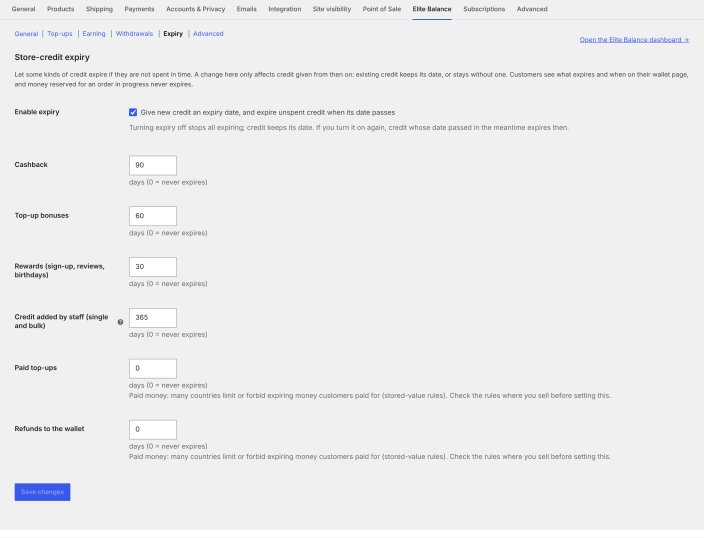
| Setting | Default | What it covers |
|---|---|---|
| Enable expiry | Off | Gives new credit an expiry date and expires unspent credit when its date passes. Turning it off stops all expiring; credit keeps its date. |
| Cashback | 0 (never) | Order cashback from your earning rules. |
| Top-up bonuses | 0 (never) | Bonuses given on top of a paid top-up. |
| Rewards (sign-up, reviews, birthdays) | 0 (never) | Sign-up, review and birthday rewards share this setting. |
| Credit added by staff (single and bulk) | 0 (never) | Credits staff add on a wallet screen, the Edit user card, a bulk operation or a CSV import. Staff can still pick a date, or no date, for each credit they add. |
| Paid top-ups | 0 (never) | Money customers paid to add to their wallet. |
| Refunds to the wallet | 0 (never) | Refunds you make to the wallet. |
Each setting is a number of days, from 0 to 3650. Because every kind starts at 0, ticking Enable expiry alone makes nothing expire until you set a number of days.
Important: Paid top-ups and refunds to the wallet are money your customers paid you. Many countries limit or forbid letting such money expire (stored-value or gift card rules). The screen shows a warning under both settings: check the rules where you sell before you set a number of days for them.
What gets an expiry date
↑ Back to top- Only credit given from then on. The date is set once, when a credit is given, from the setting in force at that moment. Changing a setting later only affects new credit: existing credit keeps its date, or stays without one.
- Cashback gets its date when it is released into the wallet, not when the order is paid. Pending cashback is not in the wallet yet, so its days start counting on the release date.
- Credit added by staff gets the store default unless the staff member picks No expiry or a specific date on the form. See Changing a date.
- A refund to the wallet of an order paid with expiring credit comes back as a new Refunds to the wallet credit, with that setting’s date (never, by default). It does not keep the date of the credit it replaces.
- Migrated balances never expire. No migration source carries expiry dates over, including TeraWallet: balances come in without a date.
The order credit is spent in
↑ Back to topEvery spend uses the credit that expires soonest. Credit without a date is used last, and on equal dates the oldest credit goes first. This applies to checkout, the Wallet balance payment method, subscription renewals, withdrawals and debits made by staff.
Credit given later never pays for an earlier spend.
Credit reserved for an order
↑ Back to topWhen money is reserved for an unpaid order or a withdrawal request (a hold), the reservation counts against the soonest-expiring credit first, and that credit never expires while it is reserved:
- The order is paid: the reserved credit is spent.
- The reservation is released (a cancelled, failed or abandoned order) after the credit’s date has passed: the credit expires at the next spend, the next visit to the wallet page or checkout, or the daily run, whichever comes first.
When credit expires
↑ Back to topA daily background task (rb_elbal_expiry_sweep in WooCommerce > Status > Scheduled Actions) expires credit whose date has passed. Expiry also runs for a customer when they open their wallet page or checkout, and before every spend. A customer never sees, or spends, credit whose date has already passed.
When credit expires, the history gets an Expired credit entry for the unspent amount. Customers see it on their wallet page, staff see it on the wallet screen and the Transactions tab, and the Reports tab counts it.
Turning expiry off, or back on
↑ Back to topTurning Enable expiry off pauses expiry: nothing expires and new credit gets no date. Credit that already has a date keeps it. If you turn expiry on again, credit whose date passed in the meantime expires then.
What customers see
↑ Back to topOn their wallet page
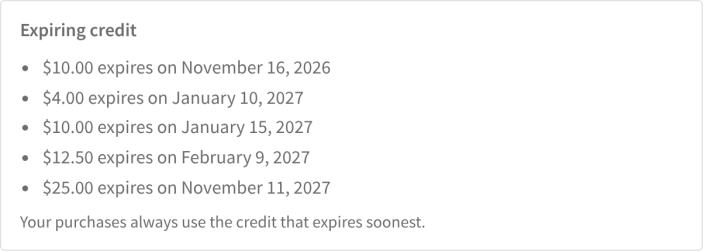
↑ Back to topWhile a customer has credit with a date, their wallet page in My Account shows an Expiring credit list with each amount and the date it expires, and the line “Your purchases always use the credit that expires soonest.” In the history, each dated credit shows “Expires (date) if not spent”.
The reminder email
↑ Back to topThe Wallet credit expiring soon email reminds customers before their credit expires.
- Find it under WooCommerce > Settings > Emails > Wallet credit expiring soon, or through the Emails links under Elite Balance > General. It is enabled by default and only sends while expiry is on.
- Days before sets how early it goes out: 7 days by default.
- A daily check sends one email per customer, listing every credit that expires within that window and was not announced yet, with the balance.
- Each credit is announced once for its date. If staff extend the date, it is announced again before the new date.
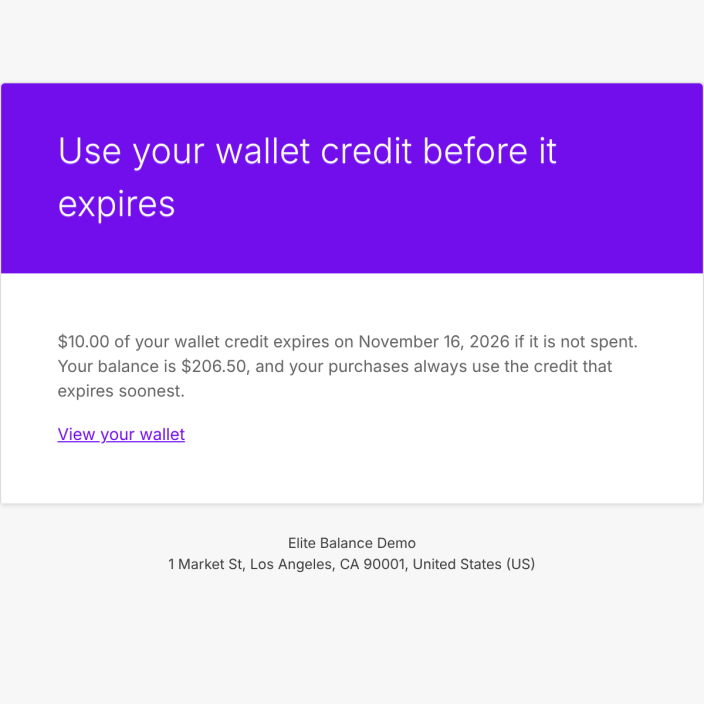
See Wallet Emails to change the subject, heading and text.
What staff see
↑ Back to topThese show while expiry is on, or while any credit with a date exists:
- Overview: an Expiring in the next 30 days tile with the amount and the number of wallets. It links to the Reports tab.
- Wallets tab: an Expiring in 30 days column.
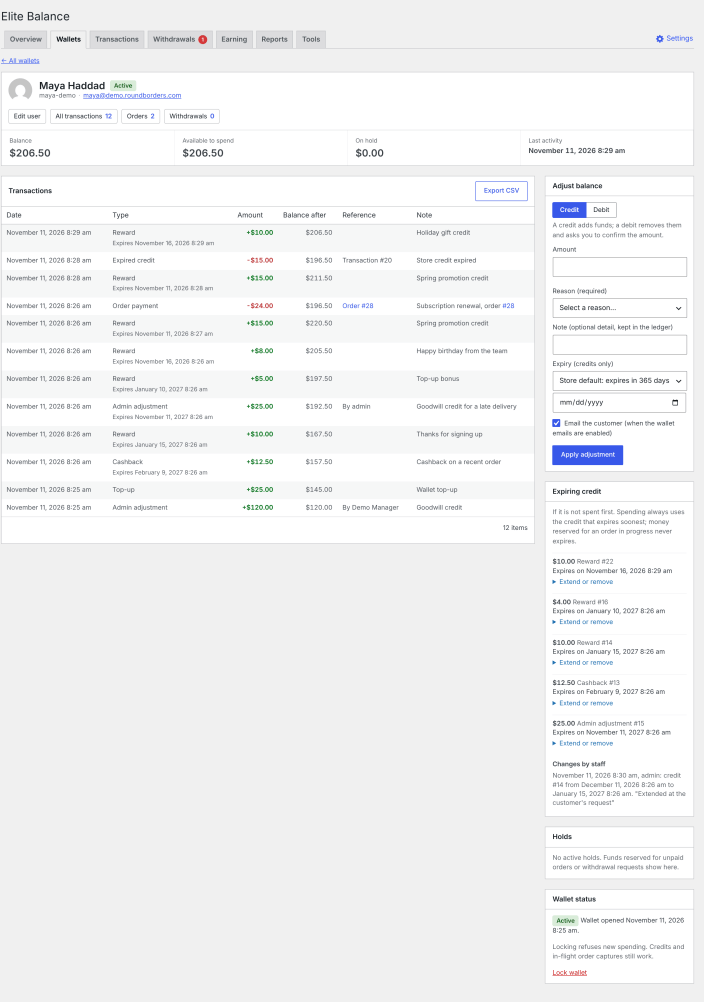
- A customer’s wallet screen: an Expiring credit box with each dated credit, its date, a form to change it and the log of changes by staff. In the history, dated credits show “Expires (date)” under the type.
- Reports tab: what expired in a period and what will expire within 30, 60 and 90 days. See Reports.
Changing a date
↑ Back to topWhen staff add credit
↑ Back to topWhen staff credit a wallet, single or in bulk, the form has an Expiry (credits only) choice:
- Store default (for example “Store default: expires in 365 days”, or never when the setting is 0);
- No expiry;
- Expires on the date below, with a date field.
On credit already given
↑ Back to topOn the customer’s wallet screen (WooCommerce > Elite Balance > Wallets, then the customer), each credit in the Expiring credit box has Extend or remove:
- Extend to any later date (New date (later only)).
- Remove the date (No expiry): the credit then never expires.
- A Note is required.
Shortening a date is not offered, a date cannot be added to credit that has none, and credit that is past its date or fully spent cannot be changed. Only staff allowed to adjust that customer’s wallet see the form: administrators for any wallet, other staff for customers who are not administrators and not for their own wallet.
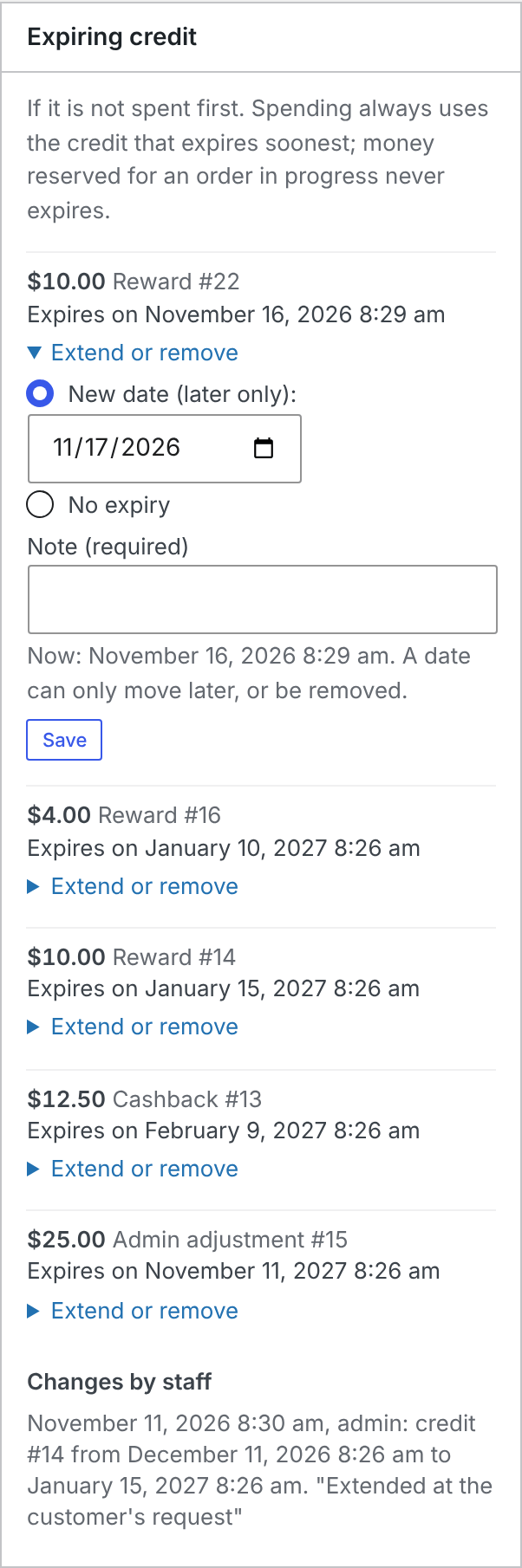
Every change is listed under Changes by staff in the same box: who, when, which credit, the old and new date, and the note. The ledger entry itself is never edited.
From the command line
↑ Back to topwp rb-elbal expiry upcominglists credit that will expire if it is not spent (30 days by default,--daysto change it,--customerfor one customer).wp rb-elbal expiry runexpires every credit whose date has passed, as the daily run does. Add--dry-runto see what would expire without changing anything.
See WP-CLI Commands.
Questions
↑ Back to topDoes turning expiry on make my customers’ existing balances expire? No. Only credit given after you turn it on gets a date, and only for the kinds you set a number of days for.
I shortened the cashback window. Does existing cashback expire sooner? No. Existing credit keeps the date it was given. The new window applies to cashback released from then on.
A customer asks for more time. What do I do? Open their wallet screen, click Extend or remove on the credit, choose a later date or No expiry, add a note and save. If you extend the date, they get a new reminder before the new date.
Can credit expire in the middle of checkout? No. Credit reserved for an order in progress never expires while it is reserved.