
This page lists every Elite Balance setting with its exact label, its default and what it changes. It is for store owners and shop managers configuring the extension. The settings live in two places: WooCommerce > Settings > Elite Balance (five sections) and the payment method screen, WooCommerce > Settings > Payments > Elite Balance Wallet. The wallet email settings are on WooCommerce > Settings > Emails and are covered on Wallet Emails.
Where the settings are
↑ Back to top- WooCommerce > Settings > Elite Balance has five sections, shown as links under the tab bar: General, Top-ups, Earning, Withdrawals and Advanced. Each section has its own Save changes button and saves on its own.
- An Open the Elite Balance dashboard link on the right takes you to WooCommerce > Elite Balance. From the dashboard, the Settings link (gear icon) on the right of the tab bar brings you back here.
- The payment method screen has Elite Balance settings and Elite Balance dashboard links at the top.
- The Settings link on the Plugins screen opens the General section.
Note: Refunds have no settings. Money only goes back to a wallet when someone refunds the order; see Refunds to Wallet.
General
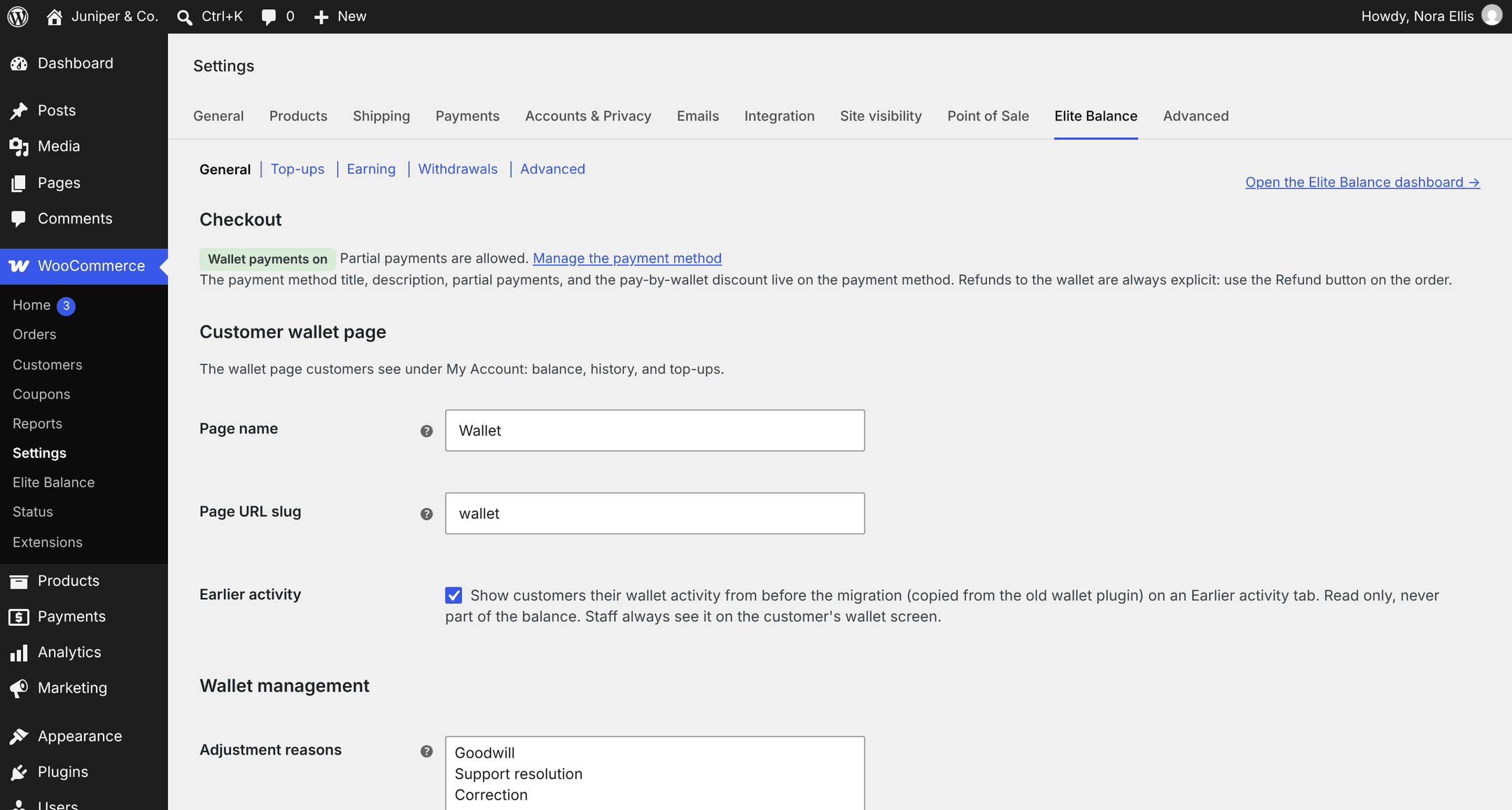
↑ Back to topWooCommerce > Settings > Elite Balance > General has four groups: Checkout, Customer wallet page, Wallet management and Emails.
Checkout
↑ Back to topNot a setting, a status line. It shows Wallet payments on or Wallet payments off, then “Partial payments are allowed.” or “Partial payments are off.”, and a Manage the payment method link. The checkout options themselves (title, description, partial payments, pay-by-wallet discount) live on the payment method, as WooCommerce expects; see Payment method below.
Customer wallet page
↑ Back to top| Setting | Default | What it does |
|---|---|---|
| Page name | Wallet | The label in the My Account menu and the page title. If you clear the field, Wallet is used. |
| Page URL slug | wallet | The address of the page: /my-account/{slug}/. Use lowercase letters, numbers and hyphens. Permalinks refresh automatically when you change it. If you clear the field, wallet is used. |
| Earlier activity | On | Shows customers their wallet activity from before a migration (copied from the old wallet plugin) on an Earlier activity tab of their wallet page. Read only: the balance itself was carried over by the migration. Untick to hide the tab and its pointer line from customers. Staff always see earlier activity on the customer’s wallet screen. New in 1.1.0. |
Tip: Changing the slug changes the address of the wallet page. Update any menu links, emails or help pages that point to the old address.
Wallet management
↑ Back to top| Setting | Default | What it does |
|---|---|---|
| Adjustment reasons | Goodwill Support resolution Correction Promotion | One reason per line. Staff must pick one of these whenever they credit or debit a wallet by hand. The reason is stored in the ledger. See Adjustment reasons below. |
Emails
↑ Back to topNot a setting: direct links to the Wallet credited, Wallet debited and Wallet low balance email screens under WooCommerce > Settings > Emails. Each email there has its own enable switch, subject, heading, body text with placeholders and sender overrides, and the low balance email has its threshold. The four withdrawal emails are on the same WooCommerce screen.
Top-ups
↑ Back to topWooCommerce > Settings > Elite Balance > Top-ups. Customers add funds through a normal WooCommerce order paid with one of your payment methods. The wallet is credited when the payment is confirmed. Full details: Top-ups (Add Funds).
| Setting | Default | What it does |
|---|---|---|
| Enable top-ups | On | Shows an Add funds tab on the customer wallet page. Untick it to hide the tab. |
| Order status after payment | Completed (recommended: nothing to fulfill) | The status a paid top-up order moves to. The other choice is Processing (the WooCommerce default for paid orders), for stores that review every order by hand. |
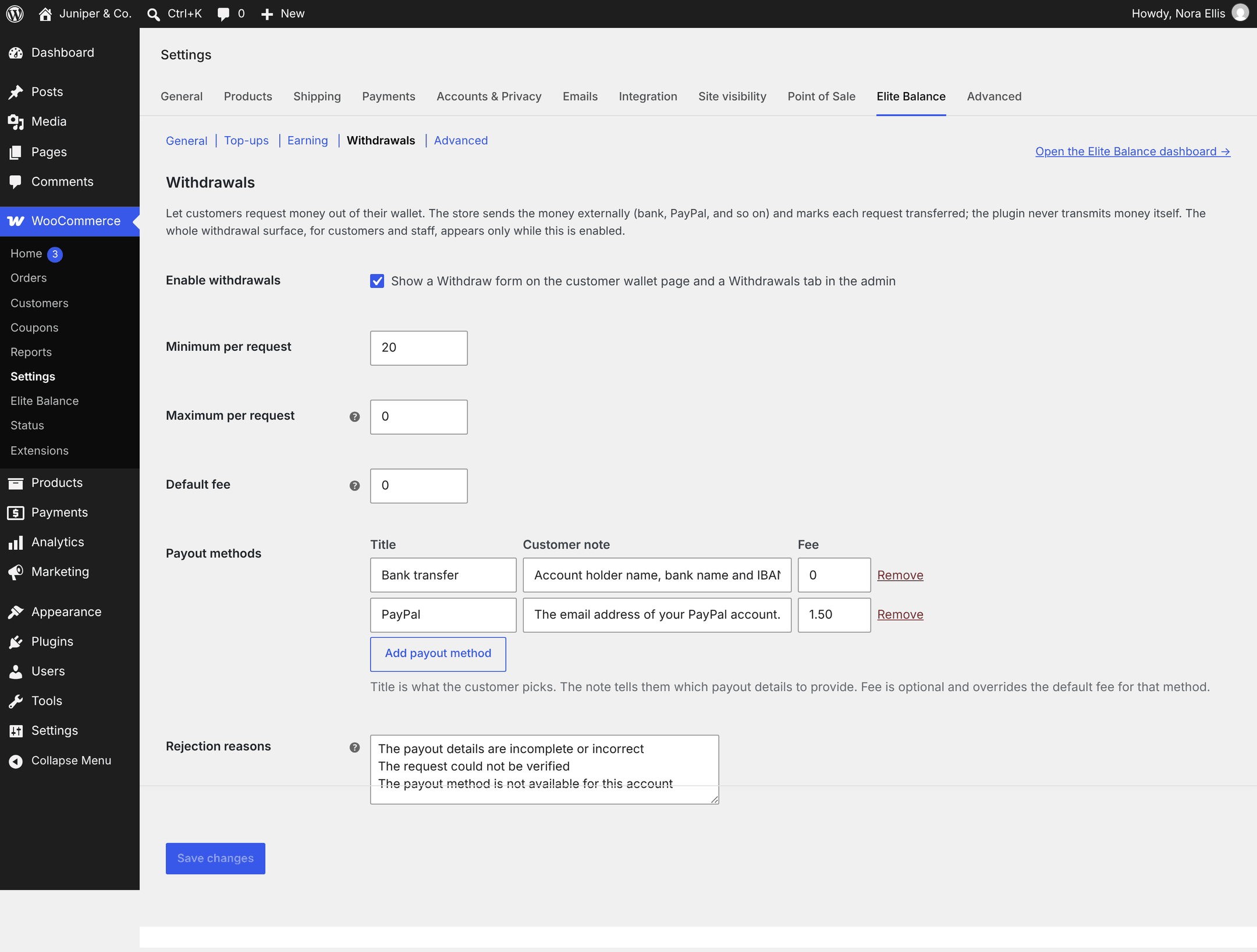
| Minimum top-up amount | 5 | The smallest amount a customer can add, in your store currency. |
| Maximum top-up amount | 500 | The largest amount a customer can add in one top-up. |
| Payment methods for top-ups | Empty (every enabled method except Cash on delivery and pay-later methods) | Limits which payment methods customers can use to pay a top-up order. Leave it empty to offer every enabled method except Cash on delivery and pay-later methods (marked “(offered only when selected)” in the list); select methods to offer exactly those. The wallet is credited only once the payment is captured. See Top-ups. The wallet itself is never offered for a top-up: a wallet cannot fund itself. |
Note: If a limit is empty, zero or not a number, Elite Balance uses 5 for the minimum and 500 for the maximum. If the minimum is higher than the maximum, the maximum is raised to match the minimum.
Earning
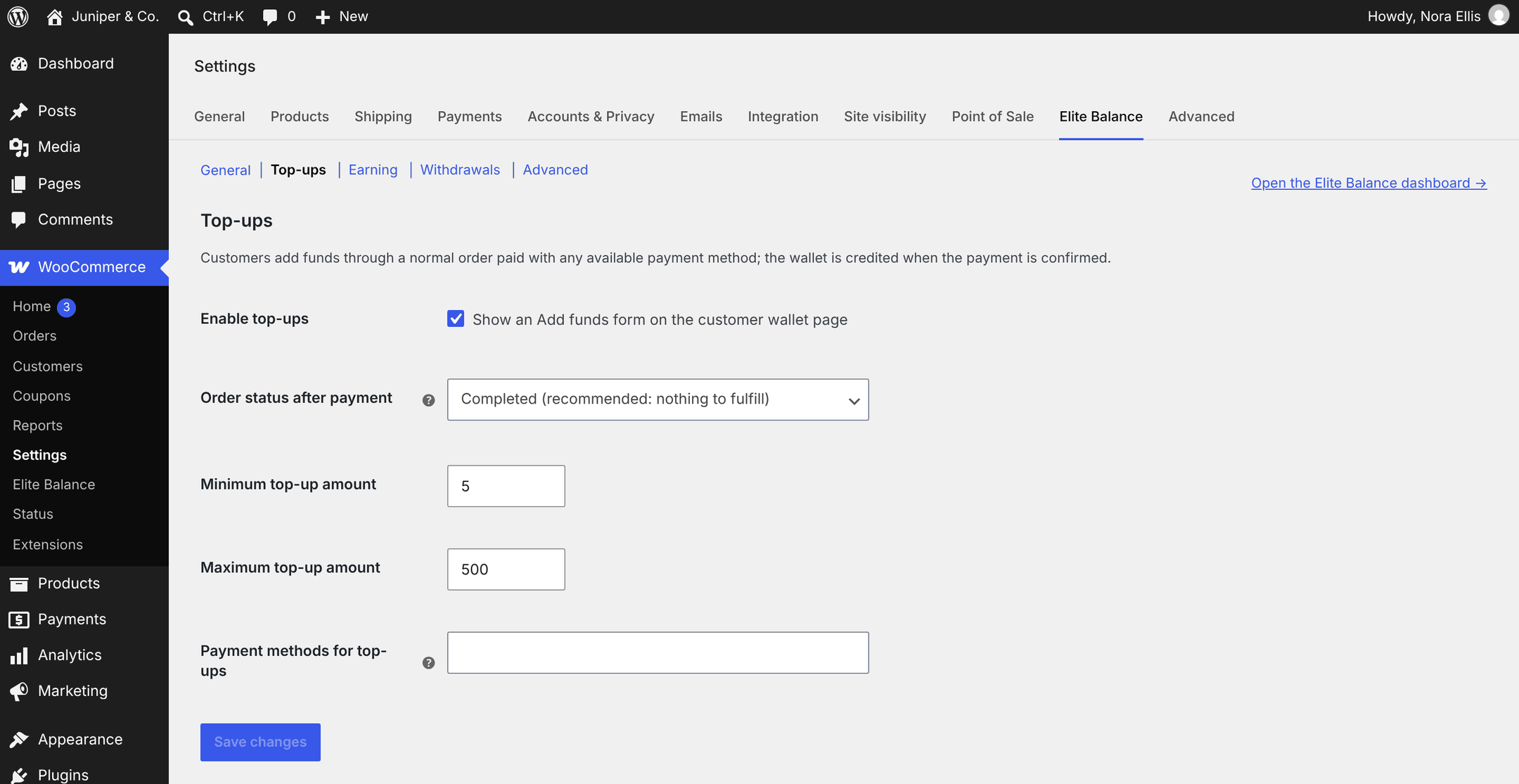
↑ Back to topWooCommerce > Settings > Elite Balance > Earning. The rules themselves (cashback on paid orders, top-up bonuses, and rewards for signing up, reviewing a purchased product or having a birthday) are managed on the Earning tab of the dashboard; the section description links to it. Full details: Earning Rules and Cashback.
| Setting | Default | What it does |
|---|---|---|
| Enable earning | On | Shows the Earning tab and lets enabled rules award credit. Switching it off pauses all awarding. Reversals of credit already awarded (for example after a refund) still run, and the Earning tab stays visible while any rule exists. |
| Birthday field | Off | Adds an optional Birthday field to My Account > Account details so birthday rules can run. Customers can change their birthday once per year. Off means no birthday data is collected and birthday rules do nothing. |
| Cashback release delay (days) | 30 | Holds order cashback and top-up bonuses as pending for this many days before they are added to the wallet. While an award is pending, refunding the order reduces or cancels the pending amount without touching the wallet. Set 0 to credit immediately. Accepts 0 to 90. Signup, review and birthday rewards always credit immediately. |
Tip: Set the release delay to at least your refund window. Then a refund never has to take back cashback that the customer may already have spent. Changing the delay does not move awards that are already pending: each keeps the release date it got when it was awarded.
Withdrawals
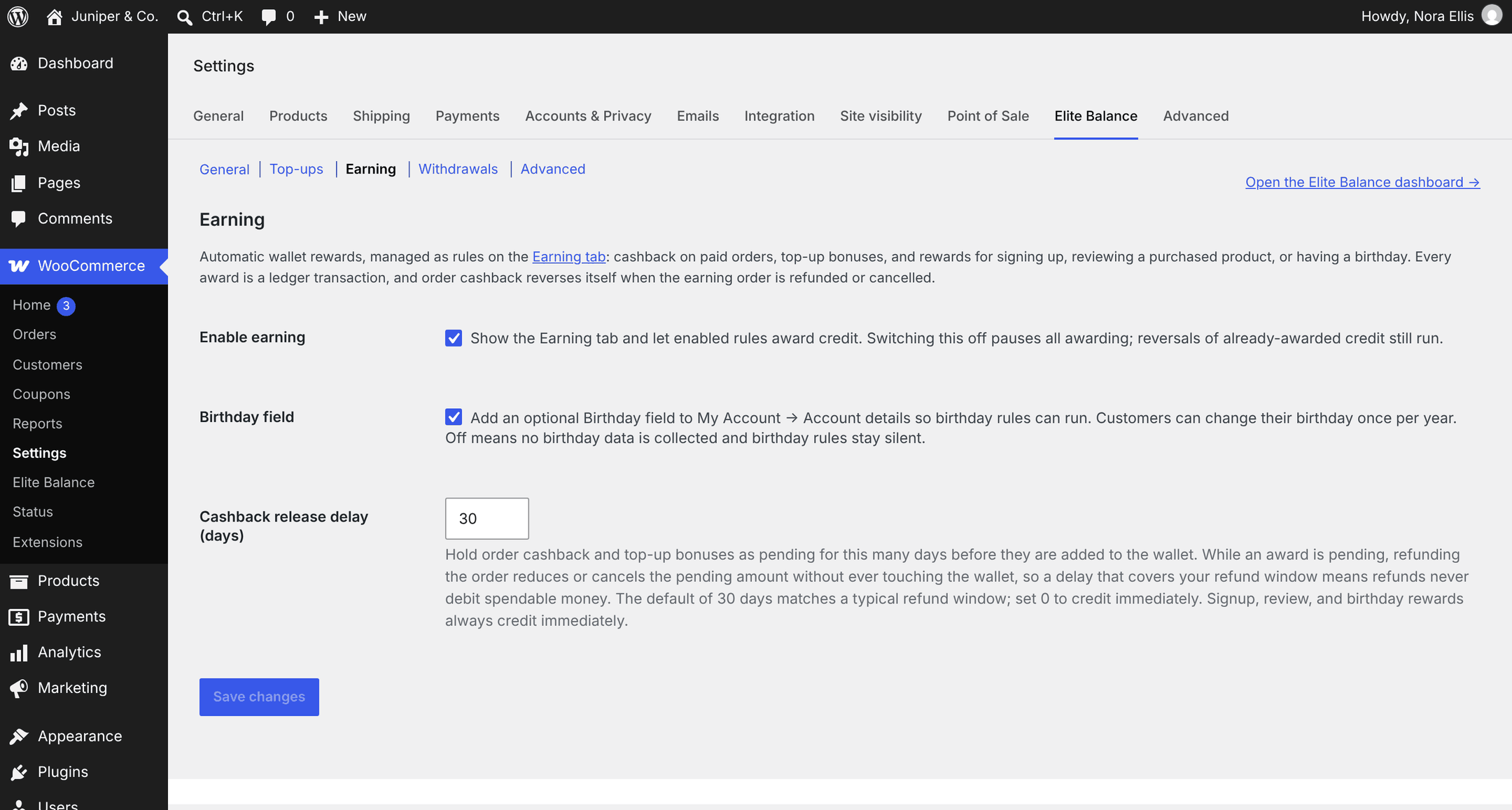
↑ Back to topWooCommerce > Settings > Elite Balance > Withdrawals. Customers request money out of their wallet. You send the money yourself (bank, PayPal and so on) and mark each request transferred; Elite Balance never transmits money. Full details: Withdrawals.
| Setting | Default | What it does |
|---|---|---|
| Enable withdrawals | Off | Shows a Withdraw tab on the customer wallet page and a Withdrawals tab in the dashboard. After you switch it off, the dashboard tab stays as long as any request exists, so the history remains reachable. |
| Minimum per request | 10 | The smallest amount a customer can request. If it is empty, zero or not a number, 1 is used. |
| Maximum per request | 0 (no maximum) | The largest amount per request. Leave at 0 for no maximum. A maximum below the minimum is raised to the minimum. |
| Default fee | 0 | A flat fee used by any payout method that does not set its own. The fee is deducted from the requested amount: the wallet is debited the full requested amount when the request is transferred, and you send the amount minus the fee. Staff can still change the fee on each request when they mark it transferred. Set 0 for no fee. |
| Payout methods | Bank transfer, PayPal | The methods a customer can choose from. Edited with a table of Title, Customer note and Fee fields, an Add payout method button and a Remove link per row. Stored in Payout methods (raw list); see Payout methods format. |
| Rejection reasons | The payout details are incomplete or incorrect The request could not be verified The payout method is not available for this account | One reason per line. Staff pick one (or type their own) when rejecting a request. The chosen reason is shown to the customer. See Rejection reasons. |
Note: The payout details customers enter (for example an IBAN or a PayPal email) are visible only to users who can manage wallets, are never included in exports, and are erased automatically 30 days after a request is transferred, rejected or cancelled. The request and its ledger rows are kept.
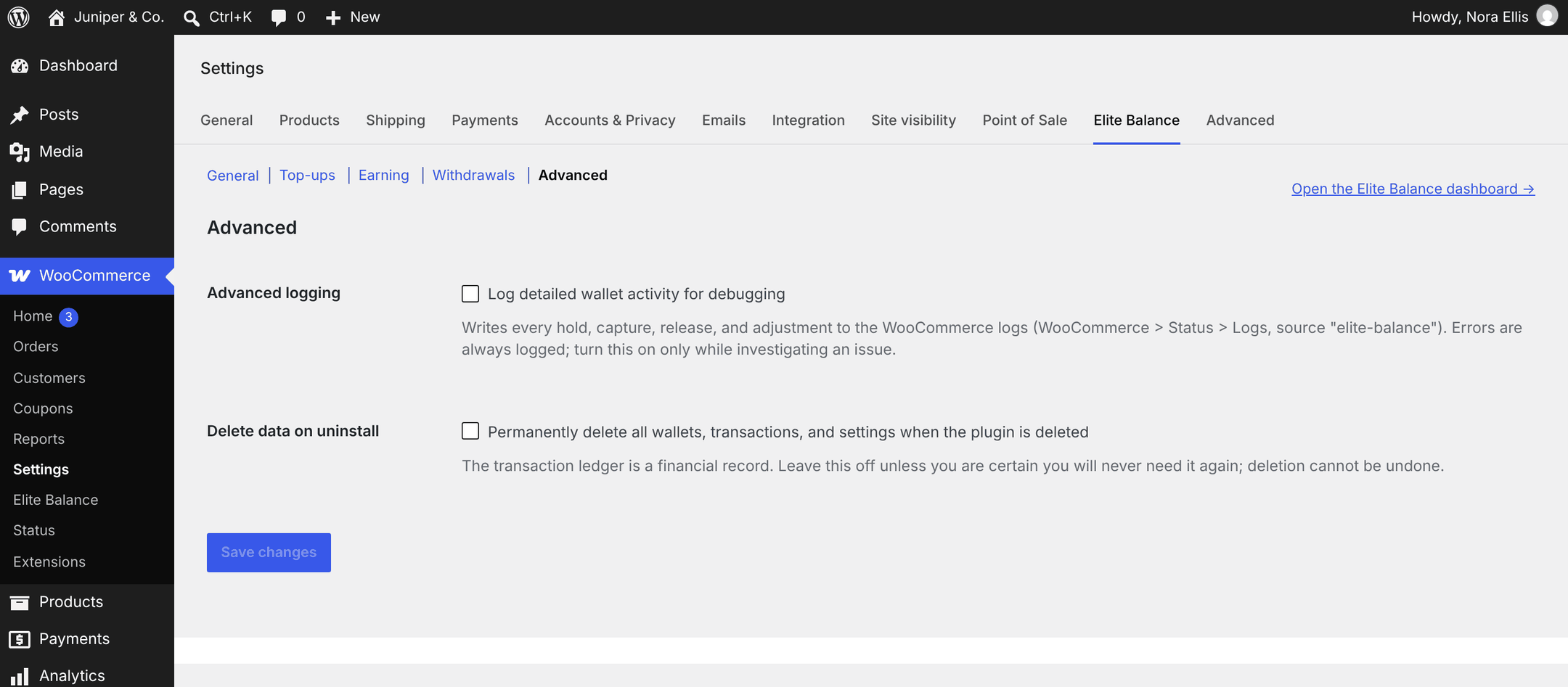
Advanced
↑ Back to topWooCommerce > Settings > Elite Balance > Advanced.
| Setting | Default | What it does |
|---|---|---|
| Advanced logging | Off | Log detailed wallet activity for debugging. Writes every hold, capture, release and adjustment to the WooCommerce logs (WooCommerce > Status > Logs, source elite-balance). Errors are always logged, with or without this setting. Turn it on only while investigating an issue. |
| Delete data on uninstall | Off | Permanently delete all wallets, transactions, and settings when the plugin is deleted. With it off, deleting the plugin keeps all data. Deletion cannot be undone. See Uninstalling for exactly what is removed. |
Payment method
↑ Back to topWooCommerce > Settings > Payments > Elite Balance Wallet. You can also reach it with Manage the payment method on the General section. Full details: Checkout and Wallet Payments.
| Setting | Default | What it does |
|---|---|---|
| Enable/Disable (Enable wallet payments) | On | Offers Wallet balance as a payment method for paying the whole order. It appears only to a logged-in customer whose wallet is not locked and whose available balance covers the whole order total, for orders in the store currency. |
| Title | Wallet balance | The payment method name customers see at checkout. |
| Description | Pay using your wallet balance. | The text under the title at checkout. The customer’s available balance is added automatically, for example “Available balance: $50.00.” |
| Partial payments (Let customers combine their wallet balance with another payment method) | On | Shows a Use my wallet balance option at checkout to any logged-in customer with an available balance and an unlocked wallet. The wallet amount is reserved when the order is placed and only collected when the other payment method confirms payment. |
| Pay-by-wallet discount | No discount | An automatic discount line for orders paid fully by wallet. Choose Percentage of the items total or Fixed amount. It never applies to partial wallet payments or top-ups, it is checked again on the server when the order is placed, and the discount line is not taxed. |
| Discount amount | Empty | The percentage (for example 5 for 5%, up to 100) or the fixed amount in the store currency. A fixed discount never exceeds the items total. |
Note: When a customer ticks Use my wallet balance, the full Wallet balance method is hidden for that checkout, so the two cannot be combined.
Adjustment reasons
↑ Back to topEvery manual change to a wallet needs a reason. The list from Adjustment reasons (General section) appears as a Select a reason… dropdown in:
- the Adjust balance form on a customer’s wallet screen, and the same form in the Wallet card on the Edit user screen;
- bulk credit and debit from the Wallets list and from Bulk operations;
- CSV import.
The last choice, Other (type your own), reveals a text field for a reason that is not in the list (up to 150 characters). The reason is stored in the ledger as the transaction note, followed by the optional note if staff typed one (for example “Correction: duplicate credit on 3 May”). Customers never see the reason or note of a manual adjustment; their wallet page shows Balance adjustment.
Editing the list only changes what staff can pick from now on. Reasons already in the ledger stay as they were written. Empty lines are ignored.
Rejection reasons
↑ Back to topWhen staff reject a withdrawal request, they must give a reason, picked from Rejection reasons (Withdrawals section) or typed in after choosing the free-text option (up to 500 characters). Unlike adjustment reasons, rejection reasons are customer-facing: the reason is shown to the customer on their wallet page and in the Withdrawal rejected email. Write them in words you are happy for customers to read. Rejecting releases the reserved funds; no money moves.
Payout methods format
↑ Back to topThe payout methods editor saves to a plain text field, Payout methods (raw list), that is hidden while JavaScript is on. With JavaScript off, you edit the raw list directly. Each line is one method:
Title | note | fee- Title (required): what the customer picks, for example “Bank transfer”.
- note (optional): tells the customer which payout details to provide.
- fee (optional): a flat fee for this method that overrides the Default fee. Leave it out, or leave it empty, to use the default fee. A negative or unreadable fee also falls back to the default fee.
The default list is:
Bank transfer | Provide the account holder name, the IBAN or account number, and the bank name.
PayPal | Provide the email address on your PayPal account.
An example with a fee on PayPal only:
Bank transfer | Account holder name, bank name and IBAN
PayPal | The email address of your PayPal account. | 1.50
Note: Lines without a title are skipped. Two methods whose titles produce the same internal key (for example “PayPal” and “paypal”) count as one: only the first line is used. A request stores the internal key made from the method’s title (for example bank-transfer). If you rename or remove a method, requests made with it show that key instead of a title, and the transfer screen suggests the Default fee for them. Finish pending requests before you rename a method.
For developers
↑ Back to topSettings are stored as WordPress options. Defaults are applied in code until a screen is saved.
| Setting | Option name |
|---|---|
| Page name | rb_elbal_account_label |
| Page URL slug | rb_elbal_account_slug |
| Earlier activity | rb_elbal_history_customer_visible |
| Adjustment reasons | rb_elbal_adjustment_reasons |
| Enable top-ups | rb_elbal_topup_enabled |
| Order status after payment | rb_elbal_topup_paid_status |
| Minimum / Maximum top-up amount | rb_elbal_topup_min, rb_elbal_topup_max |
| Payment methods for top-ups | rb_elbal_topup_gateways |
| Enable earning | rb_elbal_earning_enabled |
| Birthday field | rb_elbal_birthday_field |
| Cashback release delay (days) | rb_elbal_earn_release_delay |
| Enable withdrawals | rb_elbal_withdrawal_enabled |
| Minimum / Maximum per request | rb_elbal_withdrawal_min, rb_elbal_withdrawal_max |
| Default fee | rb_elbal_withdrawal_fee |
| Payout methods (raw list) | rb_elbal_withdrawal_methods |
| Rejection reasons | rb_elbal_rejection_reasons |
| Advanced logging | rb_elbal_advanced_logging |
| Delete data on uninstall | rb_elbal_delete_all_data |
| Payment method fields | woocommerce_rb_elbal_wallet_settings (keys enabled, title, description, partial_enabled, discount_type, discount_amount) |
Useful filters (all listed on the Developer Reference):
rb_elite_balance_settings_fields: add fields to a section. It runs once per section and receives the section ID (''for General,topups,earning,withdrawals,advanced). Fields you add are saved and rendered by WooCommerce.rb_elite_balance_account_endpoint_slugandrb_elite_balance_account_endpoint_label: override the wallet page slug and name.rb_elite_balance_adjustment_reasonsandrb_elite_balance_rejection_reasons: change the reason lists.rb_elite_balance_topup_amount_limitsandrb_elite_balance_withdrawal_amount_limits: change the limits.rb_elite_balance_withdrawal_methodsandrb_elite_balance_withdrawal_default_fee: change the payout methods and the default fee.rb_elite_balance_withdrawal_details_retention_days: change the 30-day payout details retention.rb_elite_balance_history_customer_visible: override the Earlier activity setting.