
This page explains how customers take money out of their wallet and how your team works through the withdrawal requests. It is for store owners and shop managers who pay customers out by bank transfer, PayPal, or any other method you already use.
How withdrawals work
↑ Back to topA withdrawal is a customer asking for money out of their wallet. Elite Balance records the request, reserves the amount, and gives your team a queue to work from. The plugin never transmits money. It has no connection to a bank or payment provider. You send the payment yourself, outside the store, and then record it in the queue with the real transfer reference.
Only three things ever touch the customer’s money:
- The request reserves the amount. A hold is placed for the full requested amount. The customer’s available balance drops right away, so the reserved money cannot be spent at checkout or requested twice. The balance itself does not change yet, because nothing has left the wallet.
- Mark transferred debits the wallet. When you record the transfer, the hold becomes one Withdrawal transaction for the full requested amount. This happens once, however many times the button is pressed.
- Reject or cancel releases the reservation. The hold is released, the funds are spendable again, and the ledger shows no transaction, because no money moved.
Any other status change, such as Mark processing, is bookkeeping only and moves no money.
Note: Withdrawal holds have no expiry date. A request keeps its amount reserved until you transfer or reject it, or the customer cancels it.
Turn on withdrawals
↑ Back to topWithdrawals are off by default. To turn them on:
- Go to WooCommerce > Settings > Elite Balance > Withdrawals.
- Tick Enable withdrawals.
- Set the amount limits, the default fee, your payout methods, and your rejection reasons (see the table below).
- Click Save changes.
Once enabled, customers see a Withdraw tab on My Account > Wallet, and staff see a Withdrawals tab under WooCommerce > Elite Balance. The customer tab only appears while at least one payout method is configured.
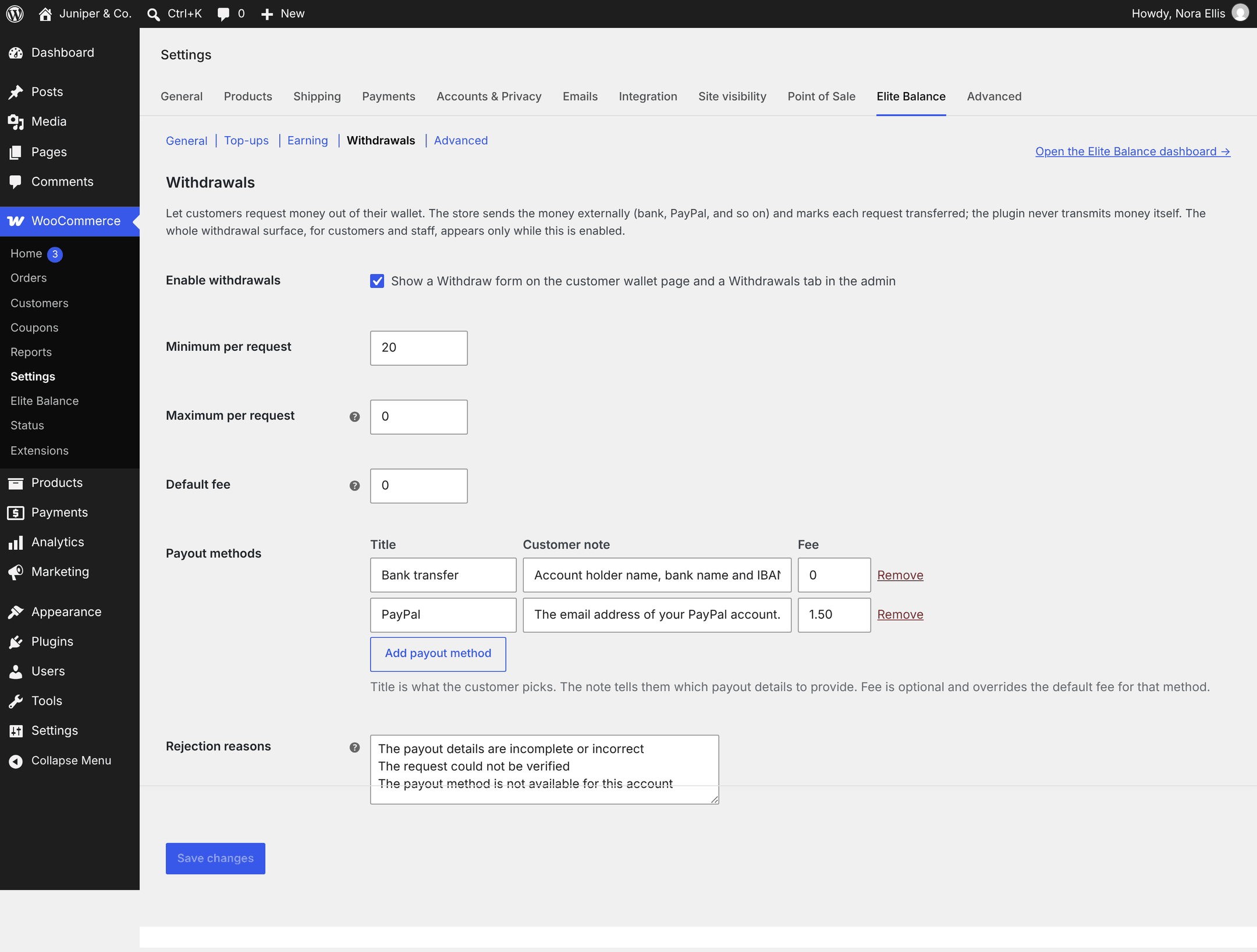
| Setting | Default | What it does |
|---|---|---|
| Enable withdrawals | Off | Shows the Withdraw tab on the customer wallet page and the Withdrawals tab in the admin. |
| Minimum per request | 10 | The smallest amount a customer can request. If you clear the field or enter 0, a minimum of 1 applies. |
| Maximum per request | 0 (no maximum) | The largest amount per request. Leave at 0 for no maximum. A maximum lower than the minimum is raised to the minimum. |
| Default fee | 0 | A flat fee used for any payout method that does not set its own fee. The fee is deducted from what you send; the wallet is always debited the full requested amount. Staff can change the fee on each request when marking it transferred. |
| Payout methods | Bank transfer and PayPal, no fee | The methods customers choose from, each with a customer note and an optional fee. See the next section. |
| Rejection reasons | Three presets (see below) | One reason per line. Staff pick one of these, or type their own, when rejecting a request. The chosen reason is shown to the customer. |
The default rejection reasons are: The payout details are incomplete or incorrect, The request could not be verified, and The payout method is not available for this account.
Payout methods and fees
↑ Back to topThe Payout methods builder has one row per method:
- Title: what the customer picks, for example Bank transfer.
- Customer note: tells the customer which payout details to provide. It appears under the method picker on the Withdraw form.
- Fee: optional. A flat fee for this method only. Leave it empty to use the Default fee.
Use Add payout method to add a row and Remove to delete one. Out of the box, the builder holds two methods:
- Bank transfer: “Provide the account holder name, the IBAN or account number, and the bank name.”
- PayPal: “Provide the email address on your PayPal account.”
The builder edits a plain text field called Payout methods (raw list), which you only see when JavaScript is off. Each line is one method in the form Title | note | fee:
Bank transfer | Provide the account holder name, the IBAN or account number, and the bank name. |
PayPal | Provide the email address on your PayPal account. | 1.50
Important: Each method is identified by its title. If you rename or remove a method while requests made with it are still open, those requests show the old internal name (for example bank-transfer) and the fee suggested at transfer time falls back to the default fee. To change a method’s title, add the new method first and remove the old one once its requests are resolved.
Tip: Fees are flat amounts. There is no percentage fee. If a payout costs a different amount, adjust the fee on that request when you mark it transferred.
What customers see
↑ Back to topCustomers request a withdrawal from My Account > Wallet > Withdraw. The Withdraw funds card shows Available to withdraw: the balance minus anything already reserved by a pending order or request.
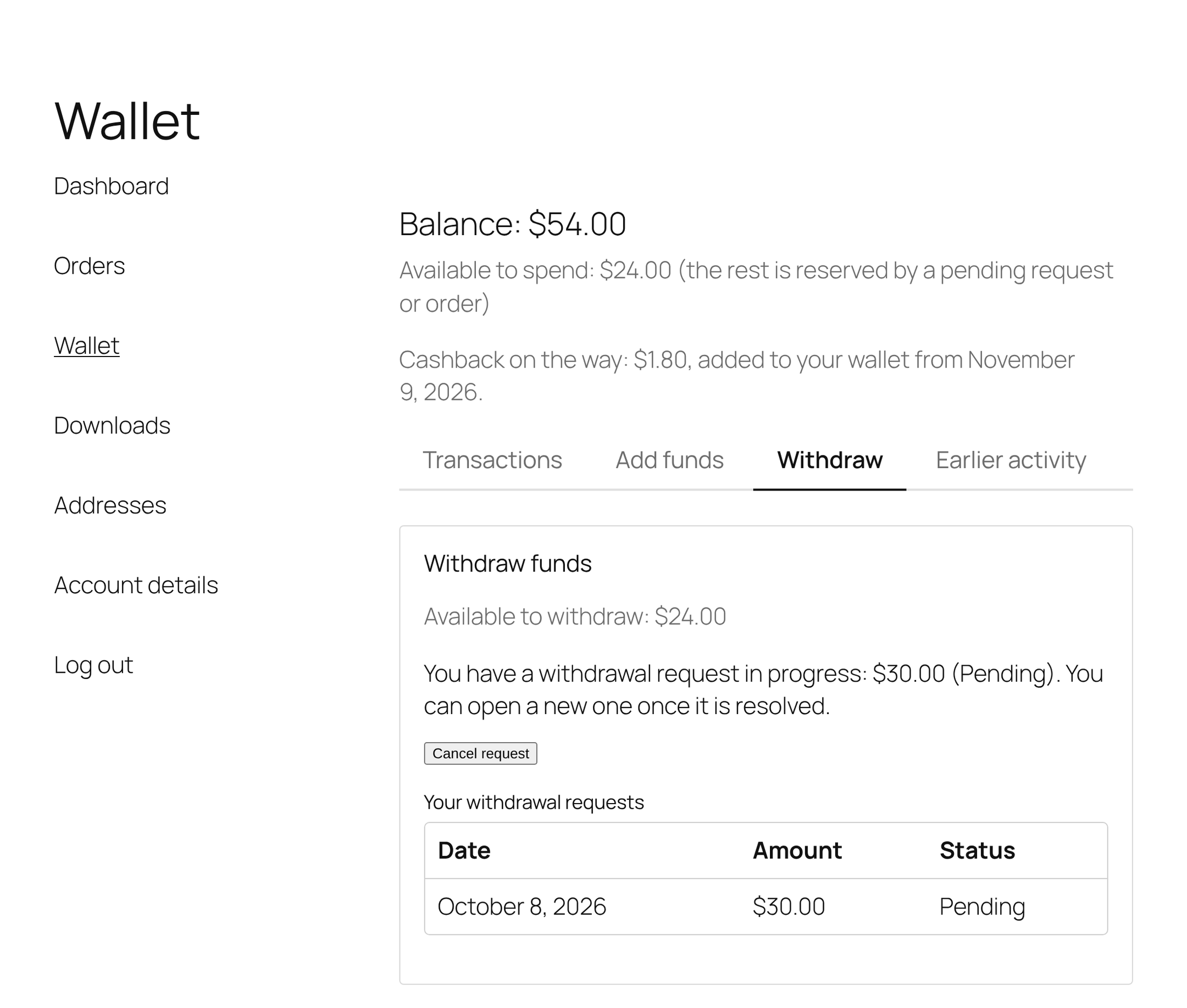
To request a withdrawal, the customer:
- Enters an Amount between your minimum and maximum.
- Chooses a Payout method. The method’s customer note and fee line update as they switch: either “A fee of $1.50 is deducted from the amount you request; the final fee is confirmed when we process it.” or “This method has no withdrawal fee.”
- Fills in Payout details (required). The field is pre-filled with what they entered last time for the same method.
- Clicks Request withdrawal.
They see “Your withdrawal request for $X was received. We will let you know when it is processed.” and receive the Withdrawal request received email. Your team receives the New withdrawal request (staff) email.
Rules the form enforces
↑ Back to top- One open request at a time. While a request is pending or processing, the form is replaced by “You have a withdrawal request in progress: … You can open a new one once it is resolved.”
- Enough available balance. A request larger than the available balance is refused with “You do not have enough available balance for that withdrawal.”
- Limits. Amounts outside the limits are refused with “The minimum withdrawal is …” or “The maximum withdrawal is …”.
- Locked wallets. A customer whose wallet is locked cannot open a request. The form returns a general error (“The withdrawal request could not be submitted. Please try again.”).
Cancelling and request history
↑ Back to topWhile a request is Pending, the customer can click Cancel request. The reservation is released and they see “Your withdrawal request was cancelled and the funds are available again.” Once you move a request to Processing, the customer can no longer cancel it.
Under Your withdrawal requests, customers see their last 10 requests with Date, Amount, and Status (Pending, Processing, Transferred, Rejected, or Cancelled). A rejected request also shows your rejection reason. Staff notes are never shown.
The full customer page, including the Transactions tab where the withdrawal debit appears, is covered in Customer Wallet Page, Block and Shortcode.
The withdrawal queue
↑ Back to topStaff work requests from WooCommerce > Elite Balance > Withdrawals. The tab shows a count of pending requests. It appears while withdrawals are enabled, and also after you turn them off if any request exists, so the history stays reachable. While the feature is off, the tab says “Withdrawals are currently disabled in the settings; existing requests stay listed here.” and you can still act on open requests.
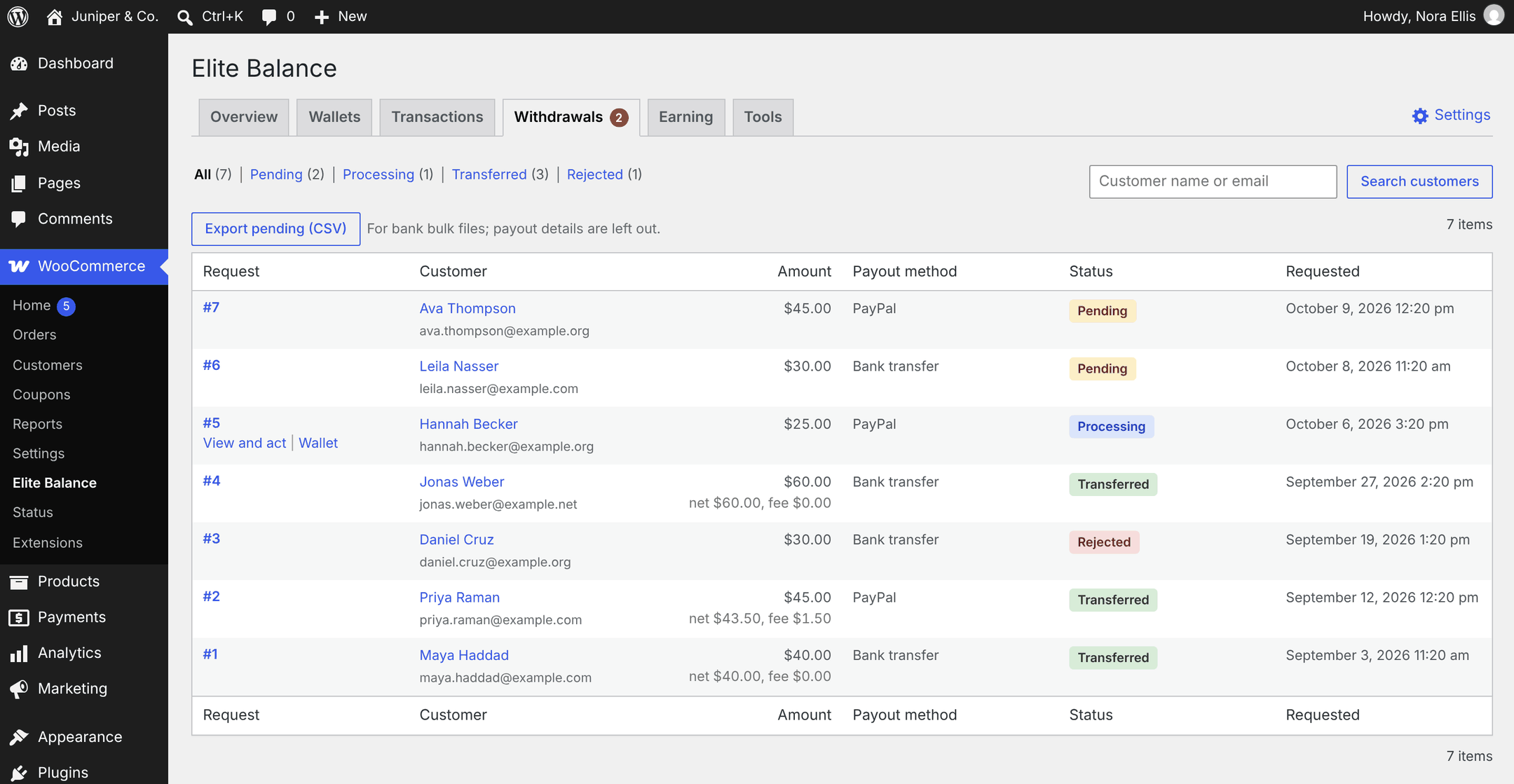
- Views: All plus one view for each status that has requests, each with a count.
- Columns: Request, Customer, Amount, Payout method, Status, Requested. Transferred requests show the net amount and fee under the amount.
- Row actions: View and act opens the request; Wallet opens the customer’s wallet screen.
- Search customers: finds requests by customer name, username, email, or user ID.
- One customer only: the Withdrawals link on a customer’s wallet screen opens the queue filtered to that customer (“Showing requests from …”), with a Show everyone link to return.
The queue shows 20 requests per page. While requests are pending, the Overview tab’s Needs attention box shows “N withdrawal requests are waiting (oldest: … ago). The funds are reserved until you act.” with a Review requests button. Only pending requests are counted there, not processing ones.
Request statuses
↑ Back to top| Status | What it means | The customer’s money |
|---|---|---|
| Pending | The customer opened the request. They can still cancel it. | Reserved |
| Processing | You marked it as being worked on. The customer can no longer cancel. | Reserved |
| Transferred | You sent the money and recorded the transfer. | Debited once, for the full requested amount |
| Rejected | You declined it with a reason. | Released, spendable again |
| Cancelled | The customer cancelled it while it was pending. | Released, spendable again |
Process a request
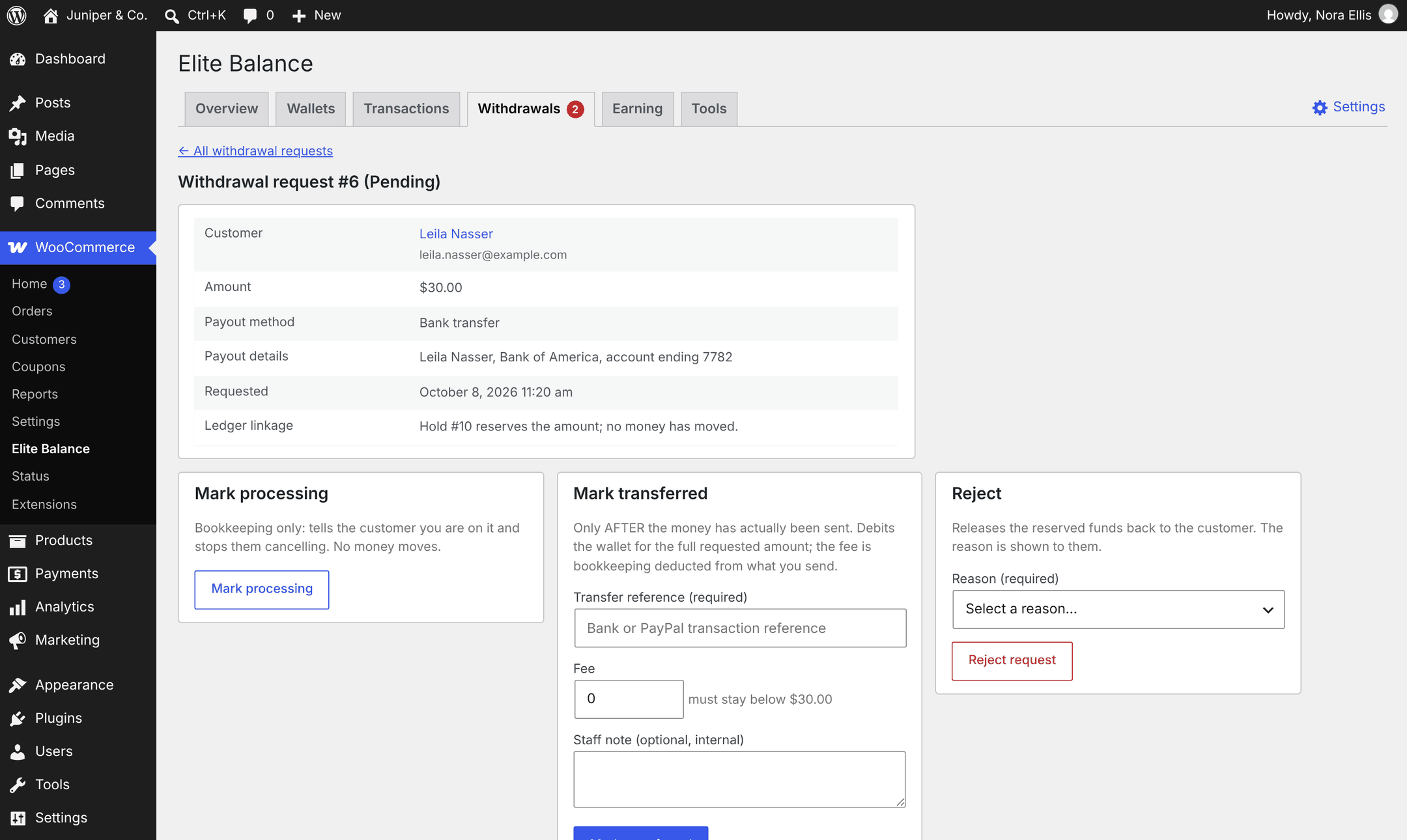
↑ Back to topOpen a request with View and act or by clicking its number. The detail screen lists the Customer, Amount, Payout method, Payout details, and Requested date, plus a Ledger linkage line that tells you where the money stands, for example “Hold #12 reserves the amount; no money has moved.” Transferred requests also show Fee charged, Net transferred, and Transfer reference.
Pending and processing requests show the actions below. Transferred, rejected, and cancelled requests are read only.
Mark processing (optional)
↑ Back to topAvailable on pending requests. Click Mark processing to show the customer you are on it. It stops them cancelling while you prepare the payment. No money moves and no email is sent.
Mark transferred
↑ Back to top- Send the payment yourself through your bank, PayPal, or payout provider. Send the requested amount minus the fee.
- Open the request. In the Mark transferred box, enter the Transfer reference (required), for example the bank or PayPal transaction ID (up to 191 characters).
- Check the Fee. It is pre-filled with the payout method’s fee, or the default fee. You can change it; it can be 0 and must stay below the requested amount.
- Optionally add a Staff note (optional, internal). Customers never see it.
- Click Mark transferred.
The wallet is debited the full requested amount as a Withdrawal transaction, and the customer receives the Withdrawal transferred email. For example, a customer requests 50.00 with a 2.00 fee: the wallet is debited 50.00 and you send 48.00. The fee is a record, not a second debit.
The customer’s transaction history shows a note like “Withdrawal request #7: $43.50 transferred via PayPal (fee $1.50). Reference: 5TY12345AB”. The transfer reference is visible to the customer, so do not put internal information in it.
Important: Mark a request transferred only after the money has actually been sent. There is no undo: a transferred request cannot be rejected. If you recorded a transfer by mistake, credit the amount back from the customer’s wallet screen with Adjust balance (see Managing Wallets).
Pressing the button twice, or repeating the action after a page refresh, never debits twice. If a colleague already rejected the request, or the customer cancelled it, the transfer is refused with “This request can no longer be transferred; its reserved funds were released.”
Reject a request
↑ Back to top- In the Reject box, choose a Reason (required) from your presets, or choose Other (type your own) and type a reason (up to 500 characters).
- Click Reject request.
The reserved funds are released immediately. The reason appears on the customer’s wallet page and in the Withdrawal rejected email, so write it for the customer. Edit the preset list under Rejection reasons in the withdrawal settings.
Holds and the customer’s balance
↑ Back to top- An open request appears in the Holds box on the customer’s wallet screen as “Withdrawal #N” with no expiry, in the On hold column of the Wallets list, and in the Reserved by holds tile on the Overview.
- The customer’s Available to spend figure excludes the reserved amount; their Balance does not change until you mark the request transferred.
- Locking a wallet blocks new requests, but you can still transfer or reject a request that is already open.
Payout details: who sees them and how long they are kept
↑ Back to topPayout details (account numbers, IBANs, PayPal addresses) are the most sensitive data Elite Balance stores. They are handled like this:
- Visible to wallet managers only: users who can manage wallets (administrators and shop managers by default) see them on the request’s detail screen and through
wp rb-elbal withdrawals show. - Never shared: they are not placed in URLs, not included in the CSV export, and not included in any email, including the staff notification.
- Blanked after 30 days: a daily background task erases the payout details of requests that have been transferred, rejected, or cancelled for 30 days. The request itself, its amounts, fee, reference, and the ledger transaction are kept.
- Privacy requests: Tools > Export Personal Data includes the customer’s withdrawal requests with their payout details. Tools > Erase Personal Data blanks the payout details on all of that customer’s requests immediately. The requests and the ledger are kept as financial records, and the eraser says so in its result.
Note: To save customers retyping, the Withdraw form remembers the details a customer last entered for each payout method, on their own account. This saved copy is separate from the requests: the 30-day blanking and the personal data eraser clear the details stored on requests, not this saved copy.
Export pending requests
↑ Back to topWhen requests are pending, the queue toolbar shows Export pending (CSV) (“For bank bulk files; payout details are left out.”). The file contains every pending request, oldest first, whatever view or search is active. Processing requests are not included.
| Column | Content |
|---|---|
request_id | The request number. |
requested_at_utc | When the request was made, in UTC. |
user_id | The customer’s user ID. |
user_login | The customer’s username. |
user_email | The customer’s email address. |
amount | The requested amount (what the wallet will be debited). |
currency | The store currency code. |
method | The payout method’s internal name, for example bank-transfer. |
fee_expected | The method’s current fee, or the default fee. |
transfer_reference | Empty, for you to fill in as your bank confirms each payment. |
Payout details are deliberately left out, so the file is safe to pass around. Read the details on each request’s screen, then mark each request transferred one by one. To process many requests from a script, use WP-CLI (below).
Withdrawal emails
↑ Back to top| Recipient | Sent when | |
|---|---|---|
| Withdrawal request received | The customer | The customer opens a request. Confirms the amount is reserved. |
| New withdrawal request (staff) | The addresses in Recipient(s) (default: the site admin email) | The customer opens a request. Links straight to the request in the queue. |
| Withdrawal transferred | The customer | You mark the request transferred. States the fee, the net amount sent, and the transfer reference. |
| Withdrawal rejected | The customer | You reject the request. Includes your reason and says the funds are available again. |
No email is sent when you mark a request processing or when a customer cancels. The generic Wallet debited email is never sent for a withdrawal; the transferred email replaces it. All four emails are on by default and editable under WooCommerce > Settings > Emails. See Wallet Emails.
From the command line
↑ Back to topThe same queue is available through WP-CLI, with the same protection against debiting twice:
wp rb-elbal withdrawals list --status=pending
wp rb-elbal withdrawals show 12
wp rb-elbal withdrawals transfer 12 --reference=SEPA-2026-0716 --fee=2.00
wp rb-elbal withdrawals reject 12 --reason="The payout details are incomplete or incorrect"
Note: On the command line the fee defaults to 0, not to the payout method’s fee, so pass --fee when one applies. There is no command for Mark processing. Full options are in WP-CLI Commands.
For developers
↑ Back to top- Filters:
rb_elite_balance_withdrawal_amount_limits,rb_elite_balance_withdrawal_default_fee,rb_elite_balance_withdrawal_methods,rb_elite_balance_rejection_reasons,rb_elite_balance_withdrawal_transfer_note(the customer-visible ledger note), andrb_elite_balance_withdrawal_details_retention_days(default 30, minimum 1). - Actions:
rb_elite_balance_withdrawal_requested,rb_elite_balance_withdrawal_transferred,rb_elite_balance_withdrawal_rejected, andrb_elite_balance_withdrawal_cancelled. They fire after the database commit and never for a repeated action. - The customer form is the template
myaccount/withdraw-form.php; override it by copying it toyourtheme/elite-balance/myaccount/withdraw-form.php.
See Developer Reference for the full API.