
This page covers what your customers see on their wallet page under My Account, how to rename the page and its address, and how to show a customer’s balance anywhere on your site with the Wallet Balance block or the [rb_elite_balance] shortcode. It is written for store owners. Theme developers will find the template override list and hooks in the For developers section at the end.
Where customers find their wallet
↑ Back to topElite Balance adds a Wallet item to the My Account menu, right after Orders. If your theme or another plugin has removed the Orders item, the Wallet item goes just before Log out instead. The page lives at /my-account/wallet/ by default, and the menu label, page title and address can all be changed (see Renaming the page and its address).
Only logged-in customers see the page, and each customer only ever sees their own wallet.
What the page shows
↑ Back to topEvery tab of the wallet page starts with the same summary:
- Balance: the customer’s wallet balance.
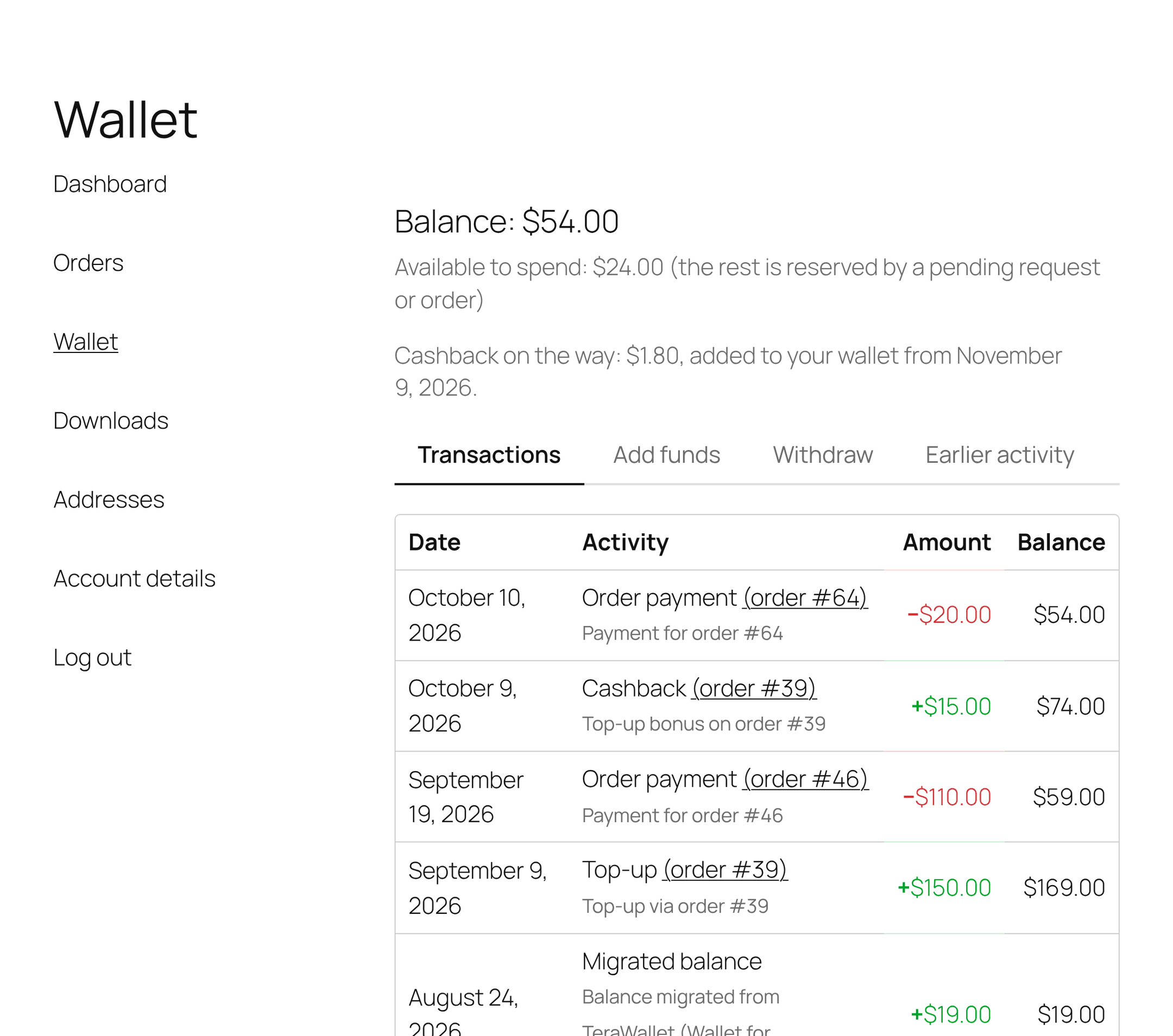
- Available to spend: shown only when part of the balance is reserved. The line reads “Available to spend: $24.00 (the rest is reserved by a pending request or order)”. Money is reserved by a partial wallet payment on an order that is not paid yet, or by an open withdrawal request.
- The “on the way” line: shown only while the customer has rewards waiting out your cashback release delay (see The “on the way” line).
Under the summary is a row of tabs. The tab row only appears when there is more than one tab to show, so a store that uses the wallet for payments and refunds only shows the transaction history with no tab row at all.
| Tab | When it shows | Address |
|---|---|---|
| Transactions | Always. It is the default tab. | /my-account/wallet/ |
| Add funds | When Enable top-ups is on (it is on by default). | /my-account/wallet/add-funds/ |
| Withdraw | When Enable withdrawals is on (off by default) and at least one payout method is configured. | /my-account/wallet/withdraw/ |
| Earlier activity | When the Earlier activity setting is on (default) and the customer has entries copied from your previous wallet plugin. | /my-account/wallet/earlier-activity/ |
Each tab has its own address, so you can link straight to it from an email, a banner or a menu. The addresses above use the default wallet slug; they follow your Page URL slug setting.
Transactions
↑ Back to topThe full wallet history, newest first, 15 rows per page with numbered pagination. The columns are Date, Activity, Amount and Balance (the balance after that movement). Credits show in green with a plus sign, debits in red with a minus sign.
The Activity column uses customer-friendly labels:
| Label the customer sees | What it is |
|---|---|
| Order payment | Wallet money collected for an order (a full wallet payment, or the wallet part of a partial payment). |
| Refund to wallet | A refund returned to the wallet as store credit. |
| Top-up | Funds the customer added on the Add funds tab. |
| Cashback | Order cashback or a top-up bonus from an earning rule. |
| Reward | A signup, product review or birthday reward. |
| Reward reversal | Cashback taken back after the earning order was refunded or cancelled. |
| Withdrawal | A withdrawal request your team marked as transferred. |
| Migrated balance | The opening balance carried over from your previous wallet plugin. |
| Balance adjustment | A credit or debit made by your team (one wallet, bulk operation, CSV import or WP-CLI). |
When a row belongs to one of the customer’s own orders, the label is followed by a link such as (order #64) that opens the order in My Account.
Under the label, customers see a short system-written description for order payments, refunds, top-ups, migrated balances, withdrawals, cashback, rewards and reward reversals (for example “Payment for order #64”). The reason and note your team types on a manual adjustment are never shown to customers: they stay in the ledger for staff only. Customers see “Balance adjustment” and the amount.
When the customer has earlier activity, a line under the history reads “Looking for activity from before your wallet moved to our new system? See earlier activity” and links to that tab.
A customer with no history yet sees “No wallet activity yet. Funds you receive and spend will show up here.”
Add funds
↑ Back to topA single amount box and an Add funds button. The text under it states your minimum and maximum, for example “Between $5.00 and $500.00. You pay with any available payment method; the funds appear in your wallet as soon as the payment is confirmed.”
When the customer submits an amount, Elite Balance creates a top-up order and sends the customer to its payment page. The wallet is credited once the payment is confirmed. The wallet itself is never offered as a way to pay for a top-up. Limits, payment methods and the order status are set on WooCommerce > Settings > Elite Balance > Top-ups; see Top-ups (Add Funds).
Withdraw
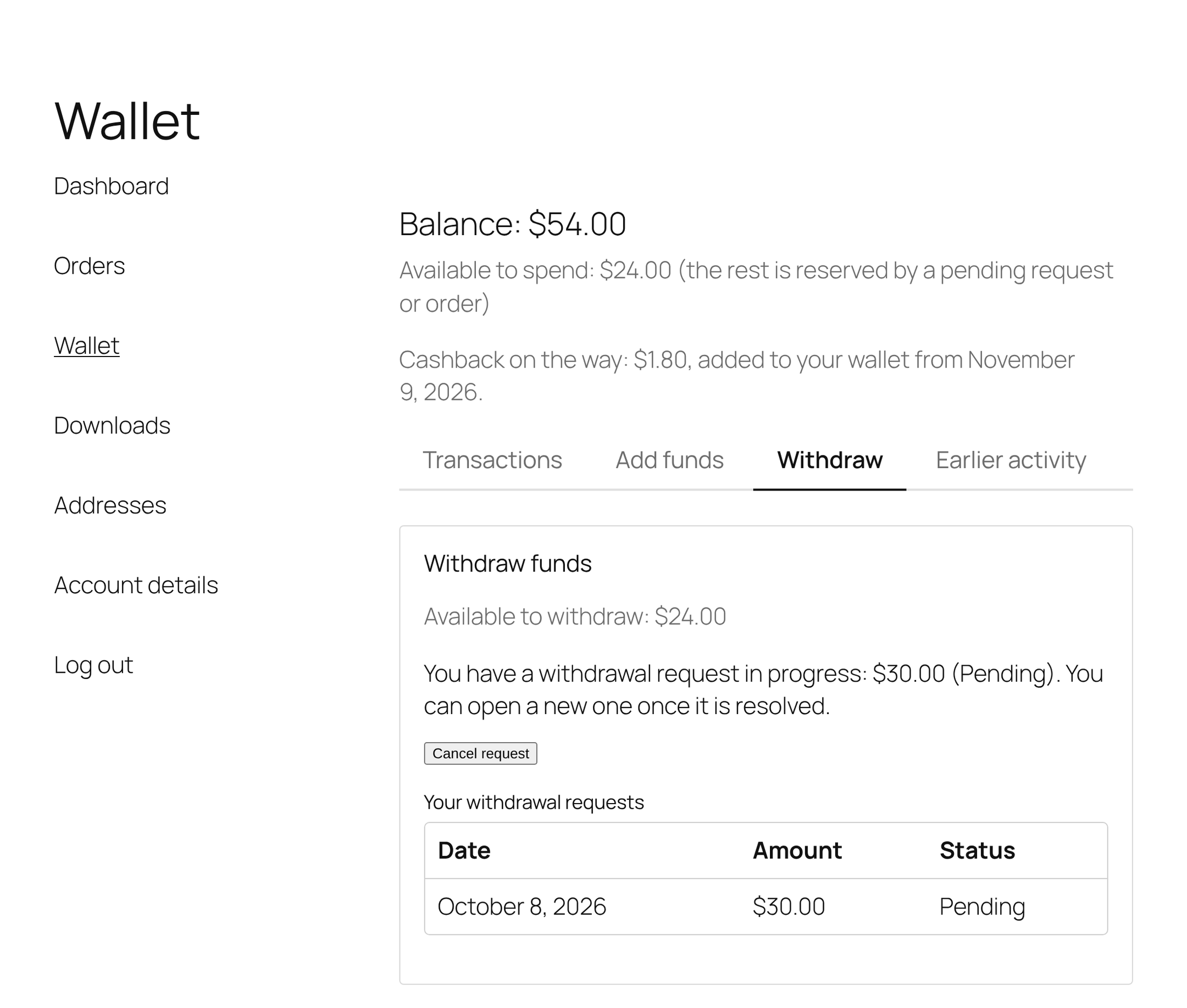
↑ Back to topThe Withdraw funds card shows “Available to withdraw” (the available balance), then a form with:
- Amount, limited by your Minimum per request and Maximum per request settings.
- Payout method, a list of the methods you configured. Choosing a method shows its note (what details to provide) and its fee note, for example “This method has no withdrawal fee.”
- Payout details, where the customer enters their bank or PayPal details. The form remembers the details the customer last used for each method and fills them in again.
- The Request withdrawal button.
A customer can have one open request at a time. While a request is open, the form is replaced by “You have a withdrawal request in progress: $30.00 (Pending). You can open a new one once it is resolved.” While the request is still Pending, a Cancel request button is shown. Once your team moves it to Processing, only staff can resolve it.
Below the form, Your withdrawal requests lists the customer’s last 10 requests with Date, Amount and Status (Pending, Processing, Transferred, Rejected or Cancelled). For a rejected request, the rejection reason your team chose is shown under the status, so the customer knows what to fix. This is the only staff-written text a customer ever sees.
The full request lifecycle is covered in Withdrawals.
Earlier activity
↑ Back to topNew in 1.1.0. If you moved to Elite Balance from another wallet plugin, the old plugin’s transaction log is copied into a read-only archive after the migration. This tab shows the customer their part of it.
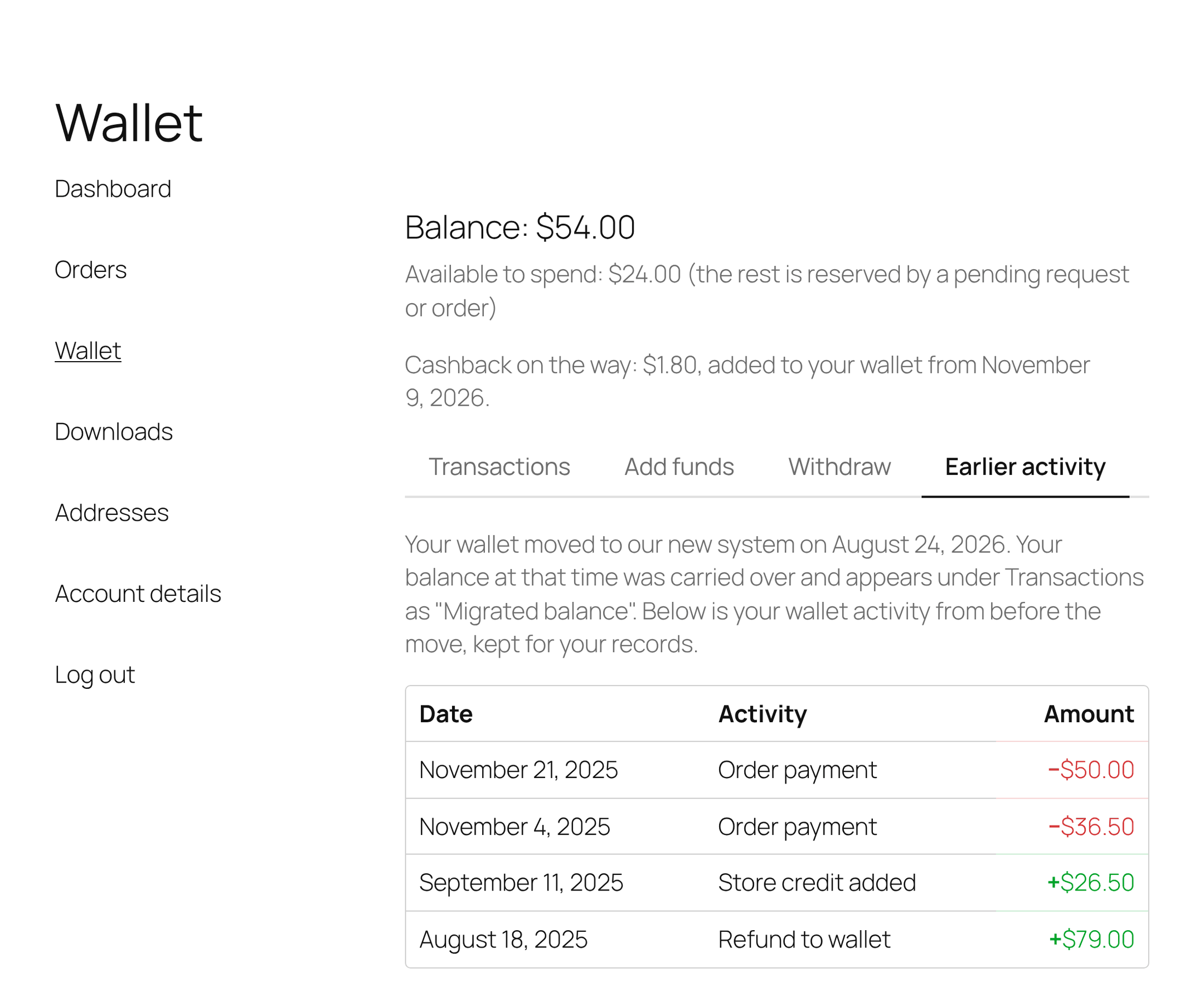
- An introduction explains the move, for example “Your wallet moved to our new system on August 24, 2026. Your balance at that time was carried over and appears under Transactions as “Migrated balance”. Below is your wallet activity from before the move, kept for your records.”
- The table has Date, Activity and Amount columns, 15 entries per page. There is no balance column: these entries happened in the old plugin, and the balance they led to was carried over as the Migrated balance entry under Transactions.
- Activity uses neutral labels (Order payment, Refund to wallet, Wallet top-up, Cashback, Cashback reversed, Reward, Wallet transfer received, Wallet transfer sent, Withdrawal, Fee, Expired credit, Balance carried over, Store credit added, Balance adjustment). The old plugin’s own descriptions, methods and notes are never shown to customers, because they often held staff shorthand or other customers’ details.
- An order link appears only when the entry refers to one of the customer’s own orders.
- Entries that never counted toward the old balance (for example a debit the old plugin refused) are hidden from customers.
To hide the tab from every customer, untick Earlier activity on WooCommerce > Settings > Elite Balance. Staff always see the full archive, with the original details, on the customer’s wallet screen. See Migrating from Another Wallet Plugin for how the archive is filled.
The “on the way” line
↑ Back to topWhen Cashback release delay (days) is above 0 (the default is 30), order cashback and top-up bonuses wait as pending before they reach the wallet. While a customer has pending rewards, a line under the balance tells them the total and the earliest date any of it becomes spendable. The wording names what is pending:
- “Cashback on the way: $1.80, added to your wallet from November 9, 2026.” when only order cashback is pending.
- “Top-up bonus on the way: …” when only top-up bonuses are pending.
- “Rewards on the way: …” when both are pending.
The line follows the pending awards, not the setting: if you later lower the delay or set it to 0, rewards that are already pending stay visible until they are released. A refund on the earning order shrinks the pending amount. See Earning Rules and Cashback.
Renaming the page and its address
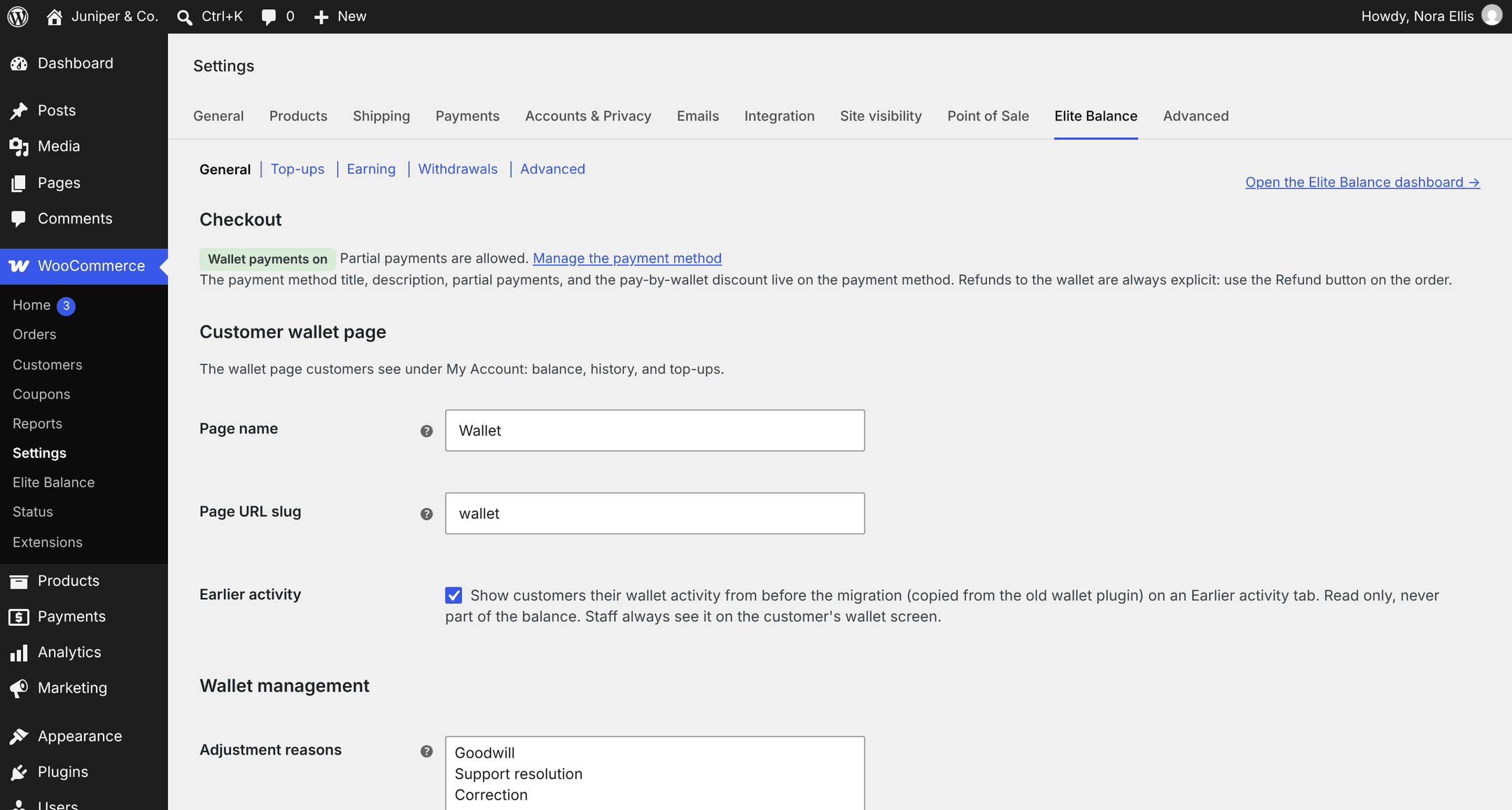
↑ Back to topGo to WooCommerce > Settings > Elite Balance (the General section) and find Customer wallet page.
| Setting | Default | What it does |
|---|---|---|
| Page name | Wallet | The label in the My Account menu and the page title. Use whatever fits your store, for example “Store credit” or “My funds”. |
| Page URL slug | wallet | The address segment, as in /my-account/{slug}/. Lowercase letters, numbers and hyphens only. The tab addresses follow it. |
| Earlier activity | On | Shows customers the Earlier activity tab when they have entries copied from your previous wallet plugin. Untick to hide the tab from all customers. Staff always see the archive on the wallet screen. |
Click Save changes. When the slug changes, Elite Balance refreshes WordPress’s permalinks for you on the next page load, so the new address works straight away.
Note: Changing the slug changes every wallet address. Links you sent before (for example to /my-account/wallet/add-funds/) stop working, so update menus, emails and banners that point to the old address.
Showing the balance anywhere
↑ Back to topYou can show the logged-in customer’s balance outside My Account, for example in the header, a menu, the cart page or a sidebar. Both options below output the amount only (for example “$54.00”), so add your own text around it, such as “Store credit:”. Logged-out visitors see nothing, so both are safe to place in site-wide areas.
The Wallet Balance block
↑ Back to top- Edit a page, post, template or template part in the block editor.
- Add the Wallet Balance block (search for “wallet”, “balance” or “store credit”; it is in the Widgets category).
- In the block sidebar, under Wallet balance settings, choose the options below.
- Save. The editor shows a placeholder; the real amount appears on the front end for logged-in customers.
| Setting | Default | What it does |
|---|---|---|
| Amount to show | Balance | Balance shows the wallet balance. Available to spend (balance minus holds) leaves out money reserved by unpaid orders and open withdrawal requests. |
| Link to the wallet page | On | On: the amount links to the customer’s wallet page. Off: the amount is plain text. |
The shortcode
↑ Back to topUse [rb_elite_balance] anywhere shortcodes work (a Shortcode block, a classic widget, a page builder text module).
| Attribute | Default | Values |
|---|---|---|
show | balance | balance shows the wallet balance. available shows the available balance (balance minus holds). Any other value is treated as balance. |
link | yes | yes links the amount to the wallet page. Any other value (for example no) outputs plain text. |
Examples:
[rb_elite_balance]
[rb_elite_balance show="available"]
[rb_elite_balance show="available" link="no"]
The block and the shortcode share the same code and the same template, so they always render identically.
Privacy: what customers never see
↑ Back to top- Reasons and notes your team types on manual and bulk adjustments.
- Staff notes on withdrawal requests (the rejection reason is the one exception, by design).
- Other customers’ data: every view reads only the logged-in customer’s own wallet, and order links appear only for the customer’s own orders.
- The original descriptions, methods and notes from your previous wallet plugin’s log.
For developers
↑ Back to topTemplate overrides
↑ Back to topEvery customer-facing surface renders through a template your theme can override. Copy the file from the plugin’s templates/ folder into your theme, keeping the relative path, and edit your copy. Your copy always wins. Use a child theme so updates to the parent theme do not remove it.
Wallet page, block, shortcode and checkout templates go in yourtheme/elite-balance/:
| Template | Version | Override path | Renders |
|---|---|---|---|
myaccount/wallet.php | 0.9.0 | yourtheme/elite-balance/myaccount/wallet.php | The wallet page: summary, tab row and the Transactions tab. |
myaccount/topup-form.php | 0.9.0 | yourtheme/elite-balance/myaccount/topup-form.php | The Add funds form. |
myaccount/withdraw-form.php | 0.9.0 | yourtheme/elite-balance/myaccount/withdraw-form.php | The Withdraw form and the customer’s request list. |
myaccount/pending-cashback.php | 1.1.0 | yourtheme/elite-balance/myaccount/pending-cashback.php | The “on the way” line. Since 1.1.0 it receives $args['kind'] (cashback, topup_bonus or mixed). |
myaccount/earlier-activity.php | 1.1.0 (new) | yourtheme/elite-balance/myaccount/earlier-activity.php | The Earlier activity tab. |
balance.php | 0.5.0 | yourtheme/elite-balance/balance.php | The Wallet Balance block and the [rb_elite_balance] shortcode. |
checkout/partial-payment.php | 0.9.0 | yourtheme/elite-balance/checkout/partial-payment.php | The “Use my wallet balance” partial payment option on the classic checkout. The Checkout block uses its own script, not this template. |
Email templates follow WooCommerce’s email template system and go in yourtheme/woocommerce/emails/ (HTML) and yourtheme/woocommerce/emails/plain/ (plain text):
| Template | Version | Used by |
|---|---|---|
emails/wallet-credited.php, emails/plain/wallet-credited.php | 0.5.0 | Wallet credited |
emails/wallet-debited.php, emails/plain/wallet-debited.php | 0.5.0 | Wallet debited |
emails/low-balance.php, emails/plain/low-balance.php | 0.5.0 | Wallet low balance |
emails/withdrawal-notification.php, emails/plain/withdrawal-notification.php | 0.8.0 | All four withdrawal emails (branch on $email->id if one needs its own markup) |
Each template carries a @version line in its header. After updating Elite Balance, compare your overrides with the plugin’s copies, as you would with WooCommerce templates. In 1.1.0, myaccount/pending-cashback.php changed and myaccount/earlier-activity.php is new.
Tip: For text changes in emails, you rarely need an override: subject, heading and body are editable on each email’s screen under WooCommerce > Settings > Emails. See Wallet Emails.
Hooks for the wallet page
↑ Back to topPrefer a hook when you only need to add content. Templates receive their data as one $args array, filterable through rb_elite_balance_template_args.
| Hook | Type | What it does |
|---|---|---|
rb_elite_balance_account_wallet_after_summary | action | After the balance summary, before the tab row. The “on the way” line uses it. |
rb_elite_balance_account_wallet_before_history | action | Before the history table on the Transactions tab. |
rb_elite_balance_account_wallet_after_history | action | After the history table on the Transactions tab. The earlier activity pointer uses it. |
rb_elite_balance_account_tabs | filter | Add, rename or reorder tabs: id => array( 'label' => ..., 'priority' => ... ). Built-in priorities: Transactions 10, Add funds 20, Withdraw 30, Earlier activity 40. Use the id in sanitized form; all-digit ids are reserved. |
rb_elite_balance_account_tab_{id} | action | Renders your custom tab’s content when it is active. |
rb_elite_balance_account_transactions_per_page | filter | History rows per page (default 15). |
rb_elite_balance_history_per_page | filter | Earlier activity entries per page (default 15). |
rb_elite_balance_history_customer_visible | filter | Whether customers may see Earlier activity (default from the setting). |
rb_elite_balance_account_endpoint_label | filter | The page name, after the setting. |
rb_elite_balance_account_endpoint_slug | filter | The URL slug, after the setting. |
rb_elite_balance_balance_html | filter | The final HTML of the block and shortcode. Receives the HTML, the normalized attributes and the user ID. |
rb_elite_balance_customer_note | filter | The description a customer sees under one transaction. |
Example: add a Gift cards tab after Withdraw.
add_filter( 'rb_elite_balance_account_tabs', function ( $tabs ) {
	$tabs['gift-cards'] = array(
		'label'    => __( 'Gift cards', 'my-theme' ),
		'priority' => 35,
	);
	return $tabs;
} );

add_action( 'rb_elite_balance_account_tab_gift-cards', function () {
	echo '<p>' . esc_html__( 'Redeem a gift card code here.', 'my-theme' ) . '</p>';
} );
The full hook list is on the Developer Reference.