
This page is for store owners moving to Elite Balance from another wallet or store credit plugin. It explains which plugins are supported, what moves across, how to run the migration from the Tools tab, how to read the reconciliation report and fix anomalies, how re-running works, and how the old plugin’s transaction log becomes read-only Earlier activity for your customers and staff (new in 1.1.0). A short section at the end points developers to the command line and to custom sources.
Supported plugins
↑ Back to topFour wallet plugins are supported out of the box, plus a custom meta key for others. The Source ID is what you type in WP-CLI commands.
| Plugin (as shown on the Tools tab) | Source ID | Where the balance is read from | Earlier history copied |
|---|---|---|---|
| WP Swings Wallet System (free and Pro) | wps | The wps_wallet user meta, the value WP Swings itself spends from. | Yes, from its wallet transaction table. |
| TeraWallet (Wallet for WooCommerce) | terawallet | The sum of the customer’s credits minus debits in TeraWallet’s transaction table, skipping deleted rows, the way TeraWallet computes its own balance. Its cached balance meta is not used. | Yes. |
| YITH WooCommerce Account Funds | yith | The _customer_fund user meta. | Yes, from its funds log. |
| Account Funds for WooCommerce (the WooCommerce.com extension) | wcaf | Version 4.x: its store credit balances table (store-currency balances of registered customers). Version 3.x: the account_funds user meta. | Yes for 4.x, from its store credit transactions. Version 3.x kept no log. |
| Custom meta key (your key) | meta_ followed by 10 characters derived from the key, for example meta_1a2b3c4d5e | Any user meta key that holds one numeric balance per customer. | No. |
Using a different plugin? Try the custom meta key if it keeps each balance in one user meta, or open a request from your WooCommerce.com account with the plugin’s name. Developers can also add their own source; see For developers.
What moves and what does not
↑ Back to topBalances
↑ Back to top- Each customer with a positive balance gets one opening credit in the Elite Balance ledger, of type Migrated balance, with the note “Balance migrated from plugin name.” Customers see it under Transactions on their wallet page.
- If the customer already has an Elite Balance wallet (for example from a test credit), the migrated amount is added to it.
- Zero balances are skipped. No empty wallets are created.
- Broken or ambiguous values are never imported. They are listed as anomalies in the report so you can fix them at the source and run again. See Anomalies.
- Amounts are rounded to four decimal places, the precision of the ledger.
- Migrated balances never send emails to customers, and they do not trigger earning rules.
Transaction history
↑ Back to topThe old plugin’s transaction log does not become ledger rows: only the balance does. Since 1.1.0, the log is copied, read only, into a separate archive as soon as the migration finishes. Customers see it on an Earlier activity tab and staff on each customer’s wallet screen. It is read only: those entries already happened in the old plugin, and the balance they led to is the one that was migrated. See Earlier history.
Not migrated
↑ Back to top- The old plugin’s settings (cashback rules, top-up options, payment method settings). Set these up again in Elite Balance; see the Settings Reference.
- Balances of guests without a customer account (for example Account Funds 4.x balances held by an email address with no account). They stay in the old plugin’s table.
- Balances in a currency other than your store currency (TeraWallet and Account Funds). The customer is reported as an anomaly; nothing is converted.
The migration only adds Elite Balance ledger entries. It never changes or deletes the old plugin’s data.
Before you start
↑ Back to top- Back up your database. The migration screen repeats this. A fresh backup is the only certain way to undo anything.
- Rehearse on staging. Restore a copy of your live store, run the migration, read the report and spot-check a few customers. On the real day there are no surprises.
- Use an Administrator account. Running the migration needs wallet management rights, and deactivating the old plugin needs the right to manage plugins. A shop manager sees “Blocked:” with a request to ask an administrator while the old plugin is active.
- Plan the switch. The old plugin is deactivated as part of the migration so balances cannot change during the import. From then on, customers pay with Elite Balance. Pick a quiet time.
Tip: A common approach is a two-step switch: run the migration early on staging to find and fix anomalies, then run it on the live store at the moment you switch. On a live store you can also run it again later to pick up anything that changed; each balance still imports only once.
Run the migration
↑ Back to topElite Balance looks for supported data when you open the dashboard. If it finds some, the Overview shows an Available item under Needs attention (“Plugin data was found on this site: N customers holding X in total.”) with an Open the migration screen button.
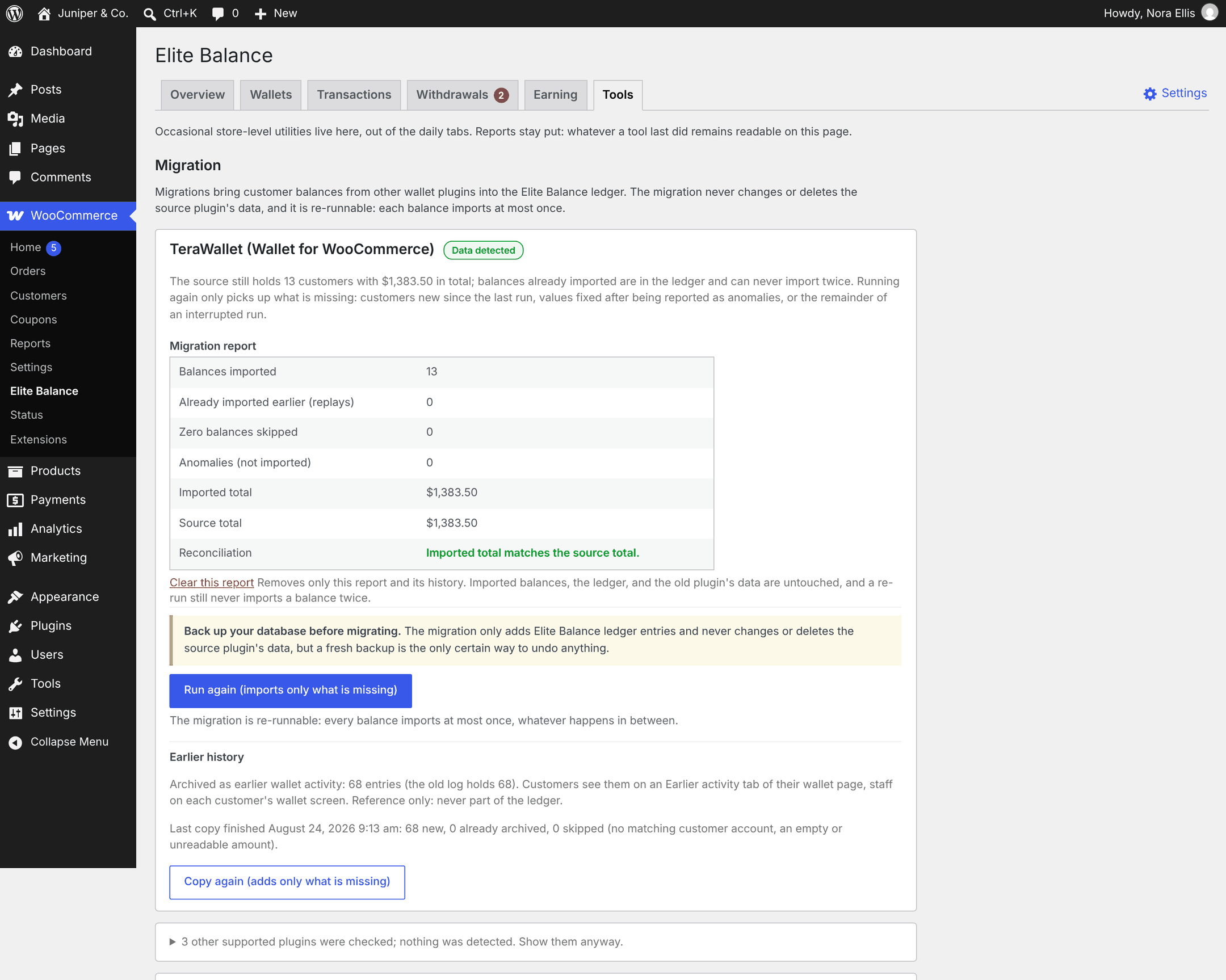
- Go to WooCommerce > Elite Balance > Tools. In the Migration section, a plugin whose data was found has its own card with a Data detected label and the line “Importable now: N customers holding X in total (positive balances only; zero balances are skipped, broken values are reported).” Supported plugins with nothing to import are folded into one line (“N other supported plugins were checked; nothing was detected. Show them anyway.”). If nothing is found at all, a Nothing to import card lists what was checked.
- Read the Back up your database before migrating. warning on the card and make sure your backup is done.
- If the old plugin is still active, tick Deactivate plugin first (required; its balance data is kept). The button stays disabled until you do. This deactivates the old plugin the same way the Plugins screen does; nothing is uninstalled or deleted. For TeraWallet, any active add-on whose folder starts with
woo-walletis deactivated too. - Click Deactivate and migrate balances now (or Migrate balances now if the old plugin is already inactive).
- A browser prompt asks you to confirm: type
MIGRATEin capitals and click OK. Anything else cancels, with the message “The confirmation did not match. Nothing was imported.” - You return to the Tools tab. A small store finishes straight away (“The migration finished. Review the reconciliation report.”). A larger store runs in the background, 200 customers at a time (“The migration is running in the background. Refresh the Tools tab to follow progress.”). The card then shows a Running label and the Overview shows a Running item with the progress.
- When it is done, read the reconciliation report on the card.
When a card says Blocked
↑ Back to topA Blocked label means something must be fixed outside Elite Balance before the migration can run. The card explains which:
- The old plugin is network activated on a multisite network. Deactivate it for the whole network from Network Admin > Plugins first.
- The TeraWallet transactions table has an unsupported shape. Update TeraWallet to a current version, then migrate.
- Account Funds has not finished its own move from its old user-meta storage to its store credit tables. Reactivate Account Funds briefly so its background migration completes, deactivate it again, then run the import. This prevents a customer’s money from being half in each place.
- The old plugin is still active and you cannot deactivate plugins (for example as a shop manager). Ask an administrator.
The reconciliation report
↑ Back to topEvery migration card keeps its Migration report on the Tools tab, so you can come back to it at any time.
| Row | What it means |
|---|---|
| Balances imported | Customers who received a Migrated balance credit in this run. |
| Already imported earlier (replays) | Customers whose balance was imported by an earlier run. They are counted, not credited again. |
| Zero balances skipped | Customers with a balance of exactly zero. |
| Anomalies (not imported) | Customers whose value could not be imported safely. Always the exact count. |
| Imported total | The sum of the migrated credits that are in the Elite Balance ledger for this source. |
| Source total | The sum of all importable positive balances in the old plugin, measured when the run started. |
| Reconciliation | Green “Imported total matches the source total.” or red “Totals differ: review the anomalies below before switching over.” |
When the totals match, the Overview shows a one-line notice (“Migration from plugin finished date: N balances, X, reconciled.”) with a View report link and a Dismiss button. When they differ, the Overview shows a red Review item under Needs attention until the totals reconcile.
Anomalies
↑ Back to topAn anomaly is a customer whose stored value was left untouched in the old plugin and not imported. The report previews the first 10 in a table with Customer (a link to the user), Source value and Issue. The issue codes are:
| Issue | Meaning | How to fix it |
|---|---|---|
not_numeric | The stored value is empty or not a number. | Correct the value in the old plugin’s data, or accept that the customer has no balance. |
negative | The balance is below zero (possible in YITH Account Funds and Account Funds 4.x). Elite Balance wallets never go negative. | Decide with the customer what they owe, correct the source value, then run again. |
duplicate_meta | The customer has more than one stored value for the same balance key, so the real balance is unclear. The value column shows one of them and how many rows exist. | Remove the extra rows so one value remains. |
foreign_currency | TeraWallet or Account Funds holds entries for this customer in another currency. Nothing is imported for this customer, not even the store-currency part, and nothing is converted. | Work out what the customer should have in your store currency and give it with a manual credit in Elite Balance. |
| Other text | The ledger refused the credit; the text is the error message. | Check WooCommerce > Status > Logs (source elite-balance), fix the cause, run again. |
For the complete list, click Prepare the full list (CSV). The list is rebuilt from the old plugin’s data in the background (“The full anomaly list is being prepared in the background. The download button appears on the report when it is ready.”); refresh to follow progress. Then click Download the full list (CSV, N anomalies). The file has the columns user_id, user_login, user_email, value and issue. After fixing values, use Prepare a fresh list: values you fixed drop out.
Clearing a report
↑ Back to topClear this report removes only the report and its stored state (and a prepared anomaly file). Imported balances, the ledger, the earlier history archive and the old plugin’s data are untouched, and a later run still never imports a balance twice.
Running it again
↑ Back to topRunning the migration again is safe. Each customer’s credit carries a unique key per source, so every balance imports at most once, whatever happens in between. After a run, the card’s button reads Run again (imports only what is missing). A new run picks up:
- customers who appeared in the old plugin since the last run;
- customers whose anomalies you fixed at the source;
- the remainder of a run that was interrupted.
Important: A customer whose balance was already imported is never imported again, even if their balance in the old plugin changed afterwards. If you left the old plugin running after a migration and balances moved, correct those customers with a manual credit or debit. This is one more reason to deactivate the old plugin as part of the migration.
Earlier history (Earlier activity)
↑ Back to topNew in 1.1.0. After a balance migration finishes, Elite Balance copies the old plugin’s transaction log into its own archive, so customers and staff can still look up what happened before the switch.
- Automatic. The copy starts by itself in the background when a migration finishes, for WP Swings Wallet System, TeraWallet, YITH WooCommerce Account Funds and Account Funds for WooCommerce 4.x.
- Read only and separate. The archive sits beside the ledger, not in it: its entries already happened in the old plugin, and the balance they led to came across as the Migrated balance entry. Nothing in it can be edited. The old plugin’s tables are read, never changed.
- Safe to repeat. Entries already archived are skipped, so copying again only adds what is missing.
- Skipped entries. Entries that cannot be matched to a customer account, and entries with an empty, zero or unreadable amount, are skipped and counted.
Copy status on the Tools tab
↑ Back to topEach migration card has an Earlier history section:
- While copying: “Copying the old wallet log in the background: N of about M entries copied.” with a Stop and clear this status link. Refresh to follow progress.
- Afterwards: how many entries are archived and how many the old log holds, plus “Last copy finished date: N new, N already archived, N skipped”.
- If a copy failed: a red line with the date. Details are in WooCommerce > Status > Logs (source
elite-balance). Entries already archived are kept. - A Copy earlier history button, or Copy again (adds only what is missing) once something is archived.
Migrated before 1.1.0? Your migration card is still on the Tools tab. Click Copy earlier history to archive the old log now. This works as long as the old plugin’s tables are still in the database, even with the old plugin deactivated. If the card is no longer shown (for example because you cleared the report and the old balance data is gone), run wp rb-elbal history copy with the source ID instead.
What customers see
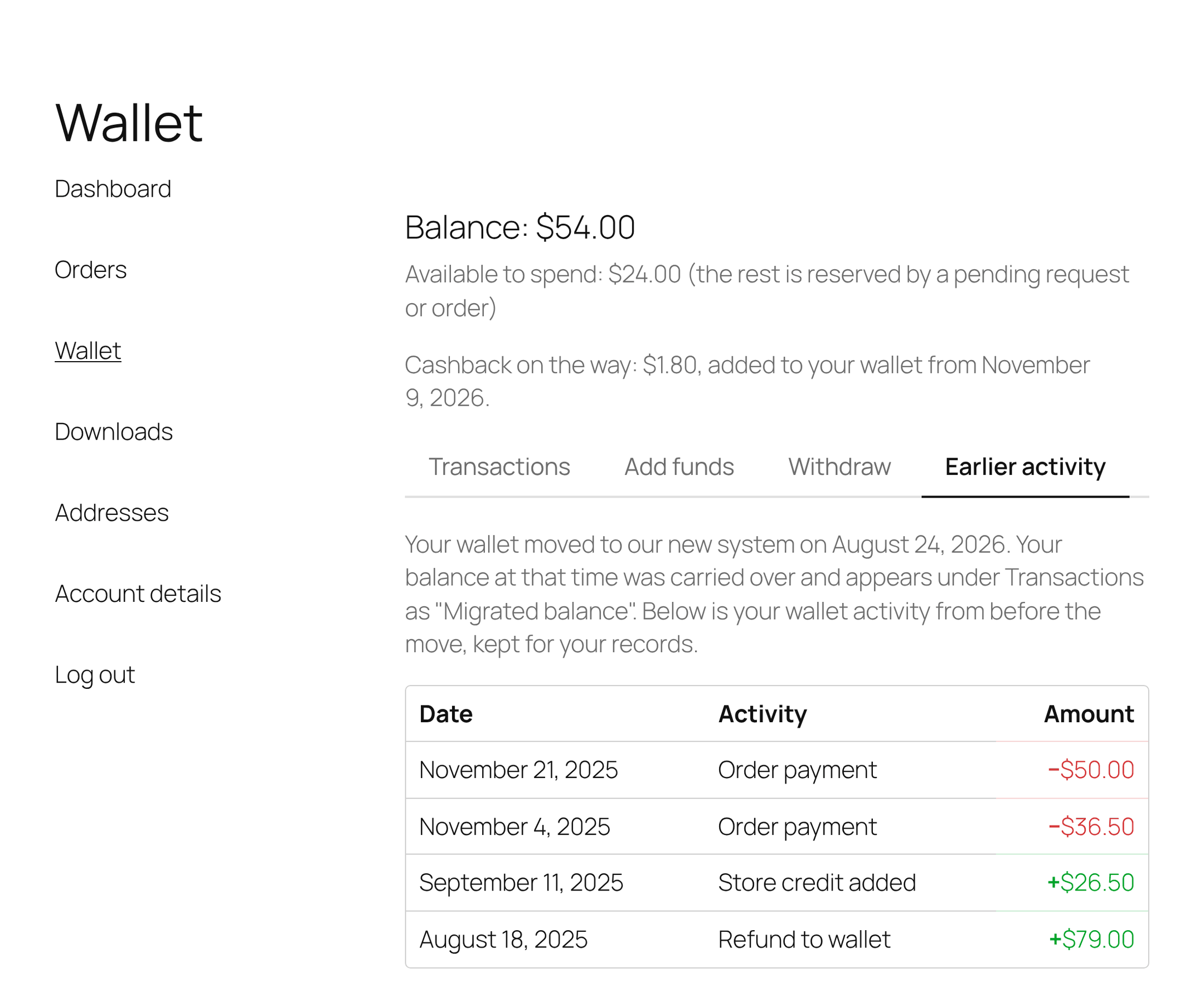
↑ Back to topOn My Account > Wallet, customers with archived entries get an Earlier activity tab, and the Transactions history ends with “Looking for activity from before your wallet moved to our new system? See earlier activity”. The tab explains that the wallet moved on the date of the migration and that the balance carried over appears under Transactions as “Migrated balance”, then lists the old entries with Date, Activity and Amount, 15 per page.
- Activities use neutral labels, never the old plugin’s own text or staff notes: Order payment, Refund to wallet, Wallet top-up, Cashback, Cashback reversed, Reward, Wallet transfer received, Wallet transfer sent, Withdrawal, Fee, Expired credit, Balance carried over, and the general Store credit added and Balance adjustment.
- An order is linked only when it belongs to that customer.
- Entries that never counted toward the old balance (for example a debit the old plugin refused, or a voided entry) are hidden from customers.
- The tab appears only when the Earlier activity setting is on and the customer has at least one visible entry.
What staff see
↑ Back to topOn a customer’s wallet screen (WooCommerce > Elite Balance, then open the wallet), an Earlier activity link with a count appears among the customer links, and a folded Earlier wallet activity section sits below the Transactions history (“N entries migrated from plugin, read only.”). Open it to see:
- every entry, including those that did not count (dimmed and marked “Did not count toward the old balance”), with the columns Date, Activity, Original details, Amount, Method, Note and Source entry (the old plugin’s row number);
- a check against the migrated balance: “Plugin log entries add up to X. Balance migrated into Elite Balance: Y.” If the two differ, a warning explains the difference. The migrated amount is what the old plugin held as the balance at the switch; old wallet plugins did not always log every change.
Staff always see this section, whatever the Earlier activity setting says.
Hiding earlier activity from customers
↑ Back to topGo to WooCommerce > Settings > Elite Balance > General, untick Earlier activity and click Save changes. The tab and the pointer line disappear for every customer. The archive is kept and staff still see it.
Privacy: export and erasure
↑ Back to topThe archive has its own entry in the WordPress privacy tools (Tools > Export Personal Data and Tools > Erase Personal Data), named Elite Balance earlier wallet activity.
- Export includes each archived entry with its date (UTC), activity label, amount and order number.
- Erase blanks the free text (original details, method and note) of the customer’s entries, and of other customers’ entries that mention their email address (old transfer entries name both sides). Dates, amounts and activity labels are financial records and are kept.
Any other plugin: the custom meta key
↑ Back to topMany wallet plugins store each customer’s balance as one numeric user meta. If yours is not in the list above:
- Deactivate the old wallet plugin yourself from the Plugins screen. With a custom key, Elite Balance cannot tell which plugin owns the data, so it cannot do this step for you.
- On the Tools tab, open Advanced: import from a custom meta key at the bottom of the Migration section.
- Tick the acknowledgment (“I understand this is an advanced tool…”).
- Enter the key in User meta key and click Save and detect. Keys can use letters, digits, underscores, hyphens, dots and colons, up to 191 characters.
- A standard migration card, Custom meta key (your key), appears above with what was detected. Check that the customer count and total look right.
- Click Migrate balances now and type
MIGRATE. The run, the report and the at-most-once guarantee work exactly as for the built-in plugins.
Each key is its own source. Changing the key clears the previous key’s report; Remove the key (clears its report; the ledger is untouched) removes it. Neither is possible while that key’s migration is running. A custom key moves balances only: no earlier history is copied.
Important: The key decides which numbers are imported. If you are not sure which key the old plugin uses, check its documentation or ask its developer before you run anything, or open a request from your WooCommerce.com account.
After the migration
↑ Back to top- Spot-check a few customers: open their wallet screen and compare the Migrated balance with what the old plugin showed.
- Check the payment method and top-up settings (Settings Reference) and recreate any rewards as earning rules.
- Keep the old plugin deactivated. Do not delete it, or its tables, until you are sure you no longer need its data: deleting some plugins also removes their tables, and the earlier history copy reads from them.
- If you link to the old plugin’s wallet page anywhere (menus, emails), point those links to My Account > Wallet.
Command line (WP-CLI)
↑ Back to topThe same migration runs from the command line, which suits staging rehearsals and scripted switches. It runs to the end in one go and prints the report, including each anomaly with its value. When it finishes, the earlier history copy starts in the background, as it does after a migration from the Tools tab.
# Migrate from TeraWallet, deactivating it first, without the confirmation prompt
wp rb-elbal migrate terawallet --deactivate --yes

# Copy (or re-copy) the old log into the earlier history archive
wp rb-elbal history copy terawallet --yes

# Show the archive and copy status for every history-capable source
wp rb-elbal history status
The source defaults to wps when you leave it out. Use wps, terawallet, yith, wcaf or your custom key’s meta_ ID. All options are on WP-CLI Commands.
For developers
↑ Back to top- Add a source for another wallet plugin with the
rb_elite_balance_migration_sourcesfilter and a class implementingRoundBorders\EliteBalance\Migration\SourceInterface. It appears as a card on the Tools tab with the same report and guarantees. - Implement
RoundBorders\EliteBalance\Migration\HistorySourceInterfaceon the same class (history_count()andhistory_rows()) to have its log copied into the earlier history archive. - Related hooks:
rb_elite_balance_migration_completed,rb_elite_balance_history_auto_copy,rb_elite_balance_history_entry,rb_elite_balance_history_kinds,rb_elite_balance_history_copied,rb_elite_balance_history_customer_visible,rb_elite_balance_history_per_pageandrb_elite_balance_migration_card_after. - Migrated credits use the idempotency key
migration:{source}:{user_id}and the transaction typemigration.
The interfaces, entry format and examples are on the Developer Reference.