
Short answers to the questions store owners and shop managers ask most, with the reason behind each behavior and what to check. If your question is not here, the last section explains how to contact support.
Tip: Most answers start on the customer’s wallet screen. To open it, go to WooCommerce > Elite Balance > Overview, search for the customer under Find a wallet, then click Open wallet. You can also use the Wallet row action on the WordPress Users list.
Checkout and payments
↑ Back to topThe wallet option is missing at checkout
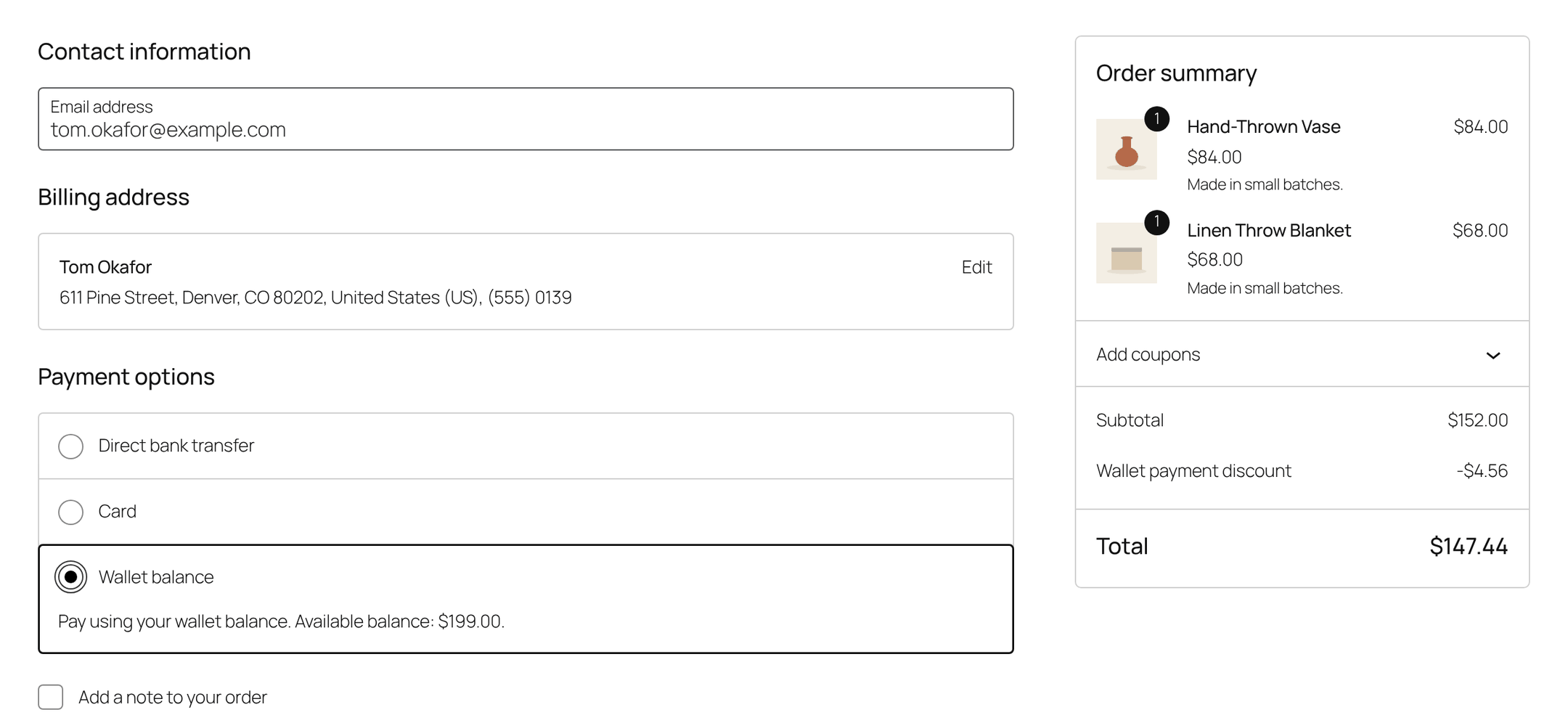
↑ Back to topThe Wallet balance payment method only appears when it can actually pay the whole order. Check, in this order:
- The payment method is enabled: WooCommerce > Settings > Payments > Elite Balance Wallet, Enable wallet payments. It is on by default. The Checkout status pill on WooCommerce > Settings > Elite Balance shows “Wallet payments on” or “Wallet payments off”.
- The customer is logged in. Guests have no wallet.
- The customer’s available balance covers the whole order total. Available means the balance minus money reserved by unpaid orders and open withdrawal requests. A $40 available balance on a $60 order hides the wallet method; the customer can use a partial payment instead (next question).
- The wallet is not locked. A locked wallet refuses new spending, so the method hides. The wallet screen shows “This wallet is LOCKED: new spending is refused.” Use Unlock wallet in its sidebar.
- The order is in your store’s base currency. Wallets hold the store currency only; if a currency switcher changes the order currency, the wallet payment is refused when the customer places the order (“Wallet payments are only available in the store currency.”).
- The order is not a top-up. A wallet can never pay for its own funding, so the method is never offered on top-up orders.
A developer can also hide the method with the rb_elite_balance_gateway_is_available filter, so if everything above is fine, ask whoever customizes your site whether they use it.
The “Use my wallet balance” option is missing
↑ Back to topPartial payments let a customer combine the wallet with another payment method. The option shows only when all of these are true:
- Partial payments is ticked on the payment method screen (on by default).
- The customer is logged in, has an available balance above zero, and the wallet is not locked.
- The available balance is less than the cart total. When the balance covers the whole order, the full Wallet balance method is the only wallet option shown, by design.
See Checkout and Wallet Payments.
The customer says money is “missing” after checkout
↑ Back to topIf the customer used a partial payment and the order is not paid yet (for example, waiting for a bank transfer), the wallet part is reserved, not taken. The wallet page shows “Available to spend” below the balance. The reservation becomes a real debit when the order is paid, and is released automatically if the order is cancelled or fails. On the order screen, the Elite Balance box shows “Pending hold” for this case.
Balances
↑ Back to topA balance looks wrong
↑ Back to topEvery balance in Elite Balance is the result of its own history. Nothing edits a balance directly, and corrections are new rows. To find out what happened:
- Open the customer’s wallet screen. The history lists every movement with the balance after it, the Reference (the staff member, order, withdrawal, review, bulk operation or earning rule) and the note.
- Look for the row where the balance changed in a way the customer did not expect. That row tells you who or what moved the money, and when.
- To check the arithmetic of every wallet in the store, run
wp rb-elbal reconcile(see WP-CLI Commands). It confirms that each wallet’s balance equals the sum of its history and the last row’s balance after, and lists any wallet that does not match.
If reconcile passes, the balance is arithmetically right and the question is which movement was unexpected. If it reports a mismatch, something wrote to the database outside Elite Balance (a direct SQL edit or a database restore); contact support with the output.
Remember that two numbers can differ on purpose: the balance and the available balance. The difference is money reserved by holds, listed in the Holds panel on the wallet screen.
“This form was already submitted; the balance was not changed again”
↑ Back to topThis notice means Elite Balance recognized a repeated operation (a double click, a page refresh, a browser retry) and refused to apply it twice. The balance changed exactly once. Nothing needs fixing. Bulk operations show the same protection as “This bulk operation was already submitted; it was not run again.”
Can a wallet go negative?
↑ Back to topNo. Debits are refused when the available balance cannot cover them. When cashback must be reversed after the customer already spent it, Elite Balance takes back what the available balance covers, stops at zero, and flags the rest for your review on the Earning tab and in the order notes.
Refunds
↑ Back to topA refund did not reach the wallet
↑ Back to topChanging an order’s status never moves wallet money. Marking an order Refunded or Cancelled records the status only, exactly as WooCommerce does with card payments. To refund to the wallet:
- Open the order and click Refund below the order items.
- Enter the amount (or the item quantities).
- Click Refund to wallet. Elite Balance creates the WooCommerce refund record and credits the wallet in one step.
If a refund record already exists but the wallet part of the payment was not returned, the Elite Balance box on the order says so (“A refund was recorded for this order, but $20.00 paid from the wallet has not been returned yet.”) and offers a Return $20.00 to the wallet button. When an order is marked Refunded with wallet money outstanding, Elite Balance also adds an order note pointing to this button.
For an order paid partly by wallet and partly by card (fixed in 1.1.0): use Refund to wallet for the card part, then Return to the wallet for the wallet part. Both parts now go back.
Refunds to a wallet are refused for guest orders (there is no customer account), for orders in another currency, and for orders that were never paid (cancel those instead; cancelling releases any reserved wallet funds). See Refunds to Wallet.
Cashback and rewards
↑ Back to topCashback was not awarded
↑ Back to topCheck these, most common first:
- It is still pending. With a Cashback release delay (days) above 0 (the default is 30), order cashback and top-up bonuses wait before they reach the wallet. The customer sees an “on the way” line with the date. Nothing is missing.
- The order was placed before the rule was enabled. Rules are never retroactive: a rule only acts on orders paid after it was last enabled. Re-enabling a rule does not pick up orders from the time it was off.
- The order is not paid. Order cashback is awarded when the order is paid (payment complete, or moved to Processing or Completed).
- The order is a guest order or a top-up order. Guests have no wallet. Top-up orders have their own Top-up bonus trigger.
- A condition did not match. The minimum order total is checked against the items subtotal after discounts, excluding shipping and tax. Product, category and role conditions must match. The campaign window must include the day the order was paid.
- “Count the part paid from the wallet” is unticked on the rule (new in 1.1.0). The rule then earns only on the part paid by other methods, and judges its minimum by that part. An order paid entirely from the wallet earns nothing from that rule. The rules list shows “Wallet part not counted” for such rules.
- Earning is switched off. WooCommerce > Settings > Elite Balance > Earning, Enable earning. The Earning tab warns you when it is off.
- The rule is disabled, or its trigger has its own requirement: review rewards need an approved review by a logged-in customer who bought the product; signup rewards without a roles condition only go to the Customer role; birthday rules need the Birthday field setting on.
See Earning Rules and Cashback.
Pending cashback did not release on its date
↑ Back to topReleases run hourly through WooCommerce’s background queue (Action Scheduler). Go to WooCommerce > Status > Scheduled Actions, filter by the elite-balance group and look for rb_elbal_earn_pending_release. It should show a pending next run and recent completed runs. If actions stay pending and never complete, your site’s cron is not running; that affects every plugin that uses the queue. Fix WP-Cron (or set up a real server cron) and the release catches up: awards keep their due date and credit on the next successful run.
The same group holds the other background jobs: rb_elbal_birthday_scan (daily), rb_elbal_expire_holds (hourly safety sweep for holds), rb_elbal_blank_withdrawal_details (daily payout details retention), and the bulk, migration and earlier history workers.
Tabs and pages
↑ Back to topThe Withdrawals tab is missing
↑ Back to topIn the admin, the Withdrawals tab under WooCommerce > Elite Balance shows only while withdrawals are enabled or at least one request exists. Withdrawals are off by default. Turn them on with Enable withdrawals on WooCommerce > Settings > Elite Balance > Withdrawals.
On the customer’s wallet page, the Withdraw tab also needs at least one payout method in Payout methods. If you deleted both default methods (Bank transfer and PayPal), the tab hides.
The Earning tab is missing
↑ Back to topThe Earning tab shows while earning is enabled (the default) or at least one rule exists. If you switched off Enable earning and have no rules, the tab hides. Turn it back on in the Earning settings section.
Where did Bulk operations, Support and Settings go?
↑ Back to topSince 1.1.0 the admin has six tabs: Overview, Wallets, Transactions, Withdrawals, Earning and Tools. Bulk operations is a button on the Wallets tab and a Bulk credit or debit quick action on the Overview. Support is the last section of the Tools tab. Settings is the gear link on the right of the tab row.
A top-up was paid but the wallet was not credited
↑ Back to topOpen the top-up order and read its notes. If it says “Elite Balance: the wallet is not credited yet. The payment is authorized but not captured”, your payment method only authorized the payment. Capture it from the order (for example Capture charge in WooPayments) and the wallet is credited automatically, once. If the authorization was cancelled or expired, no credit is given, which is correct: no money was taken. Bank transfer and check top-ups are credited when you change the order to Processing or Completed.
Cash on delivery or a pay-later method is not offered for top-ups
↑ Back to topSince 1.1.2 they are left off the top-up page unless you select them in Payment methods for top-ups, because Cash on delivery credits the wallet before any money arrives and pay-later providers usually do not allow buying store credit. See Top-ups.
The Add funds tab is missing
↑ Back to topTop-ups are on by default. If the tab is missing, check Enable top-ups on WooCommerce > Settings > Elite Balance > Top-ups.
The wallet page shows a “page not found” error
↑ Back to topElite Balance refreshes permalinks itself when the wallet slug changes. If the page still returns a 404 (for example after a migration between servers), go to Settings > Permalinks and click Save Changes without changing anything. Also make sure no other page or plugin uses the same slug as your Page URL slug setting.
Emails
↑ Back to topEmails are not being sent
↑ Back to top- Check the email is enabled on its own screen under WooCommerce > Settings > Emails. Wallet low balance is off by default; the others are on.
- Check the operation itself. A single adjustment has the Email the customer (when the wallet emails are enabled) checkbox, ticked by default. Bulk operations have Notify the customers by email (when the wallet emails are enabled), unticked by default. Earning rules have their own notify option.
- Some movements never send the Wallet credited or Wallet debited email, by design: order payments (the order emails cover them), migrated balances (it would email every customer at once) and withdrawals (the dedicated Withdrawal transferred email covers them).
- The low balance email is sent only when a debit takes the balance from above the threshold to below it, not on every debit below it.
- If all of that is right, the problem is almost always mail delivery on your site. Install an email logging plugin to see whether WordPress tried to send the message.
See Wallet Emails.
Migration
↑ Back to topWhere is the migration report?
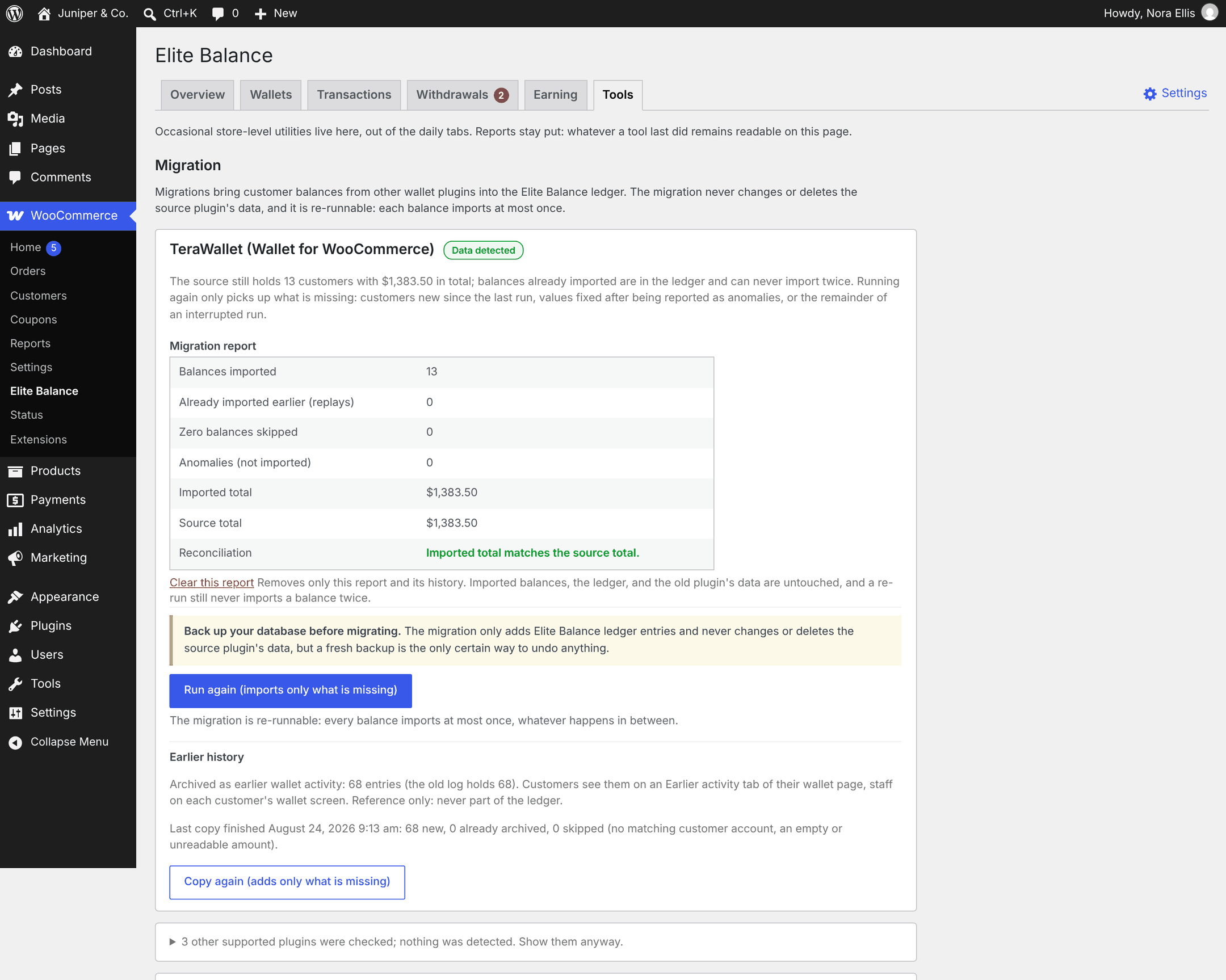
↑ Back to topOn WooCommerce > Elite Balance > Tools, in the Migration section. Each source plugin has a card with its Migration report, which stays readable after every run. While a migration is waiting or running, the Overview’s Needs attention box links to it. After a migration finishes, the Overview shows a one-line summary with View report and Dismiss.
The report lists anomalies
↑ Back to topAn anomaly is a customer whose balance in the old plugin could not be imported safely, so it was left out and reported. Typical issues are a value that is not a number, a negative value, a balance in another currency, or a customer with more than one balance entry. Elite Balance never changes the old plugin’s data, so:
- Use Prepare the full list (CSV) on the report, then download the list once it is ready.
- Fix each value in the old plugin’s data (or decide the customer should not be imported).
- Click Run again (imports only what is missing). Balances already imported are never imported twice, so a re-run only picks up the fixed values and new customers.
When the totals differ, the report says “Totals differ: review the anomalies below before switching over.” Review the anomalies before you rely on the migrated balances.
Customers do not see their old history
↑ Back to topSince 1.1.0 the old plugin’s transaction log is copied automatically after a migration, for WP Swings Wallet System, TeraWallet, YITH Account Funds and Account Funds 4.x. Check the Earlier history part of the migration card: if nothing was copied (for example, you migrated before 1.1.0), click Copy earlier history. Also check that Earlier activity is ticked on WooCommerce > Settings > Elite Balance. The custom user meta key source has no log to copy. See Migrating from Another Wallet Plugin.
The audience count shows “10,000+”
↑ Back to topWhen you build a bulk operation audience, the live count stops at 10,000 to stay fast on large stores. It is a display limit only: the operation processes everyone who matches, and the exact number appears in the operation history after it runs.
Compatibility
↑ Back to topDoes Elite Balance work with HPOS?
↑ Back to topYes. Elite Balance declares compatibility with WooCommerce High-Performance Order Storage and works with both HPOS and the older posts-based order storage. Wallet data lives in Elite Balance’s own database tables, not in order meta.
Does it work with the Cart and Checkout blocks?
↑ Back to topYes. Full wallet payments, partial wallet payments and the pay-by-wallet discount work on both the classic checkout and the Checkout block. Since 1.1.0, the Checkout block shows the pay-by-wallet discount from the first render when the wallet is the default payment method.
What are the requirements?
↑ Back to topWordPress 6.6 or later, WooCommerce 9.0 or later, and PHP 7.4 or later. Elite Balance 1.1.0 is tested up to WooCommerce 11.1. If a requirement is not met, the plugin stays inactive and shows an admin notice; it never breaks the store. See Installing Elite Balance.
Does uninstalling delete balances?
↑ Back to topNo. Deleting the plugin keeps all wallets, transactions and settings unless you tick Delete data on uninstall on WooCommerce > Settings > Elite Balance > Advanced first. That setting deletes everything permanently.
Getting support
↑ Back to topIf something still looks wrong, open a support request from your WooCommerce.com account at https://woocommerce.com/my-account/contact-support/ and choose Elite Balance. To help us answer quickly:
- Go to WooCommerce > Elite Balance > Tools and scroll to the Support section at the end.
- Click the Site info for your message box to select it, then copy it. It holds your Elite Balance, WooCommerce, WordPress and PHP versions.
- Paste it into your request, with what you expected, what happened instead, and the steps to reproduce it. Order numbers and the customer’s wallet screen are useful too.
For hard-to-reproduce problems, turn on Advanced logging on WooCommerce > Settings > Elite Balance > Advanced, reproduce the problem, then find the log under WooCommerce > Status > Logs (source elite-balance). Errors are always logged there; the setting adds every hold, capture, release and adjustment. Turn it off again afterwards.