
This page explains how customers pay for orders with their wallet balance: paying the whole order from the wallet, combining the wallet with another payment method (partial payment), and the optional pay-by-wallet discount. It is written for store owners and shop managers who set up checkout and answer customer questions about it.
How wallet payments work
↑ Back to topElite Balance gives customers two ways to spend their balance at checkout:
- Full payment. The customer picks the Wallet balance payment method. The whole order total is taken from the wallet the moment the order is placed, and the order is marked as paid.
- Partial payment. The customer ticks Use my wallet balance and pays the rest with another payment method. The wallet amount is reserved (a hold) when the order is placed and only taken from the wallet when the order is paid.
Customers see one wallet option at a time. When the available balance covers the whole order, the Wallet balance payment method is offered. When it does not, the Use my wallet balance checkbox is offered instead (if partial payments are on). While the checkbox is ticked, the Wallet balance payment method is hidden, because both would spend the same money.
Both options work on the classic checkout (the [woocommerce_checkout] shortcode) and on the Checkout block.
Enabling wallet payments
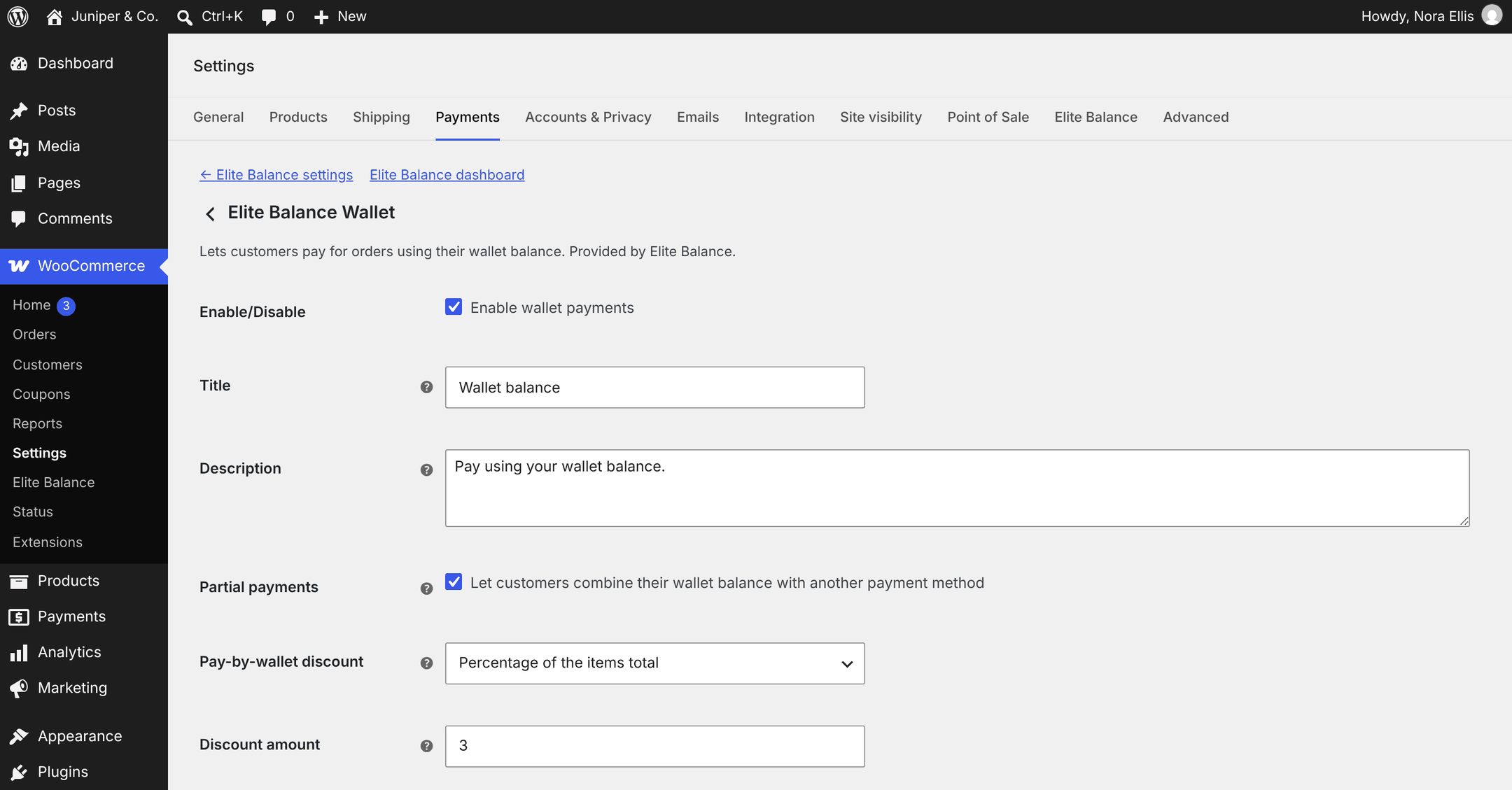
↑ Back to topWallet payments are set up on the payment method screen: WooCommerce > Settings > Payments > Elite Balance Wallet. You can also reach it from WooCommerce > Settings > Elite Balance: the Checkout section at the top of the General section shows a Wallet payments on or Wallet payments off pill, whether partial payments are allowed, and a Manage the payment method link. The payment method screen has Elite Balance settings and Elite Balance dashboard links above its fields.
| Setting | Default | What it does |
|---|---|---|
| Enable/Disable (Enable wallet payments) | On | Offers the Wallet balance payment method at checkout to customers whose available balance covers the order. Untick it to stop full wallet payments. |
| Title | Wallet balance | The payment method name customers see at checkout and on their orders. |
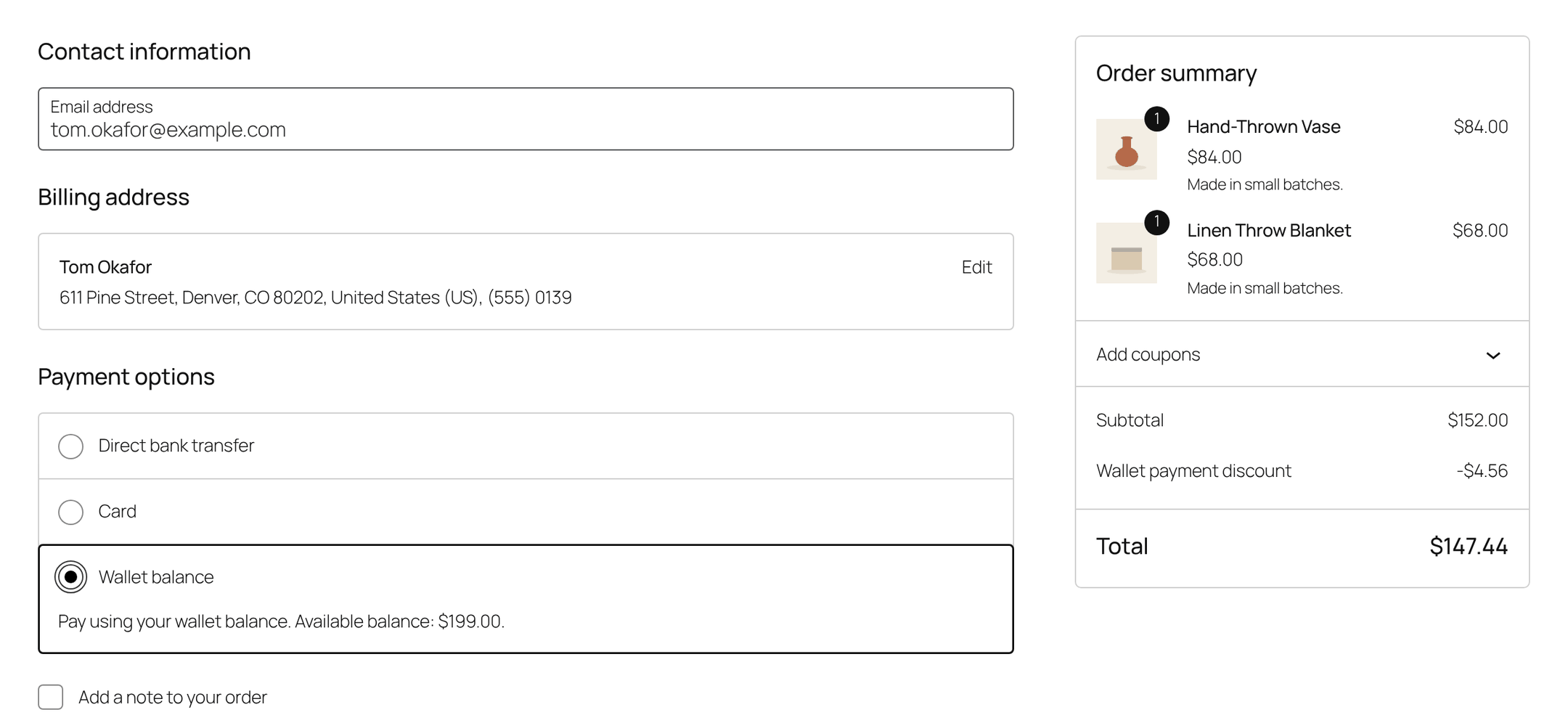
| Description | Pay using your wallet balance. | The text under the payment method at checkout. The customer’s available balance is added at the end automatically, for example “Available balance: $199.00.” |
| Partial payments (Let customers combine their wallet balance with another payment method) | On | Shows the Use my wallet balance checkbox at checkout when the balance cannot cover the whole order. The wallet amount is reserved when the order is placed and collected when the other payment method confirms payment. |
| Pay-by-wallet discount | No discount | An automatic discount for orders paid fully by wallet. Options: No discount, Percentage of the items total, Fixed amount. See Pay-by-wallet discount. |
| Discount amount | (empty) | The percentage (for example 5 for 5%, up to 100) or the fixed amount in the store currency. Empty or zero means no discount. |
Important: Wallet payments and partial payments are both on as soon as the plugin is activated. Customers with a balance can spend it at checkout right away. If you are not ready for that, untick both settings until you are.
Note: The two switches are independent. Enable wallet payments controls only the Wallet balance payment method. The Use my wallet balance checkbox keeps working while Partial payments is ticked, even with Enable wallet payments unticked. To turn off all wallet spending at checkout, untick both.
When the wallet option appears
↑ Back to top“Available balance” below means the wallet balance minus anything currently reserved by holds (unpaid orders with a partial wallet payment, and pending withdrawal requests). Customers see it on their wallet page as Available to spend.
The Wallet balance payment method
↑ Back to topThe payment method is offered only when all of these are true:
- Enable wallet payments is ticked.
- The customer is logged in. Guests never see it.
- The customer’s available balance is at least the order total. On the checkout page this is the cart total, including shipping, taxes and fees. On the Pay for order page it is the order’s total.
- The customer’s wallet is not locked.
- The Use my wallet balance checkbox is not ticked.
- The customer is not paying for a wallet top-up (a wallet cannot fund itself).
Wallets hold the store currency. If an order is in another currency (for example because a currency switcher is active), the customer sees “Wallet payments are only available in the store currency.” when placing the order.
The Use my wallet balance checkbox
↑ Back to topThe checkbox is offered only when all of these are true:
- Partial payments is ticked.
- The customer is logged in.
- The customer’s available balance is above zero.
- The customer’s wallet is not locked.
- The available balance is less than the cart total. When the balance covers the whole cart, the Wallet balance payment method is offered instead. Once a customer has ticked the checkbox, it stays visible so they can untick it after changing their cart.
The checkbox appears on the checkout page only. It is not offered on the Pay for order page of an existing order.
Paying the whole order from the wallet
↑ Back to topThe customer selects Wallet balance and places the order. Here is what happens next:
- Elite Balance checks the balance again on the server. The amount shown in the browser is never trusted.
- The full order total is debited from the wallet at once, as a single ledger transaction of type Order payment with the note “Payment for order #123”. No hold is used for a full payment.
- The order is marked as paid, so WooCommerce moves it to the status it normally gives a paid order (usually Processing).
- An order note records the payment: “Elite Balance: $84.00 paid from wallet (transaction #78). Wallet balance is now $115.00.”
- The cart is emptied and the customer lands on the order received page.
The debit is tied to the order, so a double-clicked Place order button or a repeated request can never charge the wallet twice.
If the payment cannot go through, the customer stays on the checkout with one of these messages, and nothing is taken from the wallet:
- “Your wallet balance is not sufficient to pay for this order.”
- “Your wallet is currently locked. Please contact us or choose another payment method.”
- “Wallet payments require an account. Please log in and try again.”
- “Wallet payments are only available in the store currency.”
- “Wallet payment failed. Please try again or choose another payment method.”
Partial payments
↑ Back to topWhat the customer sees
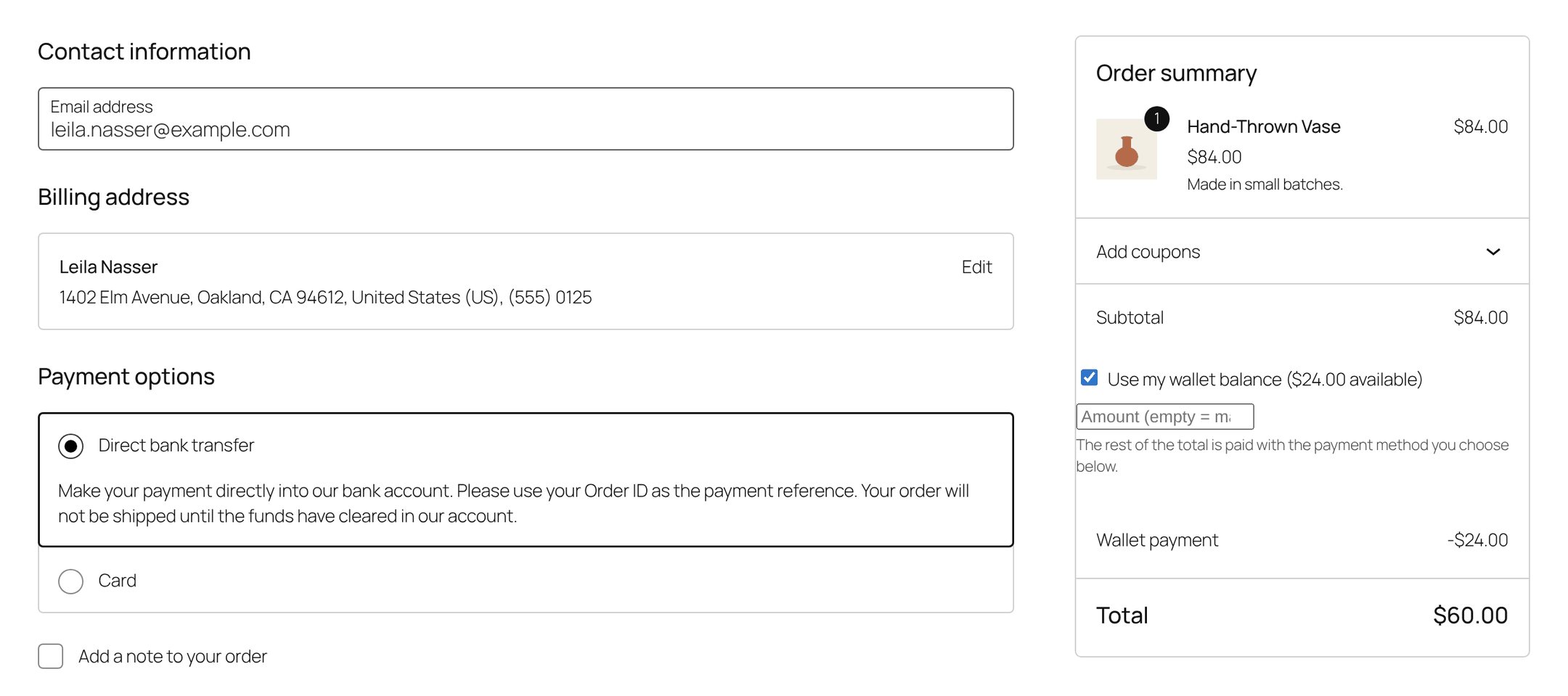
↑ Back to top- Classic checkout: a box above the payment methods with the checkbox Use my wallet balance ($24.00 available). Ticking it shows an Amount to use field with the hint “Leave empty to use as much of your balance as possible. The rest of the total is paid with the payment method you choose below.”
- Checkout block: the same checkbox in the order summary, below the coupon field. Ticking it shows an amount field (placeholder “Amount (empty = maximum)”) and the hint “The rest of the total is paid with the payment method you choose below.”
- In both, the totals show a negative Wallet payment line and a lower Total. The customer then chooses another payment method for the rest.
How much the wallet covers
↑ Back to topThe wallet part is the smallest of these three amounts:
- the amount the customer typed (empty means as much as possible),
- the customer’s available balance,
- the cart items after coupons, plus their tax.
Shipping is not covered by the wallet part, so shipping charges are always paid with the other payment method. The amount is checked again on the server when the order is placed, so the browser cannot apply more than the customer holds or more than this limit allows.
From order to payment
↑ Back to top- The order is placed. The wallet amount is checked against the live balance. If it no longer fits (for example the customer spent the money in another tab), the customer sees “Your wallet balance has changed and no longer covers the amount applied. Please review your order and try again.” Otherwise the amount is saved on the order as the Wallet payment line and reserved with a hold. The wallet balance does not change yet, but Available to spend drops by the reserved amount.
- The order is paid. When the other payment method confirms payment, or the order moves to Processing or Completed (including when you change the status by hand), the hold is captured: the wallet amount is debited as an Order payment transaction. The order note reads “Elite Balance: $20.00 captured from wallet (transaction #78).”
- Or the order is cancelled or fails. The hold is released and the reserved amount is free to spend again. The order note reads “Elite Balance: the wallet hold of $20.00 was released back to the customer.” Moving the order to the trash or deleting it also releases the hold.
Holds do not expire with time. An order that waits for a bank transfer or a check (status On hold) keeps its reservation however long the payment takes. An unpaid order in Pending payment also keeps it until the order is cancelled. WooCommerce cancels unpaid checkout orders by itself when stock management is on and Hold stock (minutes) is set under WooCommerce > Settings > Products > Inventory; that cancellation releases the hold.
As a safety net, a background check runs every hour and releases any hold whose order no longer exists or is Cancelled, Failed, Refunded or in the trash.
Note: Cash on delivery puts new orders straight into Processing (or On hold for orders with downloadable items). With a Processing order the wallet part is collected as soon as the order is placed, before the cash is received.
Note: Locking a wallet stops new spending only. A hold that was placed before the lock is still collected when its order is paid.
If the wallet part cannot be collected
↑ Back to topSometimes an order is paid after its hold was released, for example an order that was cancelled and later marked Processing. Elite Balance then tries to debit the wallet part directly and adds the note “Elite Balance: the wallet hold had expired; $20.00 was collected directly from the wallet.”
If the balance no longer covers it, nothing is debited and the order gets the note “Elite Balance: ATTENTION – the wallet portion of this order could not be collected (…). Review and collect manually.” Wallets never go negative. Review the order with the customer, and if you decide to collect, debit the wallet with a reason from the customer’s wallet screen (see Managing Wallets).
The order screen
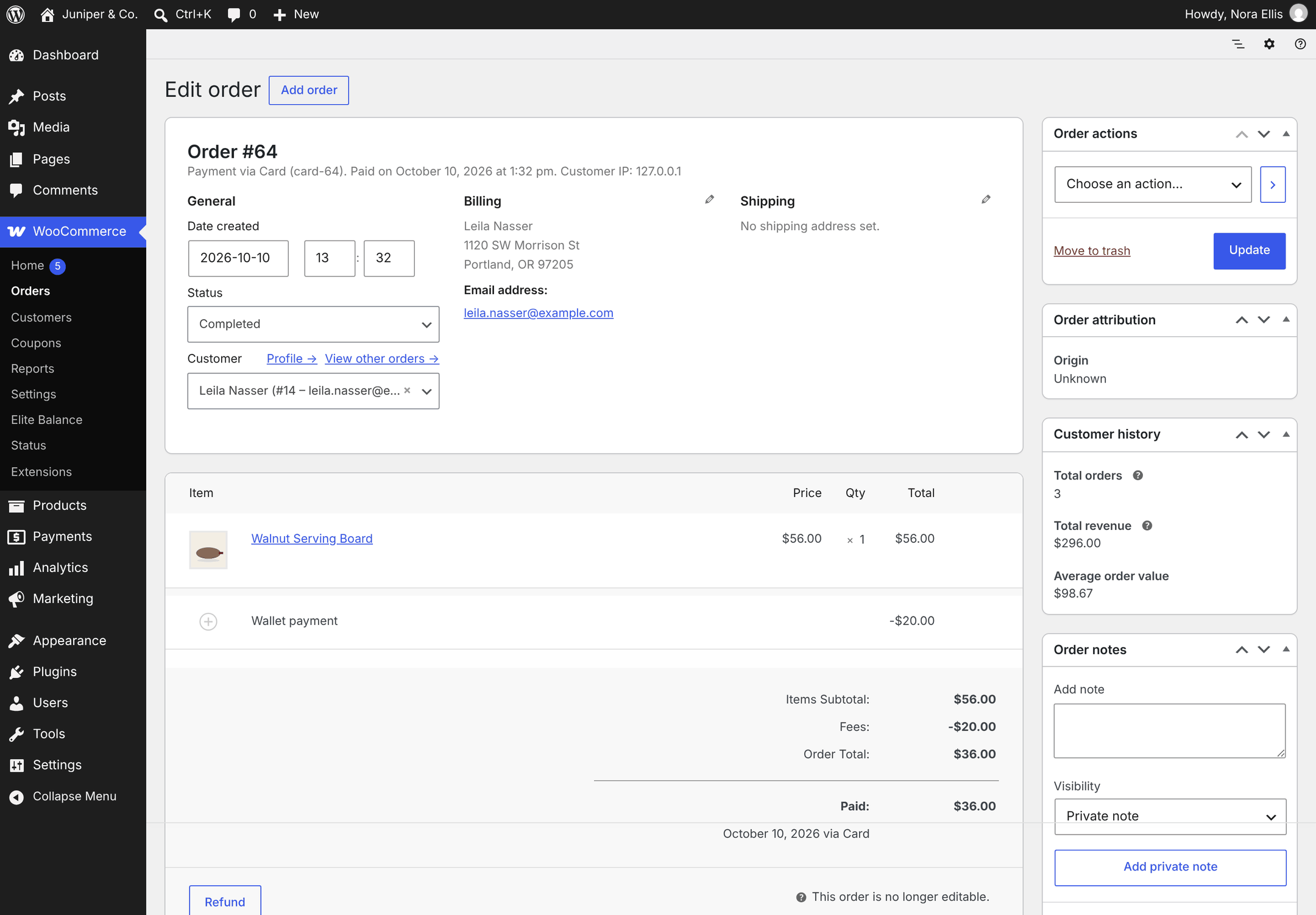
↑ Back to topOn a partly wallet-paid order, the Wallet payment line appears among the order’s fees and the order total is what the other payment method charged. The Elite Balance box in the order sidebar shows “Wallet applied to this order: $20.00” and, while the order is unpaid, “Pending hold: $20.00 (released automatically if the order is cancelled or fails)”. See Refunds to Wallet for everything the box shows.
Pay-by-wallet discount
↑ Back to topWallet payments have no card fees and cannot be charged back, so you may want to pass part of that saving to customers. The Pay-by-wallet discount adds an automatic Wallet payment discount line to orders paid fully with the Wallet balance payment method.
To set it up:
- Go to WooCommerce > Settings > Payments > Elite Balance Wallet.
- In Pay-by-wallet discount, choose Percentage of the items total or Fixed amount.
- Enter the Discount amount: a percentage from above 0 up to 100, or a fixed amount in the store currency.
- Click Save changes.
How the discount is worked out:
- It applies only to logged-in customers paying the whole order with Wallet balance. It never applies to partial wallet payments or to top-ups.
- The base is the items total after coupons, plus the tax on those items. Shipping and fees are not part of the base.
- A percentage is rounded to two decimals. Example: 3% of $152.00 is $4.56, so the customer pays $147.44.
- A fixed discount never exceeds the base, so the order total never goes negative.
- The discount line is not taxed. It is not a wallet transaction: the order simply costs less before any money moves.
- Order cashback is calculated on the discounted amount, so the discount and cashback never pay out on the same money twice (see Earning Rules and Cashback).
On the classic checkout the line appears when the customer selects Wallet balance and disappears when they switch to another method. On the Checkout block it follows the selected method too; since 1.1.0 it also shows from the first moment when Wallet balance is the method selected by default.
Whatever the checkout showed, the discount is checked again when the order is created: it is added when the order qualifies, corrected when the amount is wrong, and removed when the order does not qualify.
Note: The discount is applied when an order is placed through the checkout. A customer who pays an existing order from its Pay for order page does not get it.
Classic checkout and the Checkout block
↑ Back to top| Classic checkout | Checkout block | |
|---|---|---|
| Wallet balance payment method | In the payment methods list | In Payment options |
| Use my wallet balance | A box above the payment methods | In the order summary, below the coupon field |
| Amount field | Amount to use, applied when the field changes | Placeholder “Amount (empty = maximum)”, applied when the field loses focus |
| Wallet payment discount line | Updates when the payment method changes | Updates when the payment method changes, and shows from the first moment when the wallet is preselected |
The rules for who sees what are the same on both, because they are decided on the server.
What customers see
↑ Back to top- At checkout: the payment method title (default Wallet balance) and the description followed by their available balance.
- On the order: the Wallet payment and Wallet payment discount lines appear like any other order line, on the order received page, in My Account > Orders and in WooCommerce’s order emails.
- On the wallet page: while a partial payment is reserved, My Account > Wallet shows “Available to spend: $24.00 (the rest is reserved by a pending request or order)”. Once collected, the Transactions tab lists an Order payment entry linked to the order, with the note “Payment for order #64”. See Customer Wallet Page, Block and Shortcode.
- Emails: order payments do not send the Wallet debited email, because WooCommerce’s order emails already cover them. The Wallet low balance email (off by default) can still be sent when a payment takes the balance below its threshold. See Wallet Emails.
Order notes
↑ Back to topElite Balance writes private order notes for every wallet event on an order:
| Note | When |
|---|---|
| Elite Balance: $X paid from wallet (transaction #N). Wallet balance is now $Y. | A full wallet payment was taken. |
| Elite Balance: $X captured from wallet (transaction #N). | The reserved wallet part of a partial payment was collected. |
| Elite Balance: the wallet hold of $X was released back to the customer. | The order was cancelled, failed, trashed or deleted before payment. |
| Elite Balance: the wallet hold had expired; $X was collected directly from the wallet. | The order was paid after its hold was released, and the balance still covered the wallet part. |
| Elite Balance: ATTENTION – the wallet portion of this order could not be collected (…). Review and collect manually. | The wallet part could not be collected. Nothing was debited. |
| Elite Balance: $X was already collected from the wallet for this order and is NOT returned automatically. … | A paid order was cancelled. Refunds are always explicit, see Refunds to Wallet. |
Troubleshooting
↑ Back to top- The Wallet balance payment method is missing. Check the list in The Wallet balance payment method. The most common reasons are a balance that does not cover the whole total (the customer gets the checkbox instead), a locked wallet, a guest checkout, or the Use my wallet balance checkbox being ticked.
- The Use my wallet balance checkbox is missing. The balance may cover the whole order (the payment method is offered instead), Partial payments may be off, or the customer is on a Pay for order page.
- The balance looks higher than what the customer can spend. Part of it is reserved by an unpaid order or a pending withdrawal request. Open the customer’s wallet screen to see its holds (Managing Wallets).
- No discount line appears. Check that a Discount amount is set, that the customer is logged in and paying the whole order with Wallet balance, and that no partial payment is ticked.
- An order has an ATTENTION note. See If the wallet part cannot be collected.
More answers are on Troubleshooting and FAQ.
For developers
↑ Back to topThe gateway ID is rb_elbal_wallet. A partial payment stores the applied amount in the order meta _rb_elbal_wallet_applied, and every collection of an order’s wallet part uses the idempotency key order:{order_id}:capture, so it runs at most once. Hooks used on this page:
rb_elite_balance_gateway_is_available(filter): whether the wallet payment method is offered to the current customer.rb_elite_balance_gateway_description(filter): the checkout description, including the balance suffix.rb_elite_balance_partial_payment_offered(filter): whether partial payment is offered to the current customer.rb_elite_balance_partial_payment_smart_offer(filter): whether the checkbox is shown for the current cart; return true to always show it.rb_elite_balance_partial_payment_max_amount(filter): the most the wallet may cover (default: items plus their tax).rb_elite_balance_partial_payment_label(filter): the “Wallet payment” line label.rb_elite_balance_wallet_discount_label(filter): the “Wallet payment discount” line label.rb_elite_balance_wallet_discount_base(filter): the base the discount is calculated on.rb_elite_balance_orphan_hold_statuses(filter): order statuses whose holds the hourly check releases.rb_elite_balance_hold_placed,rb_elite_balance_hold_captured,rb_elite_balance_hold_released(actions): hold lifecycle events.rb_elite_balance_wallet_collection_failed(action): an order’s wallet part could not be collected.
The classic checkout box uses the template checkout/partial-payment.php, which you can override in yourtheme/elite-balance/checkout/partial-payment.php. The full hook list is on Developer Reference.