
This page explains top-ups: how customers add money to their wallet from My Account > Wallet > Add funds, which settings control it, when the wallet is credited, and how to handle a top-up refund. It is for store owners and shop managers.
How top-ups work
↑ Back to topA top-up is an ordinary WooCommerce order paid with your normal payment methods. No product is added to your catalog. The customer:
- Opens My Account > Wallet and clicks the Add funds tab.
- Enters an amount between your minimum and maximum, then clicks Add funds.
- Lands on WooCommerce’s Pay for order page for a new order with a single Wallet top-up line for that amount (status Pending payment).
- Chooses a payment method and pays.
- Sees the money in the wallet as soon as the payment is confirmed.
The form tells the customer the limits: “Between $5.00 and $500.00. You pay with any available payment method; the funds appear in your wallet as soon as the payment is confirmed.”
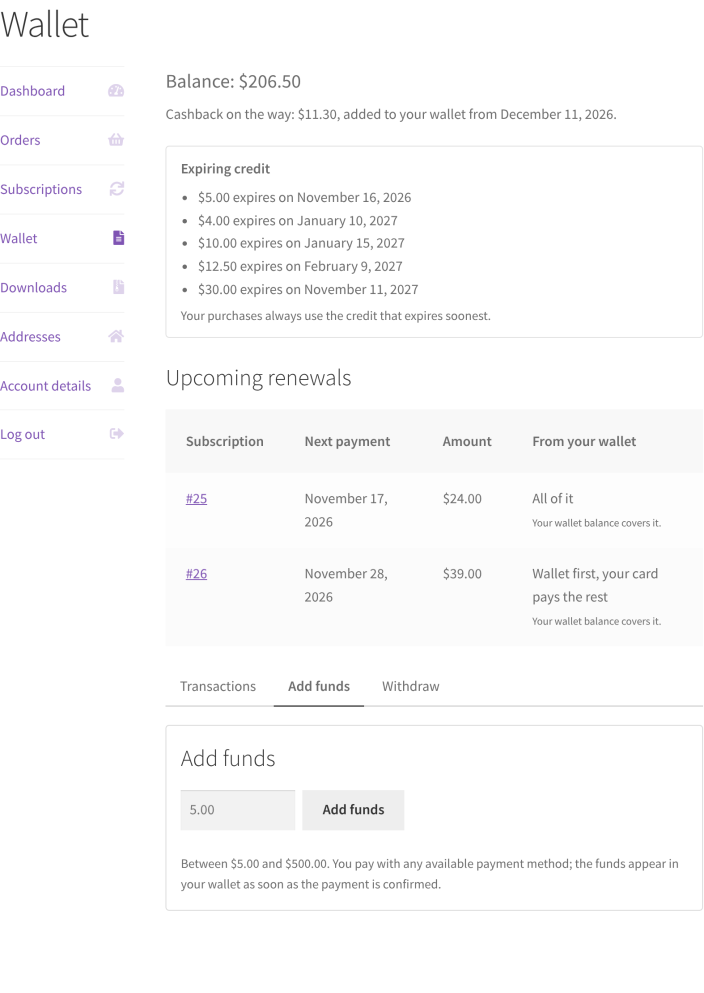
My Account > Wallet > Add funds.
If the amount is not accepted, the customer returns to the form with one of these messages:
- “Please enter a valid amount to add.”
- “Top-up amounts must be between $5.00 and $500.00.” (with your limits)
- “Top-ups are not available right now.” (top-ups were switched off while the page was open)
- “The top-up could not be started. Please try again.”
Settings
↑ Back to topTop-up settings are on WooCommerce > Settings > Elite Balance > Top-ups.
| Setting | Default | What it does |
|---|---|---|
| Enable top-ups (Show an Add funds form on the customer wallet page) | On | Shows the Add funds tab on the customer wallet page. Untick it to remove the tab and stop new top-ups. |
| Order status after payment | Completed (recommended: nothing to fulfill) | The status a top-up order moves to when its payment method reports a completed payment. The other choice is Processing (the WooCommerce default for paid orders), for stores that review every order by hand. |
| Minimum top-up amount | 5 | The smallest amount a customer can add, in the store currency. The form enforces it and the server checks it again. |
| Maximum top-up amount | 500 | The largest amount per top-up. If the minimum is set higher than the maximum, the minimum is used for both. |
| Payment methods for top-ups | Empty (every enabled payment method except pay-later methods) | Limits which payment methods are offered when paying for a top-up. Leave it empty to offer every enabled method except pay-later methods; select methods to offer exactly those. Cash on delivery is never offered, even if you select it. The Wallet balance method is never offered either. |
| Analytics (Count top-ups as sales in WooCommerce Analytics) | On | When it is off, top-up orders are left out of WooCommerce Analytics. A top-up is money the customer spends later: an order paid in full from the wallet counts as a sale at its full total, while the wallet part of a split payment lowers that order’s total. Choose what matches your accounting. The change applies to orders imported into Analytics from then on; to apply it to earlier top-ups, delete and import the historical data again under Analytics > Settings. Shown on WooCommerce 10.7 and later. |
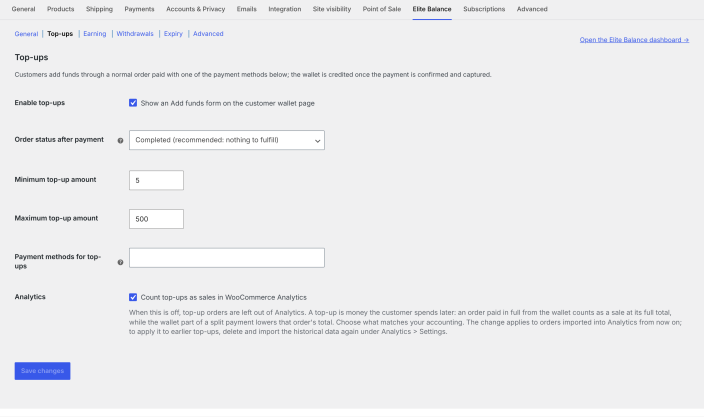
WooCommerce > Settings > Elite Balance > Top-ups.
Note: Top-ups are on by default, so the Add funds tab is live as soon as the plugin is activated. Review the limits and payment methods before you tell customers about it.
Payment methods for top-ups
↑ Back to topOn the Pay for order page of a top-up, the customer sees your enabled payment methods, narrowed to Payment methods for top-ups when you have picked any. When you have not picked any, Cash on delivery and pay-later methods are left off (see below). The Wallet balance payment method is always removed (a wallet cannot fund itself), and the Use my wallet balance checkbox is not offered on that page either.
Important: Cash on delivery is never offered for top-ups. WooCommerce puts cash on delivery orders straight into Processing, and a top-up in Processing credits the wallet at once, before any cash is received. If customers pay for top-ups in person, rename Direct bank transfer or Check payments to something like “Pay in store” and use that: those orders wait On hold until you confirm the money arrived.
Pay-later methods (Klarna, Afterpay, Clearpay, Affirm, Sezzle, Zip, Tabby and Tamara, including the versions offered through WooPayments and Stripe) are not offered for top-ups unless you select them in Payment methods for top-ups. The provider pays you and the customer pays the provider later, and pay-later providers usually do not allow buying store credit or other stored value. Check your provider’s terms before you select one.
Methods such as Direct bank transfer and Check payments put the order On hold. The wallet is credited when you confirm the money arrived and change the order to Processing or Completed.
When the wallet is credited
↑ Back to topThe wallet is credited when either of these happens:
- the payment method reports a completed payment (card and other online payment methods), or
- the order moves to Processing or Completed in any way, including when you change the status by hand.
Either way, the money must have been taken. If your payment method is set to authorize the payment first and capture it later (WooPayments manual capture, Stripe’s capture later, PayPal Payments with the Authorize intent, Authorize.Net or another SkyVerge gateway set to Authorization, or Klarna), the wallet is credited when the payment is captured, not when the order reaches Processing. Until then the order has the note “Elite Balance: the wallet is not credited yet. The payment is authorized but not captured; the wallet is credited when the payment is captured.” If the authorization is voided or expires, nothing is credited.
The credit happens once per top-up order. Repeated payment notifications, status changes back and forth, or webhook retries never credit it again.
Order status after payment only applies when the payment method reports a completed payment. With methods that do not (bank transfer, check), the order keeps the status you set.
What the customer and you see:
- A Top-up transaction in the customer’s wallet history, with the note “Top-up via order #39” and a link to the order.
- The order note “Elite Balance: $150.00 credited to the customer’s wallet. Balance is now $169.00.”
- The Wallet credited email, if it is enabled (see Wallet Emails), next to WooCommerce’s usual order emails for the order.
A cancelled, failed or never-paid top-up order credits nothing. If crediting fails for a technical reason, the order gets the note “Elite Balance: crediting the top-up failed: …” and the error is logged; changing the order to Processing or Completed again retries it without any risk of a double credit.
Note: A locked wallet can still receive top-ups. Locking stops spending, not credits.
The top-up order
↑ Back to top- It appears in WooCommerce > Orders and in the customer’s My Account > Orders like any order.
- It has one line, Wallet top-up, for the amount. It is not taxed and has no shipping. When it is created it gets the note “Elite Balance: wallet top-up order for $150.00. The wallet is credited when payment is confirmed.”
- Unpaid top-up orders stay in Pending payment. WooCommerce’s automatic cancellation of unpaid orders (the Hold stock timer) only applies to orders placed through the checkout, so it does not cancel them. Customers can pay later from My Account > Orders, and you can cancel or delete old ones.
- Top-up orders never earn order cashback. They have their own reward, the top-up bonus (see below).
Refunding a top-up
↑ Back to topRefund a top-up order like any order, with WooCommerce’s Refund button, to the original payment method (for example Refund $150.00 via Card) or manually if you send the money another way. Before the refund goes through, Elite Balance takes the refunded amount back out of the customer’s wallet as a Top-up refunded transaction, with the order note “Elite Balance: $150.00 of this top-up was taken back from the customer’s wallet for the refund. Wallet balance is now $19.00.”
- The customer already spent it. If the available balance does not cover the refund, nothing is refunded and you see how much you can refund: “Elite Balance: this refund needs $150.00 of the top-up back from the customer’s wallet, but only $40.00 is available (the rest was spent or is reserved). Refund $40.00 or less. Nothing was refunded.”
- The card refund fails. The amount is given back to the wallet as a Top-up refund reversed transaction, with an order note. Some payment methods report a failure even when the refund went through, so check the payment with your provider.
- The payment was only authorized. A top-up whose payment is authorized but not captured cannot be refunded: there is nothing to refund yet and the wallet was not credited. Cancel the order to void the authorization.
- Refund to wallet is refused on a top-up order: its money is already in the wallet.
- Changing the status to Refunded moves no money. The order gets a note that the top-up is still in the wallet, so you can debit it by hand if the money was returned another way.
No wallet email is sent for the amount taken back; WooCommerce’s own refund email covers the refund.
Top-up bonuses on a refunded top-up
↑ Back to topWhile Reverse rewards when the order or top-up is refunded is on (the default, under WooCommerce > Settings > Elite Balance > Earning), a refund takes back the top-up bonus in proportion to the refunded share: from the pending amount while it waits for the release delay, or from the wallet once it was added (never below zero). With the setting off, the customer keeps the bonus. Cancelling a top-up order always cancels its pending bonus.
Top-up bonuses
↑ Back to topYou can reward top-ups with an earning rule that uses the Top-up bonus trigger, on the Earning tab under WooCommerce > Elite Balance:
- The bonus is a fixed amount or a percentage of the credited top-up amount.
- Minimum base sets the smallest top-up that earns it. Example: a rule “Top-up bonus: 10% on $100 or more” uses 10% with a minimum base of 100, so a $150.00 top-up earns $15.00.
- Roles and the Campaign window also apply.
- The bonus follows the cashback release delay (30 days by default): it is pending first, and the customer sees “Top-up bonus on the way: …” on their wallet page until it is added.
- Once added, it appears as a Cashback transaction with the note “Top-up bonus on order #39”.
- With store credit expiry on, a bonus gets the Top-up bonuses expiry setting, and the paid top-up itself the Paid top-ups setting (never, by default). See Store Credit Expiry.
The full rules are on Earning Rules and Cashback.
For developers
↑ Back to top- Top-up orders carry the order meta
_rb_elbal_topup_order(the amount) and are created withcreated_viaset toelite-balance-topup. - The credit uses the transaction type
topup_creditand the idempotency keytopup_order:{order_id}:credit. A refund writes atopup_refunddebit (keytopup_refund:{token}), and a failed card refund atopup_refund_reversalcredit. rb_elite_balance_topup_amount_limits(filter): the minimum and maximum, as an array withminandmax.rb_elite_balance_topup_credited(action): fires after a top-up is credited, with the transaction and the order. It never fires for replays.rb_elite_balance_topup_gateway_excluded(filter): whether a payment method is left off the top-up page, with the gateway id. It is the only way to offer Cash on delivery for top-ups again (it is asked forcodeven when the store selected it). Since 1.1.2.rb_elite_balance_order_payment_uncaptured(filter): whether an order’s payment is authorized but not captured yet, with the order. Return true for a payment method Elite Balance does not know, so its top-ups wait for the capture. Since 1.1.2.- A top-up waiting for its payment capture carries the order meta
_rb_elbal_topup_awaiting_capture. - The form uses the template
myaccount/topup-form.php. Override it inyourtheme/elite-balance/myaccount/topup-form.php.
See Developer Reference for the full API.