
This page explains how to refund orders to a customer’s wallet as store credit: orders paid by card or any other method, orders paid fully from the wallet, and orders paid partly from the wallet. It also covers the Elite Balance box on the order screen, what refunds do to cashback, and why order status changes never move wallet money. It is for store owners and shop managers who handle refunds.
How refunds to the wallet work
↑ Back to topMoney only moves into a wallet when a person refunds on purpose. Changing an order’s status (to Refunded, Cancelled or anything else) never returns wallet money by itself, the same way WooCommerce never sends money back to a card because of a status change.
You have three tools, all on the order screen:
| Tool | Where | Use it for |
|---|---|---|
| Refund to wallet | The WooCommerce refund panel, after clicking Refund | Orders paid by card, bank transfer or any other method (and the card part of a partly wallet-paid order). The refunded amount becomes store credit. |
| Refund $X via Elite Balance Wallet | The WooCommerce refund panel | Orders paid fully with the Wallet balance payment method. This is WooCommerce’s standard gateway refund button, and the money goes back to the wallet. |
| Return $X to the wallet | The Elite Balance box in the order sidebar | Wallet money that is still owed back after a refund was recorded, for example the wallet part of a partly wallet-paid order, or an order marked Refunded with the status dropdown. |
Only administrators and shop managers can use these tools (they need the rb_elbal_manage_wallets capability, which Elite Balance gives to both roles on activation).
Every refund credit is tied to its WooCommerce refund record, so a double click or a repeated request can never credit the wallet twice.
Refunding an order paid by another method to the wallet
↑ Back to topUse this when a customer paid by card (or any other method) and you want to give the money back as store credit. The Refund to wallet button appears in the refund panel only when the order:
- belongs to a customer account (guest orders have no wallet),
- has been paid (it has a paid date; an order that was paid and later cancelled still qualifies),
- is in the store currency,
- was not paid with the Wallet balance payment method (those orders use Refund $X via Elite Balance Wallet, see below).
To refund to the wallet:
- Open the order in WooCommerce > Orders.
- Click Refund below the order items.
- Enter the amount in Refund amount. You can also type quantities or totals on the item lines, which fills in the amount for you.
- Optionally fill in Reason for refund (optional). Customers can see it, and it is added to their wallet entry.
- Click Refund to wallet. It is the first button in the row, before WooCommerce’s own refund buttons.
- Confirm the message “Refund this amount to the customer’s wallet as store credit? A WooCommerce refund record will be created.”
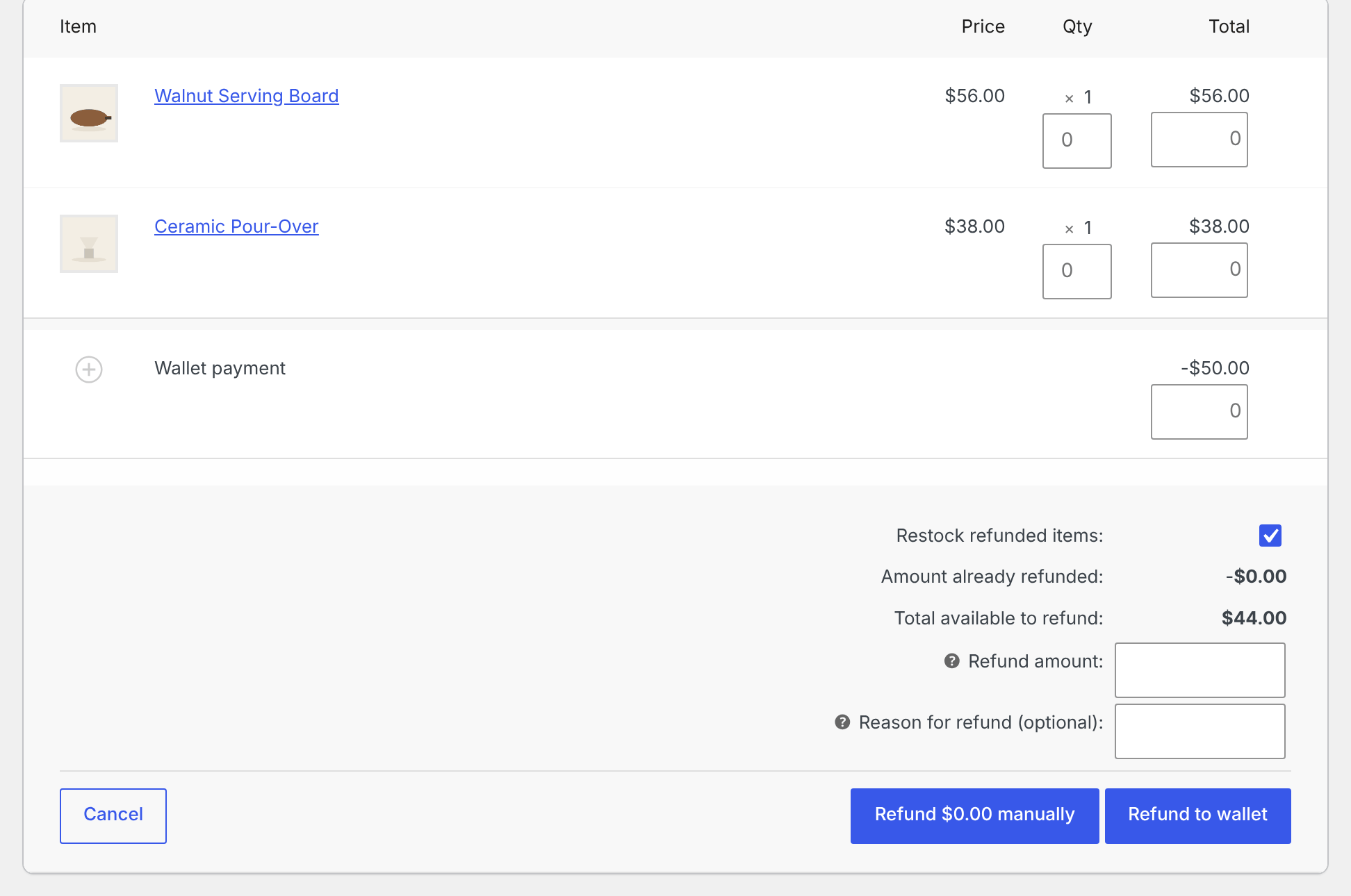
What happens next:
- WooCommerce records a refund for that amount, without contacting the original payment method. The order’s totals and reports show the refund as usual.
- The amount is credited to the customer’s wallet as a Refund to wallet transaction with the note “Refund for order #123” (plus “: ” and your reason, if you gave one). If the customer had no wallet yet, one is created.
- The order gets the note “Elite Balance: $X refunded to the customer’s wallet (transaction #N). Wallet balance is now $Y.”
- The customer receives the Wallet credited email if it is enabled (see Wallet Emails).
- The page reloads.
Important: Refund to wallet records the refund as an amount only. Item quantities you typed are not stored on the refund, and items are not restocked even if Restock refunded items is ticked. Adjust stock by hand if the items came back.
If the refund cannot go through, an alert explains why, and nothing changes:
- “The amount exceeds the remaining refundable total (…).”
- “This order has not been paid, so there is nothing to refund. Cancel the order to release any reserved wallet funds.”
- “Please enter a valid refund amount first.”
Important: Do not use Refund to wallet on a wallet top-up order. The button is offered there too, and it would credit the top-up amount to the wallet a second time. See Top-ups (Add Funds).
Orders paid fully from the wallet
↑ Back to topFor an order paid with the Wallet balance payment method, the refund panel shows WooCommerce’s standard gateway button, Refund $X via Elite Balance Wallet. It works like a card refund: WooCommerce records the refund (with item lines and restocking as you set them in the panel), and Elite Balance credits the amount back to the wallet as a Refund to wallet transaction with the same order note.
Use that button, not Refund $X manually. A manual refund records the refund in WooCommerce but returns nothing to the wallet. If a manual refund (or a status change to Refunded) leaves nothing refundable on the order while wallet money is still owed, the Elite Balance box offers Return $X to the wallet (see below). After a partial manual refund the order is still refundable, so the box offers no button; credit the wallet by hand from the customer’s wallet screen with a reason (Managing Wallets).
Orders paid partly from the wallet
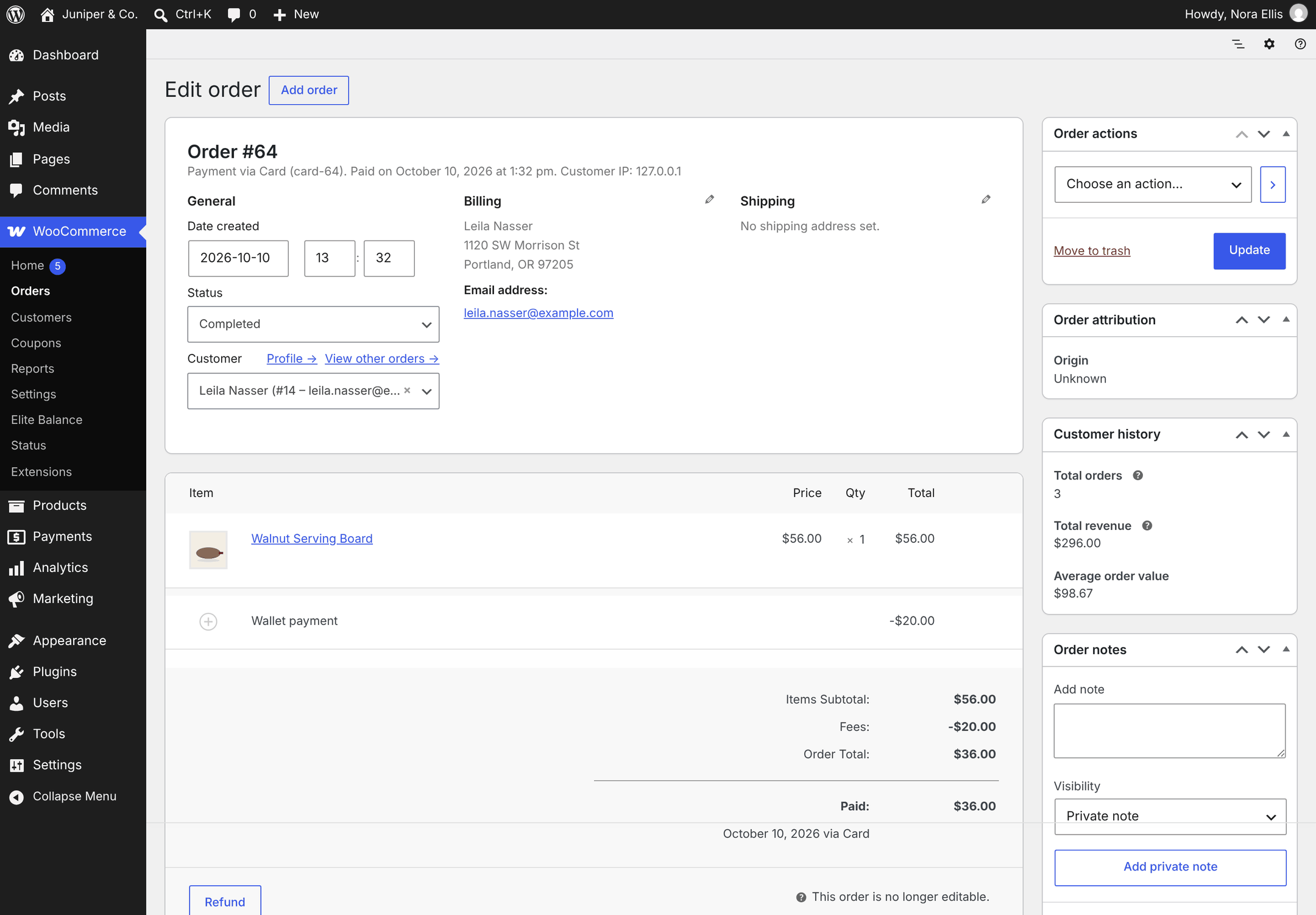
↑ Back to topOn a partial wallet payment, the wallet part is a negative Wallet payment line, so it sits outside the order total. The WooCommerce refund panel can only refund up to that total, which is the part paid by the other method. The wallet part comes back separately through the Elite Balance box.
Example: order #64 cost $56.00. The customer paid $20.00 from the wallet and $36.00 by card. To return everything to the wallet:
- Click Refund, enter 36.00 and click Refund to wallet. The card part becomes $36.00 of store credit. The order now has nothing left to refund, so WooCommerce marks it Refunded.
- The Elite Balance box now shows a yellow notice: “A refund was recorded for this order, but $20.00 paid from the wallet has not been returned yet. The refund panel only covers what was paid by other methods, and marking an order Refunded moves no money.”
- Click Return $20.00 to the wallet. The $20.00 is credited back, and the notice “The wallet payment was returned to the customer’s wallet as store credit.” appears.
To send the card part back to the card instead, use the card gateway’s own button in step 1 (for example Refund $36.00 via Card, if your gateway supports refunds), then do steps 2 and 3.
Note: This two-step flow was fixed in 1.1.0. Before, the second step was treated as a repeat of the first, so the wallet part was never returned and the order showed a false “not returned yet” note. Since 1.1.0, both parts come back.
Note: Return $X to the wallet appears only after the refund panel has nothing left to refund, and it always returns the whole outstanding wallet part. To give back only some of the wallet part, credit the wallet by hand with a reason from the customer’s wallet screen.
Returning wallet money after a refund was recorded
↑ Back to topWhen an order paid (fully or partly) from the wallet is set to Refunded with the status dropdown, WooCommerce records a refund for the remaining amount without moving any money. Elite Balance then adds this order note: “Elite Balance: $X of this order was paid from the customer’s wallet and has NOT been returned. Marking an order as Refunded records the refund without moving money. Use “Return to the wallet” in the Elite Balance box on this order to return it as store credit.”
To return the money:
- Open the order.
- In the Elite Balance box in the sidebar, read the yellow notice with the outstanding amount.
- Click Return $X to the wallet.
The outstanding amount is the wallet money taken for the order, minus wallet money already returned for it. Store credit you gave for the card part does not count as returned wallet money. Clicking twice is safe: the credit is tied to the refund record, and a second attempt after everything is back reports “All wallet money for this order has already been returned.”
The Elite Balance box on the order screen
↑ Back to topEvery order screen has an Elite Balance box in the sidebar (classic and HPOS order screens), visible to administrators and shop managers. It shows:
- “Customer wallet: $X (available: $Y)”, or “Guest order: there is no customer wallet.” for guest orders.
- “Wallet applied to this order: $X” when the order used a partial wallet payment.
- “Pending hold: $X (released automatically if the order is cancelled or fails)” while the wallet part is reserved and not yet collected.
- A Type and Amount table of the wallet transactions linked to this order, with their dates: Order payment, Refund to wallet, Cashback, Reward reversal and so on.
- A hint for what to do next: on a paid order with something left to refund, “To refund this order to the wallet, use the Refund button below the order items and choose “Refund to wallet”.”; on an unpaid order with a hold, “This order is not paid yet: the wallet funds are reserved, not charged. Cancelling the order releases them back to the customer automatically.”
- The yellow Return $X to the wallet notice, when wallet money is still owed after a refund was recorded.
- Open wallet and All wallet transactions links for the customer.
The box is for information. Apart from the Return $X to the wallet button, refunds always go through the WooCommerce refund panel, so there is one place to refund.
Effect on cashback
↑ Back to topIf the order earned order cashback from an earning rule, refunds adjust it automatically:
- Cashback still pending (inside the cashback release delay): the pending amount shrinks in proportion to the refund. Nothing is taken from the wallet. The order note reads, for example, “Elite Balance: $1.00 of the pending reward was cancelled for this refund (rule: 5% cashback on every order). $1.50 remains pending. The wallet was never touched.”
- Cashback already credited: the proportional part is taken back as a Reward reversal transaction, with the order note “Elite Balance: $X of the reward was reversed from the customer’s wallet (rule: …).”
How the proportion is worked out:
- Refunds by item line (quantities or line totals typed in the refund panel, refunded with WooCommerce’s own Refund $X via … or Refund $X manually buttons): the refunded item totals divided by the items total the cashback was based on. A refund of shipping or tax lines only leaves cashback alone.
- Refunds entered as an amount (just the Refund amount box, or Refund to wallet): the refunded amount divided by everything the customer paid for the order, which is the order total plus any wallet part. Example: the customer paid $100.00 and earned $5.00 of cashback; an amount refund of $40.00 takes back $2.00. This was fixed in 1.1.0; before, amount-only refunds left cashback untouched.
- Order fully refunded or cancelled: whatever cashback remains is reversed, and anything still pending is cancelled.
If the customer already spent the cashback, Elite Balance takes back what the available balance covers and stops at zero; wallets never go negative. The rest is listed on the Earning tab for you to review. See Earning Rules and Cashback.
Status changes never move money
↑ Back to top| You do this | Wallet payment money | Order cashback |
|---|---|---|
| Set a paid order to Refunded | Nothing is returned. WooCommerce records a refund without moving money. Elite Balance adds a note and offers Return $X to the wallet in the Elite Balance box. | Remaining cashback is reversed; pending cashback is cancelled. |
| Set a paid order to Cancelled | Nothing is returned. The note “Elite Balance: $X was already collected from the wallet for this order and is NOT returned automatically. Use the Refund button and choose “Refund to wallet” if appropriate.” is added. For an order paid fully by wallet, the refund button is Refund $X via Elite Balance Wallet. | Remaining cashback is reversed; pending cashback is cancelled. |
| Cancel an unpaid order, or it fails | The hold on the wallet part is released. The balance never changed, because nothing had been collected. | None was earned (cashback is earned when an order is paid). |
| Move an order to the trash or delete it | A hold that has not been collected is released. Money already collected is not returned. | Credited cashback is not reversed. |
| Delete the plugin | The ledger stays in your database, unless Delete data on uninstall is ticked under WooCommerce > Settings > Elite Balance > Advanced. | Unchanged. |
If a customer says a refund never reached their wallet, open the order: the Elite Balance box lists the wallet transactions for the order and offers the return button when wallet money is still owed. More on Troubleshooting and FAQ.
For developers
↑ Back to top- Refund credits use the transaction type
refund_creditand the idempotency keyrefund:{refund_id}:credit. Return $X to the wallet usesrefund:{refund_id}:wallet-return, so both steps on a partly wallet-paid order count separately. - Each refund credit stores
refund_idandrefund_part(walletfor returned wallet money,orderfor another method’s part turned into store credit) in its meta. rb_elite_balance_refund_credited(action): fires after a refund credit, with the transaction, the order and the refund ID (0 when unknown). In 1.1.0 it also fires when a repeated request replays an existing credit, so check$transaction->was_replayed()if you need to skip repeats.rb_elite_balance_earn_reversed(action): fires after cashback is reversed.
Programmatic refunds go through the refunds service of rb_elite_balance(); see Developer Reference.