How to Organize Cliparts and Shapes into Categories in WooCommerce

Categories group cliparts and shapes into labelled sections in the designer, making it easier for customers to browse and find what they need.

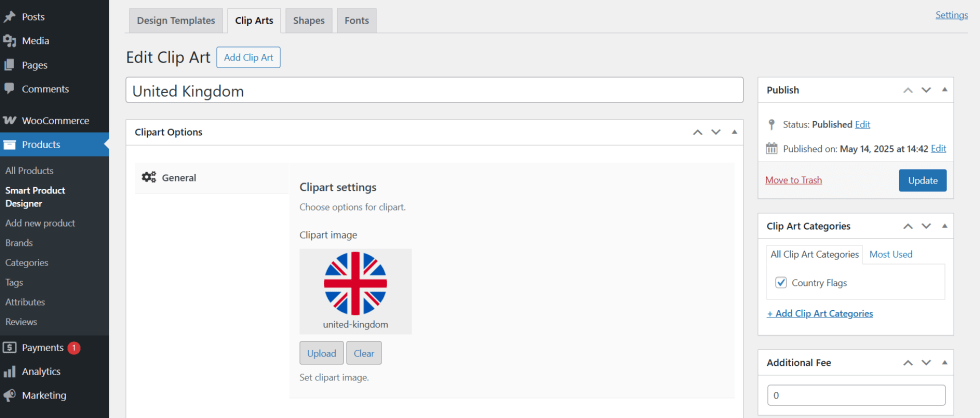
For cliparts:

  1. Go to WordPress Admin → Products → Smart Product Designer → Clip Arts.
  2. When adding or editing a clipart, type a name in the Category field.
  3. Save. All cliparts with the same category name are grouped together in the designer.
For shapes:

  1. Go to WordPress Admin → Products → Smart Product Designer → Shapes.
  2. When adding or editing a shape, type a name in the Category field.
  3. Save.

Related Products

WooCommerce Subscriptions is a WooCommerce extension that lets customers subscribe to your products or...

Offer add-ons like gift wrapping, special messages or other special options for your products.

Use of your personal data
We and our partners process your personal data (such as browsing data, IP Addresses, cookie information, and other unique identifiers) based on your consent and/or our legitimate interest to optimize our website, marketing activities, and your user experience.