
This guide explains the customer journey for WooCommerce Bookings: choosing a slot, reviewing the booking in the cart, and completing checkout. Bookings that require your approval follow a separate request-and-payment process.
To check this experience on your store, use a published bookable product with available dates and a configured checkout. The form reflects the product’s duration, availability, persons, and resources settings. Your theme and enabled payment methods affect how the product and checkout pages look.
Booking form
↑ Back to topCustomers choose their booking on the product page. For an hourly product, the process is:
- Select any required options, such as a resource or number of persons, if the product offers them.
- Choose an available date, then select a start time. Check the time zone shown with the form.
- Review the calculated Booking cost. The cost updates as the customer changes the booking options.
- Select Book now to add the selected booking to the cart. A booking that requires approval shows Check Availability instead.
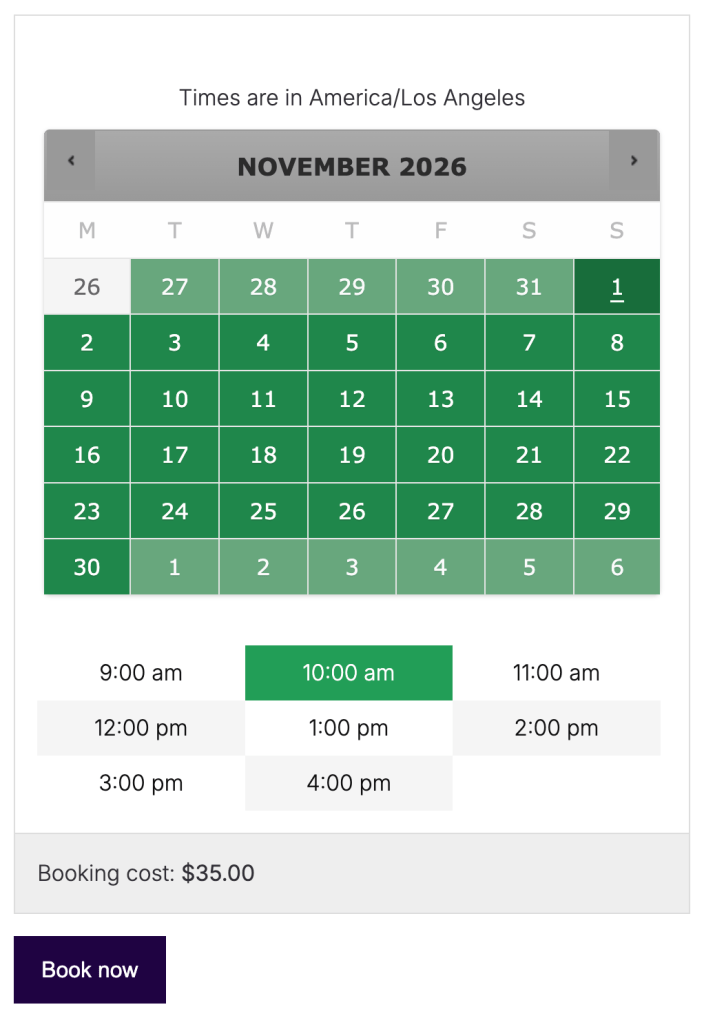
In this one-hour example, the customer has selected November 1 at 10 a.m. and the booking cost is $35. A daily or monthly product can show different duration and calendar controls.
Note:
Adding a booking to the cart creates an In cart hold on its capacity. This isn’t a completed order or an approved request. Inactive holds can expire if the customer doesn’t check out. See In Cart Bookings for details.
Cart and checkout
↑ Back to topThe cart shows the product and its booking details, such as the date, time, selected persons or resource, and duration where applicable. Customers should check those details and the price before proceeding to checkout. For the example above, the cart shows November 1, 2026, 10 a.m., and $35.
If a customer needs a different slot or different options, they can remove the booking from the cart and choose again on the product page.
For a booking that doesn’t require approval, customers complete the checkout using your store’s available payment methods when payment is due. Adding the booking to the cart alone doesn’t complete this step. The order-received page and order emails provide the submitted order details; the resulting booking status depends on the order and payment status.
Bookings that require confirmation
↑ Back to topWhen Requires confirmation? is enabled for the product, customers request approval before paying:
- The customer chooses the booking options and selects Check Availability to add the booking to the cart.
- At checkout, the special booking payment method replaces the normal payment methods. Its default label is Check booking availability.
- The customer enters the required checkout details and selects Request Confirmation. This submits the booking and order without taking payment. The booking awaits your confirmation.
- After you confirm the booking, the customer receives the Booking Confirmed email. If payment is still due, the email includes a Pay for booking link.
- The customer follows that link to complete payment. A signed-in customer can also use the available Pay action for the order in My Account > Orders after approval.
Warning:
Bookings that require confirmation can’t share a cart with ordinary products or bookings that don’t require confirmation. Adding a confirmation-required booking removes those other items. Adding an ordinary product removes confirmation-required bookings from the cart instead.
Approval and payment are separate steps: a confirmed booking can still have payment outstanding. See Bookings Emails for the customer messages used during this process.
Check your customer experience
↑ Back to topBefore accepting bookings, test a product from its booking form through checkout. Confirm that the chosen date, time, options, and cost carry through correctly. If you require approval, also check the request, approval email, and payment steps using your store’s test payment setup.
- No dates or times are available: check the product’s booking window, availability rules, resource availability, existing bookings, and in-cart holds.
- The form won’t add a booking: select every required option and wait for the booking cost to finish updating. If the slot has become unavailable, choose another.
- A customer can’t pay for an approval booking: check whether it’s still awaiting confirmation. After approval, check the order’s payment status and your available payment methods.
- The customer hasn’t received the confirmation email: check the booking status and the email’s settings, and ask the customer to check their spam folder.
Questions and support
↑ Back to topSomething missing from this documentation? Still have questions and need assistance?
- If you have a question about a specific extension or theme you’d like to purchase, contact us to get answers.
- If you already purchased this product and need some assistance, get in touch with a Happiness Engineer via our support page and select this product’s name from the Product dropdown.

