This guide explains how a customer would gift a subscription to someone.
Customer’s View
↑ Back to topPurchasing a gift
↑ Back to topThere are three pages where a customer can choose to purchase a subscription for someone else:
- Single product page
- Cart page
- Checkout page
When purchasing a subscription for a recipient, the customer only needs to enter the recipient’s email address.
The single product page
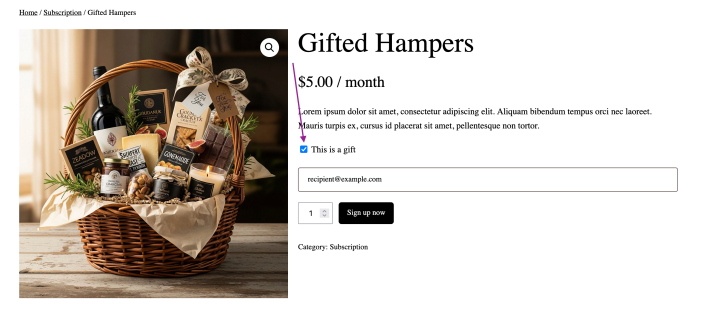
To purchase a subscription for another customer via a product page, the customer can:
- Go to a subscription product’s Single Product Page.
- Tick the This is a gift checkbox.
- Enter the recipient’s email address.
- Select Add to cart.
The cart page
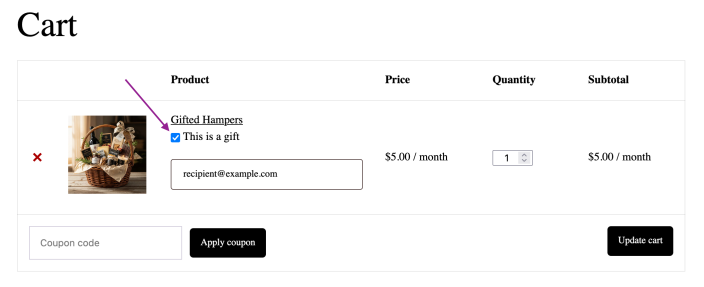
To gift a subscription via the cart page, the customer can:
- Add a subscription product to the cart.
- Go to the Cart page.
- Click the checkbox This is a gift.
- Type in the recipient’s email address.
- Click Update cart.
The checkout page
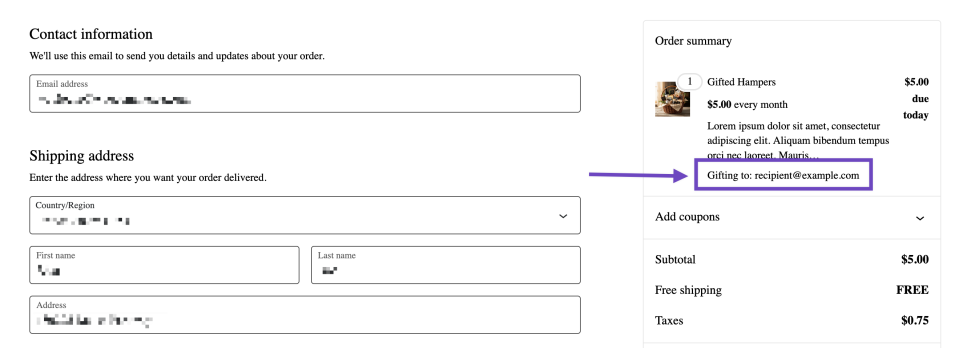
On the checkout page, the customer can see the recipient’s email address under the product.
Which items can be gifted
↑ Back to topThe This is a gift option (its wording can be changed in the Gift option text setting) appears only for subscription products, and products sold on subscription plans, that have gifting enabled, and only while Enable gifting for subscriptions is turned on in WooCommerce > Settings > Subscriptions > Gifting. It isn’t offered for renewals, early renewals or subscription switches, including in the Cart block.
Starting in version 9.4.0, if a recipient is already in the cart for an item that can no longer be gifted (for example, when resubscribing to a gift whose product no longer allows gifting, or after the store turned gifting off), the recipient is removed before payment and the customer sees: “[Product name]” can no longer be bought as a gift, so its gift recipient has been removed. The subscription is then created as a regular subscription for the purchaser.
Recipient account creation
↑ Back to topIn the event that a recipient does not have an account with your store at the time of being gifted a subscription, an account will be created for them. This is so they can manage their subscription.
Account details, as well as information about where they can manage their new subscription, is sent to the recipient via email. A link is provided for the recipient so that they can set their password.
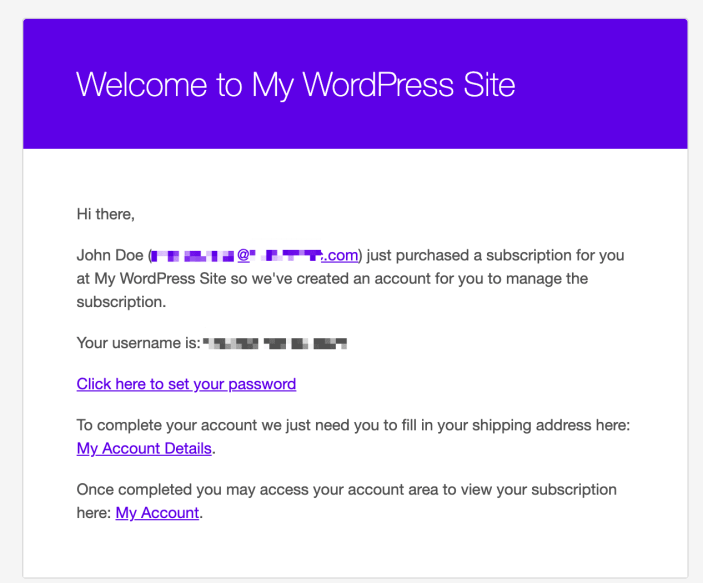
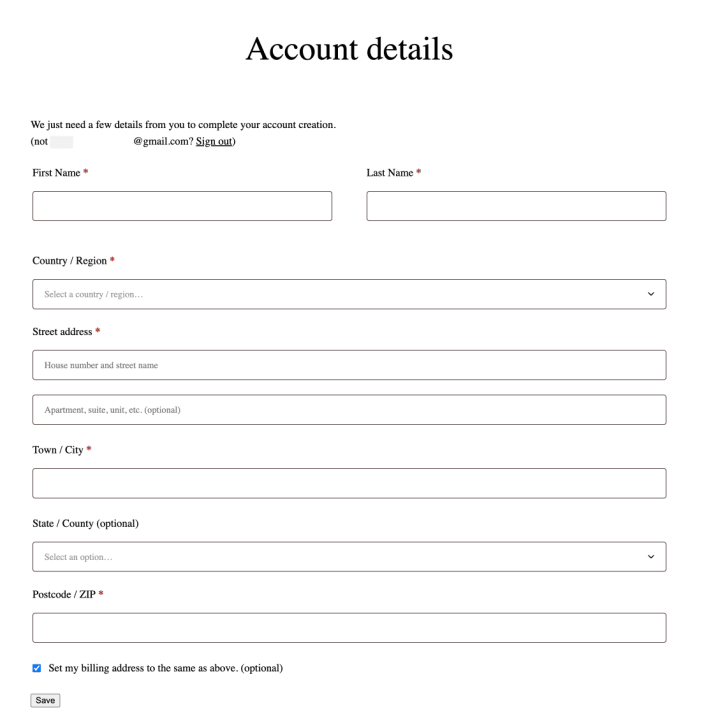
After setting the password, the first time the new recipient logs into their account they will be prompted to enter their shipping address (if applicable).
View Subscription page
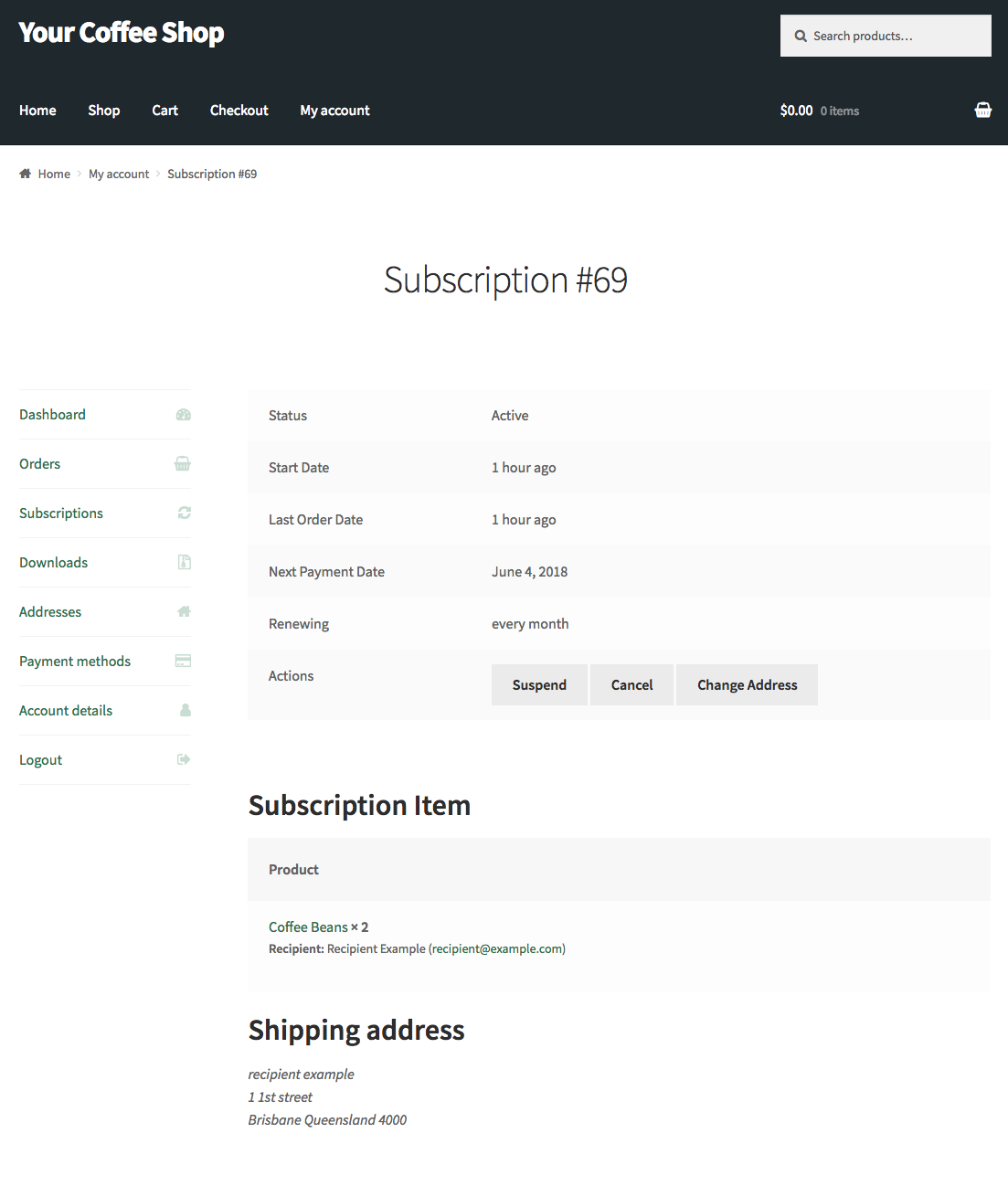
↑ Back to topThe recipient is able to view and manage the subscription they received via the My Account > View Subscription page.
Importantly, when visiting the View Subscription page, the recipient will not see any product prices or billing information.
The View Subscription page for a purchaser, and non-gifted subscription, displays all the orders related to that subscription, with details on the amount of those orders.
In order to provide a level of privacy between purchaser and recipient and to make sure recipients cannot see prices for the products purchased for them, recipients cannot visit the subscription’s related orders pages. The parent order will also be hidden, as that order could contain information about other products purchased in the original order not related to the recipient.
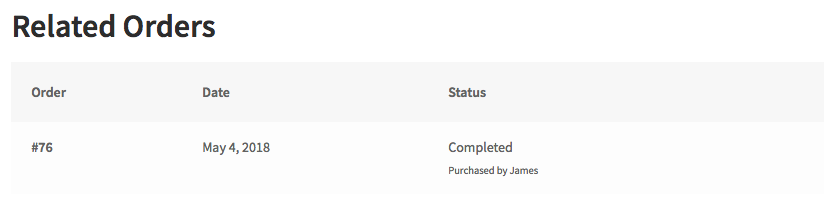
The purchaser’s name will also appear under the related order to indicate that they paid for the order.
Starting in version 9.4.0, once the shipping address belongs to the recipient, the purchaser’s View Subscription page, and renewal orders created from then on, show Only the gift recipient can view the shipping address. in place of the shipping address.
Completing an order with a subscription gift
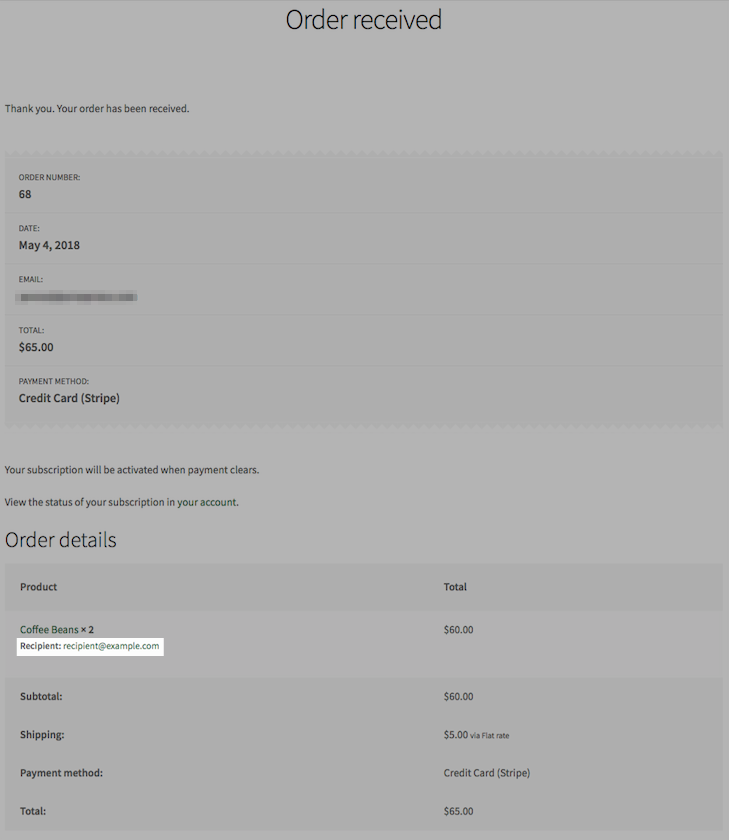
↑ Back to topOnce an order with a subscription gift is placed, customers are given an overview of their order. Here, the purchaser can see which products in their order have been purchased and for who.
Store Manager’s View
↑ Back to topProcessing orders with gift recipients
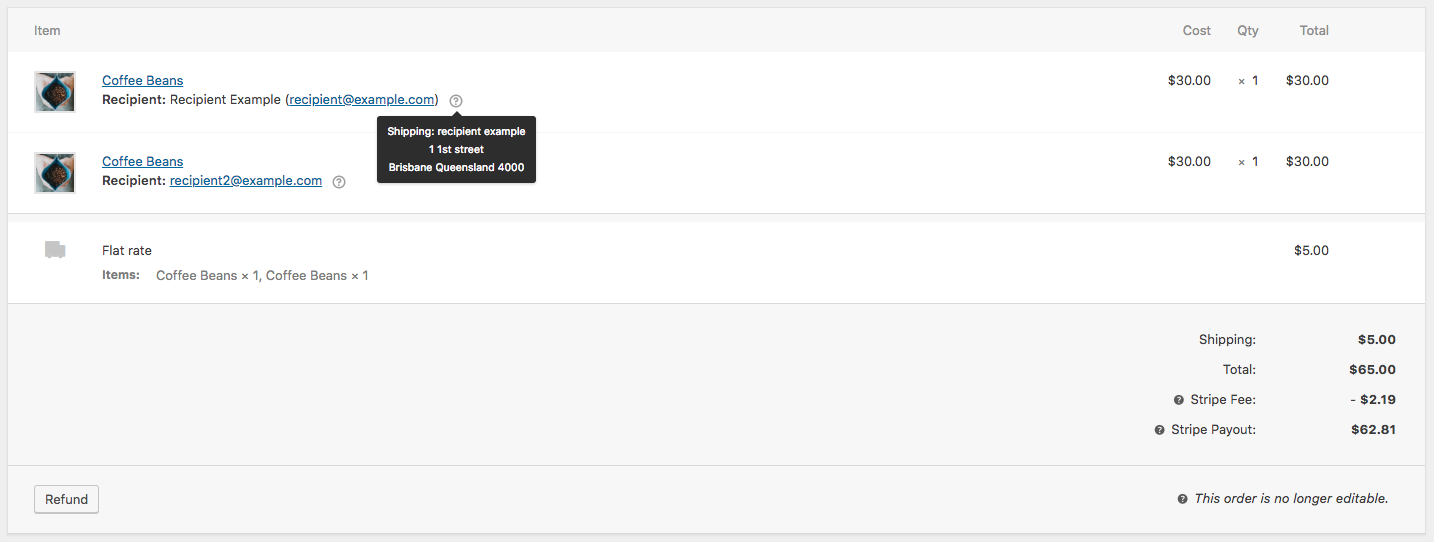
When an order containing a gifted subscription product is created, the gift recipient email is stored alongside their order line items. When processing orders, this allows store managers to see which line items in an order are being purchased for a recipient.
Add or modify the recipient
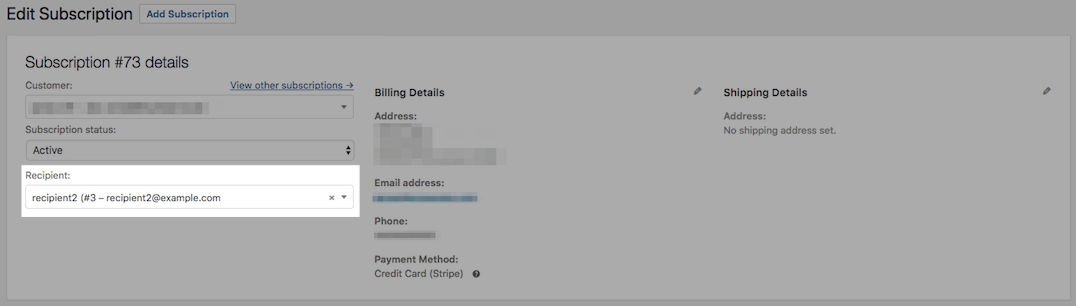
Store managers can add and edit a subscription’s recipient from the Edit Subscription administration screen.
If the recipient does not already have an account with your WordPress site, you should add the user via the Users > Add New administration screen before proceeding.
To manually add a recipient to a subscription:
- Click the Recipient select box.
- Type the first few letters of the name or email for the user.
- Click the recipient, after a matching account is loaded.
- Click Save Subscription.
Once you have added a recipient to the subscription, enter the recipient’s shipping address to be used for subscription shipments if applicable.
To add these details:
- Click the pencil icon next to Shipping Details.
- Fill in each shipping address field, entering the recipient’s details.
- Click Save Subscription.
Shipping address
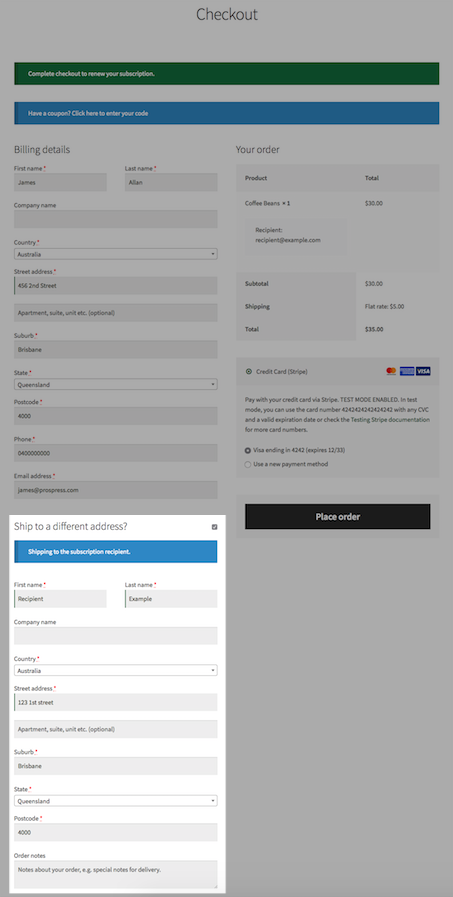
↑ Back to topWhen a subscription gift is purchased, the shipping address of the subscription is set to the recipient’s shipping address. This streamlines the process for customers proceeding through the checkout when purchasing subscription products for other users.
If the recipient does not have an account or has not set the shipping address on their account at the time of purchasing the subscription, the subscription’s shipping address will not be set and will display as N/A. This will be updated when the recipient logs in and enters their details on the Account Details page. Once the shipping address belongs to the recipient (see Shipping address privacy below), the purchaser sees Only the gift recipient can view the shipping address. instead of N/A or the address.
When the recipient pays for a renewal order or renews early through the checkout, the shipping fields are filled in with the shipping address saved in the recipient’s account.
Shipping address privacy
Starting in version 9.4.0, the gift’s shipping address belongs to the recipient once the recipient already had an account on your store, or has activated the account created for them. From then on, the purchaser:
- Sees Only the gift recipient can view the shipping address. in place of the address on My Account > View Subscription, on renewal orders created after that point, and in the emails for those renewal orders.
- No longer sees the Change address button for the subscription.
- Doesn’t get the address in their personal data export for the subscription or for renewal orders created after that point.
Until a newly invited recipient activates their account, the purchaser still sees the subscription’s shipping address (or N/A if none has been set). Renewal orders created before the recipient activated keep showing that original address. This applies to recipients who activate after your store updates to 9.4.0; for recipients who activated earlier, the address is withheld on all renewal orders. Store managers can always see and edit the address on the Edit Subscription screen. If you set an existing customer as the recipient on the Edit Subscription screen, the purchaser can no longer see the subscription’s shipping address either, even if they entered it themselves.
When the purchaser pays a renewal
Once the shipping address belongs to the recipient, if the purchaser pays a renewal order or renews early through the checkout, the checkout doesn’t show shipping fields and doesn’t change the subscription’s shipping address. Shipping costs, and taxes if your store calculates tax from the customer’s shipping address, are calculated from the shipping address already on the renewal order (or on the subscription, for an early renewal), and the renewal ships to that address. If there is no shipping address yet for the renewal to ship to, the checkout asks the purchaser for an address as usual. When the purchaser resubscribes to such a gift, the checkout doesn’t prefill the recipient’s address, and when the purchaser switches the subscription, its shipping address stays the same.
Email notifications
↑ Back to topIn order to keep recipients up-to-date with their gifted subscriptions, Gifting for WooCommerce Subscriptions sends the following emails:
- New Recipient Account email: Sent to a recipient when an account is created for them. This email is sent instead of the WooCommerce Customer New Account email for accounts created for gifted subscription recipients.
- New Initial Order – Recipient: Sent to recipients when an order has been placed which contains subscriptions purchased for them. The email contains the purchaser’s name, email and subscription information including the line items included.
- Processing Renewal Order email: Sent to a recipient when payment has been processed for a subscription now awaiting fulfillment for that billing period.
- Completed Renewal Order email: Sent to a recipient when the subscription renewal order is marked complete, indicating that an item for the renewal period has been shipped.
As with general WooCommerce emails, you can enable, disable, edit and customize these emails. To edit emails sent by Gifting for WooCommerce Subscriptions, go to WooCommerce > Settings > Emails.
Renewal order emails sent to the purchaser don’t include the recipient’s shipping address for renewal orders created after the recipient owns it. They show Only the gift recipient can view the shipping address. instead. Emails sent to the store admin always include the address.
Shared subscription management
↑ Back to topWhen a subscription product has been purchased for a recipient, both the recipient and purchaser have access to view and manage certain aspects of the subscription over its life-cycle via the My Account > View Subscription page.
The table below outlines the actions recipients and purchasers can make on subscriptions:
| Action | Recipient | Purchaser |
|---|---|---|
| View Subscription | ✓ | ✓ |
| Suspend Subscription | ✓ | ✓ |
| Reactivate Subscription | ✓ | ✓ |
| Cancel Subscription | ✓ | ✓ |
| Resubscribe | ✕ | ✓ |
| Change Shipping Address | ✓* | ✓ |
| Change Payment Method | ✕ | ✓ |
| Manually Renew | ✓ | ✓ |
| Switch (upgrade/downgrade) | ✕ | ✓ |
| View Parent Orders | ✕ | ✓ |
| View Renewal Orders | ✕ | ✓ |
*The purchaser can change the shipping address only until the recipient owns it, that is, until a newly invited recipient activates their account. If the recipient already had an account when the gift was bought, only the recipient can change it. See Shipping address above.
WooCommerce Memberships integration
↑ Back to topGifting for WooCommerce Subscriptions is also compatible with WooCommerce Memberships.
Purchasing subscription products tied to a membership plan for a recipient will grant the benefits of the membership to the recipient rather than the purchaser.
All the features of managing the memberships granted through subscription gifts remain intact – store managers can pause, edit, cancel, and delete memberships granted to recipients just as normal through the WooCommerce > Memberships administration screen.
Downloadable products
↑ Back to topGifting for WooCommerce Subscriptions includes special handling for downloadable products purchased as a gift.
When a downloadable product is purchased for a recipient, by default the recipient is granted the permissions to download the files attached to that product. It is also possible to grant download permissions to both recipient and purchaser.
To enable dual permissions:
- Go to the WooCommerce > Settings administration screen
- Click the Subscriptions tab
- Scroll down to the Gifting section
- Enable Allow gift purchasers to download files to grant download access to both the purchaser and the recipient.
Similar to the normal process for downloading files, recipients can download the files they have been granted access to from the My Account page and the My Account > View Subscription page.
Managing download access on a gifted subscription
↑ Back to topOn the Edit Subscription screen, the Downloadable product permissions box lists one row per person and file. Purchaser rows appear for access granted while Allow gift purchasers to download files is turned on, and for any access the purchaser already had before the subscription became a gift. Each row is labeled Recipient or Purchaser, followed by that person’s name, so you can see who holds each permission. Revoke access removes only the row you click, so you can remove the purchaser’s access to a file without removing the recipient’s, or the other way round. When you use Grant access, each person who receives access gets their own row, showing the name of the product it belongs to.
FAQs
↑ Back to topWhat happens if I delete a recipient’s account in WordPress?
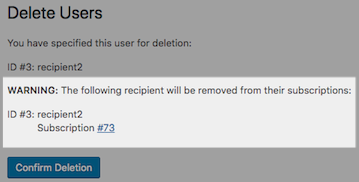
↑ Back to topWhen a website administrator deletes a recipient’s user account in WordPress, the recipient will also be removed from any subscription(s) they are associated with.
A warning message will be displayed outlining which subscriptions the user will be removed from.
It’s important to note that the subscription(s) will not be deleted. The subscription(s) will continue to behave as normal for the purchaser once the subscription recipient has been deleted.
Can I use Gifting for WooCommerce Subscriptions for corporate purchasing?
↑ Back to topIf your store is selling corporate products, it’s likely a purchasing officer may wish to buy and manage subscriptions for members of their team.
The Subscriptions Use Case: Corporate Purchasing steps through this use case in more detail.
Why can’t the purchaser see the gift’s shipping address?
↑ Back to topStarting in version 9.4.0, the shipping address of a gifted subscription is private to the recipient once the recipient has an account on your store, either because they already had one or because they activated the account created for them. The purchaser sees Only the gift recipient can view the shipping address. instead and can’t change the address (see Shipping address above). The store manager can still view and edit it on the Edit Subscription screen.