
WooPayments can accept payments in over 100 different currencies. However, if the customer’s currency differs from your account’s payout currency, you will be charged a currency conversion fee. To avoid these fees, you may be able to have funds in different currencies paid out into separate bank accounts.
When using multiple bank accounts, one must be chosen as the default. If you take a payment in a currency that doesn’t match the currency of one of your bank accounts, it will be converted into your default currency and paid out into the default account.
EXAMPLE: A merchant in Germany sells goods throughout Europe, and has a default bank account in Euros. They have also added a second bank account denominated in Swiss francs.
As a result, payouts for orders that were paid for in Swiss francs will be sent to the Swiss franc bank account. Payments for other orders will be converted to Euros (if needed) and paid out into the default Euro bank account.
Eligibility
↑ Back to topTo see if you are eligible to add bank accounts for additional currencies, consult the first chart below. Find your country in the Country column. The Available Payout Currencies column lists all the currencies you can accept payouts in.
| Country | Available Payout Currencies |
|---|---|
| Australia | AUD |
| Bulgaria | BGN, CHF, DKK, EUR, GBP, NOK, SEK, USD |
| Canada | CAD, USD |
| Czech Republic | CHF, CZK, DKK, EUR, GBP, NOK, SEK, USD |
| Hong Kong | HKD |
| Hungary | CHF, DKK, EUR, GBP, HUF, NOK, SEK, USD |
| Japan | JPY |
| New Zealand | NZD |
| Poland | CHF, DKK, EUR, GBP, NOK, PLN, SEK, USD |
| Romania | CHF, DKK, EUR, GBP, NOK, RON, SEK, USD |
| Singapore | SGD |
| United Arab Emirates | AED |
| United States | USD |
| Other supported countries | CHF, DKK, EUR, GBP, NOK, SEK, USD |
If your country only has a single currency listed, that means you can only accept payouts in that currency, and those payouts can only be sent to banks in your country. The rest of this section — including the second chart below — does not apply to you.
If your country does have multiple currencies listed, consult the second chart below, which lists the countries where you can pay out funds in each currency.
| Currency | Can be paid out to banks in… |
|---|---|
| AED | United Arab Emirates |
| AUD | Australia |
| BGN | Bulgaria |
| CAD | Canada |
| CHF | Liechtenstein, Switzerland |
| CZK | Czech Republic |
| DKK | Denmark |
| EUR | Austria, Belgium, Bulgaria, Croatia, Cyprus, Czech Republic, Denmark, Estonia, Finland, France, Germany, Gibraltar, Greece, Hungary, Ireland, Italy, Latvia, Liechtenstein, Lithuania, Luxembourg, Malta, Netherlands, Norway, Poland, Portugal, Romania, Slovakia, Slovenia, Spain, Sweden, Switzerland, United Kingdom |
| GBP | Gibraltar, United Kingdom |
| HKD | Hong Kong |
| HUF | Hungary |
| JPY | Japan |
| NOK | Norway |
| NZD | New Zealand |
| PLN | Poland |
| RON | Romania |
| SEK | Sweden |
| SGD | Singapore |
| USD | Canada (Canadian merchants only), United States |
Examples
↑ Back to top- Merchants in the United States only have a single currency listed in the first chart. This means that U.S. merchants can only accept payouts into USD-denominated accounts in the United States.
- Merchants in Canada can accept payouts in both CAD and USD, as shown in the first chart. According to the second chart, their CAD payouts can only be sent to banks in Canada, but their USD payouts can be sent to banks in either Canada or the U.S.
- Merchants in Finland can accept payouts in many currencies. They can pay out CHF balances to banks in either Liechtenstein or Switzerland, DKK to banks in Denmark only, EUR to many European countries, and so on. They can accept USD as well, but only if their USD bank account is through a U.S. bank.
Adding multiple bank accounts
↑ Back to topIf you are eligible to pay out funds into bank accounts in multiple currencies, you can do so by following the steps below.
- Log into your Stripe Express account.
- Scroll down to the Payout Details section at the bottom of the Settings page.
- Click the Add bank account button.
- In the Currency box, select the currency of the new bank account.
- Fill out the bank account information and click the Save button at the bottom.
- Both bank accounts will be shown, along with the currency each one accepts.
- At the top, click the Sign Out button to sign out of the Stripe Express dashboard.
The video below shows how to complete this process from beginning to end, starting in the WordPress admin dashboard. (Note that, because the video uses a test account, it auto-fills bank account info, whereas you will need to manually enter those items.)
NOTE: Although you can add more than one bank account per currency, only one of those (whichever one is set as the default) will receive payouts.
Default bank account
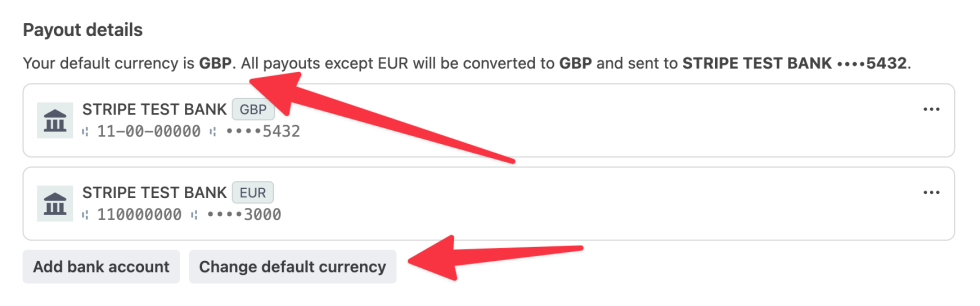
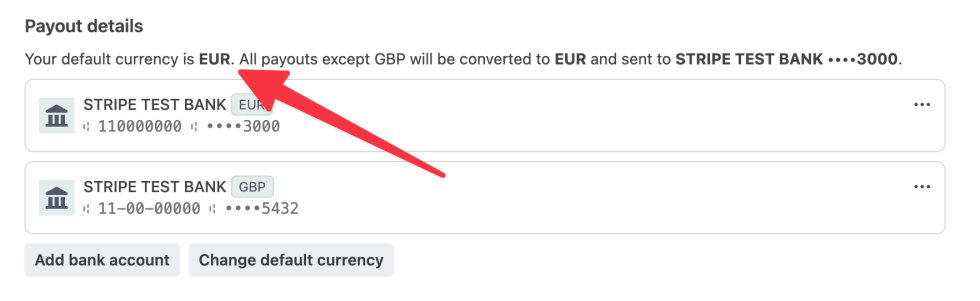
↑ Back to topAs noted above, all payments made in a currency without a matching bank account will be converted to the currency of your default bank account and paid out there.
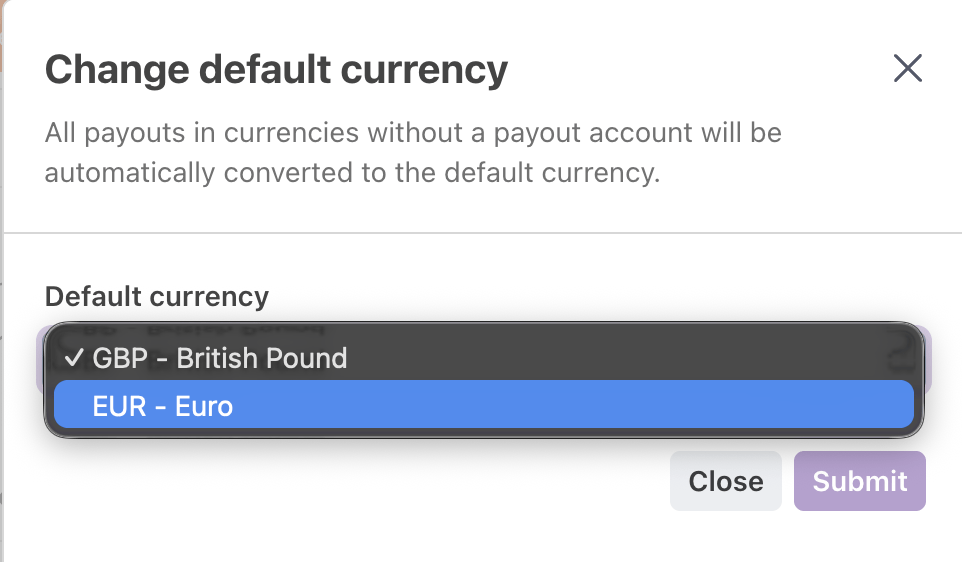
To set your default bank account, begin by following the same instructions as above to add at least one additional bank account. After you’ve added multiple accounts, you can change the default by clicking Change default currency and picking which currency you would like to use as the default.
Viewing payouts with multiple currencies
↑ Back to topIf you’ve added multiple bank accounts, WooPayments will create separate payout balances for each currency, shown on the Payments > Overview page. Use the dropdown to switch between currencies.


Additionally, the Payments > Payouts page and the Payments > Transactions page will show a filter allowing you to see payouts or transactions for a single currency, or everything together.
