
WooCommerce Home brings together setup tasks, store activity, performance data, and shortcuts for managing your store. Go to WooCommerce > Home to open it.
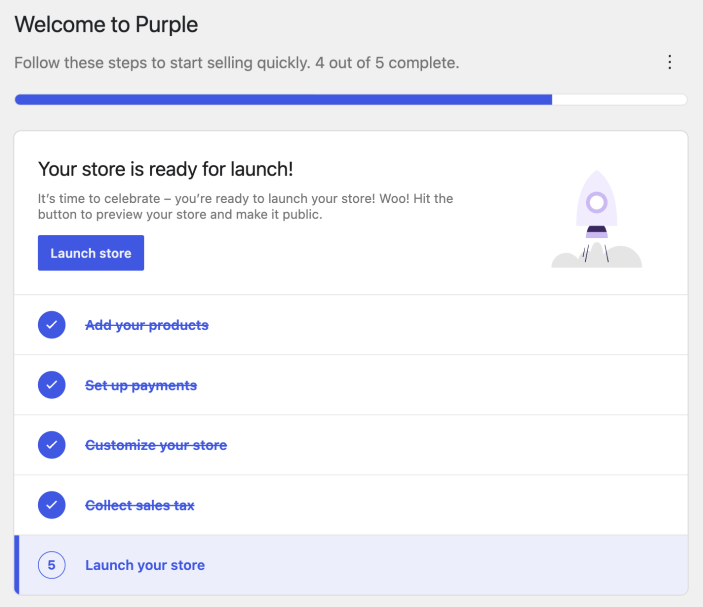
Display settings
↑ Back to topUse Display options in the upper-right corner of WooCommerce Home to choose a Single column or Two columns layout.
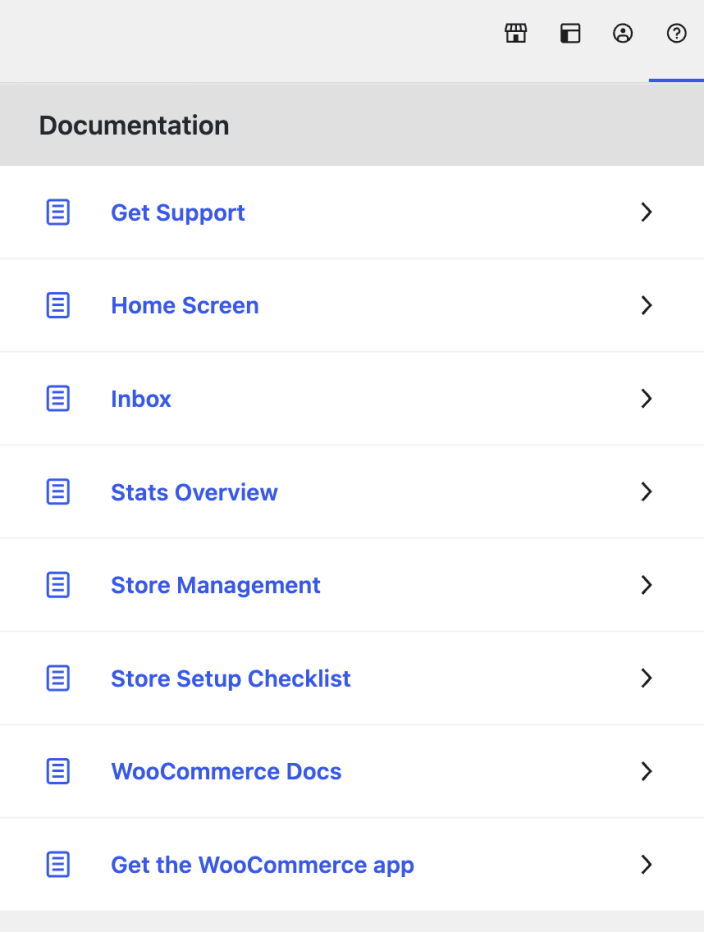
Help menu
↑ Back to topSelect Help in the upper-right corner to open links to WooCommerce documentation, support, and the Woo mobile app.
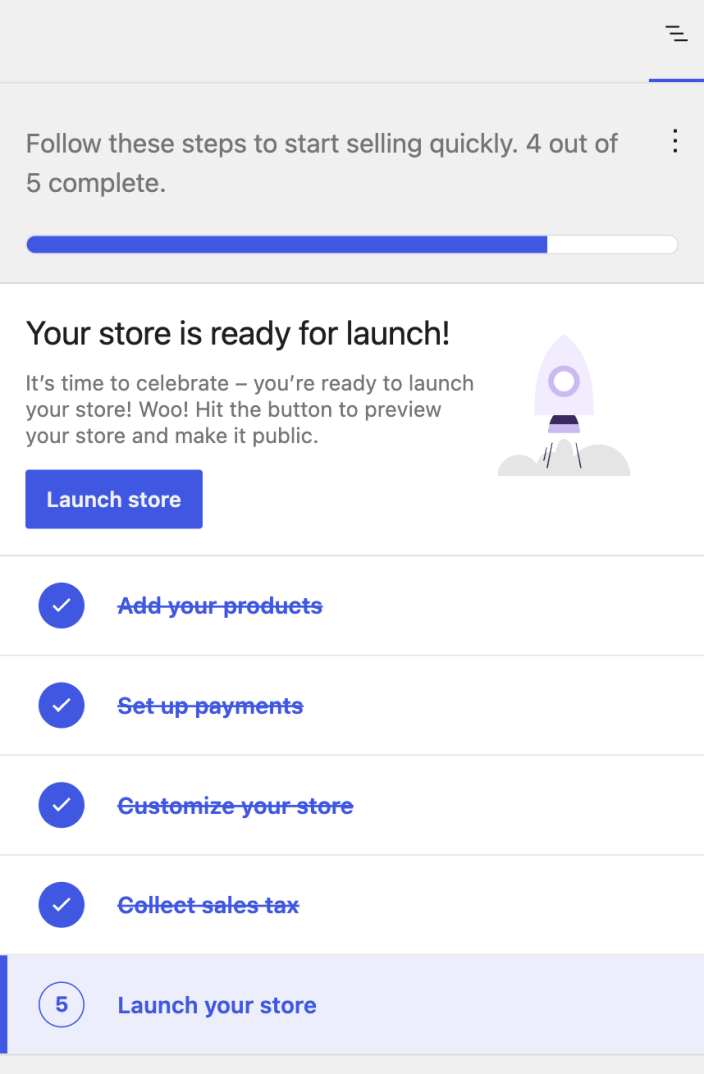
Store setup checklist
↑ Back to topNew stores can use the setup checklist to work through the essential tasks for getting ready to sell. Select a task to open its instructions, or visit the Setup Wizard documentation for more detail.
To remove the checklist from WooCommerce Home, open the ellipsis menu in its upper-right corner and select Hide setup list.
After you hide the setup checklist, WooCommerce does not currently provide a control for restoring it. Hide the checklist only when you no longer need the setup tasks.
Open setup tasks from another WooCommerce screen
↑ Back to topIf your account can manage WooCommerce and the setup list is visible and incomplete, a Finish setup tab is available on many WooCommerce admin screens outside Home. Select it to open the setup tasks without returning to WooCommerce Home. It is not available after you hide the setup list or complete the setup tasks.
Home after setup
↑ Back to topAfter the setup checklist is hidden or completed, WooCommerce Home focuses on ongoing store management. It can include Things to do next, Inbox, Stats overview, and Store management.
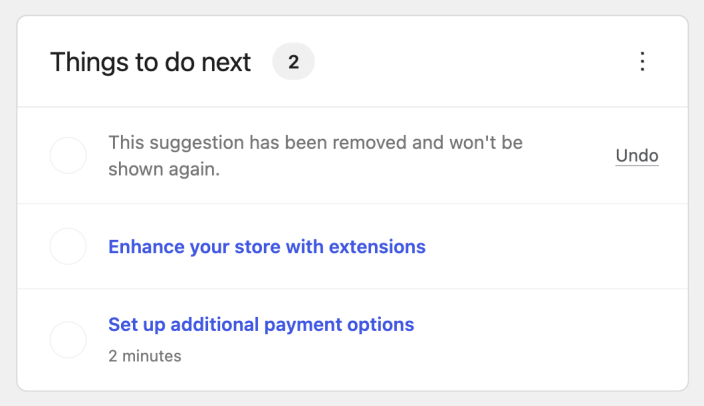
Skip a task in Things to do next
↑ Back to topIn Things to do next, select Skip beside an incomplete task that supports dismissal. WooCommerce marks the task as removed and displays an Undo action beside it. Select Undo to restore the task. If skipping or restoring fails, WooCommerce returns the task to its previous state and shows a problem notice. Try the same action again. Skipping one task does not hide the setup checklist; use Hide setup list only when you want to remove that checklist.
Inbox
↑ Back to topThe Inbox contains store notices, extension activity, achievements, and suggestions that can help with day-to-day store management. Select Dismiss on a message when you no longer need it.
To turn off marketplace suggestions, go to WooCommerce > Settings > Advanced > WooCommerce.com and disable Marketplace suggestions.
Stats overview
↑ Back to topStats overview provides a quick view of store performance for today, the week to date, or the month to date. Open the ellipsis menu in the section to choose which available metrics appear.
- Total sales — gross sales minus returns and coupons, plus taxes and shipping.
- Net sales — gross sales minus returns and coupons.
- Orders — the number of new orders placed during the selected period.
- Products sold — the number of items sold during the selected period.
Select View detailed stats to open the Analytics Overview dashboard.
Store management
↑ Back to topThe Store management section provides shortcuts to common marketing, merchandising, and settings areas:
- Marketing — opens Marketing > Overview.
- Add products — opens the Add new product screen.
- Personalize my store — opens the Site Editor or Customizer, depending on the active theme.
- View my store — opens the storefront.
- Store details — opens WooCommerce > Settings > General.
- Payments — opens WooCommerce > Settings > Payments.
- Tax — opens WooCommerce > Settings > Tax.
- Shipping — opens WooCommerce > Settings > Shipping.
Sign in to the Woo mobile app
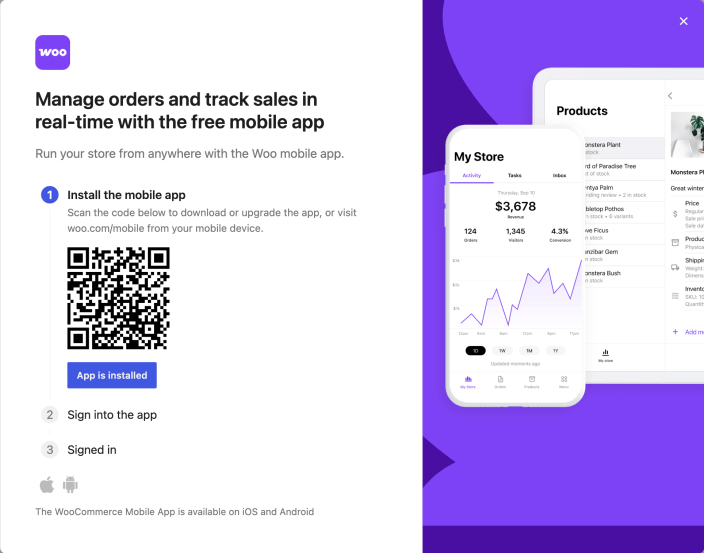
↑ Back to topStore administrators can start the Woo mobile app sign-in flow from WooCommerce Home:
- Select Help in the upper-right corner.
- Select Get the WooCommerce app.
- Scan the QR code to install or open the app, then follow the on-screen steps to sign in.
Questions and support
↑ Back to topDo you still have questions and need assistance?
This documentation is about the free, core WooCommerce plugin, for which support is provided in our community forums on WordPress.org. By searching this forum, you’ll often find that your question has been asked and answered before.
If you haven’t created a WordPress.org account to use the forums, here’s how.
- If you’re looking to extend the core functionality shown here, we recommend reviewing available extensions in the WooCommerce Marketplace.
- Need ongoing advanced support or a customization built for WooCommerce? Hire a Woo Agency Partner.
- Are you a developer building your own WooCommerce integration or extension? Check our Developer Resources.
If you weren’t able to find the information you need, please use the feedback thumbs below to let us know.