
Smart Product Designer allows your customers to design and personalize products before they buy. Upload images, add text, insert shapes and cliparts, generate QR codes and see exactly what they’re getting.
Installation
↑ Back to topTo start using a product from WooCommerce.com, you can use the “Add to store” functionality on the order confirmation page or the My subscriptions section in your account.
- Navigate to My subscriptions.
- Find the Add to store button next to the product you’re planning to install.
- Follow the instructions on the screen, and the product will be automatically added to your store.
Alternative options and more information at:
Managing WooCommerce.com subscriptions.

Setup and Configuration
↑ Back to topThis plugin works out of the box with no setup needed.
Getting Started
↑ Back to topNavigate to the Smart Product Designer page (WordPress admin > Products > Smart Product Designer).
Creating Design Templates
↑ Back to top- Navigate to the Design Templates tab and click “Add New Design Template” Add a title for the template (e.g., “T-shirt Design”) Add product sides by clicking the ‘Add’ button in the Product Sides section:
- Add sides like Front, Back, etc., with an icon image and background image.
- The background image appears as the base canvas in the editor where users add text, shapes, or icons.
- To enable color changes on the image, use a transparent PNG background.
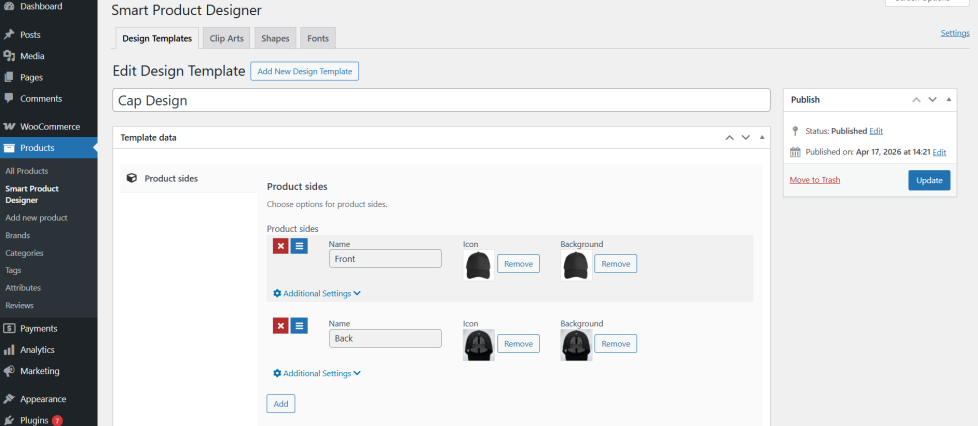
5. Click on ‘Additional settings‘ to configure other settings for the template like Canvas Width, Canvas Height, Max size of design area etc.
6. After adding all details, click ‘Publish’ and the design template is ready to be assigned to products or variations.
Adding Shapes and Clip Arts with Pricing
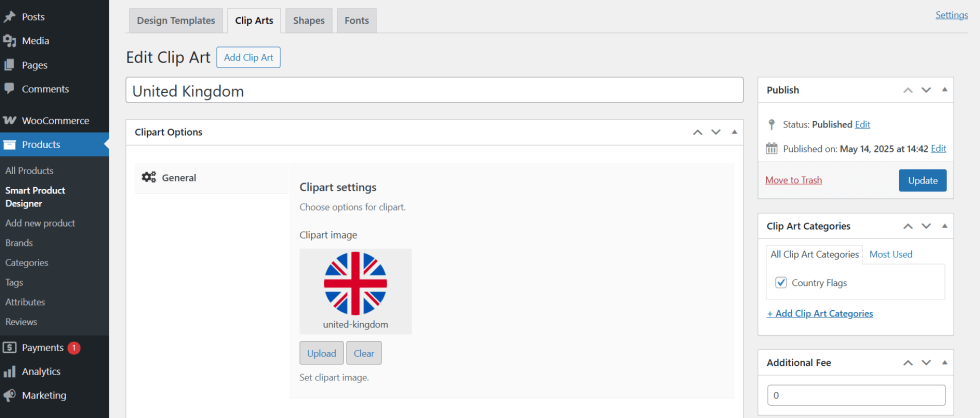
- To add shapes, go to the Shapes tab under WordPress Admin > Products > Smart Product Designer.
- Click “Add Shape” and set an additional fee or price if needed (using the Additional Fee field).
- Follow the same steps for adding cliparts.
Assigning the Design Template to Products
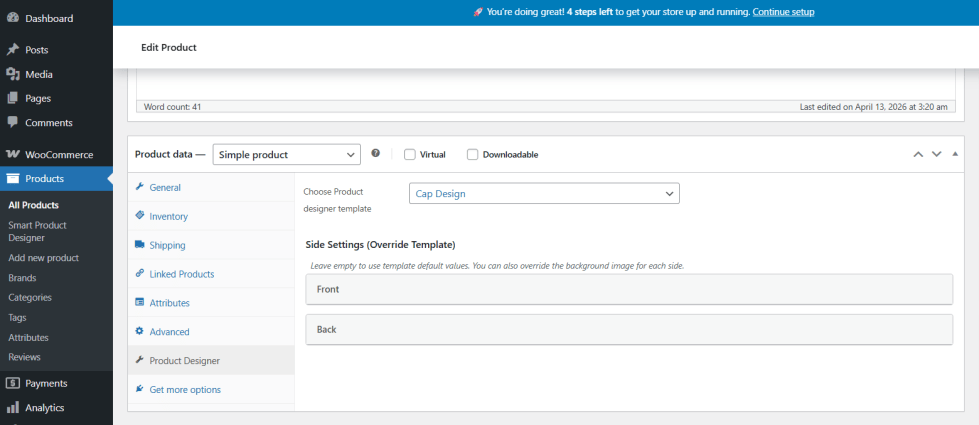
↑ Back to top- Edit any WooCommerce product from WordPress Admin > Products Go to the Product Designer tab under the Product Data section.
- Select your template from the “Choose product designer template” dropdown (e.g., “T-shirt Design”).
- Click Update. The product is now configured with a ready to use design template.
Override Design Template Settings for a Product
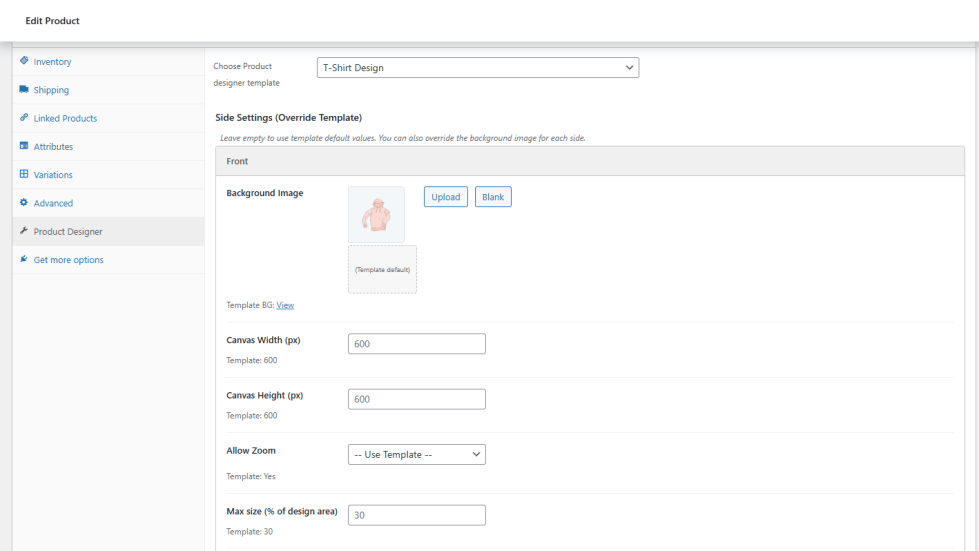
↑ Back to topSmart Product Designer lets you override the default design template settings at the product or variation level, without creating a separate template for each product. This is useful when you want to use a different canvas size, background image, or a blank canvas for a specific product or variation.
Once you have selected a design template for the product, scroll down to the Side Settings (Override Template) section. From here you can update settings such as canvas size, background image, or blank canvas option for that specific product.
These changes apply only to this product or variation. The original design template remains unchanged and continues to work as normal for all other products it is assigned to.
Adding Designs to Products and Purchasing Them
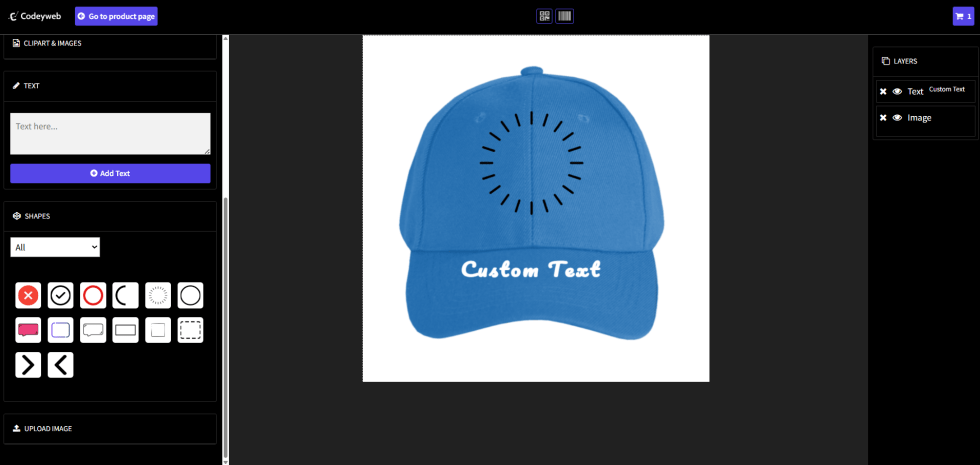
↑ Back to top- When viewing products on the frontend (shop page or single product page), you’ll see a design button near the “Add to Cart” button. Click it to start designing.
- This opens the designer page where customers see product details (attributes, price, etc.) and can design each product side you configured in the template.
- Customers can add text, shapes, images, and more, then click “Add to Cart”. Click the cart icon at the top to view the cart.
Viewing Product Designs After Purchase
↑ Back to top- Customers will see their designed products with all sides displayed on the cart and checkout pages. They can proceed with checkout normally.
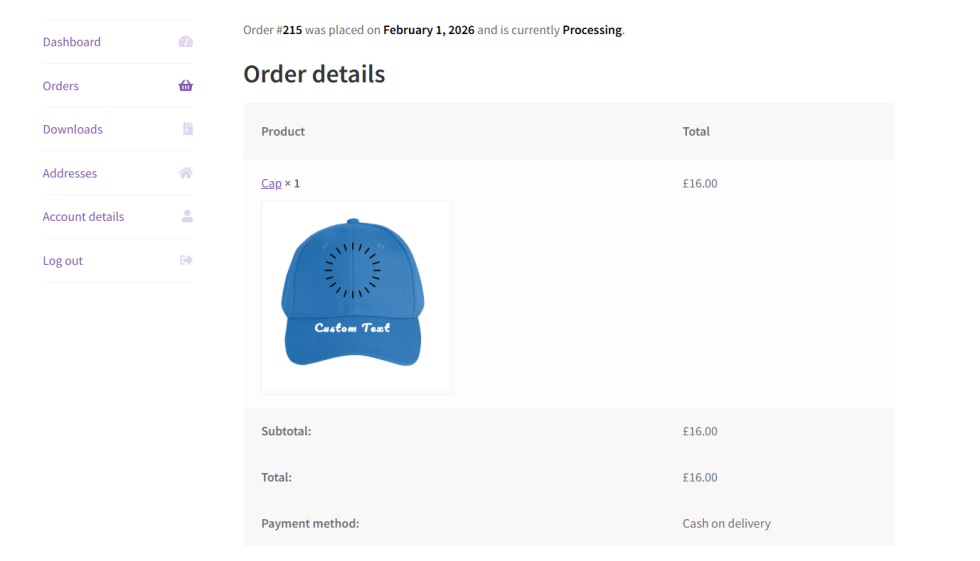
2. After purchase, customers can view their designs from the My Account > Orders page.
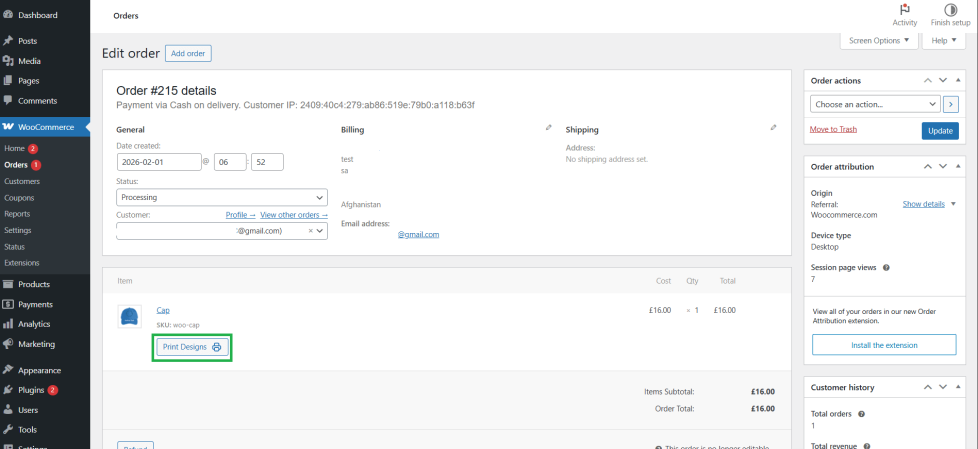
3. Store admins can view and print designs from WordPress Admin > WooCommerce > Orders (order edit page).
Smart Product Designer Settings
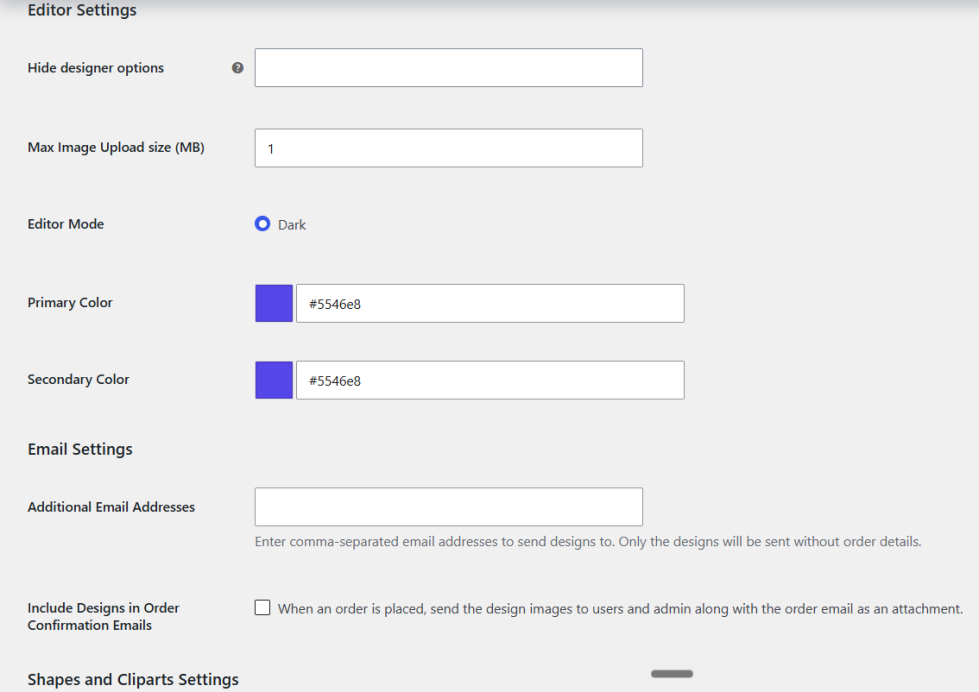
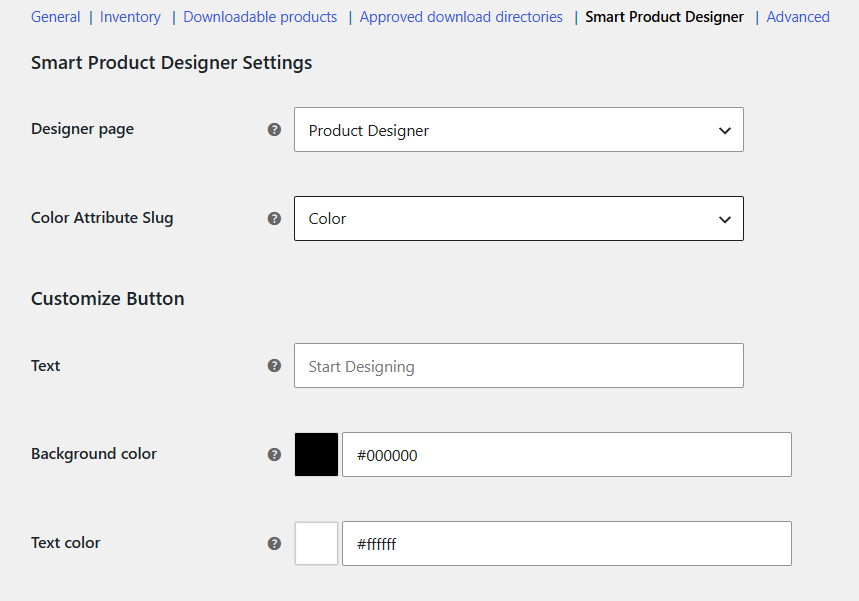
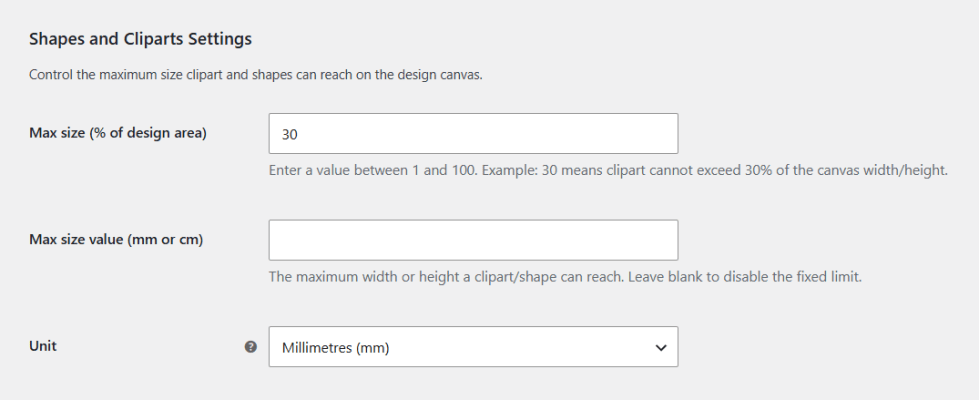
↑ Back to top- To access settings, go to WordPress Admin > WooCommerce > Settings, then click the Products tab and select Smart Product Designer from the sub-tabs links.
- You’ll see various settings options like Designer Page, Customize Button Text, and more. Each setting includes an info icon (ℹ️) explaining its purpose. Configure these based on your preferences.
How to guides
↑ Back to top- The Complete Guide to Product Personalization in WooCommerce (2026)
- How to Set Up a Print-on-Demand Store and Start Selling Fast
- How to Let Customers Design Their Own Products on Your Store
- How to Sell Variable Products with Custom Design Options
- How to Set Up Dynamic Pricing for Print-on-Demand Products
- How Real-Time Product Previews Increase WooCommerce Conversions
FAQs
↑ Back to topHelp customers by answering commonly asked questions.
What types of products can I use this plugin with?
The plugin works with any WooCommerce product type including T-shirts, mugs, phone cases, business cards, caps, posters, and more. It supports both simple and variable products.
Can I see what customers designed before printing?
Yes, you can view and print customer designs directly from the WooCommerce order edit screen.
Can customers design multiple sides of a product (front/back)?
Yes, the plugin supports multi-side customization. You can create design templates with multiple product sides (e.g., front, back, sleeves).

