
Green Power Store is a modern Full Site Editing (FSE) WooCommerce WordPress theme specifically designed for businesses in the solar energy, smart home technology, and green energy sectors. Built with sustainability and innovation in mind, this theme provides everything you need to create a professional online store for eco-friendly products.
Installation
↑ Back to topTo start using a product from WooCommerce.com, you can use the “Add to store” functionality on the order confirmation page or the My subscriptions section in your account.
- Navigate to My subscriptions.
- Find the Add to store button next to the product you’re planning to install.
- Follow the instructions on the screen, and the product will be automatically added to your store.
Alternative options and more information at:
Managing WooCommerce.com subscriptions.

Demo Content Import
↑ Back to topGreen Power Store includes a built-in Merlin setup wizard that makes it easy to import demo content and get your site up and running quickly.
Running the Setup Wizard
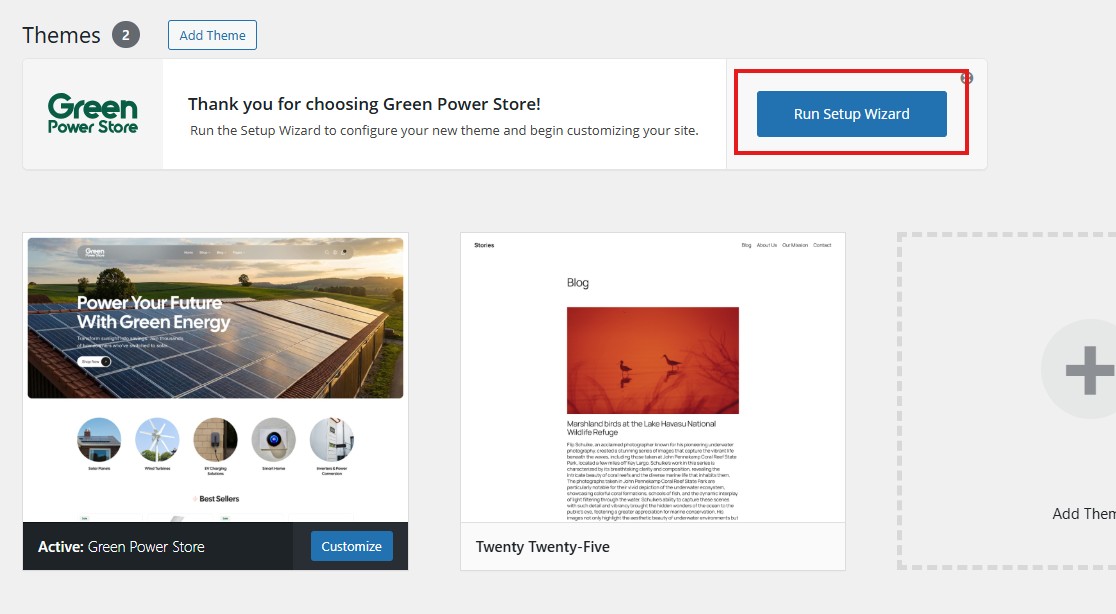
↑ Back to top- After activating the Green Power Store theme, you’ll see a notification prompting you to run the setup wizard.
- Click the Run Setup Wizard button to get started.
- You’ll be redirected to the Merlin setup wizard interface.
Installing Required Plugins
↑ Back to topThe setup wizard will first guide you through installing the required plugins:
- Review the list of recommended plugins (including WooCommerce and other essential plugins).
- Select the plugins you want to install by checking the boxes next to them.
- Click Continue to install and activate the selected plugins.
- Wait for the installation process to complete.
Importing Demo Content
↑ Back to topAfter the plugins are installed, you can import the demo content:
- The wizard will present you with the demo content import option.
- Click the Import button to begin importing demo content.
- Wait for the import process to complete. This may take a few minutes as the wizard imports pages, posts, products, images, and theme settings.
- Once complete, you’ll see a success message.
Note: The demo import will add sample pages, posts, products, images, and theme settings to your site. It will not delete your existing content.
Note: The demo import will add sample pages, posts, products, images, and theme settings to your site. It will not delete your existing content.
Setting Up Your Logo
↑ Back to top- Go to Appearance > Editor.
- In the Site Editor, navigate to Patterns > Header, and click the Header pattern.
- Locate the Image block that represents the logo and replace it with your own logo.
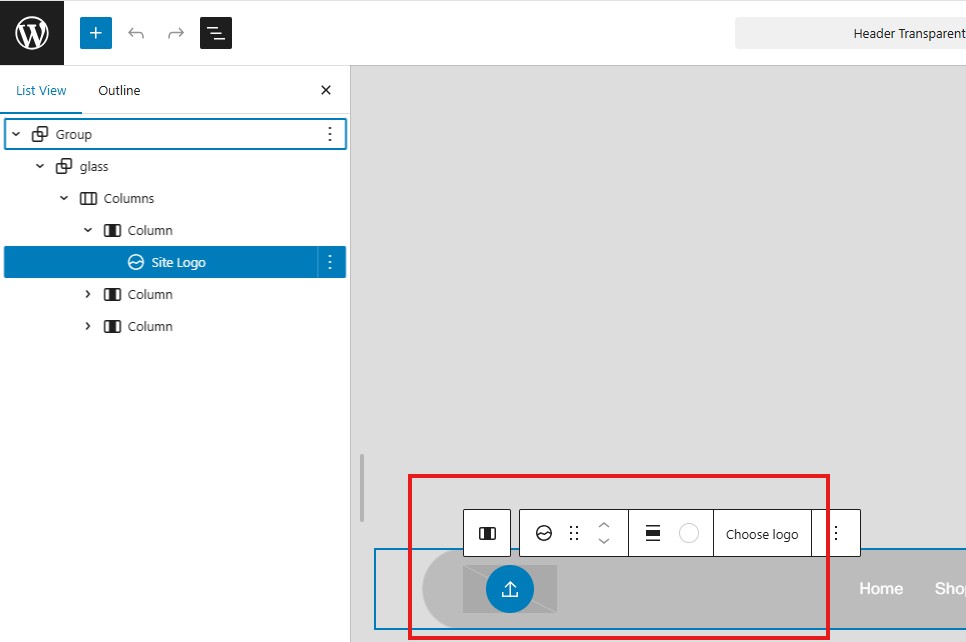
Green Power Store includes two header variations: header and header-transparent. The regular colored logo is used in the default header, while the transparent header uses the same logo with a duotone filter applied that automatically converts it to a white version. This means you only need to upload one logo, and the theme will handle the color variations automatically.
Site Header Setup
↑ Back to topTo update or change your site’s header template, follow these steps within the Site Editor. You can do the same for any template part block (such as the Header or Footer) to change its design if an alternative is available.
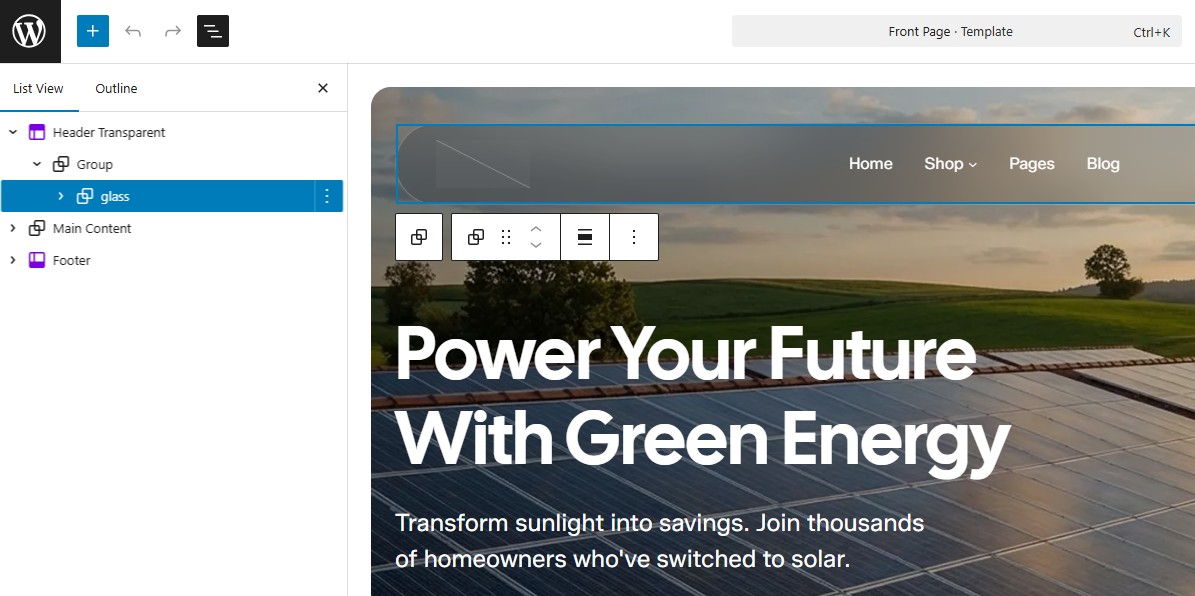
- Open the List View Panel – Ensure you are in the Site Editor. Open the List View panel, which displays a listing of blocks on the page. This panel is typically found on the left side of the editor.
- Select the Header Block – In the List View panel, locate the header block and click it.
- Choose a New Header Template – In the Block settings panel, expand the Design option group to reveal available templates and choose the template you want to apply.
- Save Your Changes – Once you’ve finished, click Save in the top-right corner to apply the changes to your site.
Navigation & Menus
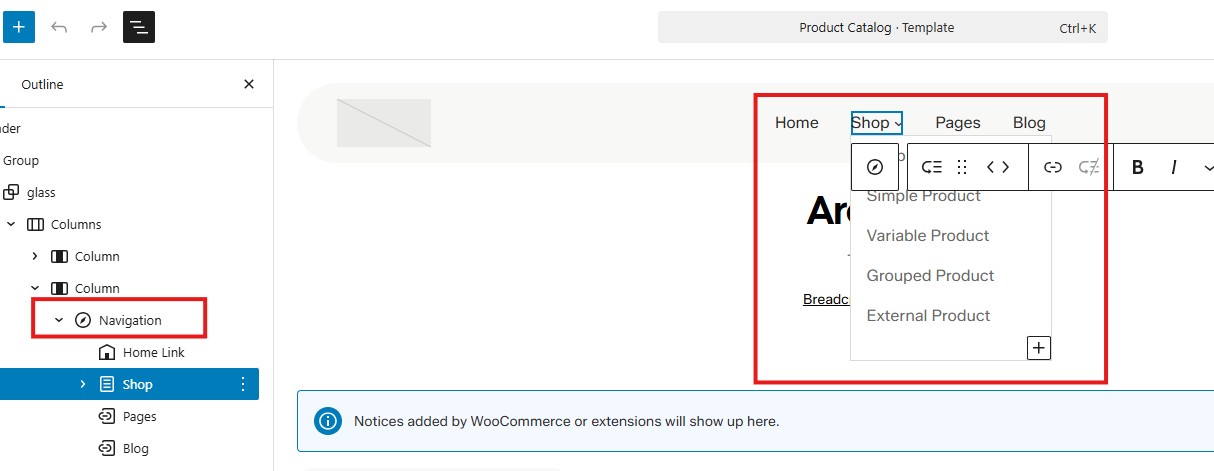
↑ Back to top- Go to Appearance > Editor.
- In the Site Editor, navigate to Patterns > Header, click Header pattern.
- Locate the header Navigation block.
- Click the Plus (+) icon to add links to pages, products, posts or custom URLs.
- To switch to a different menu, use the More Settings option inside the Navigation block.
- Click ‘Save’ to apply the changes.
Mobile Navigation
↑ Back to topGreen Power Store includes responsive navigation that automatically adapts to mobile devices. The mobile menu typically appears as a hamburger icon on smaller screens.
To customize the mobile navigation:
- Go to Appearance > Editor and select your header template.
- Click on the Navigation block.
- In the block settings, you can adjust mobile menu options such as:
- Overlay menu style
- Menu icon appearance
- Submenu background and color styles
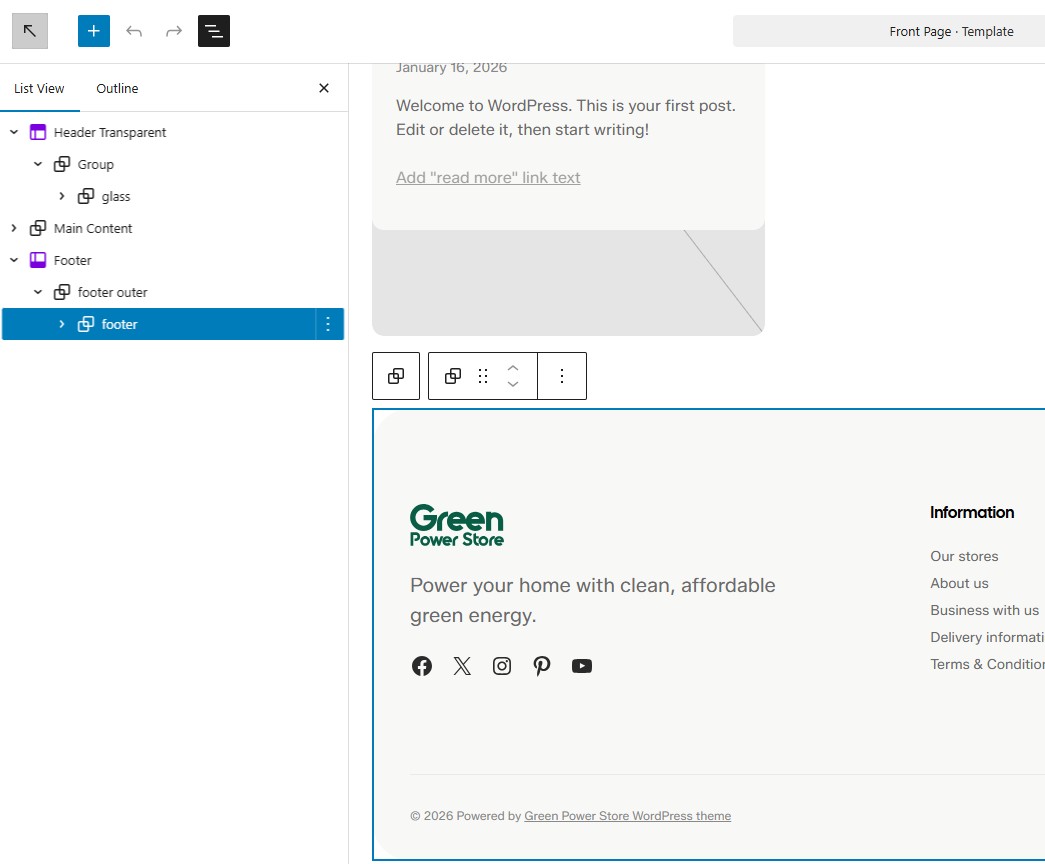
Site Footer Setup
↑ Back to topTo update or change your site’s footer template, follow the same process as the header setup:
- Open the List View Panel – In the Site Editor, open the List View panel on the left side.
- Select the Footer Block – In the List View panel, locate the footer block and click it. Make any required changes.
- Save Your Changes – Click Save in the top-right corner to apply the changes.
Customizing Your Site
↑ Back to topAccessing the Site Editor
↑ Back to topGreen Power Store is a Full Site Editing theme, which means you can customize every aspect of your site using the WordPress Site Editor.
- Navigate to Appearance > Editor in your WordPress dashboard.
- The Site Editor will open, showing you a preview of your site.
- Use the navigation panel on the left to access different templates, template parts, and patterns.
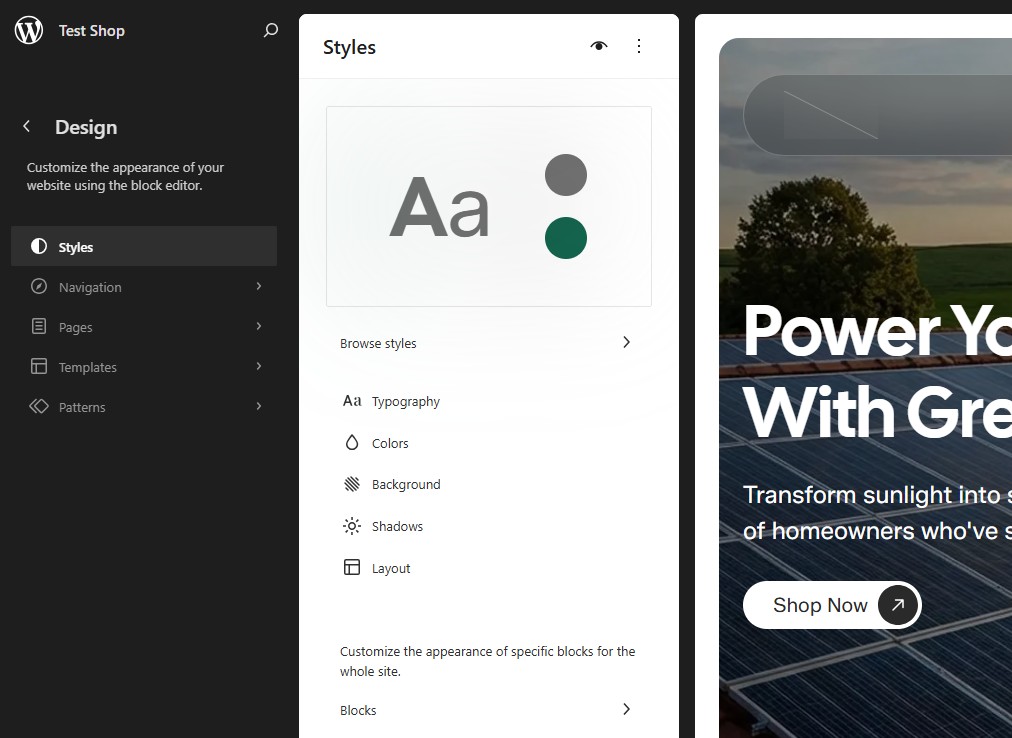
Global Styles and Color Schemes
↑ Back to topGreen Power Store includes 5 pre-designed color schemes perfect for green energy brands. To change your site’s color scheme:
- In the Site Editor, click the Styles icon in the top-right corner (it looks like a palette).
- Click Browse styles to see the available color schemes.
- Click on any color scheme to preview it on your site.
- Once you’ve found the one you like, click Save to apply it.
You can also customize individual colors by clicking on the Colors section within the Styles panel and adjusting the color values.
Typography Settings
↑ Back to topTo customize your site’s typography:
- In the Site Editor, click the Styles icon.
- Click on the Typography section.
- You can adjust font families, sizes, line heights, and letter spacing for different text elements.
- Changes will be applied globally across your entire site.
Layout Options
↑ Back to topTo adjust your site’s layout settings:
- In the Site Editor, click the Styles icon.
- Click on the Layout section.
- Adjust the content width, wide width, and padding settings to control how content is displayed.
- Click Save to apply your changes.
Homepage Setup
↑ Back to topSetting a Static Homepage
↑ Back to top- Go to Settings > Reading in your WordPress dashboard.
- Under “Your homepage displays,” select A static page.
- Choose the page you want to use as your homepage from the dropdown menu.
- Optionally, select a page for your blog posts.
- Click Save Changes.
Tip:
If you used demo content import, your homepage will be asssigned automatically
Customizing Homepage Sections
↑ Back to topTo customize individual sections on your homepage:
- Click on any block or pattern on your homepage.
- Use the block toolbar and settings panel on the right to modify text, images, colors, and spacing.
- You can also use the List View panel to see the structure of your page and navigate between sections easily.
Homepage Template Customization
↑ Back to topTo customize the homepage template itself:
- Go to Appearance > Editor.
- Click on Templates in the left sidebar.
- Find and click on the Front Page template.
- Make your desired changes to the template structure.
- Click Save to apply your changes.
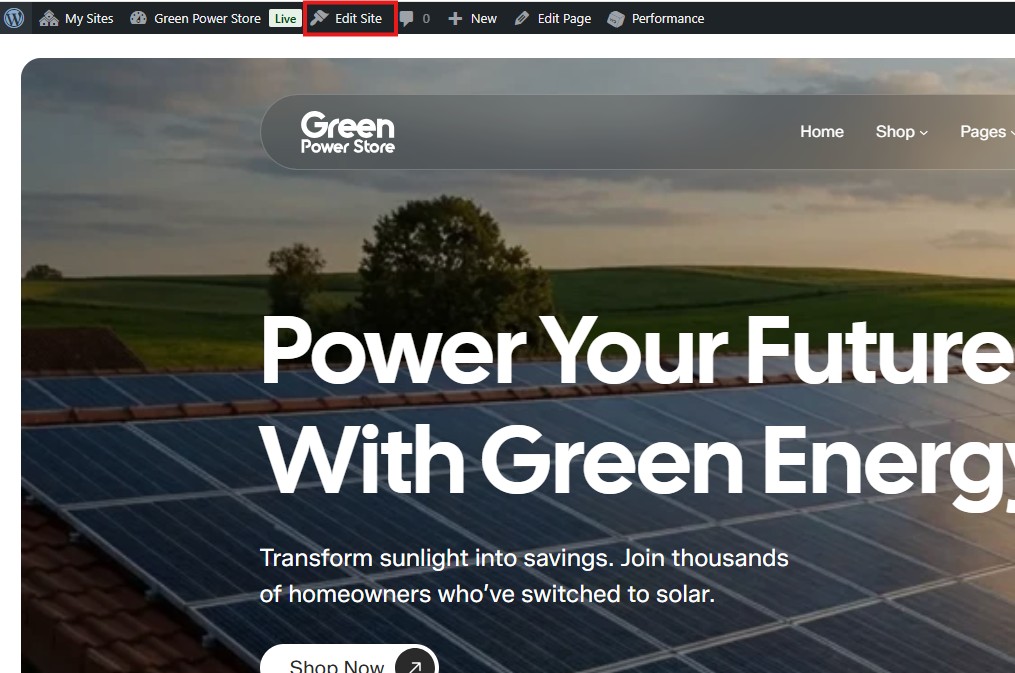
Or, when viewing the front-page of your site, click on the Edit Site icon in the top bar.
Block Patterns
↑ Back to topOverview of Included Patterns
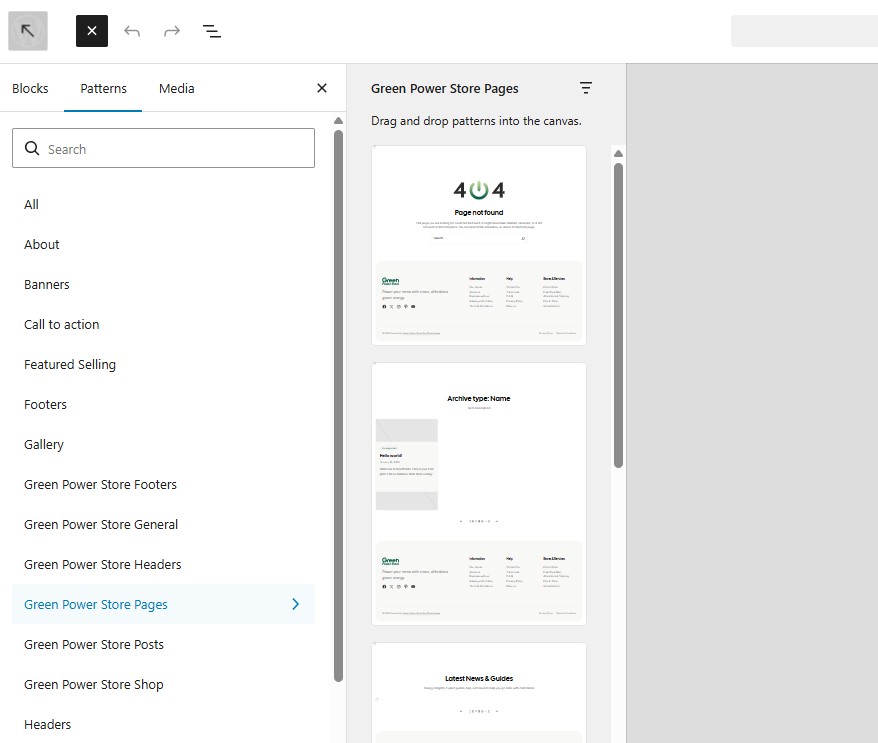
↑ Back to topGreen Power Store includes 30 pre-designed block patterns to help you build professional pages quickly. These patterns are organized into the following categories:
- Green Power Store General – Versatile patterns for various sections including hero sections, features, testimonials, calls-to-action, and content blocks
- Green Power Store Headers – Pre-designed header layouts with different navigation styles
- Green Power Store Footers – Footer designs with different column layouts and widget areas
- Green Power Store Posts – Blog post layouts and archive page designs
- Green Power Store Pages – Complete page layouts for about, contact, and other standard pages
- Green Power Store Shop – WooCommerce-specific patterns for product showcases, category displays, and shop sections
How to Insert Patterns
↑ Back to top- While editing any page or post, click the + icon to add a new block.
- Click on the Patterns tab at the top of the inserter panel.
- Browse through the available patterns or use the search function to find specific patterns.
- Click on any pattern to insert it into your page.
Customize Blog Index Page
↑ Back to topAccessing the Blog Archive Template
↑ Back to topTo customize how your blog posts are displayed on the blog index page:
- Go to Appearance > Editor.
- Click on Templates in the left sidebar.
- Find and click on the Index template.
- The template editor will open, allowing you to customize the layout and design.
Layout Options
↑ Back to topWithin the blog archive template, you can customize:
- Query Loop Settings – Click on the Query Loop block to adjust how many posts are displayed per page, post order, and which categories to include or exclude.
- Post Template – Customize how individual post excerpts appear by editing the blocks within the Post Template, such as the featured image, title, excerpt, date, and author.
- Spacing and Alignment – Adjust padding, margins, and alignment to achieve your desired layout.
Sidebar Configuration
↑ Back to topGreen Power Store includes an Archive with Sidebar template that you can assign to your blog index page if you want to display a sidebar:
- In the Site Editor, go to Templates.
- Find the Archive with Sidebar template.
- Customize the sidebar content by editing the template and adding blocks to the sidebar area.
- Save your changes.
To use this template for your blog, you may need to assign it as your archive template through the template settings.
Customize Single Blog Posts
↑ Back to topSingle Post Template Customization
↑ Back to topTo customize the layout of individual blog posts:
- Go to Appearance > Editor.
- Click on Templates in the left sidebar.
- Find and click on the Single Posts template.
- Customize the template structure, including header, content area, and footer.
- Click Save when finished.
Featured Image Settings
↑ Back to topTo control how featured images appear on single posts:
- In the Single Post template, click on the Post Featured Image block.
- In the block settings panel on the right, you can adjust:
- Image dimensions and aspect ratio
- Alignment
- Border radius and other styling options
Customize Shop Page
↑ Back to topShop Page Layout Options
↑ Back to topTo customize your WooCommerce shop page:
- Go to Appearance > Editor.
- Click on Templates in the left sidebar.
- Find and click on the Products by Category or Product Catalog template.
- Customize the layout, spacing, and design of the shop page.
Product Grid Settings
↑ Back to topTo adjust how products are displayed in the grid:
- In the shop template, click on the Product Collection block.
- In the block settings, you can adjust:
- Number of columns (2, 3, 4, or more)
- Product order (newest, price, popularity, etc.)
- Spacing between products
WooCommerce Setup
↑ Back to topProduct Page Customization
↑ Back to topTo customize individual product pages:
- Go to Appearance > Editor.
- Click on Templates and find the Single Product template.
- Customize the layout of product images, titles, descriptions, pricing, and add-to-cart buttons.
- You can add additional blocks like testimonials, related products, or custom content sections.
Cart and Checkout Styling
↑ Back to topTo customize the cart and checkout pages:
- Navigate to WooCommerce > Settings > Advanced.
- Set your Cart and Checkout pages if not already configured.
- Go to Appearance > Editor > Templates and find the Page: Cart and Page: Checkout templates.
- Customize these templates to match your site design.
Product Categories
↑ Back to topTo manage and organize your product categories:
- Go to Products > Categories in your WordPress dashboard.
- Add new categories or edit existing ones.
- You can add category descriptions and images that will be displayed on category archive pages.
- To customize the category archive template, go to Appearance > Editor > Templates and edit the Product by Category template.
Page Templates
↑ Back to topAvailable Templates
↑ Back to topGreen Power Store includes several pre-built templates for different page types:
- Default Template – Standard page layout
- Page Transparent Header – Page layour with a transparent header
- Blank – Minimal template with no header or footer (useful for landing pages)
Creating Custom Templates
↑ Back to topTo create your own custom page template:
- Go to Appearance > Editor.
- Click on Templates in the left sidebar.
- Click the + icon to add a new template.
- Select the template type (Page, Single Post, Archive, etc.).
- Build your template using blocks and patterns.
- Save your template with a descriptive name.
Once created, you can apply your custom template to any page by editing the page and selecting the template from the Template option in the page settings sidebar.
Troubleshooting
↑ Back to topCommon Issues and Solutions
↑ Back to topIssue: Demo content didn’t import properly
- Solution: Make sure WooCommerce is installed and activated before importing. Try increasing your PHP memory limit and max execution time in your hosting settings, then re-run the import.
Issue: Shop page showing incorrect layout
- Solution: Go to WooCommerce > Settings > Products and verify your shop page is correctly set. Clear any caching and check that the correct template is assigned to the shop page.
Issue: Colors not changing when switching color schemes
- Solution: Some blocks may have custom colors applied that override the global styles. Check individual blocks and remove custom color settings to allow global styles to take effect.
For WooCommerce-specific issues, consult the WooCommerce documentation.
FAQs
↑ Back to topHelp customers by answering commonly asked questions.
Is Green Power Store compatible with page builders like Elementor?
Green Power Store is a Full Site Editing theme designed to work with the WordPress Block Editor. While it may technically work with page builders, it’s optimized for the native block editor experience.
Will my customizations be lost when I update the theme?
No. All customizations made through the Site Editor are stored in your database and will be preserved during theme updates.
Can I translate Green Power Store into other languages?
Yes, Green Power Store is translation-ready. You can use plugins like WPML or Polylang to create multilingual sites, or use the built-in WordPress translation tools.
Can I customize the checkout and cart pages?
Yes, you can customize the checkout and cart pages through the Site Editor by editing the checkout and cart templates, or use WooCommerce extensions for advanced checkout customizations.

