WooCommerce Subscriptions lets you sell subscription plans on simple, variable, bundle, and composite products. You configure how a product is sold from the Subscriptions tab in the Product data section.
Purchase options
↑ Back to topStart with the Purchase options dropdown, which determines whether the product is sold on a subscription, as a one-time purchase, or both. There are three options:
Use storewide subscription plans—applies the storewide subscription plans defined in WooCommerce > Settings > Subscriptions. (Link placeholder) When selected, you can:
- Use all storewide subscription plans: The product will use all storewide plans. New storewide plans will be included automatically.
- Select storewide subscription plans: Choose specific storewide plans to use for this product. A table of available plans is displayed with checkboxes to select which plans apply.
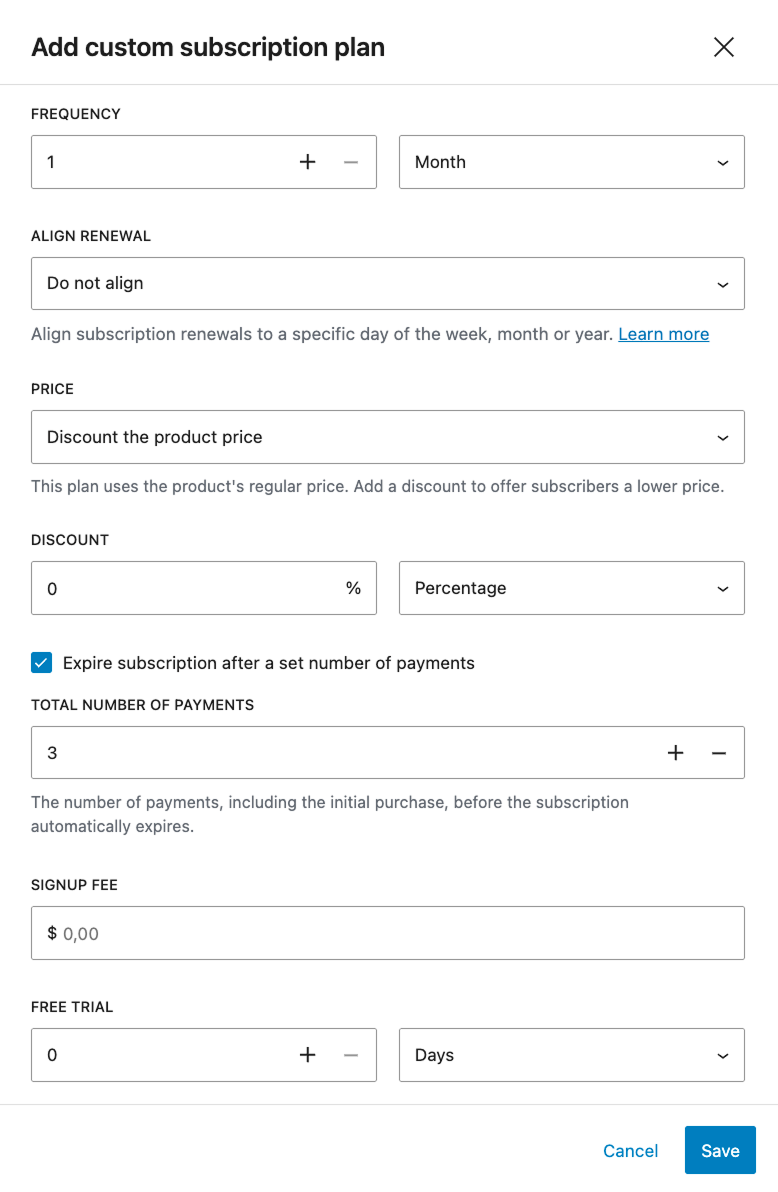
Create custom subscription plans—define subscription plans specific to this product, including custom frequency, free trial, signup fee, expiration (number of charges), discount, and billing date alignment.
Sell one time only—if selected, the product will only be available as a one-time purchase.
Subscription plan settings
↑ Back to topThe subscription plans include the following settings you can adjust:
Frequency
↑ Back to topSet the billing interval using a number input and a period dropdown (day, week, month, year). For example, “three months” means the customer is billed every three months. The combination cannot exceed ten years.
Align renewal
↑ Back to topOptionally select a day to align renewal dates for all subscribers on this plan. When set to “Do not align,” renewals are based on each subscriber’s purchase date. See the Billing Date Alignment documentation for details.
Price
↑ Back to topEach subscription plan includes a price setting that determines how the subscription price is calculated. The Price dropdown has two options:
- Discount product price
- Set a custom price
This setting is available on both storewide and custom subscription plans.
Discount product price
When Price is set to “Discount product price,” the subscription price is based on the product’s regular price, minus an optional discount. This is the default option.
A Discount field appears with two controls:
- Amount: Enter the discount value.
- Type: Select the discount type from the dropdown:
Percentage—discounts the product price by a percentage. For example, entering 10 will discount the price by 10%.
Fixed amount—discounts the product price by a fixed monetary amount. For example, entering five will discount the price by $5 (or the equivalent in your store’s currency).
If no discount is entered, the subscription price will be the same as the product’s regular price.
Set a custom price
When Price is set to “Set a custom price,” the subscription price is set independently of the product’s regular price. Two fields appear:
- Regular price: The recurring subscription price for this plan.
- Sale price: An optional sale price for this plan. When set, the sale price is used as the recurring subscription price instead of the regular price.
This option is useful when the subscription price should differ significantly from the product’s one-time purchase price or when you want full control over the recurring amount for each plan.
Note:
When using “Set a custom price,” the subscription price is completely independent of the product’s regular price. Changes to the product’s price will not affect the subscription plan price.
Subscription expiration
↑ Back to topBy default, subscriptions renew indefinitely until the subscriber or store manager cancels them. The expiration setting allows you to configure a subscription plan to automatically expire after a set number of payments.
This setting is available on subscription plans at both the storewide level (WooCommerce > Settings > Subscriptions) and the product level (custom subscription plans on individual products). The behavior is the same in both contexts.
Expire after a set number of payments—checkbox (default: unchecked). When checked, the subscription will automatically expire after the specified number of payments. When unchecked, the subscription renews indefinitely until cancelled.
Total payments—number input; only visible when “Expire after a set number of payments” is checked. The number of payments, including the initial purchase, before the subscription automatically expires.
For example, if a subscription plan has a monthly billing interval and total payments are set to 12, the subscriber will be charged once at signup and 11 more times at each monthly renewal, for a total of 12 payments. After the 12th payment, the subscription expires.
Note:
The total payments count includes the initial purchase. A value of six means the subscriber pays six times total, not six renewals after signup.
The number of payments is based on billing periods, not calendar time. If a plan bills every two months with a total payment value of six, the subscription will last 12 months (six payments × two months each).
How expiration works
While the subscription is active, payments are processed according to the billing interval defined in the plan. The subscriber can see the expiration date on their View Subscription page in the My Account area.
When the final payment has been processed, the subscription status automatically changes to Expired. No further renewal payments are charged, and the subscriber loses access to subscription benefits. The subscription cannot be reactivated—the subscriber would need to purchase a new subscription.
Subscribers can still cancel an expiring subscription before it reaches its scheduled expiration. If cancelled, the subscription follows the normal cancellation process and does not continue to the expiration point.
Signup fee
↑ Back to topAdd a one-time fee that customers pay when they first subscribe.
Free trial
↑ Back to topOffer a free trial by setting its duration using the number and period fields (days, weeks, months, years).
One-time purchases
↑ Back to topWhen using storewide subscription plans or custom subscription plans, a one-time purchases section appears at the bottom of the Subscriptions tab. This section contains a single checkbox:
Customers can buy this product without subscribing
When checked, customers will be offered the option to purchase the product as a one-time purchase in addition to the available subscription plans. When unchecked, the product can only be purchased on a subscription plan.
Note:
If you only add a single subscription plan and disable one-time purchases, customers will not be offered any options above the add-to-cart button.
Gifting
↑ Back to topIf Gifting is enabled in the subscription settings, the option to enable and disable gifting for the product will be visible.
Bulk edit purchase options
↑ Back to topFrom the Products list (WooCommerce > Products), you can select multiple products and use the Bulk Edit action to update their purchase options in bulk.
Dedicated subscription product types: Simple and Variable Subscriptions
↑ Back to topIf you’ve used WooCommerce Subscriptions before, you may be familiar with adding subscriptions through the dedicated Simple Subscription and Variable Subscription product types.
As of WooCommerce Subscriptions 9.0, we recommend using subscription plans on simple, variable, bundle, and composite products instead. The dedicated Simple and Variable Subscription product types are retained for backward compatibility and use cases that are not yet supported by subscription plans.
Disabling the dedicated subscription product types will not affect existing products—they will continue to work as expected.
You can control which of these product types are available under WooCommerce > Settings > Subscriptions > Subscription product creation, using the Simple subscription and Variable subscription checkboxes. For more details, see the Subscription Product Creation setting.
- When a type is enabled, it appears in the product type dropdown when you create a new product.
- When a type is disabled, that option is hidden from the dropdown for new products (existing products are unaffected).
Simple Subscriptions
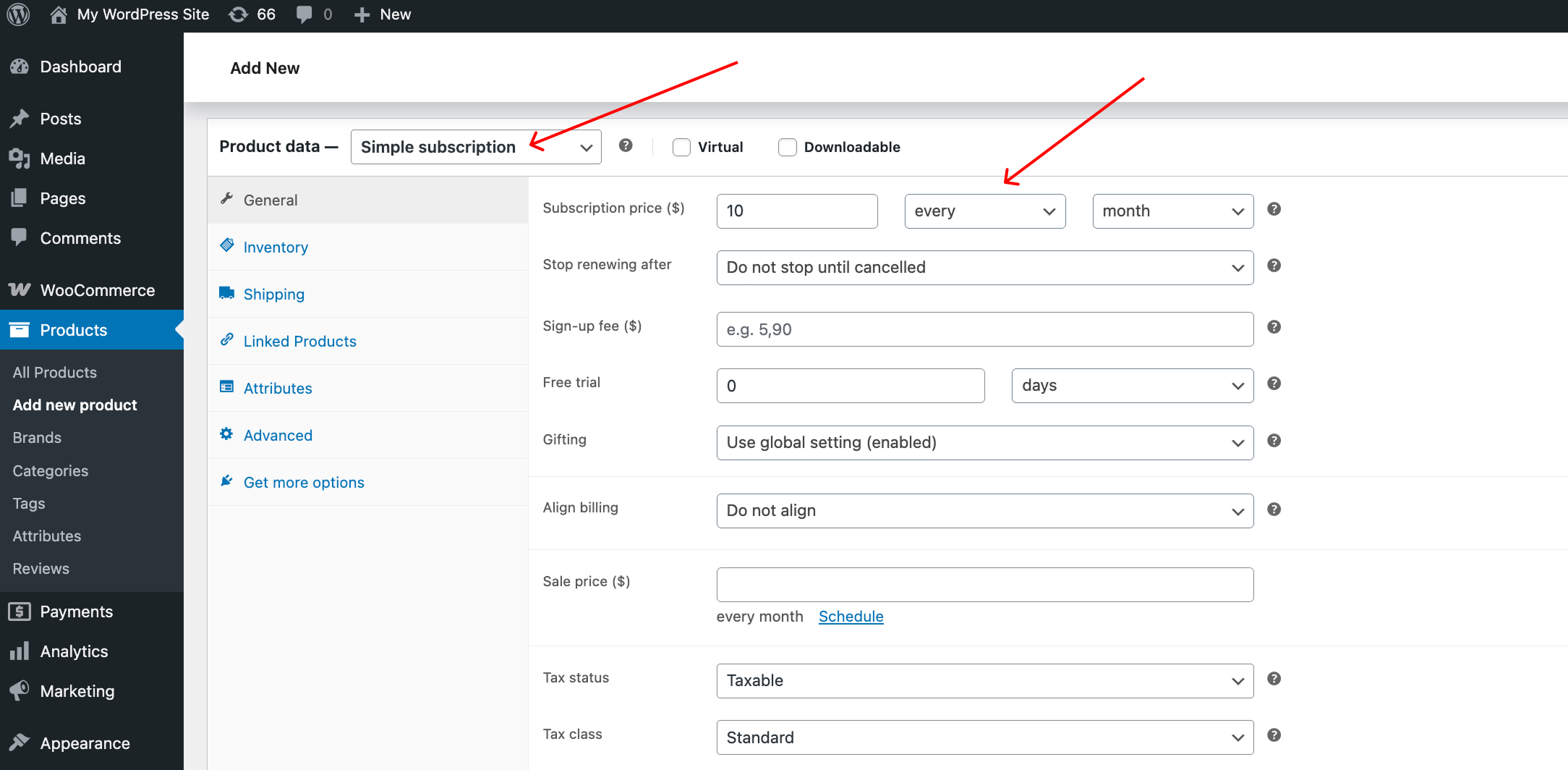
↑ Back to topTo create a Simple subscription product:
- Go to: Products > Add New.
- In the Product data panel, select Simple subscription as the product type.
- Set the terms for the subscription, including price, payment schedule, length, sign-up fee, and trial period (length, sign-up fee, and trial period are all optional).
- Add product details you require, as instructed by Managing Products.
- Publish.
Variable Subscriptions
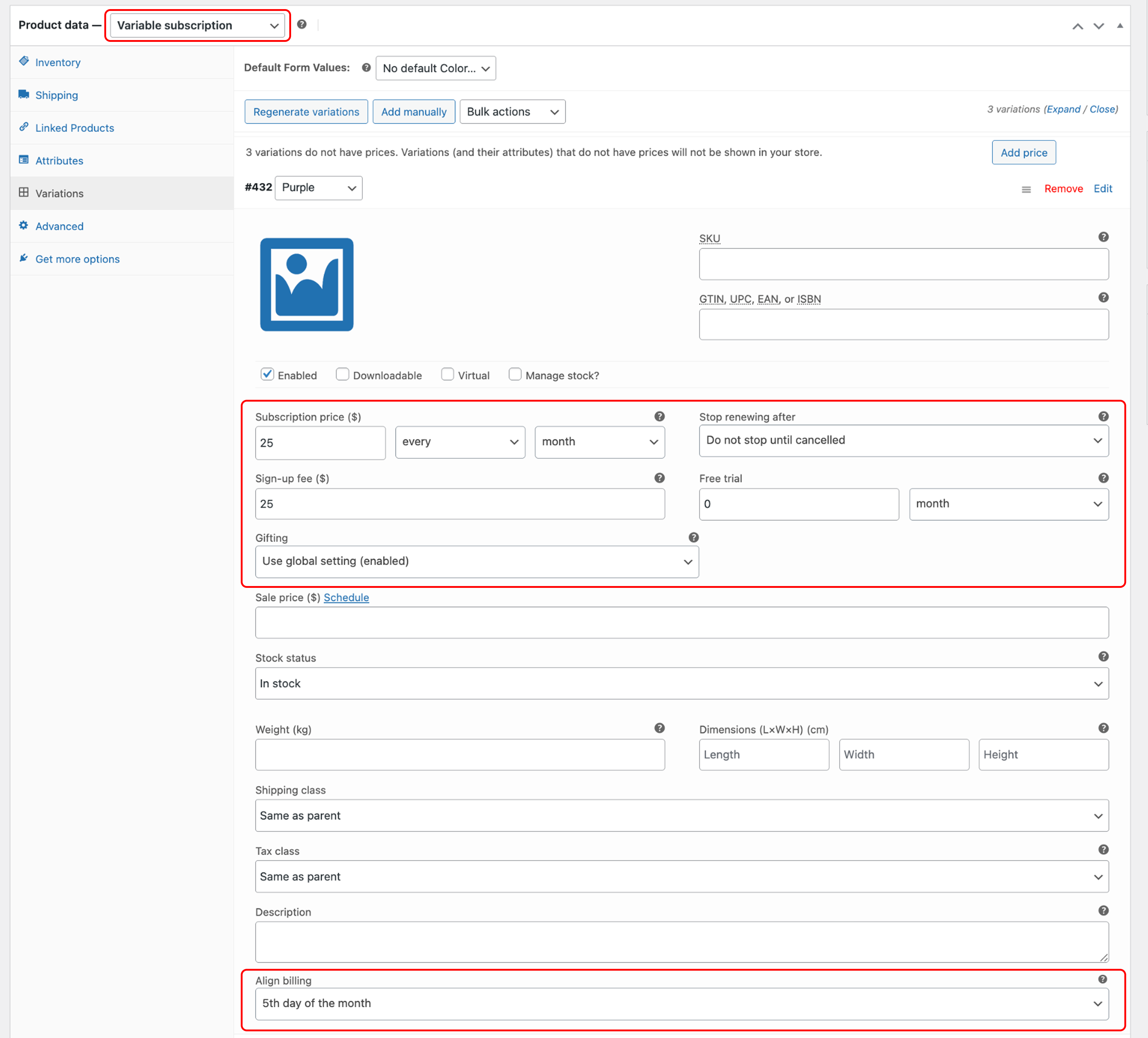
↑ Back to topVariable subscriptions are similar to Variable Products. However, each variation of a Variable Subscription has the additional subscription product options.
Variable subscriptions are an effective way to build products with different options or tiers that subscribers can switch between. See our Subscription Switching guide for details.
For more details on managing variable products, check our Variable Products documentation.
If you’d like to see how variable products work in a real-world scenario, see our Monthly Coffee Subscription use case for more details.
Are your subscription variations showing unexpected product data when added to the cart? Ensure that you have all attributes of all variations defined. Check the advanced topics section of our variable products documentation for more details on how WooCommerce handles variations with undefined attributes.
Product options for the Simple and Variable Subscription product types
↑ Back to topWhen creating a Simple or Variable Subscription product, you can configure the following options:
- Subscription Price – The recurring amount that charges at each renewal.
- Payment Schedule – Select how often to take the subscription payment in the field located next to the subscription price.
- Subscription Expiration – Optionally set your subscriptions to end after a certain length of time.
- Sign-up fee – Optionally charge a one-time fee at checkout when customers subscribe.
- Free Trial Period – Optionally add a free trial period before beginning billing for the subscription.
- Gifting – Optionally allow customers to purchase a subscription product for someone else.
- Billing Date Alignment – Align renewal dates for all subscribers to a specific day. See our Guide to Billing Date Alignment for details.
- One time Shipping – Enable this setting under Product Data > Shipping if you only need to charge shipping for the first order of a subscription.
- Limit Subscription – Adjust this setting under Product data > Advanced to limit customers to only one active subscription or one subscription of any status.
Inventory management for subscription products is generally no different from setting stock for a simple product or variable product. Each product in a subscription reduces stock at each renewal. See How Subscriptions Manages Stock for more details and options to alter this behavior if you need.
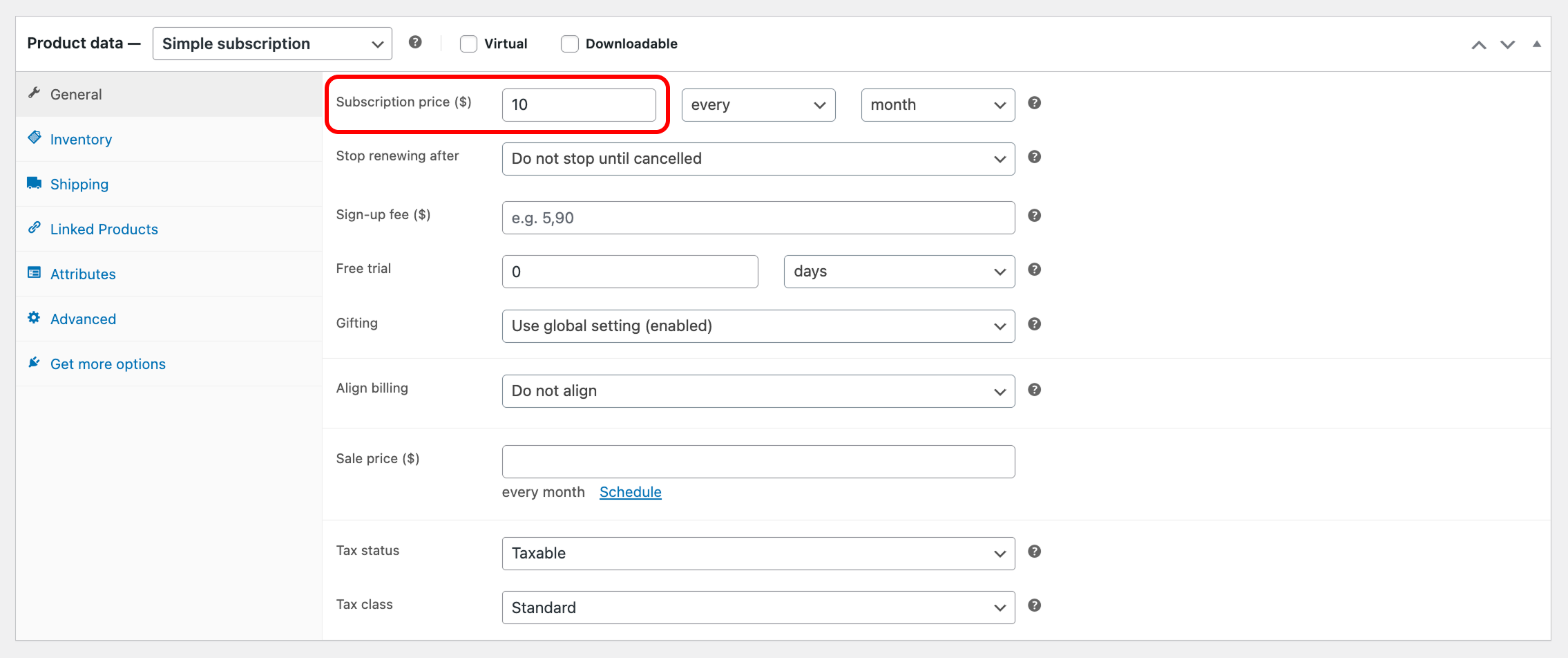
Subscription price
↑ Back to topWhen creating a subscription product, you will need to enter the price that your customers will pay for each billing period. Customers will pay this amount when they first sign up, in addition to any sign-up fee, unless there is a free trial period. Then, they pay this amount on a recurring basis at the beginning of each billing period.
Note:
If left empty, the product will not be purchasable. If you intend to create a free subscription, please enter 0 in this field.
Setting a payment schedule
↑ Back to topSubscriptions gives you a lot of flexibility in scheduling renewals for your subscription products.
Out of the box, you can charge renewal payments using a billing period of daily, weekly, monthly, or annually, and at any frequency between 1 and 6 (inclusive).
Want to charge a fortnightly payment? Set the price to every 2nd week.
Want to bill quarterly? Set the price to every 3rd month.
What is the exact interval for a monthly subscription, i.e., is it 30 days?
With a daily subscription, payments trigger every 24 hours. A day is always 24 hours, so this is no issue. But what about months, since the number of days differs?
The amount of time between a monthly billing interval is one month. This means 30 days for some months (April, June, etc.), 31 days for others, and then 28 or 29 days for February. If a monthly subscription is created on the 15th of February, the next payment will be charged on the 15th of March. If the billing interval for a subscription is every 2 months and it is created on the 15th of February, the next payment will be charged on the 15th of April.
What about subscriptions purchased on the last day of the month?
If a subscription is purchased on the last day of the month, recurring payments will continue to be charged on the last day of the month. For example, if a $10/month subscription is purchased on the 31st of December, its next 4 payments will be charged on:
- 31st January
- 28th February (or 29th February for a leap year)
- 31st March
- 30th April
What about recurring payments on the 28th, 29th, or 30th day of the month?
This system will also be used if the day a payment is normally charged is not the last day of the month, but it is on the 28th, 29th, or 30th day of the month, and the next payment is due in February, which has no 30th day (and no 29th day in non-leap years).
For example, if a customer purchases a $10/month subscription on the 29th of December 2012, Subscriptions will charge the next 4 payments on:
- 29th January 2013- not the last day of the month
- 28th February 2013 – notice it has switched to the last day of the month, as there is no 29th day in February when it is not a leap year
- 31st March 2013 (last day of the month)
- 30th April 2013 (last day of the month)
This logic ensures that a payment is made every month, and therefore, that one year includes 12 payments.
Subscription expiration
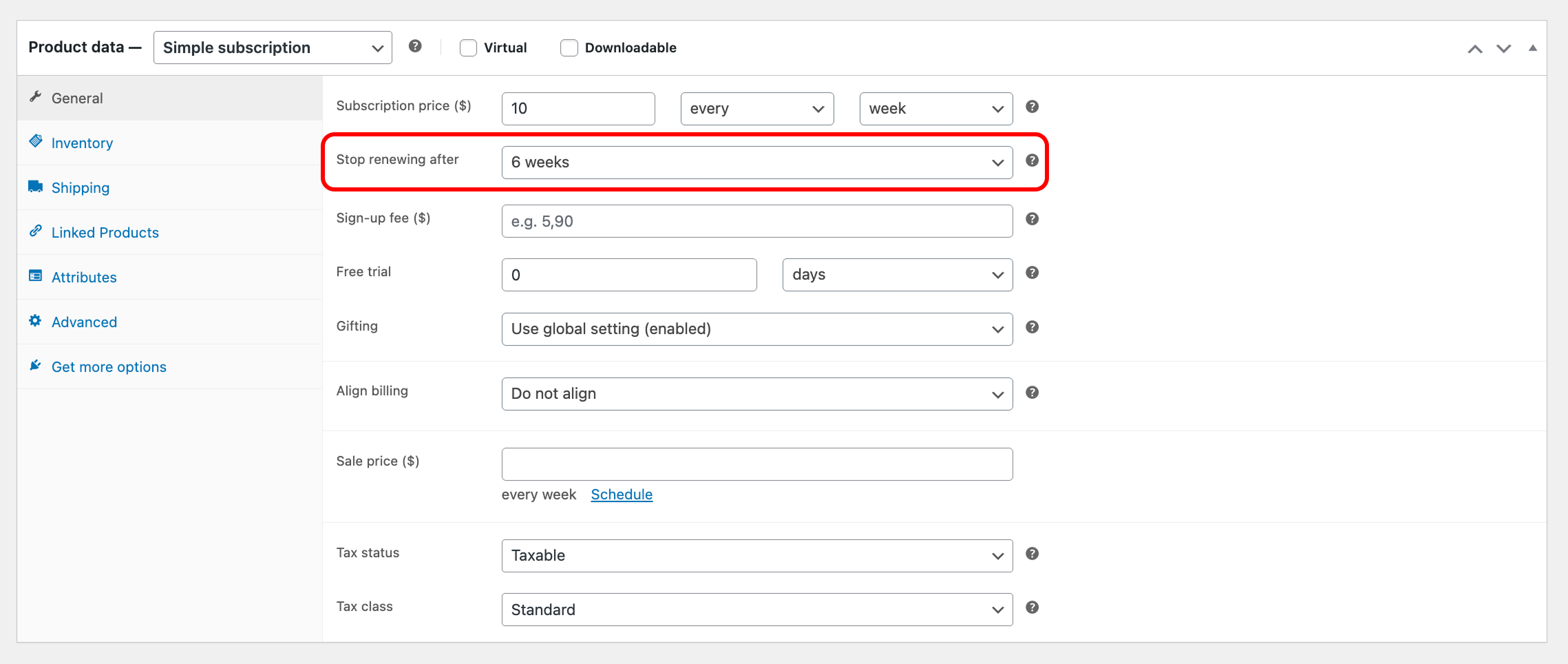
↑ Back to topThe length of a subscription is controlled by the Stop renewing after field. This allows you to end a subscription after a predetermined amount of time. Subscriptions for subscription products with a value in this field have a maximum length, after which they no longer renew and are no longer active.
Subscriptions for subscription products with Do not stop until cancelled set in the Stop renewing after field can renew indefinitely as long as renewal payments are successful.
For example, consider a six-week fitness course, billed weekly, with a fee of $25/week. The length of the subscription would be 6 weeks, and the billing period would be one week. In the subscription product details, this would be:
Subscription price: $25 every week
Stop renewing after: 6 Weeks
Note:
Subscription length and billing period are not the same thing. The subscription length is the length of the entire subscription from when it starts to when it stops renewing, not a single billing period within that subscription.
Sign-up fees
↑ Back to topSetting a sign-up fee on a subscription charges customers a one-time amount to sign up for a subscription.
This sign-up fee is in addition to any recurring amount that you have set for the subscription product. For example, if you create a subscription product for $75 per month with a $200 sign-up fee, the subscription’s initial total during checkout will be $275. Then $75 a month after that.
Sign-up fees always process at the beginning of the subscription, even when the subscription includes a free trial. If the subscription product has a free trial + a sign-up fee, a customer pays the sign-up fee on the initial payment/purchase but not the first recurring total. For example, if you create a subscription product for $75 per month, with a $200 sign-up fee and a 30-day free trial, the customer’s payment at checkout will be $200 (the sign-up fee only).
If you need to charge the sign-up fee after a trial period ends, take a look at this use for Charging a Sign-Up Fee after a Free Trial Period. Note that it does require additional extensions.
Free trial periods
↑ Back to topYou can add a free trial period to the beginning of a subscription.
A free trial increases the length of a subscription. For example, if you create a subscription of $5 per month for 6 months with a 1-month free trial period, the subscription will expire after 7 months.
When a subscription has a sign-up fee and no free trial period, the initial payment is the sign-up fee + the recurring payment price. For example, a $5 per month subscription with a $10 sign-up fee will charge $15 for the first month. However, if the subscription product includes a free trial, the customer only pays the sign-up fee at checkout ($10). If there is no sign-up fee, the customer pays nothing at checkout.
If you enable $0 initial checkout without a payment method and the product lacks a sign-up fee, subscriptions move to “On Hold” status at the end of the trial period while they await the customer’s first renewal payment.
Gifting
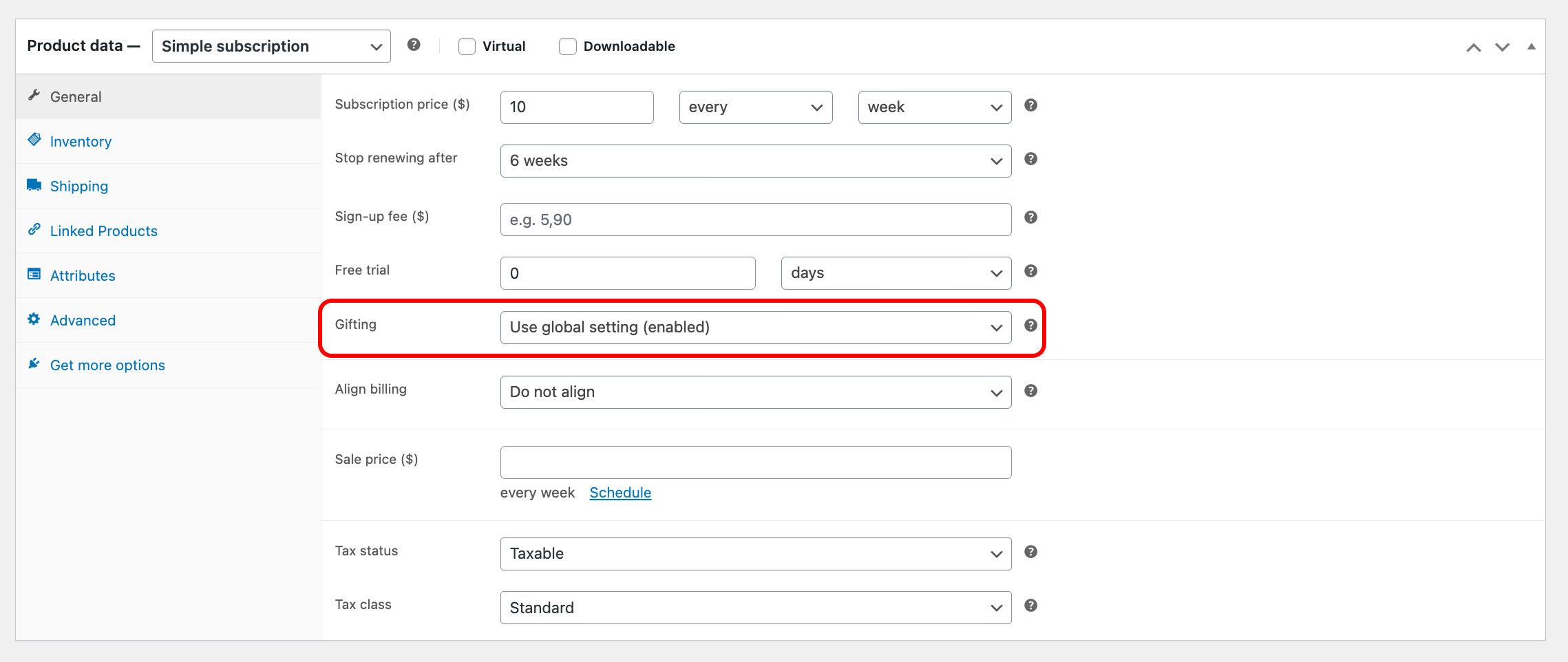
↑ Back to topIf Gifting is enabled in the subscription settings, the option to enable and disable gifting for the product will be visible in the General product settings. If no option is selected, the global settings will apply to the product.
Billing date alignment
↑ Back to topOptionally select a day to align renewal dates for all subscribers on this plan. When set to “Do not align,” renewals are based on each subscriber’s purchase date. See the Billing Date Alignment documentation for details.
Downloadable Product Sharing
↑ Back to topIf downloadable product sharing is enabled, you can view, add, and remove the downloadable products linked to the subscription.
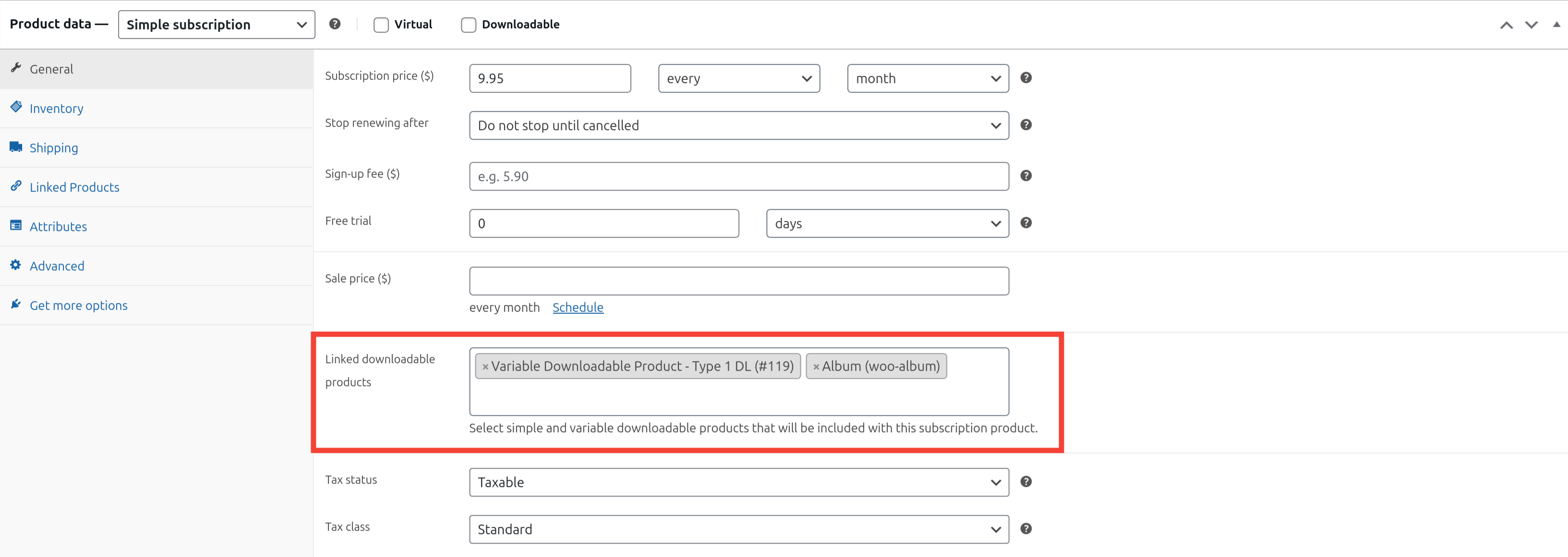
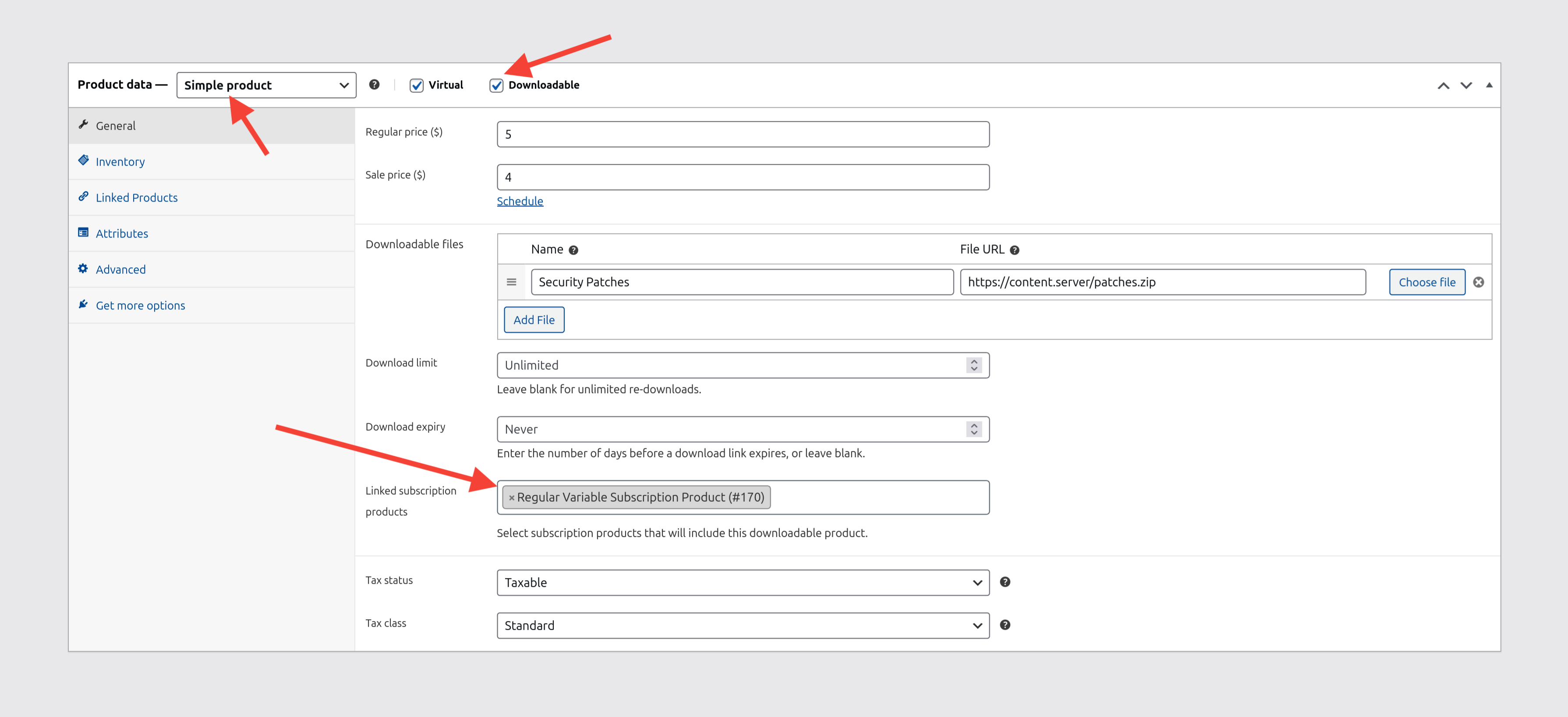
You can also connect a downloadable simple or variable product to a subscription using the steps below:
- Go to: WooCommerce > Products > Add New.
- Set the Product Type to be Simple Product or Variable Product and tick the Downloadable checkbox.
- Scroll down to the Subscriptions field in the General tab.
- Search for your subscription product and select the appropriate result.
- Publish in the top-right corner to publish your downloadable product, now linked to your subscription.
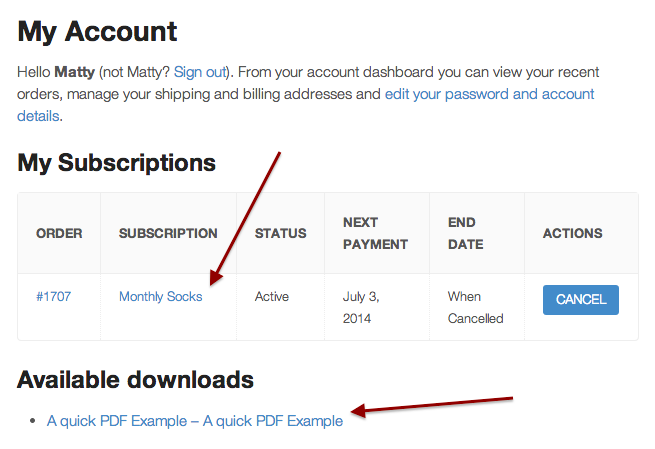
When a subscription customer visits My Account, they now see a list of the files available for their download, which are attached to the connected Downloadable products.
Note:
When you add a subscription to a downloadable product, anyone with an active subscription will have access to the product’s downloads. So, both users who have already purchased the subscription and any new users who purchase it.
One time shipping
↑ Back to topShipping costs for subscription products are normally charged on the initial order and all renewal orders. However, some products need to ship only once at the start of the subscription, such as mobile phones with a data plan.
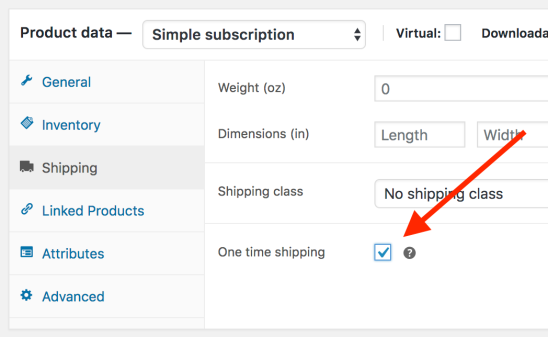
Subscriptions products have a One Time Shipping option. Use this to only charge shipping once on the initial order.
To enable one-time shipping for a product:
- Go to: WooCommerce > Products > Edit Product for the selected subscription product.
- Select Shipping in the left menu.
- Tick the One time shipping checkbox.
- Update to save.
Note:
For shipping to be charged on the initial order, the subscription must not have a free trial or be aligned to a billing date in the future. The One-Time Shipping option will be disabled if your product has a free trial or is aligned. For One Time Shipping to be possible with these types of subscription products, Subscriptions needs to support a 3-tier price; this is currently not a built-in pricing option.
Limit subscriptions
↑ Back to topUse the Limit Subscription feature to limit a customer to one subscription:
- Go to: WooCommerce > Products > Edit Product for the subscription product you select.
- Select Advanced in the left menu.
- Go to Limit Subscription and select No limit, Limit to one active subscription, or Limit to one of any status.
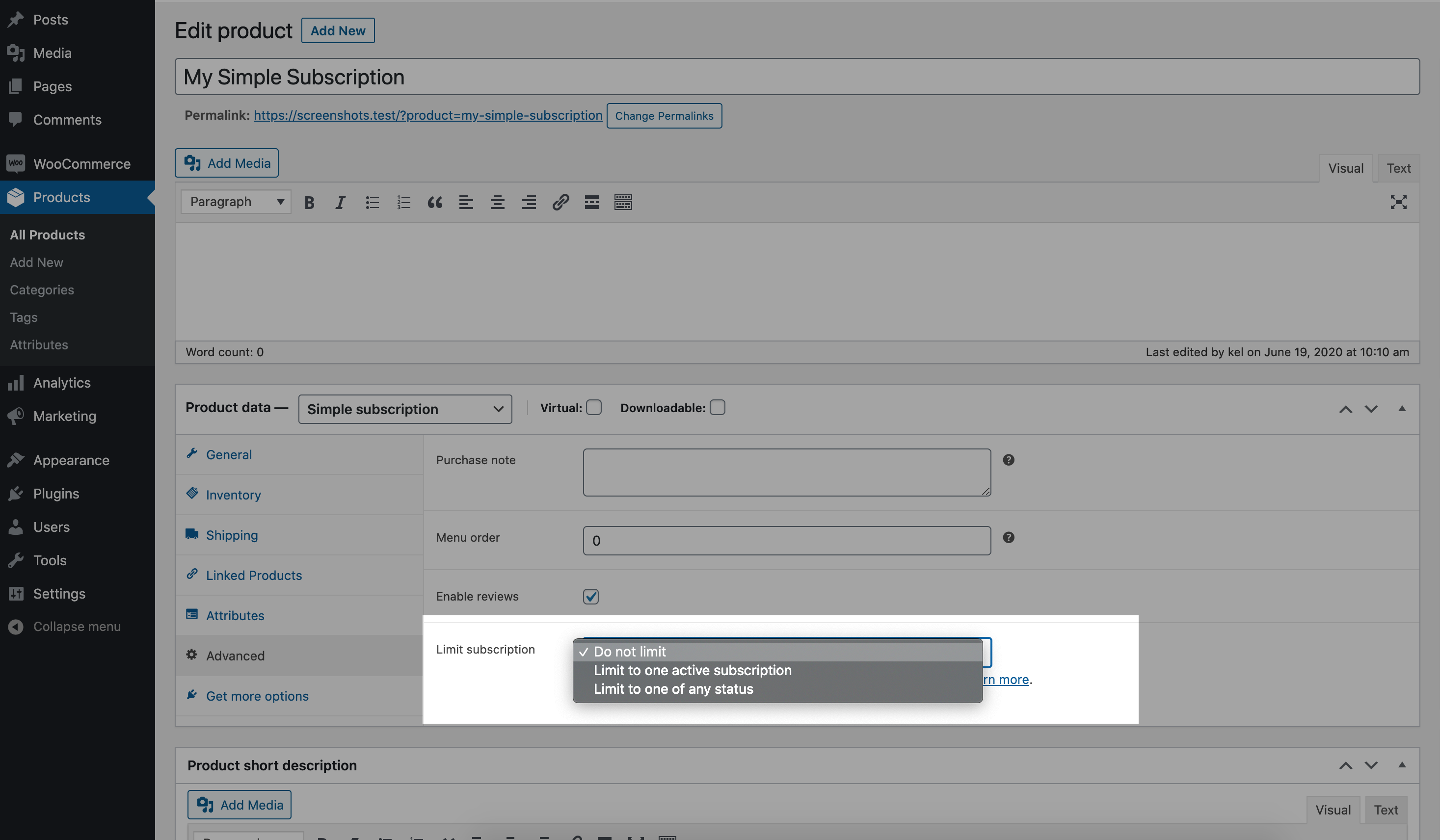
When a subscription is limited to any status by the Limit subscriptions setting under Product data > Advanced, a customer can only sign up for the subscription once. If the customer cancels the subscription, they need to resubscribe to the existing subscription by clicking the Resubscribe button next to the subscription on the My Account page.
The customer cannot purchase that subscription product again unless the existing subscription is trashed or permanently deleted by a store manager. This feature ensures that each customer account only receives one free trial period to a product.
Cart enforcement
When a product has Limit Subscriptions enabled, the limit is also enforced at cart and checkout:
- If a customer already has a resubscribe, renewal, or switch item in their cart for the product, they cannot add the same product as a separate purchase.
- If the product is already in the cart as a regular purchase, the customer cannot add a resubscribe or renewal for the same product.
- Duplicate items for the same limited subscription product are not allowed in the cart, even if they are different variations.
These checks run when the product is added to the cart. An additional validation runs on the cart and checkout pages to catch items that may have entered the cart through other means (such as session restoration or third-party extensions). If a conflict is detected, the customer sees an error notice and must remove the duplicate before placing the order.
This cart-level enforcement applies regardless of whether Allow mixed cart checkouts is enabled in your store’s subscription settings. When Allow mixed cart checkouts is enabled and a conflict is detected during session loading, the duplicate item is silently removed from the cart, and a notice is displayed.
Switching
If you allow switching between subscriptions, a customer can Upgrade or Downgrade a limited subscription. Customers can change their subscription while still limiting each customer account to one free trial period.
Note:
To limit the initial purchase of a product to one, also check the box for “Sold Individually.” Enable this to only allow one of this item to be bought in a single order in the Inventory section of the edit product page.
Questions and support
↑ Back to topSomething missing from this documentation? Still have questions and need assistance?
- If you have a question about a specific extension or theme you’d like to purchase, contact us to get answers.
- If you already purchased this product and need some assistance, get in touch with a Happiness Engineer via our support page and select this product’s name from the Product dropdown.