Online stores sell much more than just physical items. That’s why the world’s most popular ecommerce store solution, WooCommerce, gives you the power to sell everything from digital goods and product bundles, to subscriptions and memberships. You can even just use it as a product catalog, offer exclusive wholesale options for B2B sales, or operate as an affiliate marketer and simply list items fulfilled by completely different companies.
By default, there are six WooCommerce product types, including grouped items and downloads. If your items don’t fit into any of the existing product categories, you can install extensions to set up offerings like memberships, gift cards, and more.
If you’re just getting started (or even if you’ve been selling online for a while), learning about WooCommerce product types can help you structure your store in the best way for your business.
Today, we’ll take a closer look at the WooCommerce product types available for stores and what each is for. We’ll also show you how to create additional types using extensions. Let’s jump in.
What is a product type?
↑ Back to topA product type defines the characteristics of the items you sell and determines how they behave in your store. This impacts everything from how an item is delivered, how inventory is handled, and in some cases, who can purchase the product.
By default, WooCommerce supports six product types, which we’ll look at in the next section. You can also create additional ones with WooCommerce extensions.
Built-in WooCommerce product types
↑ Back to topNow, let’s look at the default WooCommerce product types.
Simple products
Simple products describe the most basic type of item you can add to your store. It refers to a physical product that doesn’t have variations (like sizes, colors, etc.).
This product type is ideal for individual items like books or single electronic devices.
When you add a simple product to your store, you can set two pricing tiers: a regular price and a sale price:
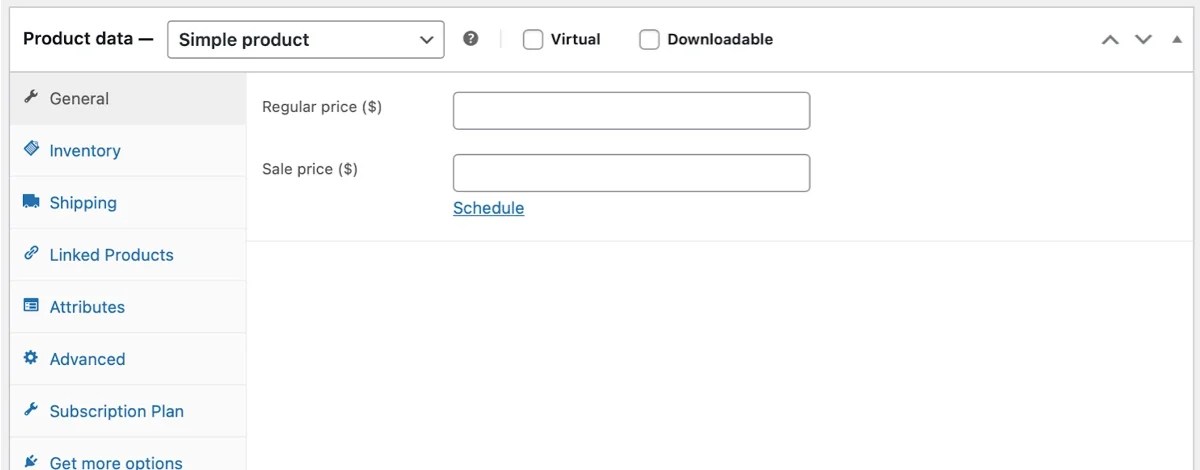
In the Inventory section, you can enable stock management, determine stock status, limit purchases, and enter a SKU (stock keeping unit). You can also add the weight and dimensions of the product within the Shipping section.
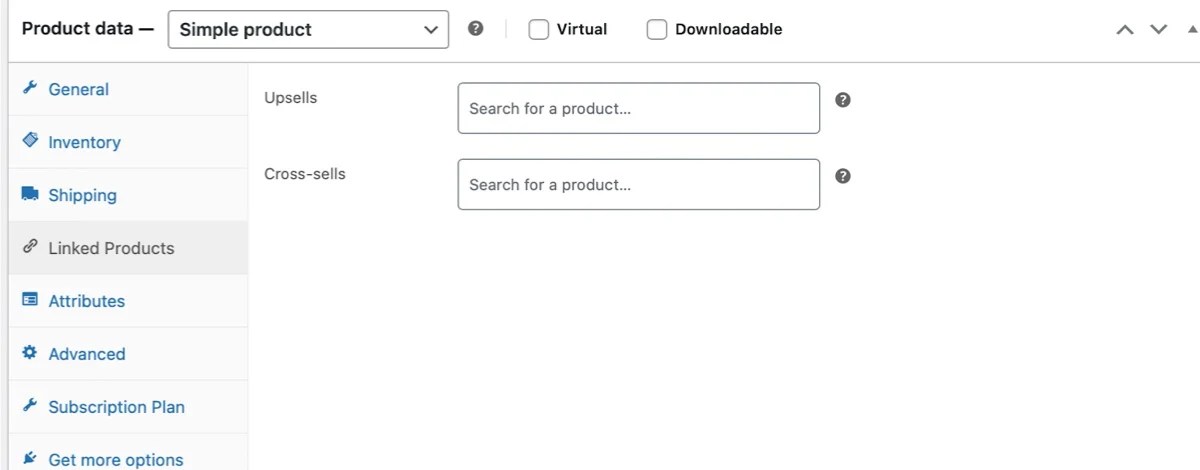
If you navigate to Linked Products, you’ll be able to link the product to similar items for cross-selling and upselling purposes.
In the Attributes tab, you can provide more information about the item, including the size, color, materials, etc. You also have the option to add a purchase note to the order and enable customer reviews.
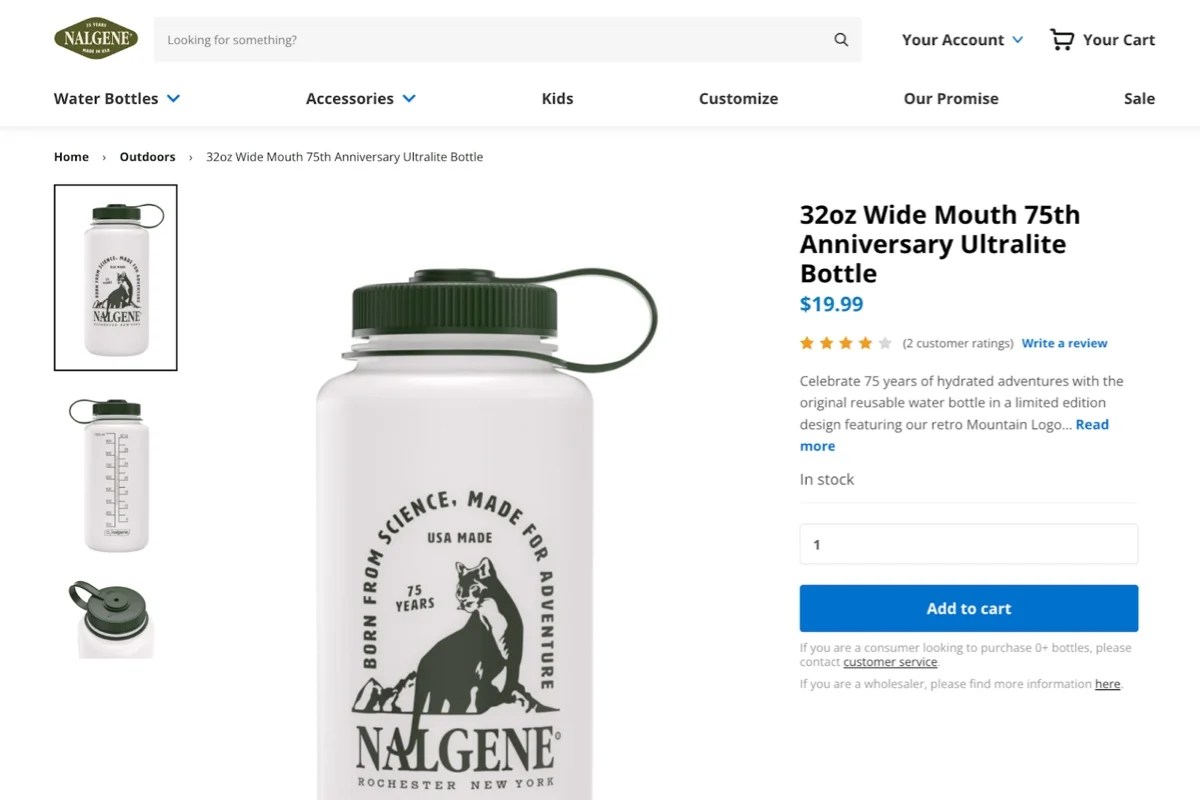
The famous water bottle company, Nalgene, utilizes a variety of WooCommerce product types throughout their site. They list unique or specialty items, like their 75th Anniversary Ultralite bottle, as simple products. Your only choice? The number you want to buy.
Variable products
A variable product allows customers to choose from different options on the product page. A good example is a shirt that comes in multiple sizes.
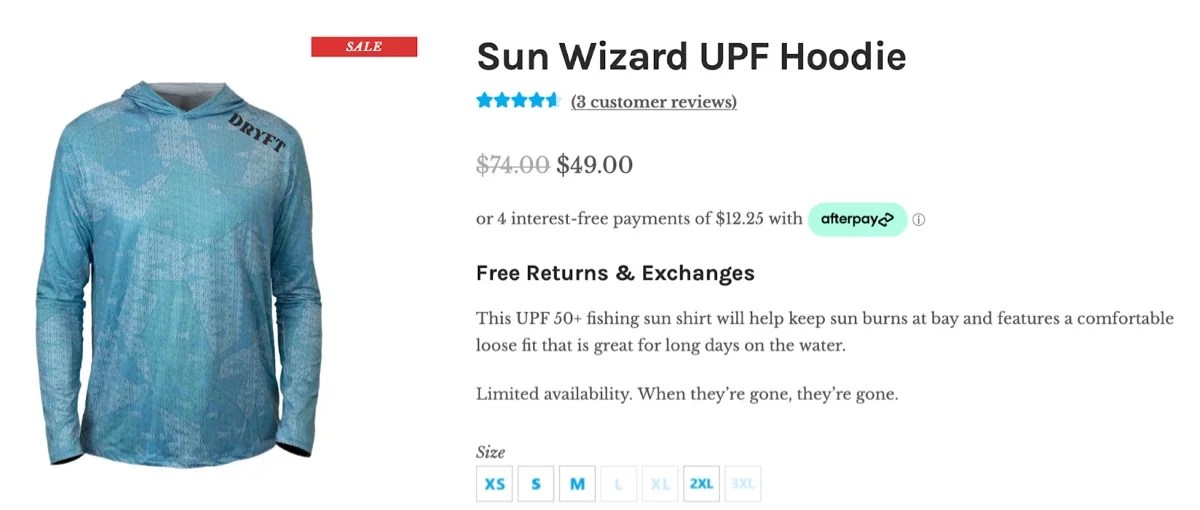
A variable product in Dryft Fishing’s store.
Another example of a variable product would be electronic devices with different storage options and configurations. You can have several different variations, and combine them in any number of ways.
While this is a more complex product type, WooCommerce allows you to add plenty of product details. Every variation can have its own SKU number, stock level, price, and weight to differentiate it from similar goods.
To get started, you’ll need to select the Variable product option from the Product data dropdown.
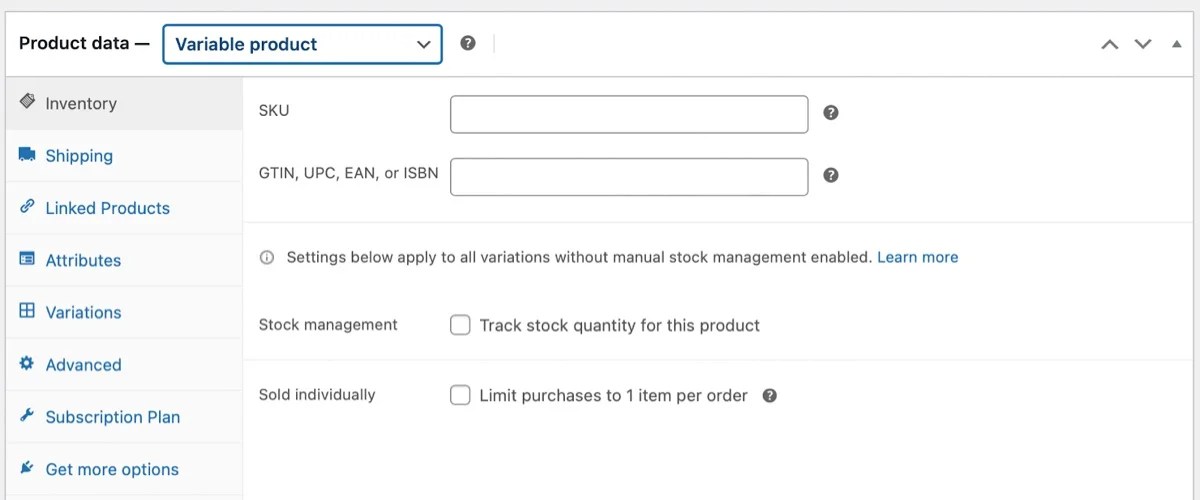
Then, you’ll want to create some attributes, which you can do on a global level (meaning across your website) or by clicking the Attributes tab. This will enable customers to search for products with the same attributes — e.g. all shirts available in XL.
Here, we’ll show you how to add custom attributes on the product page, but check out our documentation if you want to create global attributes.
In the Attributes tab, click on the Add new button. Then, add the name and values for your attribute.
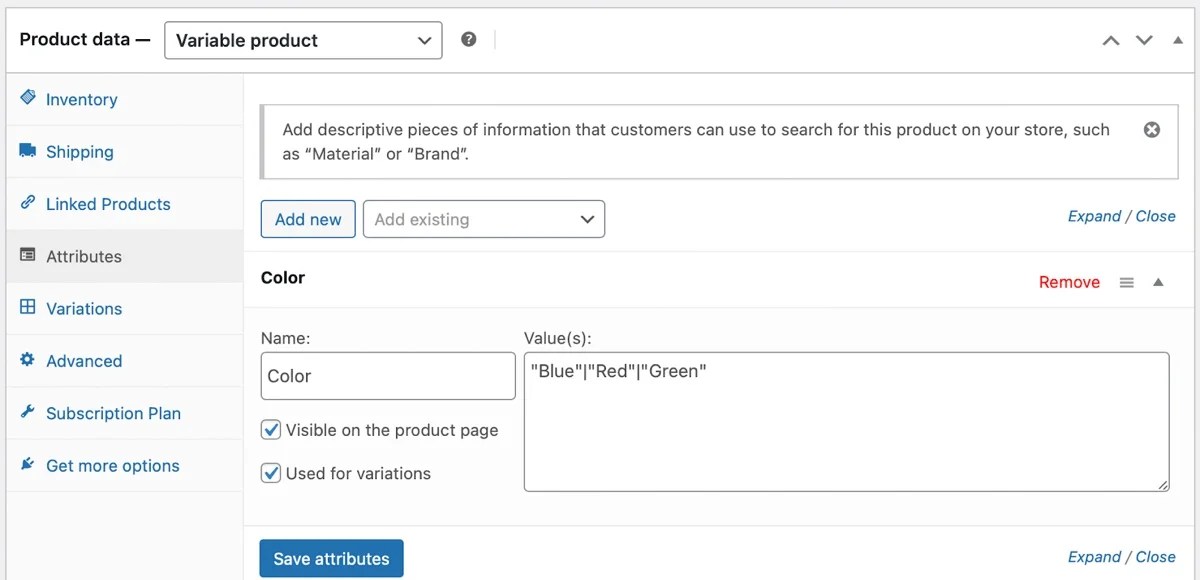
For example, you could enter “Color” in the Name field, and list the colors in the Value(s) field, separated by a | . Make sure the Used for variations checkbox is ticked, then click on Save attributes.
Next, move over to the Variations tab, where you’ll be able to choose from the attribute values you just set. You can generate variations automatically or add them to your variable product manually.
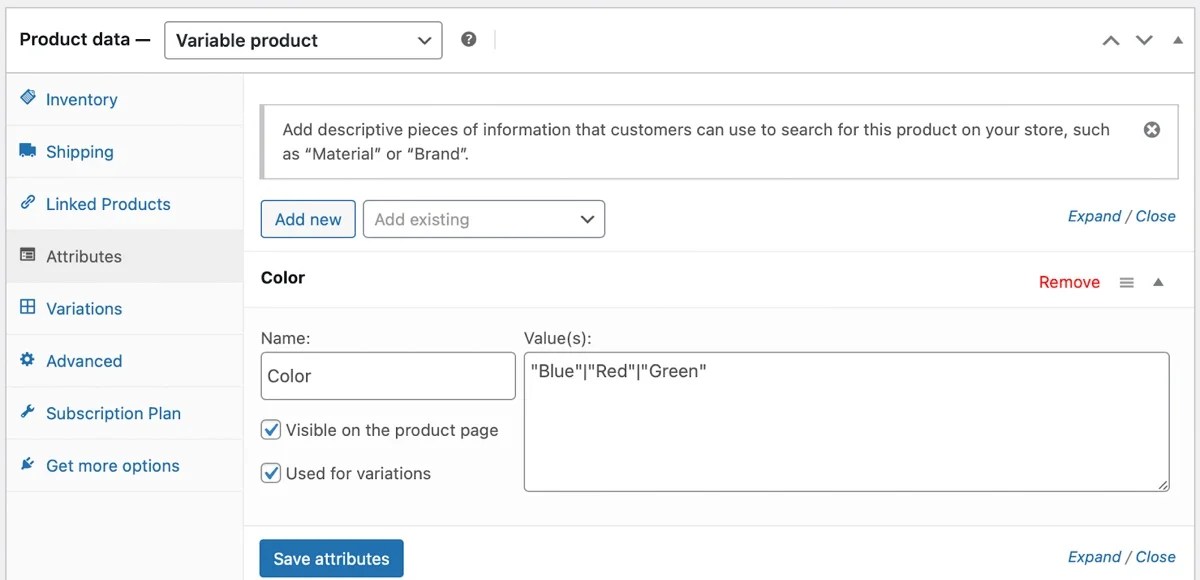
If you click on Edit to the left of each one link, you can add details like SKU, stock status, weight, etc. For more details about how to work with a variable product, read our documentation.
Grouped products
When you create a grouped product, you’re essentially configuring a collection or bundle of existing items. Therefore, you can only do this after you’ve added individual products to your store.
Setting up grouped products is an effective way to encourage higher average order values. However, customers can still choose to just order a single item from a collection.
Typically, grouped products contain things that work together (or are at least closely related). For example, you could offer a set of furniture (two chairs and a couch that are all also available to purchase on their own) or bundle accessories with primary items.
When you select the Grouped product option, you won’t be able to define its own price or enter basic details as with the other WooCommerce product types we’ve discussed so far. This is because your grouped product relies on linking existing items together.
So, you’ll need to go to the Linked Products section:
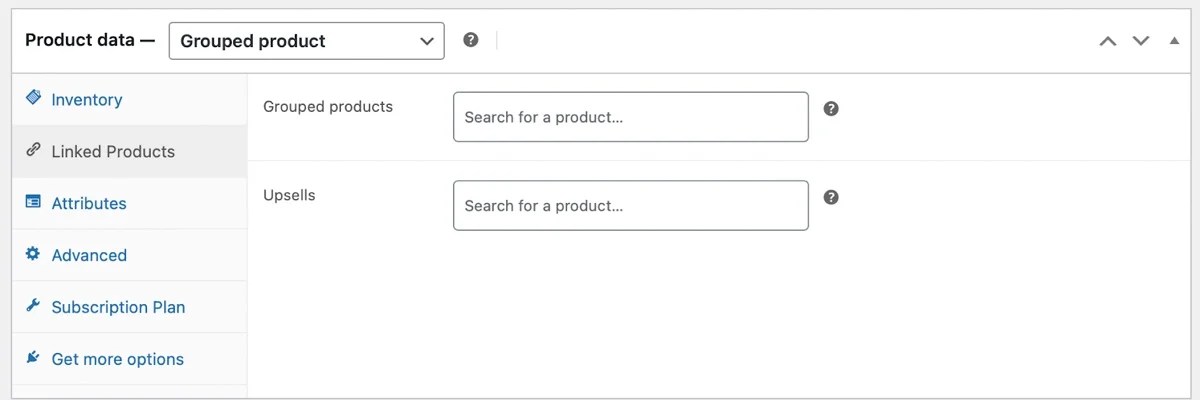
Here, use the Grouped products search box to locate items you want to sell together.
External/affiliate products
If you want to earn passive income, affiliate marketing is a great option. This involves promoting an external or affiliate product that’s actually sold by other companies and earning commissions on completed sales.
It’s an ideal strategy for content creators like bloggers and podcasters who want to create a revenue stream from their audience. That said, even traditional ecommerce stores can add affiliate marketing to their store in combination with other WooCommerce product types.
For example, you might sell cookbooks that are set up as simple products. Then, you could add affiliate items like your favorite ingredients and cooking tools that help you generate extra income, while providing value to customers.
To do this with WooCommerce, select the External/Affiliate product option in the Product data dropdown. Then, enter a URL that leads to the external product page.
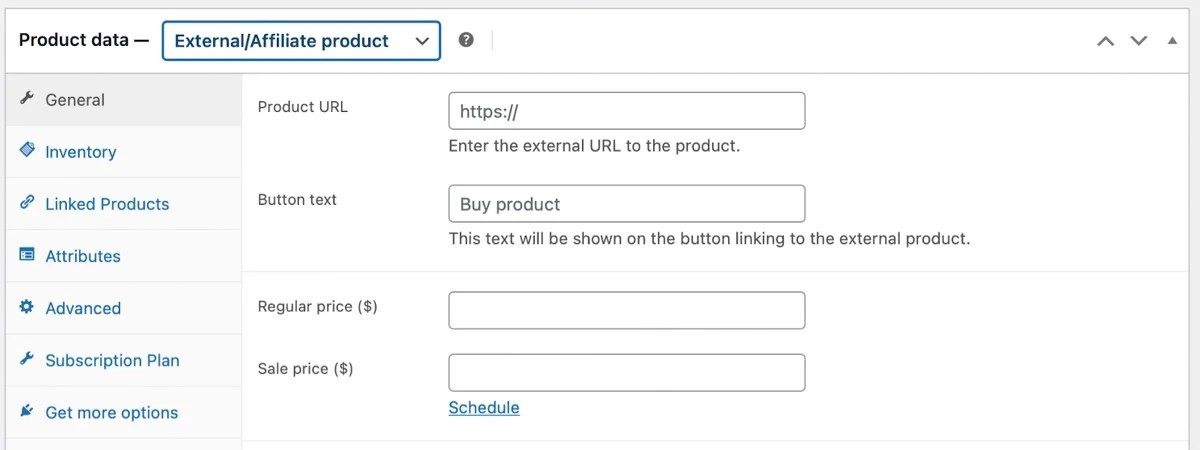
You can also customize the button text so that, rather than “Add to Cart”, it might say something like “Buy Now.”
Virtual products and downloadable products
Let’s start by exploring the difference between Virtual products and Downloadable products.
A Virtual product is not shipped, and there are no shipping fields available on the product page. It typically encompasses things like services — lawn care, consultations, insurance plans, etc.
A Downloadable product includes a file — like an ebook, design template, or MP3 — that the customer can save to their device. This can either be a standalone item or included with a physical product. An example of this would be a toy that’s shipped to the customer, but also includes a digital warranty that they can download.
As you can imagine, these can overlap. So here’s a good rule of thumb:
If your product is not shipped, check the box for Virtual product. If your product includes a downloadable file, check the Downloadable box. If your product includes a download and is not shipped, check both.
YourBenefitStore.com, for example, sells medical plans. This is a virtual product because no aspect is shipped to customers.
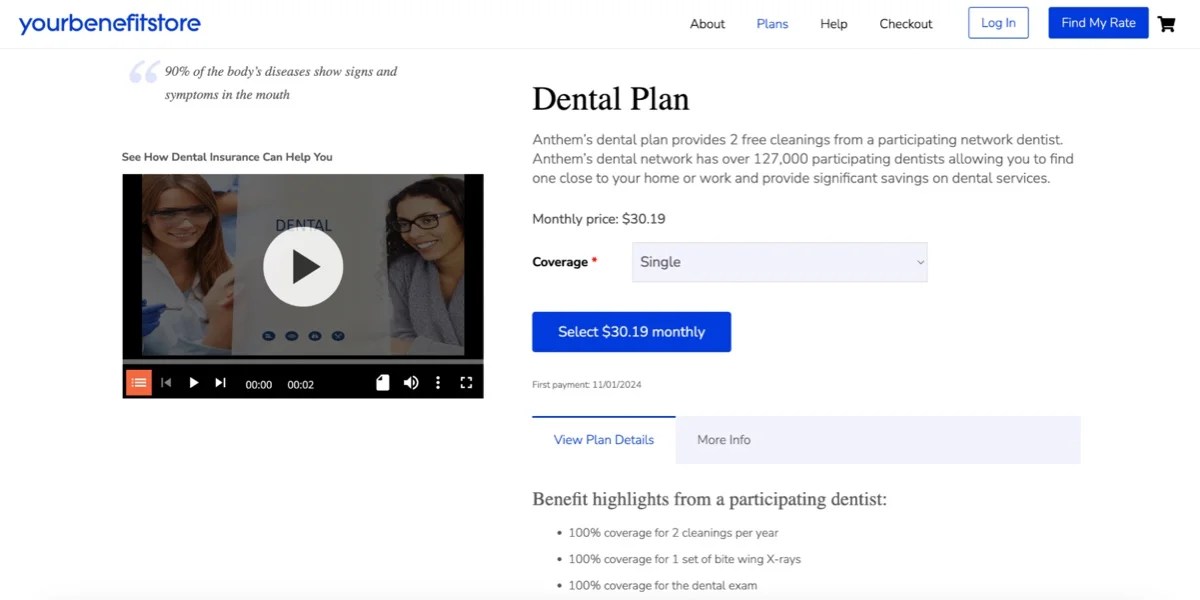
360 Reality Audio sells music software. This is a virtual product and a downloadable product because there is no physical, shipped item and buyers save the software to their device.

So how do you create a virtual or downloadable product?
You can convert any product into a virtual product by ticking the relevant checkbox in the Product data section.
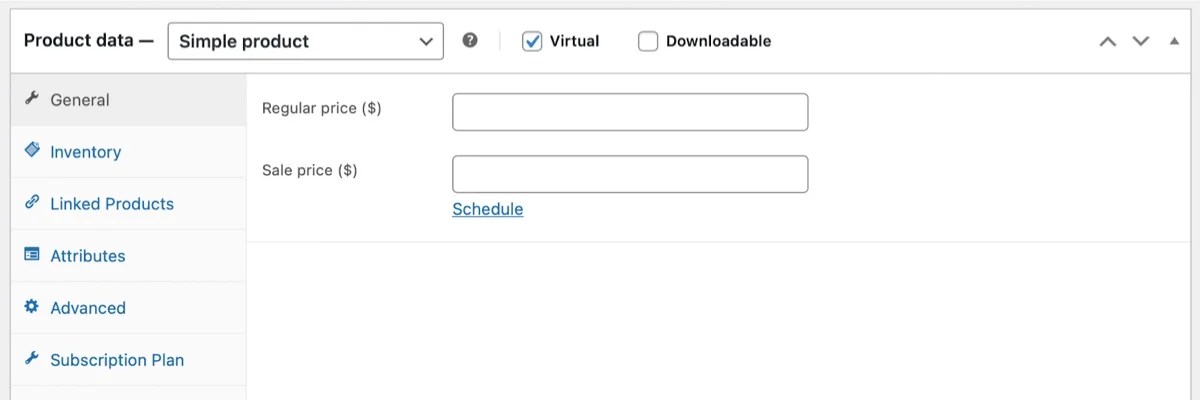
You can still add pricing information, a SKU, stock status, upsells, attributes, and more. However, shipping options will no longer be available, as it won’t require shipping, and you won’t need to fill out details about the product’s weight, dimensions, etc.
For downloadable products, tick the Downloadable checkbox, which will generate additional fields, as you can see below:
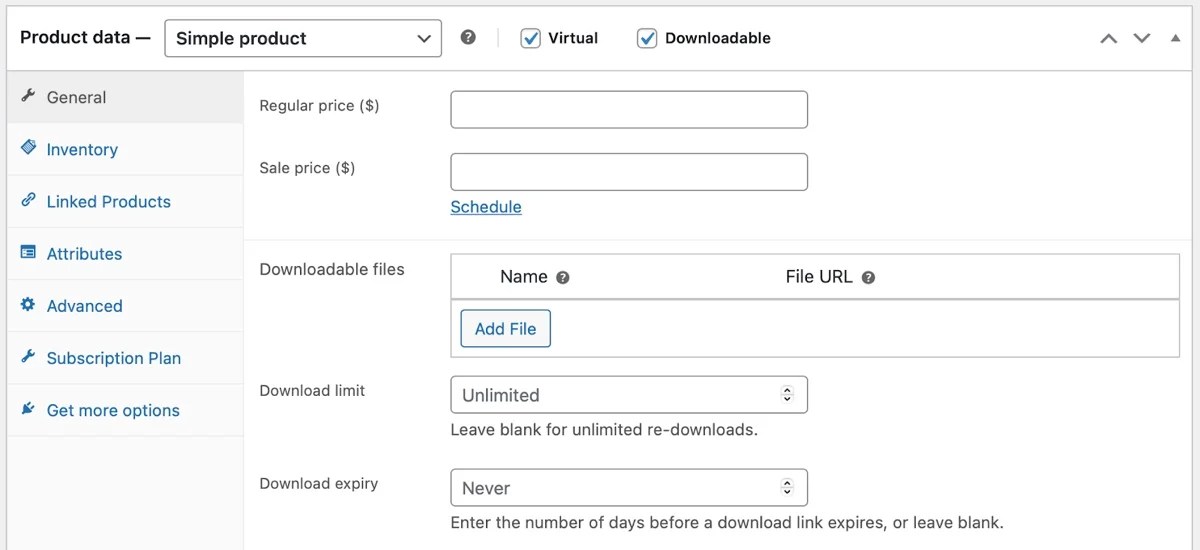
If you click on the Add File button, you can specify a URL for the downloadable product.
You’re also able to set a download limit, although you can leave this field blank for unlimited downloads. At the bottom, you can enter the number of days before the download link expires.
Additional WooCommerce product types
↑ Back to topNow that you’re familiar with the built-in product types available with WooCommerce, let’s look at some of the additional WooCommerce product types you can list using extensions.
This isn’t a completely exhaustive list, so take the time to browse through all of the available extensions if you need something that’s not covered in this article.
Subscription products
Most business owners love any form of recurring revenue, because it offers greater stability and higher customer lifetime values. It’s also an effective way to increase customer retention and boost brand loyalty.
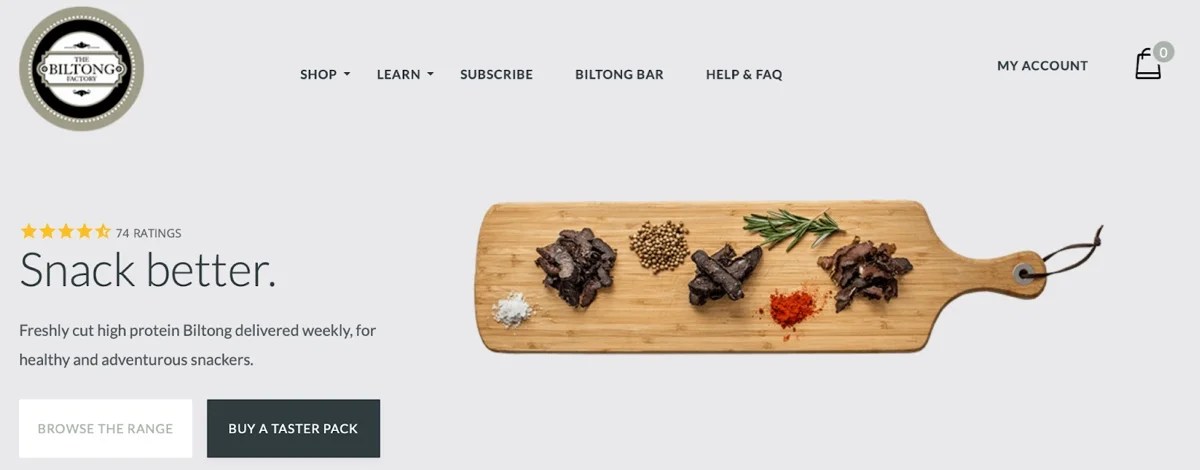
For instance, The Biltong Factory delivers high-protein biltong to subscribers on a weekly or monthly basis.
You can add a subscription as a simple or variable product. To get started, you’ll first need to install WooCommerce Subscriptions.
To create subscription products, select the Simple subscription option from the Product data dropdown. Then, set the price and duration, and schedule the payment to be taken based on the frequency you set (every month, year, etc.).
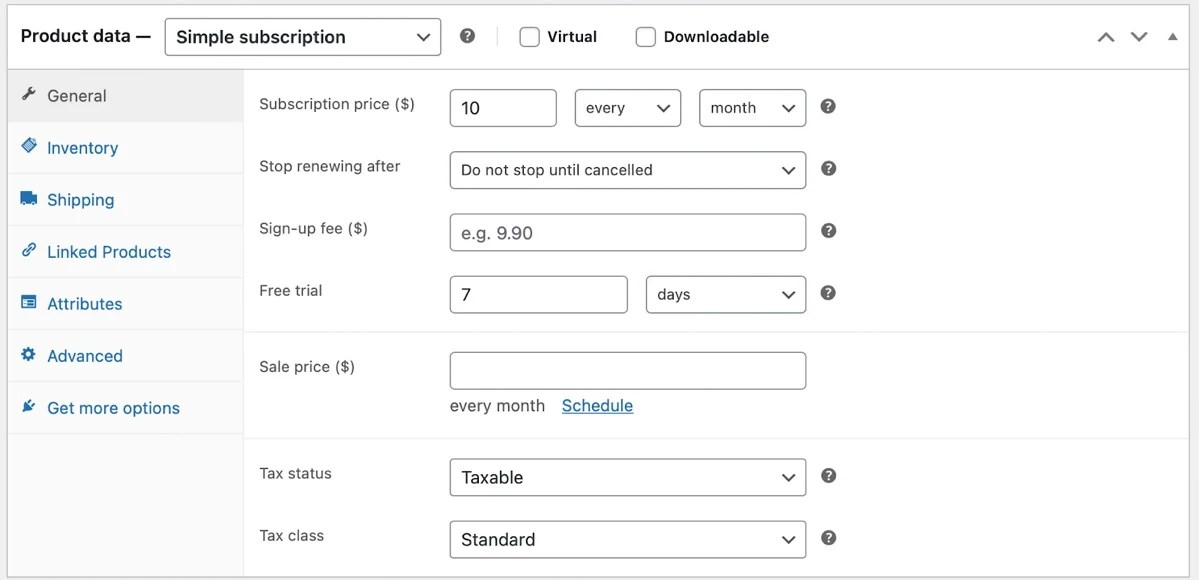
You’ll also see additional product options like renewal settings and sign-up fees. You could even enable free trials to demonstrate the value of your product to those who are undecided.
If you’d like, you can limit customers to a single subscription or leave it open for them to purchase as many as they’d like.
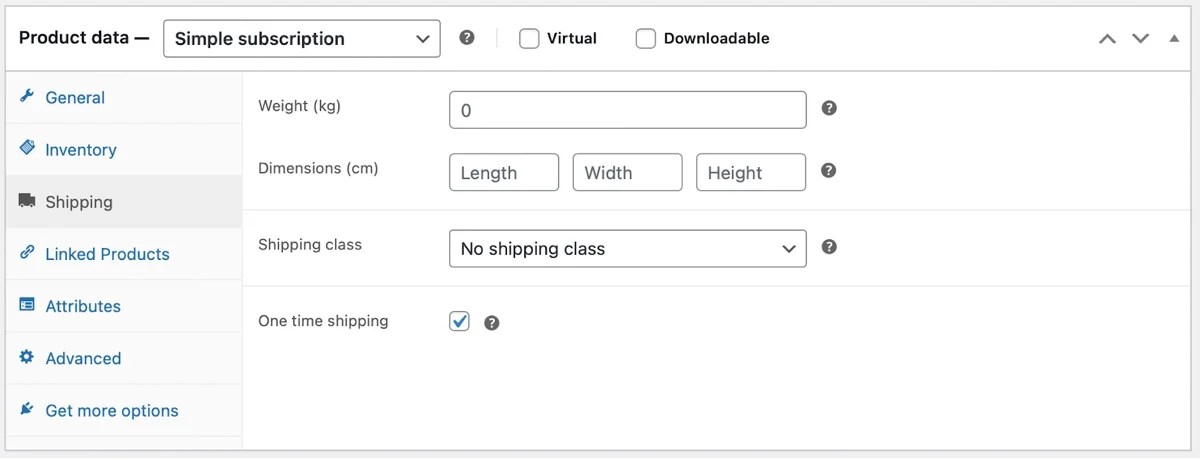
And when it comes to shipping, you get some extra flexibility, too. You can choose to charge shipping every time or just for the first delivery.
Variable subscriptions are ideal if you want customers to be able to choose between different tiers and frequencies.
You’ll need to choose the Variable subscription option, then configure your subscriptions in the same way as a variable product. You’ll have extra subscription settings, and you can enable the WooCommerce switching feature so customers can modify their plan from their own account.
Bookable products
If you want to make it possible for customers to book and schedule appointments, you’ll need to create a bookable product. This enables shoppers to make reservations, rentals, and appointments for a certain day and duration.
You’ll find this functionality on event websites, restaurants, ticketing sites, travel sites, and more.
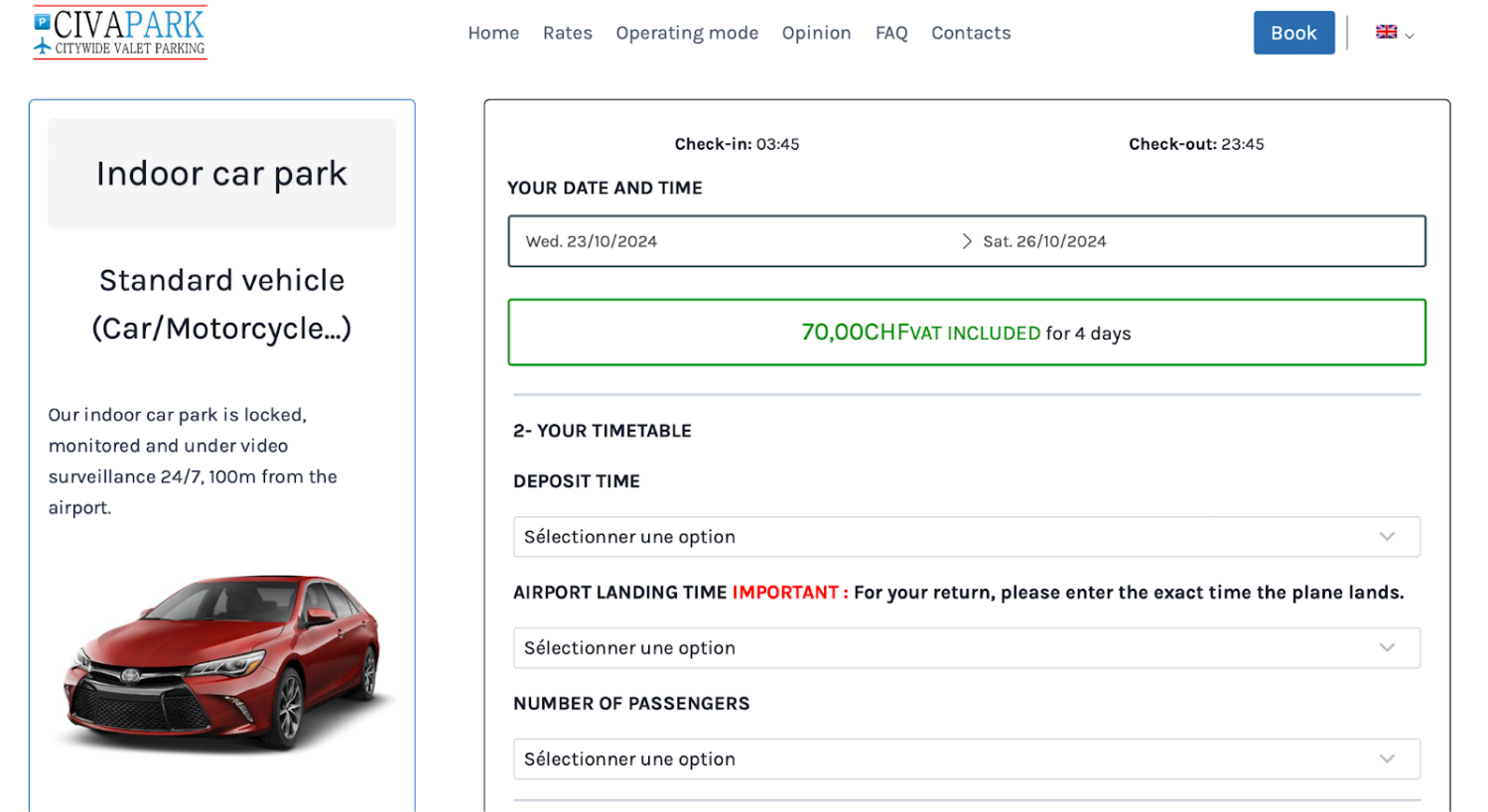
Booking a rental vehicle on civapark.com
This feature can improve the customer experience because people don’t have to make a phone call to reserve a spot. To implement it, you’ll need WooCommerce Bookings.
As always, tick the Virtual checkbox if the product doesn’t require shipping. Then, in the General tab, you can configure custom durations. For example, you could make it so that guests have to book a minimum stay of three days.
You can also enable admin approval/confirmation so their payment won’t actually be processed until an admin approves the booking.
The extension also provides options to change the calendar display mode, set cancellation preferences, and add sales tax information.
If you run a hotel or rent property, you can install the WooCommerce Accommodation Bookings extension, which upgrades WooCommerce Bookings functionality.
Product bundles
Product bundles work similarly to the default WooCommerce grouped products, but you gain the flexibility to create discount packages and sell personalized items.
This is a great way to increase your average order value while making customers feel like they’ve gotten a great deal. It’s also helpful if you sell low-cost items for which shipping a single unit doesn’t make much sense.
Product Bundles for WooCommerce lets you bundle physical, virtual, or downloadable items together. You can also group variable products, subscriptions, personalized add-ons, and more.
Check out the Dan-O’s Seasoning website. Besides offering pre-defined herb and spice blends, customers can also build their own variety packs.

Product bundles from danosseasoning.com
You could even integrate this extension with WooCommerce Subscriptions to sell personalized subscription boxes. Customers will be able to choose the items they want and the correct quantities.
You can apply bulk discount rules to make your offer more appealing. And the dynamic pricing feature lets you make discount adjustments based on order volume, so you can offer more substantial reductions to customers who spend more.
If you use the Product Recommendations extension, you’ll be able to display multiple bundles that contain a specific product.
Memberships
Memberships are ideal if you want to restrict content access to certain users. Typically, you’d create a resource library with premium videos and articles that’s only accessible to members who are logged in.
You might choose to restrict particular products or articles while leaving some content freely accessible. This is a good way to showcase the value of your memberships and convince people to become members.
Many websites configure multiple membership tiers that offer different scopes of access, as well as varying perks and benefits.
This product type works particularly well for e-learning sites, online magazines, coaching businesses, and influencers who want to monetize their audience by providing bonus content to their most supportive fans.
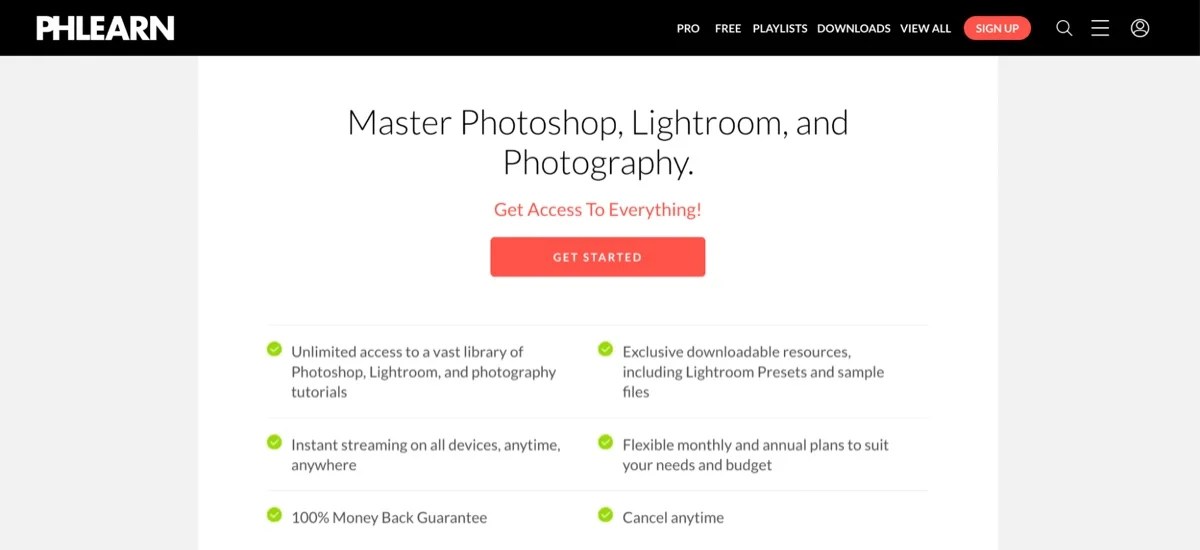
One great example is PHLearn. While they do have plenty of free Photoshop and Lightroom tutorials, they also have a paid membership program that provides access to a more extensive library.
So if you’re looking to monetize your blog, you could offer an entry-level membership that grants access to premium articles. Then, you might have a higher-priced tier that provides more exclusive resources and early-release articles or access to a private community forum.
Although you can sell memberships as stand-alone products, you might choose to combine them with subscriptions. This way, happy customers can keep their memberships active by making a recurring payment, enabling you to generate passive income.
How to set up WooCommerce Memberships
You’ll first need to install WooCommerce Memberships to start selling this product type. To create a membership plan, head to WooCommerce → Memberships → Membership Plans → Add Membership Plan.
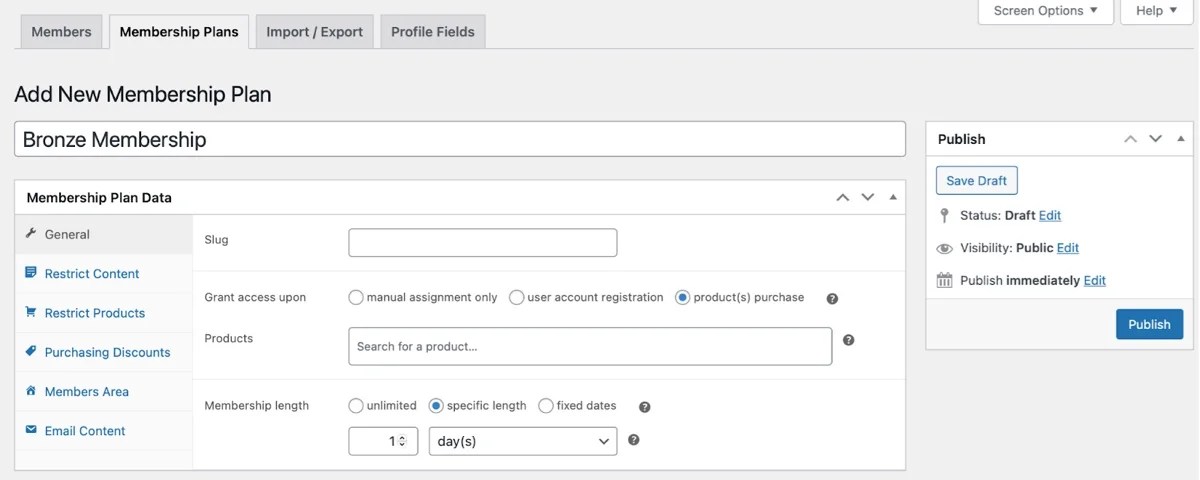
Here, you can set the duration of the membership (like one year) and decide how members get access to the plan. For instance, you could assign this membership to a product you create exclusively for this purpose, or you could grant membership privileges with the purchase of other products in your WooCommerce store.
In the Restrict Content tab, you can add custom dripping rules. You might release access to certain posts, pages, or categories after a set period of time.

Dripping content gives you more control over when members receive access, keeping them engaged with your plans.
Other settings enable you to restrict access to specific WooCommerce products. You could even make it so that members can view items but can’t purchase them right away.
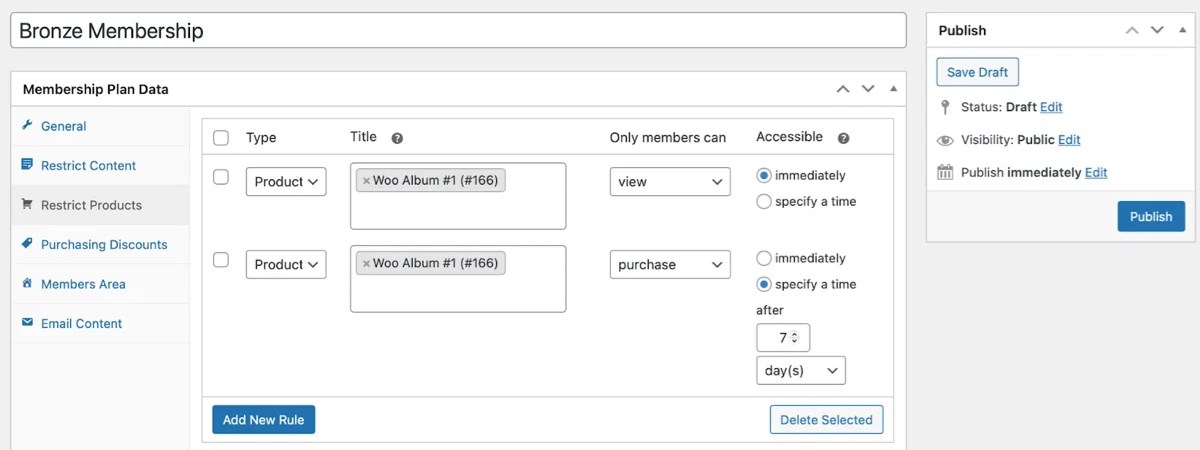
You can also configure membership discounts and establish a dedicated members area where people can view and manage their memberships.
Product kits
If you want to offer a more personalized shopping experience, consider selling product kits. With this product type, customers are able to build their own products, using existing items in your WooCommerce store.
You can allow specific combinations and configurations to tailor your offer to individual shoppers while ensuring the end result fits your business model and doesn’t mess up your stock management.
Perhaps you sell custom solutions like made-to-order jewelry, which requires shoppers to choose a pendant, chain, and clasp. Or you might allow customers to design their own skateboards. In this case, they would need to select their preferred deck, trucks, and wheels.
CAMSS Shelters, for example, sells a range of highly-durable structures. Shoppers can completely customize the interior (lighting, flooring, etc), exterior, and accessories.
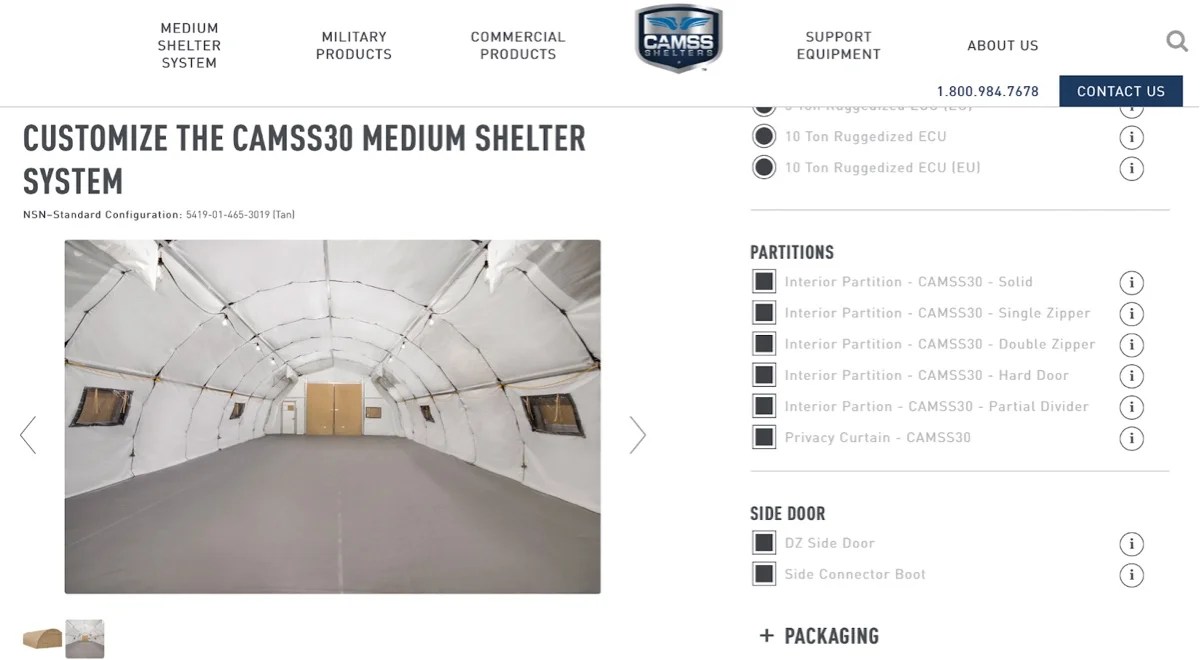
A customizable product kit on camss.com.
Providing a customized experience like this can also increase the perceived value of your items and encourage customers to spend more on a single purchase. For example, a teddy bear that shoppers design themselves might be worth more than pre-styled versions.
With Composite Products for WooCommerce, you can utilize simple products, variable products, bundles, and even downloadable/virtual items from your inventory. The extension offers advanced filtering, sorting, and pagination, so customers can quickly find what they’re looking for.
How to configure product kits in WooCommerce
Once you’ve purchased and installed Composite Products for WooCommerce, you’re ready to create your scenarios. These consist of conditions and actions, with the former triggering the latter.
You’ll add a new product to your WooCommerce store as usual. Then, use the Product data dropdown to select Composite product.
The general settings, inventory, and linked product tabs all work the same as when you add a regular simple product.
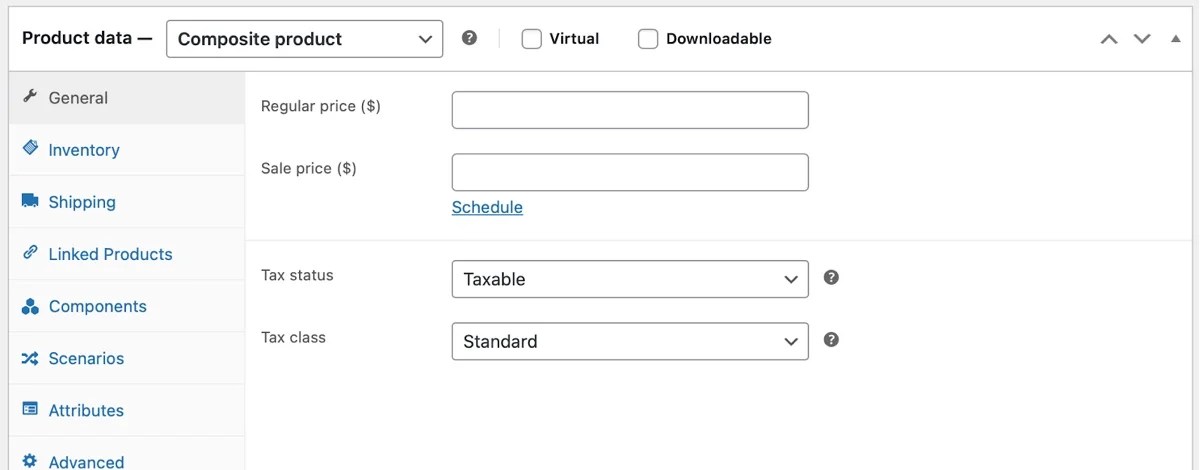
The difference is that you’ll have two new tabs in the Product data section: Components and Scenarios. In Scenarios, you can assign a name and description, which is only visible to store managers.
Then, you can define conditions that trigger the scenario. To do this, you’ll need to add some components. You’ll also need to use the provided modifiers (is, is not, or any) to include/exclude products and variations.
Next, you have to determine an action for when the conditions are met. You can use this to display additional options for customization or restrict individual products or variations based on a previous selection.
So, if you offer sunglasses for all but one of your customizable teddy bears, the ability to add sunglasses would disappear if someone selects the ineligible bear.
Learn more about the numerous customizable options you can provide customers.
Courses
If you’re an expert on a topic, you might consider selling online courses. Perhaps you want to teach people a language, or equip them with skills like photography.

Photography courses from takebetterphotos.gomag.co.za
You can combine your courses with memberships and subscriptions. For instance, many learning management system (LMS) websites sell memberships that give students access to a certain amount of courses per month.
You’ll need an extension to add this functionality to your store. Sensei Pro (WC Paid Courses) for WooCommerce is an excellent option. It’s created by Automattic (the people behind WordPress.com), so you can expect a seamless integration.
The extension simplifies the process of selling courses, since you’ll list them just like any other product. You can specify course and lesson prerequisites and drip course content over time. For instance, you might only provide access to the second lesson after the first lesson has been completed.
Additionally, you can test students’ knowledge with custom questions and benefit from the auto-grading feature. You can also configure timed assessments, supply quiz feedback, and even award certificates to those who complete the course successfully.
Gift cards
Selling digital gift cards helps drive new customers to your WooCommerce store. These are more convenient than physical cards since customers can redeem them online.
With the Gift Card for WooCommerce extension, you can define an expiry date for your gift cards and issue them straight to the recipient. Customers will be able to add a custom message to the voucher and schedule it to be delivered on a specific date.
The extension enables you to process gift cards like products. You’ll get access to advanced reporting and management features, and you can view the gift cards within your transaction log.
As with coupons, customers can apply gift card codes right before placing an order. They also have the option to add the gift card to their accounts for later use.
FAQs
↑ Back to topStill learning about WooCommerce product types? We’ll answer the most common questions in the section below.
Can I create custom product types with WooCommerce?
If the default WooCommerce product types don’t fit your requirements, you can create custom ones. This is also useful if you don’t want to rely on extensions to sell additional product types like memberships or subscriptions.
First, you’ll need to register your custom product type. You’ll do this by editing your theme’s functions.php file.
Add your code snippet (like custom_product_type) to extend the WooCommerce default function (like WC_Product_Simple).
This could look something like this:
function custom_product_type_register() {

class custom_product_type extends WC_Product_Simple {

     public function __construct( $product ) {

            $this->product_product_type = 'custom_type';

            parent::__construct( $product );

     }

}

}

add_action( 'init', 'custom_product_type_register’ );
Setting this as a function means that, when you use the Product Data dropdown menu, you should see Custom product type as an option.
You can also place the code in a separate file, so you’ll essentially be creating your own plugin. Then, you’re free to use custom snippets to add a new settings panel, add content to the post type, and save the custom field value.
What types of products can I create by default with WooCommerce?
WooCommerce enables you to list simple products and variable products, which refer to items that come in different colors, sizes, etc. You can also create grouped products if you sell complementary items.
It also includes WooCommerce product types like affiliate products, digital downloads, and virtual products (like services). If these options don’t suit your requirements, you can utilize extensions to sell subscriptions, online courses, product kits, gift cards, and more.
What is the default WooCommerce product type?
Each time you add a new product in your WooCommerce store, the simple product type will be selected by default. This refers to physical items that you sell for a one-time payment.
A product type for everyone
↑ Back to topOne of the biggest benefits of using WooCommerce for your online store is its ultimate flexibility. You can create a huge variety of WooCommerce product types and sell absolutely anything you can imagine.
By default, WooCommerce supports six product types, including simple, variable, affiliate, virtual, and grouped items. But with WooCommerce extensions, you can also sell subscriptions, bookings, courses, gift cards, and a lot more.
No matter how you structure your business, WooCommerce offers a solution. Get started with WooCommerce today.


About