Once installed and activated, WooCommerce Subscription extension settings can be found and set at WooCommerce > Settings > Subscriptions. This document explains each section of settings and what it controls.
Storewide Subscription Plans
↑ Back to top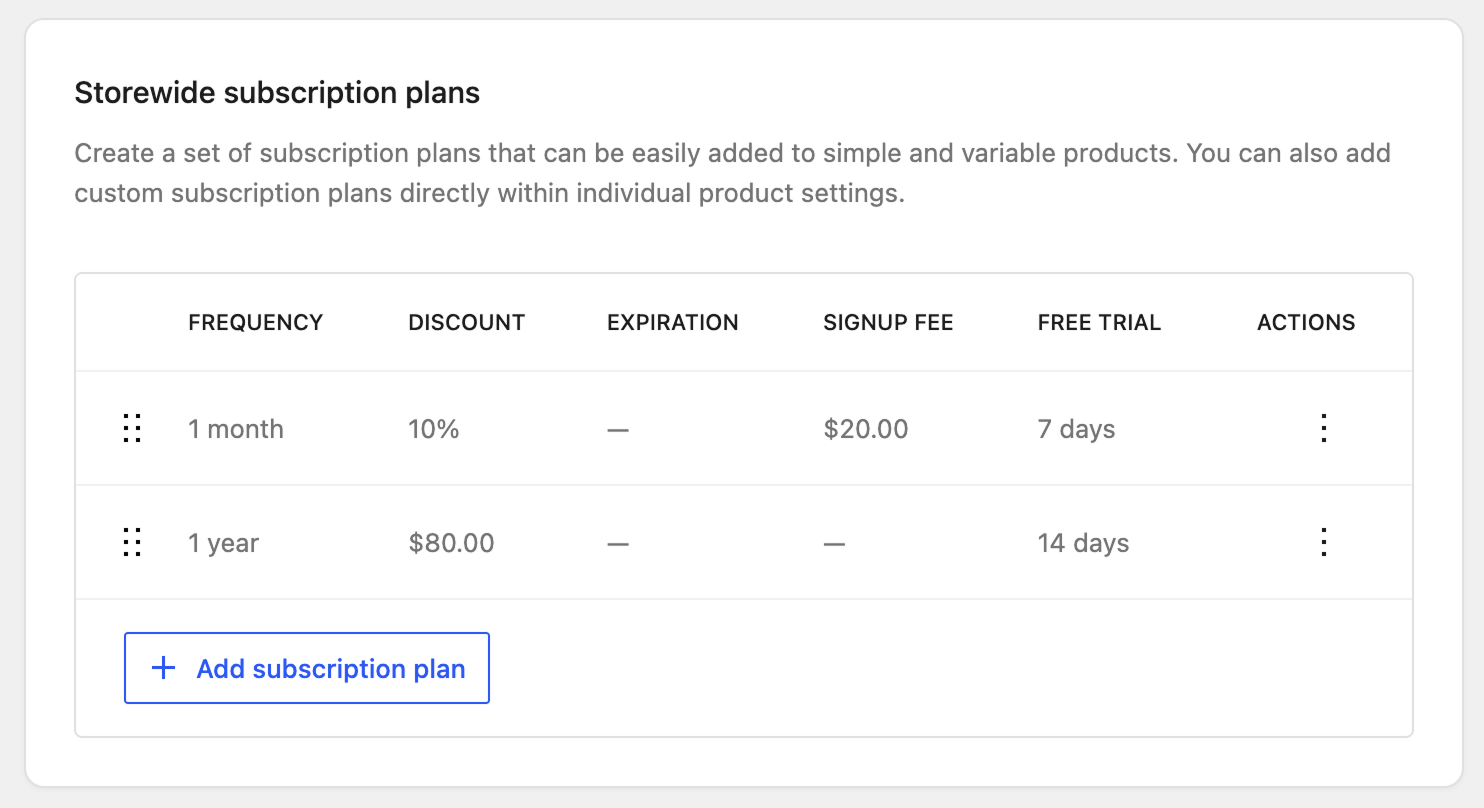
Storewide subscription plans are a set of reusable plans that can be added to simple, variable, product bundle, and composite products across your store. You can also add custom subscription plans directly within individual product settings. Plans are configured under WooCommerce > Settings > Subscriptions in the Storewide Subscription Plans section.
Add a plan
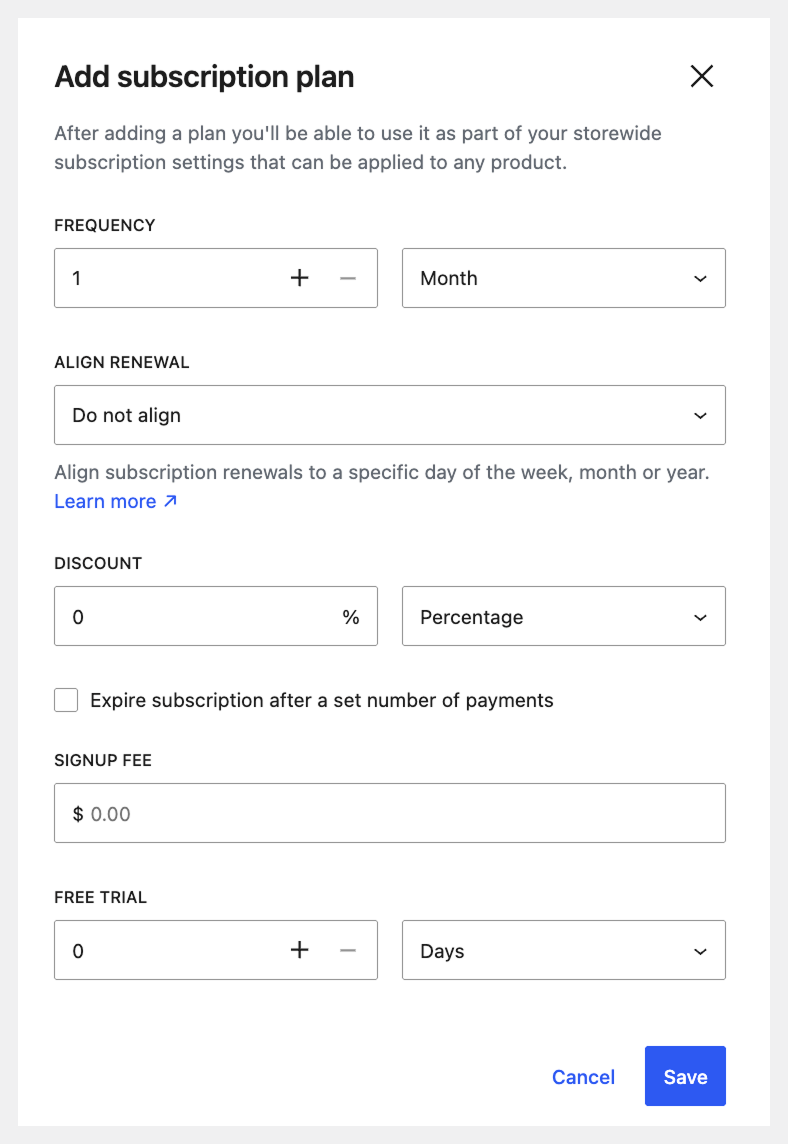
↑ Back to topTo add a new plan, click + Add subscription plan. A dialog will open with the following fields:
- Frequency: Set the billing interval using a number input and a period dropdown (Day, Week, Month, Year). For example, “three months” means the customer is billed every three months. The combination cannot exceed ten years.
- Align Renewal: Optionally select a day to align renewal dates for all subscribers on this plan. When set to “Do not align,” renewals are based on each subscriber’s purchase date. See the Billing Date Alignment documentation for details.
- Discount: Optionally apply a discount to offer subscribers a lower price. Percentage or fixed amount discounts are supported.
- Expire subscription after a set number of payments: When enabled, a “Total number of payments” field appears, letting you specify how many payments (including the initial purchase) occur before the subscription expires.
- Signup Fee: Add a one-time fee that customers pay when they first subscribe.
- Free Trial: Offer a free trial by setting its duration using the number and period fields (Days, Weeks, Months, Years).
Click Save to add the plan.
Manage existing plans
↑ Back to topOnce you’ve created plans, you can manage them from the table:
- Reorder: Drag the handle on the left of a row to change the order in which plans appear.
- Edit, Duplicate, or Delete: Click the three-dot (⋮) menu in the Actions column to edit a plan, duplicate it as a starting point for a new plan, or delete it.
Renewals
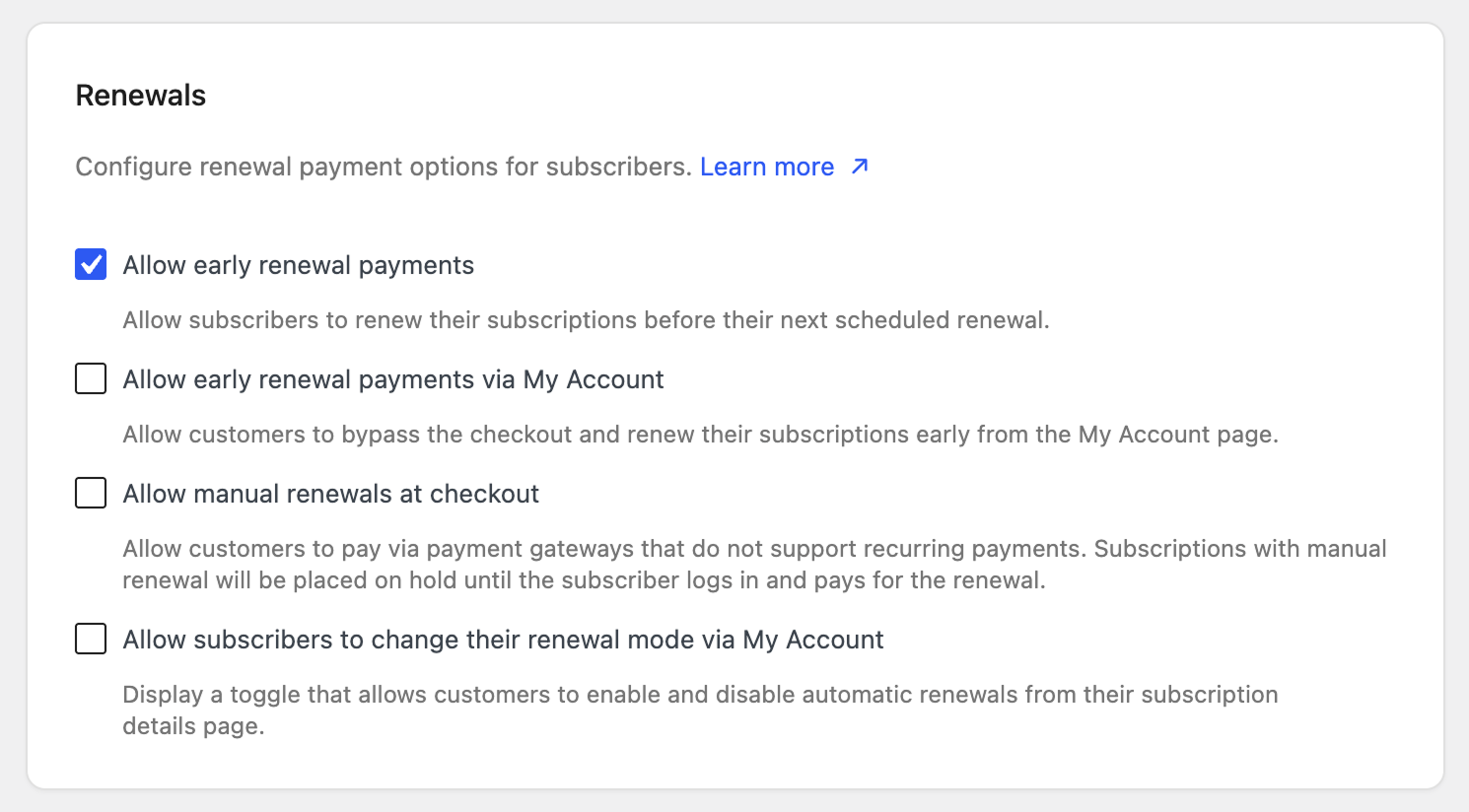
↑ Back to topConfigure renewal payment options for subscribers. These settings govern key aspects of the renewal process.
The subscription renewal process is a fundamental component of Woo Subscriptions. To understand the intricacies of how renewal settings impact subscriptions and subscription payments, see Subscription Renewal Process.
Allow early renewal payments
↑ Back to topEnable Allow early renewal payments to let subscribers renew their subscriptions before their next scheduled renewal. The normal renewal interval remains unaffected. For example, if a monthly subscription renews on the 15th of every month and a customer renews on the 7th instead, next month it will still renew on the 15th. If a subscription has no expiry set, a customer can renew (and extend) it indefinitely. For more information, see the Subscriptions Early Renewal Guide.
Allow early renewal payments via My Account – This option appears once early renewal payments are enabled. When checked, subscribers can bypass the checkout and renew their subscriptions early directly from their My Account page.
Allow manual renewals at checkout
↑ Back to topEnable Allow manual renewals at checkout to accept subscription payments via payment gateways that do not support automatic recurring payments. When enabled, all active payment gateways are offered as a payment option when purchasing a subscription — not just gateways that support Subscriptions. If a customer pays via a gateway that does not support automatic payments, the subscription uses the manual renewal process, and will be placed on hold until the subscriber logs in and pays for the renewal.
For a list of payment gateways that support automatic and manual payments, see Subscription Payment Gateways. For more information about the difference between automatic and manual renewal payments, see Subscription Renewal Process.
After turning on manual renewals, the setting only applies to new orders. Existing orders with an automatic payment system setup will continue to have renewal payments charged automatically.
Turn off automatic payments — This option appears once manual renewals are enabled. Check it to prevent automatic payment processing for new subscriptions, even when the gateway supports automatic payments.
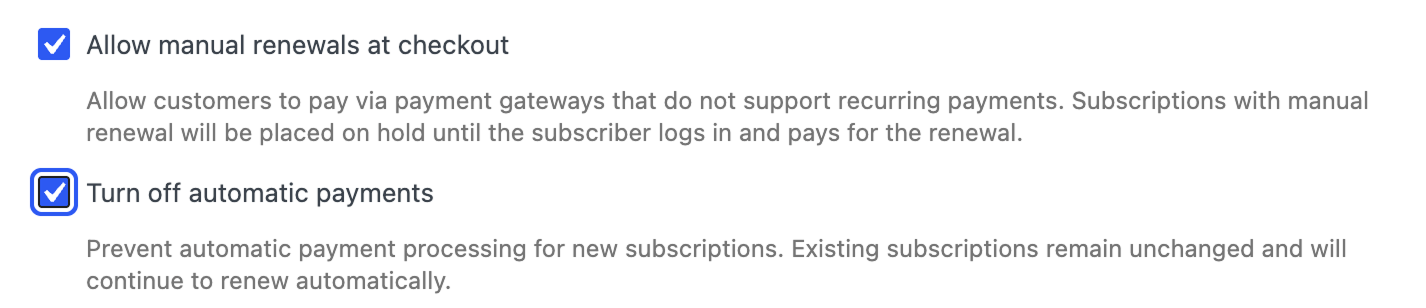
Any existing subscriptions using automatic payments will continue to have renewal payments charged automatically. Similarly, if automatic payments are disabled but then enabled, existing subscriptions using manual renewals will continue rather than switch to automatic renewal. To change a subscription’s payment method, see Changing a subscription from automatic to manual renewal payments.
Allow subscribers to change their renewal mode via My Account
↑ Back to topEnable this setting to display a toggle that allows customers to enable and disable automatic renewals from their subscription details page. By default, subscriptions paid via a gateway that supports automatic renewals will auto-renew (unless automatic payments are turned off). This toggle lets subscribers easily switch to manual renewals themselves from the My Account page.
Checkout options
↑ Back to top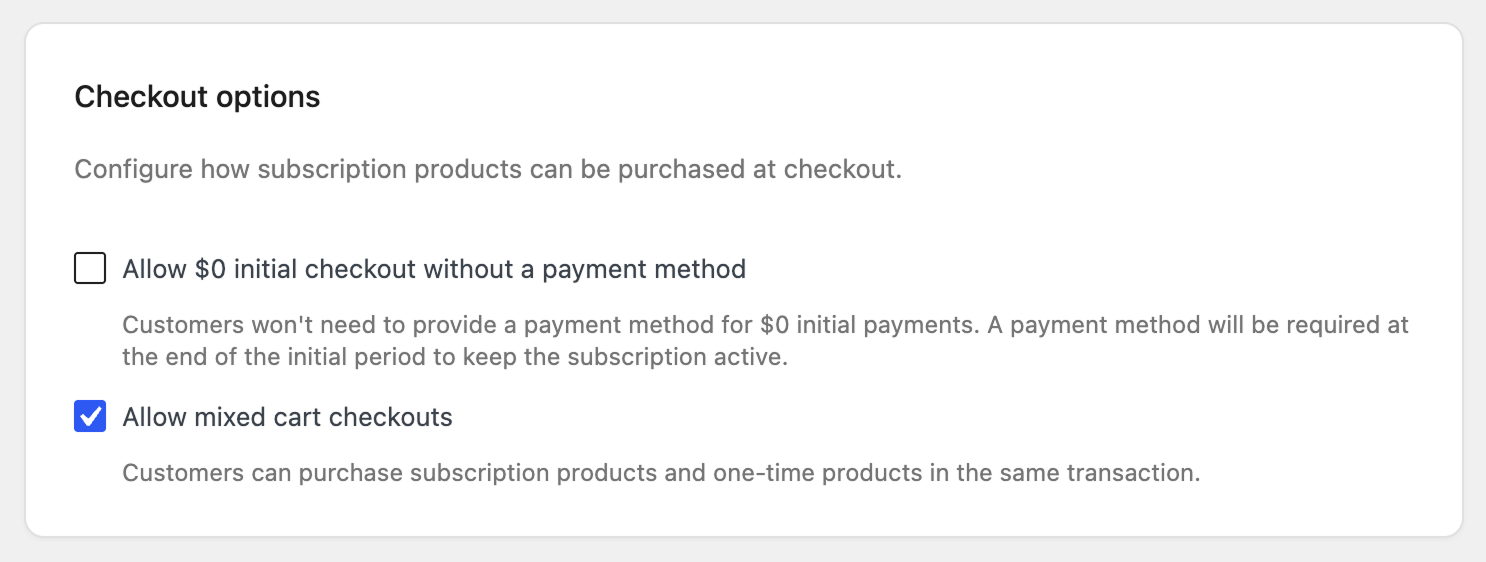
Allow $0 initial checkout without a payment method
↑ Back to topThis allows for a subscription product with a $0 initial payment to be purchased without providing a payment method. This is helpful if you offer a free trial on a subscription product and don’t want to force your customers to add a payment method right away. At the end of a free trial period, customers will need to add a payment method to continue their subscription.
Allow mixed cart checkouts
↑ Back to topEnable this setting to let customers purchase subscription products and one-time (non-subscription) products in the same transaction. This includes simple, variable, and other non-subscription products, as well as multiple different subscription products.
Mixed cart checkouts make it easier for customers to buy more from your store and to include subscription products in bundles created with extensions such as Product Bundles. Because of this, it’s on by default and is only disabled if manually unchecked.
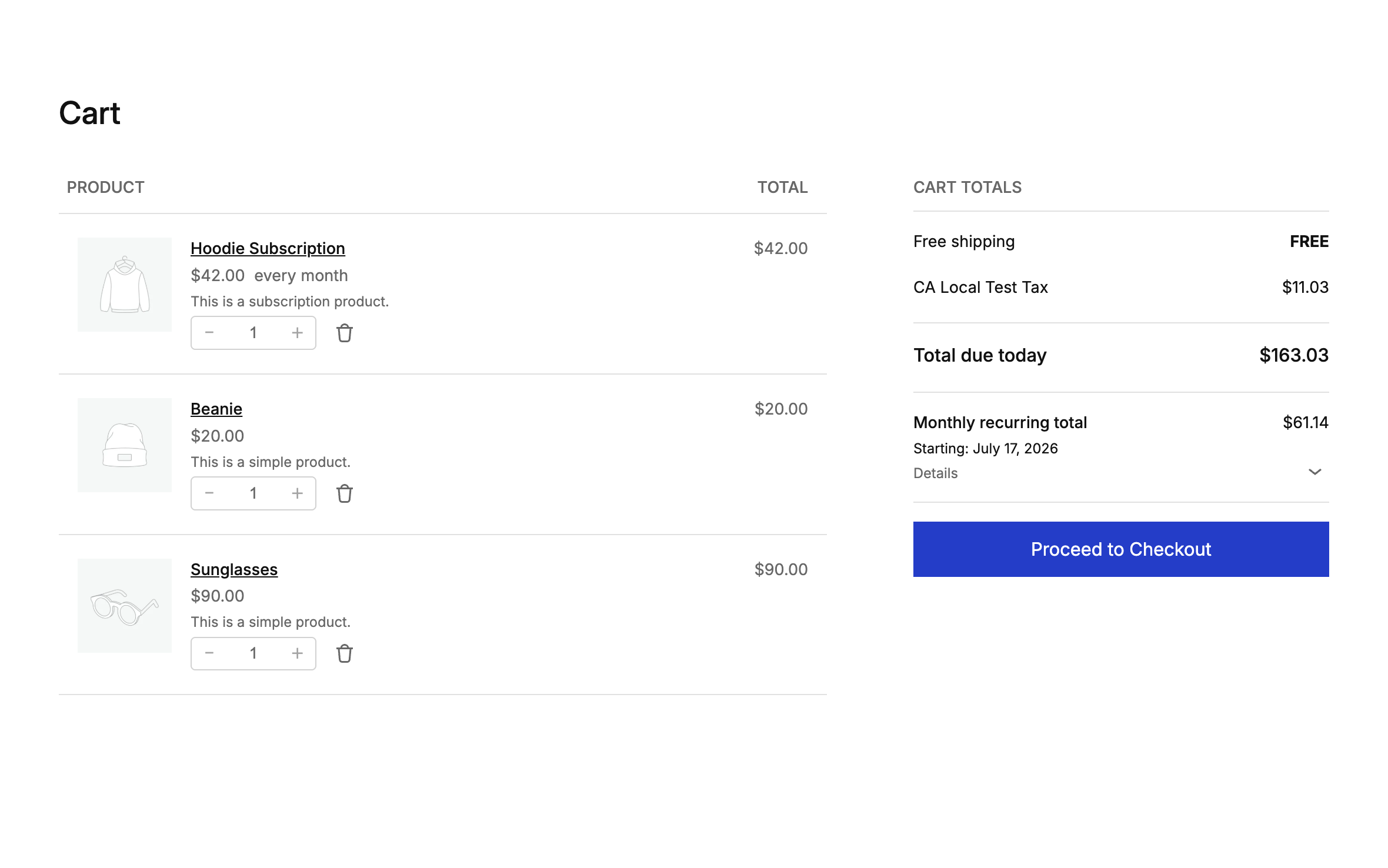
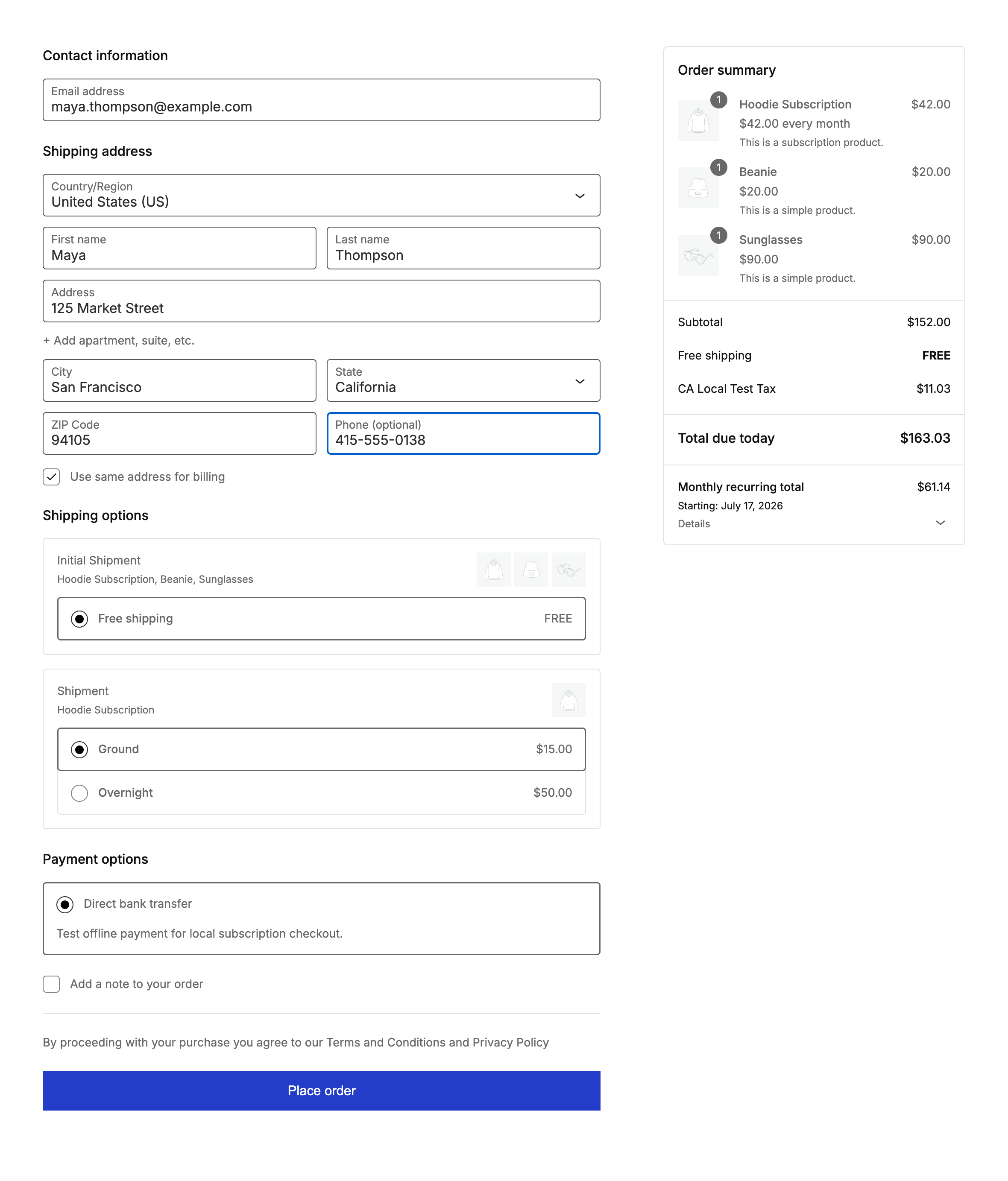
With the setting enabled, here’s how a mixture of products appears on the cart and checkout pages:
Cart page:
Checkout page:
Payment recovery
↑ Back to top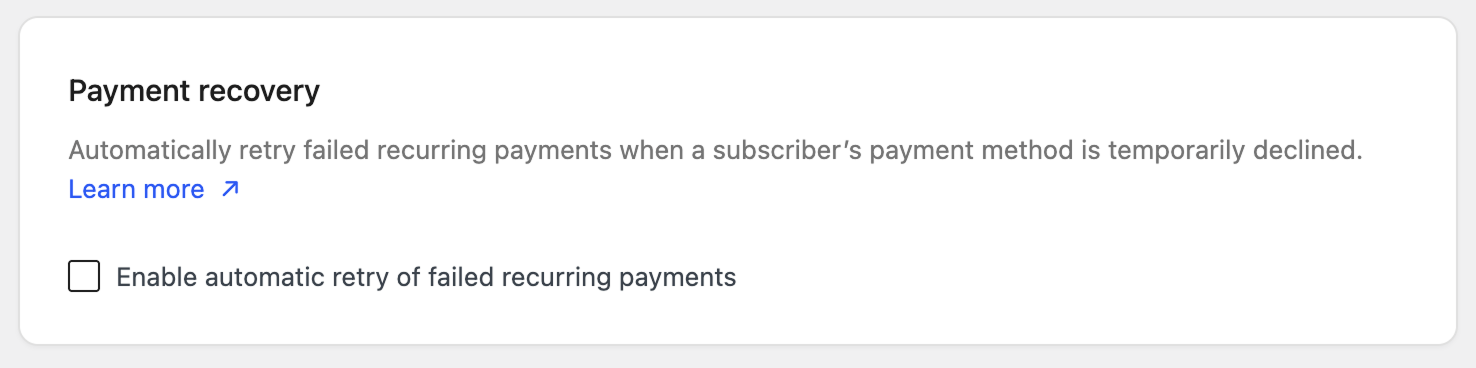
Automatically retry failed recurring payments when a subscriber’s payment method is temporarily declined. For example, if a customer’s credit card has reached its limit when a recurring payment is attempted and the bank declines the charge, Subscriptions can successfully process it a few days later once the balance is paid off.
Enable automatic retry of failed recurring payments
This setting is off by default. When enabled, it activates the Failed Recurring Payment Retry System. The setting applies from that point onwards and does not affect payments that have already failed.
For a full explanation of retry rules, statuses, and emails, see the Failed Recurring Payment Retry System guide.
Switching
↑ Back to top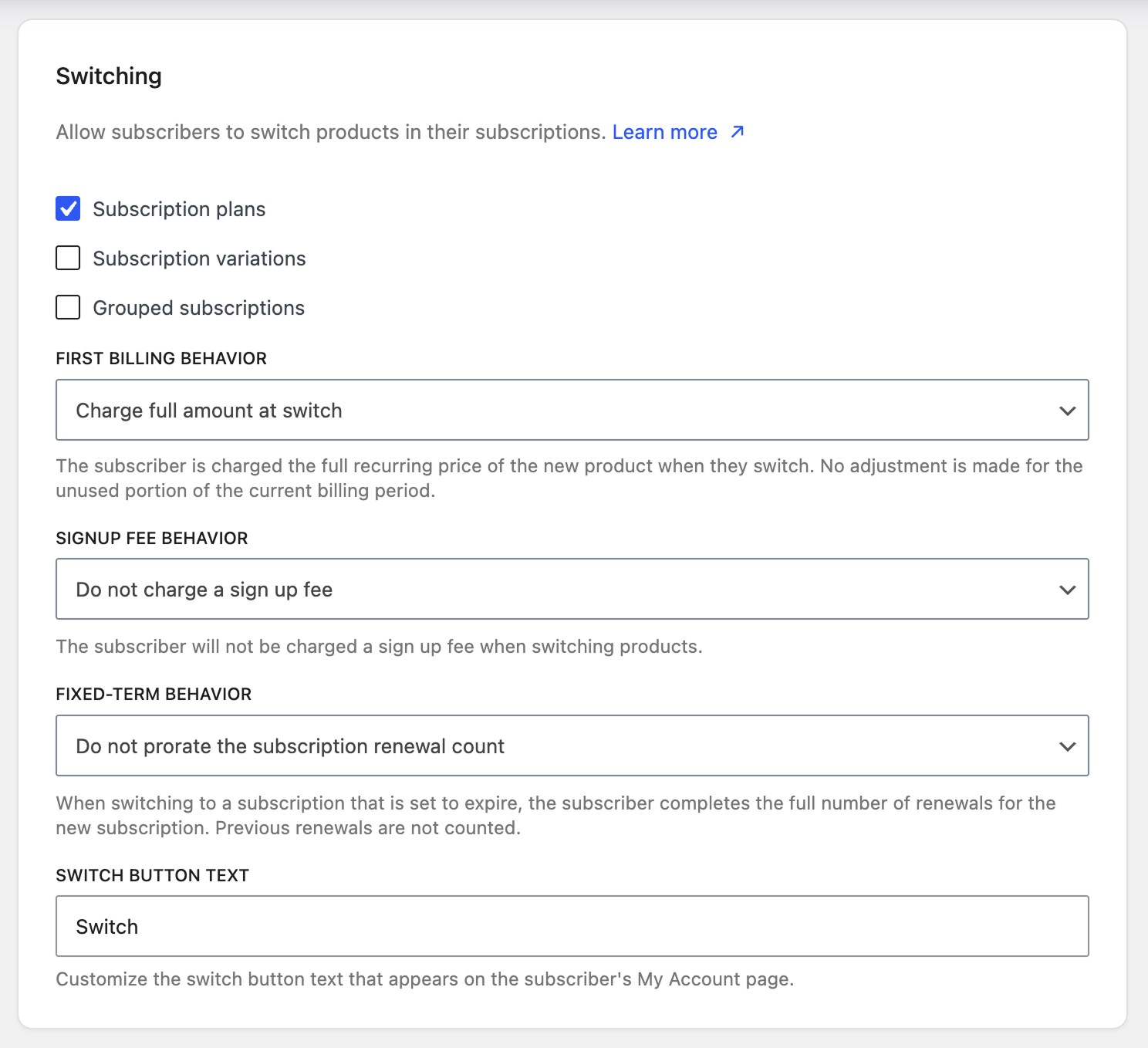
Allow subscribers to switch their subscription to a different product, variation, or plan — upgrading, downgrading, or cross-grading between eligible options from their My Account page.
For a full explanation of the switching process and costs, see the Store Manager’s Guide to Subscription Switching.
Add to Subscription
↑ Back to top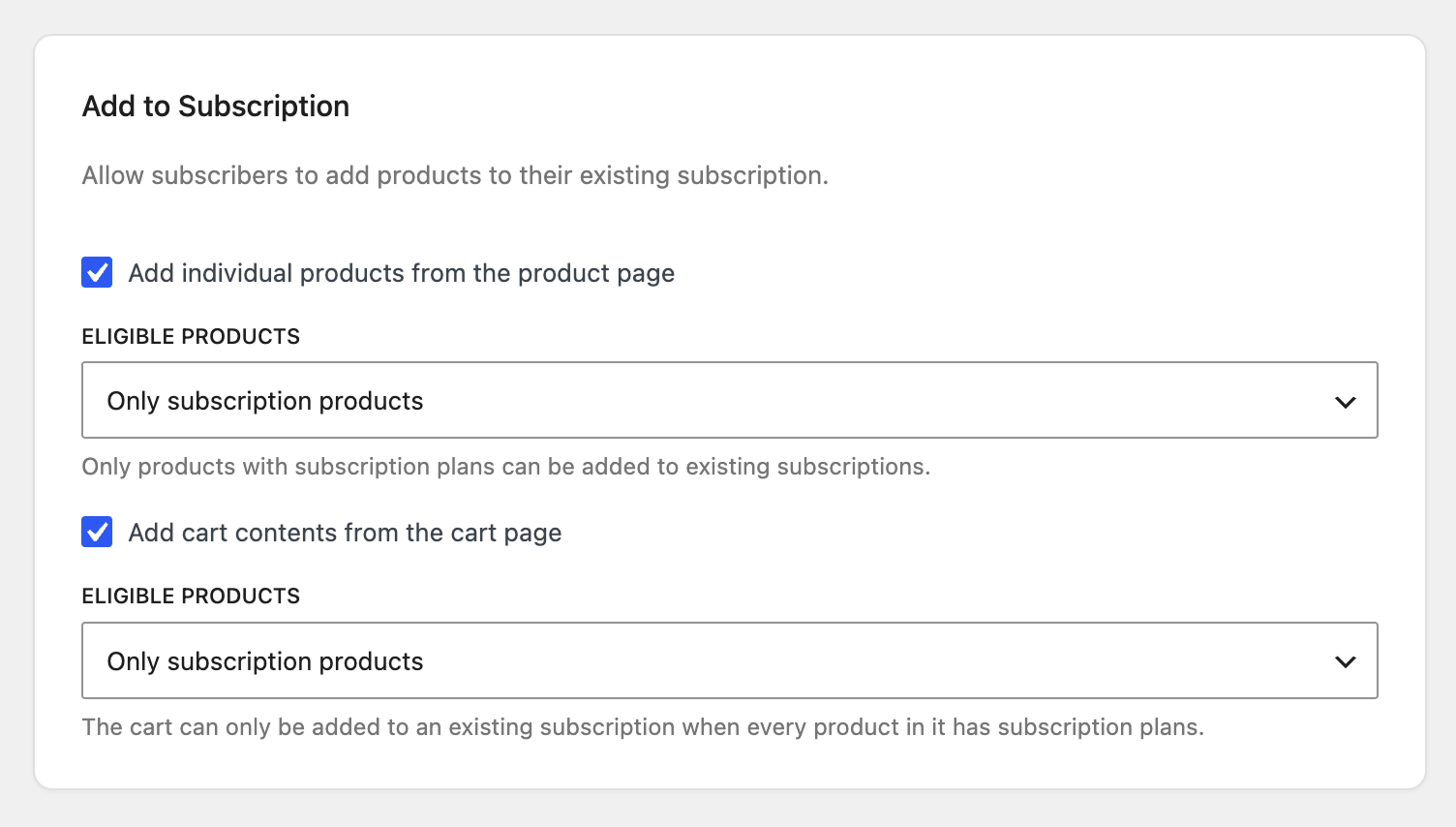
Allow subscribers to add products to their existing subscription instead of creating a new one at checkout. Enable one or both options below; each has its own Eligible products setting.
Add individual products from the product page – Lets customers add a single product to one of their existing subscriptions directly from that product’s page.
Under Eligible products, choose:
- Only subscription products – Only products with subscription plans can be added to existing subscriptions.
- Any product – Any product can be added to an existing subscription, including products without subscription plans. These products will inherit the subscription’s billing schedule.
Add cart contents from the cart page – Lets customers add the current contents of their cart to one of their existing subscriptions from the cart page. This option only works with the classic (shortcode) Cart — it isn’t available when the store uses the block-based Cart, and won’t appear in settings in that case.
Under Eligible products, choose:
- Only subscription products – The cart can only be added to an existing subscription when every product in it has subscription plans.
- Any product – The cart can be added to an existing subscription even when it holds products without subscription plans. These products will inherit the subscription’s billing schedule.
Subscriptions with signup fees cannot be added to an existing subscription using this feature.
Suspensions
↑ Back to top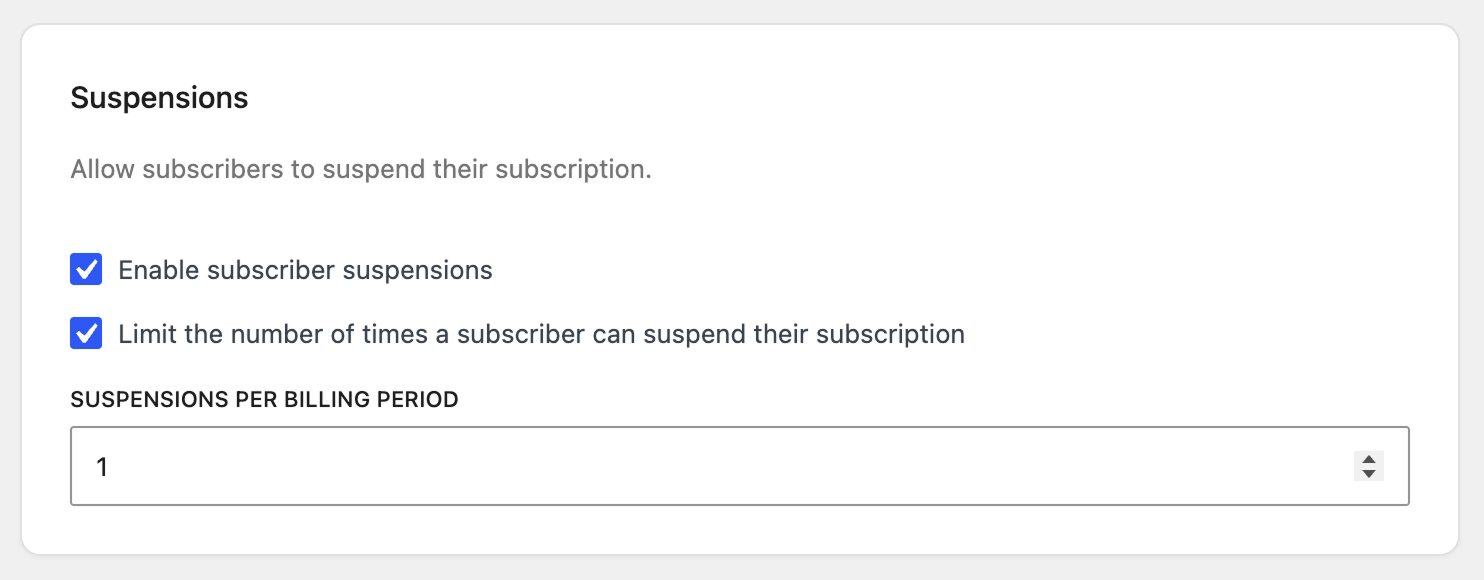
Allow subscribers to suspend their subscription.
Enable subscriber suspensions – When enabled, subscribers can suspend their own active subscriptions from their My Account page. When disabled, subscribers cannot suspend their subscriptions.
When enabled, two further options become available:
- Limit the number of times a subscriber can suspend their subscription – When left unchecked, subscribers can suspend their subscription an unlimited number of times. When checked, the Suspensions per billing period field appears.
- Suspensions per billing period – Set the maximum number of times a subscriber can suspend their subscription within each billing period. For example, on a subscription billed yearly, a value of 3 means that once the subscriber has suspended 3 times in that year, they cannot suspend again until the next billing year.
Note: Store managers can always suspend an active subscription, regardless of this setting. If you see a Suspend button on a test subscription in your own My Account page, it’s because you’re an administrator — customers and other roles won’t see it.
Gifting
↑ Back to top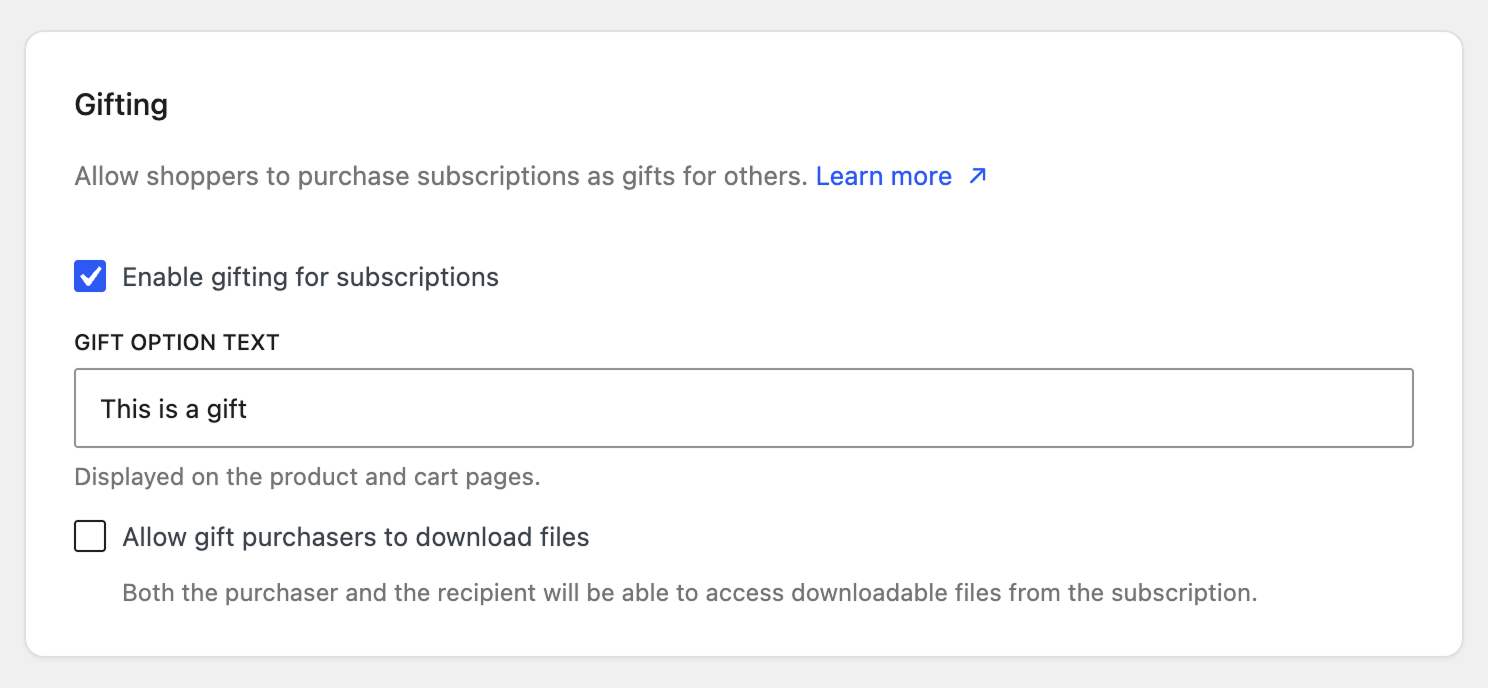
Allow shoppers to purchase subscriptions as gifts for others. When a subscription is gifted, it’s shared between the purchaser and the recipient for the rest of its life cycle, and the purchaser selects a recipient by entering their email address. For the full customer and store-manager workflow, see Gifting a Subscription.
Enable gifting for subscriptions – Turn this on to let shoppers buy a subscription for someone else. When enabled, the following options appear:
- Gift option text – The label shown next to the gift option on the product and cart pages. The default is “This is a gift” — change it to a phrase that suits your store.
- Allow gift purchasers to download files – When checked, both the purchaser and the recipient can access downloadable files from the subscription. When unchecked, only the recipient is granted download permissions. Recipients can download the files they’ve been granted access to from the My Account page and the My Account > View Subscription page.
Billing date alignment
↑ Back to top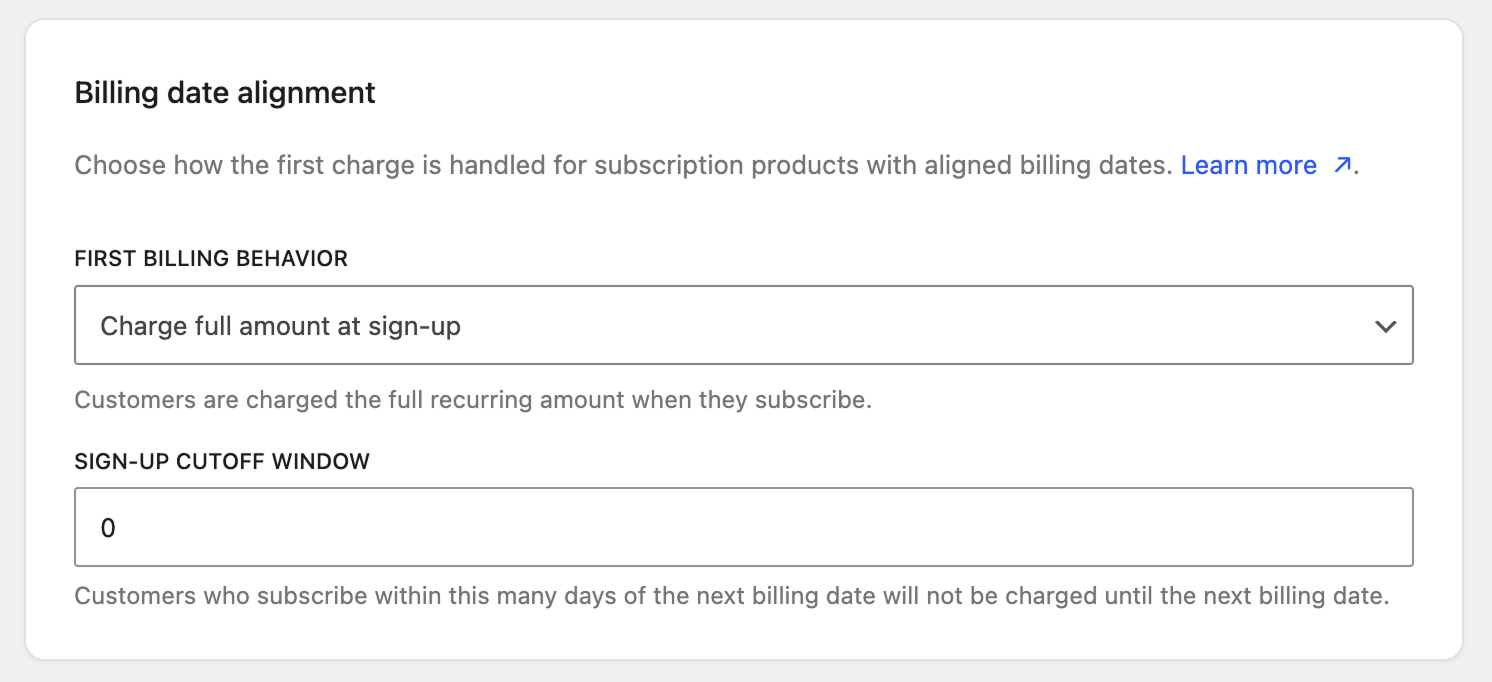
Choose how the first charge is handled for subscription products with aligned billing dates. Set the First billing behavior to one of the following:
- Charge full amount at sign-up (default) – Customers are charged the full recurring amount when they subscribe. A Sign-up cutoff window field appears: customers who subscribe within that many days of the next billing date aren’t charged until the next billing date (set to 0 to disable).
- Charge on the next billing date – Customers aren’t charged at sign-up; their first recurring charge occurs on the next billing date.
- Prorate until the next billing date – Customers are charged a prorated amount based on the days remaining until the next billing date, then the full amount on the next billing date. An Apply proration to option appears to choose which product types are prorated (Virtual and/or Physical subscription products; at least one required).
For detailed examples and how proration is calculated, see the Guide to Billing Date Alignment.
Downloadable content
↑ Back to top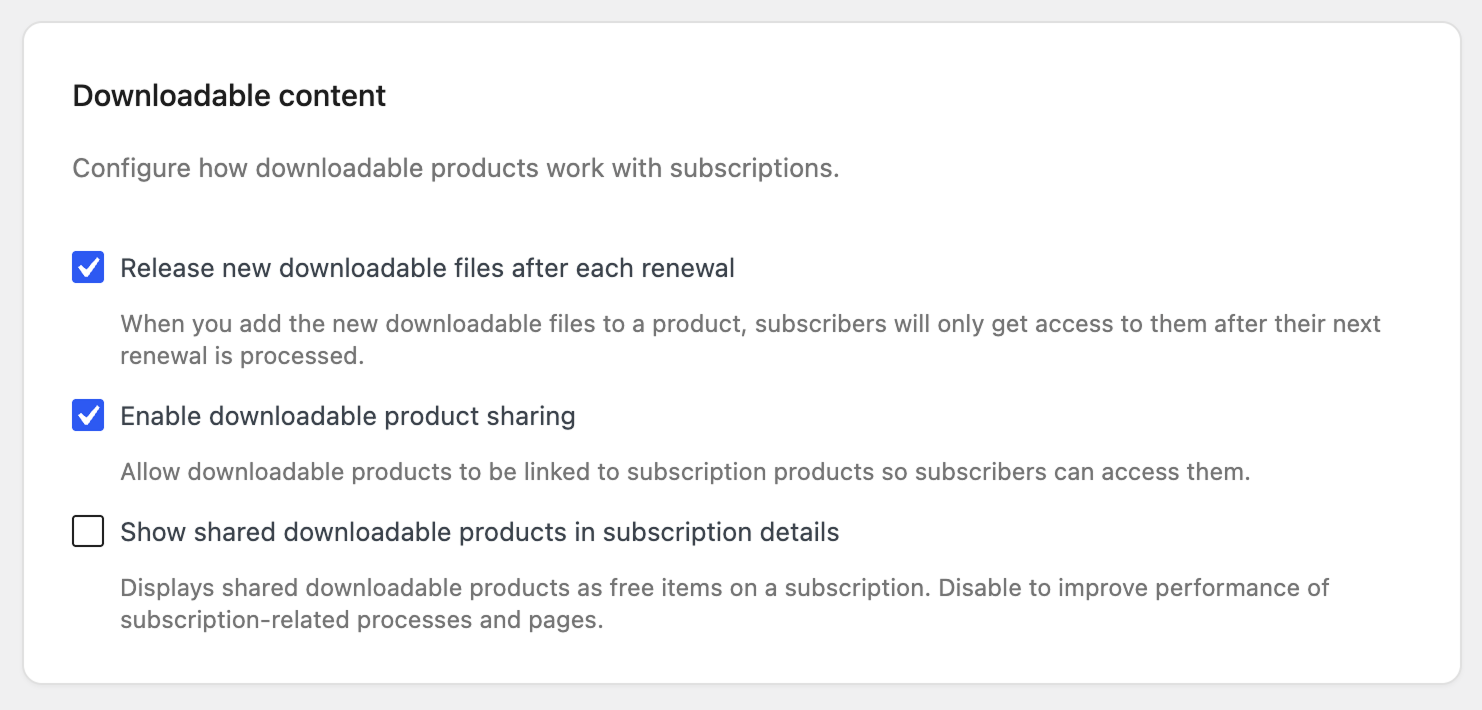
These settings determine how downloadable products are delivered to your subscribers over the life of a subscription—whether new files are released gradually at renewal, and whether standalone downloadable products can be attached to subscriptions.
- Release new downloadable files after each renewal—When you sell a downloadable subscription product, you may add more files to it over time. By default, any new file you add becomes available to all existing subscribers immediately. Enable this setting to instead hold new files back until each subscriber’s next renewal is processed.
- Enable downloadable product sharing—Turn this on to link standalone downloadable products to your subscription products, so subscribers can access those downloads through their subscription. This lets you keep selling a downloadable product on its own while also bundling it into a subscription, and a single downloadable product can be linked to more than one subscription. When this is enabled, a further option appears:
- Show shared downloadable products in subscription details—With this on, the downloadable products you’ve linked appear as free line items in the subscription’s details, visible to both you and the subscriber. If a subscription has many linked downloadable products, listing them all can slow down subscription-related pages and background processes. Turning this off stops them from being added as line items. Even when off, subscribers keep their download access and can still reach their files from the subscription’s Downloads section and from My Account > Downloads.
Subscription notifications
↑ Back to top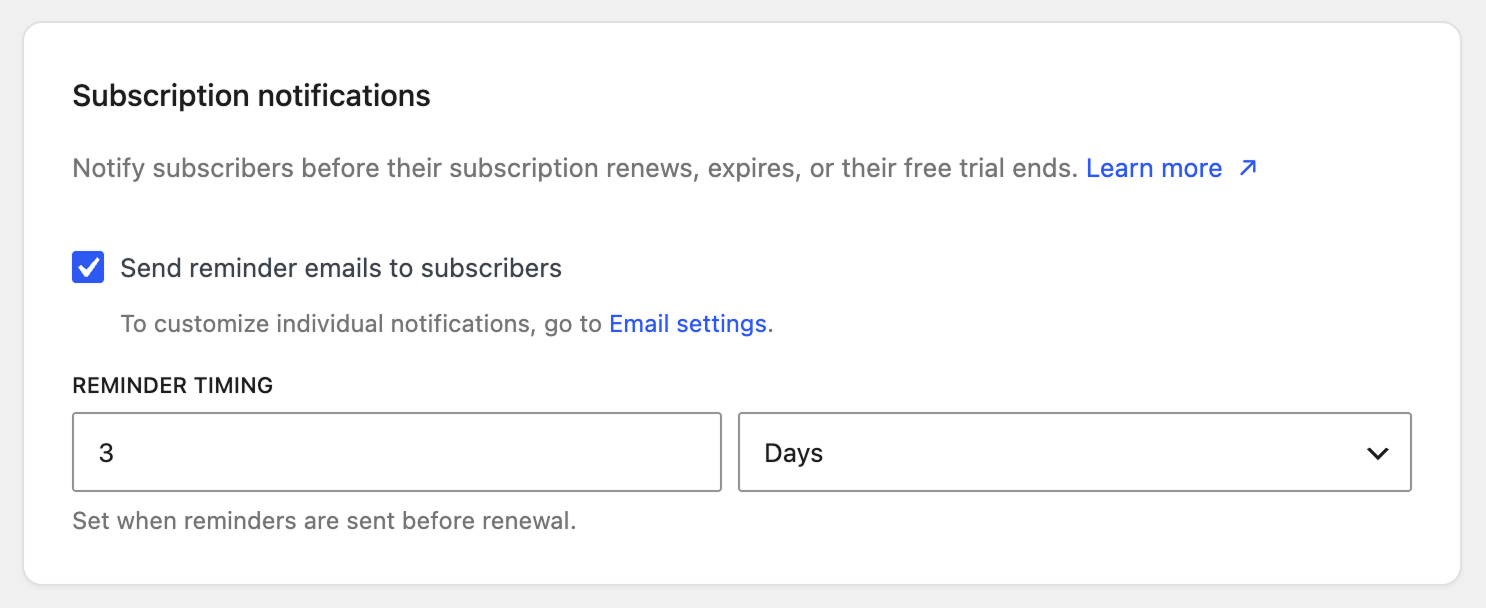
These settings let you send subscribers reminder emails ahead of key subscription events — an upcoming renewal, an expiring subscription, or the end of a free trial. These are advance “heads-up” reminders sent before an event, separate from the standard subscription emails that are sent automatically when an event occurs. For the full list of notification types and how to customize each one, see the Subscription Notifications guide.
Send reminder emails to subscribers – Turn this on to send those reminders automatically. It acts as the master switch for the feature: once enabled, reminders are scheduled in the background for all eligible subscriptions, and disabling it unschedules them. You still control each reminder email individually — to enable, disable, or edit the wording of a specific notification, go to WooCommerce > Settings > Emails. For a reminder to send, both this switch and that individual email must be enabled.
When enabled, a further option appears:
Reminder timing – Set how far before each subscription event the reminder is sent, using the number field and the unit dropdown (days, weeks, or months). The latest a reminder can be sent is 1 day before the event, and reminders aren’t scheduled for subscriptions shorter than 3 days.
Reminder emails are only sent on live (production) sites — they’re automatically disabled on staging and other non-production environments.
Purchase text
↑ Back to top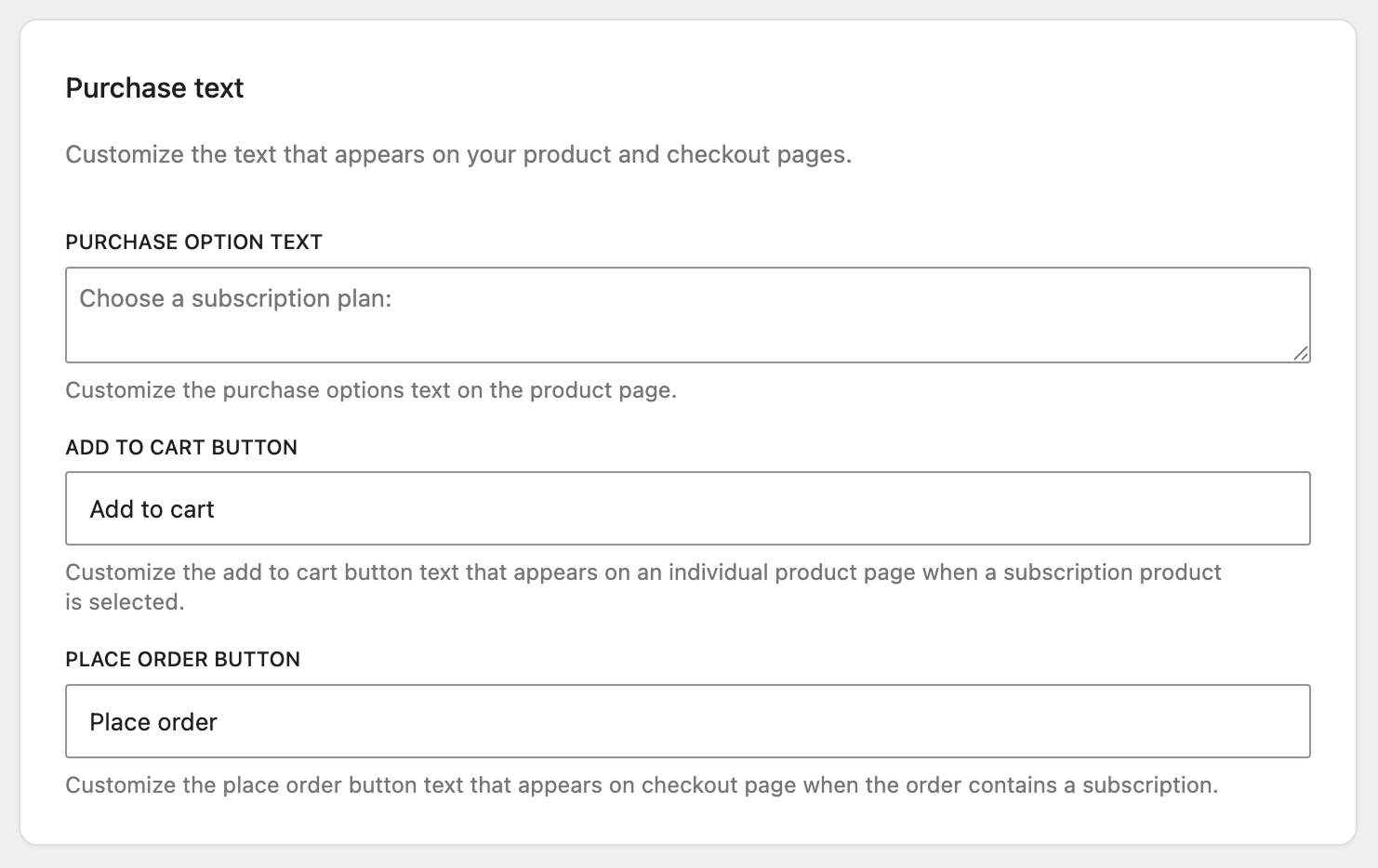
Customize the text that appears on your product and checkout pages for subscription purchases. Three fields are available:
Purchase option text – Sets the text shown above the subscription purchase options on a product page (default: “Choose a subscription plan:”).
Add to cart button – Sets the label of the Add to Cart button on an individual product page when a subscription product is selected.
Place order button – Sets the label of the Place Order button on the checkout page when the order contains a subscription.
Subscriber roles
↑ Back to top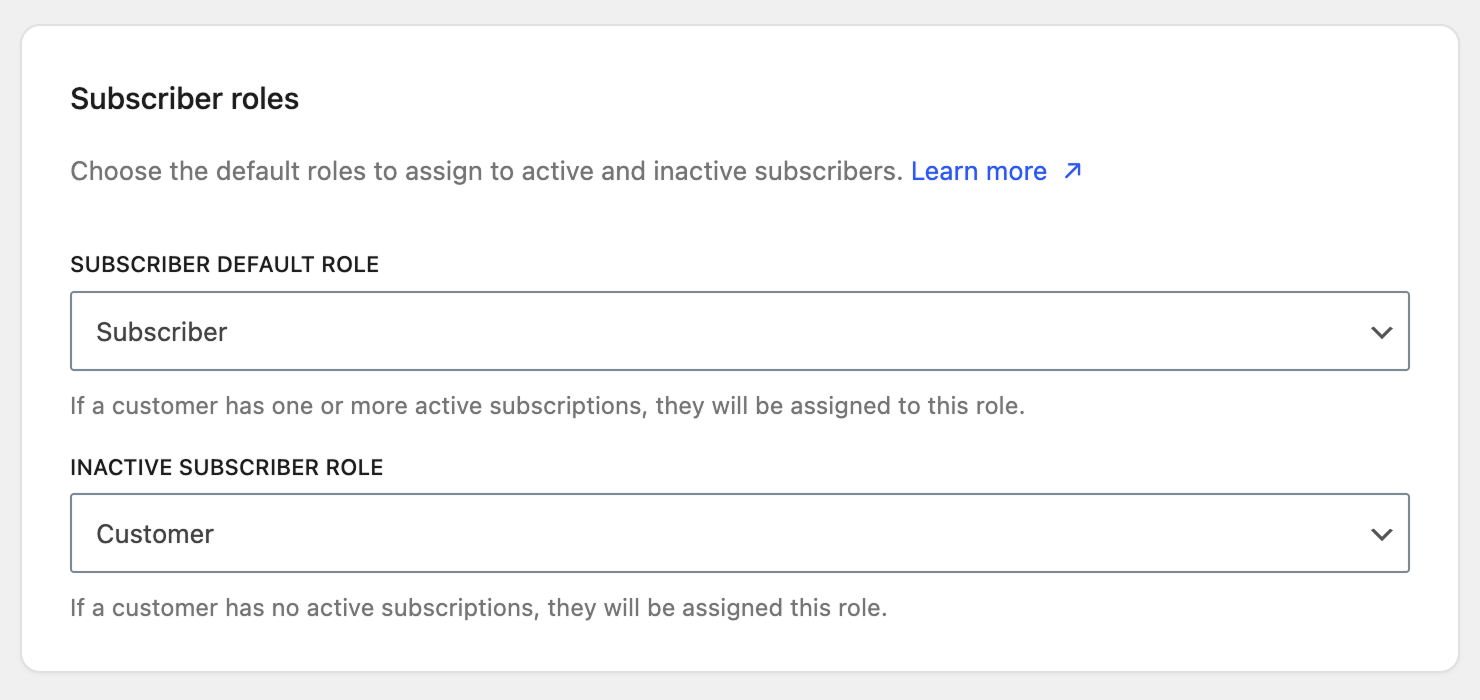
Because a subscription is an ongoing agreement between you and the customer, every subscriber must have an account on your store — regardless of your general WooCommerce account settings. These settings control which user role a customer holds depending on whether they currently have an active subscription.
Subscriber default role – The role assigned to a customer while they have one or more active subscriptions. By default, this is WordPress’s built-in Subscriber role.
Inactive subscriber role – The role assigned to a customer once they have no active subscriptions — for example when their subscription expires, is cancelled, or is suspended (by you, the payment gateway, or the customer). By default this is WooCommerce’s built-in Customer role.
If you sell memberships and want to add a “member” role, WooCommerce Memberships may be a good option for you. Memberships also allows setting different per-product permissions for users.
Subscription product creation
↑ Back to top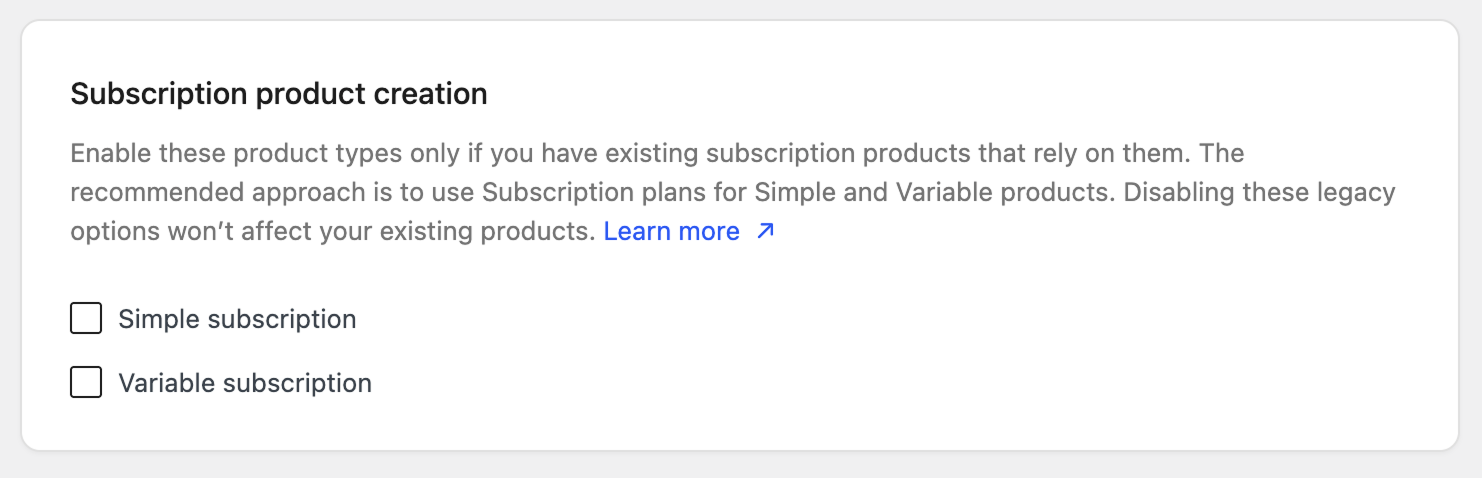
These settings control whether the dedicated subscription product types — Simple Subscription and Variable Subscription — are available when creating products. Enable each type independently under Enable subscription product types:
- Simple subscription
- Variable subscription
When a type is enabled, it appears as an option in the product type drop-down as you create a new product. When disabled, that option no longer appears for new products.
When dedicated subscription product types are disabled, changing an existing simple or variable subscription product to another product type and saving it removes the subscription options from that product’s dropdown.
As of WooCommerce Subscriptions 9.0, we recommend using subscription plans on simple, variable, bundle, and composite products instead. The dedicated Simple and Variable Subscription product types are retained for backward compatibility and use cases that are not yet supported by subscription plans.
Disabling the dedicated subscription product types will not affect existing products—they will continue to work as expected.
Subscriptions health check
↑ Back to top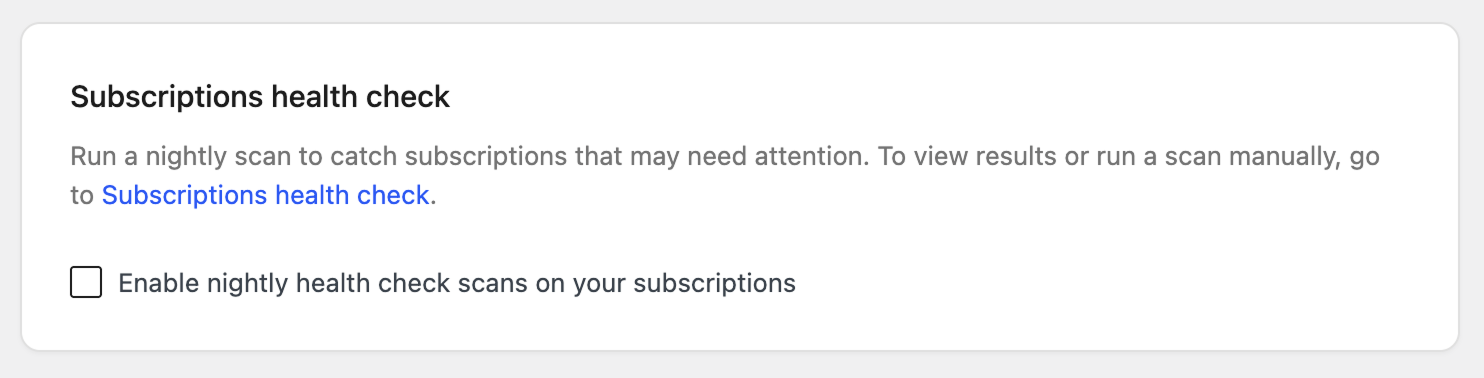
The Subscriptions Health Check scans your store for subscriptions that may need attention — for example, subscriptions set to manual renewal that could be renewing automatically based on the customer’s payment method, or subscriptions with missing or overdue renewal dates.
Enable nightly health check scans on your subscriptions – When enabled, WooCommerce Subscriptions runs a health check scan automatically each night. To view a scan’s results or run one manually at any time, go to WooCommerce > Status > Subscriptions.
The health check never changes a subscription on its own — any suggested fix is applied only when you review it and confirm.
For more detail, see the Subscriptions Health Check guide.
Processing reliability
↑ Back to top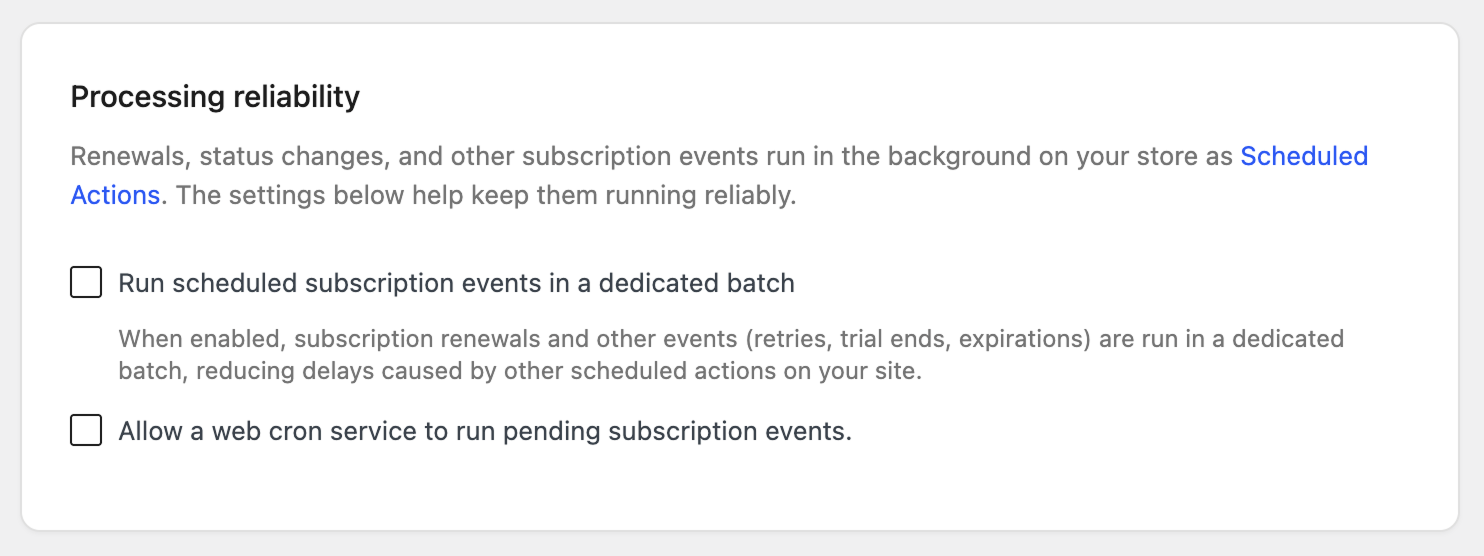
Renewals, status changes, and other subscription events run in the background on your store as scheduled actions. These settings help ensure those processes run consistently and reduce the risk of missed or delayed subscription events.
Run scheduled subscription events in a dedicated batch – When enabled, subscription renewals and other events (retries, trial ends, expirations) run in a dedicated batch, reducing delays caused by other scheduled actions on your site. This is especially useful on busy stores where many plugins share the same job queue.
Allow a web cron service to run pending subscription events – When enabled, an external web cron service can run pending subscription events, and a unique Web cron URL is generated for you to add to that service. Treat this URL like a password — keep it private and don’t share it publicly. To replace an existing URL, click Generate a new URL; any external service still using the old URL will need to be updated.
Subscriptions shortcode
↑ Back to topTo display a list of subscriptions on pages apart from the customer My Account page, add the [subscriptions] shortcode to a page or post.
Shortcode Arguments
↑ Back to topOptional Subscriptions shortcode arguments:
user_id: show only subscriptions owned by a user with this ID (default:0, the currently logged-in user).status: show only subscriptions with this status. It can be,active,on-hold,cancelled,switchedorall(default: active).
Example usage
↑ Back to top[[subscriptions]]
[[subscriptions user_id="33"]]
[[subscriptions status="all"]]
[[subscriptions user_id="42" status="all"]]More at: How to Use Shortcodes.
Questions and support
↑ Back to topSomething missing from this documentation? Still have questions and need assistance?
- If you have a question about a specific extension or theme you’d like to purchase, contact us to get answers.
- If you already purchased this product and need some assistance, get in touch with a Happiness Engineer via our support page and select this product’s name from the Product dropdown.