


Holiday promotions seem to start earlier every year. By the time Black Friday and Cyber Monday roll around, shoppers have already been bombarded with deals, discounts, and limited-time offers. And the sales don’t stop there.
With so much competition for their attention, your store has an opportunity to make shopping a little easier. A clear offer, helpful answers, and a simple path to checkout go a long way towards turning overwhelmed browsers into customers.
Why clarity beats FOMO during Black Friday and Cyber Monday
↑ Back to topShoppers who are looking for the next promotion to come along have learned to just scroll past “last chance.”
Optimove surveyed 648 consumers for its 2026 Holiday Shopping Report and found that 59% are tired of holiday promotions by October. It jumps to seven out of ten respondents by November.
Of course there are real holiday deadlines and shoppers need to know when a sale is coming to an end or when to order if they’re looking for holiday delivery. But manufactured urgency isn’t going to sort out the confusion or fix a checkout process that’s in the way.
Your website’s job is to give the shopper enough confidence to buy. You need to identify where they’re hesitating and give them what they need to go the rest of the way.
Find where shoppers stop before promotions start
↑ Back to topLast year 33.4% of the merchants who took our 2025 holiday trends survey said they were focusing on website performance optimization. That’s a big jump on the 13% who said the same thing the year before.
To get the best out of your site and to actually improve your peak season conversion you need to know where the shopper is dropping off. Your overall conversion rate will not tell you whether they’re having difficulty choosing a product, whether they’re abandoning their cart or whether they’re giving up at checkout.
To see where the shopper is dropping off you need to connect your store to GA4 via the Google Analytics for WooCommerce extension. You need to turn on and verify tracking for product views, cart additions, checkout starts and purchases.
The Purchase journey report in GA4 shows you how the shopper moves through each step prior to making a purchase. You can look at the percent who progress through each step and then break that down by device and by channel source to see where the experience differs.
Let’s suppose you come across a 35% checkout completion rate on mobile as opposed to 60% on desktop. Look at the mobile experience to see what’s causing the slowdown. Are the form fields difficult to complete on mobile? Are the error messages easy to miss? Are the payment options hard to use?
You’d be able to see that people coming from a holiday email click-through but don’t convert at all, whereas people coming from other channels are far more likely to complete a purchase. Look at the steps taken by those email visitors to see where their journey breaks down. Are they dropping off before they get to the cart, or are they making it all the way to checkout and then stopping?
Once GA4 is showing you where the shoppers are dropping off, ask why. Recreate the journey using the same device type, campaign link, and products.
The majority of the fixes fall into four categories: offers that apply automatically, help in choosing between products, answers to the common questions, and a shorter checkout flow.
Simplify peak season promotions
↑ Back to topPromos will get people to your site during BFCM and in the months that follow. The page they land on needs to make their next action obvious.
Every step you remove between the offer and the eligible products will move more shoppers toward checkout.
When a customer comes from an email offering 20% off holiday gift sets, their click should land them on a curated page of holiday gift sets and a notice that reiterates the 20% off sale. Don’t point them to your homepage and make them search for the offer. Put your holiday bundles and your discount codes exactly where the shoppers land.
Store Notice and Smart Coupons simplify your sales
WooCommerce has a built-in Store Notice, which allows you to display a promotional message across your site. You can use it to keep an offer and its coupon code in front of the customer as they’re browsing.
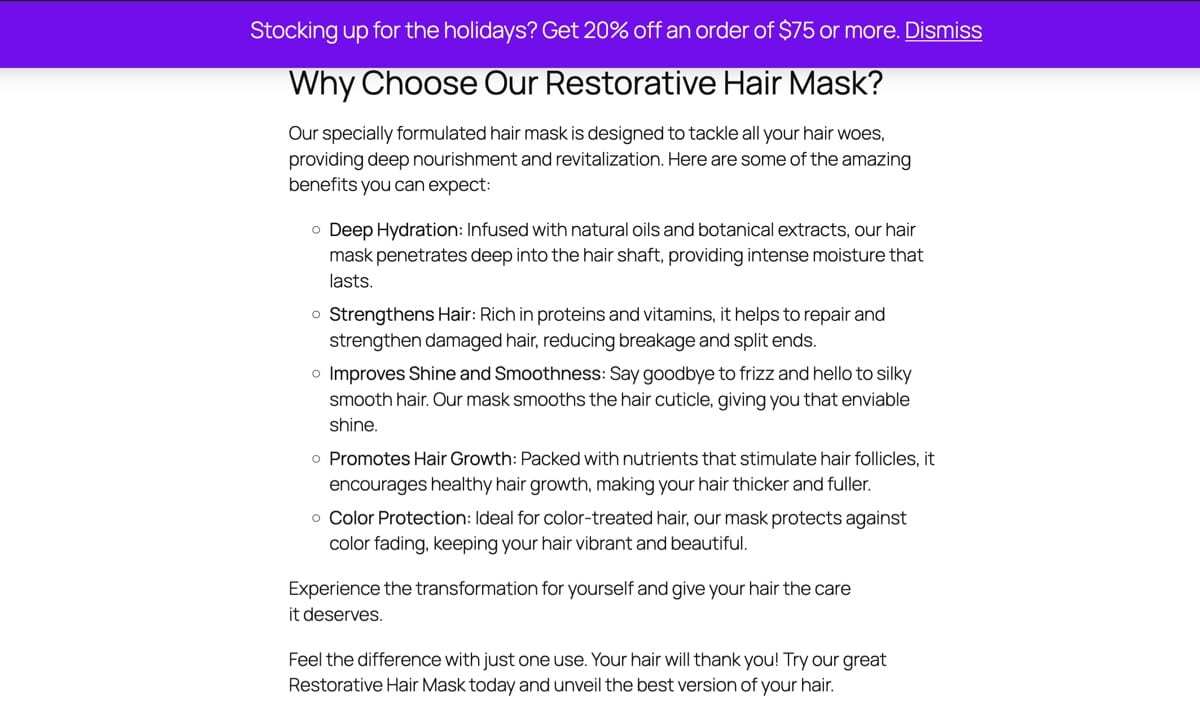
For broad or store-wide promotions, apply the discount automatically when the cart qualifies. The Smart Coupons extension adds this feature to WooCommerce. Set the discount and eligibility restrictions, then enable “Auto apply” on the coupon. The extension checks those conditions before applying it, so shoppers don’t have to retrieve or enter a code.
Keep improving the sale experience
Have your team pay close attention to the online shopping experience after you earn the click. Test the situations shoppers are most likely to ask about.
What if the cart doesn’t qualify for the promotion? Can customers tell which requirement they haven’t met? What happens when another coupon code is applied? Do the offers combine? If they don’t, is that restriction clear? You can also check what happens when shoppers remove items from their cart that impact the discount.
Answer those questions upfront so customers know exactly what they’re getting before they reach checkout.
Help shoppers search and choose effectively
↑ Back to topThe connection between WooCommerce and WordPress lets you combine buying advice (a.k.a. content) with products. A little education packaged with care gives shoppers the confidence to choose one item over another.
Let’s say someone is shopping for a coffee enthusiast. They understand they’ll get 20% off an order of $75 or more. But they don’t know which grinder or brewing equipment is right for the person on their list.
A gift guide can explain which brewing setup suits a beginner and which upgrades an experienced coffee enthusiast would appreciate. Use the WooCommerce Product Collection block to place your selected products or bundles alongside those recommendations. Explain who each option suits and why, then give shoppers a direct path to the product.
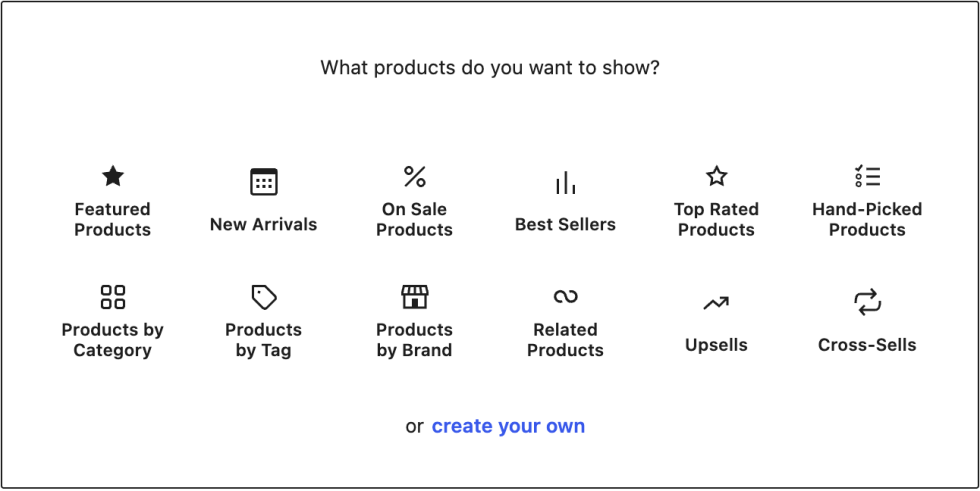
Help shoppers narrow those recommendations with the Product Filters block. Pair it with a Product Collection and category pages so visitors can filter by price, availability, and relevant product attributes. For coffee equipment, that could mean brewing method or capacity, using attributes you’ve assigned to the products.
How AI helps holiday shoppers choose
In its 2026 Holiday Outlook, PwC found that 29% of consumers planned to use AI for their holiday shopping. Of those who used AI, 68% said they used it to discover gift ideas they wouldn’t have thought of otherwise.
Consider the questions someone might ask an AI assistant: “What’s a good coffee grinder under $100 for someone who makes espresso?” Your product descriptions, FAQs, and gift guides should clearly answer questions about budget, suitability, and compatibility. “A great gift for coffee lovers” tells shoppers and AI tools far less than explaining which brewing methods a grinder supports and how straightforward it is to adjust.
You can also offer conversational shopping assistance directly in your store. An extension like AI Shopping Assistant for WooCommerce uses your product catalog to answer questions and recommend items through an AI-powered chatbot.
For larger online stores where shoppers regularly need help choosing, this gives visitors another way to describe their budget, recipient, and preferences as they explore relevant products. Before peak season, test it with real gift-shopping questions to make sure the recommendations match your products and the shopper’s needs.
Answer their questions before checkout
↑ Back to topEven when shoppers find the perfect gift, they may still have questions before buying. How much is shipping? Can the recipient return it after the holidays? Will it arrive in time?
With customizable WooCommerce product pages, you can put answers right where shoppers make a purchase decision.
Place information on the holiday return window in or near the product description. If you offer free shipping, mention it near the Add to Cart button to boost your conversion rate.
Display holiday order-by dates prominently on product pages, and clearly state which shipping methods and destinations each deadline covers. Keep shipping options and return policies linked on product pages.
A deadline tied to getting their gifts on time is the kind of real urgency holiday shoppers can use.
Make sure you can deliver what you promote
Before promoting a holiday bestseller, confirm you have enough stock for the campaign and that online availability matches what you can fulfill. Sales through a marketplace or physical store should update the inventory available to website shoppers.
Test a promoted product across your sales channels and check how quickly stock changes reach your website. Fast stock updates mean you can ship every order you accept. Our guide to preparing inventory for peak season explains how to find those issues.
Check fulfillment capacity, too. Your holiday order-by dates need to account for picking and packing time as well as carrier transit times.
Remove friction from the final payment
↑ Back to topOnce holiday shoppers have filled their cart, keep the momentum going by minimizing the work it takes to place an order.
For one-time purchases, offer guest checkout so new customers don’t have to create an account or recover a forgotten password. You can enable it under WooCommerce → Settings → Accounts & Privacy. If a product requires an account, make that clear before checkout.
Do you need all of the information you’re asking for at checkout? Fewer form fields mean faster checkouts and more completed orders.
Keep checkout focused on the information needed to process and deliver the order. Save questions about birthdays, product interests, or how shoppers found you for after the purchase. If you offer SMS updates, let customers choose whether to provide a phone number unless it’s required for delivery.
Offer express payment methods like Apple Pay and Google Pay. WooPayments enables both of these options (and others) and lets customers enter card details directly on your checkout page. On supported devices, shoppers can use saved payment and address details, reducing the work between choosing a gift and completing the order.
Start with the change that wins the most orders
↑ Back to topPeak season prep works best as one or two focused changes. Use what you’ve learned from your reports and shopping tests to choose what’s most likely to win you orders.
Keep a short list of the issues you find, the evidence behind each one, and the segment of shoppers affected. Prioritize a problem that affects a substantial share of your traffic and gives your team a clear opportunity to improve the experience.
After making the change, test the journey again and watch what happens at the next step. If you simplified mobile checkout, do more mobile shoppers complete orders? Compare similar traffic sources and promotional periods so changes in audience or offer don’t muddy the results.


About




Great post! It’s so true that the holiday season can make or break a business’s yearly performance. Even small improvements at checkout — like offering the right payment methods or streamlining the process — can lead to a noticeable boost in conversions. I didn’t realize how much tools like Stripe’s Optimized Checkout Suite could automate and improve the experience. Definitely something I’ll look into more. Thanks for the insights!
Yes, absolutely. Small changes can make a huge difference. Thanks for reading, Sam!
One of the biggest mistakes I see with WooCommerce sites is not offering the payment methods customers actually prefer. Every audience is different, and it’s important to understand how your customers like to pay, then make sure those options are available. The good news is that adding new payment methods in WooCommerce is usually quick and straightforward.
Excellent point, Damon. Offering the right combination of payment methods can make the checkout process easier, build trust, and ultimately increase completed checkouts.