Cashback rewards a customer after they buy, instead of discounting the price upfront. The customer pays full price, then gets store credit to spend later, encouraging a repeat purchase.
Setting an expiry on that credit adds urgency to use it before it lapses.
This doc covers how to set up a cashback offer that automatically gives customers store credit for buying a specific product.
Smart Coupons handles this by generating a coupon with the “Store Credit / Gift Certificate” discount type, attached directly to the product.
Steps to create a cashback coupon
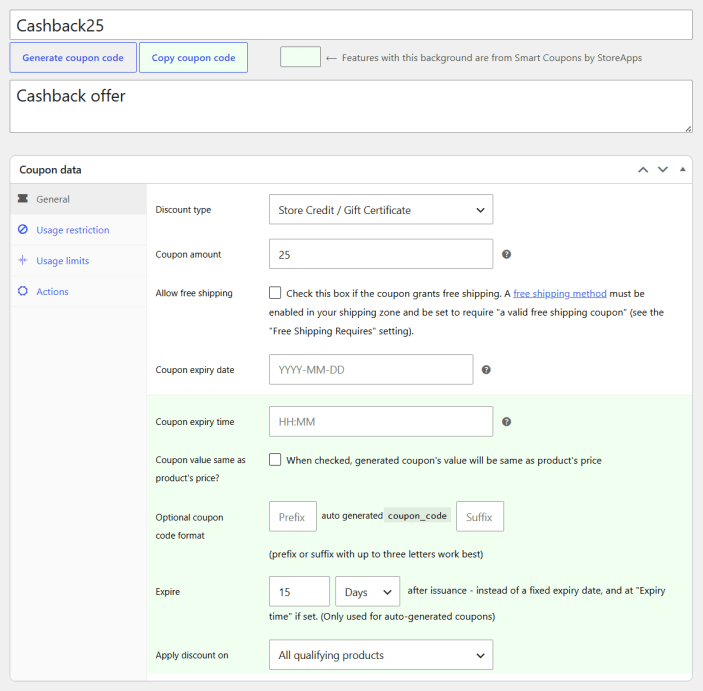
↑ Back to top- Go to your WordPress Admin panel > Marketing > Coupons > Add new coupon.
- Click on ‘Generate coupon code’ or enter your own code.
- Enter coupon description for reference – Say, “Cashback offer”.
- Select ‘Store Credit / Gift Certificate’ as the Discount type from the drop-down.
- Optionally, you can also set an expiration date. Under Valid for, select 15 days. It will automatically generate the expiration date based on the purchase date.
- Publish the coupon.
- Now, go to the WordPress Admin panel > Products. Edit the product for which you want to provide the Cashback offer.
- Look for ‘Coupons’ under the General tab.
- Search and select the cashback coupon created above.
Note – You can add as many coupons as you like here.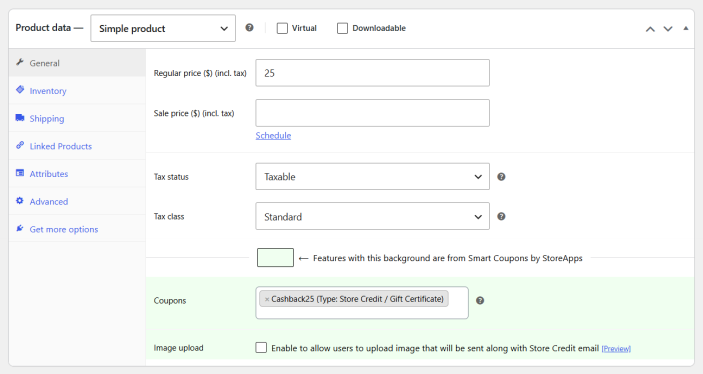
- Click Update to save changes.
That’s it! The coupon now applies automatically as cashback whenever that product is purchased.