
The Global Extra Fee tab allows you to configure an additional fee that can be applied across payment gateways in your WooCommerce store. This fee is added separately from any payment gateway-specific fees configured in the Payment Gateways tab.
The Global Extra Fee will be an additional amount apart from the payment gateway fees for that order.
How this works?
↑ Back to topTo go to Global Extra Fee settings page, go to WooCommerce -> Settings -> Payment Gateway Based Fees -> Global Extra Fee. The default Global Extra Fee page appears as below:
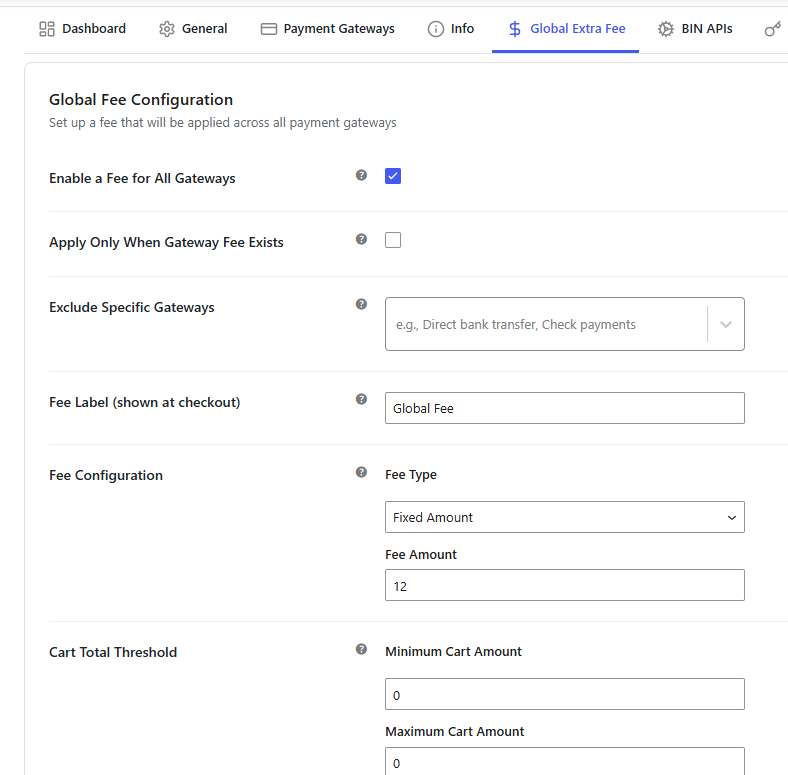
Default page display
Enable a Fee for All Gateways
↑ Back to topThe Enable a Fee for All Gateways setting allows you to apply a global fee across the payment gateways available in your store. By default, this option is disabled.
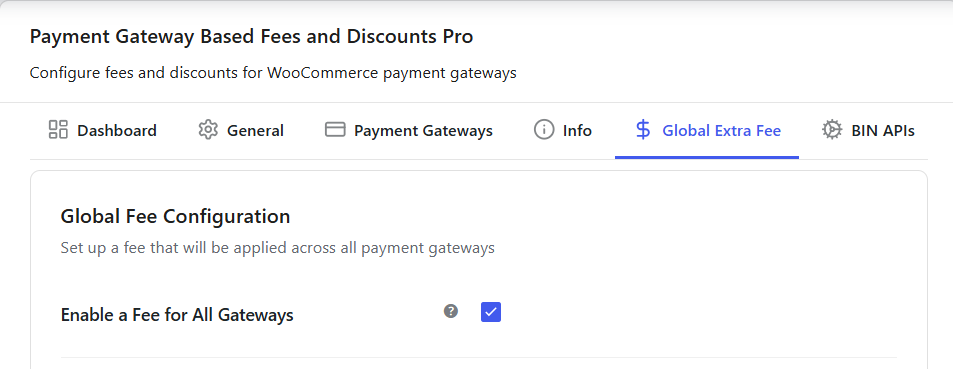
After enabling this option, configure the fee in the Fee Configuration section by selecting a Fee Type (Fixed Amount or Percentage) and entering the corresponding Fee Amount.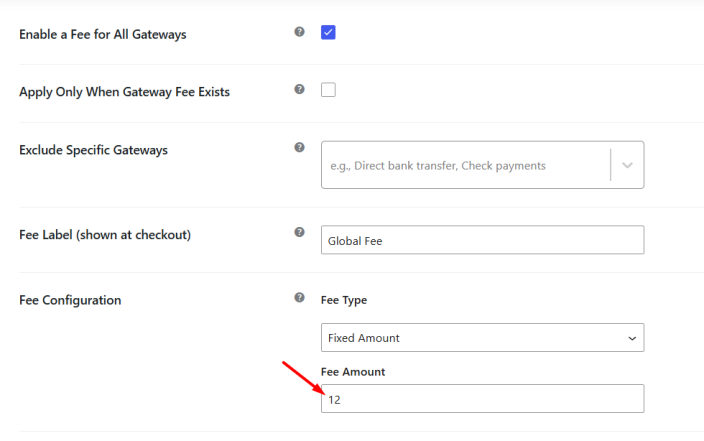
The configured fee is added to the order total regardless of the payment gateway selected by the customer. This fee is applied in addition to any payment gateway-specific fees configured in the plugin. For example, if you set the Fee Label to Global Fee and the Fee Amount to 10, the fee will be added to the order total and displayed separately on the Checkout page as shown below.
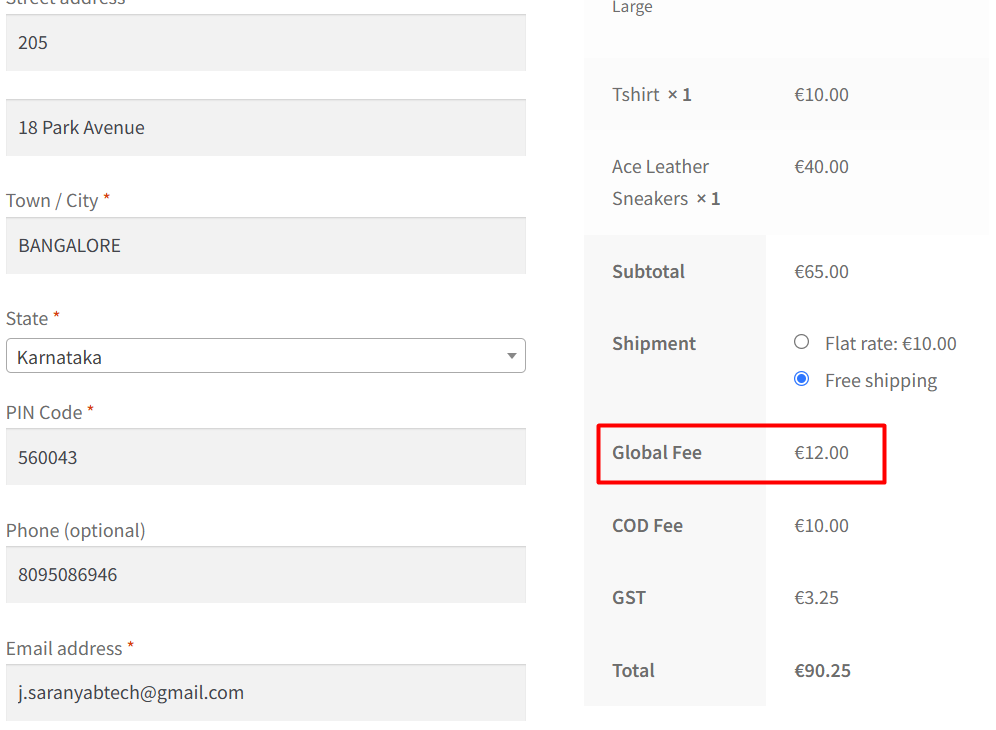
Global extra fee on Checkout page
Apply Only When Gateway Fee Exists
↑ Back to topWhen you enable this setting, ‘Apply only when Gateway Fee Exists‘, the global fee is applied only if the selected payment gateway already has a fee configured in the Payment Gateways tab. If a payment gateway does not have an associated fee, the global fee will not be added to the order.
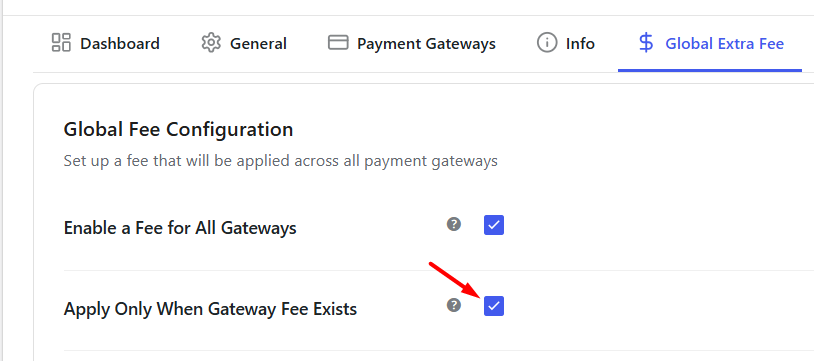
This option is useful when you want the global fee to act as an additional charge only for gateways that already incur payment gateway fees.
For example, assume you have configured:
- Global Fee: €12
- Cash on Delivery Fee: €10
- Direct Bank Transfer Fee: Not configured
When a customer selects Cash on Delivery, both the COD Fee (€10) and the Global Fee (€12) will be applied to the order.
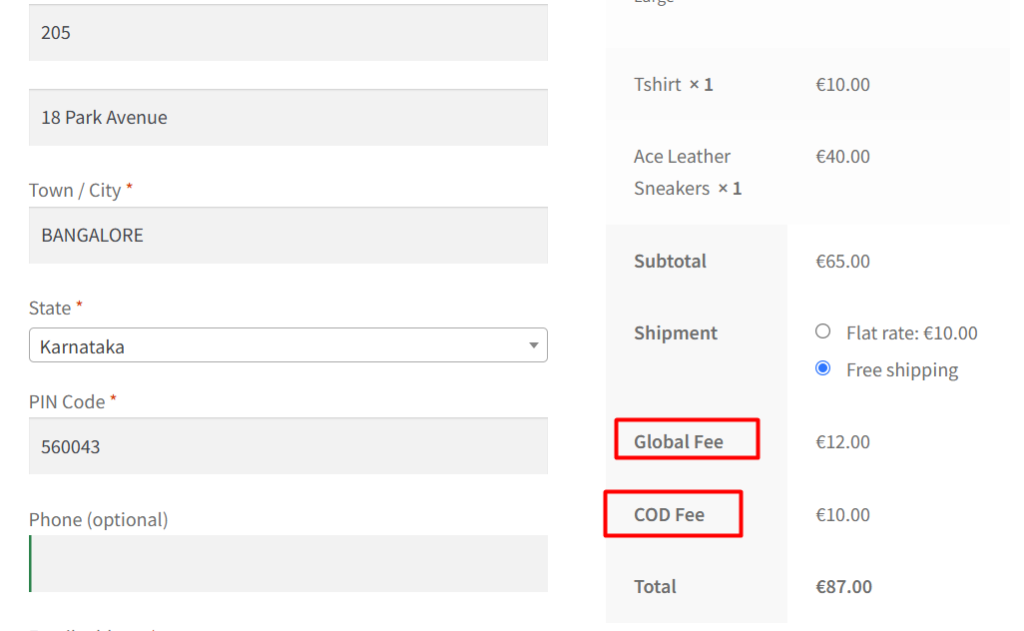
However, when a customer selects Direct Bank Transfer, the Global Fee will not be applied because no payment gateway fee has been configured for that gateway.
Exclude from gateways
↑ Back to topThis setting allows you to select payment gateways from the list, to which the Global Extra Fee will not apply. This means when you select a payment gateway on the front end which has been selected in Exclude from gateways setting, then Global Extra Fee will not apply for that order.
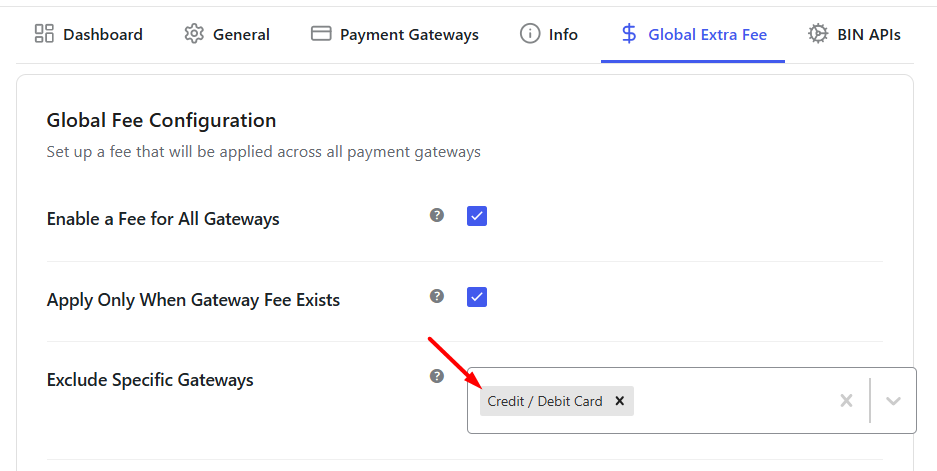
The dropdown of Exclude from gateways setting will display all WooCommerce payment gateways and custom payment gateways added for your store.
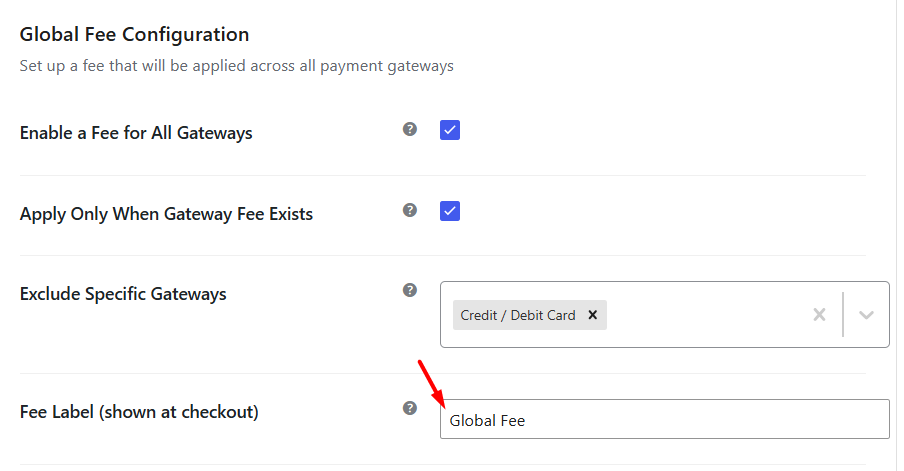
Fee Label (shown at checkout)
↑ Back to topUse the Fee Label field to define the title displayed for the global fee on the Cart and Checkout pages.
The value entered here helps customers understand the purpose of the additional charge when reviewing their order totals.
For example, if the label is set to Global Fee, customers will see the fee displayed with this title during checkout.
Fee Configuration
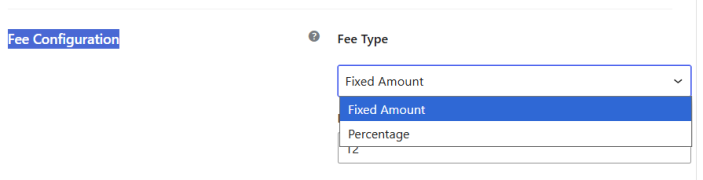
↑ Back to topThe Fee Configuration section lets you decide how the global fee is calculated and how much fee will be applied to an order.
The Fee Type setting defines the method used to calculate the fee. You can choose one of the following options:
- Fixed Amount – Adds a fixed fee to the order total (e.g., $5 is always added).
- Percentage – Adds a fee based on a percentage of the order total (e.g., 5% of the order value).
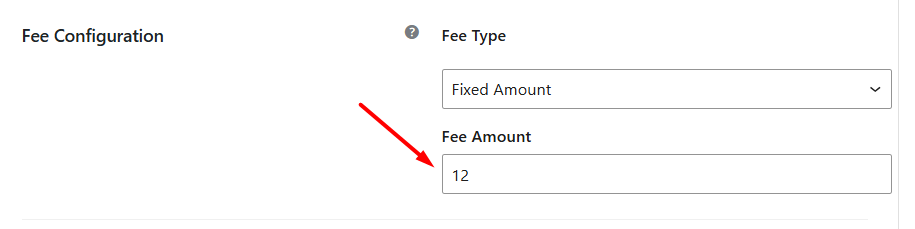
Fee Amount
Use the Fee Amount field to specify the value of the global fee.
For example, entering 12 will add a fee of 12 to the order whenever the configured conditions are met.
Cart Total Threshold
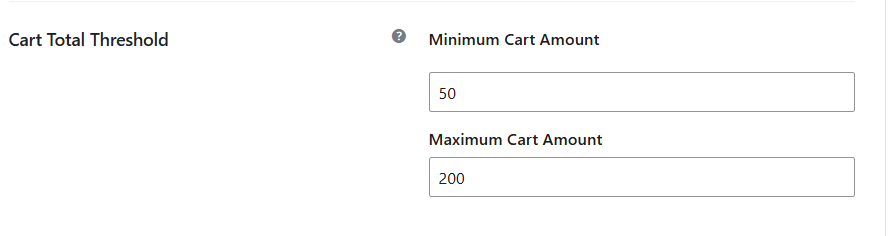
↑ Back to topThe Cart Total Threshold settings allow you to control when the global fee should be applied based on the cart value.
Minimum Cart Amount
↑ Back to topEnter the minimum cart total required before the global fee is applied.
For example, entering 50 means the fee will only be applied when the cart total reaches 50 or more.
Maximum Cart Amount
↑ Back to topEnter the maximum cart total for which the global fee should be applied.
This setting can be used together with the minimum cart amount to restrict the fee to a specific cart value range.
For example, if the minimum cart amount is set to 50 and the maximum cart amount is set to 200, the fee will only apply when the cart total falls within that range.
Reset Settings
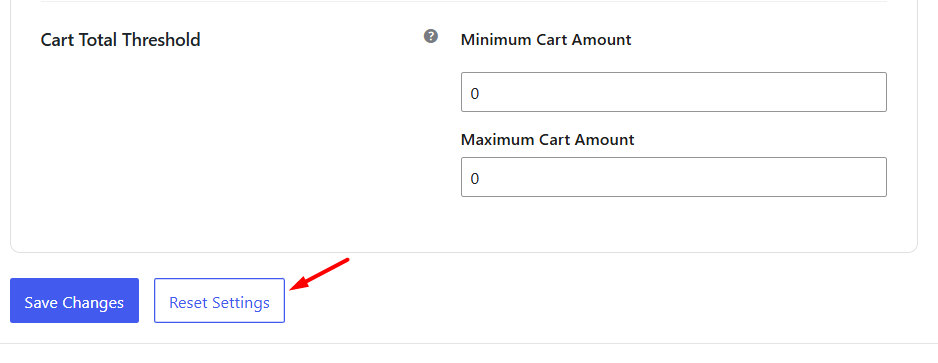
↑ Back to topUse the Reset Settings button to restore the Global Extra Fee settings to their default values.
This option is useful when you want to remove existing configurations and start again with a fresh setup.
Overall, the global extra fee feature simplifies how you handle extra charges across payment gateways in your WooCommerce store.er in the front end.

