Smart Coupons provide a powerful, “all-in-one” solution for gift cards, store credits, discount coupons, and vouchers extending the core functionality of WooCommerce coupons.
This doc explains how you can set a countdown timer for coupons using the Smart Coupons plugin.
Steps to create a countdown timer
↑ Back to top- Go to Marketing > Coupons.
- Create a new coupon code or edit an existing code.
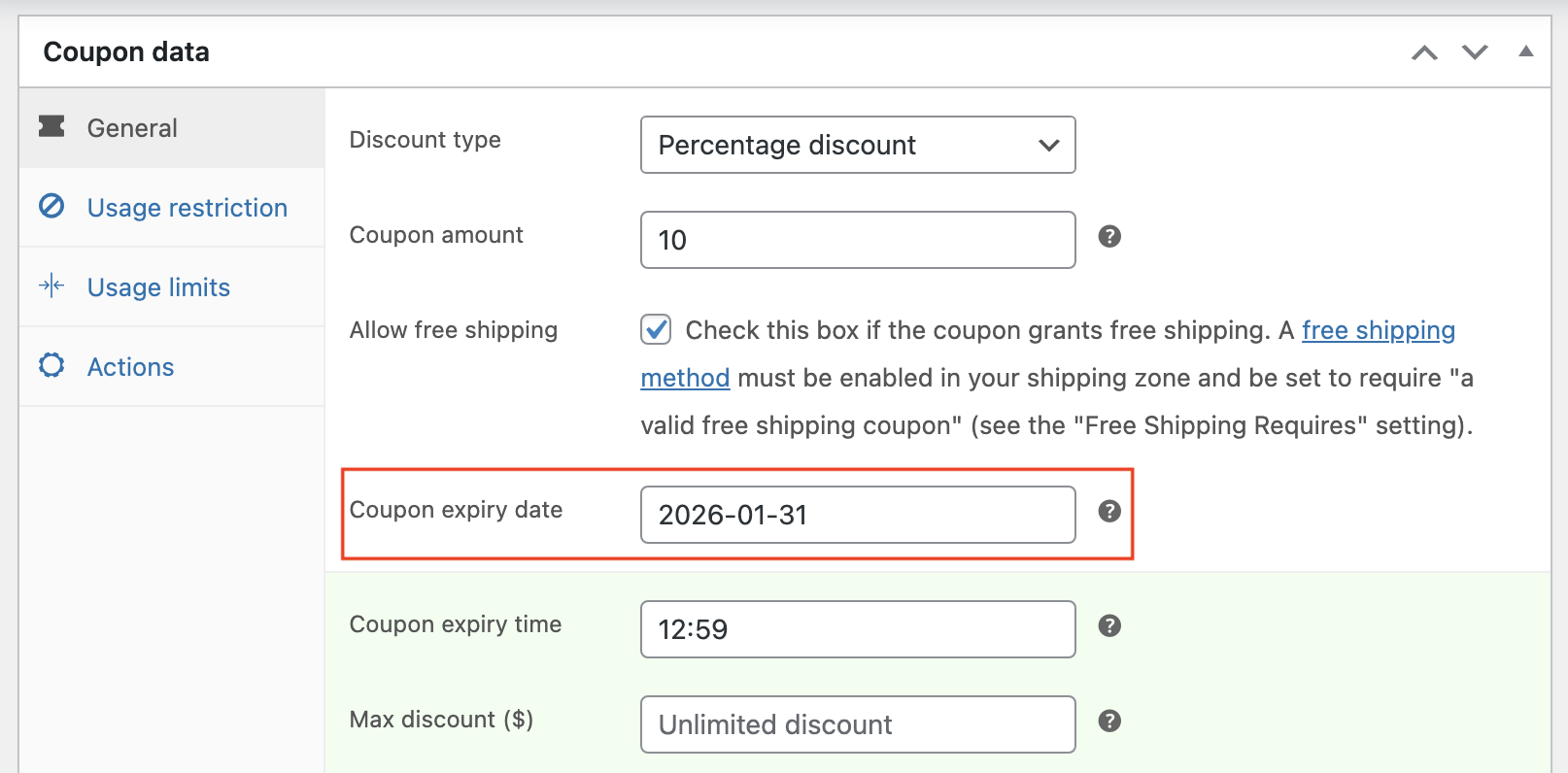
- Choose an Expiry date for the coupon code.
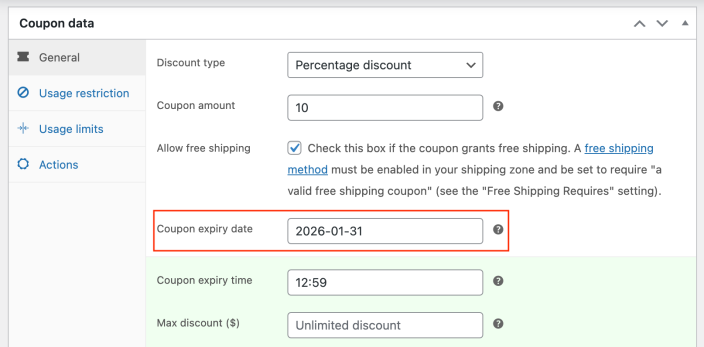
- Update or Publish the coupon code.

- Navigate to the product page or any custom page on your website and include the shortcode in your editor “
[smart_coupon_countdown coupon_id=519]”.

Here, coupon_id refers to the ID of the coupon.
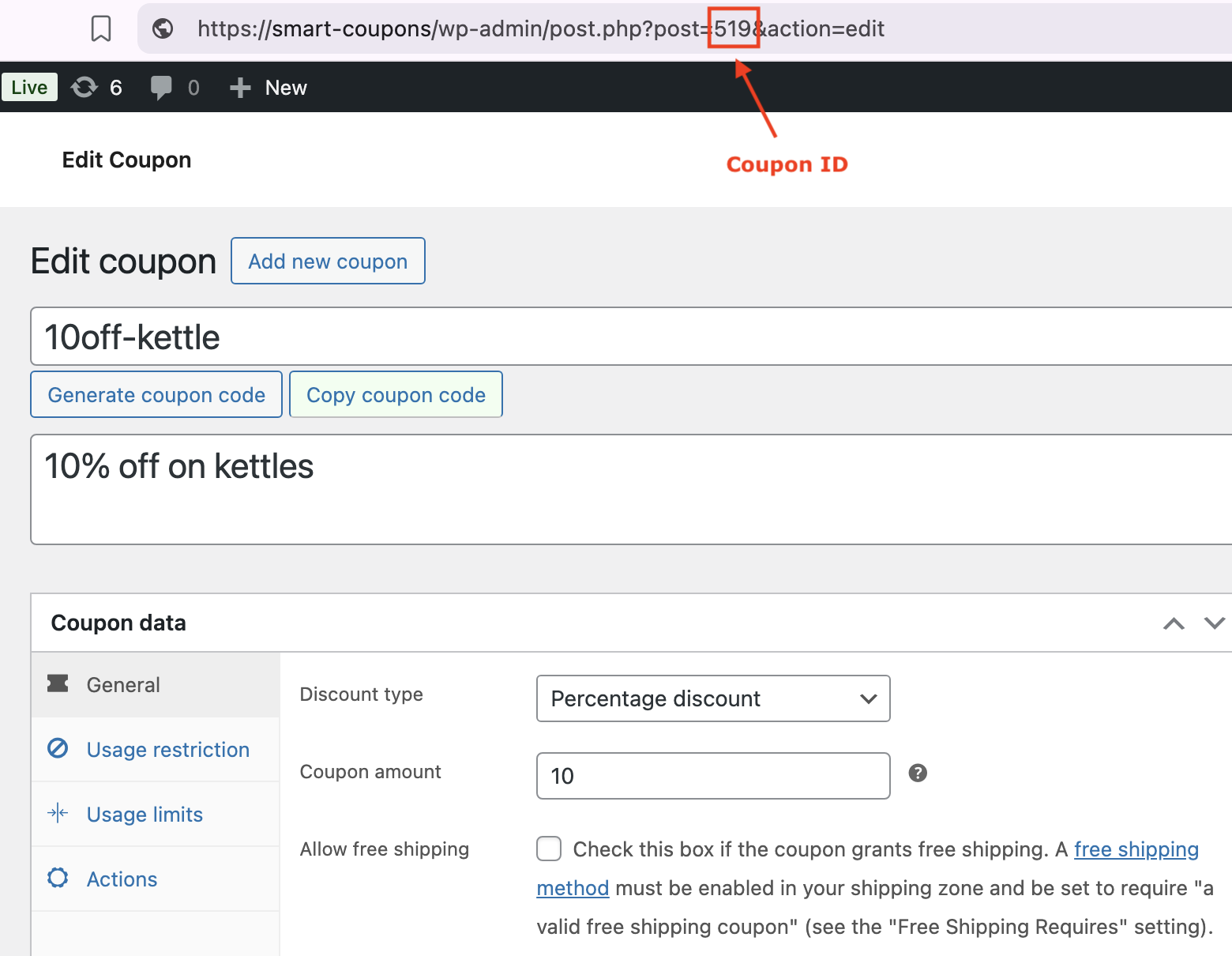
Note:
(The Shortcode to display timer can also be placed on the header or widget area so that your customers can easily notice.)