Product Display Templates determine how product variables, such as {{ shop.products }} or {{ order.items }}, are displayed in an email. When inserting a variable, you can define which template should be used with the template parameter. When you purchase AutomateWoo, you are provided with five different template options by default. If you wish to customize how products appear, it is possible to override the default templates and also create your own.
Override an existing template
↑ Back to topThe following templates are included by default and can be customized using template overrides:
Product Grid – 2 Column
↑ Back to topTemplate file: product-grid-2-col.php
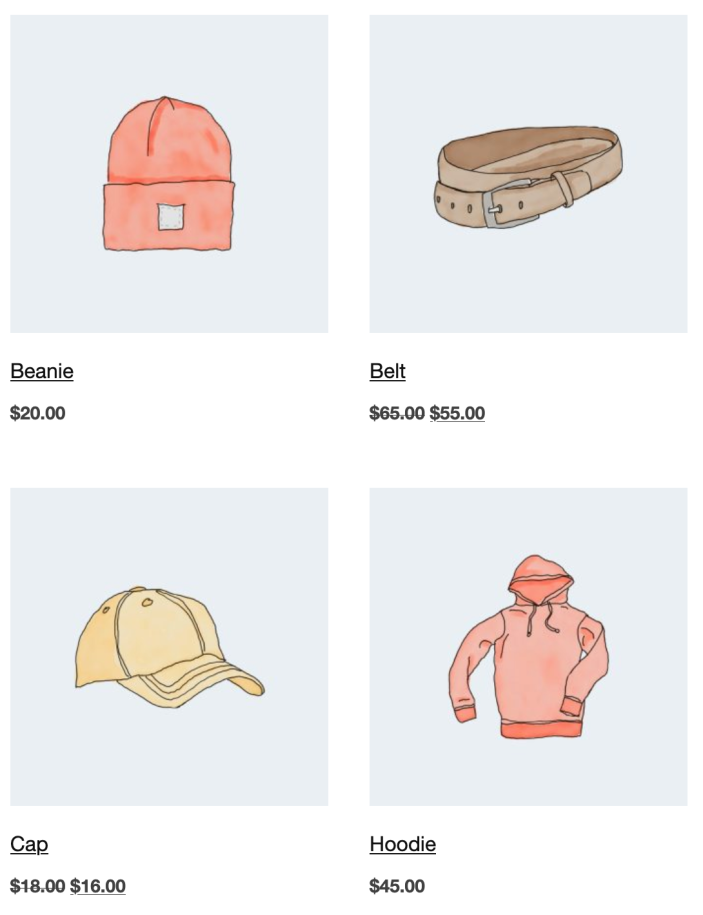
- 2-column grid layout
- Shows: image, product name, current price (
get_price_html()) - When
Orderis set, uses order items instead of products - Uses current shop prices
Product Grid – 3 Column
↑ Back to topTemplate file: product-grid-3-col.php
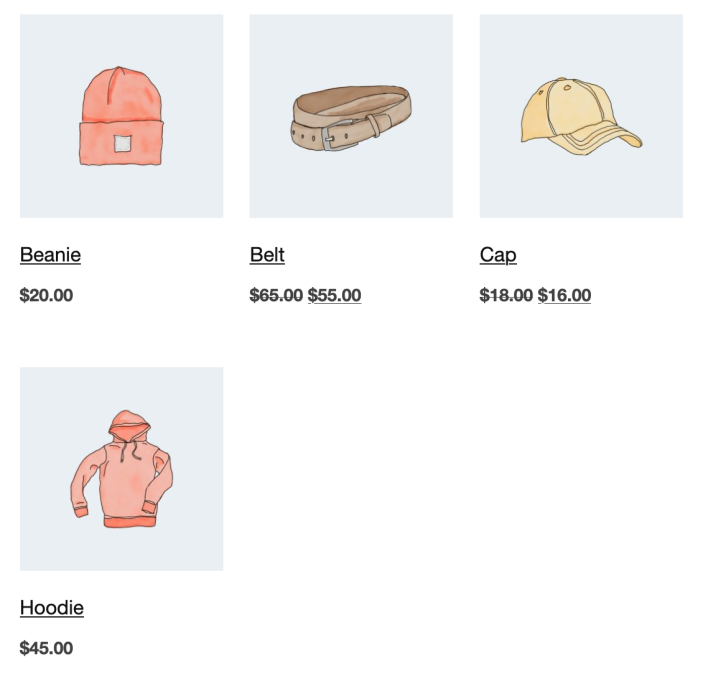
- 3-column grid layout
- Shows: same behavior as 2-col – image, name, current price
- Uses current shop prices
Product Rows
↑ Back to topTemplate file: product-rows.php
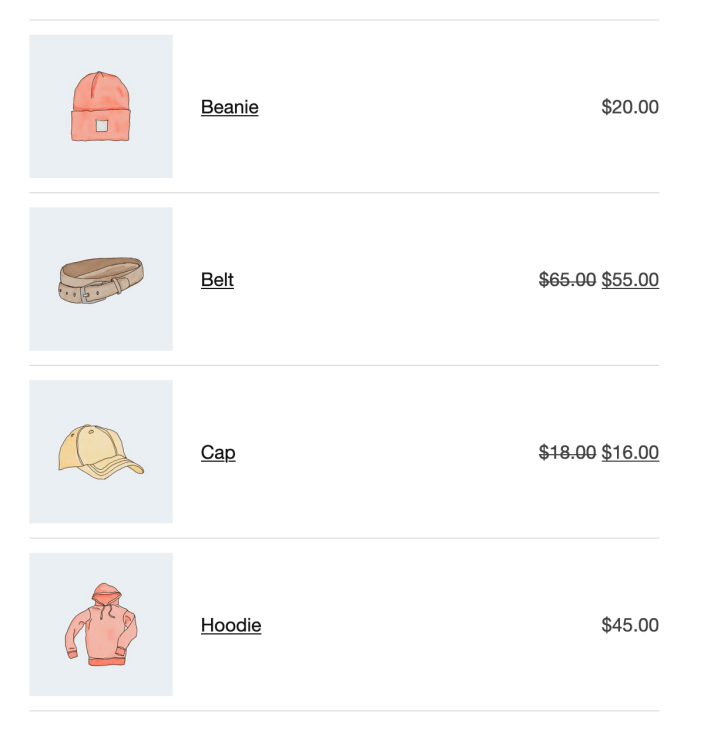
- Table layout: image (25%), name, price (35%)
- Shows: current price via
get_price_html() - When
Orderis set, uses order items - Uses current shop prices
Cart Table
↑ Back to topTemplate: cart-table.php
- Full cart table with totals
- Shows: product image, name, quantity, price
- Includes: subtotal, coupons, shipping, fees, tax, total
- Respects tax display settings (incl/excl)
- Only works with
cart.itemsvariable (automatic type workflows from the Carts section).
Order Table
↑ Back to topTemplate file: order-table.php
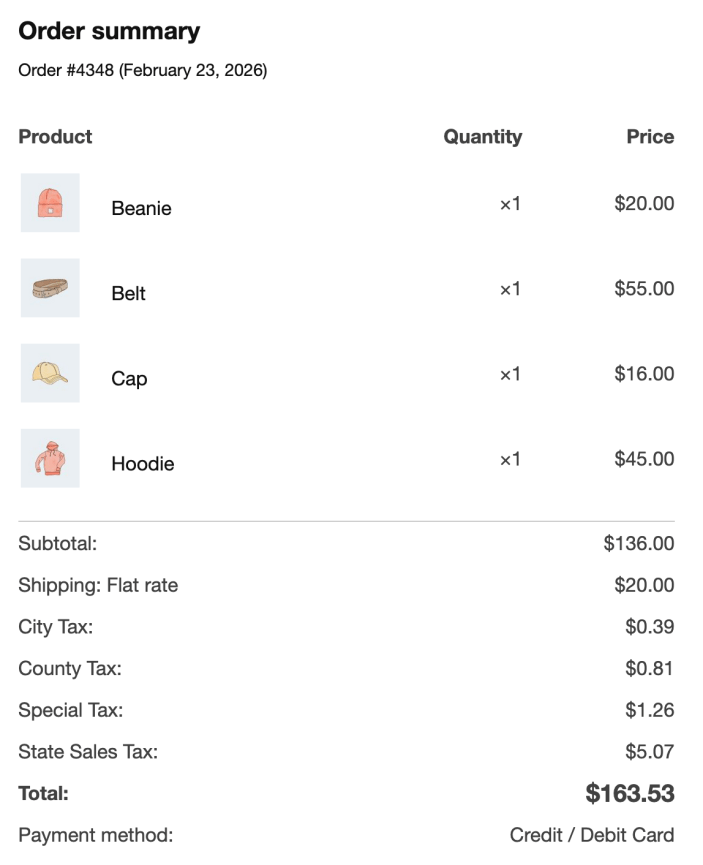
- Uses WooCommerce’s
woocommerce_email_order_detailshook - Shows historical order/subscription prices (from order item data)
- Only works with
order.itemsvariable (orsubscription.itemsif WooCommerce Subscriptions is active, in which case it shows original/historic subscription prices)
Comma Separated List
↑ Back to topTemplate file: list-comma-separated.php

- Simple comma-separated list of product links
- No images or prices
- When
Orderis set, uses order items - Minimal formatting
Review Product Grid – 2 Column
↑ Back to topTemplate file: review-grid-2-col.php
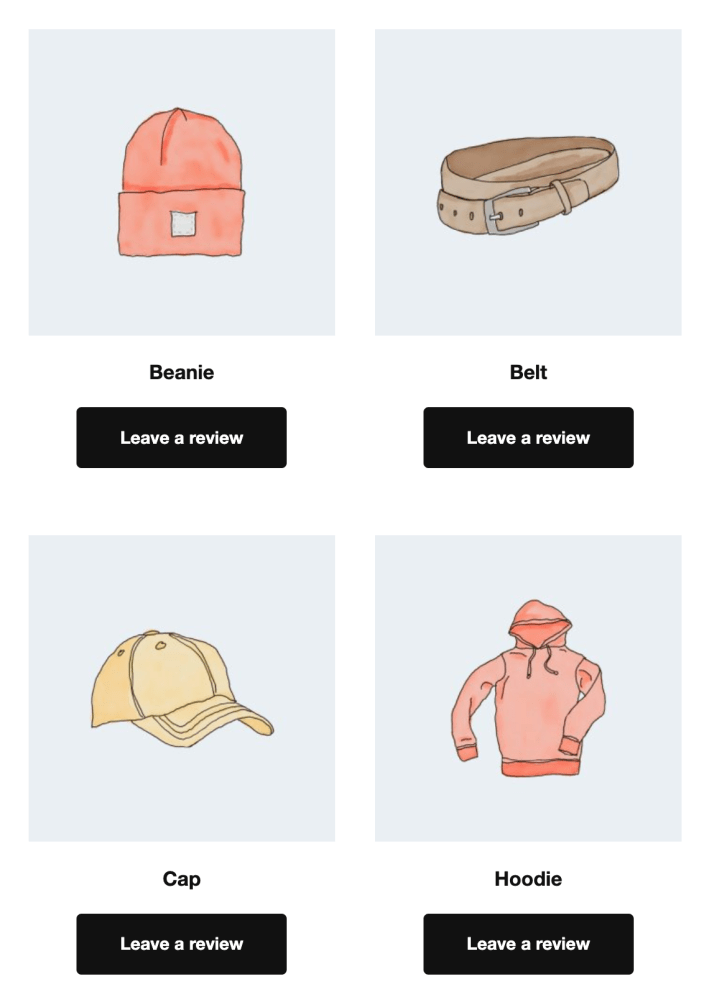
- 2-column grid for review requests
- Shows: image, product name, “Leave a review” button
- Filters products via
aw_get_reviewable_products() - No prices displayed
Review Product Grid – 3 Column
↑ Back to topTemplate file: review-grid-3-col.php
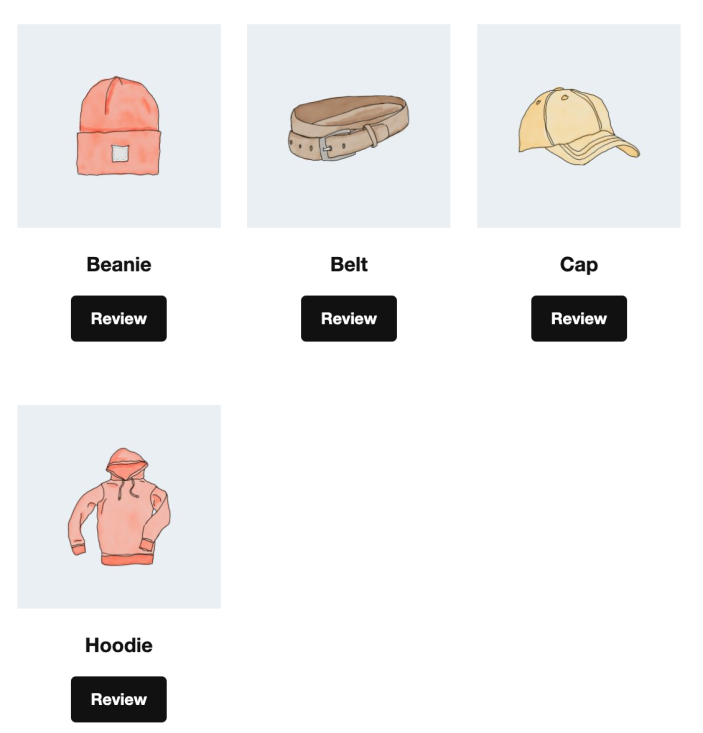
- 3-column grid for review requests
- Same as 2-col but with 3 columns
- “Review” button (smaller text)
Review Product Rows
↑ Back to topTemplate file: review-rows.php
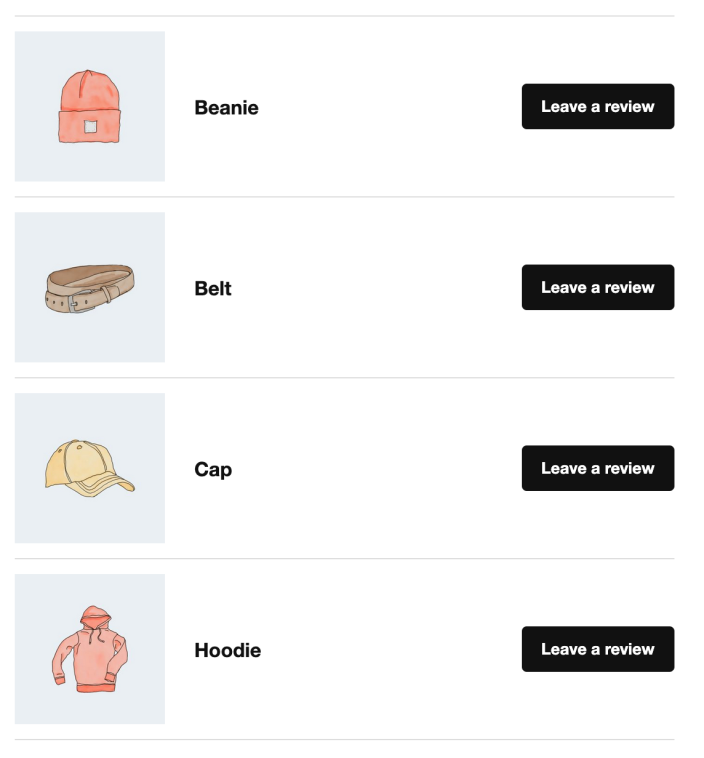
- Table layout for review requests
- Shows: Image, name, “Leave a review” button
- Filters products via
aw_get_reviewable_products()
In the same way you would override a WooCommerce template file you can copy any AutomateWoo template file into a directory in your theme named /automatewoo/. Make sure you keep the same file path but remove the /templates/ subdirectory.
For example, to override the Product Rows template you should add the new template at [yourtheme]/automatewoo/email/product-rows.php
Create your own template
↑ Back to topScope of support:
We are unable to provide support for customizations under our Support Policy. If you need to customize a snippet or extend its functionality, we recommend working with a Woo Agency Partner or a WooCommerce developer on Codeable.
Creating a custom product template is a similar process, but instead of overriding a file you are creating a new template. New templates should be added to the /automatewoo/email/ directory in your theme. You also need to register your custom template and give it a name by using the automatewoo/variables/product_templates filter. Check out the example code shown below which can also be added to the functions.php file in your theme.
| <?php | |
| add_filter( 'automatewoo/variables/product_templates', 'my_automatewoo_product_templates' ); | |
| function my_automatewoo_product_templates( $templates ) { | |
| $templates['custom-product-template-1.php'] = 'Custom Product Template #1'; | |
| return $templates; | |
| } |
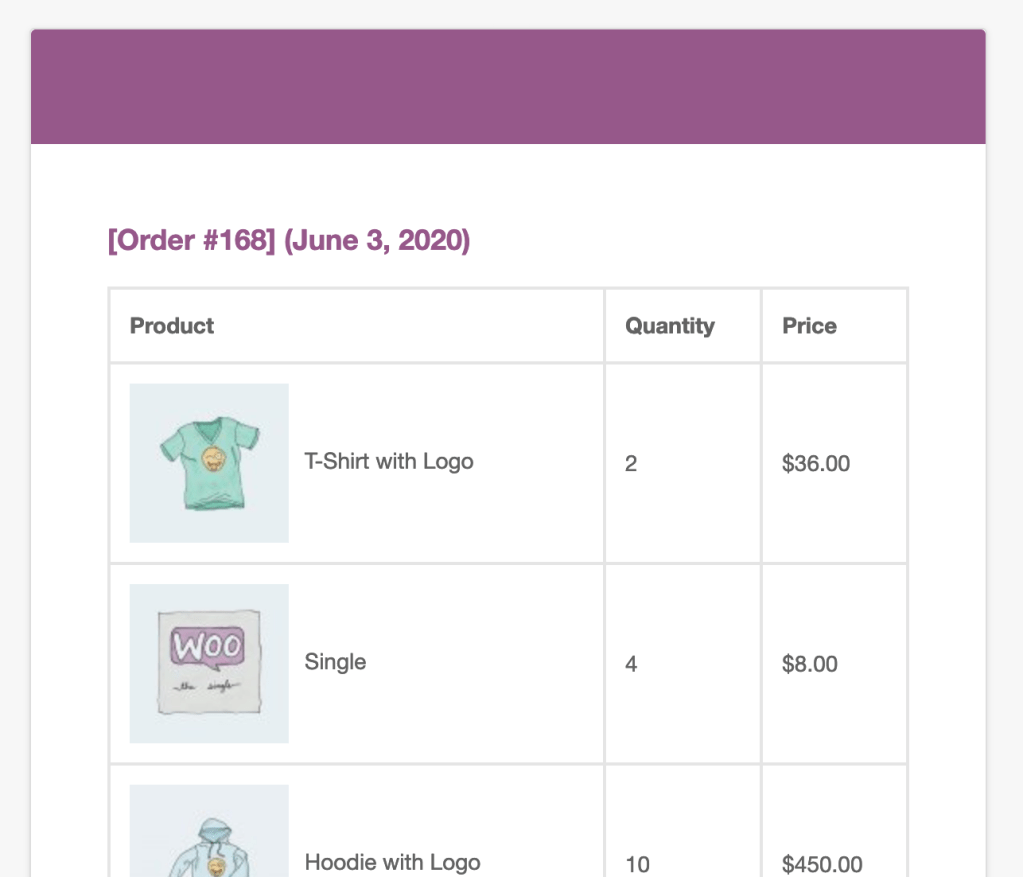
Add product images to the order table
↑ Back to topAdding product images to the Order Table template can be done with small amount of custom code. Please note that this will also add product images to the default WooCommerce emails such as the order confirmation email.
| <?php | |
| /** | |
| * Add product images to the WooCommerce order table used in HTML emails. | |
| */ | |
| add_filter( 'woocommerce_email_order_items_args', function( $args ) { | |
| $args['show_image'] = true; | |
| $args['image_size'] = array( 100, 100 ); | |
| return $args; | |
| }, 10, 1 ); |