
Bulk printing is a huge time saver for a busy store that has a hundred things going on at the same time. This feature enables your store to print invoices in bulk with only one click. Webtoffee’s plugin enables your store to bulk print all the shipping-related documents in addition to the invoice by configuring only a few simple settings.
Print the Invoice list by viewing the order details
↑ Back to top- Navigate to Dashboard > WooCommerce > Orders.
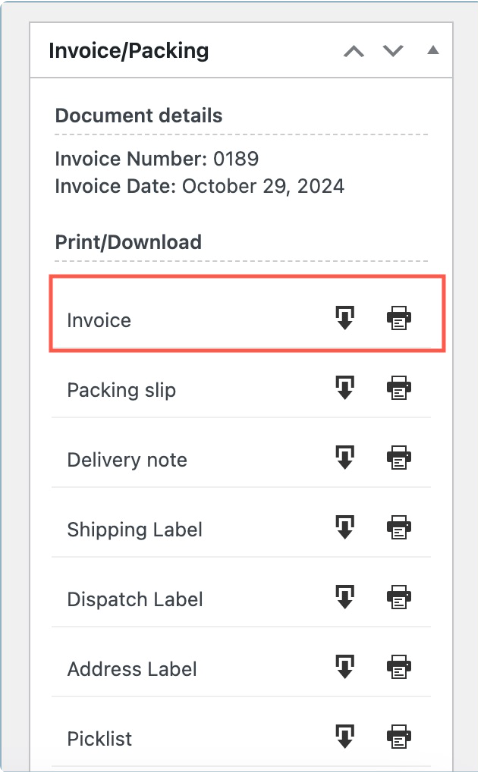
- On the Admin order page, Click #OrderNumber for which you want to print the Invoice list. The Print action appears as shown below:
Bulk Invoice Printing
↑ Back to topFrom your dashboard, navigate to WooCommerce > Orders.
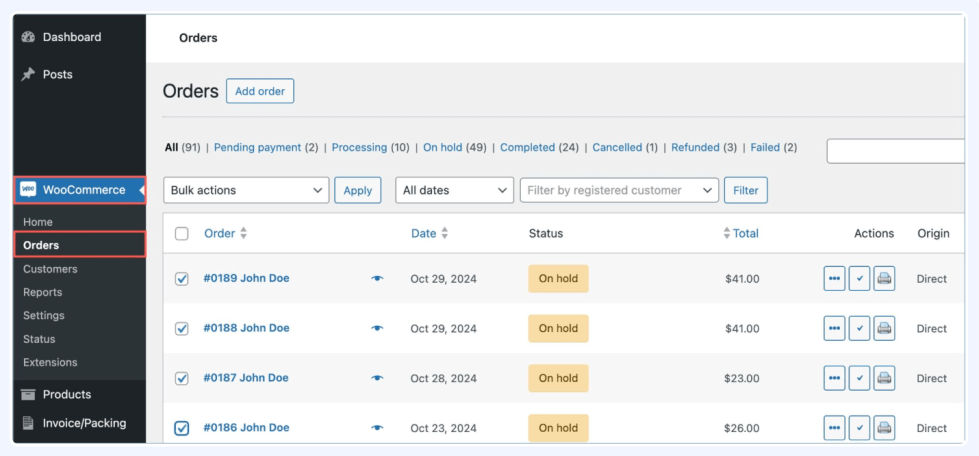
Select orders for printing invoices > Click Bulk Actions > Choose Print Invoice from the drop-down > Then click Apply.
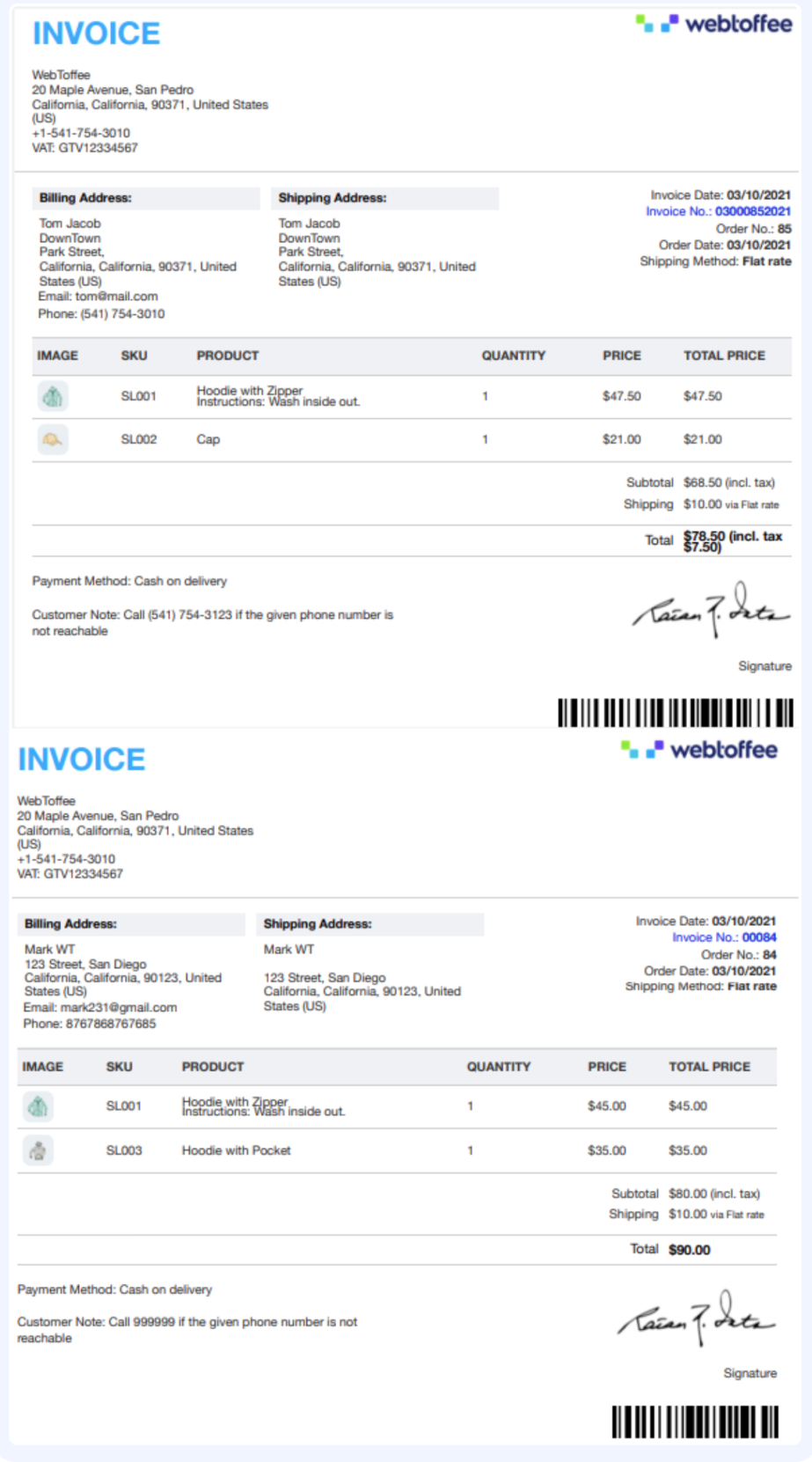
Bulk printing WooCommerce Packing slips
↑ Back to topPrint Packing List by Viewing the Order details
↑ Back to top- Navigate to Dashboard > WooCommerce > Orders.
- On the Admin order page, Click #OrderNumber for which you want to print the Packing list. The Print Action appears as :
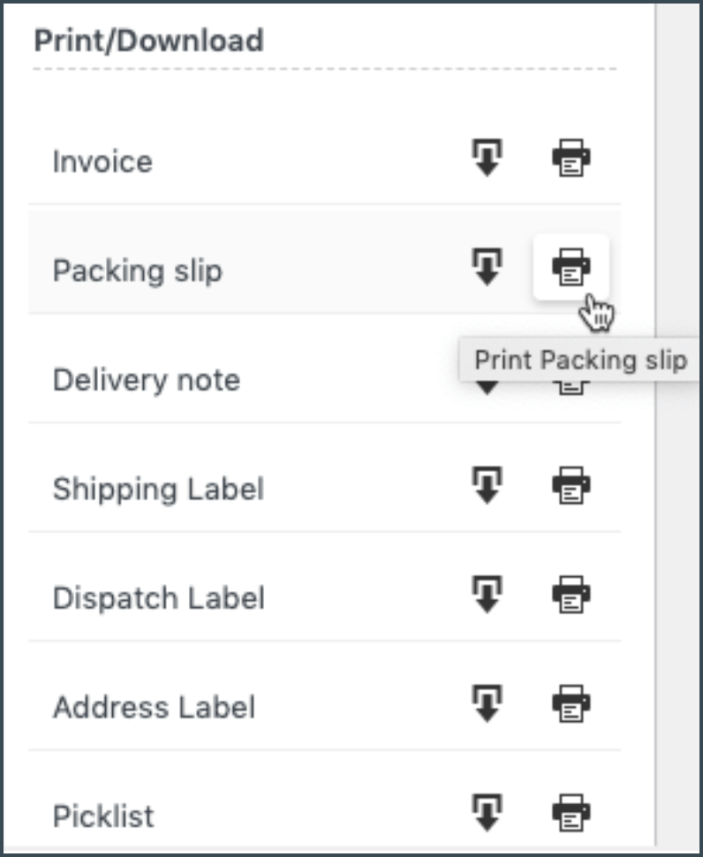
- Click Print Packing List. If you have selected a Disable option under Preview before printing, the HTML preview of the Packing list appears. Click Print, the Packing list for individually packed order appears as shown below:
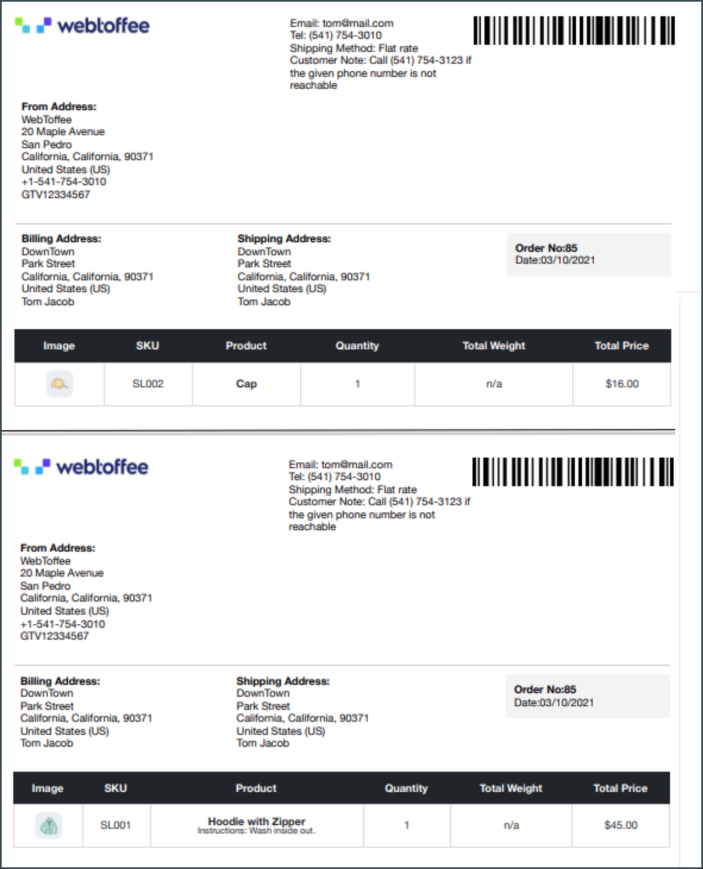
- The Packing list for Single Package Per Order appears as shown below:
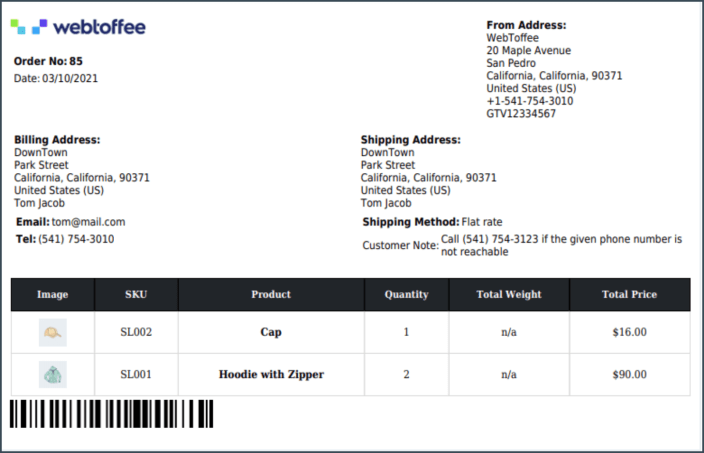
If you have selected the Enable option under Preview before printing, the Print Preview window directly appears as shown above.
After setting all the required settings of the printer, print the Packing List.
Printing Packing List From Orders Listing Page
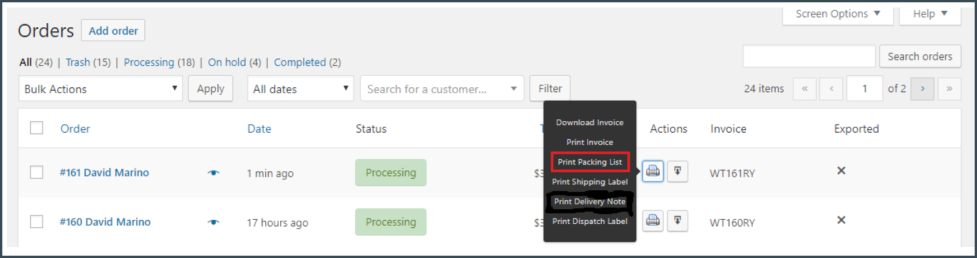
Navigate to Dashboard > WooCommerce > Orders, the window appears as shown below:
- Click Print Packaging List to get the Packing list and print it.
Printing Packing list in Bulk
↑ Back to topPrinting Packing list in bulk provides a packing list for all the orders which you have selected on the Orders listing page. Select multiple orders.
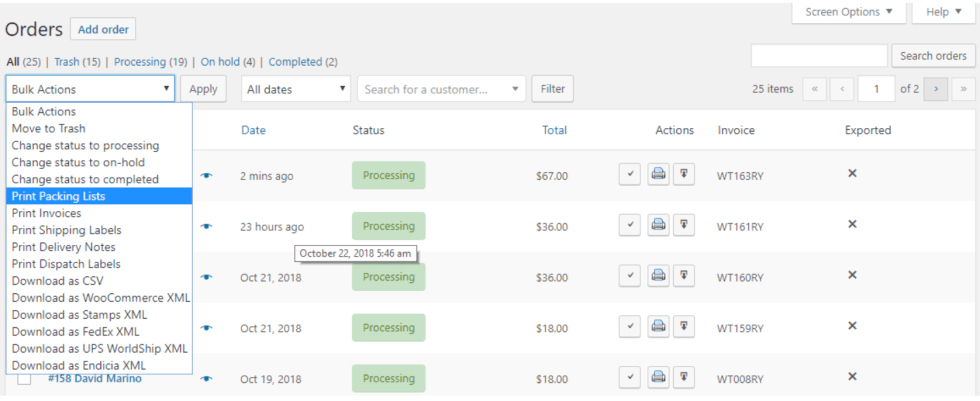
Select Print Packing List from the given Bulk Action drop-down list and click Apply to get Packing lists in bulk for all the selected orders. It is as shown below:
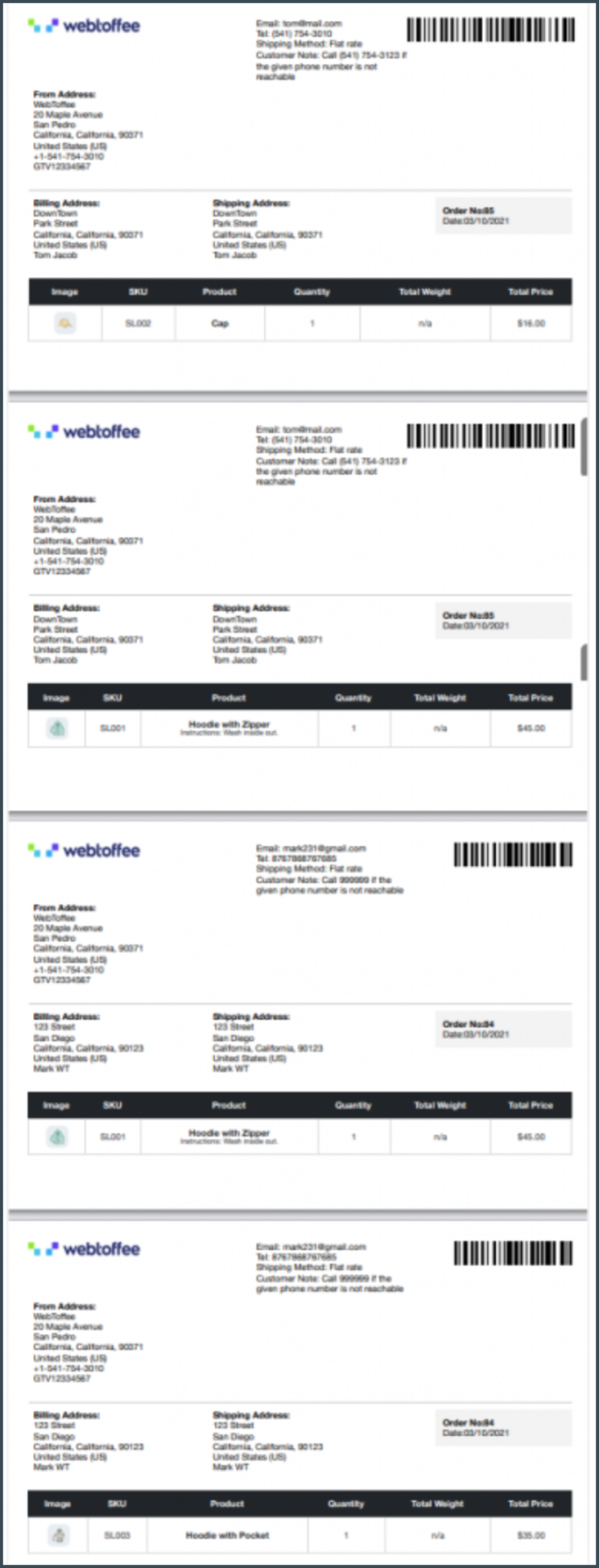
To print Packing lists, follow step 3.
Print Delivery Notes for WooCommerce Orders
↑ Back to top- Navigate to Dashboard > WooCommerce > Orders.
- On the Admin order page, Click #OrderNumber for which you want to print the Delivery Note. The Print Action appears as:
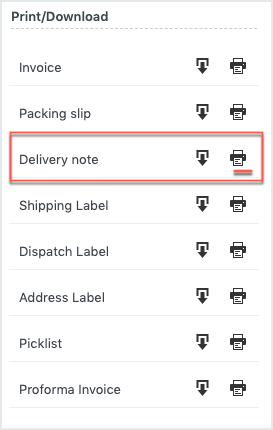
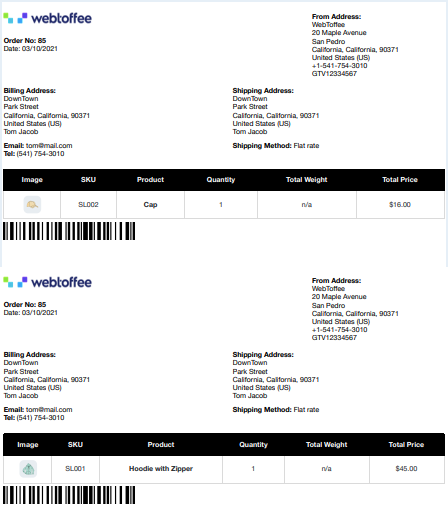
- Click Print Delivery Note. If you have selected Disable option under Preview before printing, the HTML preview of the Delivery Note appears. Click Print, the Delivery Note for individually packed order as shown below:
- The Delivery Note for Single Package Per Order appears as shown below:
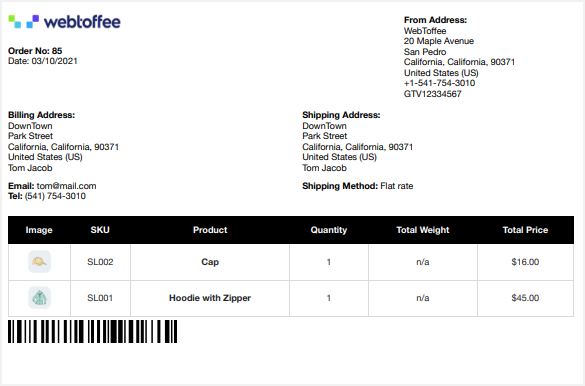
If you have selected Enable option under Preview before printing, the Print Preview window directly appears as shown above.
After setting all the required settings of the printer, Click Print to print the Delivery Note.
Printing Delivery Note From Orders Listing Page
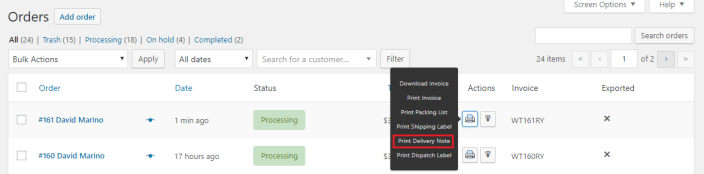
Navigate to Dashboard > WooCommerce > Orders, the window appears as shown above:
- Click Print Delivery Note button to get the Delivery Note for the order and print it.
Printing Delivery Note in Bulk
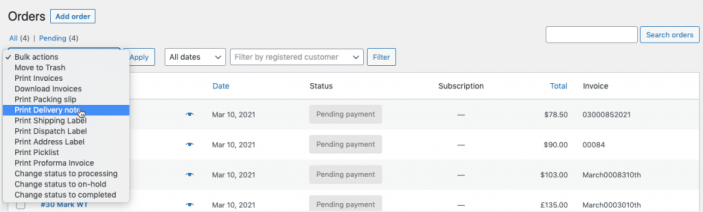
Printing Delivery Note in bulk provides Delivery Note for all the orders which you have selected in Orders listing page. Select multiple orders.
Select Print Delivery Note from the given Bulk Action drop-down list and click Apply to get Delivery Note in bulk for all the selected orders. It is as shown below:
The Delivery Notes are as shown below:
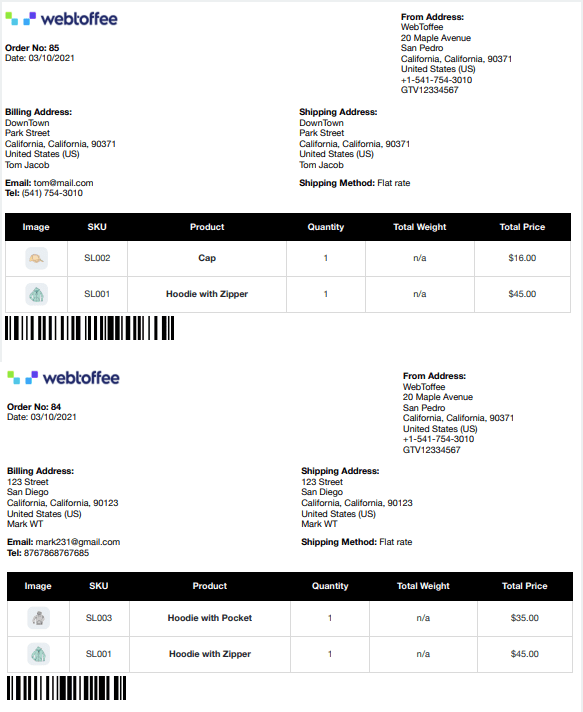
To print Delivery Note, follow step 3.
Bulk Print Shipping Labels
↑ Back to top- Navigate to Dashboard > WooCommerce > Orders.
- On Admin order page, Click #OrderNumber for which you want to print the Shipping Label.
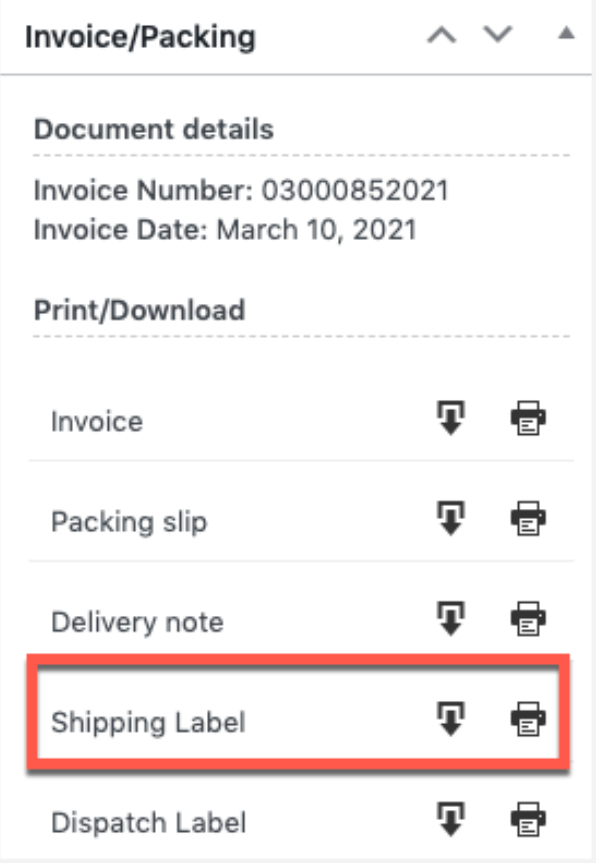
- Click Print Shipping Label. If you have selected Disable option under Preview before printing, the HTML preview of the Shipping Label appears. Click Print, the Shipping Label for individually packed order appears as shown below:
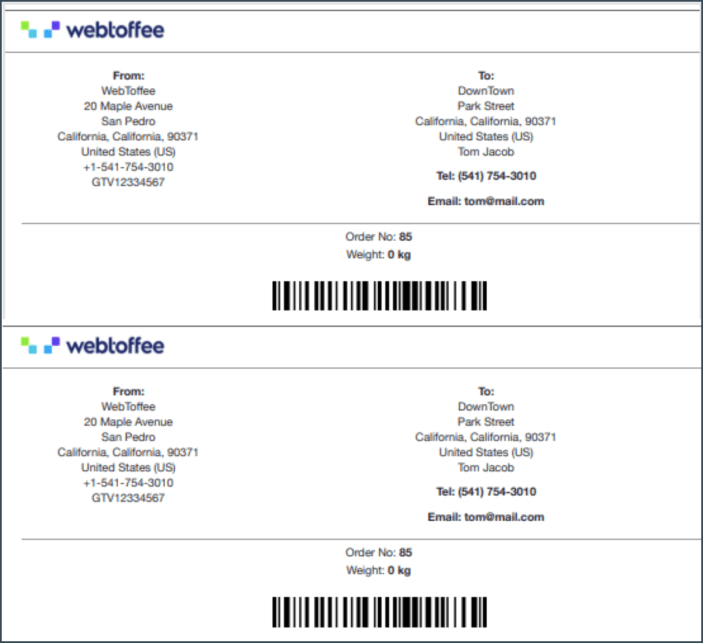 Note: DataMatrix Barcode and Shipping Number get added to Shipping Label only when you add code snippet in currently applied theme’s functions.php.The Shipping Label for Single Package Per Order option appears as shown below: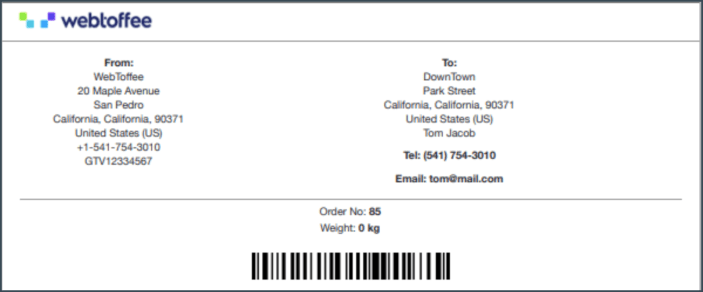
If you have selected Enable option under Preview before printing, the Print Preview window directly appears.
After setting all the required settings of the printer, print the Shipping Label.
Printing shipping label from orders listing page
↑ Back to top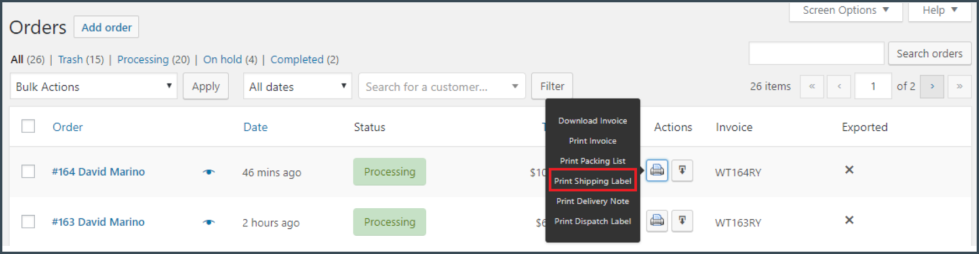
Navigate to Dashboard > WooCommerce > Orders, the window appears as shown above:
- Click Print Shipping Label to get the Shipping Label and print it.
Bulk print shipping labels
↑ Back to topPrinting Shipping Label in bulk provides Shipping Label for all the orders which you have selected in Orders listing page. Select multiple orders.
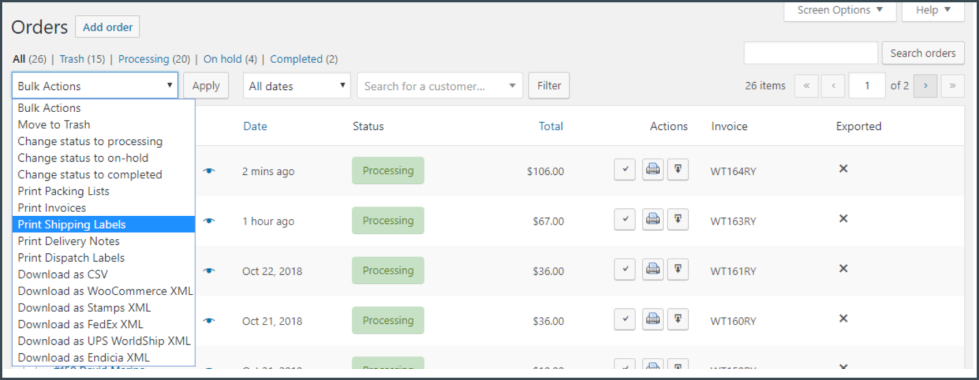
Select Print Shipping Labels from the given Bulk Action drop-down list and click Apply to print Shipping Labels in bulk for all the selected order.