
There are General Settings and Product Settings under Call for Price for WooCommerce Pro plugin. In this plugin, custom price label can also be set for Simple, Variable, Grouped and External products. We shall discuss these in separate posts but in this post we will understand how to set custom price label for Simple products.
- Simple Products
- Variable Products
- Grouped Products
- External Products
Simple Products
↑ Back to topThe Call for Price plugin provides two levels of configuration:
- General Settings let you control when the Call for Price functionality is applied, such as for products with empty prices, specific user roles, product categories, or other conditions.
- Product Types let you control how the Call for Price functionality is displayed for each WooCommerce product type.
The Product Types section allows you to configure Call for Price settings separately for each WooCommerce product type. This is useful when you want different contact methods or display labels for Simple, Variable, Grouped, and External products instead of using the same configuration across your entire store.
To access these settings, navigate to WooCommerce → Settings → Call for Price → Product Types → Simple.
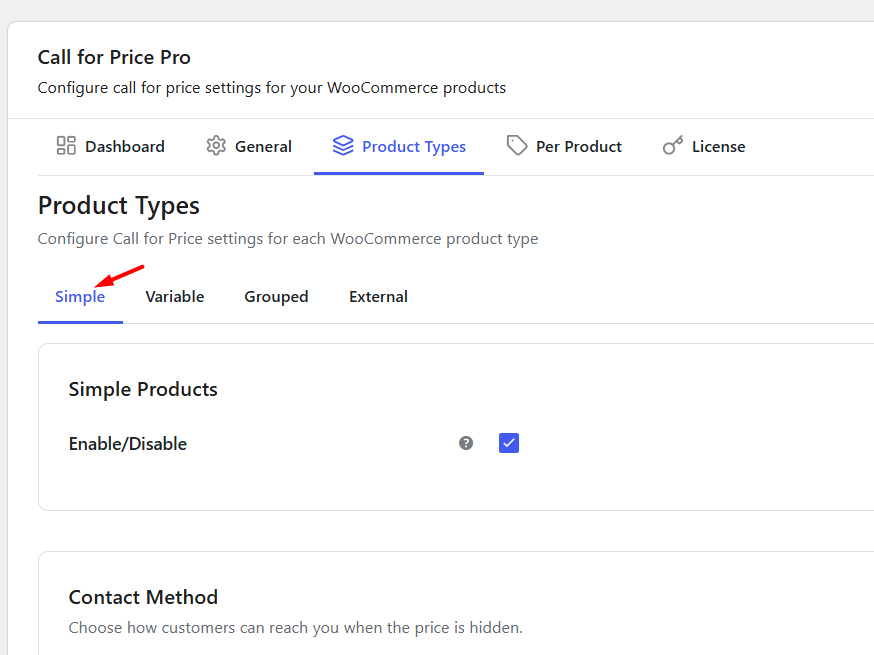
Default Simple Products page
Let us understand all the settings under this product type in detail:
a. Enable/Disable
↑ Back to topThe Enable/Disable option controls whether the Call for Price functionality is applied to Simple Products.
This option is enabled by default. When enabled, you can configure the contact method and customize how the Call for Price label is displayed across different areas of your store.
If disabled, none of the settings under the Simple tab will be applied to Simple Products.
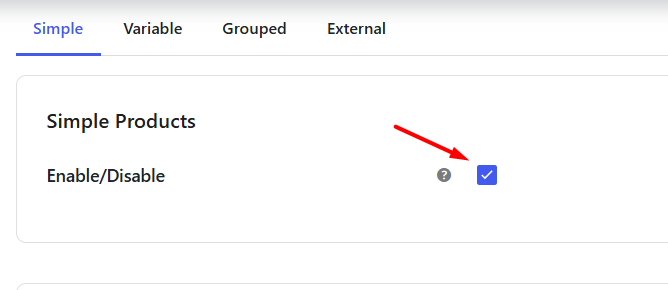
Tick the checkbox to enable settings
Once this setting is enabled, you can choose the Call Type.
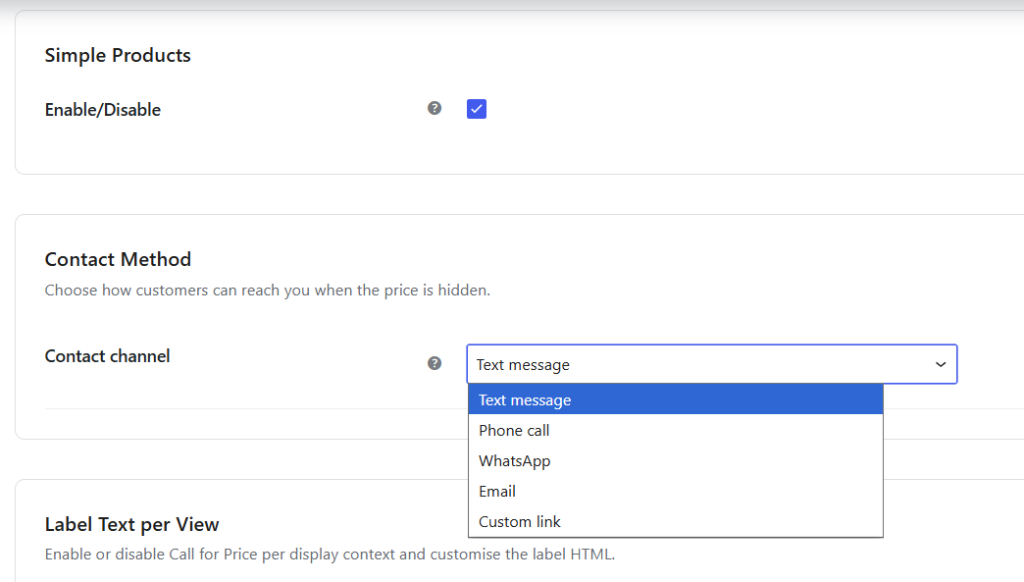
This setting allows you to choose a Contact channel for the selected product type, which defines how customers can contact you (for example, via phone, WhatsApp, email, or a custom link).
Based on the selected Contact channel, you can configure the required details in the fields below. For example, selecting Email will require an email address and subject, while selecting WhatsApp will require a WhatsApp number.
To know how each available Call Type works, refer to the Call Types for Call for Price documentation.
b) Contact Method
↑ Back to topThe Contact Method setting determines how customers can contact you when the price is hidden for a Simple Product.
Choose the required Contact Channel from the dropdown. Available options include:
- Text Message
- Phone Call
- Custom Link
Depending on the selected contact method, additional fields will appear for the required information. For example:
- Phone Call requires a phone number.
- WhatsApp requires a WhatsApp number.
- Email requires an email address and subject.
- Custom Link requires the URL of the page where customers should be redirected.
For detailed setup instructions and examples for each contact method, refer to the Contact Method for Call for Price documentation.
c) Single Product Page
↑ Back to topEnable this option to display a custom Call for Price label on the Single Product page for Simple Products that do not have a price.
By default, the label is set to Call for Price, but you can replace it with any text that better suits your business.
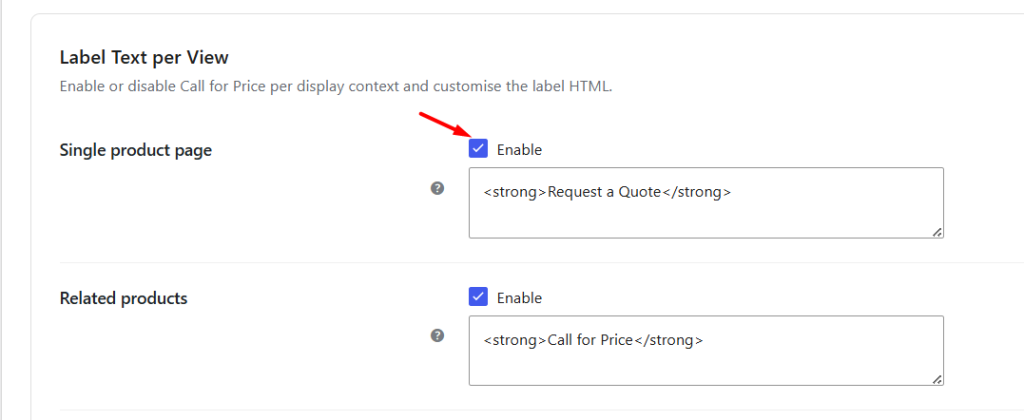
Example
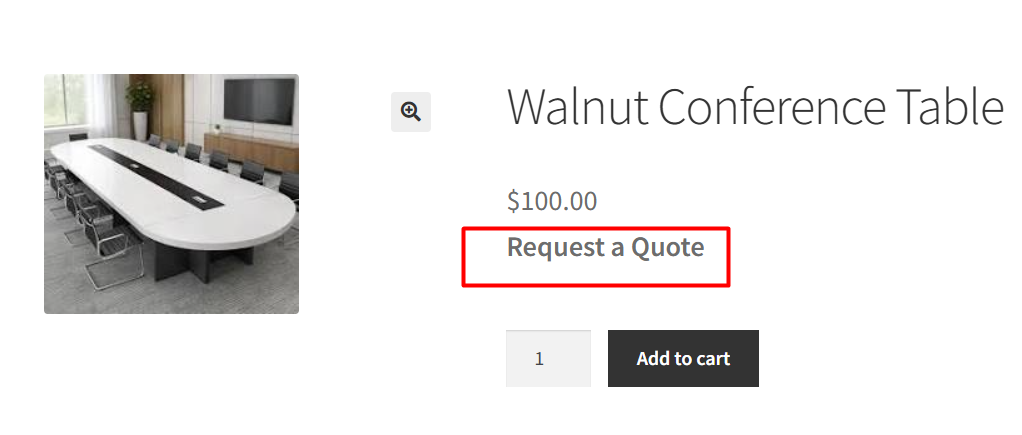
↑ Back to topSuppose you sell Custom Office Desks that are priced only after discussing the customer’s requirements. Leave the product price empty and change the label to Request a Quote.
Customers visiting the product page will see the Request a Quote label instead of a price, encouraging them to contact you for a personalised quotation.
d) Related products
↑ Back to topRelated products are products that WooCommerce displays at the bottom of a Single Product page to encourage customers to explore similar items.
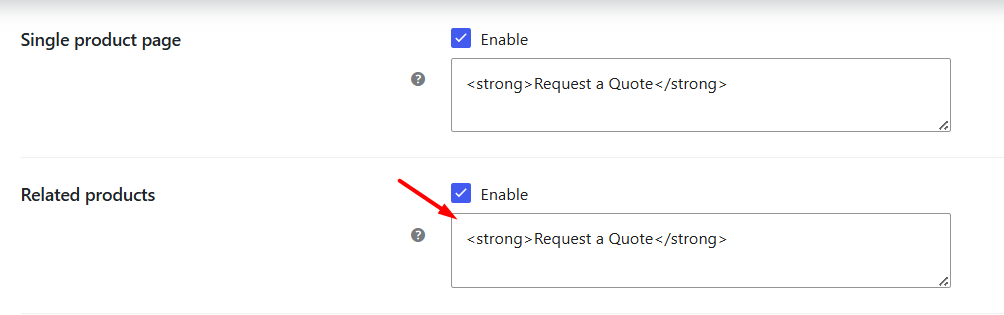
Enable this option to display the Request a Quote label (or your custom label) for related Simple Products. By default, the label is set to Request a Quote , but you can replace it with any text that suits your business.
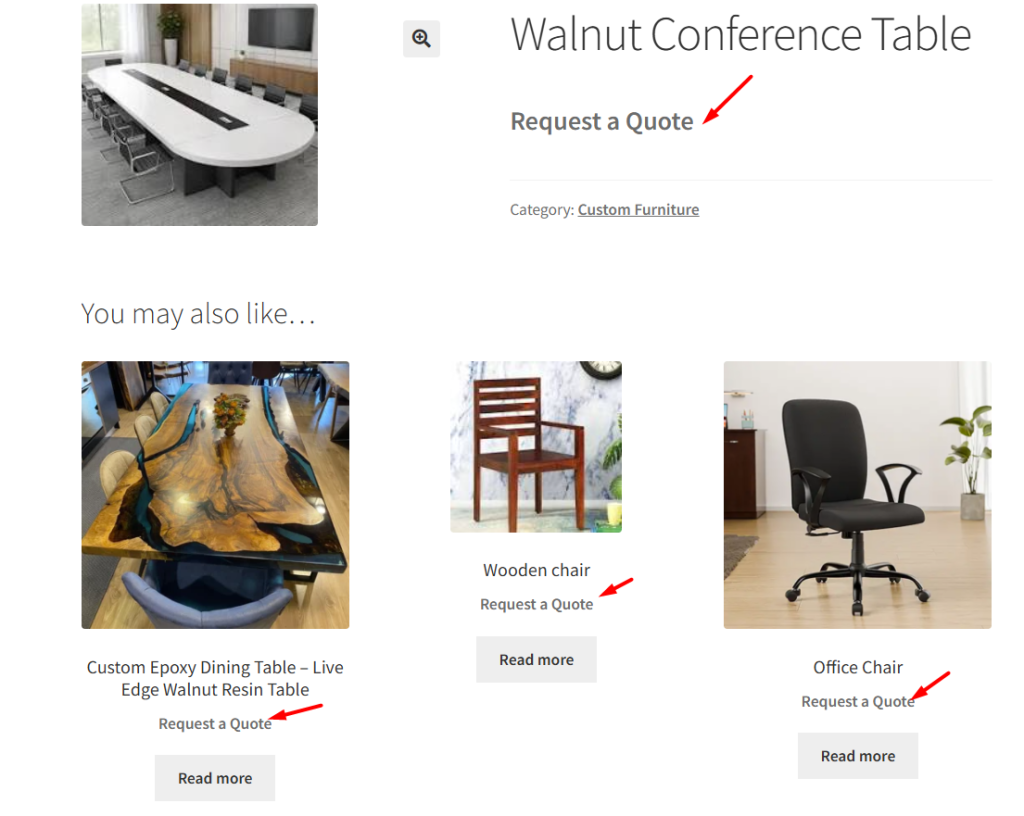
Suppose a customer is viewing the Leather Office Chair product. At the bottom of the page, WooCommerce displays related products in which all the related products display the Request a Quote label instead of their regular purchase option.
Enabling the Related products setting
Related product page of Cream Hat
e) Homepage
↑ Back to topHomepage refers to the Shop page where you display all your WooCommerce products for online purchase. This setting allows you to display a custom price label for all simple products with empty price, on the Homepage.

Enabling Homepage setting
Hence, all simple products with no price set for it will have a Call for Price label on the homepage.
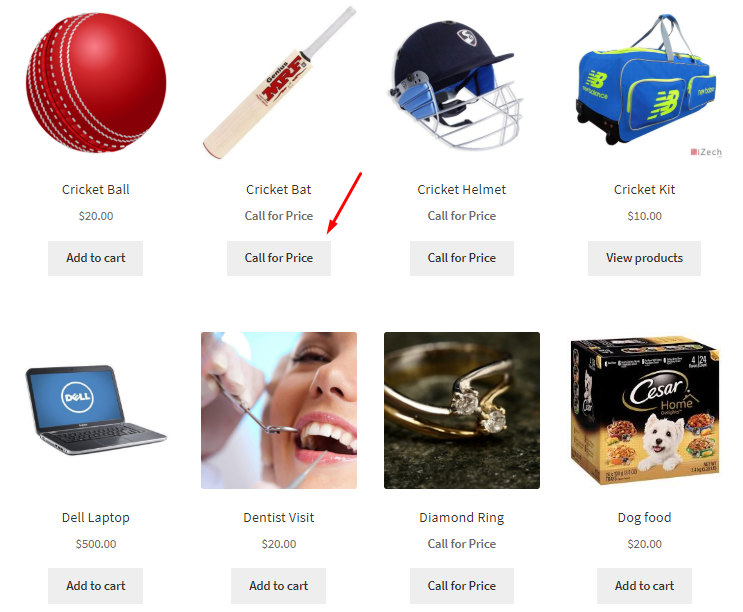
Call for Price button for Simple products
Similar to the other settings if you keep the text field blank, it will disable the setting. You can choose to display any label for the price on the homepage by entering the appropriate text in the text field of Homepage setting. By default, Homepage setting is enabled and text in the text field is set as <strong>Call for Price</strong>.
f) Pages (e.g. shortcodes)
↑ Back to topEnable this option to display the selected label for Simple Products with empty prices on WooCommerce pages that display products using shortcodes.

Enabling Pages (e.g. shortcodes) setting
For instance, say you want to display a price label on Category Products page for category Food. The custom price label for all Simple products with Food as category and empty price will display Contact Us label.
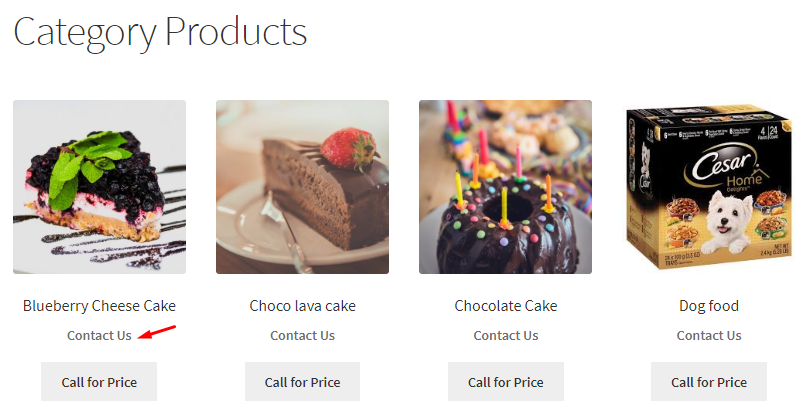
Category Products page displaying Contact Us label
As you can see, the price label can be set as any text suitable for your business. If you leave the text field blank for Pages (e.g. shortcodes) setting, then this option will be disabled.
g) Archives
↑ Back to topWhen you enable the setting Archives and add the text as Need a Quote in the text field, then all the simple products with empty prices on category archives, product archives, and similar listing pages will display price label as Need a Quote.
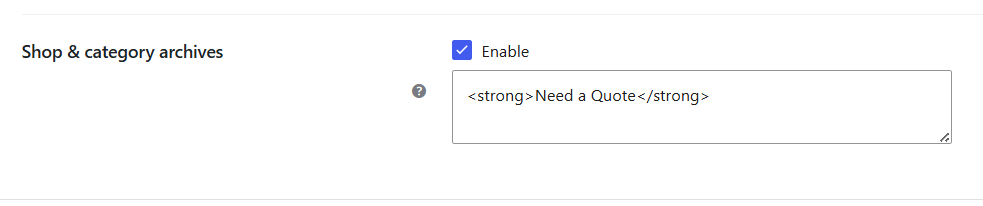
Enabling the Archives setting
Let us take a example of a page where product categories are displayed. So, when you go to Product Categories page and select category Clothing, then it will display simple products that have empty price with a Need a Quote label as shown below:
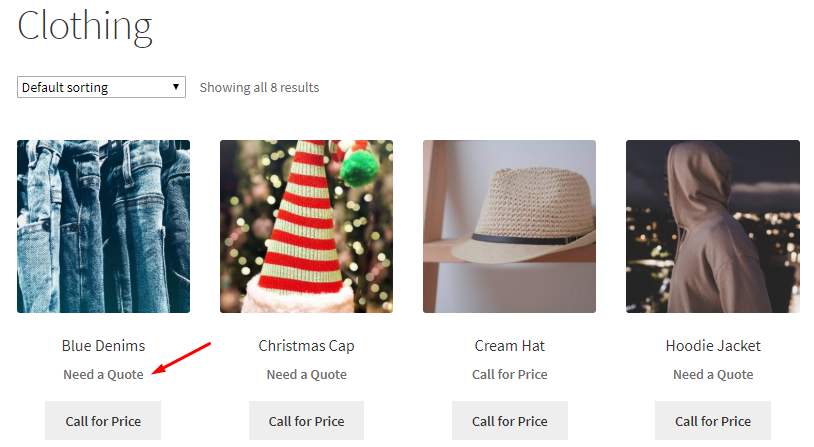
Displaying Need a Quote label
This way you can add any custom price label as per business need and can choose to leave it blank to disable this setting. By default, this setting is enabled and the text field is set as <strong>Call for Price</strong>.
h) Reset Settings
↑ Back to topUse the Reset to Defaults option to restore all Simple Product settings to their default values.
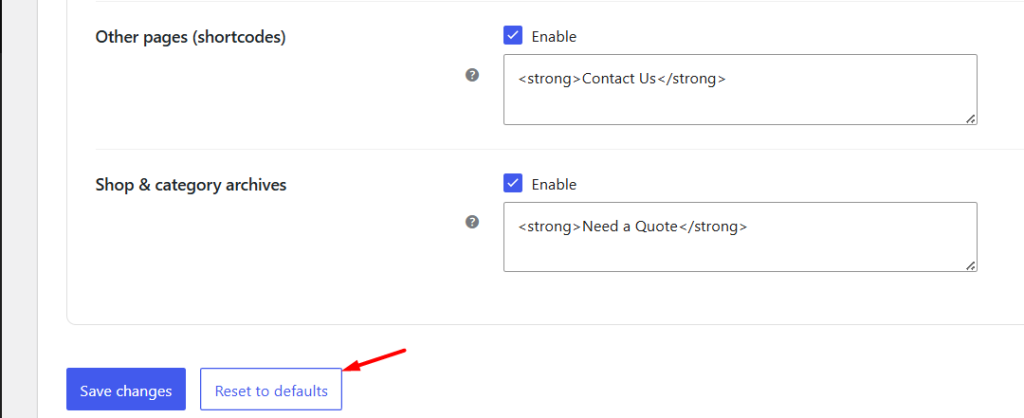
This will:
- Enable the Call for Price settings for Simple Products.
- Restore the default contact method configuration.
- Reset all display labels back to Call for Price.
This option is useful if you have experimented with different configurations and want to quickly return to the plugin’s default settings.
With the Simple Products settings, you can decide how customers interact with Simple Products that don’t have a price. From choosing the preferred contact method to displaying different labels across product pages, shop pages, archives, and shortcode pages, these settings give you complete control over how the Call for Price functionality is presented for Simple Products.
Variable Products
↑ Back to topThe Call for Price plugin provides two levels of configuration:
- General Settings let you control when the Call for Price functionality is applied, such as for products with empty prices, specific user roles, product categories, or other conditions.
- Product Types let you control how the Call for Price functionality is displayed for each WooCommerce product type.
The Product Types section allows you to configure Call for Price settings separately for Simple, Variable, Grouped, and External products. This is useful when you want different contact methods or display labels for Variable Products instead of using the same configuration across your entire store.
To access these settings, navigate to:
WooCommerce → Settings → Call for Price → Product Types → Variable
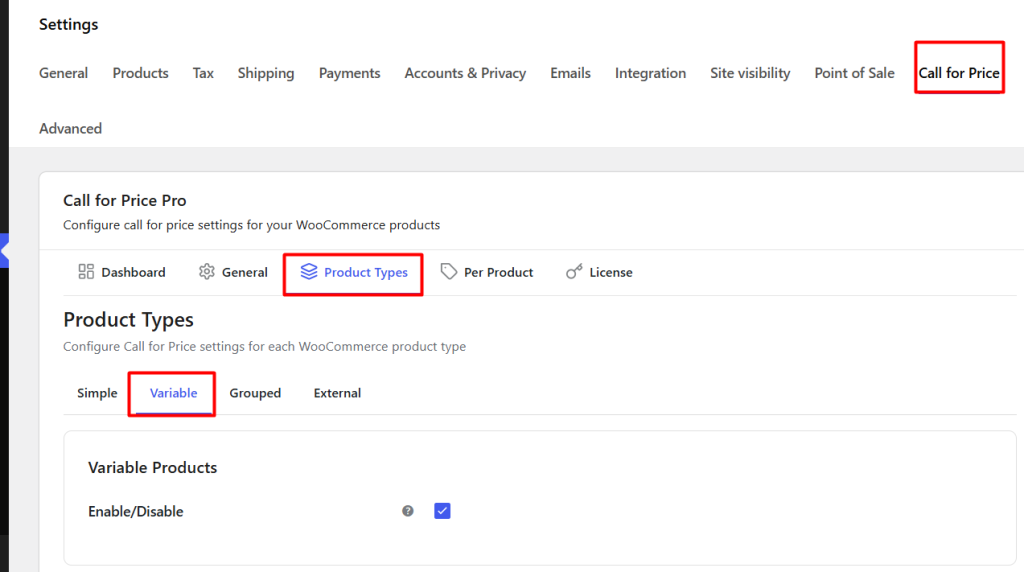
Default Variable Products page
Let us understand Variable Product settings in detail:
a) Enable/Disable
↑ Back to topThe Enable/Disable option controls whether the Call for Price functionality is applied to Variable Products.
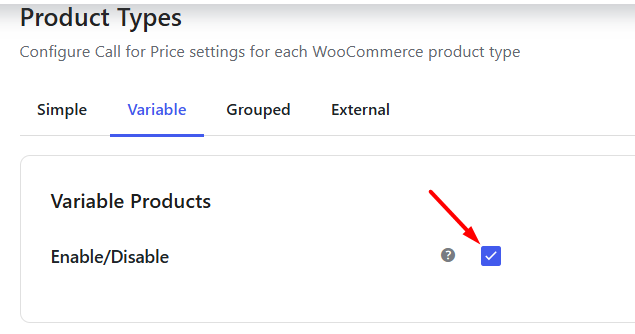
This option is enabled by default. When enabled, you can configure the contact method and customize how the Call for Price label is displayed across different areas of your store.
If disabled, none of the settings under the Variable tab will be applied to Variable Products.
b) Contact Method
↑ Back to topThe Contact Method setting determines how customers can contact you when the price is hidden for a Variable Product.
This setting allows you to choose a Call Type for the selected product type, which defines how customers can contact you (for example, via phone, WhatsApp, email, or a custom link).
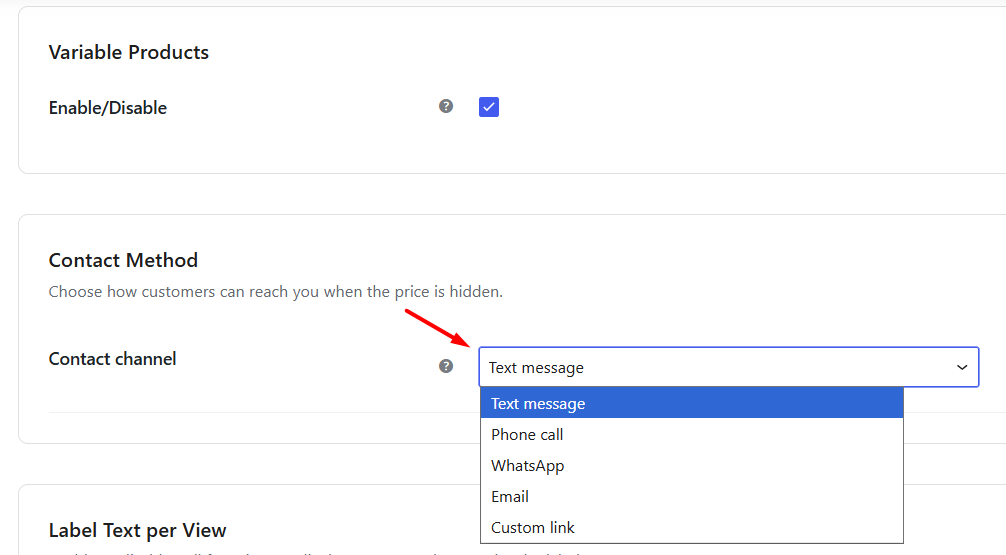
Based on the selected Call Type, you can configure the required details in the fields below. For example, selecting Email will require an email address and subject, while selecting WhatsApp will require a WhatsApp number.
To know how each available Call Type works, refer to the Call Types for Call for Price documentation.
Single product page
↑ Back to topEnable this option to display a custom Call for Price label on the Variable Product page. By default, the label is set to Call for Price, but you can replace it with any text that better suits your business.
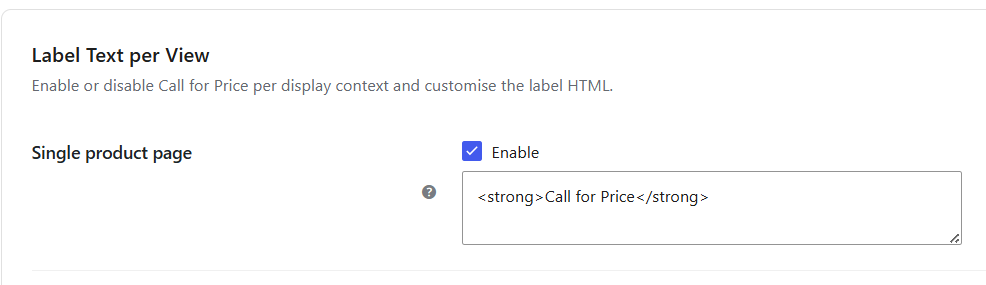
Single product page setting
Let us understand this with an instance of a variable product – Woollen Scarf & Cap which has no price set for it and you enable the Single product page option with Call for Price text.
The Single product page of Woollen Scarf & Cap product will display Call for Price label as shown below:
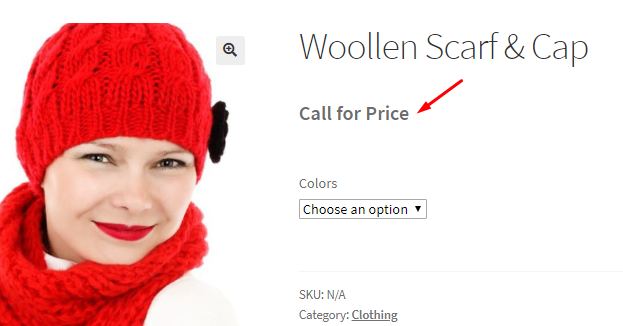
Single product page of Woollen Scarf & Cap product
In order to disable this setting, you can leave Single product page option unchecked and text field blank. You can enter any text for the price label in the text field as per your business needs.
Related products
↑ Back to topRelated Products are products that WooCommerce displays at the bottom of a Variable Product page to encourage customers to explore similar items.
Enable this option to display the Request a Quote label (or any custom label) for related Variable Products.

Enabling the Related products setting
Let us understand this using an instance of product Cream Hat. Say you enable the Related products setting and add price label as Need a Quote, then variable products with price blank under Related products section on the Cream Hat product page will show Need a Quote label.
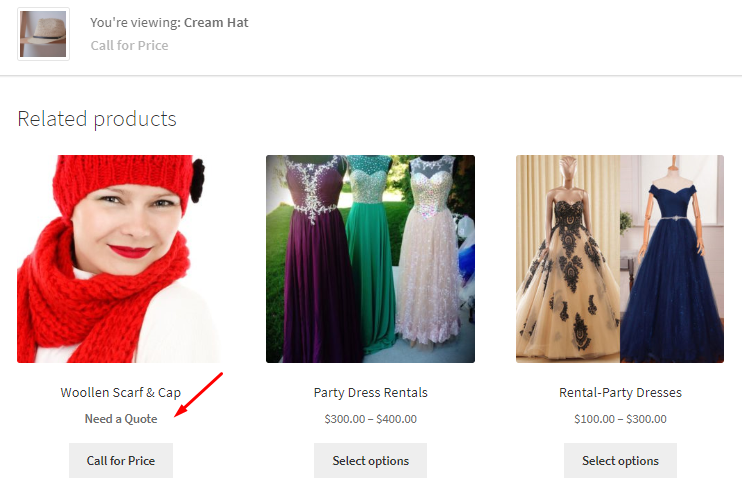
Related product page of Cream Hat
You can disable this setting by not ticking the checkbox or leaving the text field blank. You can set any price label on the frontend for related products, by adding appropriate text in the text field.
Homepage
↑ Back to topThe Homepage setting controls how Variable Products appear on your Shop page.
When you enable this setting and you enter <strong>Call for Price</strong> in the text field, the WooCommerce Variable products on the Shop page will display a Call for Price label.

Enabling Homepage setting
Hence all variable products with no price set for it will have a Call for Price label on the homepage.
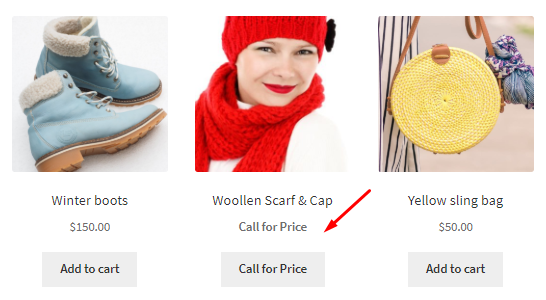
Homepage displaying Call for Price
If you keep the text field blank here, this will disable the setting. You can enter any text for the price label in the text field of this setting which is by default set to <strong>Call for Price</strong>.
Pages (e.g. shortcodes)
↑ Back to topEnable this option to display your custom label for Variable Products displayed through WooCommerce shortcodes.

Enabling Pages (e.g. shortcodes) setting
Suppose you have created a landing page that displays your Clothing collection using a WooCommerce shortcode.
Instead of showing the regular purchase option, every Variable Product displayed through the shortcode can show the Request a Quote label
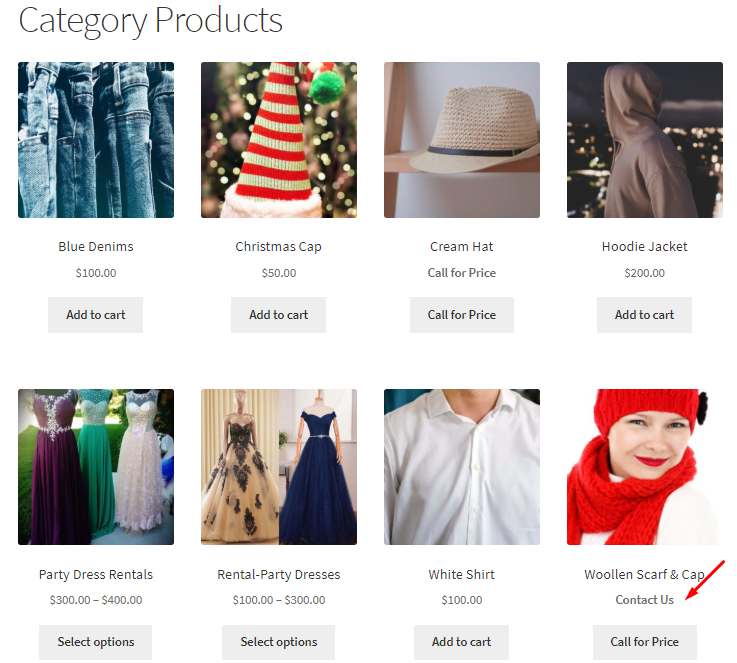
Category Products page displaying Contact Us label
As you can see, the price label can be set as any text as per your business needs and if you leave the text field blank, then this option will be disabled. By default, this setting is enabled but can be disabled if you do not tick the Enable checkbox.
Archives
↑ Back to topWhen you enable the setting Archives and add the text Call for Price in the text field, then all variable products with empty prices on the category archives, product archives, and similar listing pages will display Call for Price label.

Enabling the Archives setting
Let us take a example of a page where product categories are displayed. So, when you go to Product Categories page and select category Food, then variable products with empty prices under this category will display label as Call for Price as shown below:
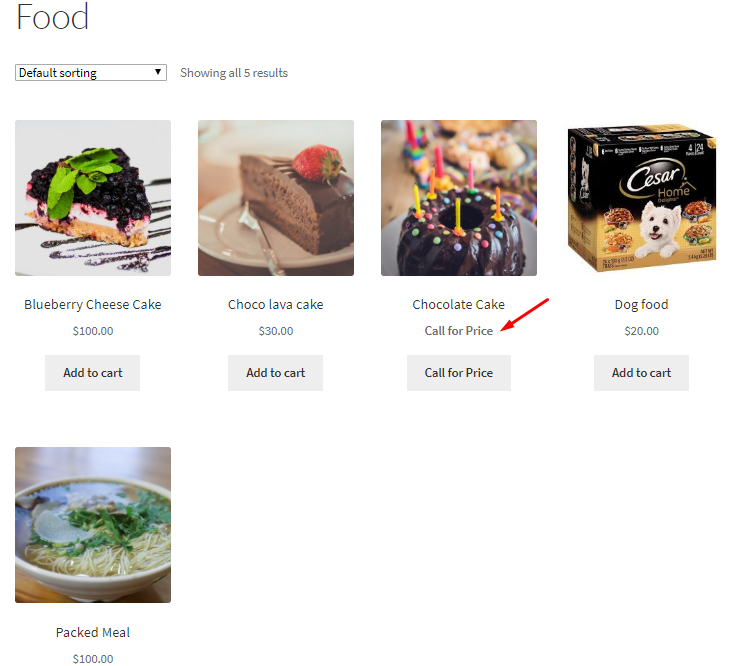
Displaying Call for Price label
By default, this setting is enabled and you can untick the Enable checkbox to disable it. You can even disable the default label <strong>Call for Price</strong> by leaving the text field blank for Archives setting.
Variation
↑ Back to topThis refers to different variations of variable products. When you enable Variation setting, single product page of each variation will display the custom price label set for variable products with empty price.

Enabling the Variations setting
Therefore, say you enable this setting and enter the price label as Need a Quote in the text field. Consider variable product Woollen Scarf & Cap whose variations are Red and Yellow colors. Now when the price of these variations are not set and you select Yellow Woollen Scarf & Cap product, you will see the Need a Quote label on the Single product page of Yellow Woollen Scarf & Cap.
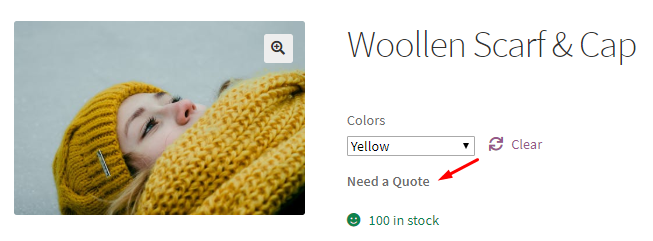
Need a Quote label on Single product page of a variation
This way you can set a custom price label for each variation. By default this setting is enabled with label set as <strong>Call for Price</strong>. If you want to disable this setting, simply untick the Enable checkbox or leave the text field blank.
i) Reset to Defaults
↑ Back to topUse the Reset to Defaults option to restore all Variable Product settings to their default values.
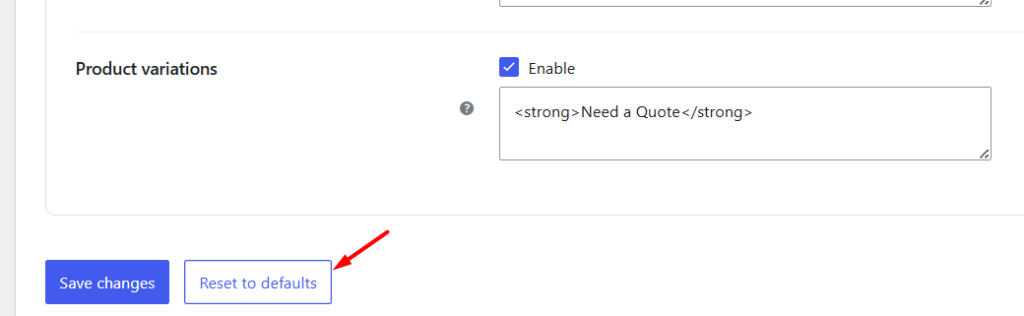
This will:
- Enable the Call for Price settings for Variable Products.
- Restore the default Contact Method configuration.
- Reset all display labels back to Call for Price.
This option is useful if you have experimented with different configurations and want to quickly return to the plugin’s default settings.
Grouped Products
↑ Back to topThe Call for Price plugin provides two levels of configuration:
- General Settings let you control when the Call for Price functionality is applied, such as for products with empty prices, specific user roles, product categories, or other conditions.
- Product Types let you control how the Call for Price functionality is displayed for each WooCommerce product type.
The Product Types section allows you to configure Call for Price settings separately for Simple, Variable, Grouped, and External products. This is useful when you want different contact methods or display labels for Grouped Products instead of using the same configuration across your entire store.
To access these settings, navigate to:
WooCommerce → Settings → Call for Price → Product Types → Grouped
Let’s understand all the settings under this product type in detail.
What are Grouped Products?
↑ Back to topAs the name suggests, Grouped Products are made up of different simple products which can be purchased individually. It is grouped together either to offer some special offers or for a theme or festive occasions etc. Hence its a collection of related products like set of 6 cups or mugs.
a) Enable/Disable
↑ Back to topThe Enable/Disable option controls whether the Call for Price functionality is applied to Grouped Products.
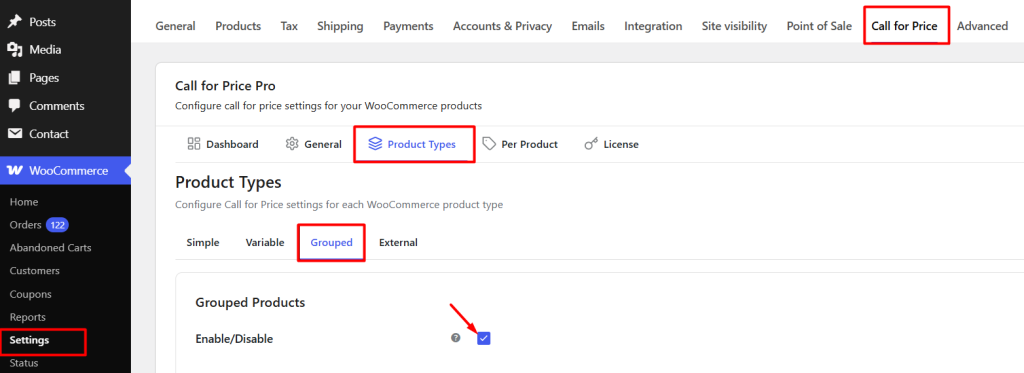
This option is enabled by default. When enabled, you can configure the contact method and customize how the Call for Price label is displayed across different areas of your store.
If disabled, none of the settings under the Grouped tab will be applied to Grouped Products.
b) Contact Method
↑ Back to topThe Contact Method setting determines how customers can contact you when the price is hidden for a Grouped Product.
Choose the required Contact Channel from the dropdown.
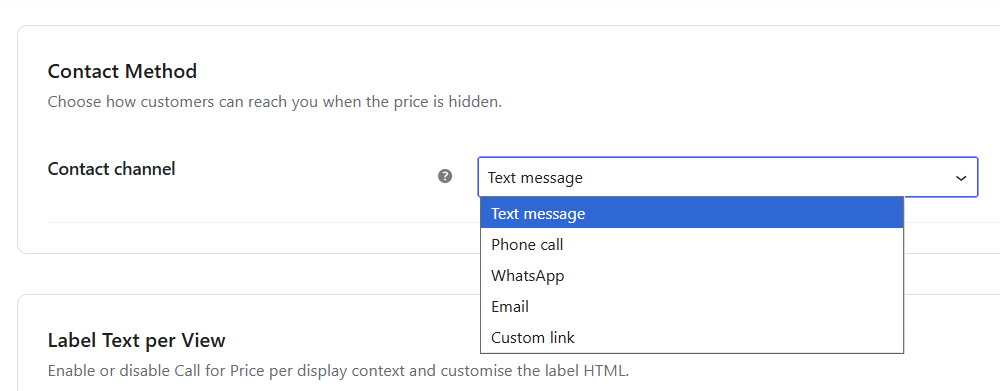
Available options include:
- Text Message
- Phone Call
- Custom Link
Depending on the selected contact method, additional fields will appear for the required information.
For example:
- Phone Call requires a phone number.
- WhatsApp requires a WhatsApp number.
- Email requires an email address and subject.
- Custom Link requires the URL where customers should be redirected.
For detailed setup instructions and examples for each contact method, refer to the Contact Method for Call for Price documentation.
Single product page
↑ Back to topEnable this option to display a custom Call for Price label on the Grouped Product page. By default, the label is set to Call for Price, but you can replace it with any text that better suits your business.
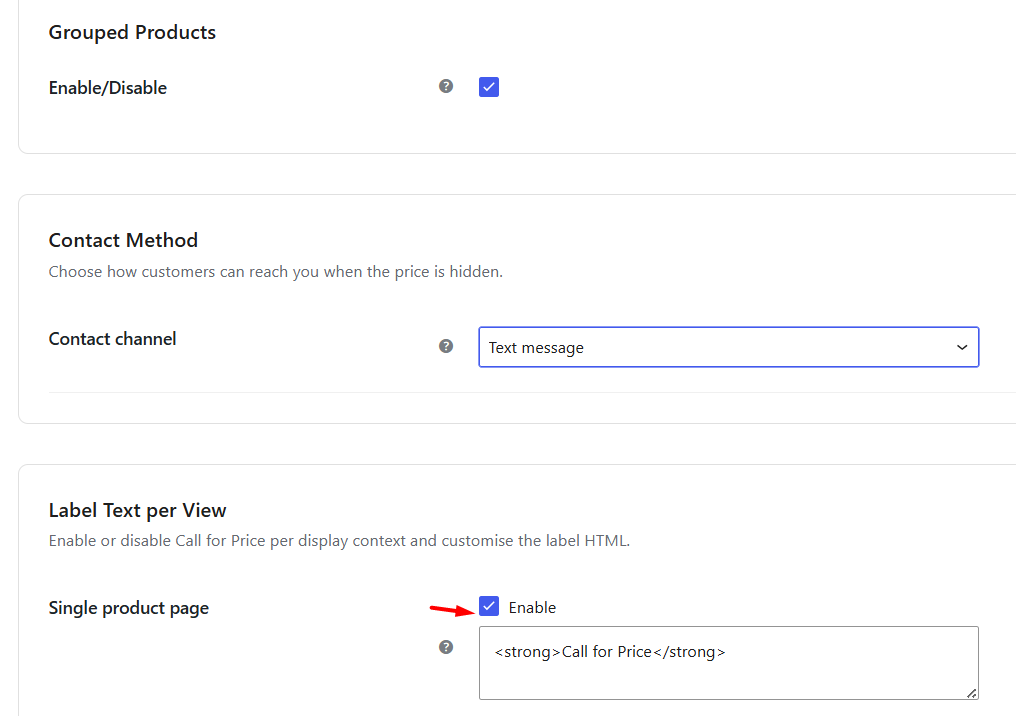
Enabling the Single product page setting
Suppose you sell a Cricket Kit that includes a bat, pads, gloves, and a helmet. The grouped product does not have a price configured because customers may request different combinations or bulk pricing. With the Single Product Page option enabled and the label set to Call for Price, customers visiting the Cricket Kit product page will see the Call for Price label instead of a price, encouraging them to contact you before purchasing.
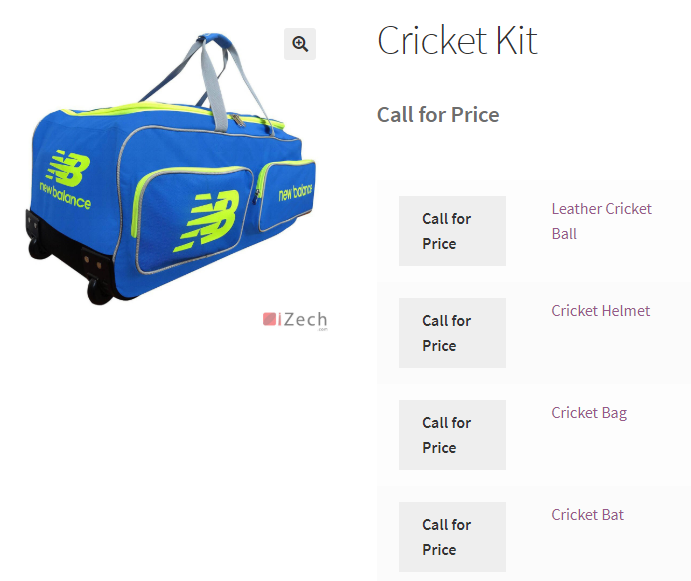
Single product page of Cricket Kit product
You can disable this setting by leaving the Single product page option unchecked or text field blank. Also, you can enter any text for the price label in the text field as per your business needs.
Related products
↑ Back to topRelated products are products that WooCommerce displays at the bottom of a Single Product page to help customers discover similar items.
Enable this option to display the selected label for related Grouped Products that do not have a price. By default, the label is set to Call for Price, but you can replace it with any text that suits your business.

Enabling the Related products setting
Suppose a customer is viewing the Cricket Balls Set product. WooCommerce displays Cricket Kit as a related grouped product at the bottom of the page. Since the Cricket Kit does not have a price configured, it will display the Call for Price label instead of a price.
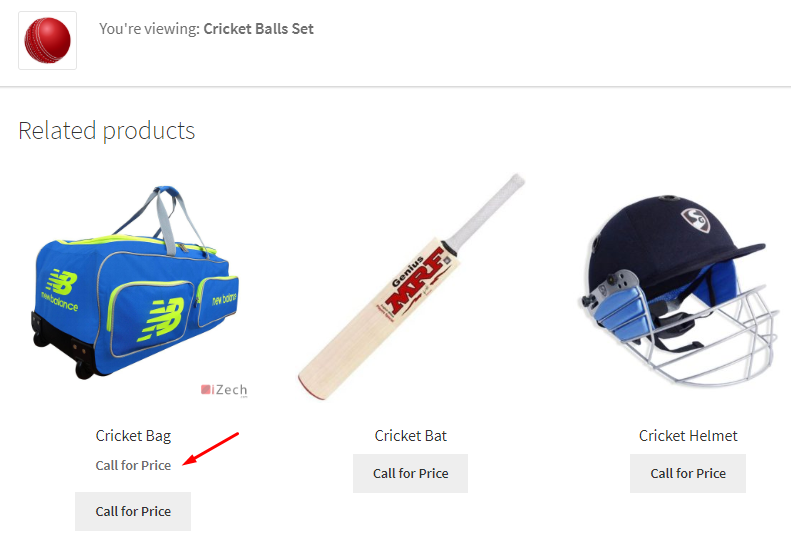
Call for Price showing up on Related products section
You can untick the checkbox or leave the text field blank to disable this setting. You can set any price label on the frontend for related products, by adding appropriate text in the text field. By default, Related products setting is enabled with <strong>Call for Price</strong> set in the text field.
Homepage
↑ Back to topThe Homepage refers to your WooCommerce Shop page, where customers browse all your products. When you enable Homepage setting and you set <strong>Call for Price</strong> in the text field, all the WooCommerce Grouped products on the Shop page will display a Call for Price label.

Enabling Homepage setting
Therefore, all grouped products with empty price will have a Call for Price label on the Homepage.
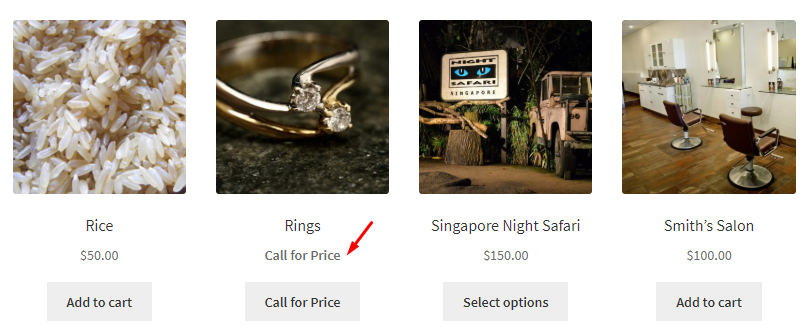
Call for Price for Grouped products
You can keep the text field blank which will disable the setting. Also, you can choose to display any label for the price on the homepage by entering the desired text in the text field of Homepage setting. By default, Homepage setting is enabled and text in the text field is set as <strong>Call for Price</strong>.
Other pages (shortcodes)
↑ Back to topEnable this option to display the selected label for Grouped Products that do not have a price on WooCommerce pages created using product shortcodes. When you enable the other pages (shortcodes) setting, and you set <strong>Need a Quote</strong> in the text field, all the Grouped products with empty price on the selected WooCommerce page will display a Need a Quote label.

Enabling Pages (e.g. shortcodes) setting
Suppose you have a Category Products page that displays products from the Clothing category using a WooCommerce shortcode. Set the label to Need a Quote. Grouped Products in the Clothing category without a configured price will display the Need a Quote label instead of a price.
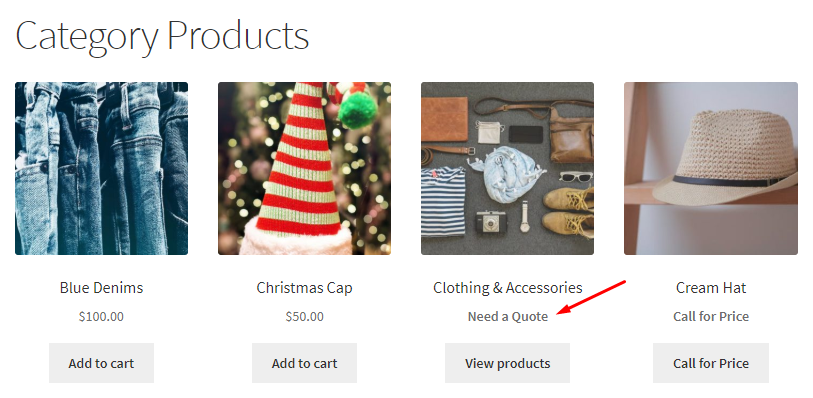
Category Products page displaying Need a Quote label
The price label can be set as any text suitable for your business needs. If you leave the text field blank for Pages (e.g. shortcodes) setting, then this option will be disabled.
Archives
↑ Back to topEnable this option to display the selected label for Grouped Products that do not have a price on category archives, product archives, and similar listing pages.

Enabling the Archives setting
So lets take an example of a page where Product categories are displayed. So, when you go to Product Categories page and select category Sports, then it will display grouped products that have empty price with a Need a Quote label.
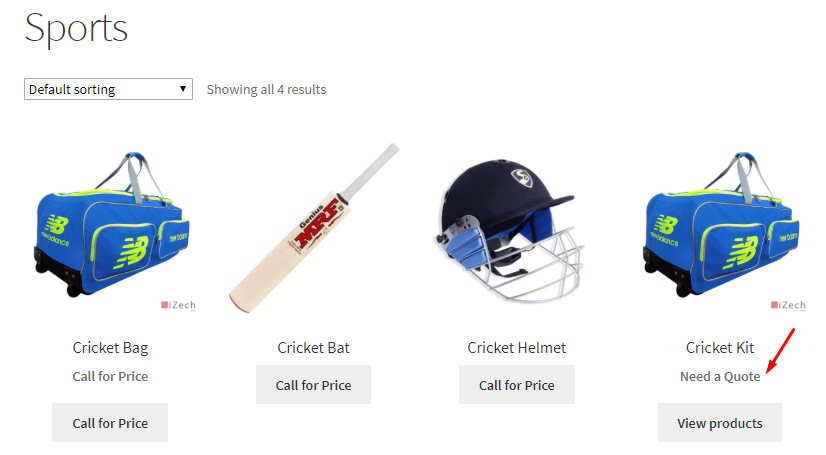
Displaying Need a Quote label
This way you can add any custom price label as per your business requirements and can choose to leave it blank to disable this setting. By default, this setting is enabled and the text field is set as <strong>Call for Price</strong>.
Reset Settings
↑ Back to topUse the Reset to Defaults option to restore all Grouped Product settings to their default values.
This will:
- Enable the Call for Price settings for Grouped Products.
- Restore the default contact method configuration.
- Reset all display labels back to Call for Price.
This option is useful if you have experimented with different configurations and want to quickly return to the plugin’s default settings.

Reset checkbox ticked
With the Grouped Products settings, you can decide how customers interact with your Grouped Products. From choosing the preferred contact method to displaying different labels across product pages, shop pages, archives, and shortcode pages, these settings give you complete control over how the Call for Price functionality is presented for Grouped Products.
External Products
↑ Back to topThe Call for Price plugin provides two levels of configuration:
- General Settings let you control when the Call for Price functionality is applied, such as for products with empty prices, specific user roles, product categories, or other conditions.
- Product Types let you control how the Call for Price functionality is displayed for each WooCommerce product type.
The Product Types section allows you to configure Call for Price settings separately for Simple, Variable, Grouped, and External Products. This is useful when you want different contact methods or display labels for External Products instead of using the same configuration across your entire store.
To access these settings, navigate to:
WooCommerce → Settings → Call for Price → Product Types → External
What are External Products?
↑ Back to topExternal (or Affiliate) Products are products listed in your WooCommerce store but purchased from another website. Instead of completing the purchase on your store, customers are redirected to the external website using the product link.
Let’s understand all the settings under this external product type in detail.
Enable/Disable
↑ Back to topThe Enable/Disable option controls whether the Call for Price functionality is applied to External Products.
This option is enabled by default. When enabled, you can configure the contact method and customize how the Call for Price label is displayed across different areas of your store.
By default, Enable/Disable option is enabled. If you want to disable the setting, do not tick the checkbox.

Tick the checkbox to enable settings
b) Contact Method
↑ Back to topThe Contact Method setting determines how customers can contact you when the Call for Price functionality is triggered for an External Product.
Choose the required Contact Channel from the dropdown.

Available options include:
- Text Message
- Phone Call
- Custom Link
Depending on the selected contact method, additional fields will appear.
For example:
- Phone Call requires a phone number.
- WhatsApp requires a WhatsApp number.
- Email requires an email address and subject.
- Custom Link requires the URL where customers should be redirected.
For detailed setup instructions and examples for each contact method, refer to the Contact Method for Call for Price documentation.
Single product page
↑ Back to topWhen you enable the Single product page setting, you can display the custom price label for all external products whose price is not set. It will display the price label set in the text field of the setting. By default, the text field is set to <strong>Call for Price</strong>.

Single product page setting
Suppose you list an external product called Blue Book, but you don’t display its price in your WooCommerce store. With the Single Product Page option enabled and the label set to Call for Price, customers visiting the Blue Book product page will see the Call for Price label instead of a price.

Single product page of Blue Book
If you want to disable this setting, you can untick the Single product page option and keep text field blank. You can choose to enter any text for the price label in the text field as per your business needs.
Related products
↑ Back to topRelated Products are products that WooCommerce displays at the bottom of a Single Product page to help customers discover similar items.
Enable this option to display the selected label for related External Products. By default, the label is set to Request a Quote, but you can replace it with any text that suits your business.

Enabling the Related products setting
Hence when we consider an example of external product – Blue Book and scroll to the Related products section, all external products with empty price will display Request a Quote label.
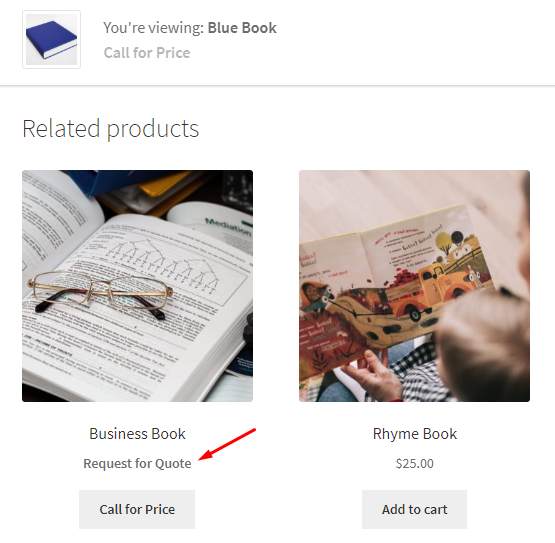
Related products section showing Request a Quote label
To disable this setting by untick the Enable checkbox or leave the text field blank. You can set any price label on for related products, by adding an appropriate text in the text field.
Homepage
↑ Back to topA Shop page is also called a Homepage where you display all WooCommerce products of your store for online purchase. Homepage setting allows you to display a custom price label for all external products with empty price, on the Homepage.

Enabling Homepage setting
Therefore when you enable this setting and enter <strong>Need a Quote</strong> in the text field, all External products with empty price on the Shop page will display a Need a Quote label.
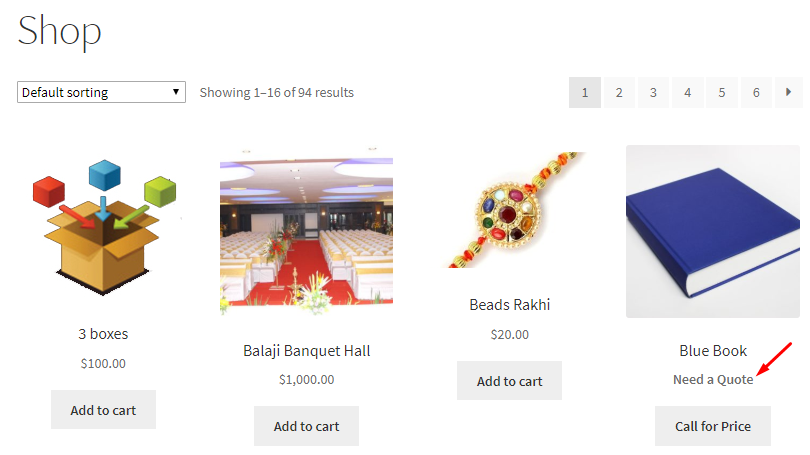
Homepage displaying Need a Quote label
If you keep the text field blank, this will disable the setting. You can enter any text for the price label in the text field of this setting which is by default set to <strong>Call for Price</strong>.
Other pages (shortcodes)
↑ Back to topEnable this option to display the selected label for External Products on WooCommerce pages created using product shortcodes.

Enabling Pages (e.g. shortcodes) setting
Suppose you have a Category Products page that displays products from the Books category using a WooCommerce shortcode. Set the label to Need a Quote.
External Products in the Books category with empty price that display the Call for Price functionality will show the Need a Quote label on that page.
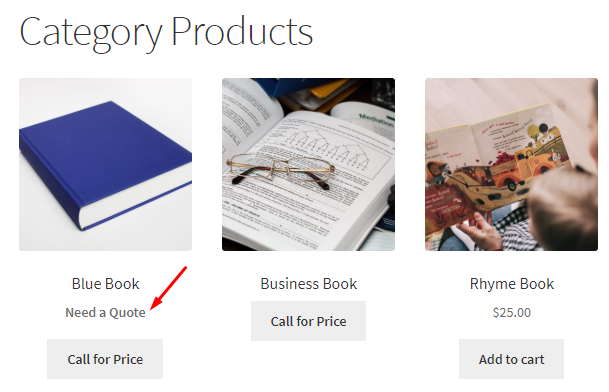
Category Products page displaying Need a Quote label
Thus price label can be set to any text as per your business requirements. If you leave the text field blank, then this option will be disabled. By default, Pages (e.g. shortcodes) setting is enabled but can be disabled if you do not tick the Enable checkbox.
Archives
↑ Back to topWhen you enable the setting Archives and add the text Need a Quote in the text field, then all external products with empty prices on the category archives, product archives, and similar listing pages will display Need a Quote label.

Enabling the Archives setting
To understand this better, lets take an instance of a page where product categories are displayed. So, when you go to Product Categories page and select category Books, then all external products with empty price under this category will display Need a Quote label.
Displaying Need a Quote label
By default, this setting is enabled and you can untick the Enable checkbox to disable it. You can even disable the default label <strong>Need a Quote</strong> by keeping the text field blank for Archives setting.
Reset Settings
↑ Back to topUse the Reset to Defaults option to restore all External Product settings to their default values.
This will:
- Enable the Call for Price settings for External Products.
- Restore the default contact method configuration.
- Reset all display labels back to Call for Price.
This option is useful if you have experimented with different configurations and want to quickly return to the plugin’s default settings.

Enabling Reset settings
With the External Products settings, you can choose the preferred contact method and customize how the Call for Price functionality is displayed across different areas of your WooCommerce store.