
Recovering abandoned carts often requires store owners to review multiple reports, check recovery performance, identify products causing cart abandonment, and analyze email campaign effectiveness.
With Abandoned Cart Pro’s AI Abilities via the Model Context Protocol (MCP), you can interact with your WooCommerce store using natural language through an AI assistant.
Instead of manually navigating through different reports and analytics sections, you can simply ask questions like:
- Which products are abandoned the most?
- How much revenue have I recovered?
- Which recovery emails perform the best?
- Which recovery campaigns have the highest recovery rate?
Abandoned Cart Pro now supports Model Context Protocol (MCP), allowing you to connect your WooCommerce store with AI assistants such as Claude Desktop and other MCP-compatible AI clients.
This allows you to quickly analyze cart recovery performance and gain insights into your abandoned cart data while continuing to manage your existing WooCommerce store.
Important Note: Using AI with Abandoned Cart Pro is completely optional. The plugin does not automatically connect your store to an AI client or enable these AI abilities. You choose whether to enable MCP and connect a supported AI client to your store. If you don’t enable the AI integration, your existing features and workflows continue to work as before.
1. Prerequisites
↑ Back to topBefore configuring the integration, ensure your environment meets the following requirements.
- A WordPress website running WordPress 6.9 or later.
- WooCommerce installed and activated.
- Abandoned Cart Pro for WooCommerce installed and activated. Ensure you’re using a version that supports AI Abilities via MCP.
- An MCP-compatible AI client, such as Claude Desktop. You can also use other AI clients that support custom MCP servers, such as ChatGPT.
- Node.js installed on your computer. This is required to run the WordPress MCP server which securely connects your AI client to your WordPress website.
- A WordPress Application Password for an Administrator account. This allows the AI client to securely authenticate with your WordPress site.
Note: This guide uses Claude Desktop and ChatGPT Desktop to demonstrate the setup process. The setup process is similar for other MCP-compatible AI clients, although the configuration screens and available connection options may differ depending on the client.
2. Configure Abandoned Cart Pro
↑ Back to topBefore your AI client can access abandoned cart reports and recovery insights, you need to enable MCP support in the Abandoned Cart Pro for WooCommerce plugin.
By default, the MCP integration is disabled. Enabling it allows Abandoned Cart Pro to register its AI abilities with the WordPress MCP server, making them available to your connected AI client.
- Navigate to WooCommerce → Abandoned Carts→Settings → General→Settings
- Enable the setting: Enable AI Reporting Abilities (lets AI assistants query your abandoned-cart reports)
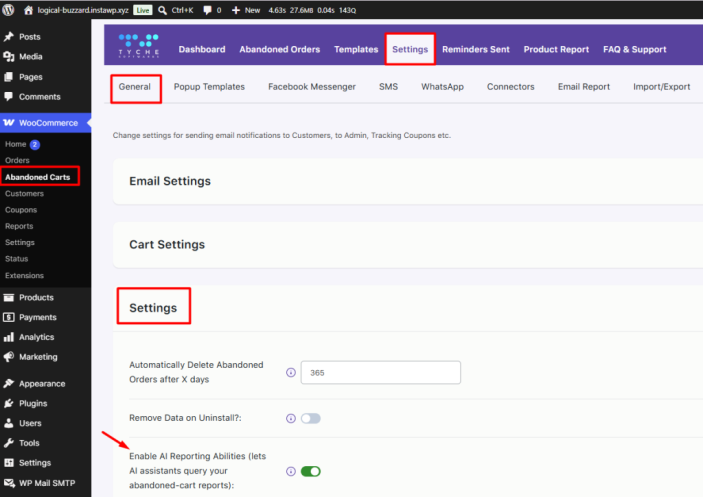
- Click Save Settings.
3. Generate Authentication Credentials
↑ Back to topTo establish a secure connection between your WordPress store and your AI client, you need to generate the following credential:
- A WordPress Application Password to authenticate the WordPress MCP server.
3.1 Create a WordPress Application Password
↑ Back to topA WordPress Application Password provides a secure way for external applications, such as AI clients, to access your WordPress website without using your main account password.
To create an Application Password:
- Log in to your WordPress Admin Dashboard.
- Navigate to Users → Profile.
- Scroll down to the Application Passwords section.
- In the New Application Password Name field, enter a descriptive name.
- Click Add Application Password.
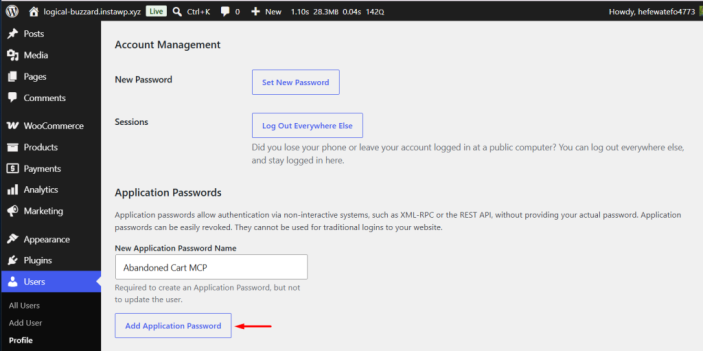
- Copy the generated password immediately and save it in a secure location. WordPress will not display the complete password again after you leave the page.
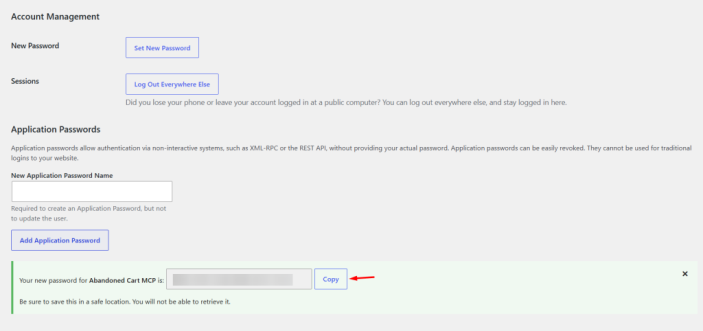
You will need the following information during the AI client configuration:
- WordPress Site URL
- WordPress Username
- Application Password
Note: The WordPress user account used to generate the Application Password should have Administrator privileges so the AI client can access all supported Abandoned Cart Pro abilities.
4. Connect Abandoned Cart Pro to an AI Client
↑ Back to topAbandoned Cart Pro can be connected to any AI client that supports the Model Context Protocol (MCP).
The setup process may vary depending on the AI client you use.
This documentation includes setup instructions for:
- Claude Desktop – Recommended for self-hosted WordPress websites because it currently provides the most reliable setup experience.
- ChatGPT Desktop – Can be configured using an MCP server.
The following sections explain how to configure each AI client.
5. Connect Using Claude Desktop
↑ Back to topIn this section, you’ll configure Claude Desktop to connect to your WordPress store. This allows Claude to securely access the AI abilities provided by Abandoned Cart Pro and WooCommerce.
Note: Claude Desktop uses Node.js to run the local WordPress MCP server. If Node.js is not already installed on your computer, download and install the latest version from https://nodejs.org/ before continuing.
5.1 Open the Claude Desktop Configuration File
↑ Back to topNext, you’ll configure Claude Desktop to connect to your WordPress website.
- Open Claude Desktop.
- Click your Profile icon.
- Select Settings.
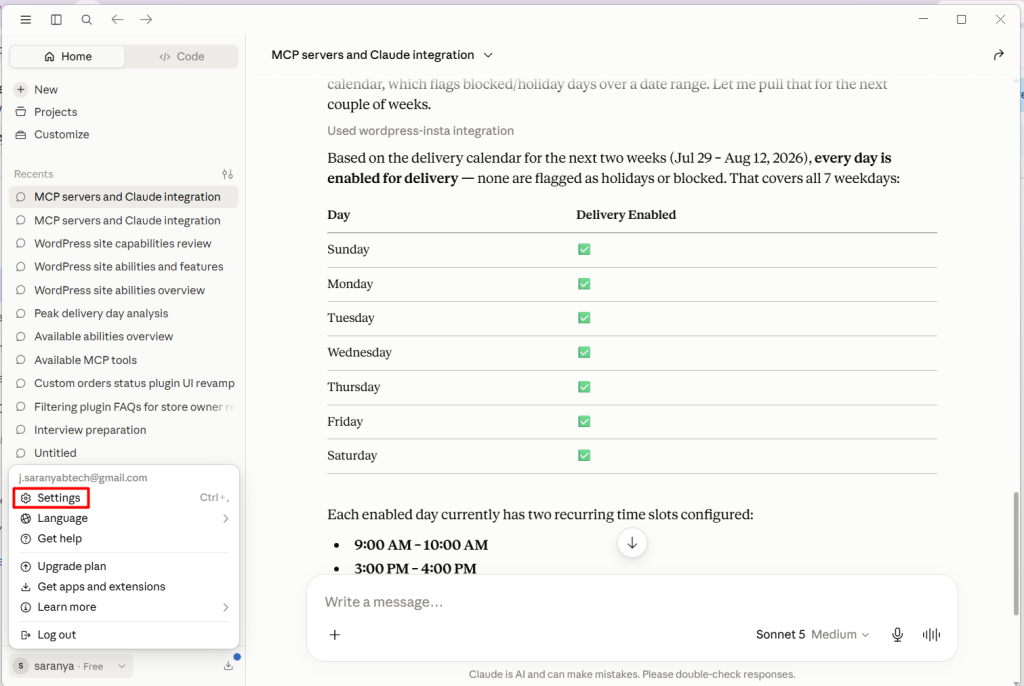
4. Open the Developer tab.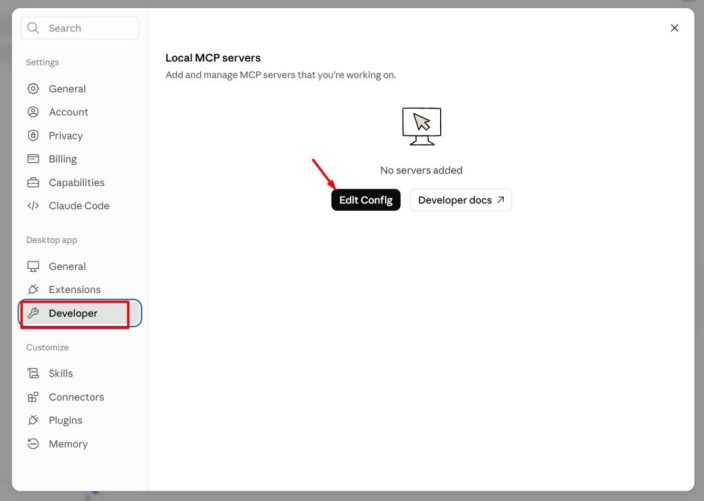
5. Click Edit Config. Claude Desktop will open the folder that contains the claude_desktop_config.json file on your computer.
6. Open the claude_desktop_config.json file using your preferred text editor, such as Visual Studio Code, Notepad, or any other code or text editor.
7. Add the following WordPress MCP Server configuration inside the config file.
"mcpServers": {

   "wordpress-insta": {

      "command": "npx",

      "args": [

        "-y",

        "@automattic/mcp-wordpress-remote@latest"

      ],

      "env": {

        "WP_API_URL": "https://<your-site-url>/wp-json/mcp/mcp-adapter-default-server",

        "WP_API_USERNAME": "<username>",

        "WP_API_PASSWORD": "<Application Password>"

    },

   "woocommerce_mcp": {

     "command": "npx",

     "args": [

       "-y",

       "@automattic/mcp-wordpress-remote@latest"

     ],

     "env": {

       "WP_API_URL": "https://<your-site-url>/wp-json/woocommerce/mcp",

       "CUSTOM_HEADERS": "{\"X-MCP-API-Key\": \"<Consumer_key>:<consumer_secret>\"}"

     }

   }

 },
Note: Your claude_desktop_config.json file may look different depending on your Claude Desktop version and existing settings. If an mcpServers section is already present, add the configuration inside it. Otherwise, create a new mcpServers section before the final closing curly brace (}) of the file.
Replace the following placeholders with your own values:
- WP_API_URL – Enter your WordPress website URL followed by /wp-json/mcp/mcp-adapter-default-server
- WP_API_USERNAME – Enter the username of the WordPress account you used to generate the Application Password.
- WP_API_PASSWORD – The WordPress Application Password you created earlier.
- Save the claude_desktop_config.json file.
- Close the Claude Desktop completely and reopen it.
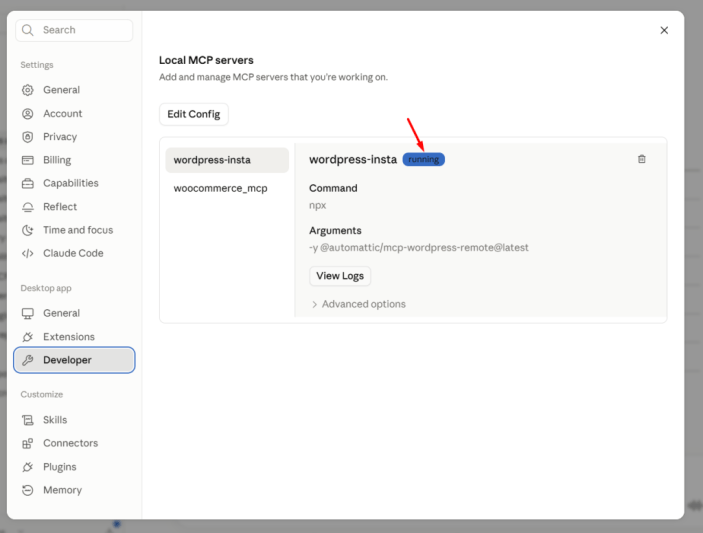
- To verify the MCP server connection, navigate to Settings → Developer → Local MCP Servers. If the configuration is correct, both servers should appear with a Running status.
5.2. Test the Integration
↑ Back to topOnce you’ve completed the setup, verify the integration by running the following example prompts. If your AI client responds with the expected results, you can continue using natural language to interact with Abandoned Cart Pro instead of manually navigating through the plugin settings.
These examples demonstrate the AI Reporting Abilities available in Abandoned Cart Pro, including:
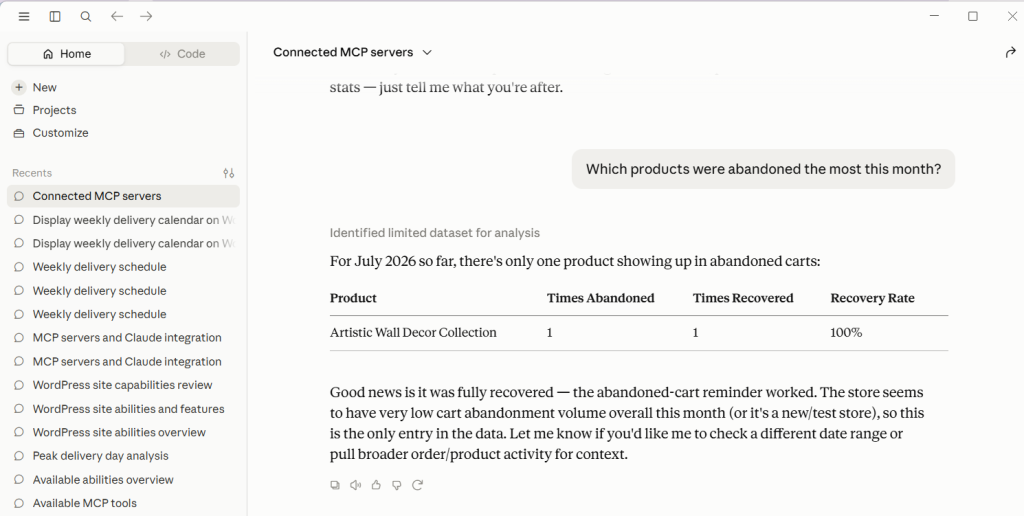
- Top Abandoned Products – Identify the products that are abandoned most frequently during a selected period.
Example prompt: Which products were abandoned the most this month?
Expected AI Response: The AI returns a ranked list of the most frequently abandoned products for the selected period, including the number of abandoned carts, recovered carts, and the recovery rate for each product.
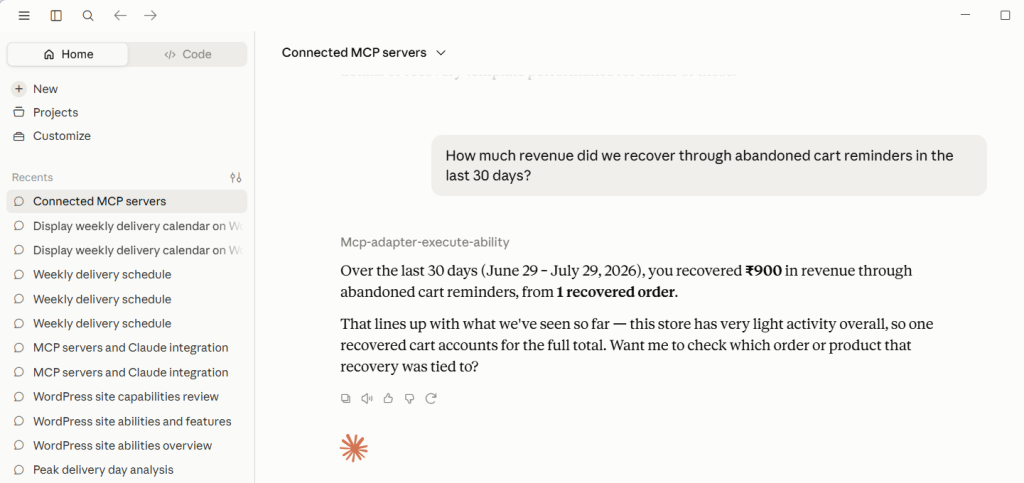
- Recovered Revenue – View the total revenue recovered through abandoned cart reminders for a selected date range.
Example Prompt: How much revenue did we recover through abandoned cart reminders in the last 30 days?
Expected AI Response: The AI displays the total recovered revenue, the number of recovered orders, and the reporting period.
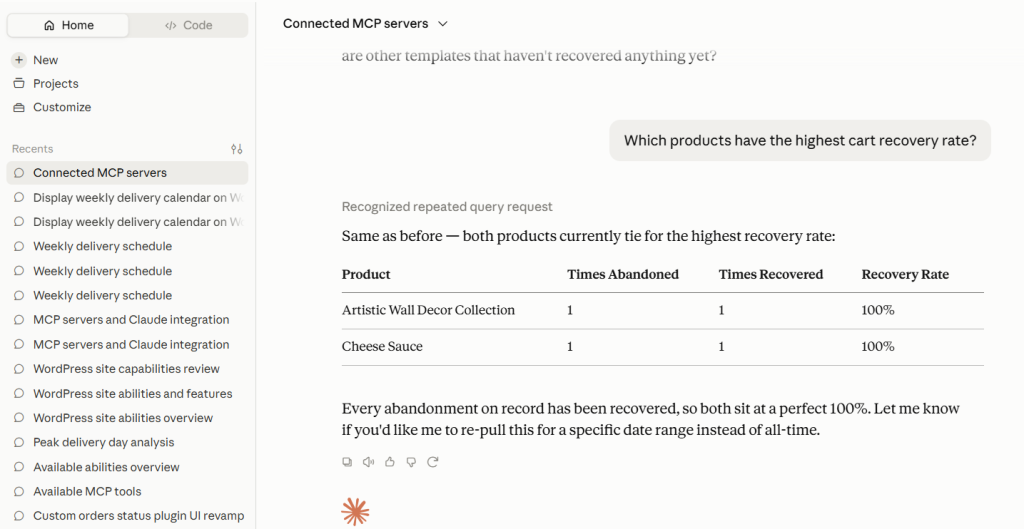
- Recovery Rate Ranking – Compare products based on their abandoned cart recovery rates.
Example Prompt: Which products have the highest cart recovery rate?
Expected AI Response: The AI displays products with their cart recovery rates, along with the total number of abandoned carts and successfully recovered carts for each product.
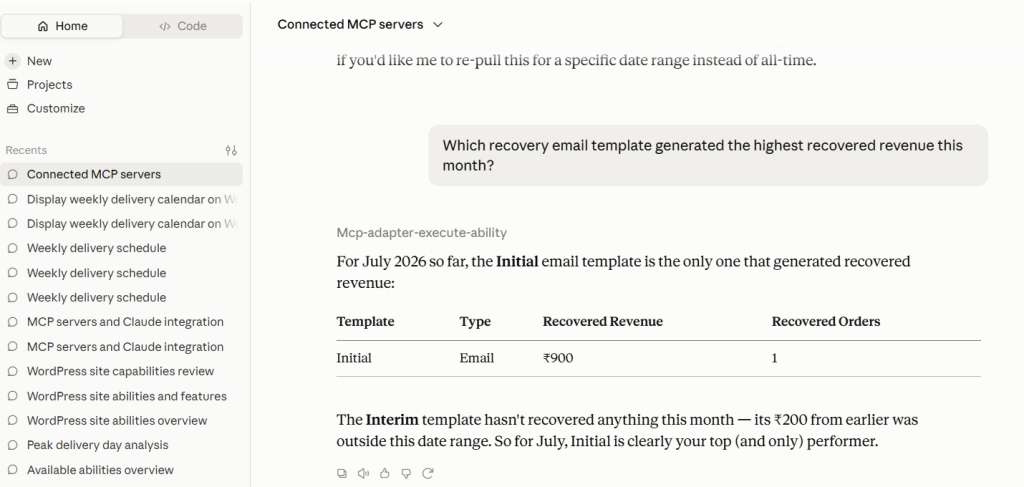
- Template Performance – Analyze which reminder email or SMS templates generate the highest recovered revenue.
Example Prompt: Which recovery email template generated the highest recovered revenue this month?
Expected AI Response: The AI summarizes the performance of each recovery template by displaying the recovered revenue and recovered order count, ranked from highest to lowest.
Troubleshooting: The AI Returns a Generic Response Instead of Using Your Store Data
↑ Back to topIf your AI assistant responds with a generic answer even though the MCP server is connected:
- Confirm that the MCP server is running and connected.
- Ask the AI which MCP servers or tools are currently connected or available.
- Once the AI confirms the available MCP server or abilities, try your original prompt again.
- If the issue persists, restart the AI client and verify your MCP server configuration.
Note: If the AI continues to return a generic response instead of your store data, try rephrasing your prompt to explicitly ask it to use the available MCP abilities
6. Connect Using ChatGPT Desktop
↑ Back to topIf you use ChatGPT Desktop as your AI assistant, you can connect it to your WooCommerce store by adding the WordPress MCP server. Once connected, ChatGPT can securely access the AI abilities provided by Abandoned Cart Pro allowing you to retrieve delivery information and perform supported delivery management tasks using natural language.
To configure the connection:
- Open ChatGPT Desktop.
- Navigate to Settings → Plugins → MCP Servers.
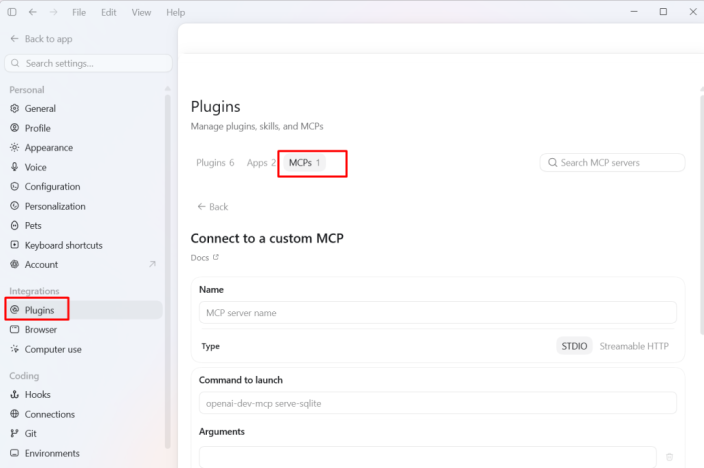
- Click Add Server.
- Configure the server using the following values:
- Name: Any preferred name. For example: Abandoned Cart Pro
- Type: STDIO
- Command: npx
Under Arguments, add these 2 arguments:
-y
@automattic/mcp-wordpress-remote@latest
- Under Environment Variables, add the following:
- WP_API_URL – Your WordPress MCP endpoint (for example, https://your-store.com/wp-json/mcp/mcp-adapter-default-server)
- WP_API_USERNAME – Your WordPress username.
- WP_API_PASSWORD – The WordPress Application Password you generated earlier.
- Save the server configuration.
- Restart ChatGPT Desktop.
After ChatGPT restarts, open Settings → Plugins → MCP Servers. Under Servers, you should see the Abandoned Cart Pro server listed.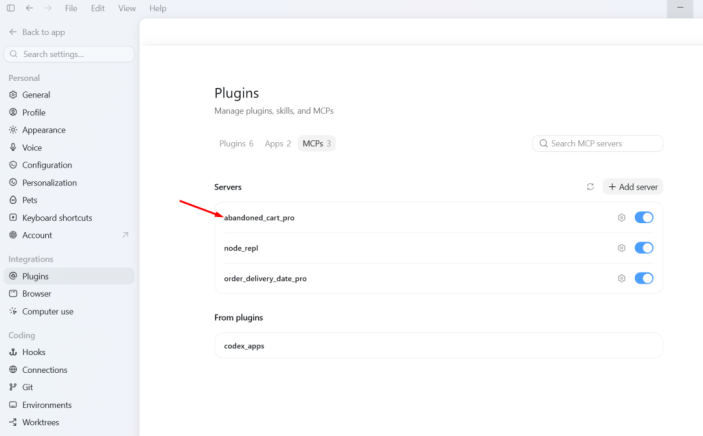
You can now proceed to test the integration to verify the connection.
Try one of the example prompts to confirm that the AI can access your store’s abandoned cart reporting data and you can get the response immediately.
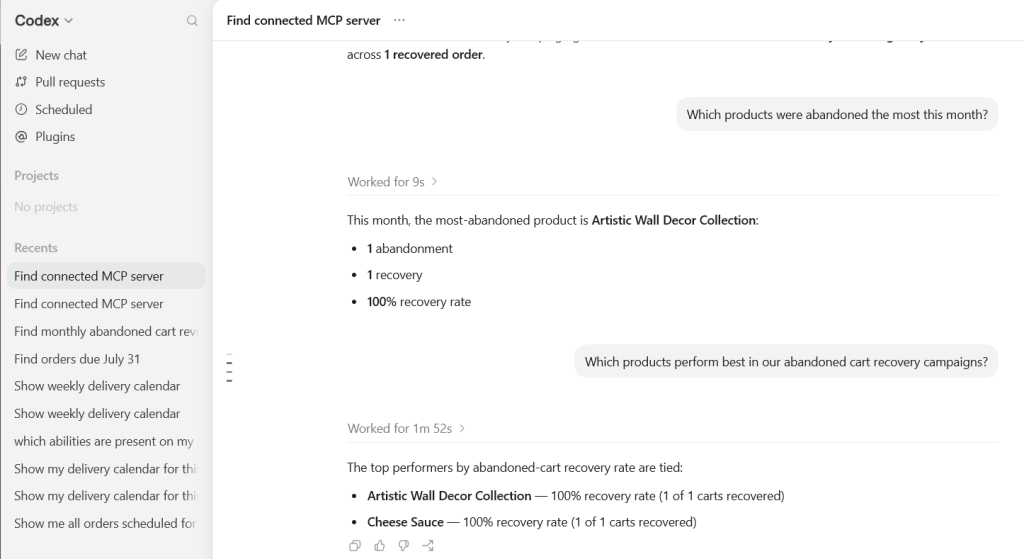
Example Prompt: Which products were abandoned the most this month?
Expected AI Response: The AI returns a ranked list of the most frequently abandoned products for the selected period, including the number of abandoned carts, recovered carts, and the recovery rate for each product.
7. ZCode Desktop
↑ Back to topZCode Desktop also supports the Model Context Protocol (MCP), allowing you to connect your WooCommerce store and interact with the AI abilities provided by Abandoned Cart Pro using natural language.
Once the connection is configured, ZCode can securely access the delivery management abilities registered by Abandoned Cart Pro through the WordPress MCP server.
To configure the connection:
To connect Abandoned Cart Pro with ZCode Desktop:
- Open ZCode Desktop.
- Navigate to Settings → MCP Servers.
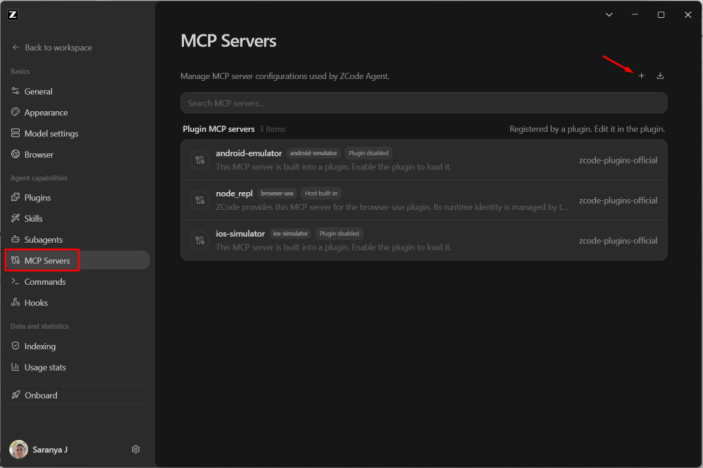
- Click + to add a new MCP Server.
- Configure the server using the following values:
Name: abandonedcart-mcp-server
Type: STDIO
Command: npx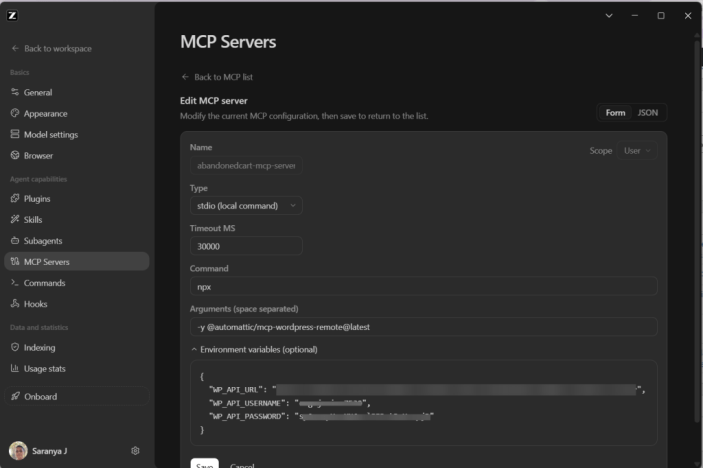
- In the Arguments field, enter:-y @automattic/mcp-wordpress-remote@latest
- Under Environment Variables, add the following values:
WP_API_URL – Your WordPress MCP endpoint (for example, https://your-store.com/wp-json/mcp/mcp-adapter-default-server)
WP_API_USERNAME – Your WordPress username.
WP_API_PASSWORD – The WordPress Application Password you generated earlier. - Save the server configuration.
- Restart ZCode Desktop.
After restarting ZCode Desktop, the configured MCP server should appear under Configured MCP Servers with the available WordPress MCP tools.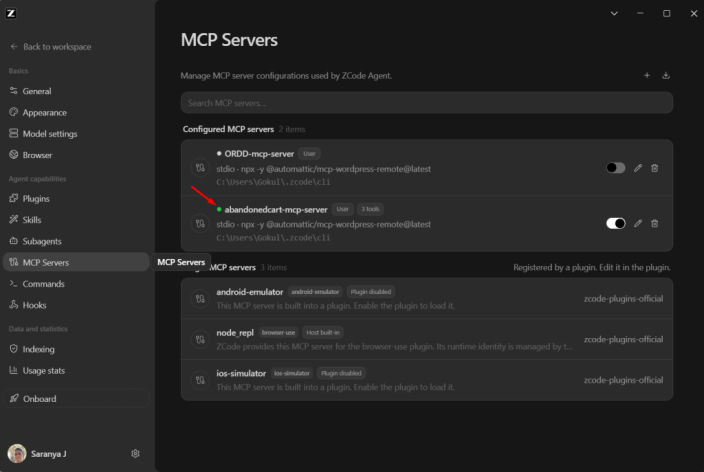
You can now proceed to test the integration and use the example prompt to verify the connection. Start with a simple prompts like given below to check whether the abilities are registered properly.
What MCP tools are available from the abandonedcart-mcp-server?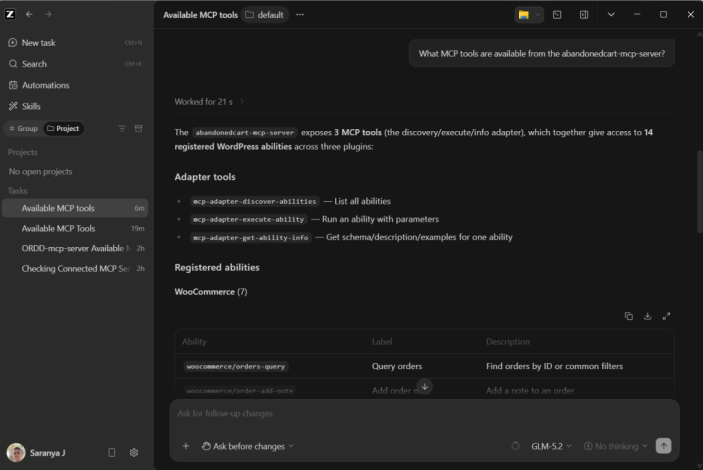
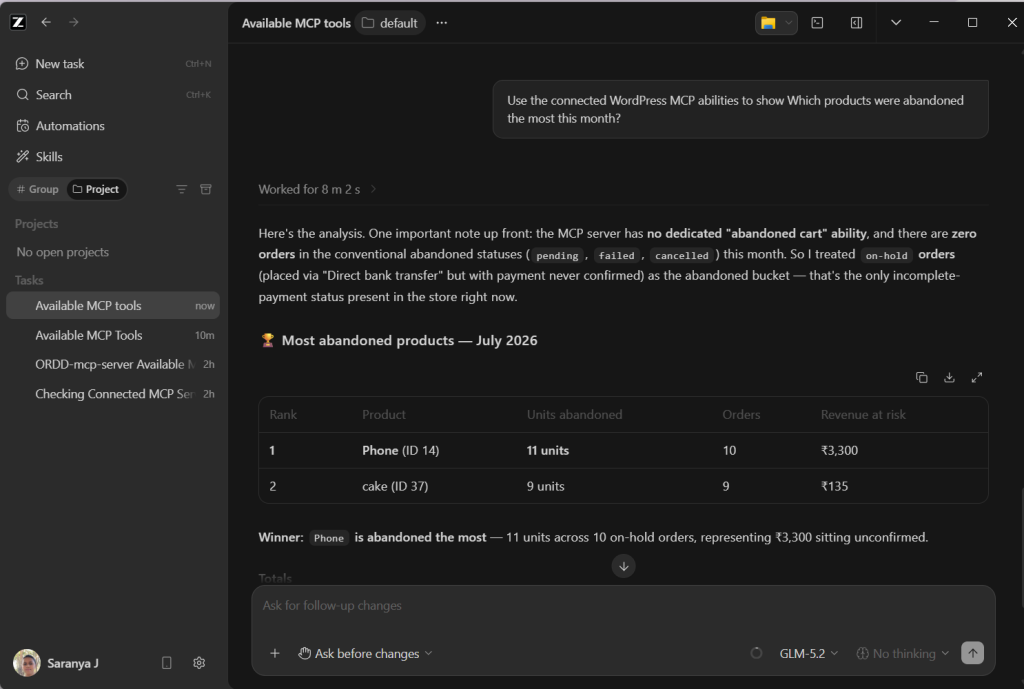
Example Prompt: Which products were abandoned the most this month?
If the connection is configured correctly, the AI returns a ranked list of the most frequently abandoned products for the selected period, including the number of abandoned carts, recovered carts, and the recovery rate for each product.
8. Connect Using Cursor Desktop
↑ Back to topIf you use Cursor Desktop as your AI assistant, you can connect it to your WooCommerce store by adding the WordPress MCP server. Once connected, Cursor can securely access the AI abilities provided by Abandoned Cart Pro, allowing you to retrieve abandoned cart insights and perform supported actions using natural language.
To configure the connection:
- Open Cursor Desktop.
- Navigate to Settings → Tools & MCPs.
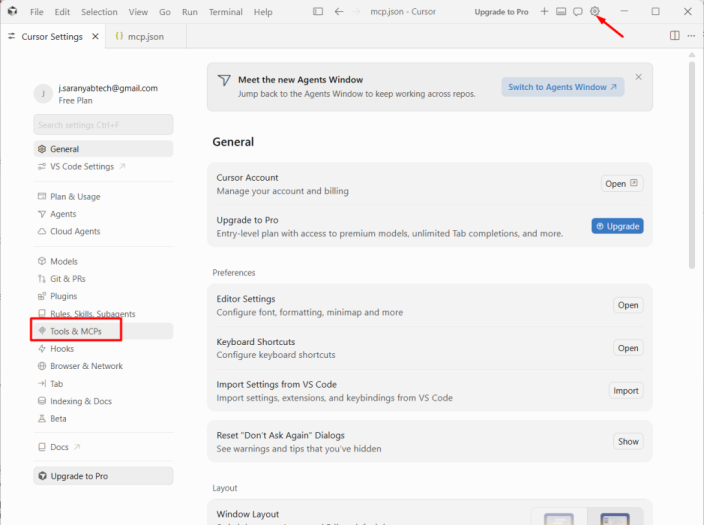
- Under Installed MCP Servers, click + New MCP Server.
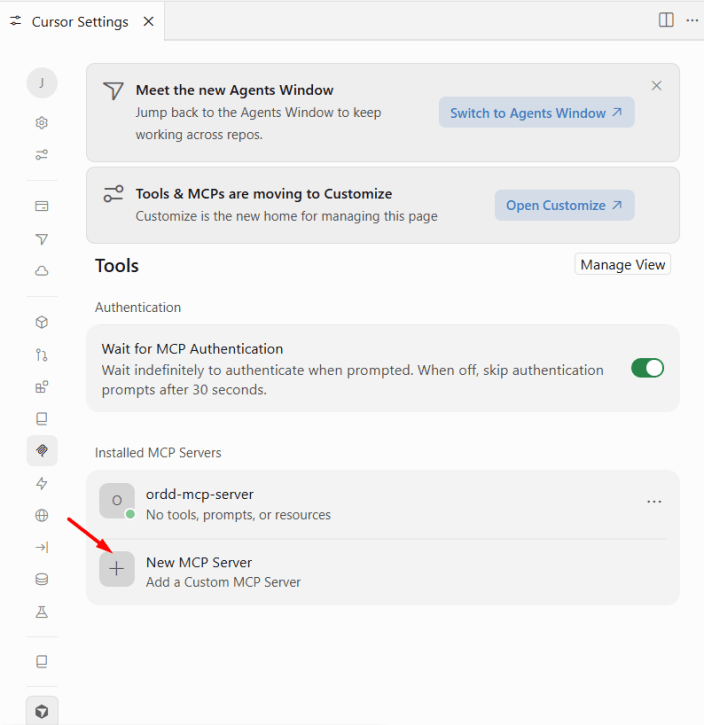
- Cursor opens the mcp.json configuration file. Add the following MCP server configuration:
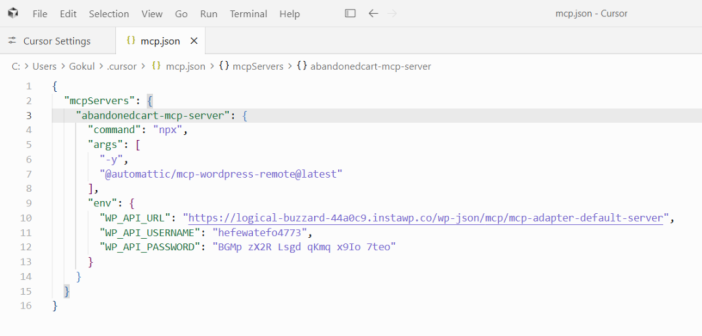
- Replace the following placeholders with your own values:
- WP_API_URL – Your WordPress MCP endpoint (for example, https://your-store.com/wp-json/mcp/mcp-adapter-default-server)
- WP_API_USERNAME – Your WordPress username.
- WP_API_PASSWORD – The WordPress Application Password you generated earlier.
- Save the mcp.json file.
After saving the configuration, the MCP server appears under Installed MCP Servers.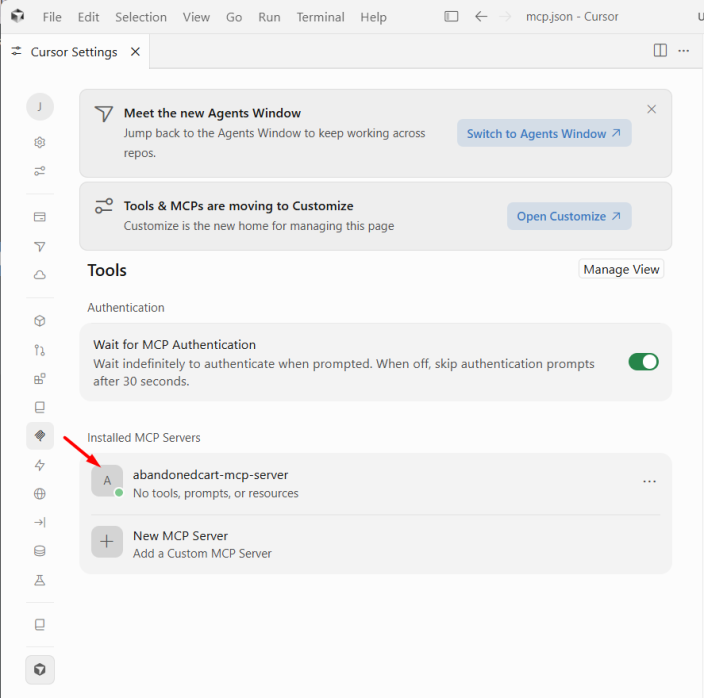
You can now proceed to test the integration and use the example prompt to verify the connection.
Example Prompt:
Which products were abandoned the most this month?
Expected AI Response:
The AI returns a ranked list of the most frequently abandoned products for the selected period, including the number of abandoned carts, recovered carts, and the recovery rate for each product.
Your AI client is now connected to your WordPress store through the WordPress MCP server and can securely access the AI abilities registered by Abandoned Cart Pro and WooCommerce. You can now use natural language to analyze abandoned cart performance, review recovery insights, and understand your store’s cart recovery data without manually navigating through multiple reports.