
In the previous post, we discussed how to create new custom order statuses using Custom Order Status for WooCommerce Pro plugin. Once the custom statuses have been created, you can set up emails that will be triggered when the order status changes to custom status. Email notification is sent to the customer and/or admin in order to confirm the order status change to them.
Email notifications in the plugin can be configured in two ways:
2) At the Custom Order Status level.
The difference between the Global Email template and the Custom Email template is that, in the Global template, multiple statuses can be selected, and the same email template is used for all selected statuses. In contrast, the Custom Order Status-level template allows you to define different email content for each individual custom status.
Additionally, the plugin supports Admin Time-Based Email Alerts, which are triggered when an order remains in a specific status for a defined period of time.
Global-level Email Notifications setup
First, we will learn how to configure email notifications at the Global level. This section explains how to set up and send email notifications when an order status changes to a custom order status.
This is the most important section, as it allows you to notify both customers and admins about order status changes by configuring a default email template for your store.
Please note that, in addition to Global-level email notifications, you can also configure emails at the Custom Order Status level. To learn more about this, scroll down to the “Custom Order Status Level Email Notifications Setup” section.
Sending Email Notifications
↑ Back to topThese email notifications can be set under WooCommerce -> Settings-> Custom Order Status -> Emails.
Default settings for the Email section are displayed as shown below: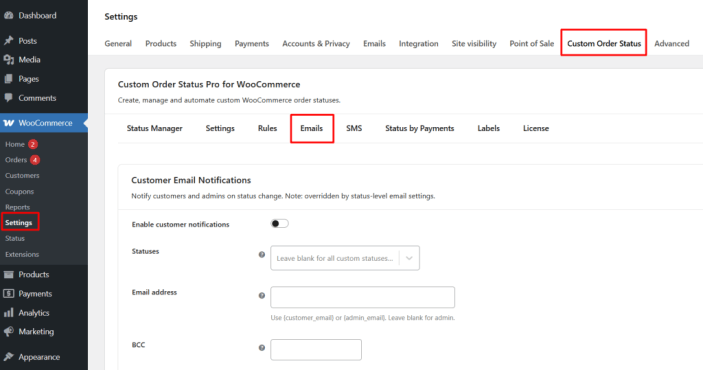
On this page, you will find two main sections:
- Customer Email Notifications
- Admin Alert Emails
Customer Email Notifications
This section is used to send email notifications to customers and/or admins when an order status changes.
Let us understand each of these settings in detail:
- This section is used to send email notifications to customers and/or admins when an order status changes. These settings can be overridden by Custom Order Status-level email settings.
- Enable this option to activate email notifications for custom order status changes. Select one or more custom order statuses for which this email notification should be sent, or leave it blank to send emails for all custom order statuses.
- Define who should receive the email notification using the Email Address field, where you can use {customer_email} to send to the customer, {admin_email} to send to the admin, or both separated by commas; if left blank, the email is sent to the admin by default.
- The BCC field allows you to add additional email recipients in hidden copy, ensuring they receive the email without exposing their addresses to others.
- The Email Subject defines the subject line of the email notification, with a default format like [{site_title}] Order #{order_number} status changed to {status_to} – {order_date}, and supports shortcodes such as {order_id}, {order_number}, {order_date}, {site_title}, {status_from}, and {status_to}.
- The Email Heading defines the title displayed inside the email, with a default value like Order status changed to {status_to}, and supports the same set of shortcodes for dynamic content replacement.
- The Email Content defines the main message body of the email notification, with a default format like Order #{order_number} status changed from {status_from} to {status_to}, and can include additional details such as order information, product details, billing and shipping address, status change details, and date and time using shortcodes like {order_details}, {first_name}, {last_name}, {billing_address}, {shipping_address}, {product_titles}, and {custom_field_(meta-key)}.
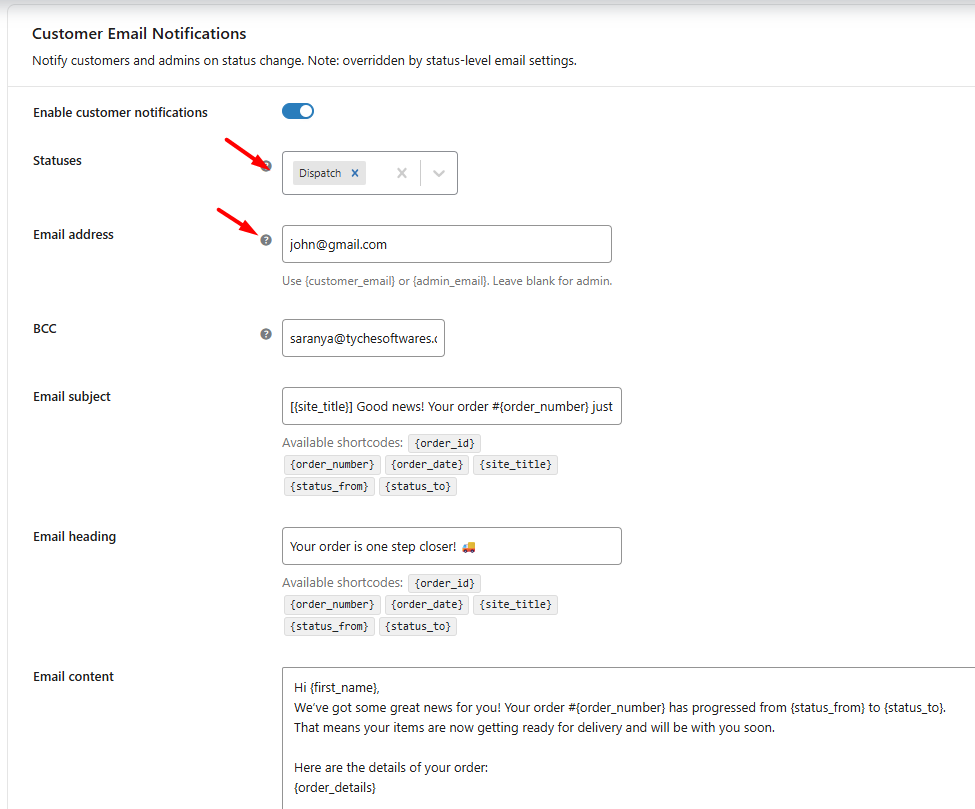
Example
Let’s say you want to send an email notification to the admin when an order status changes to “Dispatched”.
To configure this:
– Enable Customer Notifications
– Select Status as “Dispatched”
– Set Email Address as {admin_email} or {customer_email}
Once the order status changes to Dispatched, an email notification will be sent to the admin with the configured subject, heading, and content.
If BCC is configured, those recipients will also receive the email.
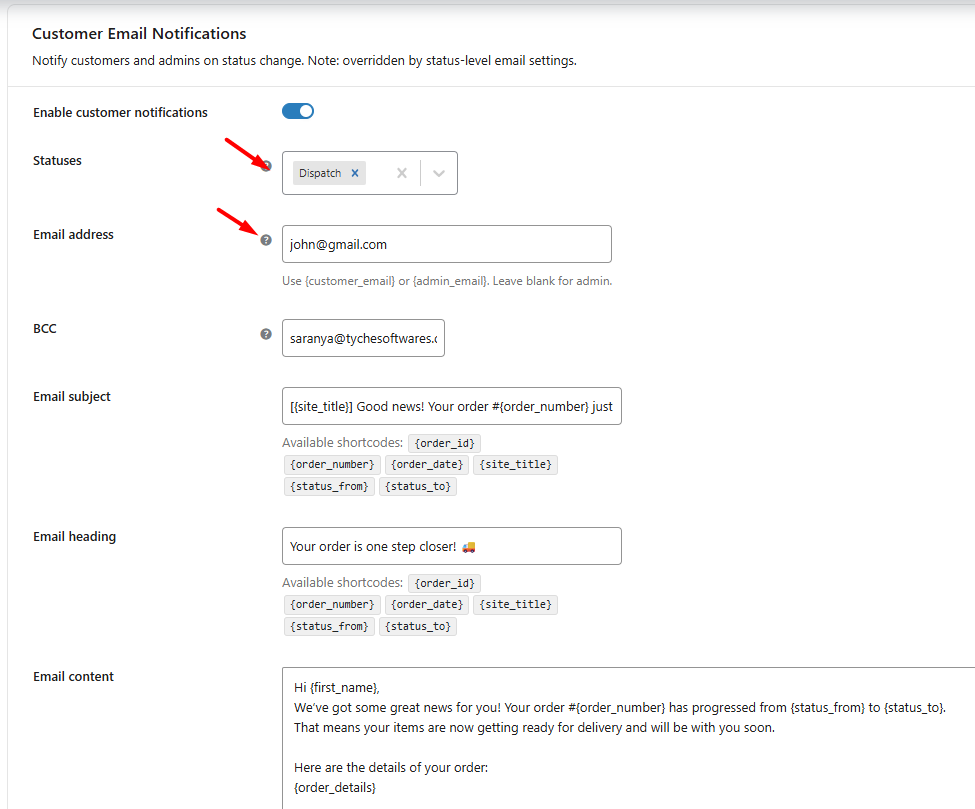
Once the order status changes to Dispatched, an email notification will be sent to the admin with the configured subject, heading, and content.
If BCC is configured, those recipients will also receive the email.
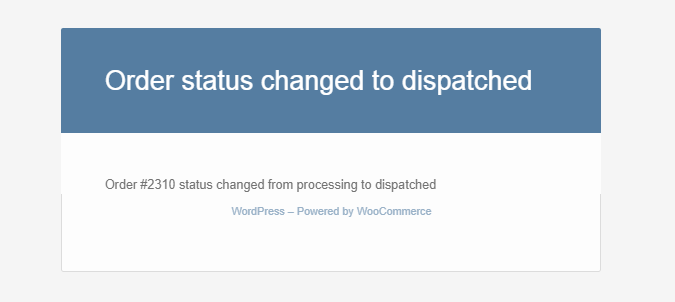
Email notification sent to admin
Admin Alert Emails
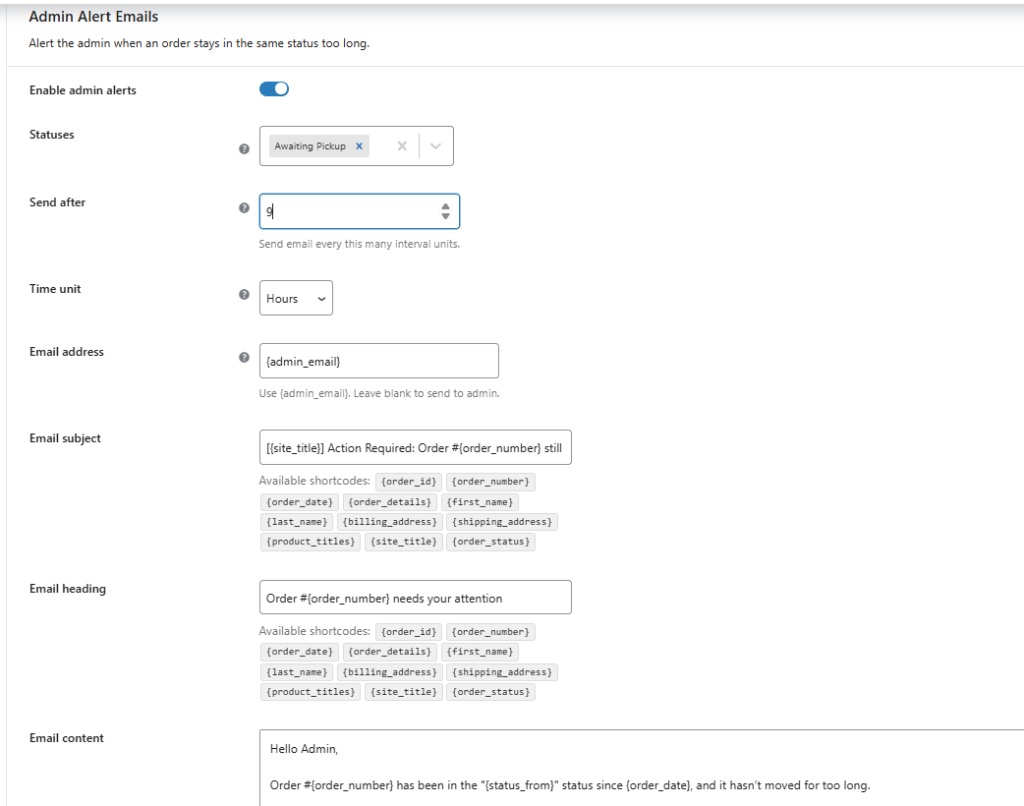
This section is used to send email notifications to the admin when an order remains in a specific custom status for a defined period of time. This helps you identify orders that require attention due to delays in processing.
- Enable this option to activate admin alert emails for delayed orders that remain in a selected custom order status without any status change.
- Select one or more custom order statuses under Statuses for which this alert should be triggered, or leave it blank to apply the setting to all custom order statuses.
- Define the delay period using Send After, where you can enter a numeric value (for example, 1), and select the Time Unit, such as minutes, hours, days, weeks, or months. Based on these values, the email will be triggered after the order remains in the selected status for the specified duration.
- The Email Address field allows you to define the recipient of the alert email using {admin_email}; if left blank, the email will be sent to the default admin email address.
- The Email Subject defines the subject line of the admin alert email, with a default format like [{site_title}] Order #{order_number} action required {order_status} – {order_date}, and supports shortcodes such as {order_id}, {order_number}, {order_date}, {order_details}, {first_name}, {last_name}, {billing_address}, {shipping_address}, {product_titles}, {site_title}, and {order_status}.
- The Email Heading defines the title displayed inside the email, with a default value like Order action required to {order_status} order, and supports the same set of shortcodes for dynamic content replacement.
- The Email Content defines the main message body of the admin alert email, with a default format like Order #{order_number} action required to {order_status} status, and can include additional order-related details such as product information, customer details, billing and shipping address, and status information using available shortcodes.
Example
Let’s say you set Send After as 1 and Time Unit as Days, an email will be sent if the order remains in the selected status such as ‘Dispatch’ for 1 day.
If an order stays in the selected custom status (for example, Dispatch) for the defined time period (e.g., 1 day) without any status change, an email notification will be sent to the configured admin email address.
Here’s what the email notification will look like:

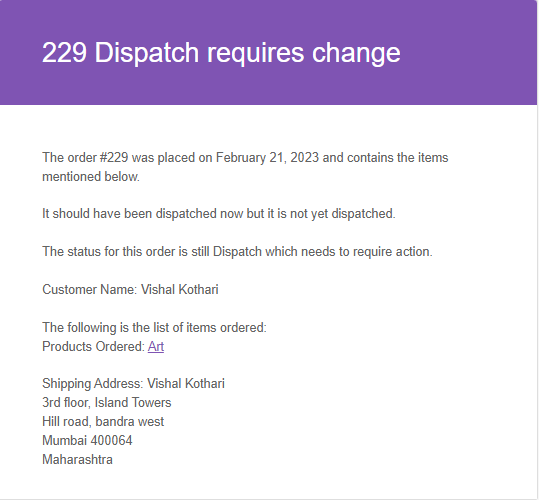
In this manner, admins can easily receive email notifications indicating that custom order statuses need attention for orders.
Custom Order Status level Email Notifications setup
In addition to Global-level settings, you can configure email notifications individually for each custom order status.
This allows you to create different email templates for different statuses. If email settings are configured at both Global level and Custom Order Status level, the Custom Order Status-level settings will override the Global settings for that status.
Creating an email template:
↑ Back to topTo create an email template, go to WooCommerce -> Custom Order Status -> Add New. Here’s how the default page will appear:
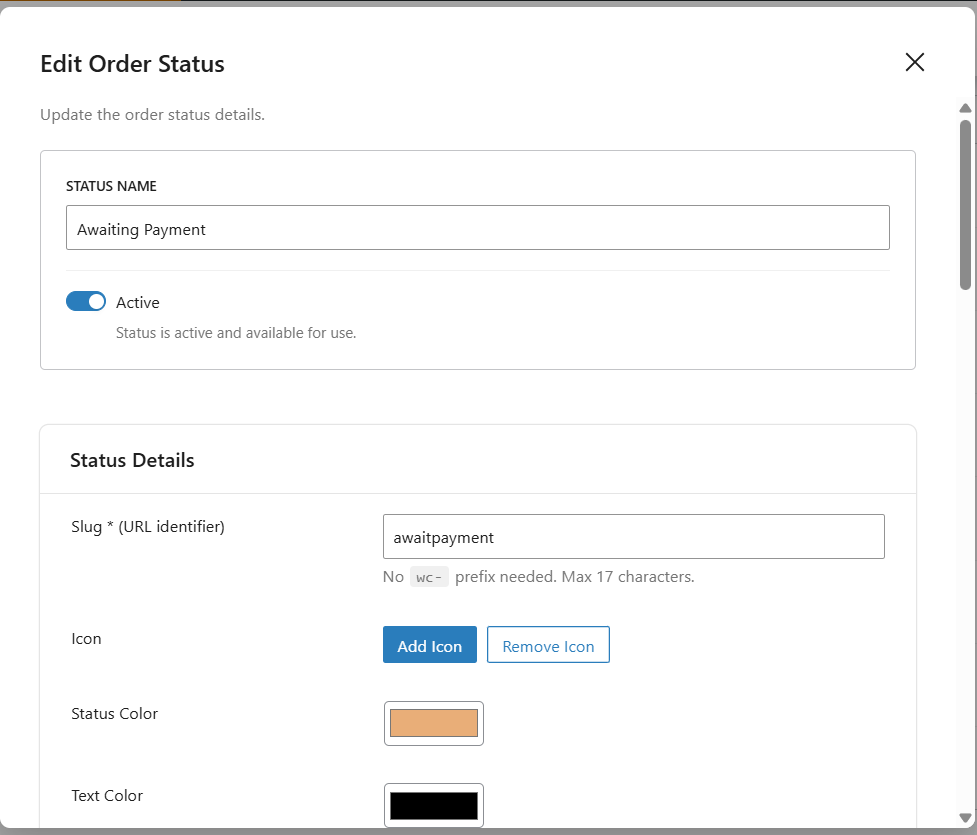
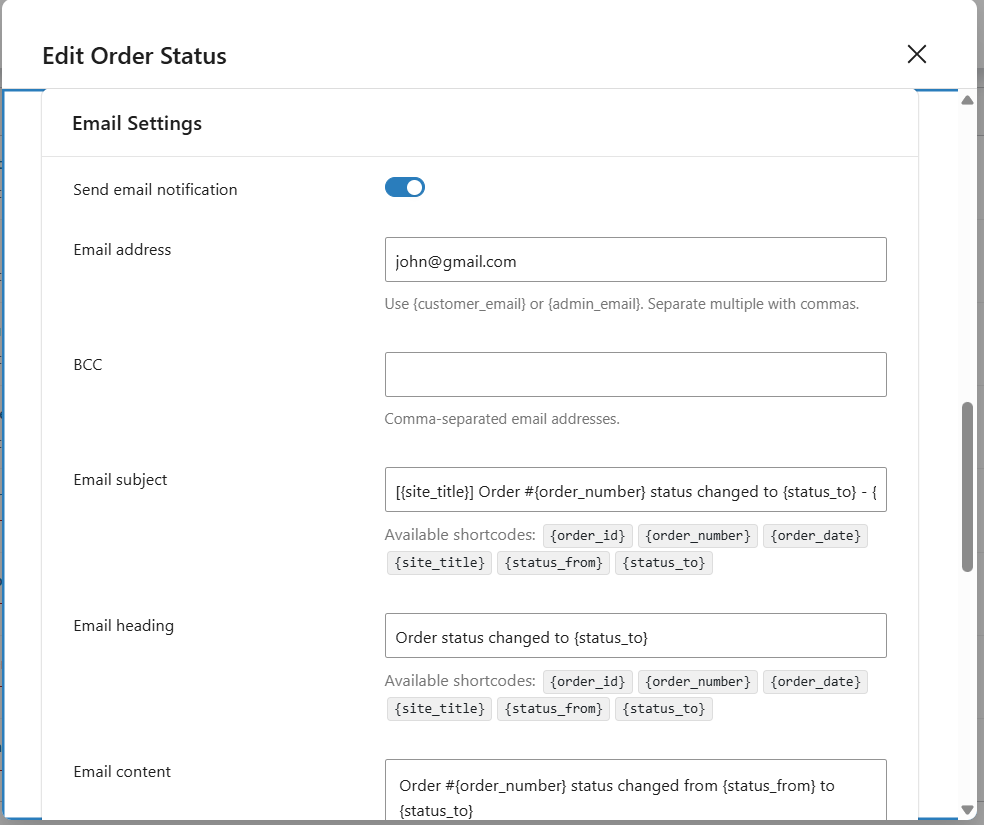
Let’s say that you wish to create an Email template for a Custom Order Status called ‘Dispatched.’ Click on the ‘Add title’ field and enter ‘Dispatch.’ Here’s how the other details can be filled in for the Email template:
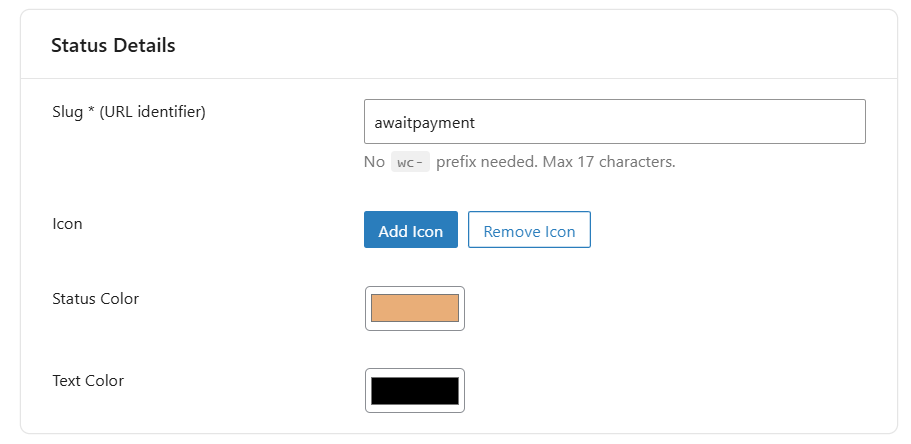
1. Status details
We have already covered what these options mean and how you can fill them. Please click here to read them again.
2. Email Setting
In order to configure the email settings, you can simply scroll above and read them again. As a reference, we have filled it up according to a ‘Dispatch’ custom order status as shown below:
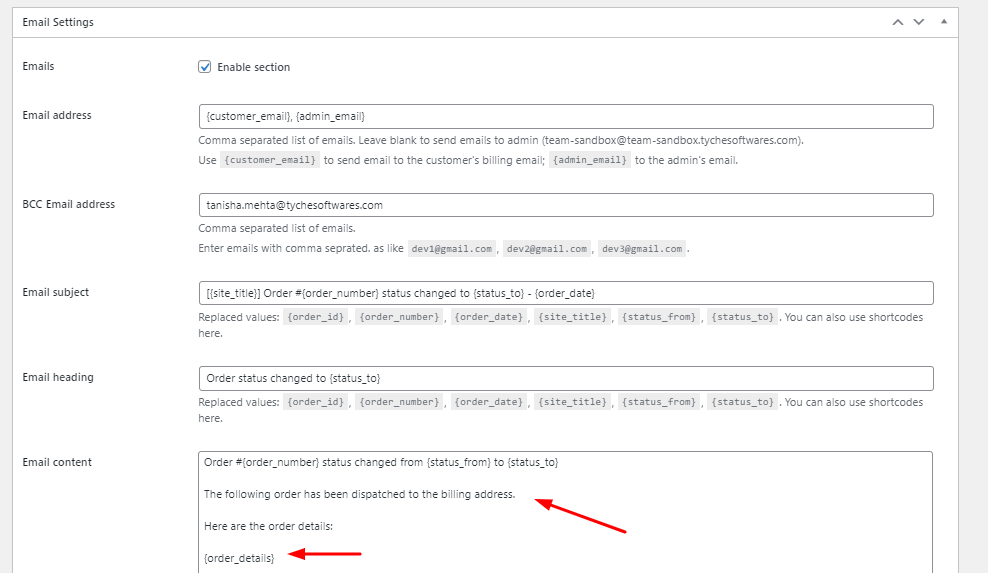
In the above screenshot, for ‘Email content’ we have added
‘The following order has been dispatched to the billing address,
Here are the {order_details}:’
So, after changing the order status to dispatch from the Orders page, the email will be received by the customer, admin and the address inserted into the Bcc section which will include the content entered in the email content section.
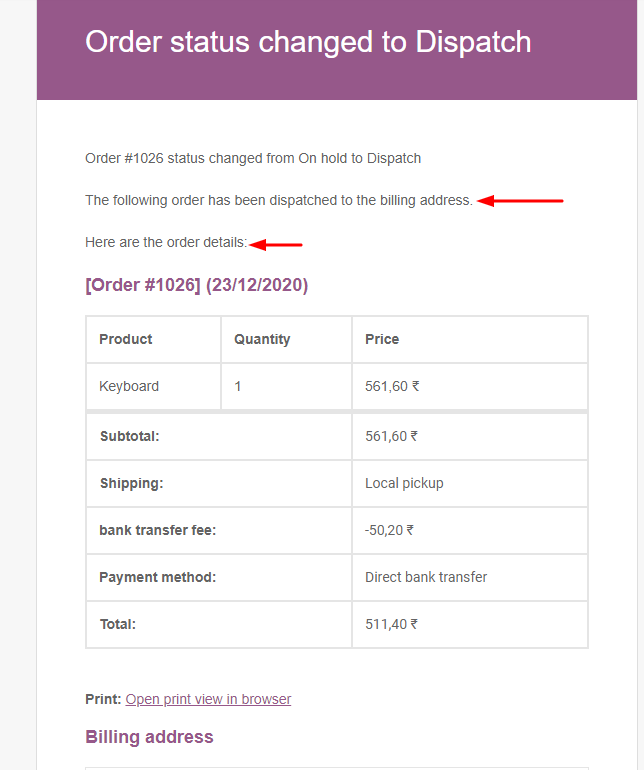
Similarly, we can add any content in the email template for any custom statuses to show in the email received by the customer or admin.
Reset Settings
The Reset Settings option allows you to restore all email configuration settings in this section to their default values, including both:
- Customer Email Notifications settings
- Admin Alert Emails settings
In addition to email notifications, you can also notify customers via SMS for order status updates. This is especially useful for ensuring timely communication and improving customer engagement. To learn how to set this up, refer to the “Notify customers about change in order status with SMS” documentation.

