
The Groups Integration for WooCommerce adds features to various Analytics reports.
Products
↑ Back to topThe report available under Analytics > Products includes filters and information on Customer Groups and Product Groups:
- The filter for Customer Groups allows to restrict the report to data related to customers who are currently members of chosen groups.
- The filter for Product Groups allows to restrict the report to products that assign group memberships.
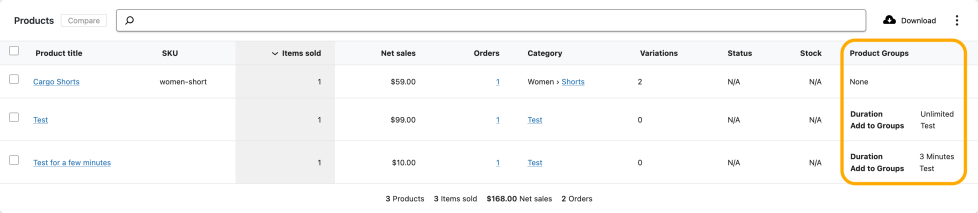
- The column headed Product Groups shows which products in the order grant memberships.

Using the filter for Customer Groups is useful to see products purchased by customers who belong to certain groups. For example, if you classify certain customers by adding them to a Wholesale group, you could use this to see products purchased by members of that group. It is important to understand that this filter looks for users who are currently members of the chosen group.
The filter for Product Groups is used to limit the report to products which grant memberships to the chosen group.
The table has an added column under the heading Product Groups which shows details on the group membership for each product where applicable.
Revenue
↑ Back to topThe report under Analytics > Revenue adds filters for Customer Groups and Product Groups:
- The filter for Customer Groups allows to restrict the report to data related to customers who are currently members of chosen groups.
- The filter for Product Groups allows to restrict the report to orders that contain products which assign group memberships.

The filter for Customer Groups allows to limit the report to orders from customers who currently belong to the chosen group.
The filter Contains Product Groups is used to limit the report to orders that contain products which grant memberships to the chosen group. Please note that the data includes anything from matching orders, not just data from those particular products.
Orders
↑ Back to topYou will find added information and corresponding filters when viewing the reports under Analytics > Orders. The report includes information about Customer Groups and Product Groups:
- The information in the Customer Groups column shows the current memberships of the customer who placed the order.
- The column headed Product Groups shows which products in the order grant memberships.

Note that the membership information in the Customer Groups column does not necessarily coincide with that of the Product Groups column. The customer who has placed an order might show more or less memberships than those that correspond to the order row for which information is displayed. The difference resides in the nature of the information which is provided in each column. The Customer Groups column shows the current memberships of the customer, while the Product Groups column shows the memberships that correspond to the order’s products.
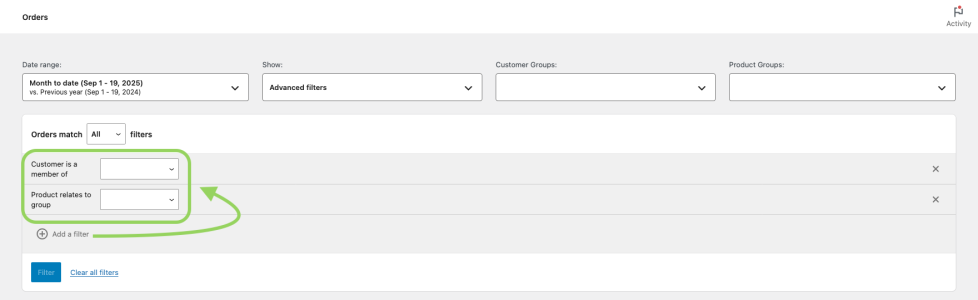
The integration also adds fields to filter by Customer Groups and by Product Groups. Both filters can be used simultaneously and together with other filters of the report. The filter fields are enabled by default under Add groups in the extension’s Settings.

The Advanced filters of the report can also include the filter to match Customer Groups and the filter to match Product Groups. To take advantage of these new filters, the option to Add advanced filters must be enabled in the Settings.
The information about Customer Groups and Product Groups is also added when you Download a report. Both immediate downloads and scheduled downloads which are available via email link are supported.