
The Info settings tab allows you to display payment gateway pricing information directly on WooCommerce product pages. This helps customers compare payment methods and understand how gateway-specific fees or discounts affect the final product price before proceeding to checkout.
The plugin uses merge codes that are automatically replaced with actual product and payment gateway information on the frontend. These merge codes can be used to display payment gateway names, adjusted product prices, fee or discount amounts, variation details, and other relevant information. Different mergecodes that you can use in Payment Gateway Based Fees and Discount for WooCommerce Pro plugin is shown below:
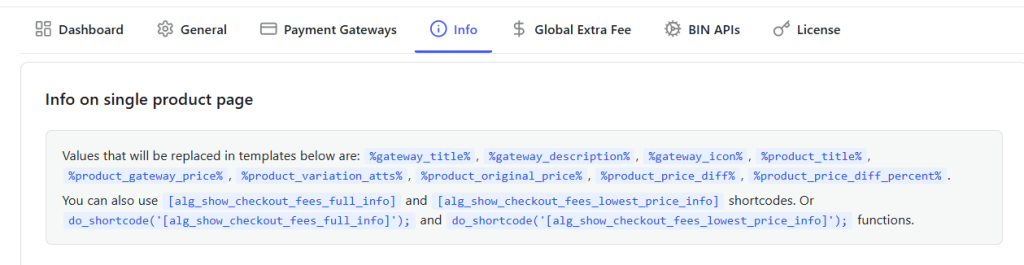
Different mergecodes
To access these settings, navigate to:
WooCommerce → Settings → Payment Gateway Fees → Info
Default Info page
Available Merge Codes
↑ Back to topThe following merge codes can be used when building custom templates:
- %gateway_title%
- %gateway_description%
- %gateway_icon%
- %product_title%
- %product_gateway_price%
- %product_variation_atts%
- %product_original_price%
- %product_price_diff%
The plugin also provides the following shortcodes:
- [alg_show_checkout_fees_full_info]
- [alg_show_checkout_fees_lowest_price_info]
These shortcodes can be used within pages, posts, or custom templates to display payment gateway fee information.
Info on Single Product
↑ Back to topThe Info on single product page setting allows you to display payment gateway pricing information directly on WooCommerce product pages.
When enabled, the plugin displays payment gateway details along with the product price after any applicable gateway fees or discounts have been applied. The display can be fully customized using HTML templates and merge codes. Enable this setting to display payment gateway pricing information on the single product page.
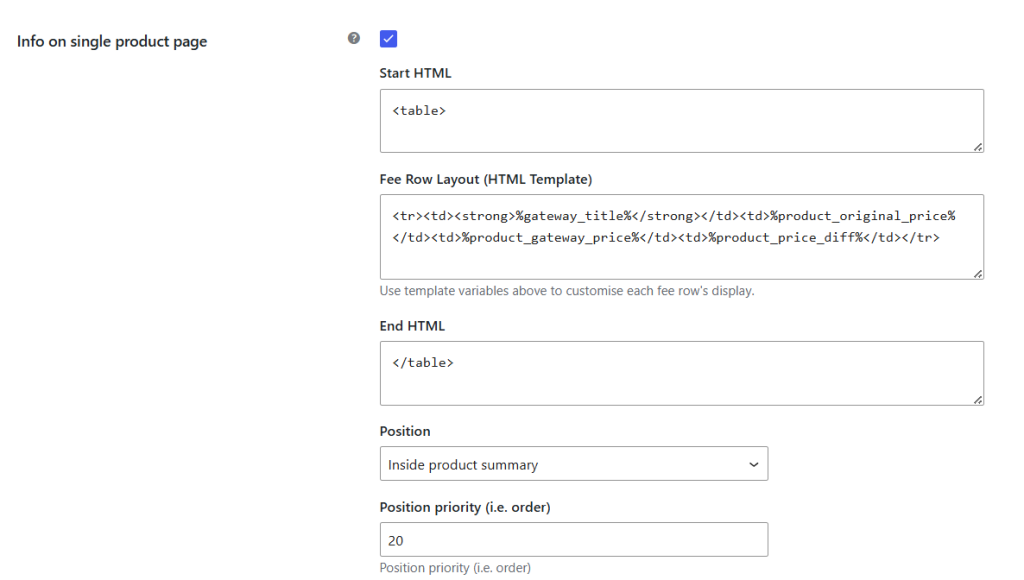
Enabling the setting
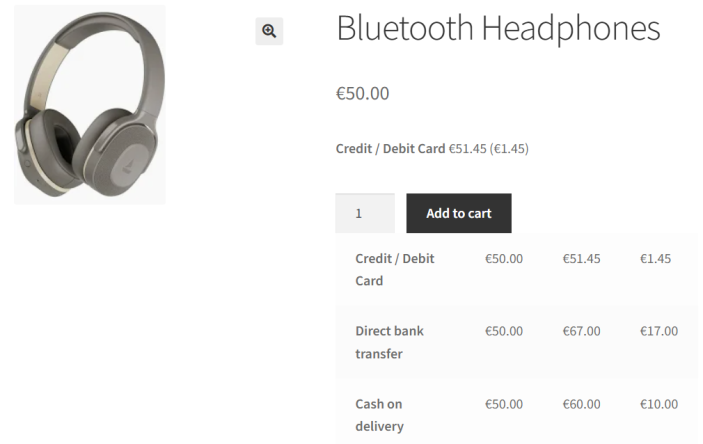
Consider a product named Bluetooth Headphones priced at €50.00.
If different payment gateway fees are configured, customers may see payment gateway pricing information similar to the following on the product page:
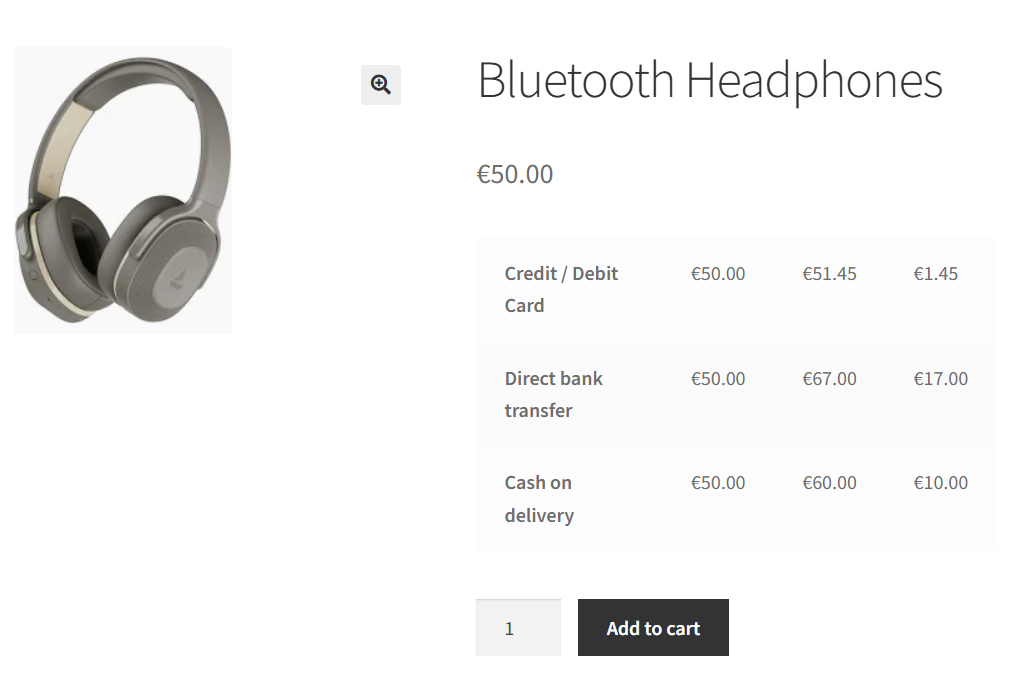
Start HTML
↑ Back to topThe Start HTML field defines the opening HTML markup used to display payment gateway pricing information.
By default, the plugin uses a table layout. However, you can customize the markup to match your store’s design and theme requirements.
Fee Row Layout (HTML Template)
↑ Back to topThe Fee Row Layout (HTML Template) setting controls the information displayed for each payment gateway.
By default, the template displays:
- Payment gateway title
- Original product price
- Product price after applying the gateway fee or discount
- Fee or discount amount
You can customize the layout using any of the available merge codes.
End HTML
↑ Back to topThe End HTML field defines the closing HTML markup used for the output structure.
Together, the Start HTML, Fee Row Layout, and End HTML settings determine how payment gateway pricing information is displayed on the frontend.
Position
↑ Back to topThe Position setting determines where payment gateway pricing information appears on the single product page.
Available options include:
- Inside Product Summary
- Before Product Summary
- After Product Summary
- Before Add to Cart Button
- After Add to Cart Button
By default, the information is displayed Inside Product Summary.
The following screenshots show how the payment gateway information appears when different position options are selected:
Inside Product Summary
Displays the payment gateway pricing information within the product summary section.
Before Product Summary
Displays the payment gateway pricing information before the product summary section.
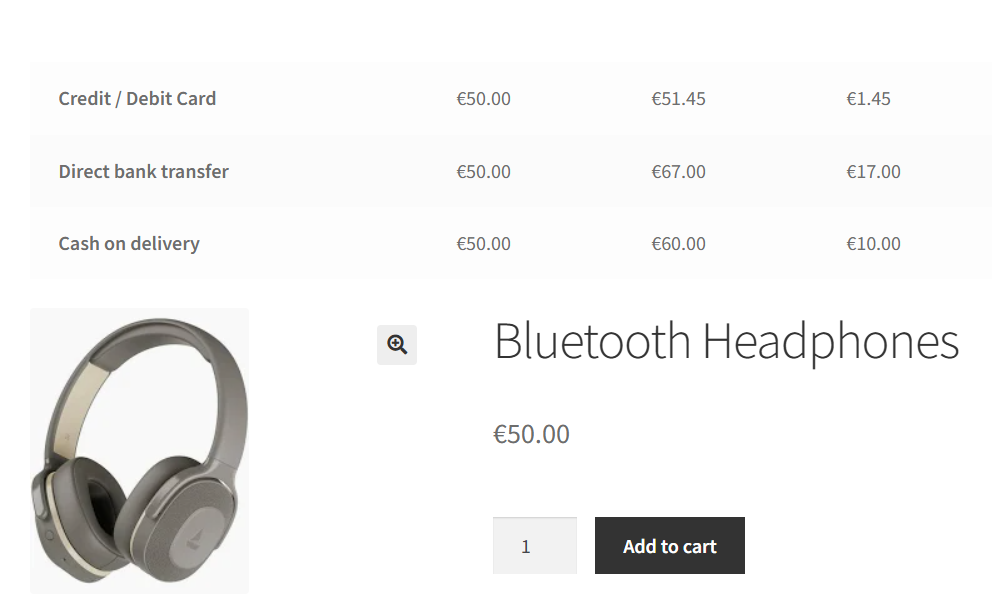
After Product Summary
Displays the payment gateway pricing information after the product summary section.
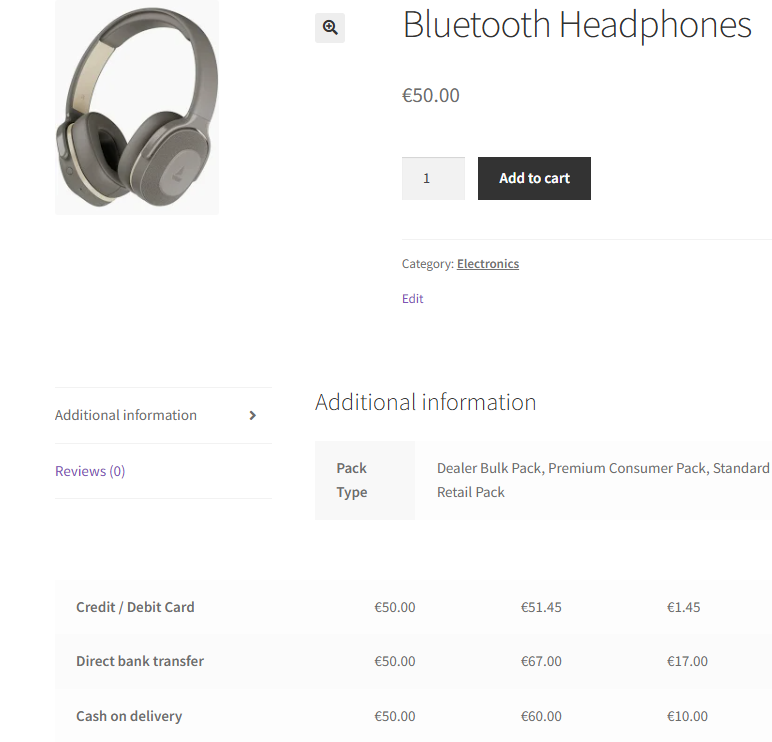
Before Add to Cart Button
Displays the payment gateway pricing information immediately before the Add to Cart button.
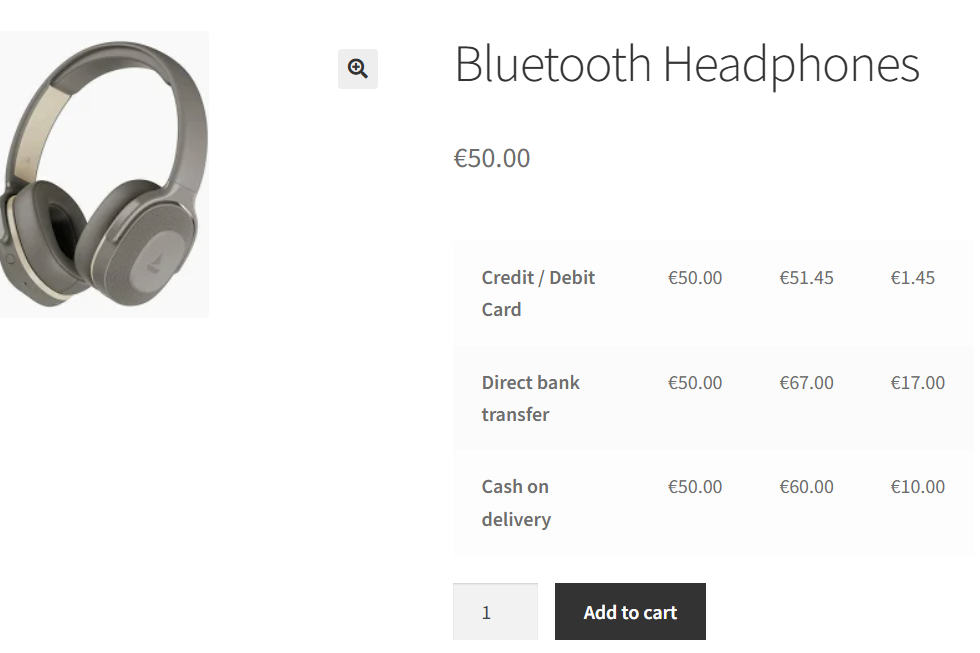
After Add to Cart Button
Displays the payment gateway pricing information immediately below the Add to Cart button.
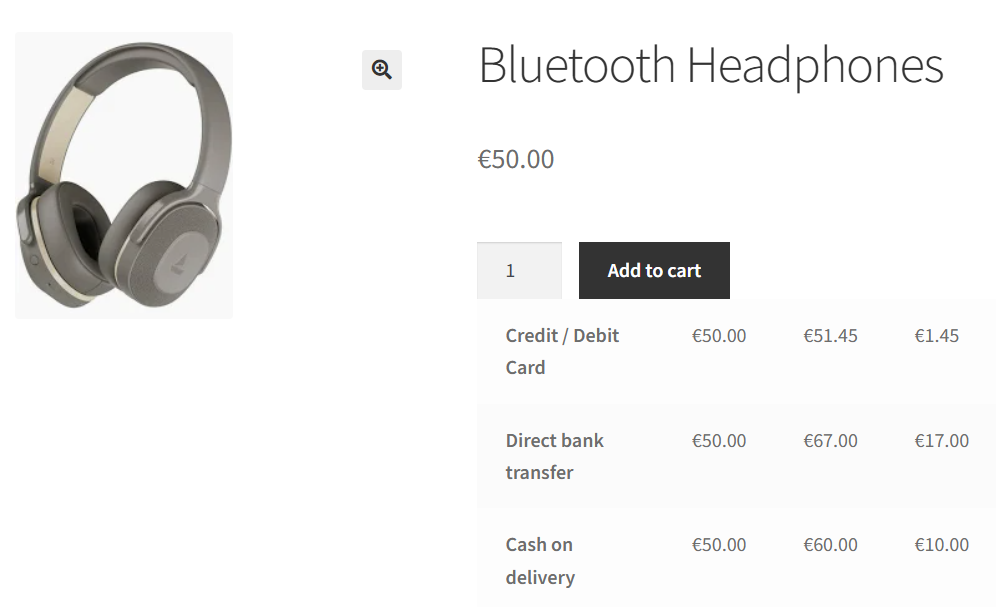
Position Priority
↑ Back to topThe Position Priority setting controls the display order of the payment gateway information within the selected position. This setting is primarily intended for advanced customization and is useful when multiple plugins or theme elements use the same WooCommerce display location.
For example, if the position is set to After Add to Cart Button and the priority is set to 20, the information is displayed in its default location.
If the priority is changed to 10, the payment gateway information is displayed earlier within the same hook and may appear above other content using that location.
If the priority is changed to 40, the payment gateway information is displayed later within the same hook and may appear below additional content added by your theme or other plugins.
The Position Priority setting does not change the selected position itself. Instead, it controls the order in which the information is rendered relative to other content displayed in the same location.
Lowest Price Info on Single Product Page
↑ Back to topWhen Lowest Price Info on Single Product Page is enabled, the plugin displays only the payment gateway with the lowest final price.
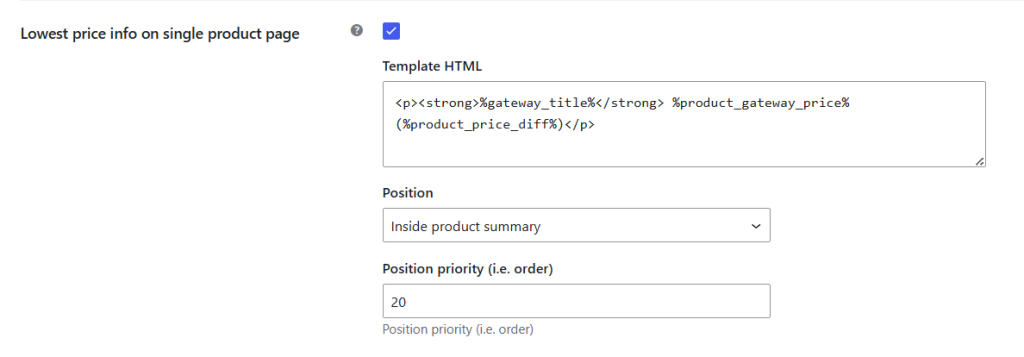
Enabling the setting
In this example, the storefront displays:Credit / Debit Card €51.45 (€1.45)
Template HTML
↑ Back to topThe Template HTML field controls how the lowest-price information is displayed on the frontend.
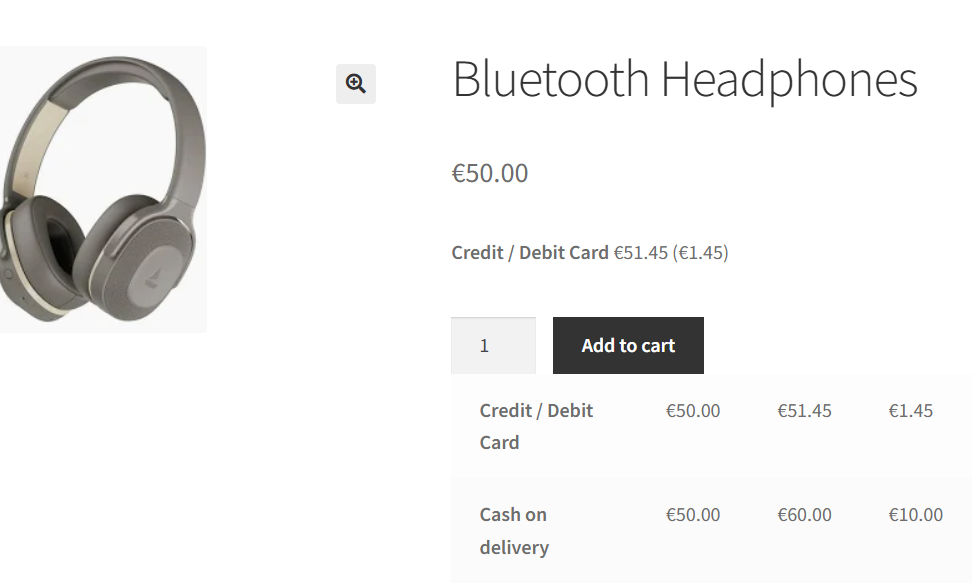
This template displays:
- Payment gateway title
- Original product price
- Final product price after applying the gateway fee or discount
- Fee or discount amount
You can customize the output using any of the available merge codes.

Position
The Position setting determines where the lowest-price information appears on the product page.
Available options include:
- Inside Product Summary
- Before Product Summary
- After Product Summary
- Before Add to Cart Button
- After Add to Cart Button
By default, the information is displayed Inside Product Summary.
Position Priority
The Position Priority setting controls the display order of the lowest-price information within the selected position.
This setting is useful when multiple plugins or theme elements use the same WooCommerce display location.
Hide Fee Info for Out-of-Stock Products
↑ Back to topThe Hide Fee Info for Out-of-Stock Products setting controls whether payment gateway pricing information is displayed for products that are currently out of stock.
When enabled, payment gateway fee and discount information is hidden for out-of-stock products.
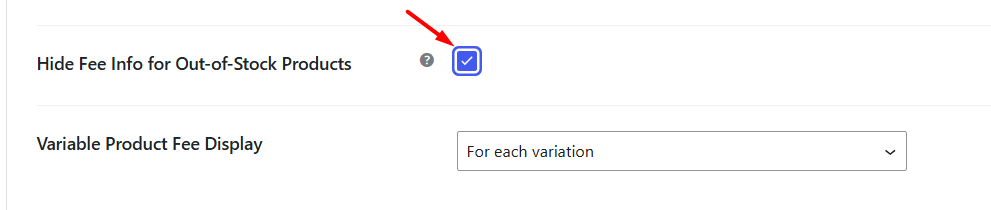
This helps keep product pages focused on products that can be purchased and prevents customers from viewing payment-related pricing information for unavailable items.
Variable Product Fee Display
↑ Back to topThe Variable Product Fee Display setting controls how payment gateway pricing information is displayed for WooCommerce variable products.
Available options include:
- For Each Variation
- As Price Range
For Each Variation
↑ Back to topWhen For Each Variation is selected, payment gateway pricing information is displayed separately for every product variation.

This option is useful when you want customers to view the exact payment gateway pricing for each available variation.
Example
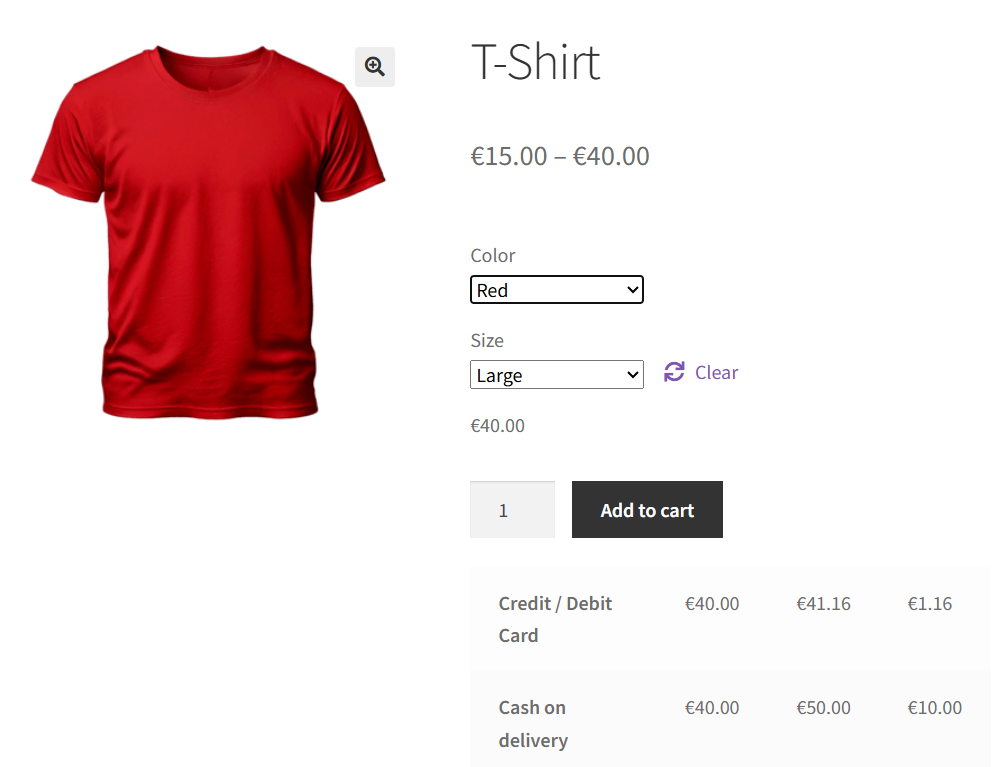
Consider a variable product named T-Shirt with variations priced at €15.00, €30.00, and €40.00.
When this option is selected, the plugin displays payment gateway pricing information separately for each variation.
As Price Range
↑ Back to topWhen As Price Range is selected, payment gateway pricing information is displayed as a single price range covering all available variations.

Instead of displaying separate information for each variation, the plugin combines the variation prices and fee calculations into a consolidated range.
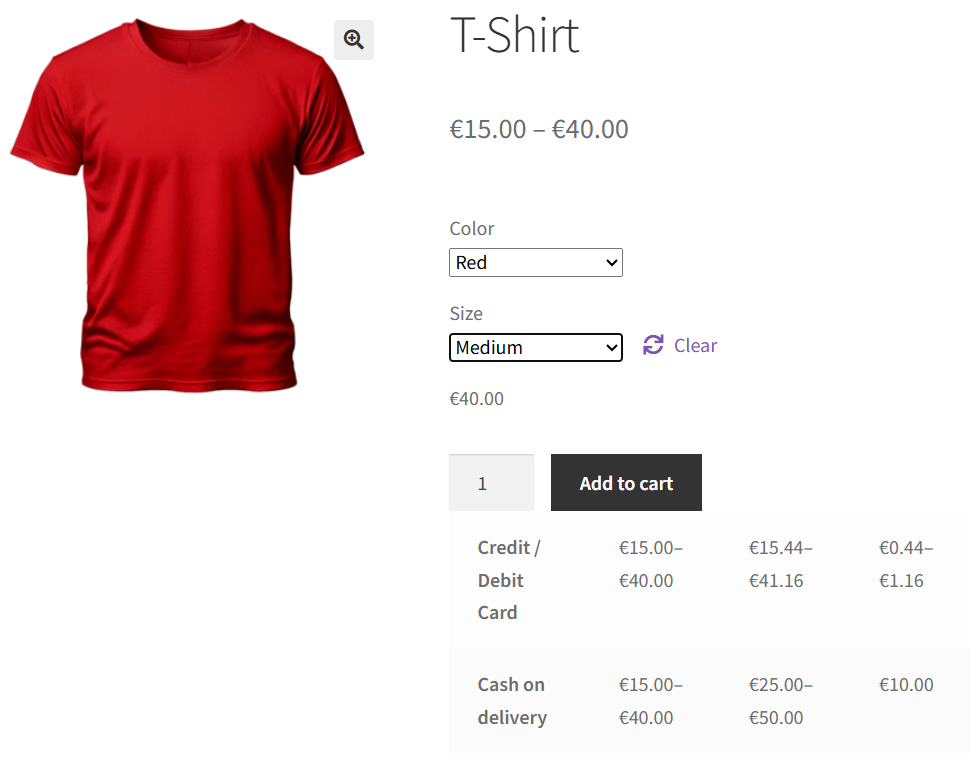
Example
Using the same T-Shirt product with a price range of €15.00 – €40.00, the payment gateway pricing information is displayed as:
Reset Settings
↑ Back to topUse the Reset Settings button to restore all Info tab settings to their default values.
When the settings are reset:
- Info on Single Product Page is disabled
- Lowest Price Info on Single Product Page is disabled
- Position is reset to Inside Product Summary
- Position Priority is reset to 20
- Variable Product Fee Display is reset to For Each Variation
Use this option when you want to discard customizations and restore the Info settings to their original configuration. and there will be no information of different payment gateways displayed on the front end.

