
Purpose:
Remove an entire page, post, or product from SensAI’s knowledge index without a full-site rebuild.
How It Works
- Open the item in the Block Editor or Classic Editor.
- In the sidebar, open the SensAI panel.
- Check Exclude this post from indexing.
- Update / Save the item.
- SensAI deletes that item’s indexed chunks (title, URL, and content) immediately.
- To include it again, uncheck the box and save, only that item is re-indexed.
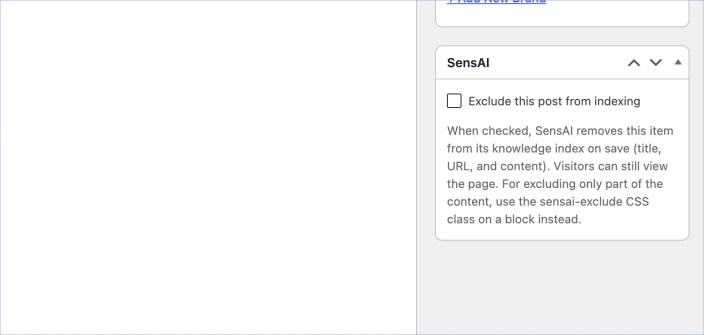
Block editor
Document sidebar → SensAI → Exclude this post from indexing
Classic editor
SensAI meta box in the sidebar → same checkbox
Notes
Visitors can still view the page on your site.
Excluded items are skipped during Build Content Index / rebuild as well.
No OpenAI calls are made for excluded items on save (chunks are removed only).
When to use whole-post exclude vs sensai-exclude CSS class
↑ Back to topUse Exclude this post from indexing when the whole page should never inform answers or appear as a link target (for example partnership or internal landing pages).
Use the CSS class ‘sensai-exclude‘ on a block when visitors should still see that text, but only part of the page should be omitted from the index. See Exclude Content With CSS Class.
Important
Whole-post exclude removes title and URL from the index, not just body text.
The CSS class alone is not enough if you need the page completely out of SensAI.