
SensAI can escalate a chat to your team by email when a visitor asks to talk to a real person.
How it works
↑ Back to topWhen a visitor asks for a human (for example, “Can I talk to a real person?”), SensAI detects that intent (without sending emails or order numbers to OpenAI) and starts a local guided flow:
- Confirms or collects their email
- Optionally asks for a short note (or skip)
- Sends an email to your support address using WordPress wp_mail (your site’s mail/SMTP setup)
- Confirms to the visitor that the team will follow up
The handoff email includes visitor details and a short chat transcript. Contact details and notes stay on your WordPress site, they are not sent to OpenAI. OpenAI only classifies non-PII messages to detect handoff (or another support flow), and may translate the guided prompts into the visitor’s language.
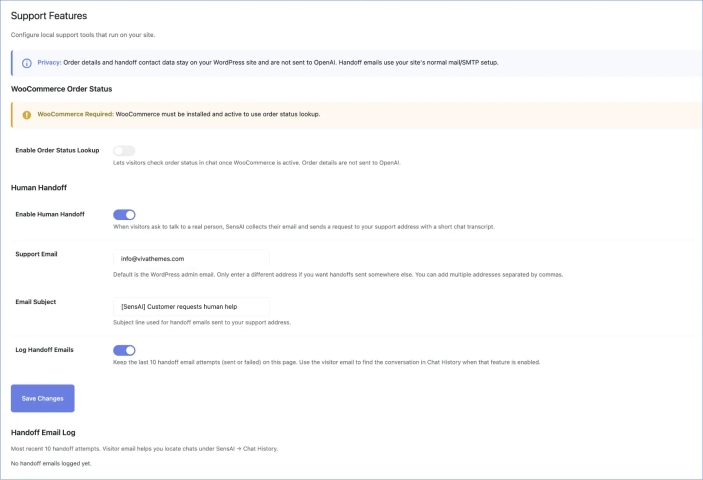
Settings
↑ Back to topGo to SensAI > Support Features > Human handoff.
- Enable human handoff (on by default)
- Support email (optional; defaults to the WordPress admin email, only change it if handoffs should go somewhere else). Multiple addresses can be separated by commas.
- Email subject (customizable)
- Log handoff emails (off by default); keeps the last 10 sent/failed attempts on the Support Features page, with visitor email to help find chats in Chat History
Email delivery
↑ Back to topHandoff uses the same mail path as other WordPress emails. If messages do not arrive, fix SMTP / site mail delivery (for example with an SMTP plugin). This is not an OpenAI issue. When logging is enabled, failed attempts appear in the Handoff Email Log.
Rate limits
↑ Back to top- One successful handoff per chat session
- Limited requests per IP per hour to reduce abuse
Language
↑ Back to topGuided prompts follow the visitor’s language when needed. Email addresses and other collected details are never included in that translation request.
Cancel
↑ Back to topDuring the flow, a Cancel chip appears under the assistant message. Visitors can tap it or type cancel at any step to stop the handoff.