The Shipment Tracking extension for WooCommerce lets you add a shipping provider, tracking number, tracking link, and shipped date to an order. WooCommerce can include these details in order emails and on the order page in My Account, so customers can follow their delivery and your team spends less time answering shipping-status questions.
Installation
↑ Back to topTo start using a product from WooCommerce.com, you can use the “Add to store” functionality on the order confirmation page or the My subscriptions section in your account.
- Navigate to My subscriptions.
- Find the Add to store button next to the product you’re planning to install.
- Follow the instructions on the screen, and the product will be automatically added to your store.
Alternative options and more information at:
Managing WooCommerce.com subscriptions.

Add tracking information to an order
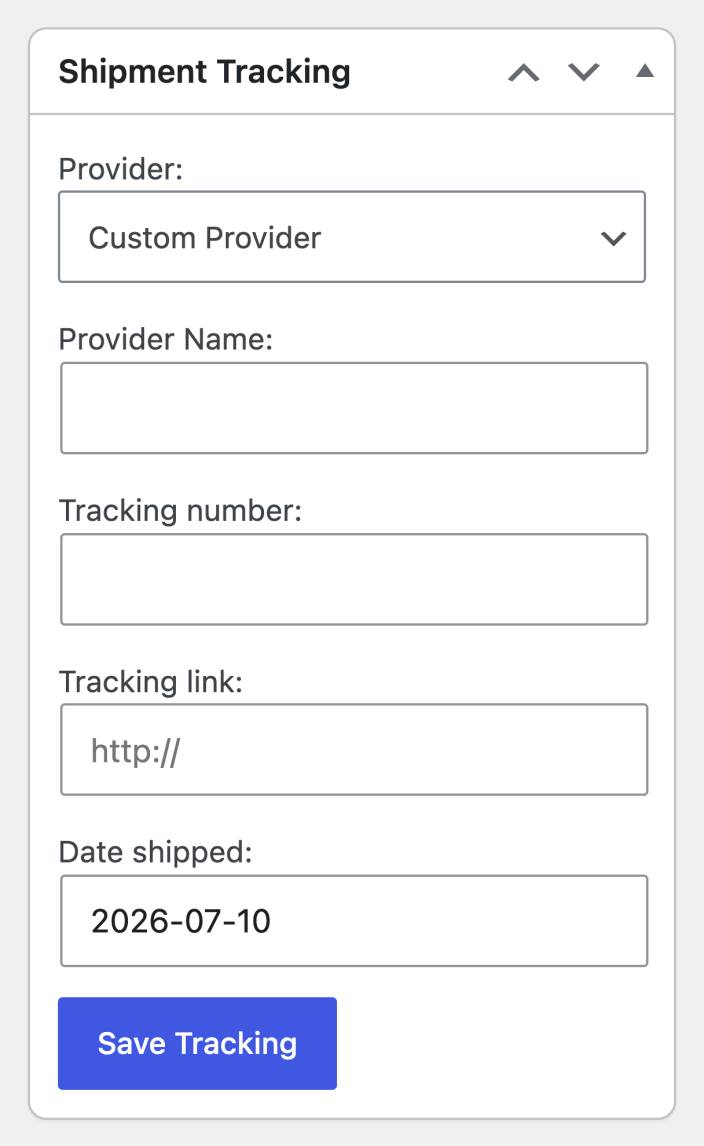
↑ Back to topTo add tracking details to an order, open the order from your list of orders in WooCommerce. You’ll find the Shipment Tracking fields in the sidebar. This contains the provider, tracking number, tracking link, and shipping date fields.
- Go to WooCommerce > Orders and select the order.
- In the Shipment Tracking panel, select Add Tracking Number.
- Select the shipping provider. If it is not listed, select Custom Provider, then enter the provider name and the complete tracking URL.
- Enter the tracking number supplied by the provider.
- Confirm the Date shipped. The field uses the current date by default.
- Open the Preview link to check the destination, then select Save Tracking.
- To add another package or tracking number, select Add Tracking Number again.
Note:
Saving tracking details does not send an email. If you change the order status to Completed, WooCommerce sends the Completed Order email with the saved tracking information.
What customers see
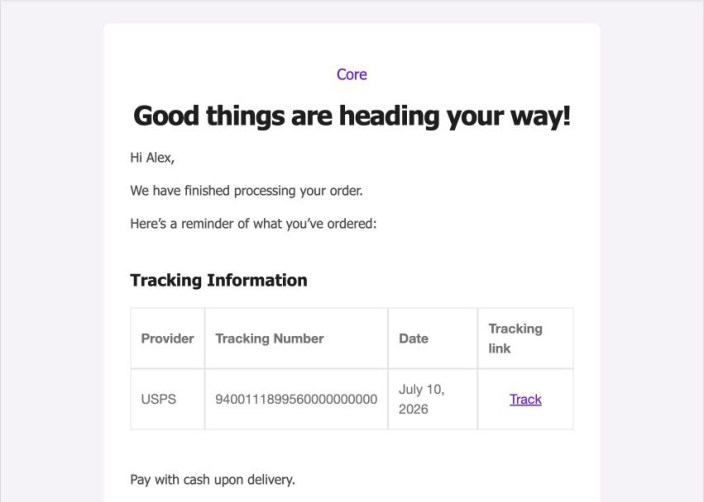
↑ Back to topThe tracking details show the provider, tracking number, shipping date, and a link to the provider. They appear on the order page in My Account and in customer order emails generated after the details are saved. Refunded Order emails do not include tracking information.
Developer reference
↑ Back to topQuestions and support
↑ Back to topSomething missing from this documentation? Still have questions and need assistance?
- If you have a question about a specific extension or theme you’d like to purchase, contact us to get answers.
- If you already purchased this product and need some assistance, get in touch with a Happiness Engineer via our support page and select this product’s name from the Product dropdown.