WooCommerce Subscriptions stores the recurring amount on each subscription when the customer signs up. Changing a subscription product’s price affects new purchases, but it does not change the price on existing subscriptions.
This guide explains how to use AutomateWoo to update existing subscription prices automatically or as a one-time bulk operation.
Before you start
↑ Back to top- Install and activate current supported versions of AutomateWoo and WooCommerce Subscriptions.
- Back up your store and test the workflow on a staging site or a small subscription segment.
- Decide when the new price should apply and how you will notify affected subscribers.
Before changing recurring charges, review applicable laws, payment-provider requirements, and the terms you agreed to with customers. Notice or consent requirements vary by location and business model. This guide is not legal advice.
How the Update Product action works
↑ Back to topThe Subscription – Update Product action updates an existing product line item on a subscription. Only the fields you set in the action are changed. When you set a custom price, AutomateWoo recalculates the subscription totals and reapplies any subscription coupons.
Enter the Custom Product Price without a currency symbol. Use the same tax-inclusive or tax-exclusive format that your store uses on the product edit screen.
Update prices after a renewal payment
↑ Back to topUse the Subscription Renewal Payment Complete trigger when you want the current renewal to use the old price and later renewals to use the new price.
- Go to AutomateWoo > Workflows and select Add New Workflow.
- Enter a descriptive title and leave the workflow type set to Automatic.
- Select the Subscription Renewal Payment Complete trigger.
- In Subscription products, select the product whose existing subscription price you want to change.
- Leave Active subscriptions only enabled unless your workflow must also process another status.
- Add the Subscription – Update Product action and select the same product.
- Enter the new amount in Custom Product Price.
- Save the workflow as disabled, test it, and activate it when you are ready.
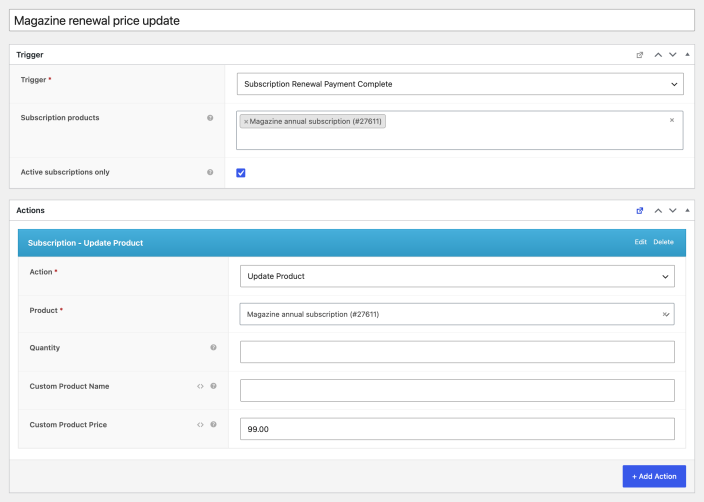
If the new price must apply before the next charge, consider the Subscription Before Renewal trigger instead. Choose the trigger and timing that match your customer notice and consent process.
Run a one-time manual update
↑ Back to topA manual workflow lets you preview the matching subscriptions before adding them to the workflow queue. This is useful for a one-time change or when you need precise rules.
- Go to AutomateWoo > Workflows and select Add New Workflow.
- Enter a descriptive title and set the workflow type to Manual.
- Set Data type to Subscription.
- Add a Subscription – Items rule, choose includes, and select the product to update.
- Optionally add a Subscription – Status rule to limit the update to specific statuses.
- Add the Subscription – Update Product action, select the product, and enter the new price.
- Save the workflow, then select Run.
- Use the manual workflow runner to find matching subscriptions. Review the results before selecting Run workflow for X items.
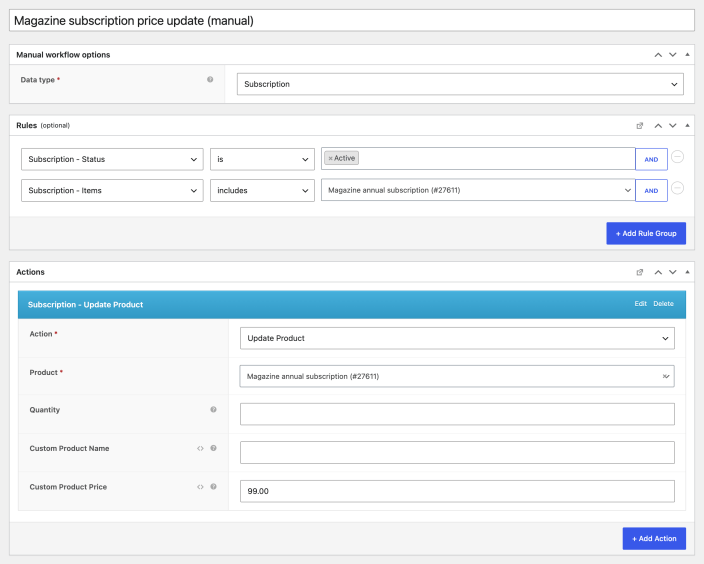
Manual workflow runs are queued, so a large update may not finish immediately.
Update prices used for resubscribe
↑ Back to topWhen a customer resubscribes to an expired or cancelled subscription, the new subscription uses the original line-item prices from the old subscription. It does not automatically use the product’s current price.
To use the current price for future resubscriptions, run a manual update for subscriptions a customer could resubscribe to later: those with the Cancelled or Expired status, and those with the Pending Cancellation status that will end soon. Preview the matching subscriptions before starting the run.
Notify subscribers before the change
↑ Back to topCreate a separate notification workflow when subscribers need advance notice. Use the same product filters or rules as the price-update workflow so both workflows target the same subscriptions.
- Create an automatic workflow and select the Subscription Before Renewal trigger.
- Set the number of days before renewal and, optionally, a time of day.
- Select the affected subscription product.
- Add the Email – Send Email action and complete the recipient, subject, heading, preheader, template, and content fields.
- Save the workflow as disabled, test the message, and activate it when you are ready.
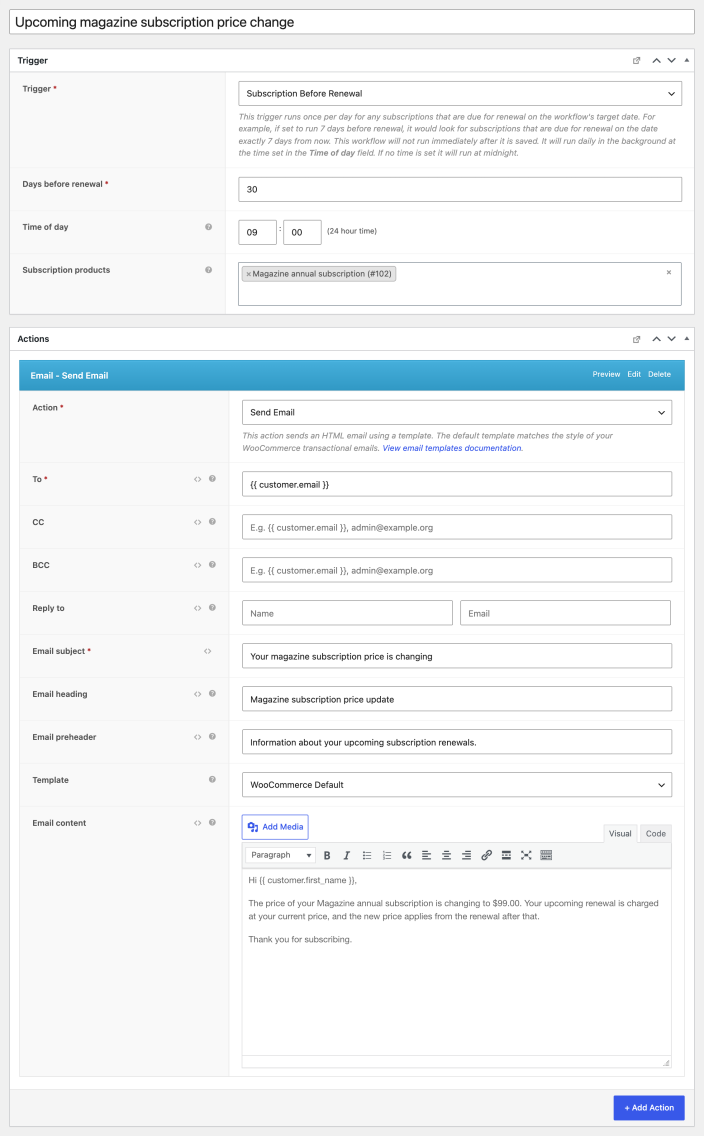
AutomateWoo’s Is transactional? option exempts a workflow from unsubscribe checks. Enable it only when the message is required to service the subscription and is not promotional.
Confirm the price update
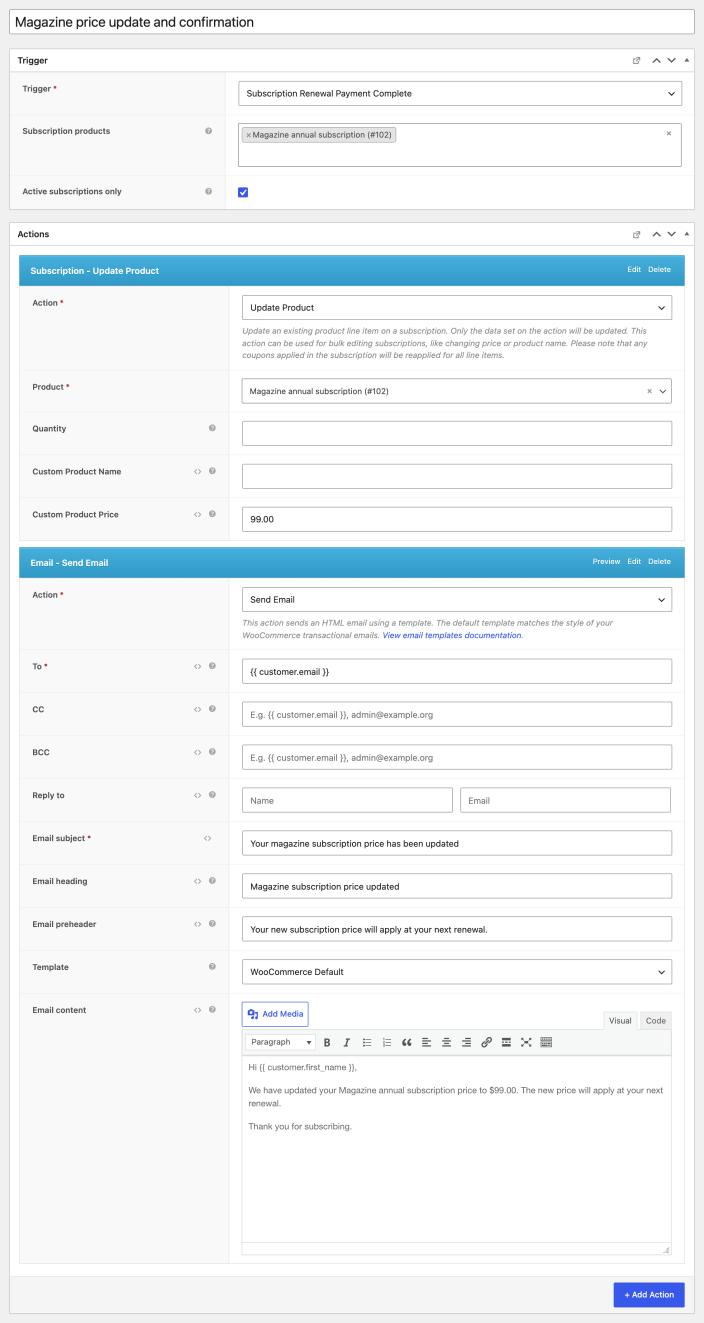
↑ Back to topTo confirm the change when AutomateWoo updates a subscription, add an Email – Send Email action after the Subscription – Update Product action. Tell the subscriber the new price and when it will apply.
Other bulk subscription updates
↑ Back to topAutomateWoo also provides subscription actions for updating shipping, currency, billing schedules, dates, taxes, coupons, and other line-item data. Review the AutomateWoo actions list before combining changes in one workflow.
Questions and support
↑ Back to topSomething missing from this documentation? Still have questions and need assistance?
- If you have a question about a specific extension or theme you’d like to purchase, contact us to get answers.
- If you already purchased this product and need some assistance, get in touch with a Happiness Engineer via our support page and select this product’s name from the Product dropdown.