
2. Search Engine Bots
↑ Back to topThere will be instances where search engines will crawl through the site and display the product prices in search results. Setting this option will disable the prices to be tracked. By default this options is not set.
This option is enabled by default. When enabled, search engine bots are shown the default WooCommerce product prices instead of role-based prices. This ensures that search engines index your standard product pricing while role-based pricing continues to work for store visitors.
What are Search Engine Bots?
↑ Back to topWeb search robots which are also called bots are tools used by web search engines like Google, Bing, Yahoo, etc. to build their databases.
These search engine bots access web pages, index titles, summaries, or the entire content of the document in a more speedy and efficient way.
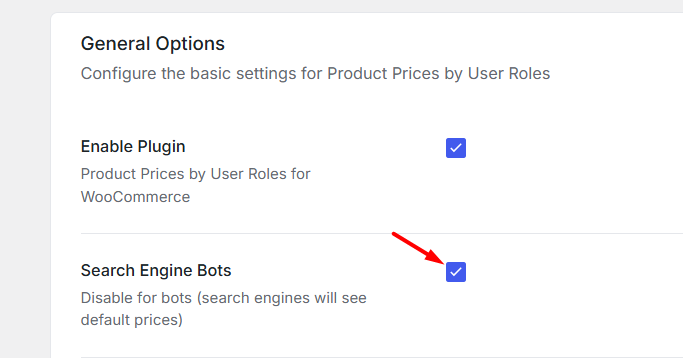
Disabling ‘Price by User Role’ for bots
For instance, you have set a price multiplier for guests user role to display product prices 2 times higher than the base price.
When users with guest user roles visit your site, a 2 times higher price than base price will be displayed.
However, if a search engine bot is detected then in that case it will display the actual base price instead of the modified price.
3. Exclude Product Categories
↑ Back to topUse this setting to exclude specific product categories from role-based pricing. Select one or more product categories that should always display the default WooCommerce product prices instead of prices configured through Multipliers or Per Product pricing.
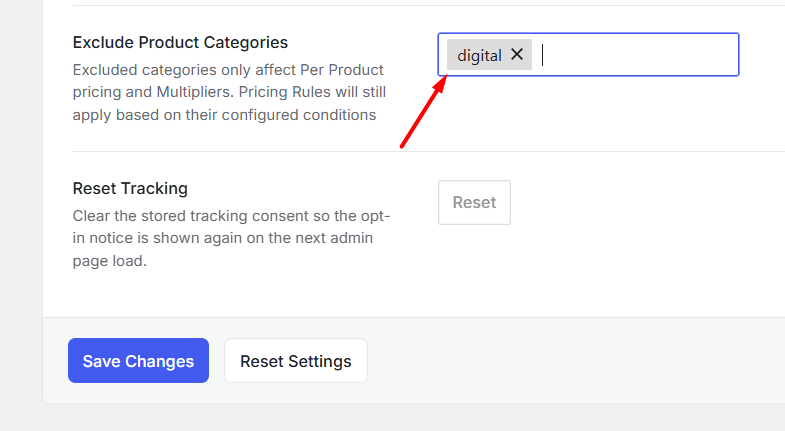
Exclude Product Categories setting
All the product categories available on your site will be visible as a dropdown when you click on the empty field. Choose the product categories that you wish to exclude:
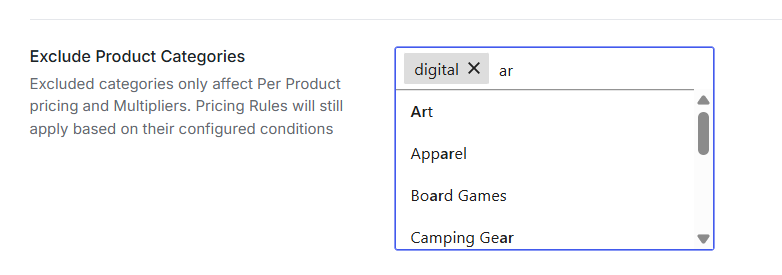
Dropdown options for excluding Product Categories
You can choose more than one product category. For instance, you can go with product categories like ‘Halloween’ and ‘Personalised Gifting’ as shown here:
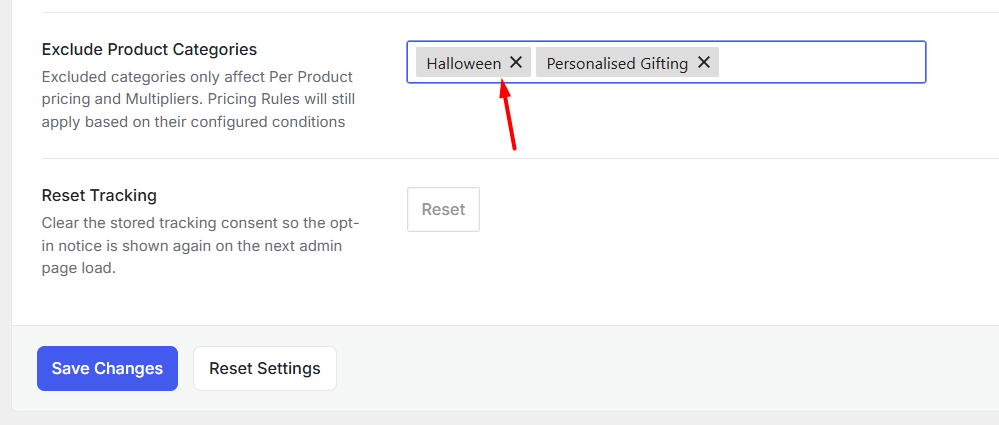
Choosing product categories to exclude
Once done, click the ‘Save Changes’ button.
When the customer goes to the product page of any of the products that fall under these categories then the prices based on user roles will not be displayed.
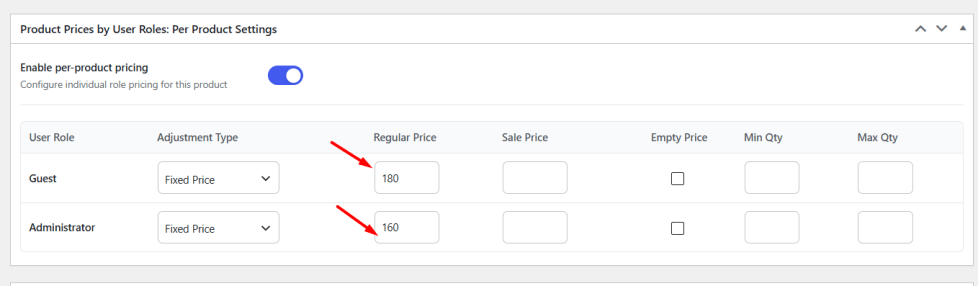
Let’s take the example of the product ‘Fortune Teller Halloween Costume.’ This product falls under the ‘Halloween’ product category. Product prices based on user roles have also been enabled for it:
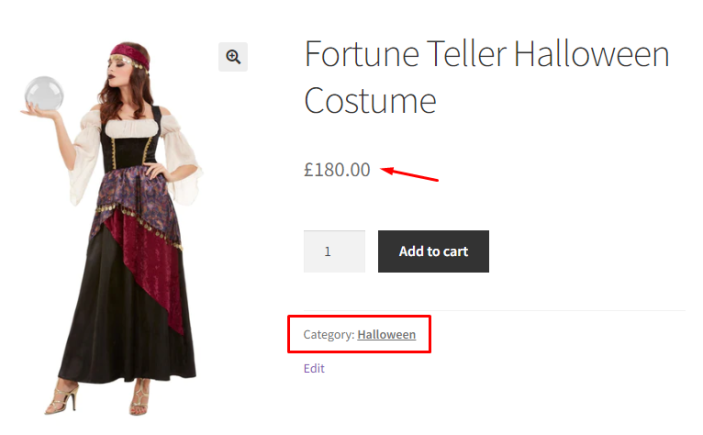
However, since this product category has been added under the setting ‘Exclude Product Categories’, it will NOT display the different prices based on user roles:
If you remove this category from the setting as shown here:

Then the product page of ‘Fortune Teller Halloween Costume’ will continue to show the different prices: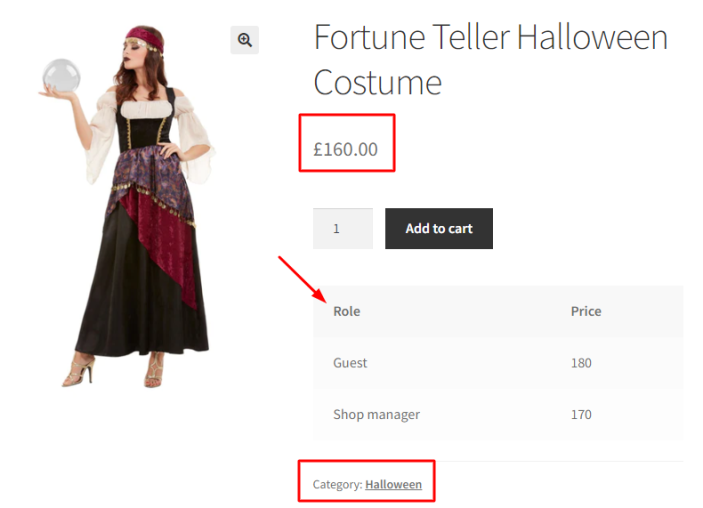
Since it is the admin that views the product page in the above instance, the price for this product is £160. Along with it, different prices for different roles will be shown.
4. Reset Tracking
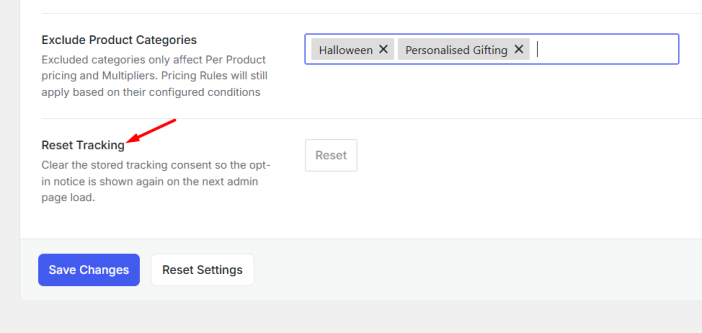
↑ Back to topThis option clears the stored usage-tracking consent for your site.
After resetting, the tracking consent notice will be displayed again on the next admin page load, allowing an administrator to review and update their preference.
B. Reset Settings
↑ Back to topOnce you have configured the General settings, click Save Changes to apply them.
If you want to restore the General settings to their default values, click Reset Settings. This will:
- Enable the plugin.
- Enable the Search Engine Bots option.
- Remove all excluded product categories.
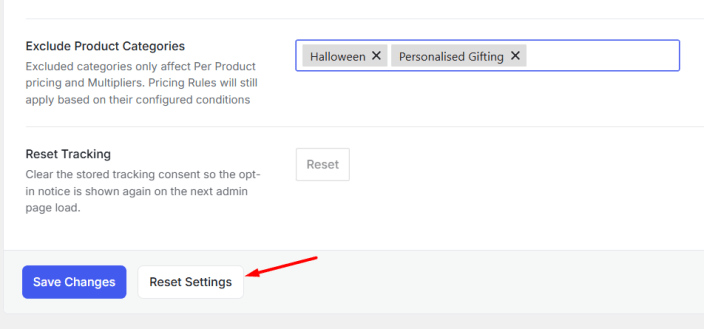
Reset settings
When you tick the Reset section settings checkbox, it will enable the WooCommerce Price by User Role option and untick the Search engine bots checkbox.